
 Community
 Video Library
 Agent Training
 Freshservice
 Freshdesk
 Freshchat
 Freshcaller
 Freshsales
 Freshteam
 Freshworks Neo
 Freshsurvey
 Sprout
 Estate
Roles help you organize your support team and control what each team member can access in Freshdesk. By assigning roles, you can ensure that agents only see and manage the features and tickets relevant to their responsibilities.
This article explains the default agent roles available in Freshdesk and how to assign roles to agents.
TABLE OF CONTENTS
Prerequisites
Before managing agent roles, ensure the following:
- You have Admin or Account Admin privileges in Freshdesk.
- Agents are already added to your Freshdesk account.
- Freddy AI Copilot licenses are purchased before assigning Freddy AI permissions.
Overview of agent roles
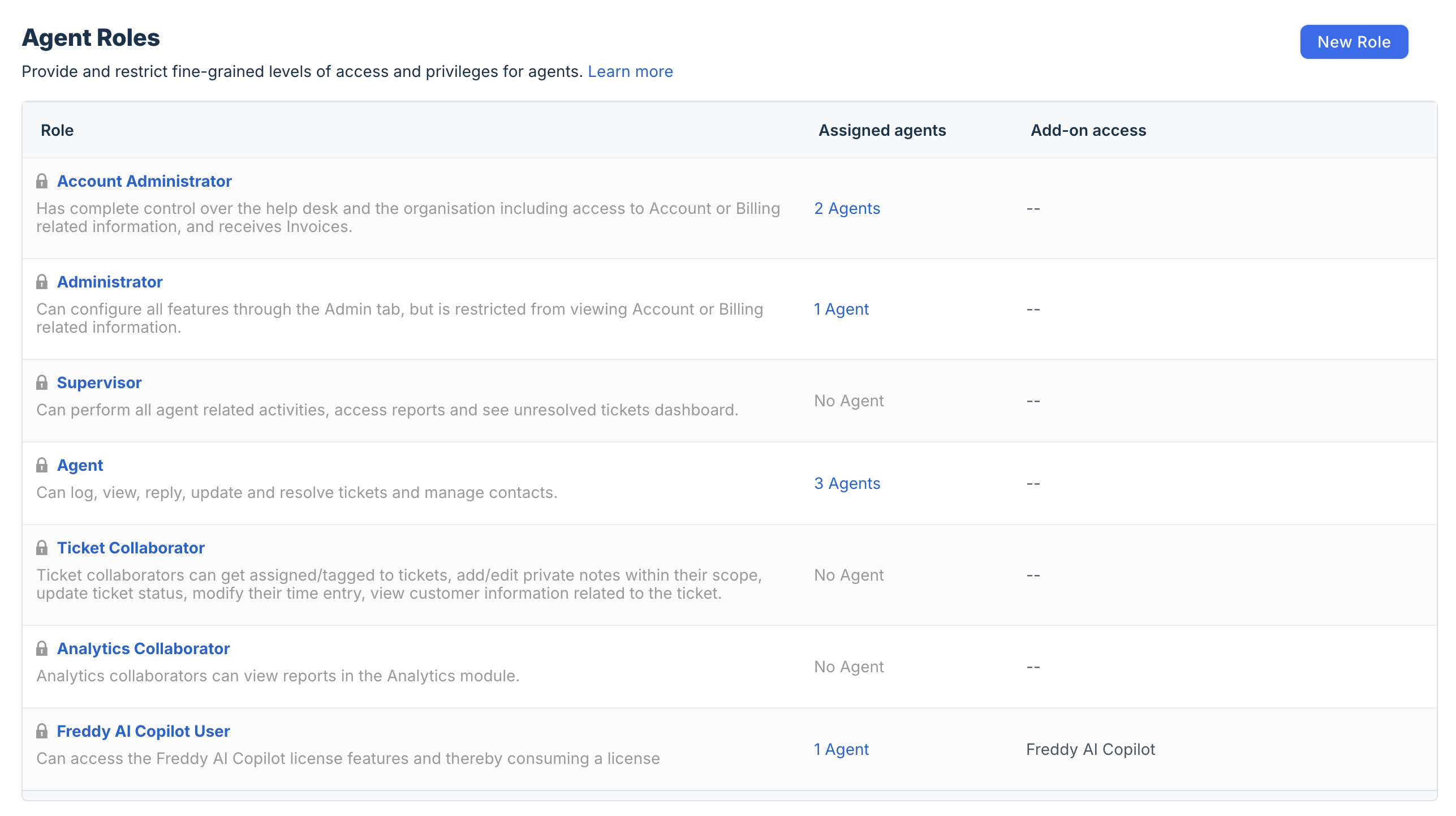
Freshdesk provides a set of default roles that help manage permissions and responsibilities across your support team. The following table lists the available default roles and their permissions:
By default, Freshdesk lets you choose between the following roles for your team members:
- Agents: Can view, respond to, assign, and update tickets.
- Supervisors: Can manage tickets, generate reports, and configure automatic ticket assignment for groups under the Admin tab.
- Administrators: Can access and configure all settings under the Admin tab, but cannot access billing information.
- Account Administrators: Can access all account settings, including billing and account management. At least one Account Administrator must exist at all times.
- Freddy AI Copilot User: Can access Freddy AI Copilot features and consume a Freddy AI Copilot license.
- Ticket collaborator: Can be assigned to tickets, add or edit private notes within their scope, update ticket status, modify time entries, and view related customer information.
- Analytics Collaborator: Can view reports in the Analytics module.
Understanding role permissions
Each time you add a new agent, you must assign at least one role. Once a role is assigned, the agent can access only the features and settings allowed for that role.
For example, an agent assigned the Agent role cannot access Admin settings.
Note: The default Agent role will have access to only canned responses, account exports, and scenario automations settings.
If you assign multiple roles to an agent, the highest privileges allowed across these roles will apply. For example, if you have one role that gives a user access to the community forums and another that allows them to reply to tickets, a user with both roles can access your community forums and reply to tickets.
Assign a role to an agent
You can assign roles to agents either from the roles page or while creating or editing an agent profile.
Assign a role from the roles page
To assign a role from the roles page, follow these steps:
- As an admin, go to Admin > Team > Roles.
- In the Assigned agents column, click the number displayed next to the required role.
- In the Add Agent field, enter the agent's name
- Select the agent and click Save.

Assign a role while adding or editing an agent
To assign roles while creating or editing an agent, follow these steps:
- As an admin, go to Admin > Team > Agents.
- Perform one of the following actions:
- Click New Agent to create an agent.
- Hover over an existing agent and click Edit.
- Scroll down to the Roles section and click the role dropdown menu.
- Select one or more roles for the agent.
- Click Save.

Important:
- If you have the Admin or Account Admin roles, you cannot make changes to your own role and scope settings. Ask another admin or account admin in your account to make the required changes for you.
- Only an Account Admin can grant the Account Admin role to another agent. If your only account admin is no longer with your organization, contact support@freshdesk.com.