
 Community
 Video Library
 Agent Training
 Freshservice
 Freshdesk
 Freshchat
 Freshcaller
 Freshsales
 Freshteam
 Freshworks Neo
 Freshsurvey
Signup Date: After June 2022
You can store and manage Contact and Company information along with communication history across multiple channels.
Before you begin
This article is the first in a series about Managing your Customers.
Manage Contact and Company Fields—understand contacts, companies, and their respective fields.
Manage Contact and Company Data—understand how to create, edit, delete, and manage contacts and companies.
Add filters to segment Contact and Company Data—filter and group customers and create automations and self service for them.
About Contacts and Companies
In Freshdesk Omni, your customers are represented as Contacts and Companies.
A Contact is a single person, identified by their email address. Contacts in Freshdesk are of two types:
Identified Contact: An identified contact is a user with a valid contactable identity, such as an email address, phone number, Instagram username, or Twitter handle. Freshdesk Omni automatically creates a contact for every new user with a contactable identity when they send an email or submit a ticket through any supported channel.
Visitor Contact: A Visitor is someone who chats via Web Chat on your website/app without logging in. Freshdesk Omni assigns them a unique ID so agents can track their history across sessions. Visitors appear as Contacts with a Visitor tag on them and are tracked at a device level. You can convert Visitors to Contacts when you add their email or any other contactable identity details.
Note: You can also use Contact Type (Identified Contact or Visitor) as a condition in SLA policies and Automation rules to customize how tickets are prioritized and routed.
A Company is a group of contacts from the same organization. Freshdesk Omni automatically associates contacts with a company based on their registered domain name.
For both, Freshdesk Omni provides a list of default fields. If you're on paid plans, you can also create custom fields.
Manage Contact and Company fields
Customer information is captured in a number of fields in both contacts and companies. If you're on the Growth plan or above, you can also create custom fields to capture specific information relevant to your business.
Default Contact and Company fields
To view the contact fields, go to Admin > Support Operations > Contact Fields.
Similarly, to view Company fields, go to Admin > Support Operations > Company Fields.
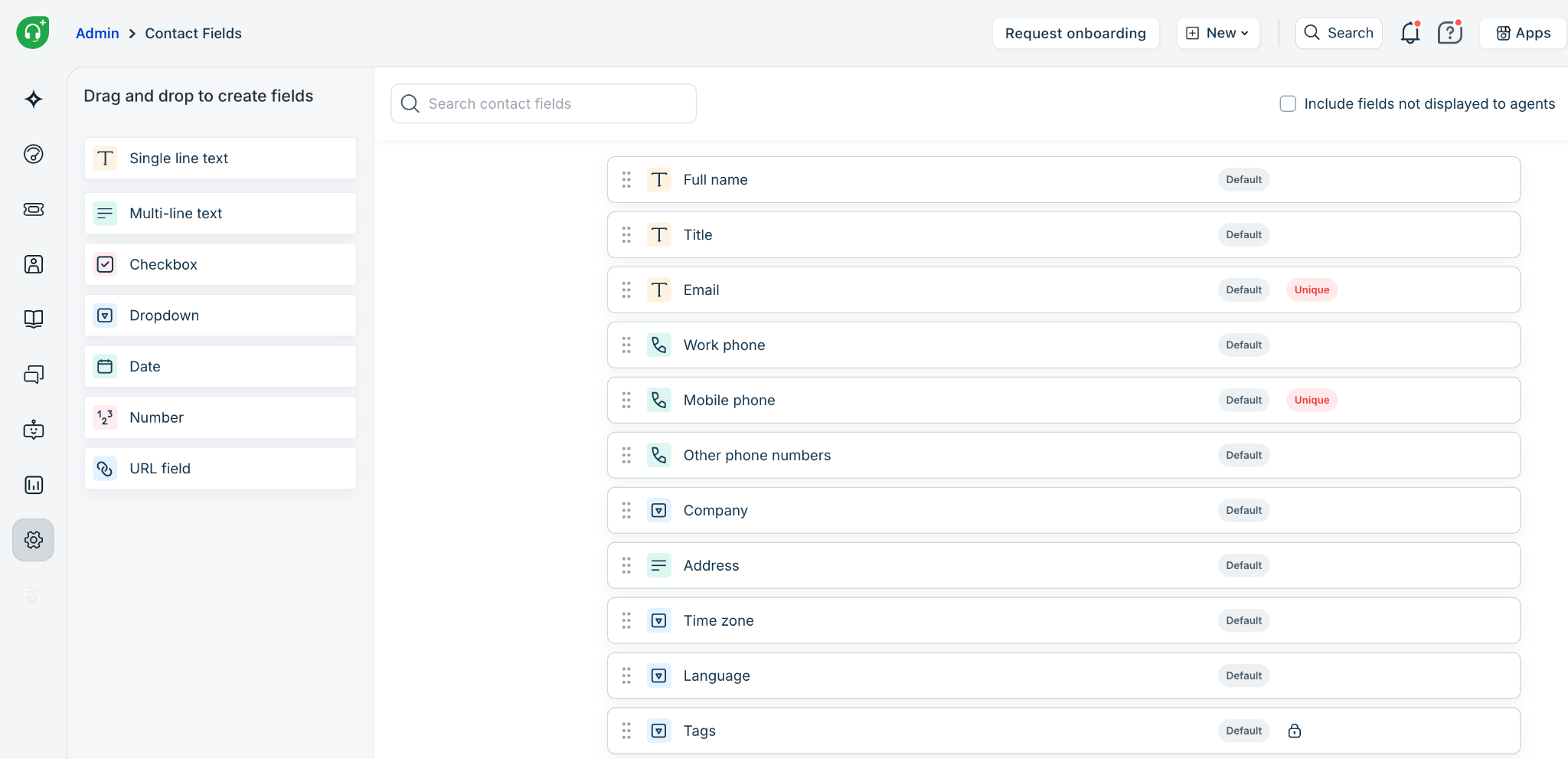
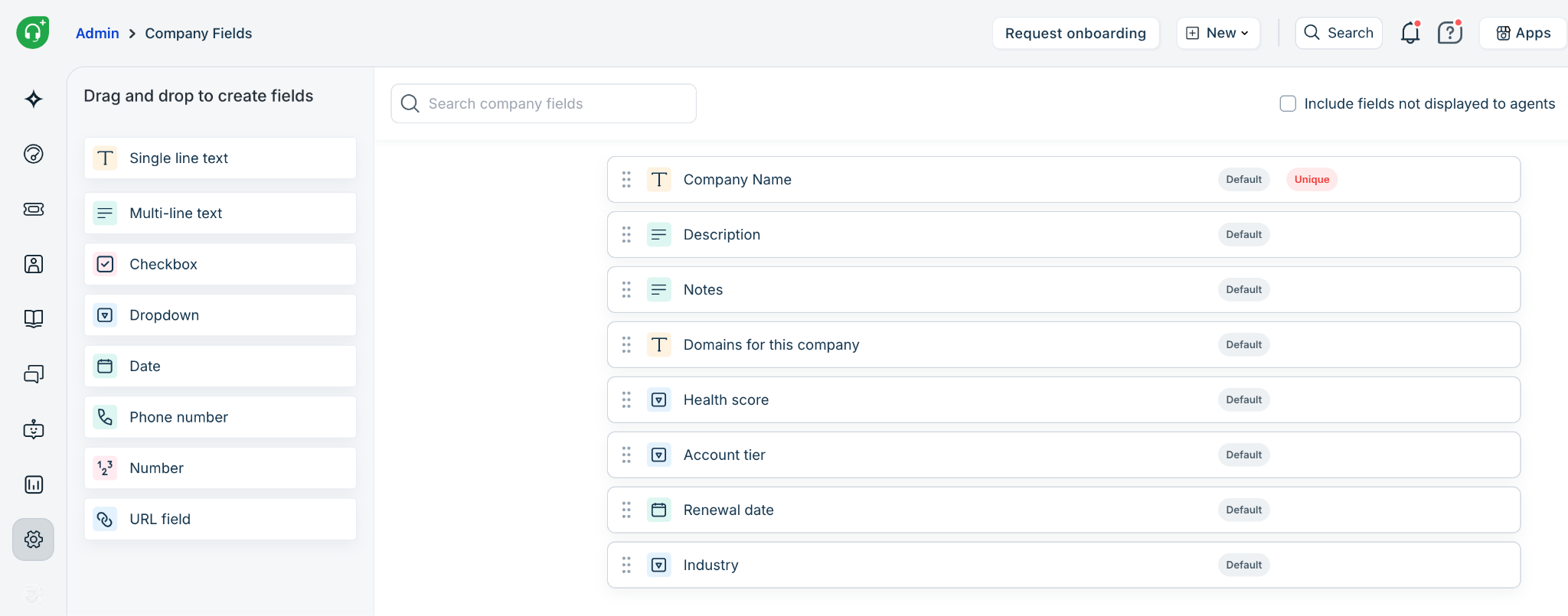
Each default field is described below:
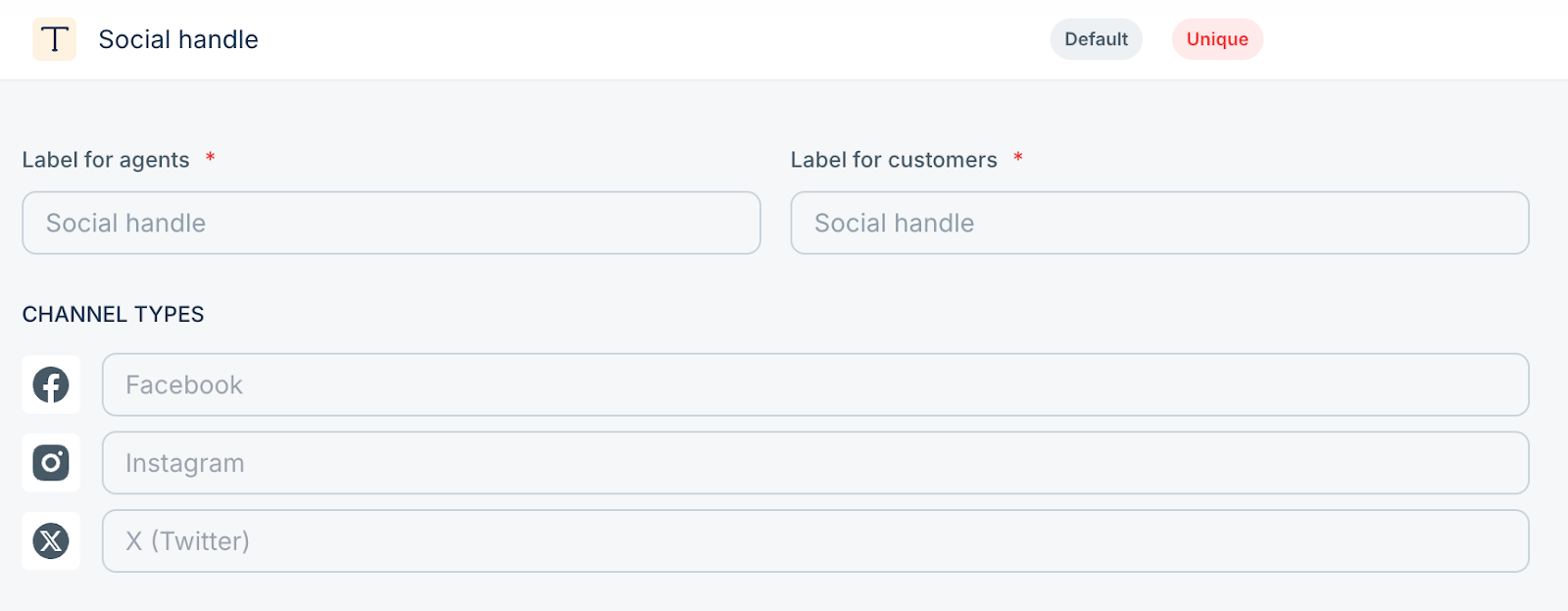
Enabling Include fields not displayed to agents on the top will display all the fields including the ones hidden for agents.
Field properties
Edit fields
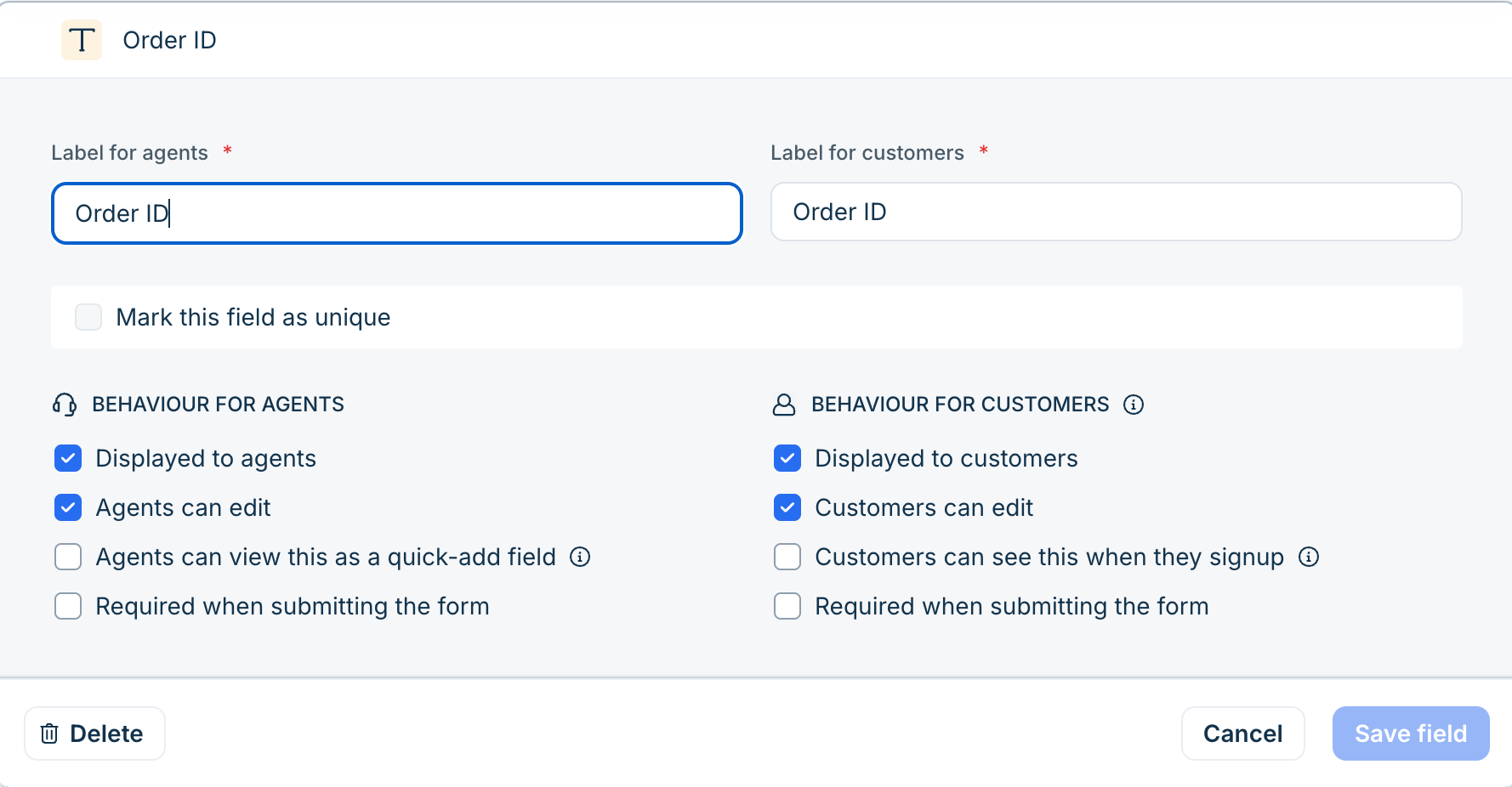
To edit a field, click on it. This opens the field properties in a dialog as displayed below. Make the required changes and click Save field.
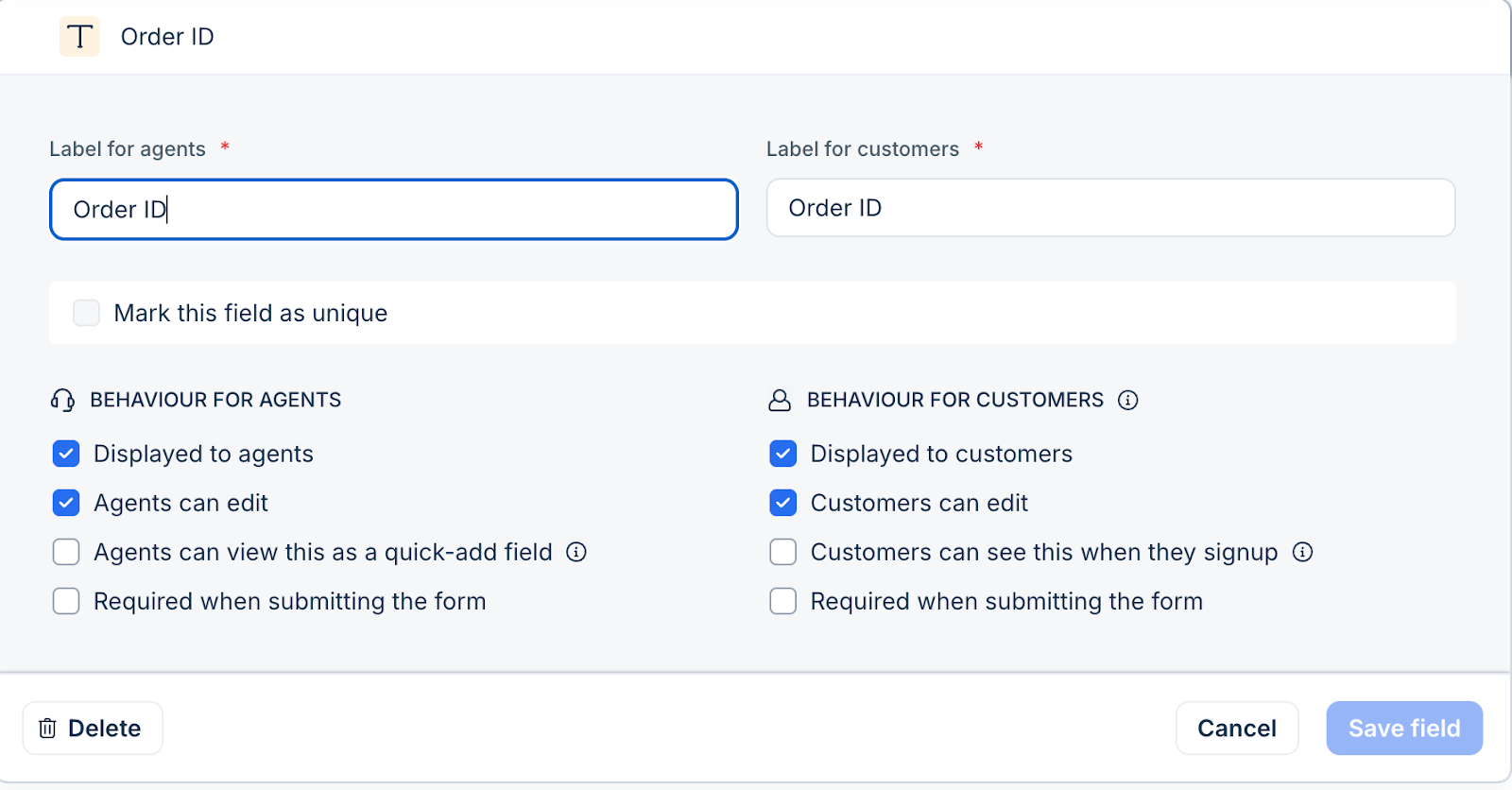
When editing a field, you have the following options:
Label for agents: The name of the field on the agent portal.
Label for customers: The name of the field on the customer portal.
Behavior for agents: Field properties that you can define for the agent:
Display to agents: Display to agents: Controls whether a field is visible in the agent interface (such as contact creation forms, the contact details page, or the edit contact form). If turned off, agents won’t see the field anywhere in the UI.
Note:
Fields hidden from agents can still be used by admins in workflows, contact/company segments, and other backend configurations.
Hidden fields remain available through exports and APIs.
To manage such fields, admins can use the dedicated toggle under Contact Fields or Company Fields.
Agents can edit: If this is enabled, agents can change the value of this field. If disabled (read-only), agents can only view the field but can’t modify it.
Agents can view this as a quick-add field: Some fields are deemed frequently used; these can be marked “Quick-Add” so that they appear in a simpler or shorter version of the form (so agents don’t have to scroll through all fields).
Required when submitting the form: When agents fill out a form (new contact, edit contact, etc.), this field must be filled in before saving. If left empty by the agent, the form will not submit.
Note: Required fields will automatically be added as a quick-add field.
Behavior for customers: Field properties that you can define for the customer:
Display to customer: Whether this field is visible to customers in any customer-facing form (e.g. sign-up, profile page). If off, customers won’t see this field at all.
Customer can edit: If the field is visible, this determines if the customer can change its value (edit it), or only view it (if not editable).
Customer can see this when they Sign up: Whether the field is shown in the initial sign-up or registration form. If yes, they’ll see it when creating their account; if no, it shows up later (in Profile Settings).
Required when submitting the form: If displayed in a form (sign-up or otherwise), this field must be filled by the customer before the form can be submitted. If left empty or skipped, they won’t be able to proceed.
Note: Unlike Contact fields, the properties of Company fields are not visible to customers.
Delete fields
When you click on a customer or contact field, you can delete the field by clicking the bin icon.
Note: You can only delete custom fields, not default fields.
Custom Contact and Company fields
Note: Custom fields are available from the Growth plan onwards.
If you need additional customer information, you can create custom fields for both Contacts and Companies. You can create the following types of fields:
To create a new field:
Go to Admin > Support Operations > Contact Fields > Contacts. To create a custom Company field, go to Admin > Support Operations > Company Fields
Drag and drop a field icon to the list.
Modify the field's properties and click Done.
Reposition your field as required and click Save in the top-right. Your fields are now ready for use.
Agents can view these fields in the Contact Details widget on a ticket and in the Contacts and Companies pages.
If the fields are visible to customers, customers can see them in the Customer portal when they signup and when they edit their profile.
Customize requester widget
When agents view a ticket, they can see the requester's details in the Contact Details widget.
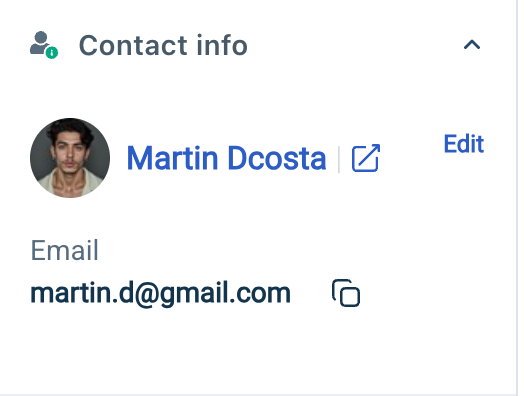
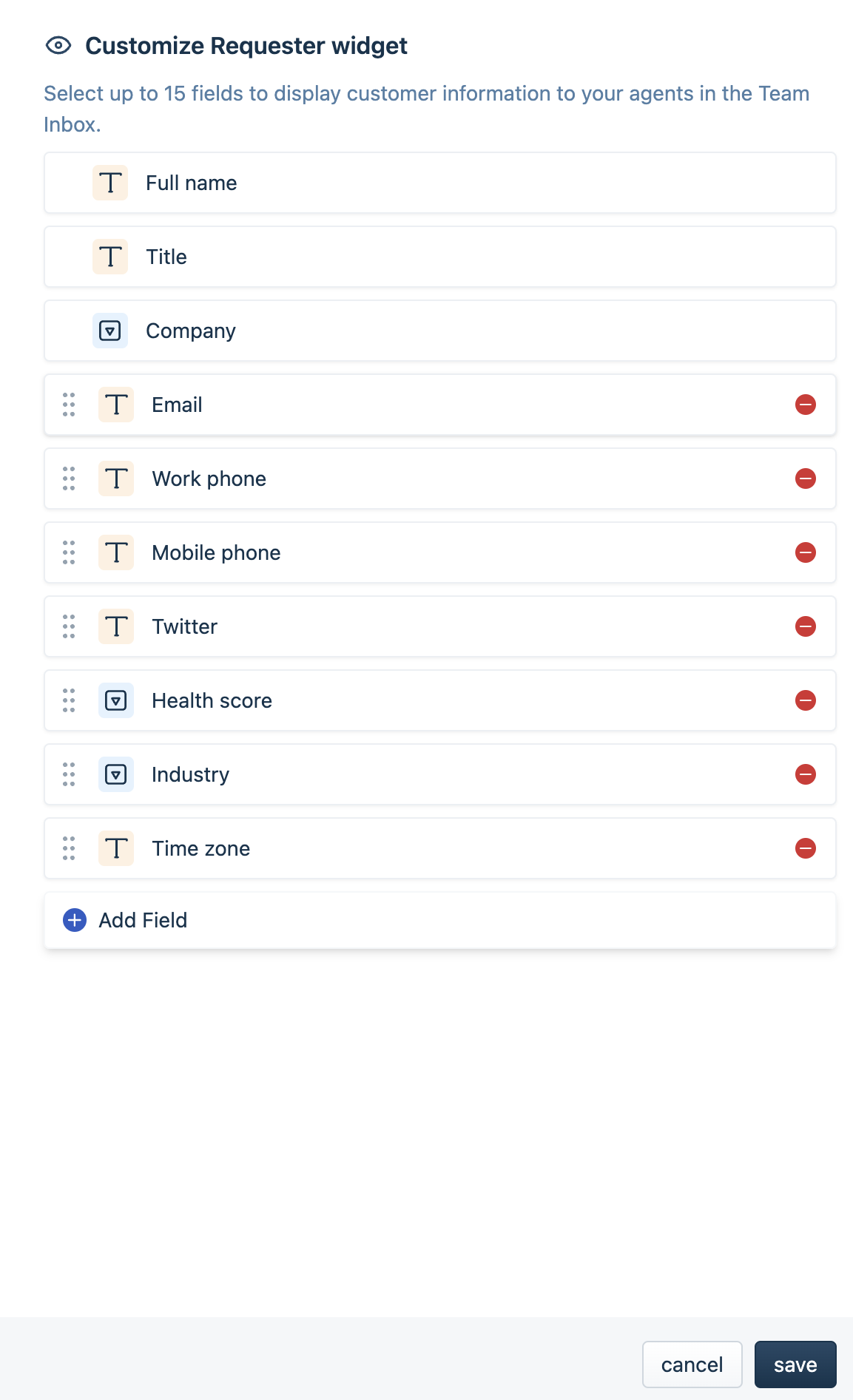
As an admin, you can customize the fields that appear in the widget. To do so:
Go to Admin > Support Operations > Contact/Company Fields and click Customize Widget.
In the dialog, modify the fields visible.
The Full name, Title, and Company Name fields cannot be removed.
Click the minus icon next to a field to remove it.
Click the plus icon at the bottom to add an existing Contact or Company field.
Review your changes and click Save.
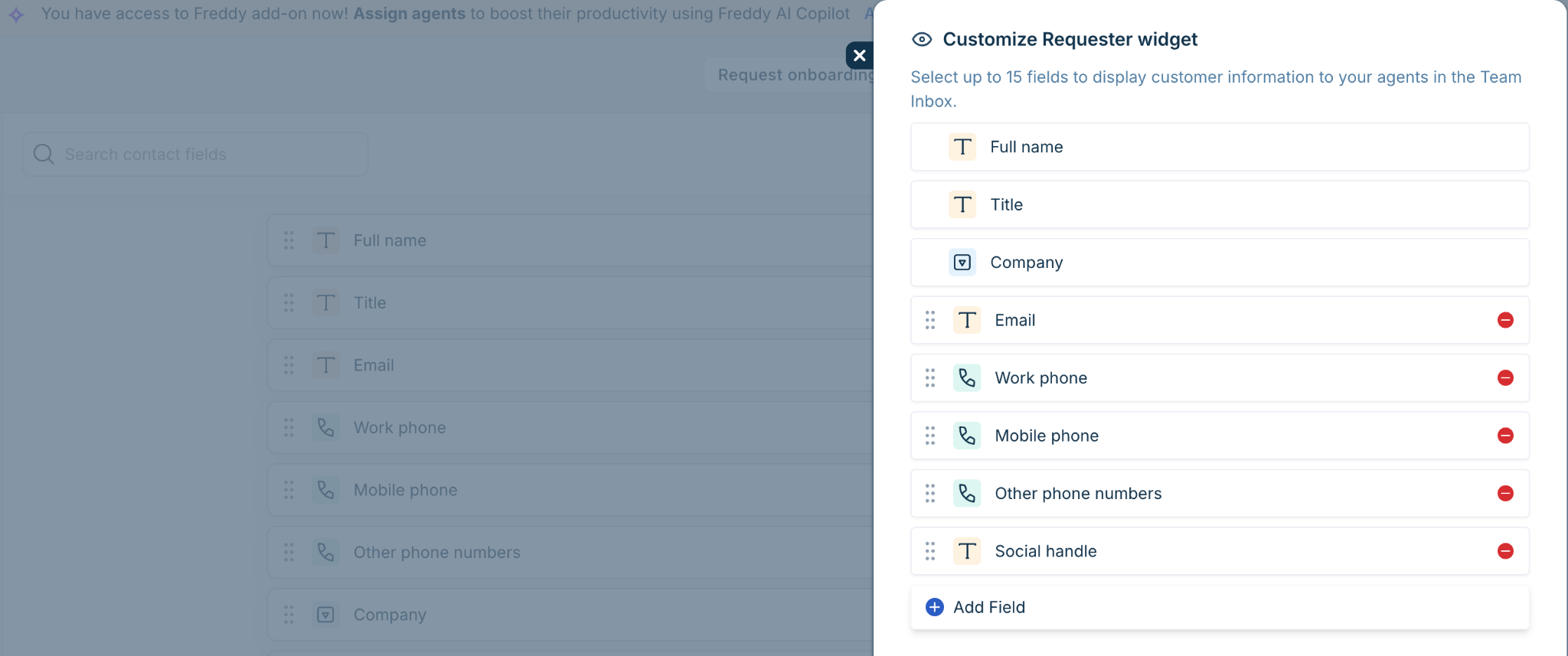
Note: Fields configured as hidden from the agent (when 'Display to agent' is turned off) will be indicated by an invisible icon and will not appear in the requester widget. This is currently not supported on the Mobile app.
Once you've updated your contact and company fields, you can create or import your data. See Manage Customer Data in Freshdesk and Import and Export Data in Freshdesk.
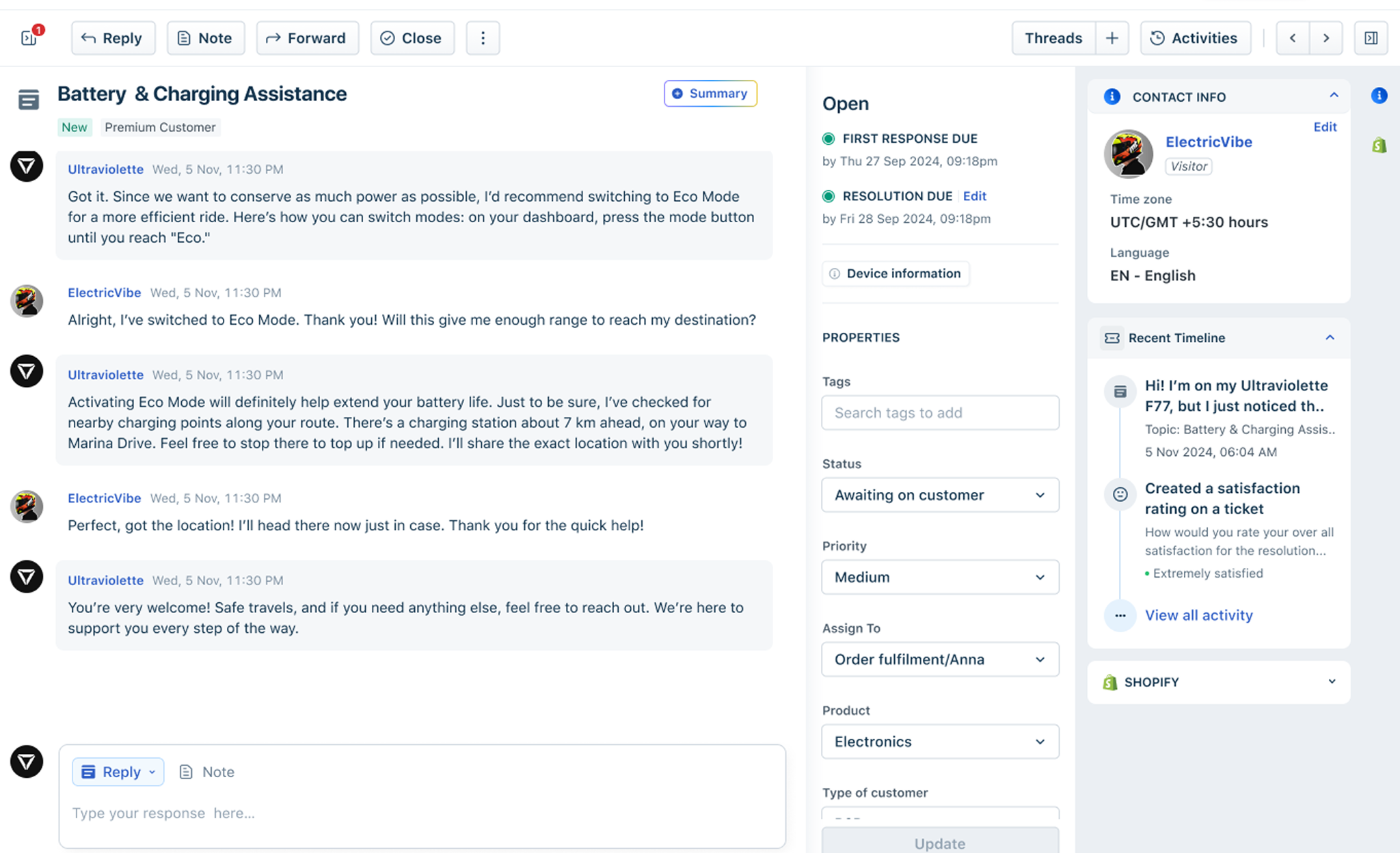
When Webchat is configured, the Requester Widget in the Ticket Details page displays rich contact and visitor details, helping agents understand the customer’s journey before replying.
Requester widget behavior in the Ticket Details page for webchat tickets:
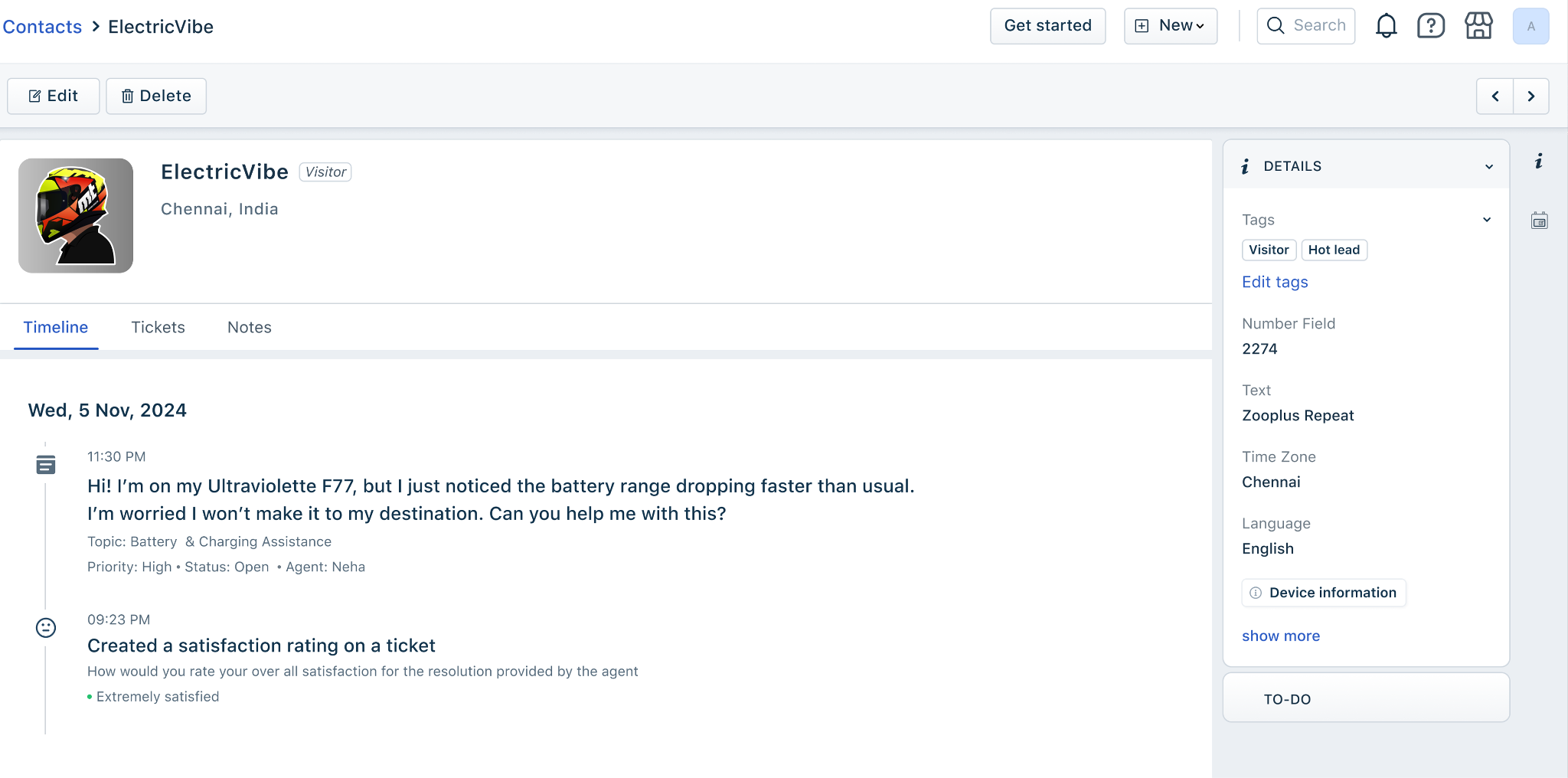
Anonymous visitors reaching you via web chat are shown in the requester widget with a randomly generated guest image, visitor name, and a visitor tag for tracking. The external ID ensures continuity across multiple chats from the same device until the visitor is converted into a contact.
Activity Timeline for Web Chat & Mobile SDK Visitors
For visitors or contacts engaging through Web Chat or the Mobile SDK, Freshdesk Omni captures their activity in the Recent Timeline. This includes page views, article views, and any custom events you’ve configured through the web widget or APIs.
These events occur even before a visitor shares their contact details or is converted into a full contact, providing agents with valuable context about what the visitor has viewed or interacted with before initiating a conversation.
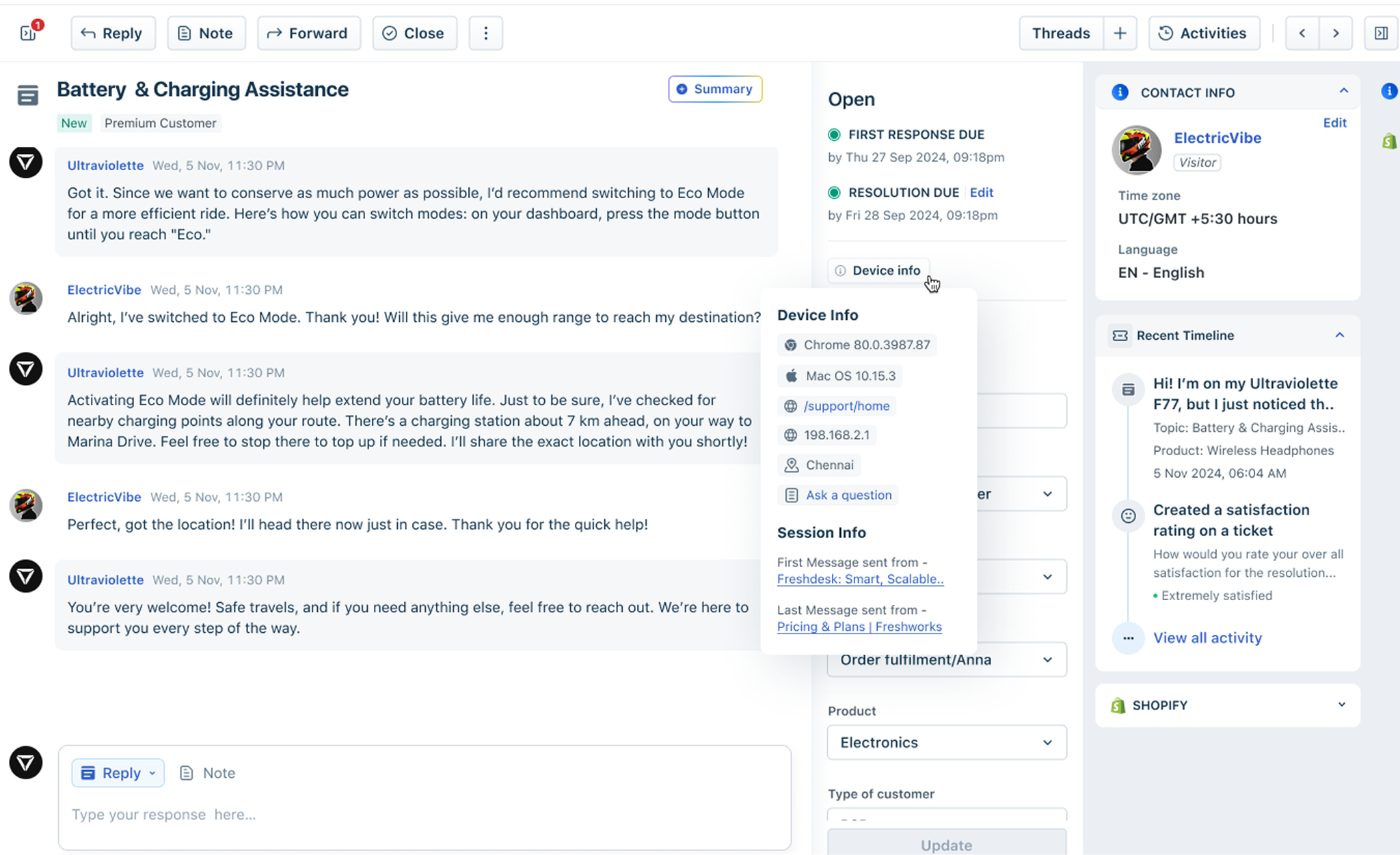
Click Device Information to view the visitor’s browser and version, operating system, current page or URL path, and IP address. It also shows the context of the message (for example, the page where they clicked “Ask a question”).
Session Info displays the page from which the first and last messages in the session were sent, helping agents understand the visitor’s journey before and during the conversation.
Associating a visitor with an existing contact
When a visitor provides information such as a phone number or email address, click Edit on the Requester widget to enter the details. If the contact already exists, click Associate contact to update the existing contact with the new information. The requester widget will then display the contact's information instead of the visitor's. This update happens in real time if shared during an active chat.
Updating a visitor as a new contact
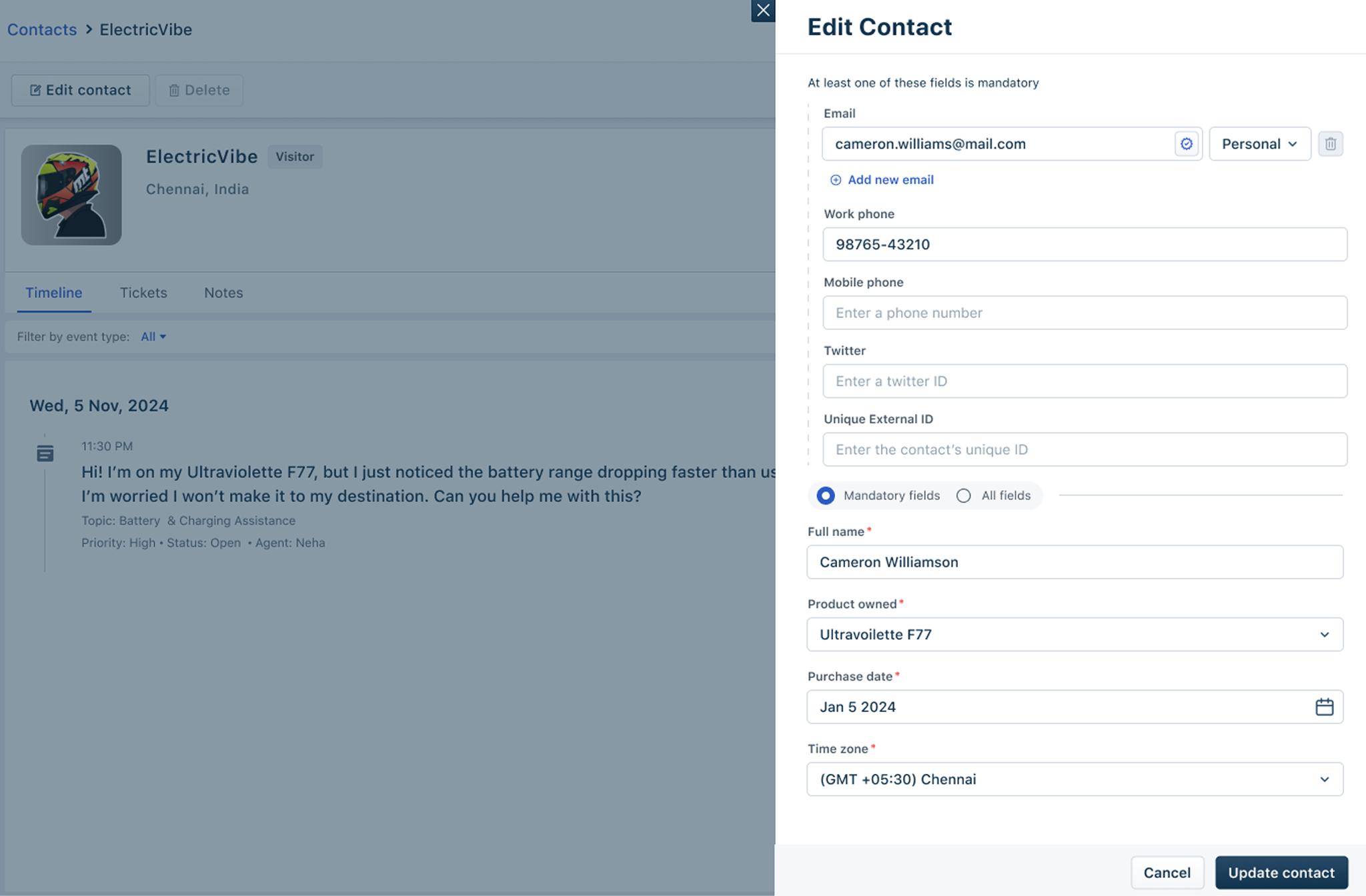
If the details you enter are not in the existing list of Contacts, you can create a new contact directly from the Ticket details page. Click Edit, add the contact details, and then click Update contact to create a new contact. The requester widget will then display the contact's information instead of the visitor's.
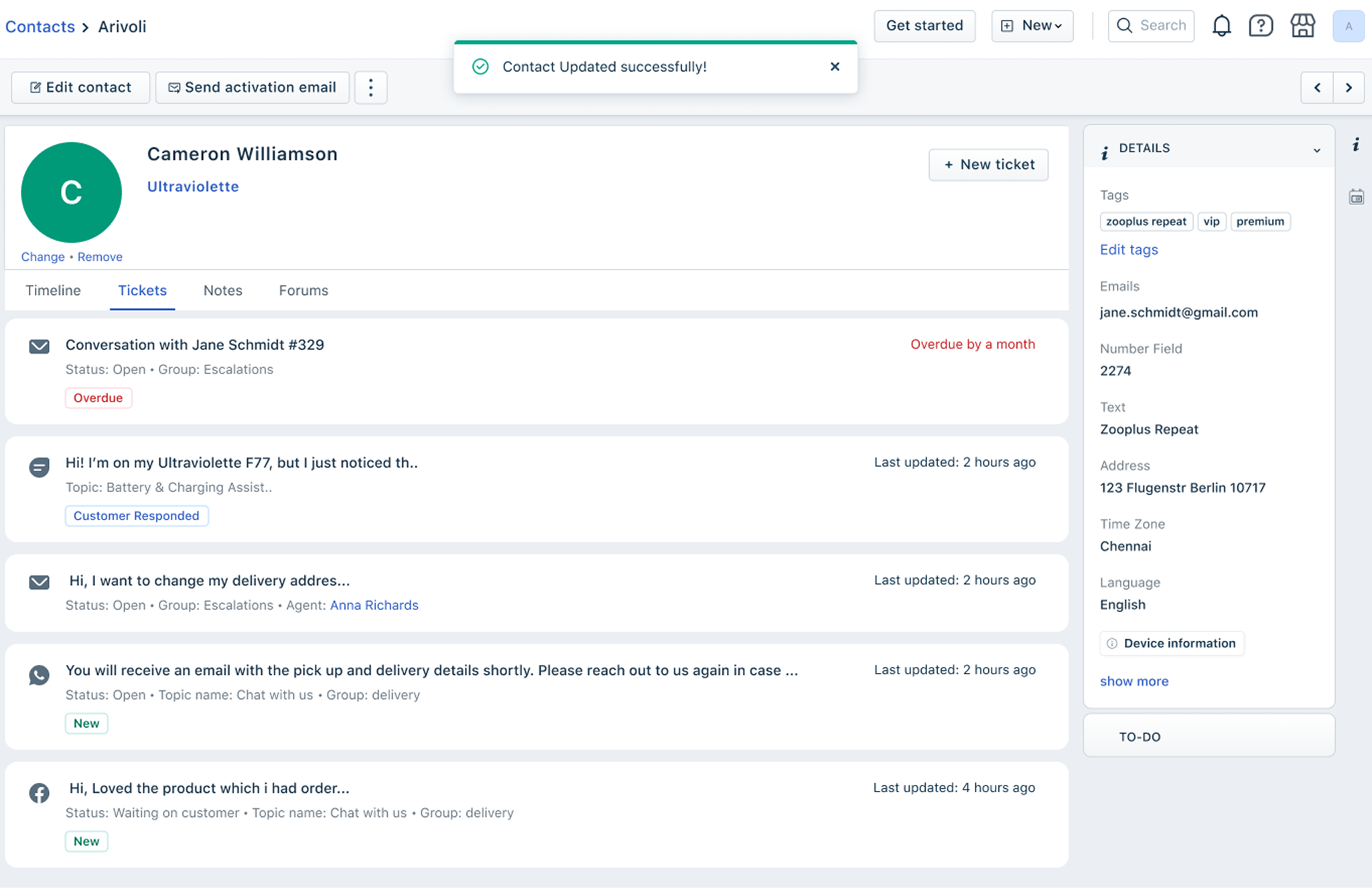
Note: You can also click on the Visitor's name in the Requester widget to open the Visitor details page, which displays their past sessions, page views, and custom events. From there, you can associate or create a Contact. If the visitor is already a known contact before reaching chat, the Requester widget will directly display the contact details instead of the visitor placeholder.
Signup Date: Before June 2022
Customer fields in Freshdesk are highly customizable and can represent all your customer data in a bespoke, robust schema.
Applicable Plans
| Freshdesk | Free, Growth, Pro, Enterprise |
| Freshdesk Omni (formerly CSS) | Growth, Pro, Enterprise |
| Omnichannel | Growth, Pro, Enterprise |
| Freshdesk (previous plans) | Sprout, Blossom, Garden, Estate, Forest |
| Omnichannel (previous plans) | Estate, Forest |
Before you begin
This article is the first in a series about Managing your Customers.
- Manage your Customer Data Schema—understand contacts, companies, and their respective fields.
- Manage Customer Data in Freshdesk—understand how to create, edit, delete, and manage contacts and companies.
- Personalize support using Customer Segments—filter and group customers and create automations and self service for them.
About Contacts and Companies
In Freshdesk, your customers are represented as Contacts and Companies.
- A Contact is a single person, identified by their email address. Freshdesk automatically creates a contact for every new user who sends an email or submits a ticket.
- A Company is a group of contacts from the same organization. Freshdesk automatically associates contacts with a company based on their registered domain name.
For both, Freshdesk provides a list of default fields. If you're on paid plans, you can also create custom fields.
Manage your schema with customer fields
Customer information is captured in a number of fields in both contacts and companies. If you're on the Growth plan or above, you can also create custom fields to capture specific information relevant to your business.
Default contact and company fields
To view the contact fields, go to Admin > Support Operations > Contact Fields.
Similarly, to view Company fields, go to Admin > Support Operations > Company Fields.
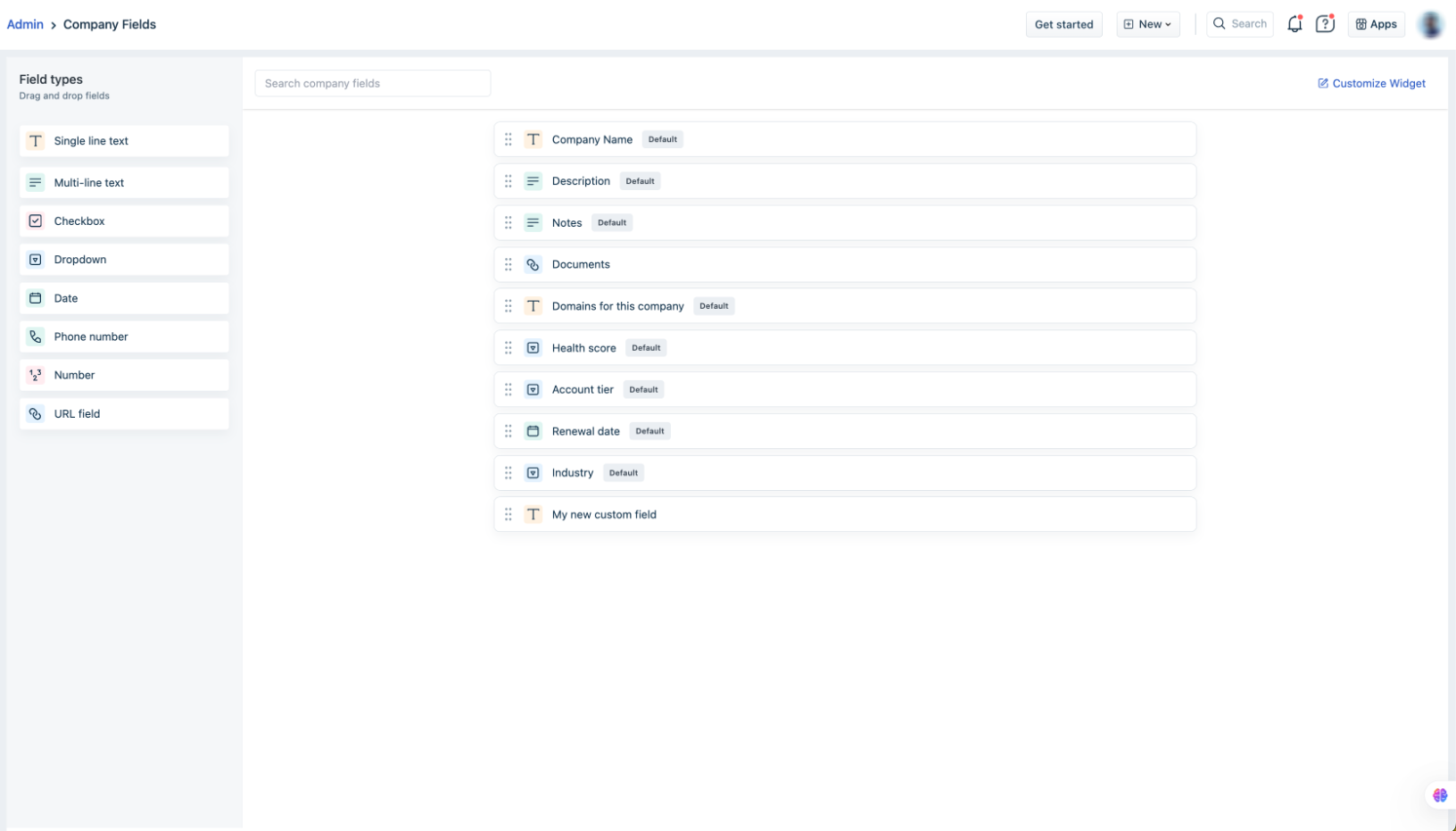
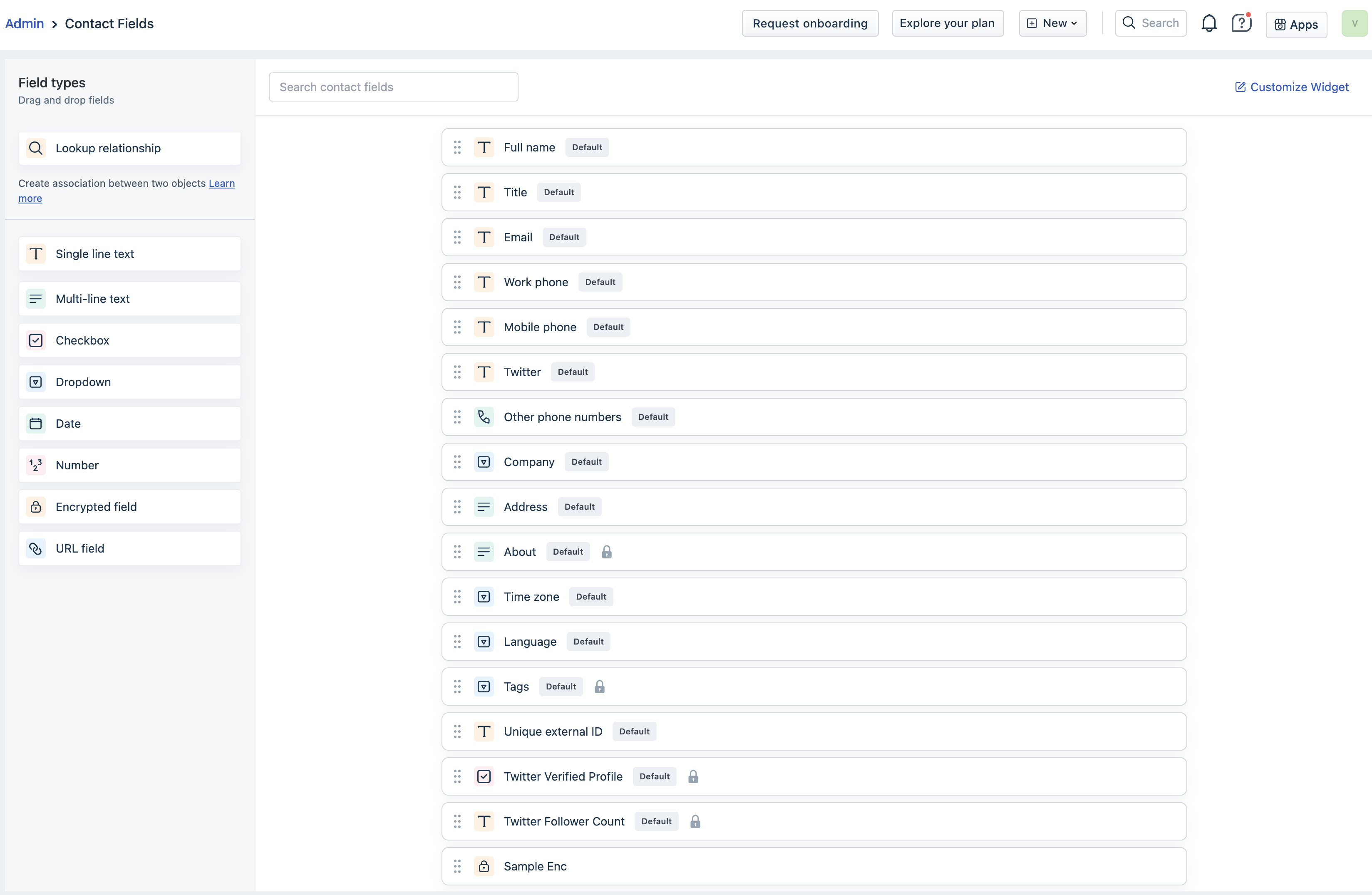
Each field is described below:
| Tab | Field | Description |
|---|---|---|
| Contacts | Full name | Single-line text. The primary name field for the contact. |
| Title | Single-line text. Use for a position or role. | |
| Single-line text with validation. The primary email address for the contact | ||
| Work phone | Number with validation. 1 of 2 phone fields for the contact. | |
| Mobile phone | Number with validation. 1 of 2 phone fields for the contact. | |
| Other phone numbers | Dropdown field for additional phone numbers. Modify it to add labels for phone number type (such as "US Office" and "India Office"). | |
| Single-line text. The Twitter ID of the contact. | ||
| Company | Dropdown field to hold a Company added to your Freshdesk. By default, this field accepts multiple companies. Modify to change this behavior. | |
| Address | Multi-line text. The primary address for the contact. | |
| Time zone | Dropdown. The time zone of the contact. Only modifiable on paid plans. | |
| Language | Dropdown. The language of the contact. Only modifiable on paid plans. | |
| Tags | Dropdown with validation. Tags you've added to your account. Learn more. | |
| About | Multi-line text. A description of the contact. | |
| Unique external ID | Single-line text. If you use an ID convention in other tools (such as account numbers), you can represent that same ID here. | |
| Companies | Company Name | Single-line text. The primary name field for the company. |
| Description | Multi-line text. A description of the company. | |
| Notes | Multi-line text. Any additional details for the company. | |
| Domains for this company | A special multi-input field to hold email domains for the company. | |
| Health score | Paid plans only. A dropdown field to represent the customer relationship. | |
| Account tier | Paid plans only. A dropdown field to represent the contract tier. | |
| Renewal date | Paid plans only. A date field to serve as a reminder for contract renewal. | |
| Industry | Paid plans only. A dropdown field to represent the customer industry. |
Field properties
When you hover over a customer or contact field, you can delete the field by clicking the trashcan icon.
Note: You can only delete custom fields, not default fields.

To edit a field, click on it. This opens the field properties in a dialog as displayed below. Make the required changes and click Save field.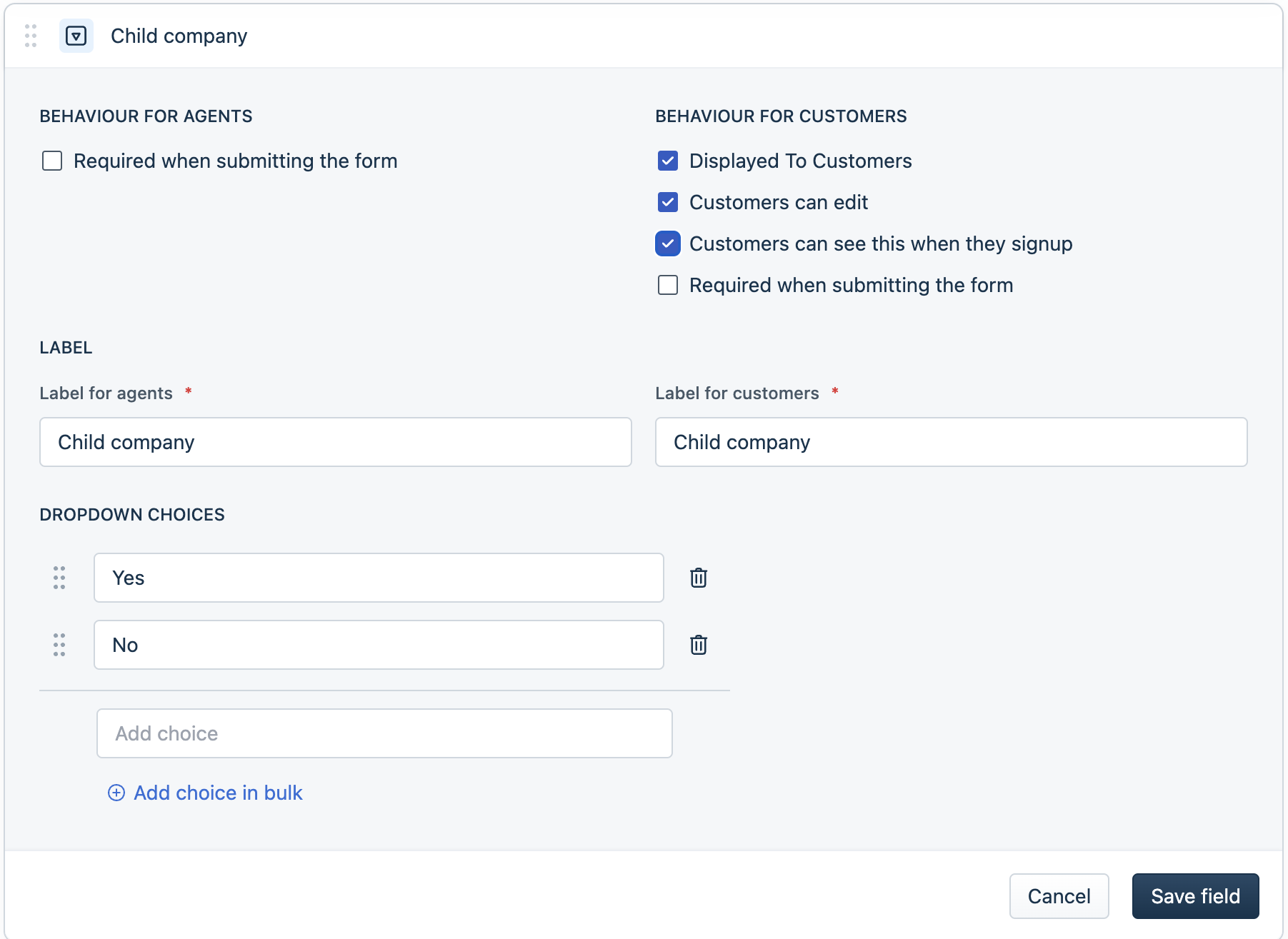
| Contact Field | Description |
|---|---|
| (Behavior for agents) Required when submitting the form | Make a field mandatory for agents. |
| (Behavior for Customers) Display to customer | Customers can see this field in their profile. Fields that are not visible to customers have a lock icon next to them in the list of fields. |
| (Behavior for Customers) Customer can edit | Customers can update this field in their profile. |
| (Behavior for Customers) Customer can see this when they Sign up | Customers can see this field in the signup form. |
| ((Behavior for Customers) Required when submitting the form | Make a field mandatory for customers during signup and while editing their profile. |
| Label | The name of the field on the agent portal and the customer portal. |
| (Dropdown choices) Dropdown Items | The choices for a dropdown field. |
Note: Unlike Contact fields, the properties of Company fields are not visible to customers.
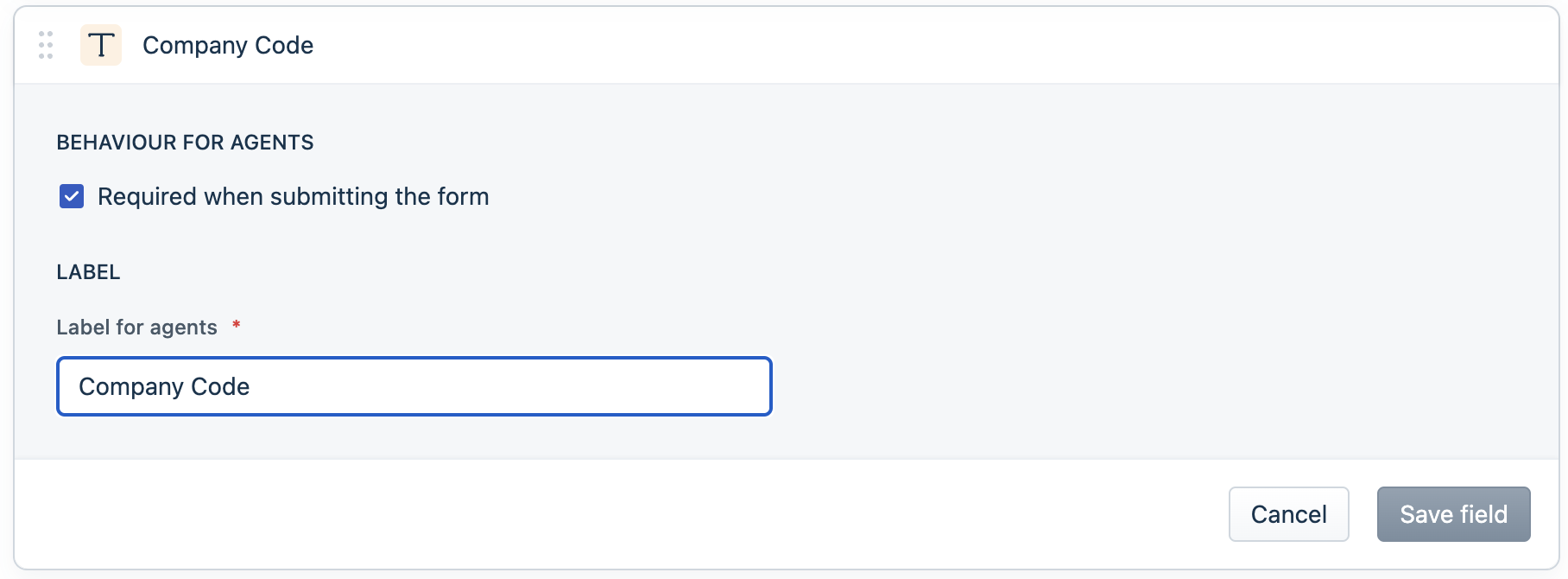
Custom contact and company fields
Custom fields are available from the Growth plan onwards.
If you need additional customer information, you can create custom fields for both Contacts and Companies. You can create the following types of fields:
| Field Type | Description |
|---|---|
| Single-line Text | Accept a single line of text. Suitable for first names, last names, and other phrases. |
| Multi-line Text | Accept long text. Suitable for addresses, background information, and other descriptions. |
| Checkbox | Accept a true or false value. Suitable for getting permissions. |
| Number | Accept a numeric value. Suitable for zip codes, costs or prices, etc. |
| Dropdown | Accept a value from a predefined list. Suitable for many different types of inputs. |
| Phone number | Accept a phone number. |
| URL | Accept a link. Suitable for website links, Linkedin profiles, etc. |
| Date | Accept a date value. Suitable for date of birth, scheduling, etc. |
To create a new field:
- Go to Admin > Support Operations > Contact Fields and select Contacts. To create a custom Company field, go to Admin > Support Operations > Company Fields.
- Drag and drop a field icon to the list.
- Modify the field's properties and click Done.
- Reposition your field as required and click Save in the top-right. Your fields are now ready for use.
- Agents can view these fields in the Contact Details widget on a ticket and in the Contacts and Companies pages.
- If the fields are visible to customers, customers can see them in the Customer portal when they signup and when they edit their profile.
Customize Requester Widget
When agents view a ticket, they can see the requester's details in the Contact Details widget. See Understand the Ticket Details View.
As an admin, you can customize the fields that appear in the widget. To do so:
- Go to Admin > Support Operations > Contact/Company Fields and click Customize Requester widget.
- In the dialog, modify the fields visible.
- The Full name, Title, and Company Name fields cannot be removed.
- Click the minus icon next to a field to remove it.
- Click the plus icon at the bottom to add an existing Contact or Company field.
- Review your changes and click Save.
Once you've updated your customer data schema, you can create or import your data. See Manage Customer Data in Freshdesk and Import and Export Data in Freshdesk.