
 Community
 Video Library
 Agent Training
 Freshservice
 Freshdesk
 Freshchat
 Freshcaller
 Freshsales
 Freshteam
 Freshworks Neo
 Freshsurvey
 Estate Omnichannel
 Free
FreeUsing Freshworks Analytics, you can download reports and widgets, send them by email, or schedule them to be emailed on a recurring basis.
Note: Exporting a report or widget differs from using the Data Export option under Analytics Settings. For more information, see Exporting data.
Export Reports
The report export options allow you to send a report by email via Send email, schedule automatic emails via Schedule email, or download the report via download file.
To begin:
- Go to Analytics and open the report you want to export or download.
- Click Export report. The Export report screen opens.
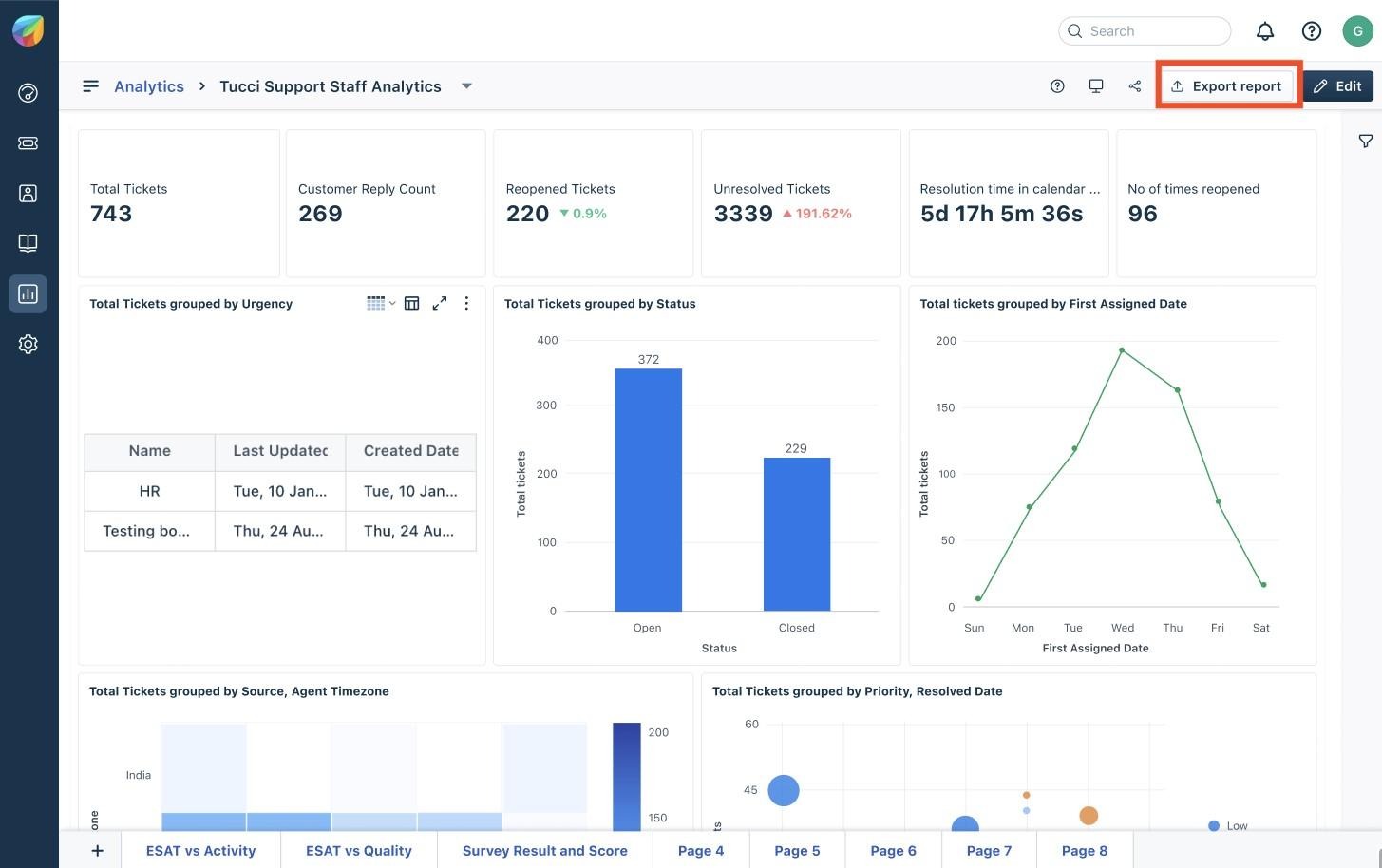
- Export screen opens
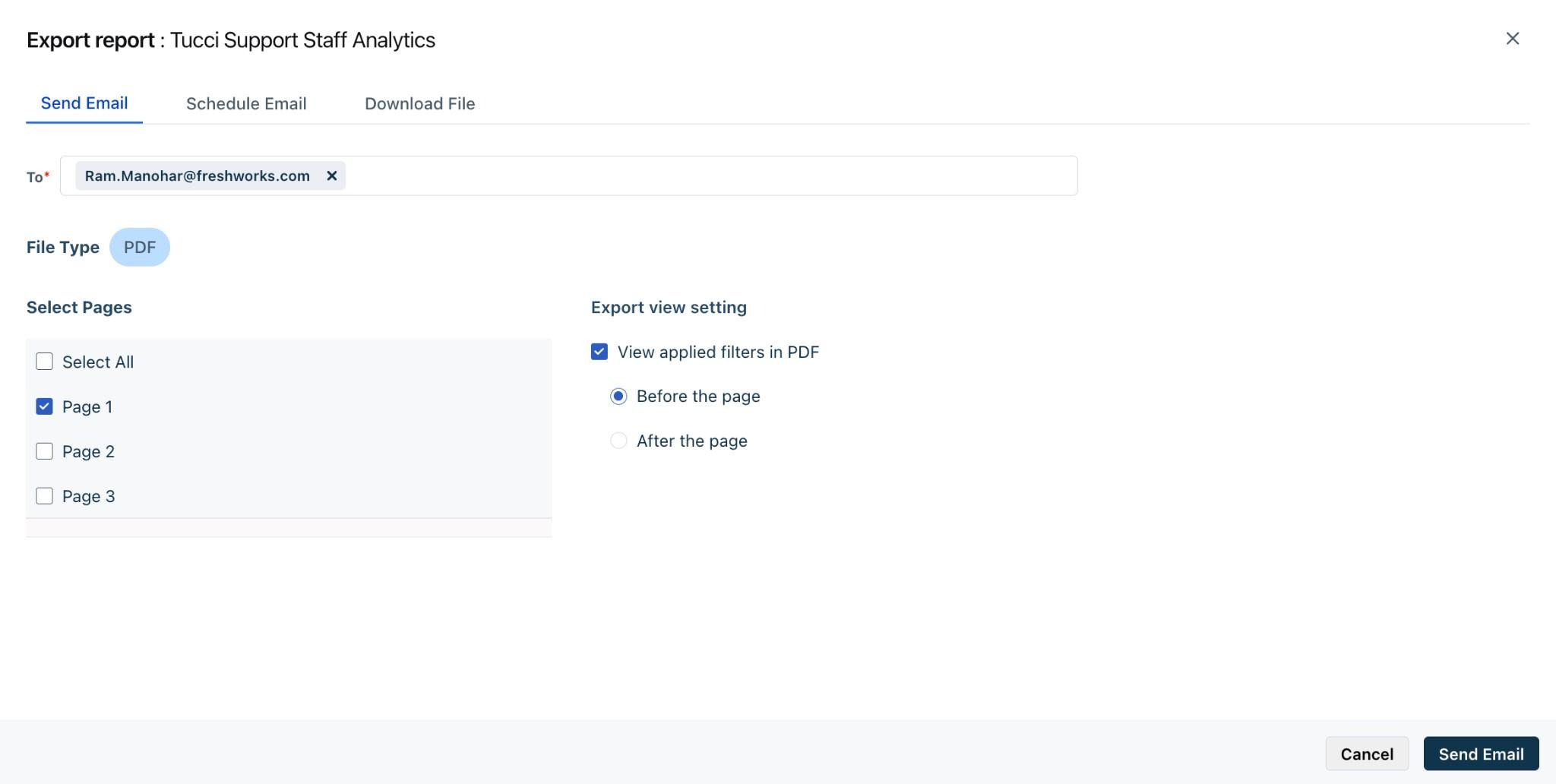
The following sections describe the available export actions.
Send email
To send the report by email,
- Select Send email tab. This will also be the default option.
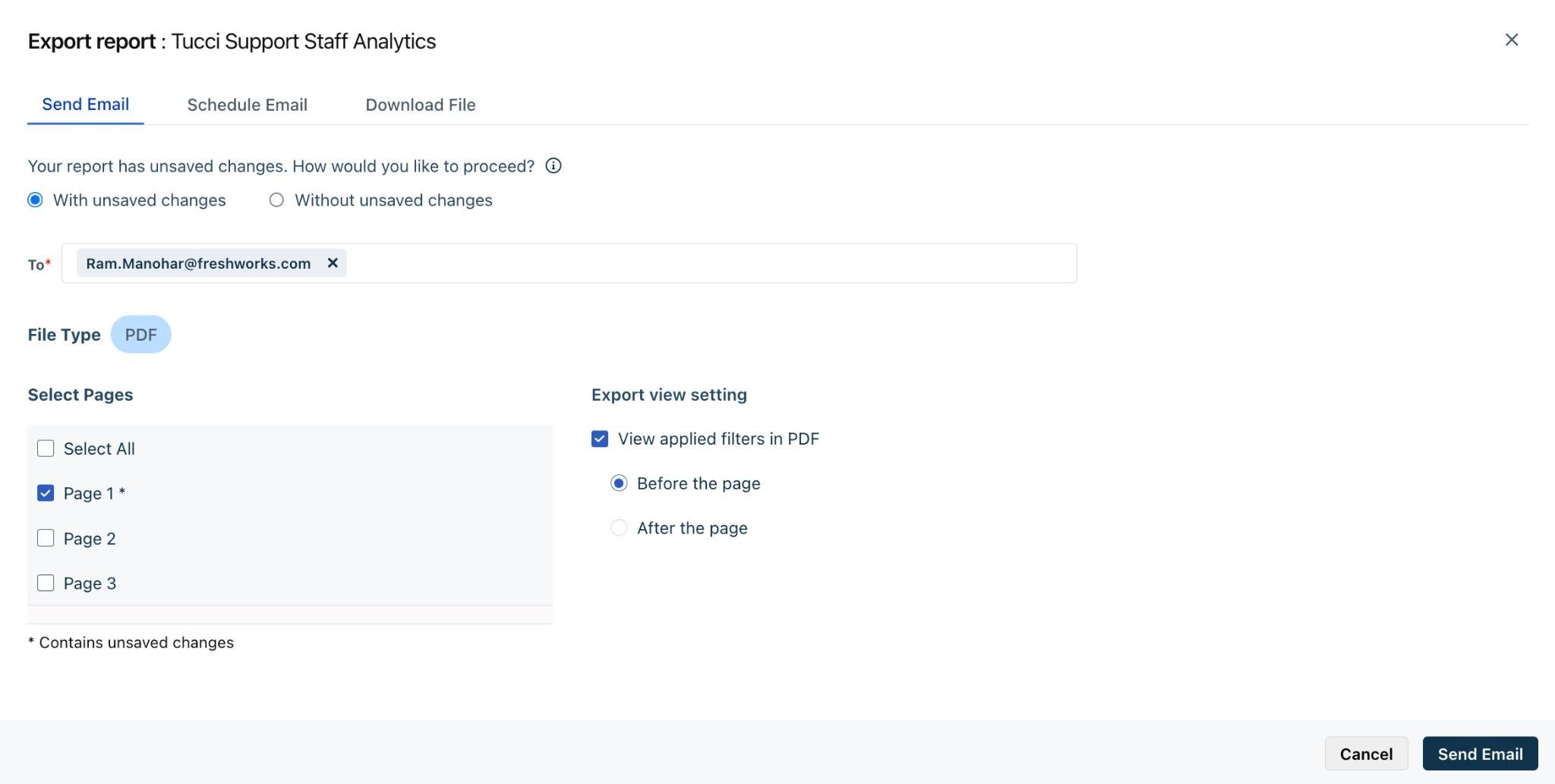
- Select With unsaved changes or Without unsaved changes, depending on whether you want the export to reflect any unsaved changes such as filters or updated chart types.
Note: This appears only when unsaved changes exist.
- Enter the recipient’s email address.
- The file type PDF is selected for you (Report export supports only the PDF format.)
- Under Select pages, choose the pages you want included.
- Configure Export view settings:
○ Select View applied filters if you want filters to be included in the exported file, and choose whether they appear before or after the page.
- Click Send email.
Download file
To download the report, perform the following steps:
- Select the Download file tab.
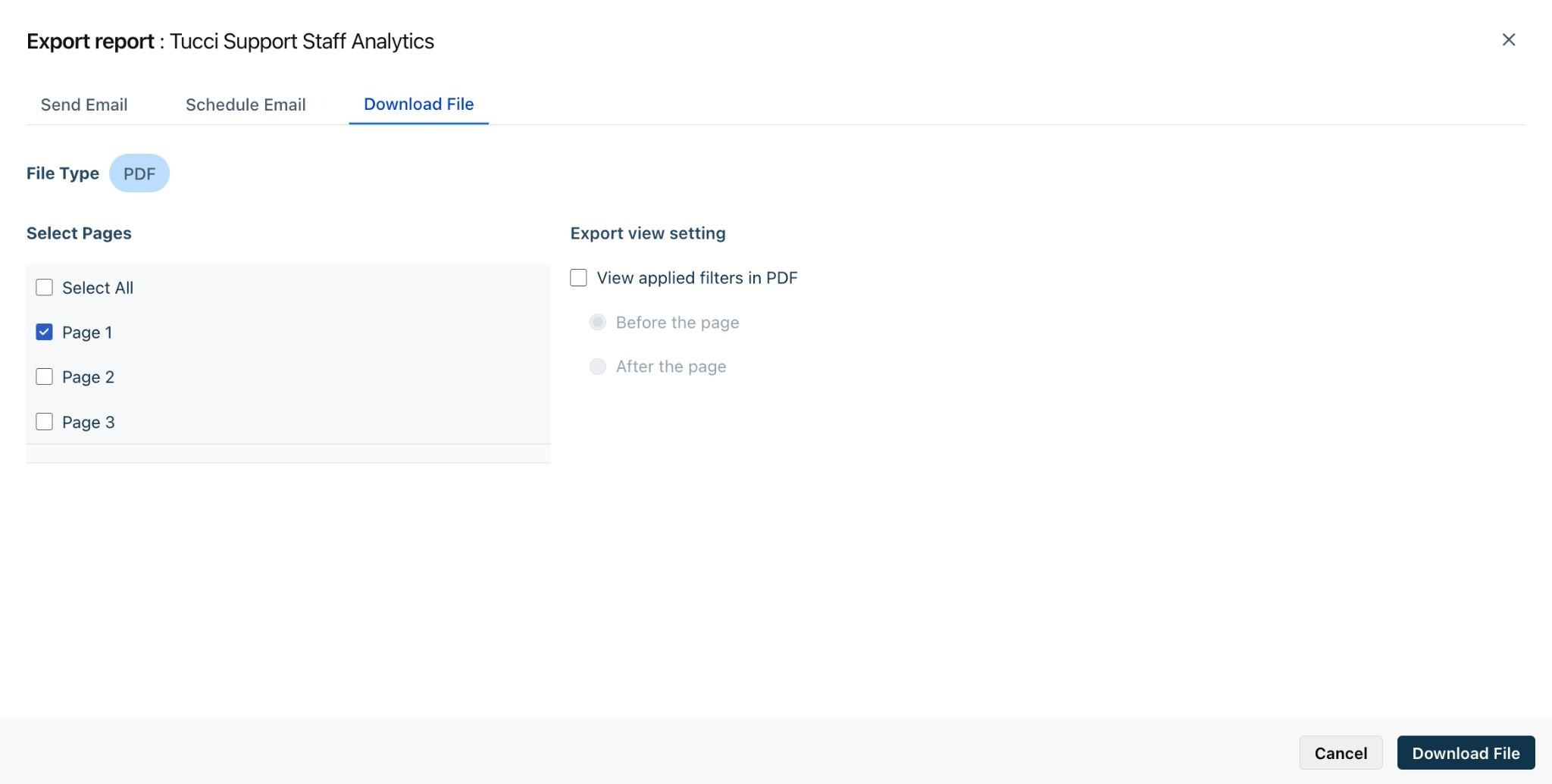
- Select With unsaved changes or Without unsaved changes when prompted.
- The file type PDF is selected for you (Report export supports only the PDF format.)
- Select the pages to export under Select pages.
- Configure any Export view settings, for options to include applied filters.
- Click Download file to complete the export.
Schedule email
Create a schedule
To create a schedule for a report export, perform the following steps:
- Click Schedule email.
- Enter the recipients, add a schedule name, and set additional options based on the recurrence
○ Daily: Set the time of day.
○ Weekly: Set the day of the week and a time.

○ Monthly: Set either a specific date (e.g., 19th of every month) or a day-based pattern (e.g., first or last Thursday of every month), along with the time.
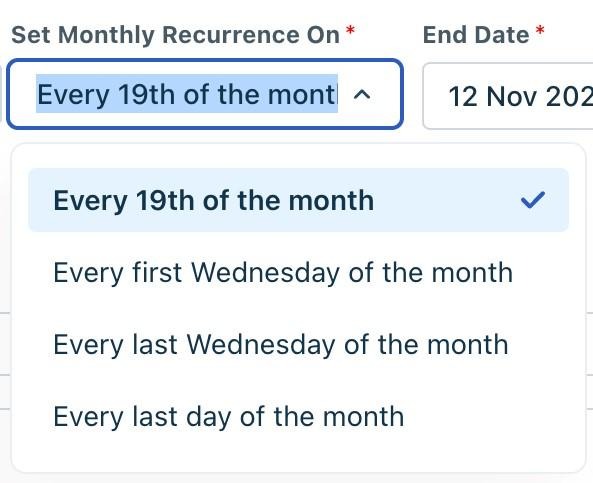
- Set the Start date, Time, End date, and Timezone.
Note: The end date defaults to one year from the start date but can be modified.
- Enter the email Subject and Description.
- The file type PDF is selected for you (Report export supports only the PDF format.)
- Click Schedule email. The report will be emailed according to the defined schedule.
Edit a schedule
To update an existing report schedule:
- Open the report and select Export report → Schedule email.
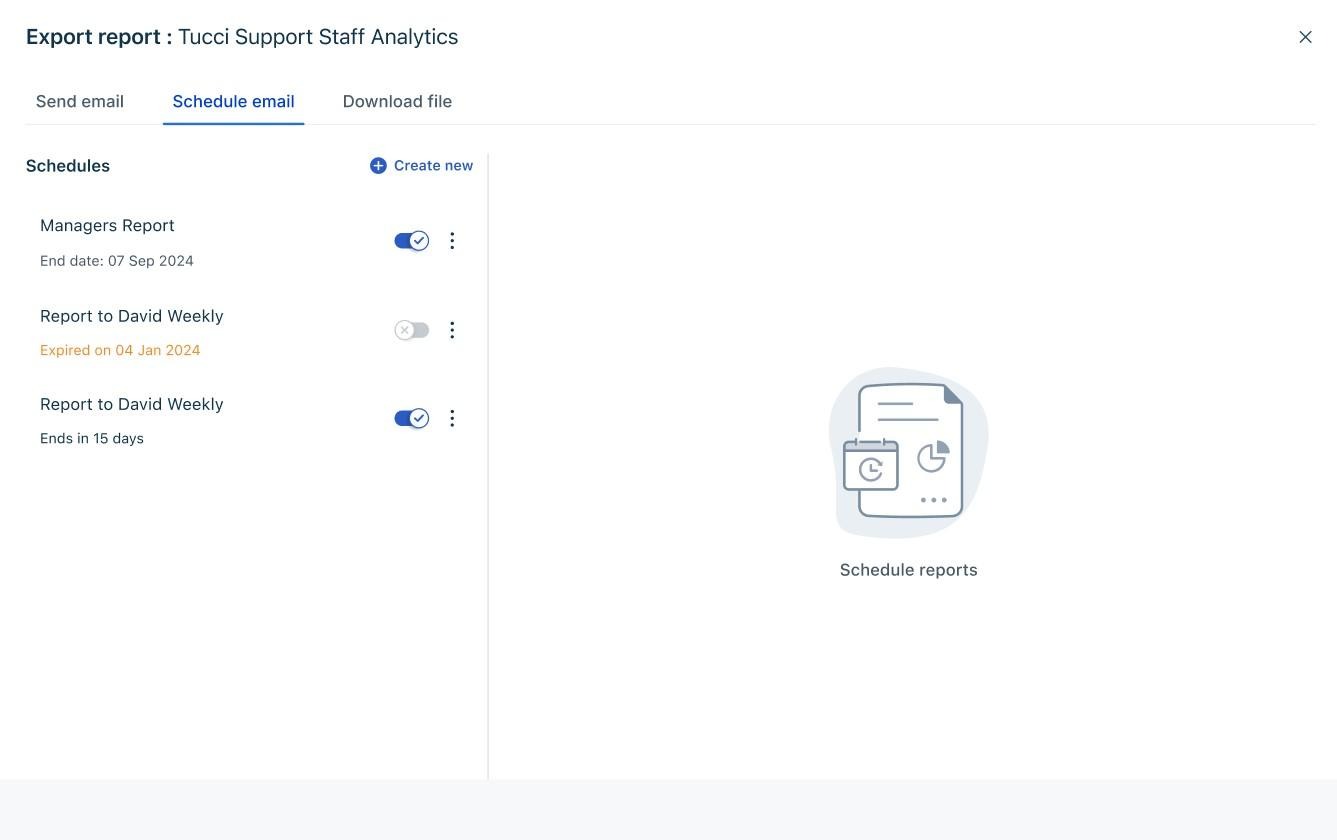
- Choose an existing schedule to edit, or click Create new to add another schedule for the same report.
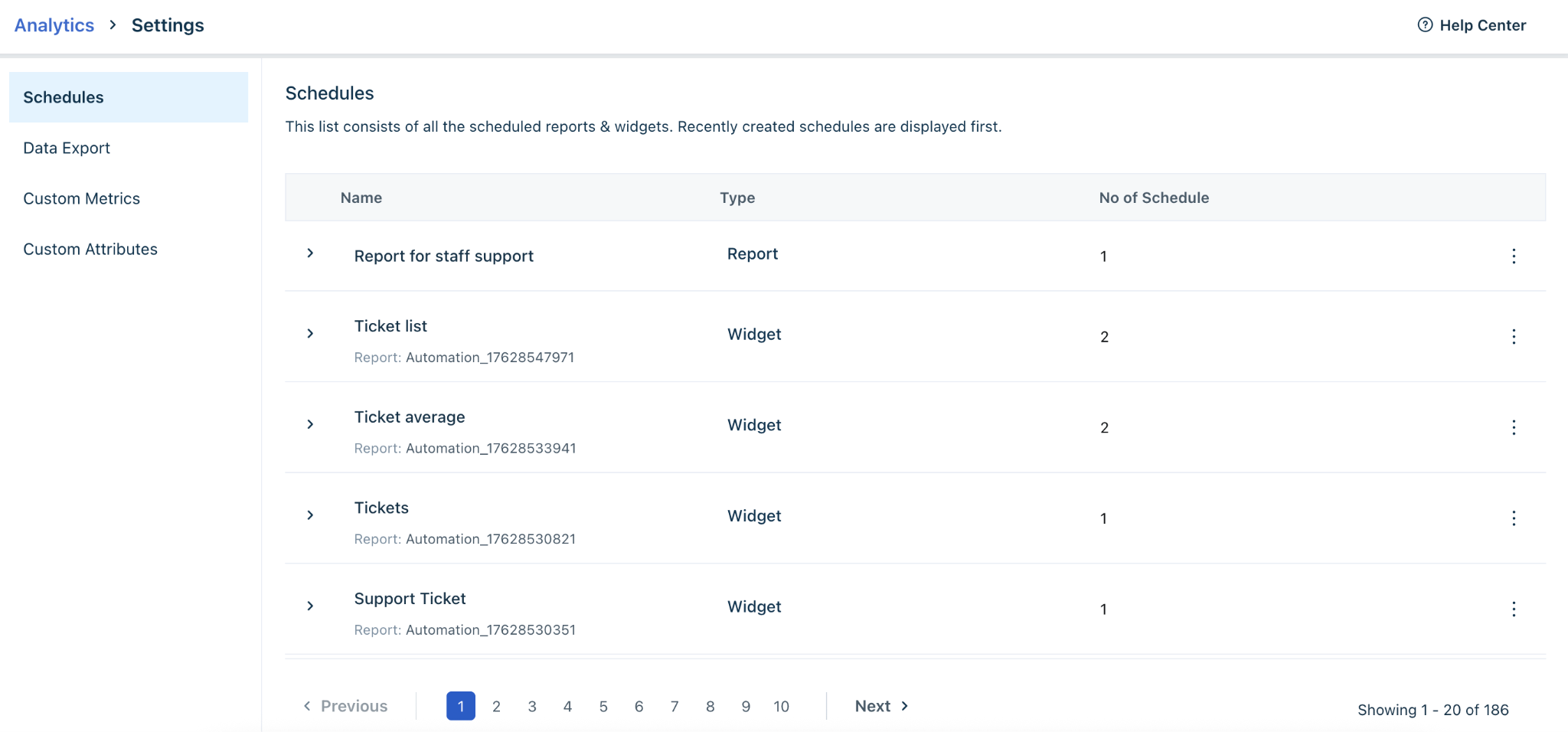
- You can also manage all schedules by navigating to Analytics > Settings > Schedules, where you will see a list of scheduled widgets and reports.
Export Widgets
Widgets can also be sent by email, scheduled for recurring email delivery, or downloaded directly.
Select a widget and click Options > Export widget. The export dialog opens.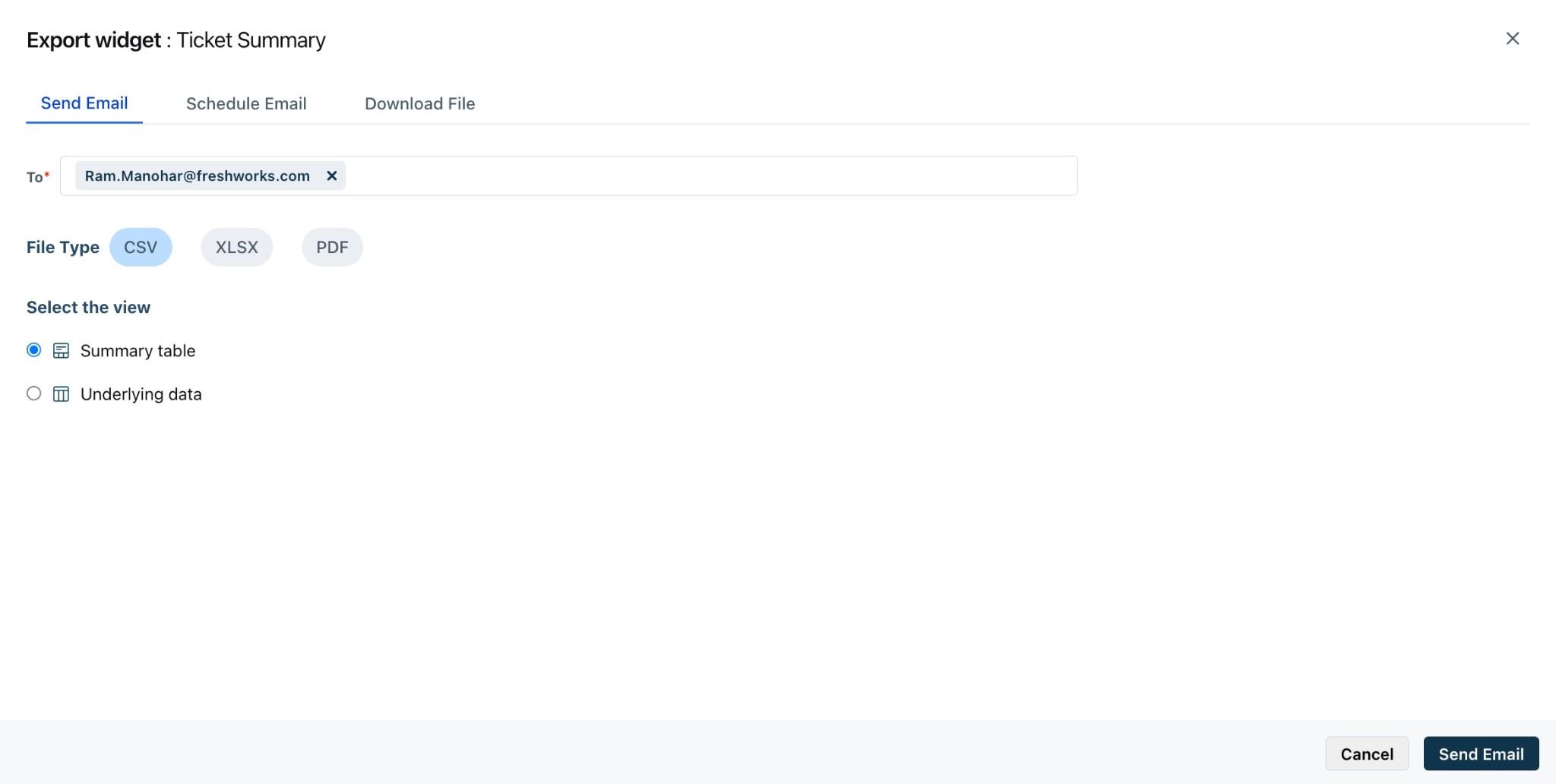
Send widget via email
To email a widget:
1. Select Send email tab. This will also be the default option.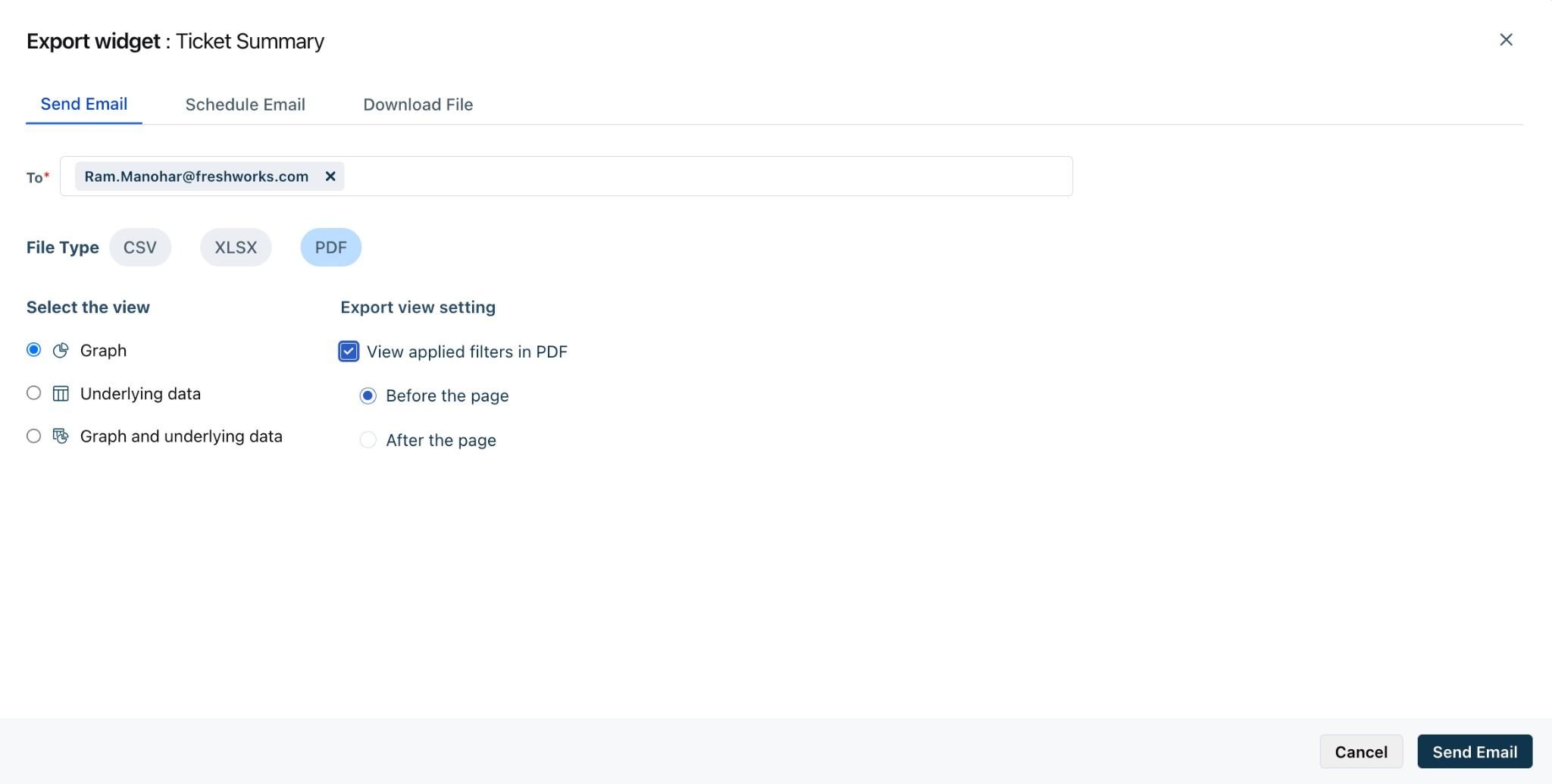
Select With unsaved changes or Without unsaved changes if applicable.
Note: This option is only available if you have unsaved changes in the report, like applied filters or updated chart type.
- Enter the recipient email address.
- Choose the File Type:
- CSV
- XLSX
- PDF + CSV
- Under Select view, choose how the widget should be exported:
| Select view option | Description | Available in |
| Underlying data | Exports the underlying data used to generate the widget. | CSV, XLSX, PDF, PDF+CSV |
| Summary table | Exports chart data as a table. | |
| Graph | Exports an image of the widget as displayed. | PDF, PDF+CSV |
| Graph with underlying data | Exports both the graph image (PDF) and the underlying data (CSV). |
- If exporting to PDF, configure Export view settings:
a. Select View applied filters if you want filters to be included in the exported file, and choose whether they appear before or after the page.
- Click Send email.
Download widget
To download a widget:
- Click Download file.
- Select With unsaved changes or Without unsaved changes, if applicable.
- Choose the File Type (CSV, XLSX, PDF, or PDF+CSV).
- Select the appropriate view and configure any export settings.
- Click Download file.
Schedule email
To set up a recurring widget export:
- Click Schedule email.
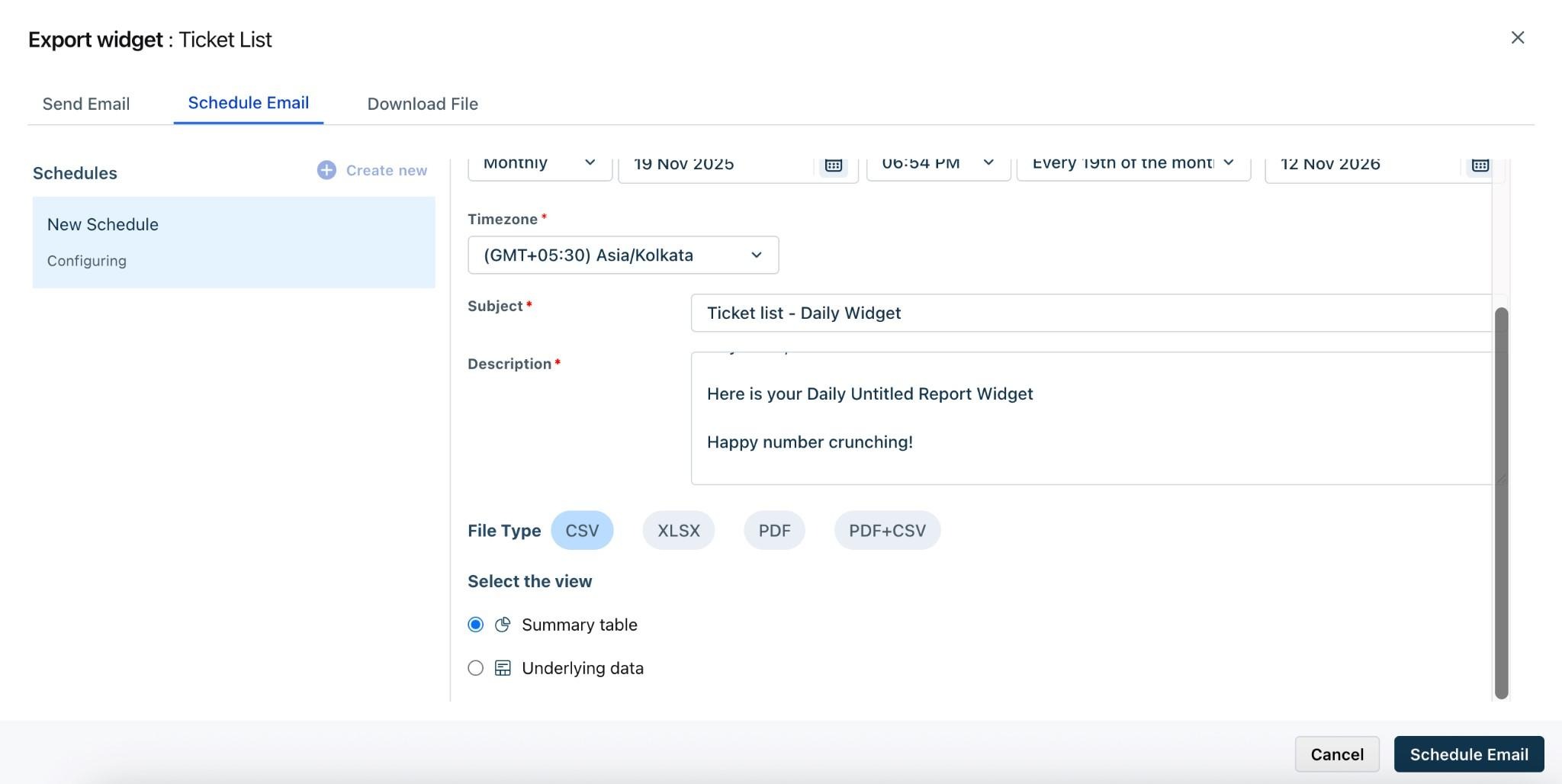
- Enter the recipients, add a schedule name, and set additional options based on the recurrence
○ Daily: Set the time of day.
○ Weekly: Set the day of the week and a time.

○ Monthly: Set either a specific date (e.g., 19th of every month) or a day-based pattern (e.g., first or last Thursday of every month), along with the time.
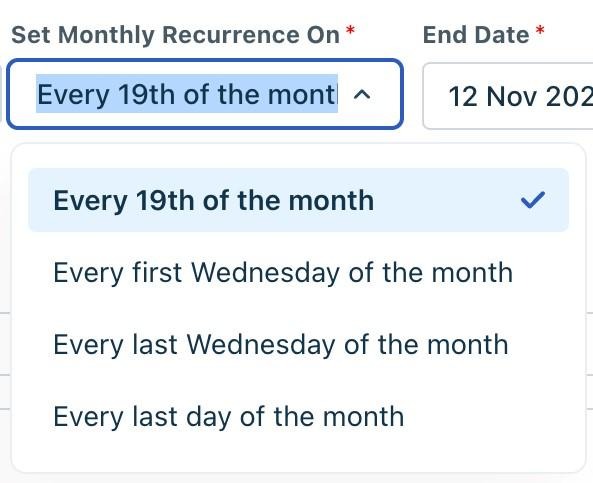
- Set the Start date, Time, End date, and Timezone.
Note: The end date defaults to one year from the start date but can be modified.
- Enter the email Subject and Description.
- Choose the File Type (CSV, XLSX, PDF) and the appropriate view.
Note: PDF+CSV option is not available for schedules.
- Click Schedule email. The widget will be emailed according to the defined schedule.
Edit a schedule
To update an existing widget schedule:
- Open the widget and select Export widget → Schedule email.
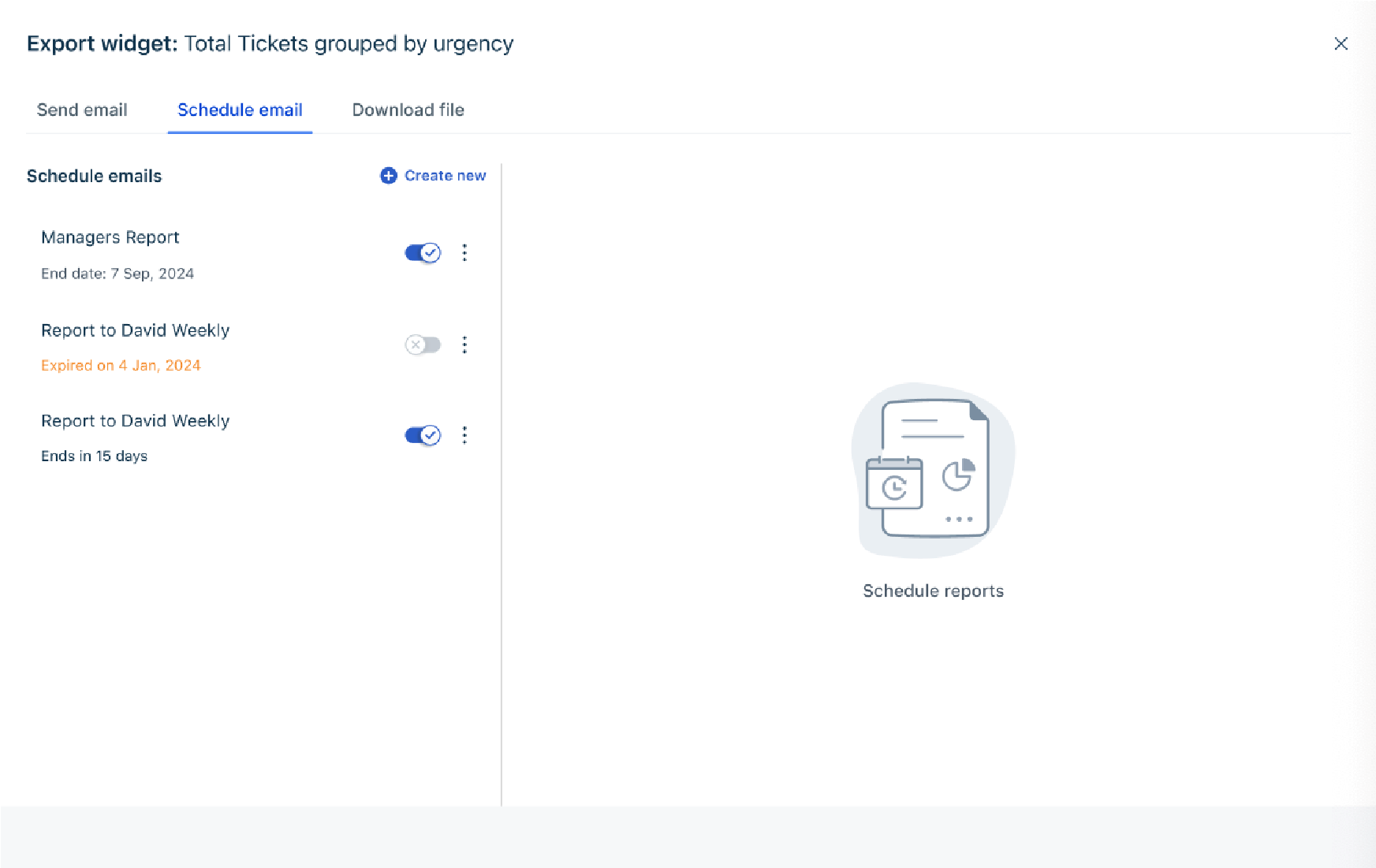
- Choose an existing schedule to edit, or click Create new to add another schedule for the same widget. You can also manage all schedules by navigating to Analytics > Settings > Schedules, where you will see a list of scheduled widgets and reports.
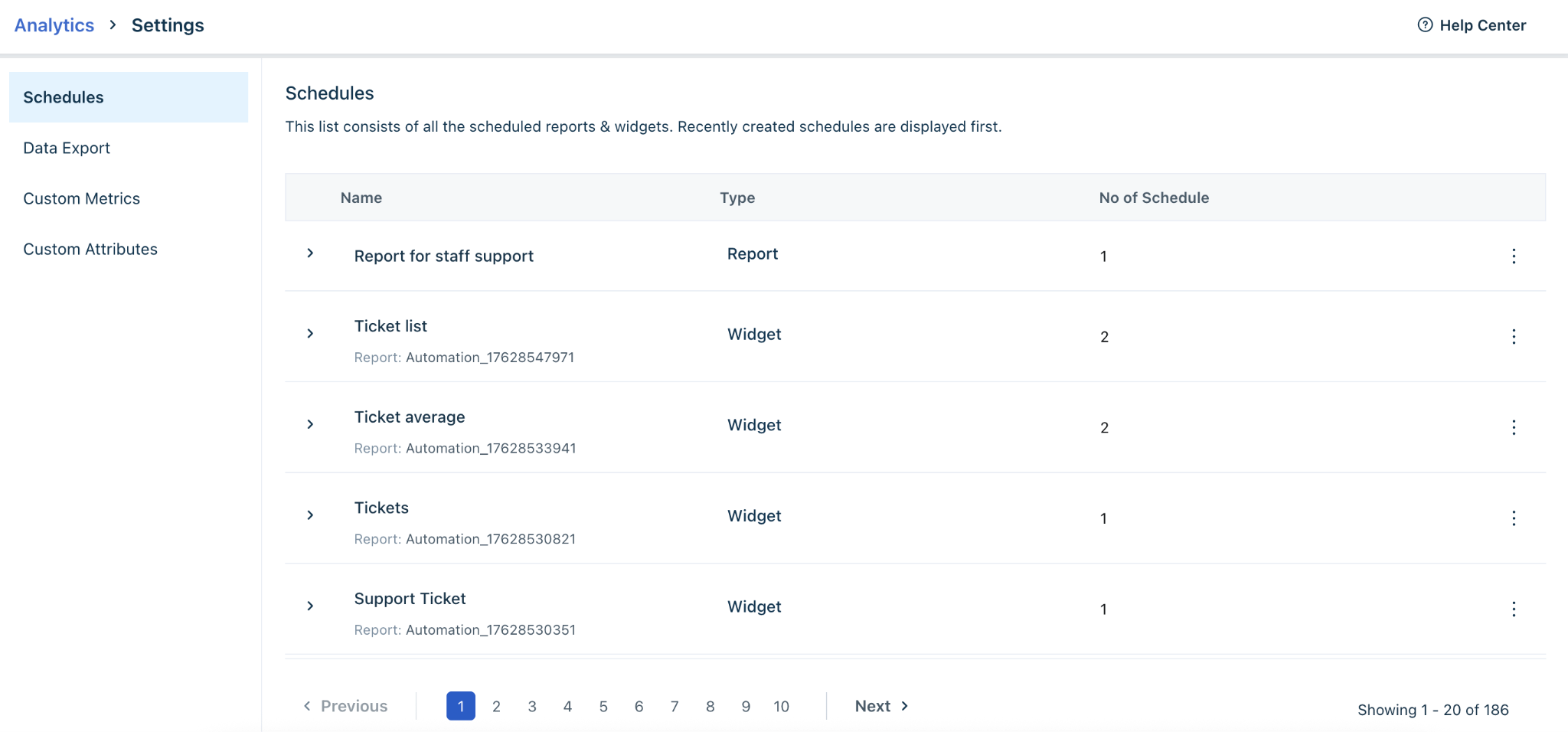
Export underlying data in a widget
Underlying data represents the complete dataset used to generate a widget. This data can also be emailed or downloaded.
To export underlying data: Open a widget’s underlying data. 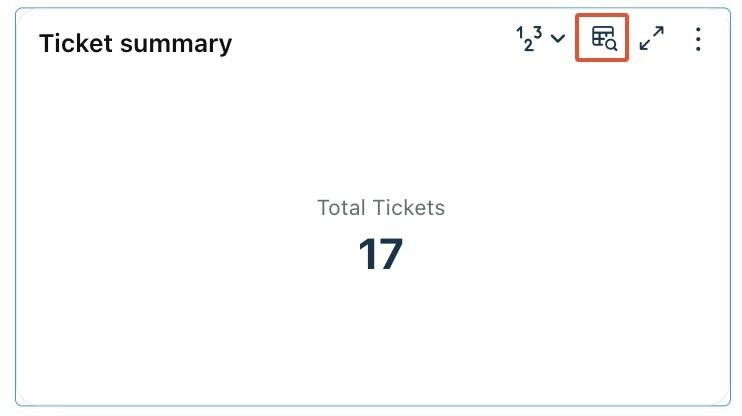
- Click Edit columns (when you are in edit mode) to choose specific columns to include.You may also use filters to refine the dataset.
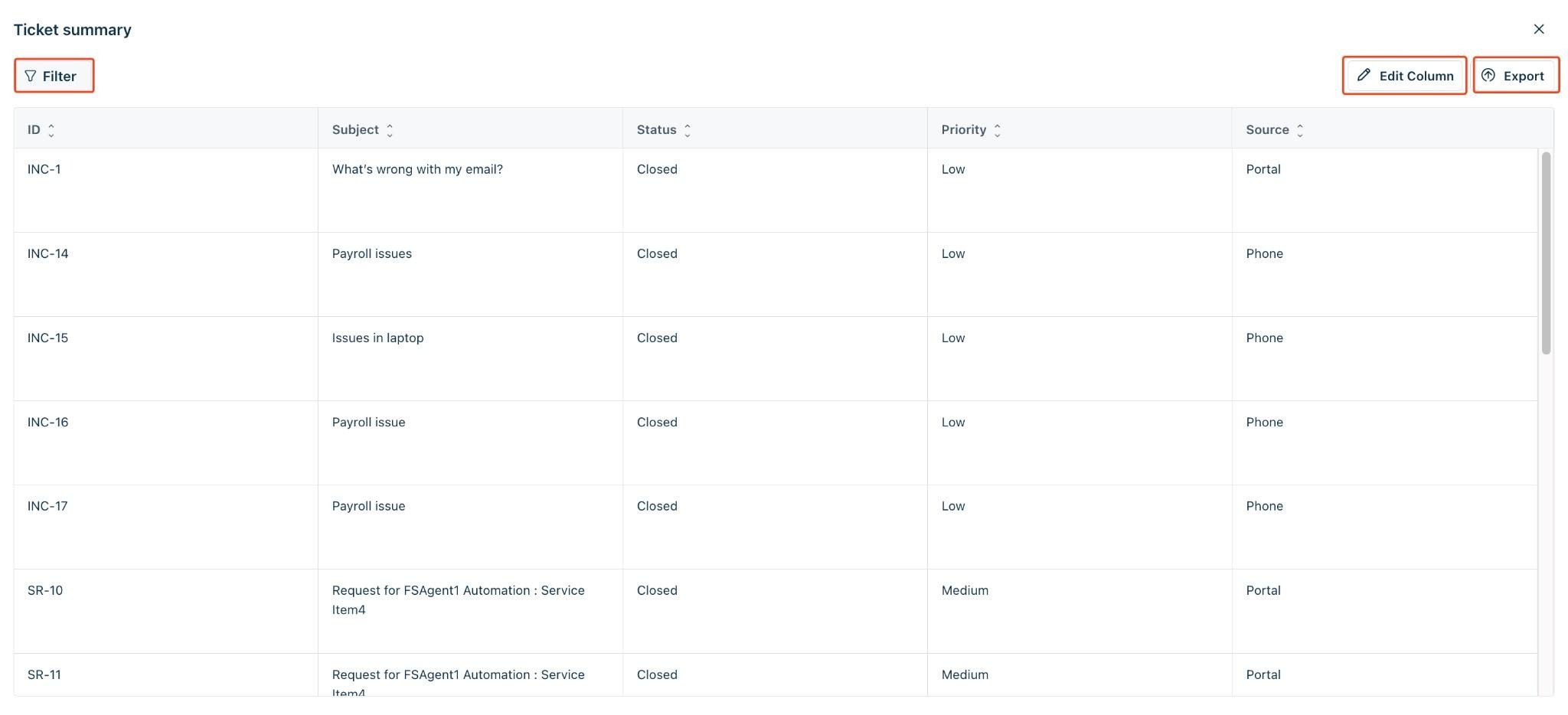
- Click Export to open the export dialog.
Send underlying data via email
To send the export of the underlying data in an email:
- Select Send email tab. This will also be the default option.
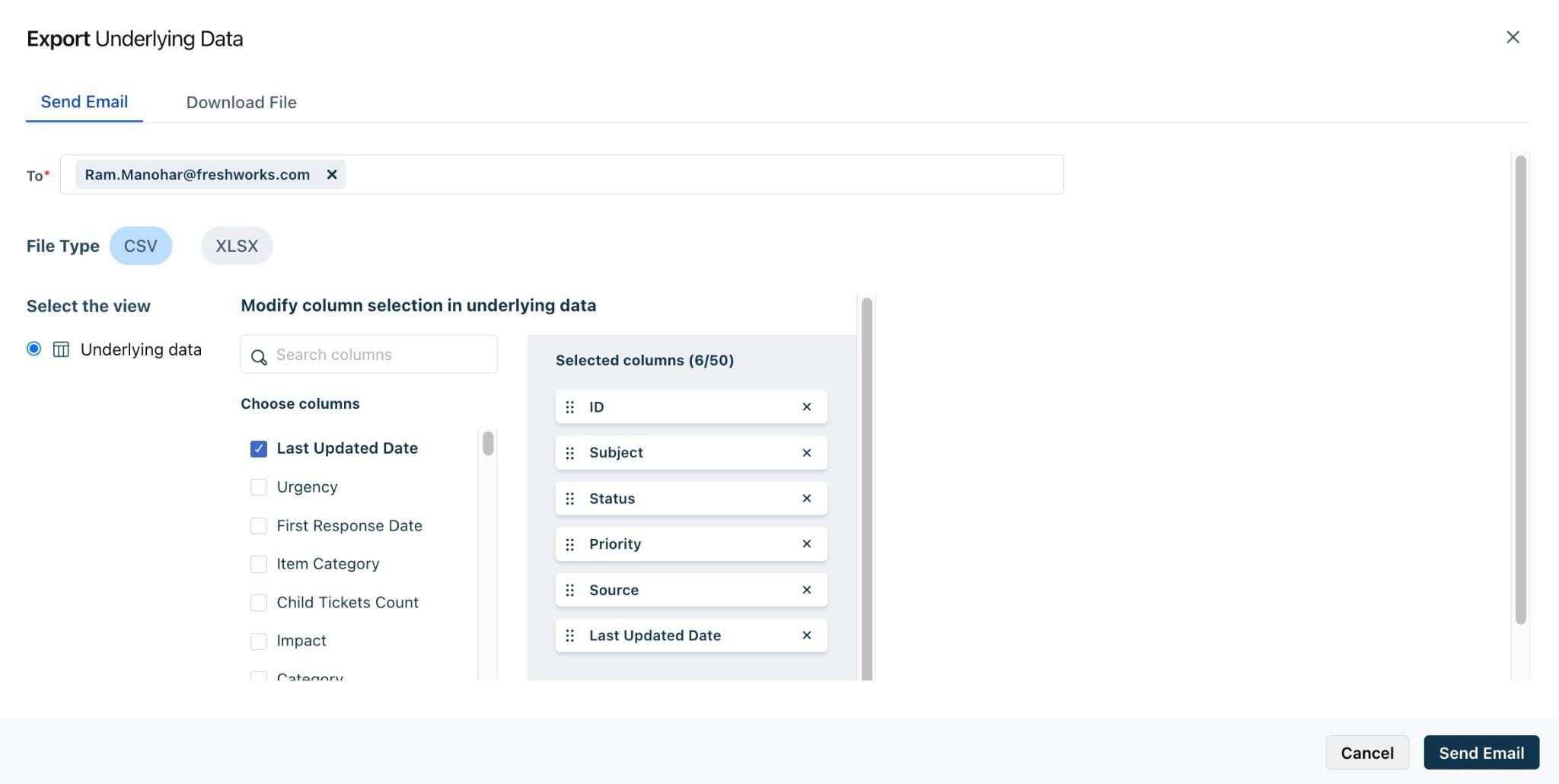
- Enter the recipient email address.
- Choose the File Type (CSV or XLSX).
- Ensure Underlying data is selected under Select view.
- Select additional columns if needed.
Note: the columns selected here apply only for the export and are not persisted
- Click Send email.
Download underlying data as a file
To download the underlying data:
- Select the Download file tab.
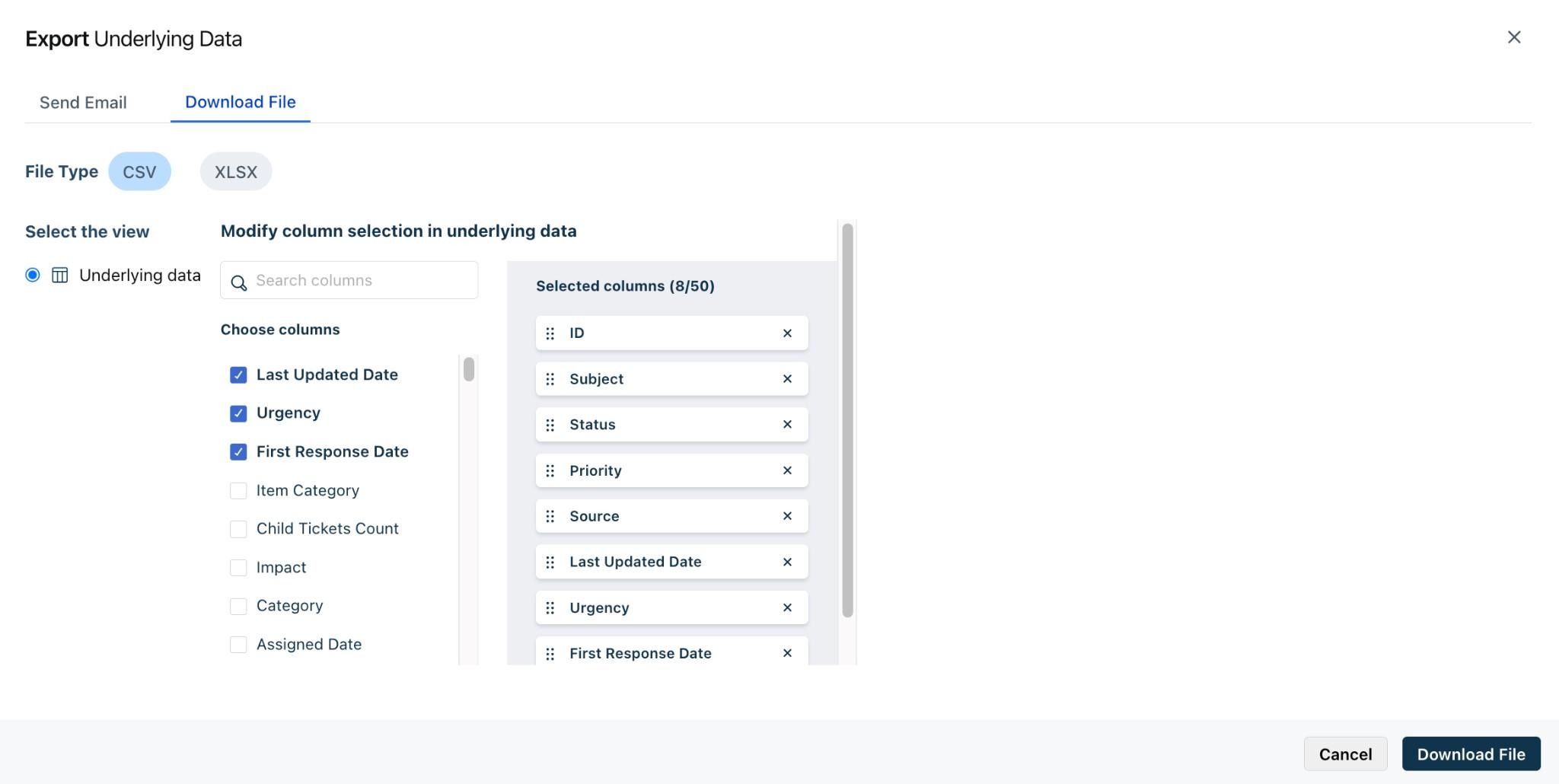
- Choose the File Type (CSV or XLSX).
- Ensure Underlying data is selected under Select view.
- Select additional columns if needed.
Note: the columns selected here apply only for the export and are not persisted
- Click Download file.