Community
 Video Library
 Agent Training
 Freshservice
 Freshdesk
 Freshchat
 Freshcaller
 Freshsales
 Freshteam
 Freshworks Neo
 Freshsurvey
Signup Date: After December 2025
Customer satisfaction score (CSAT score) is one of the best ways to gauge how customers feel about your service and support. It is one of the most straightforward ways to measure customer satisfaction, and it's obtained by asking a simple question, such as 'How satisfied were you with your experience?’
This article contains the following sections:
TABLE OF CONTENTS
- Signup Date: After December 2025
- Signup Date: Before December 2025
Admin Configuration
The Customer Satisfaction Survey is a built-in functionality of Freshdesk that can be used to directly measure helpdesk efficiency and customer satisfaction rating for every support ticket by sending out surveys at different points in the ticket lifecycle. Based on past results, you can use the customer satisfaction report to assess your service and provide better guidelines to train support people in the future.
Log in as admin and follow the steps below to build a survey
Building a Survey
Go to Admin > Workflows > Customer Satisfaction
Click on New Survey in the top right corner, or get started with default surveys.
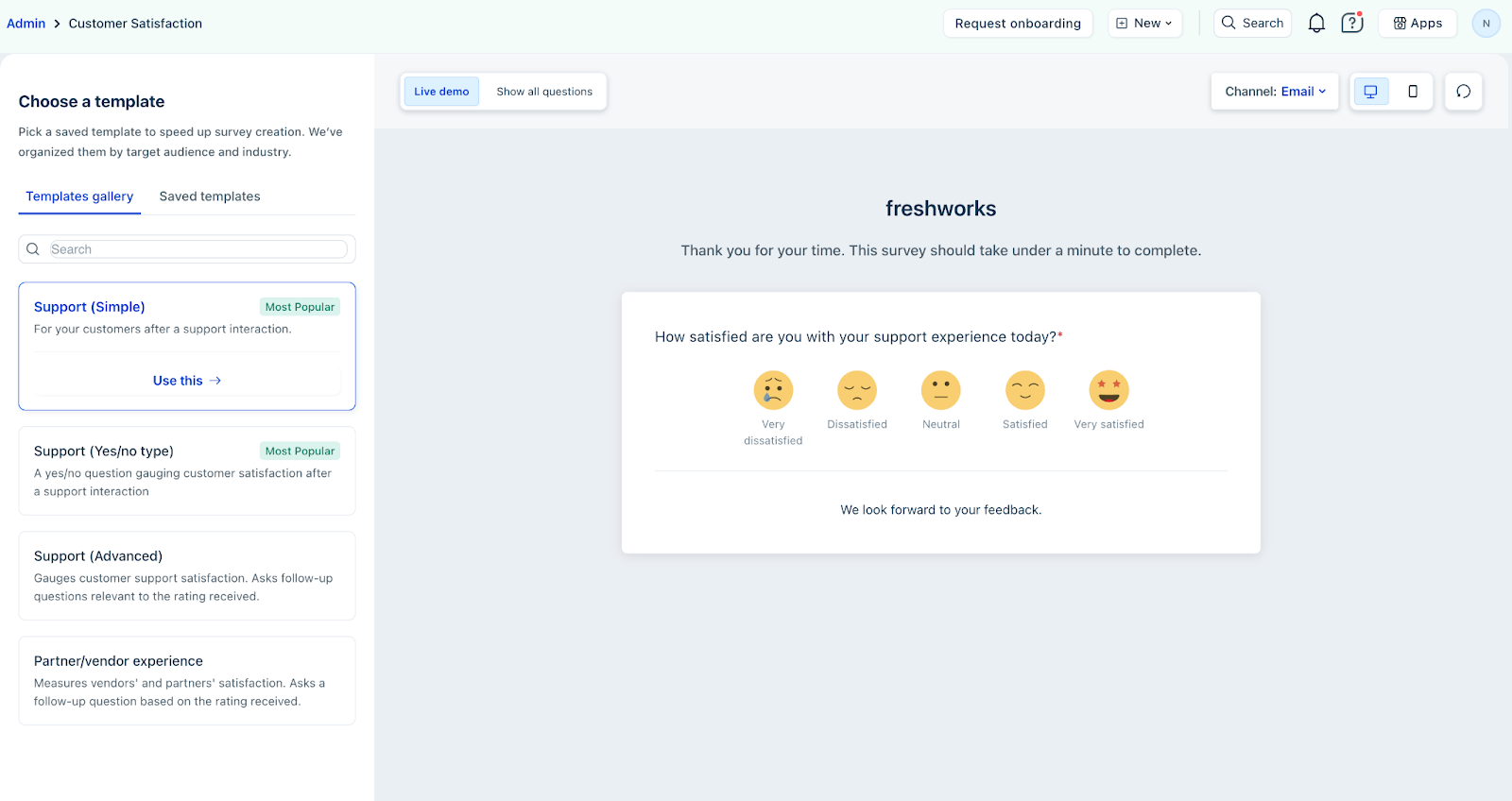
Choose a template from our curated list. Freshdesk has 4 pre-built templates to suit any use case.
You can also pick from the survey templates you created earlier. Before selecting one, you can preview how the template appears across different channels or review all the questions included in it.
As an example, let us assume you want to create a Support(Simple) survey - choose the template and click on Apply this template
Next, you can add a name and ‘description and click Apply this template.
To change the logo, click on it at the very top of the survey screen.
To edit the text, click on the area below the logo.
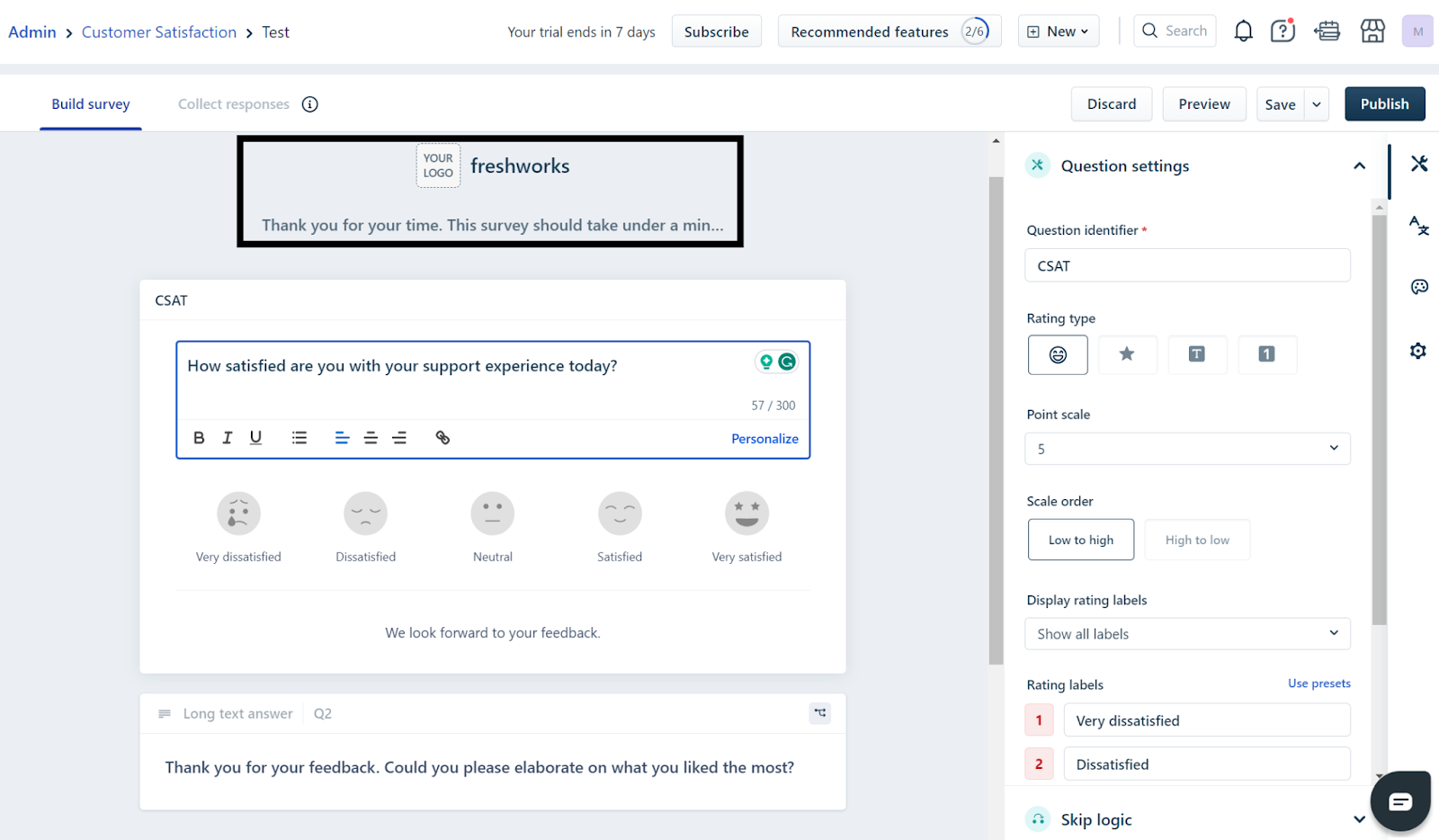
You can click on the question to edit the text and add placeholders as per your requirements.
Add new questions by clicking on the '+' button after the questions. The CSAT module supports the following types of questions:
Multichoice - Single answer
Long text answer
Multichoice multiple answers
Rating scale
Yes/No
Short text answer
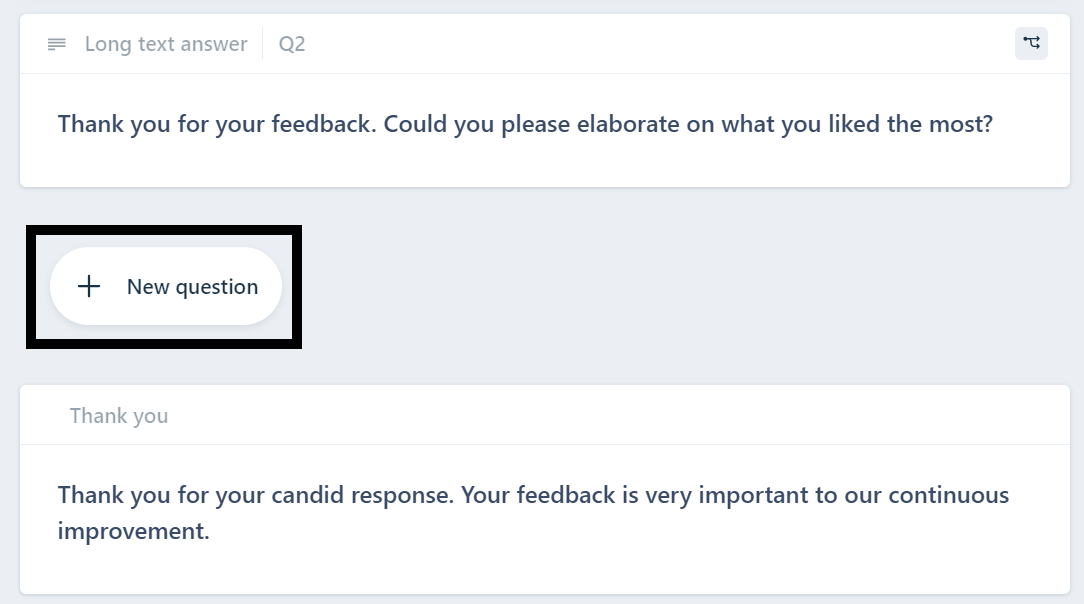
The very last card is the thank-you message. This is displayed when the survey is complete. Click on the text to edit it.
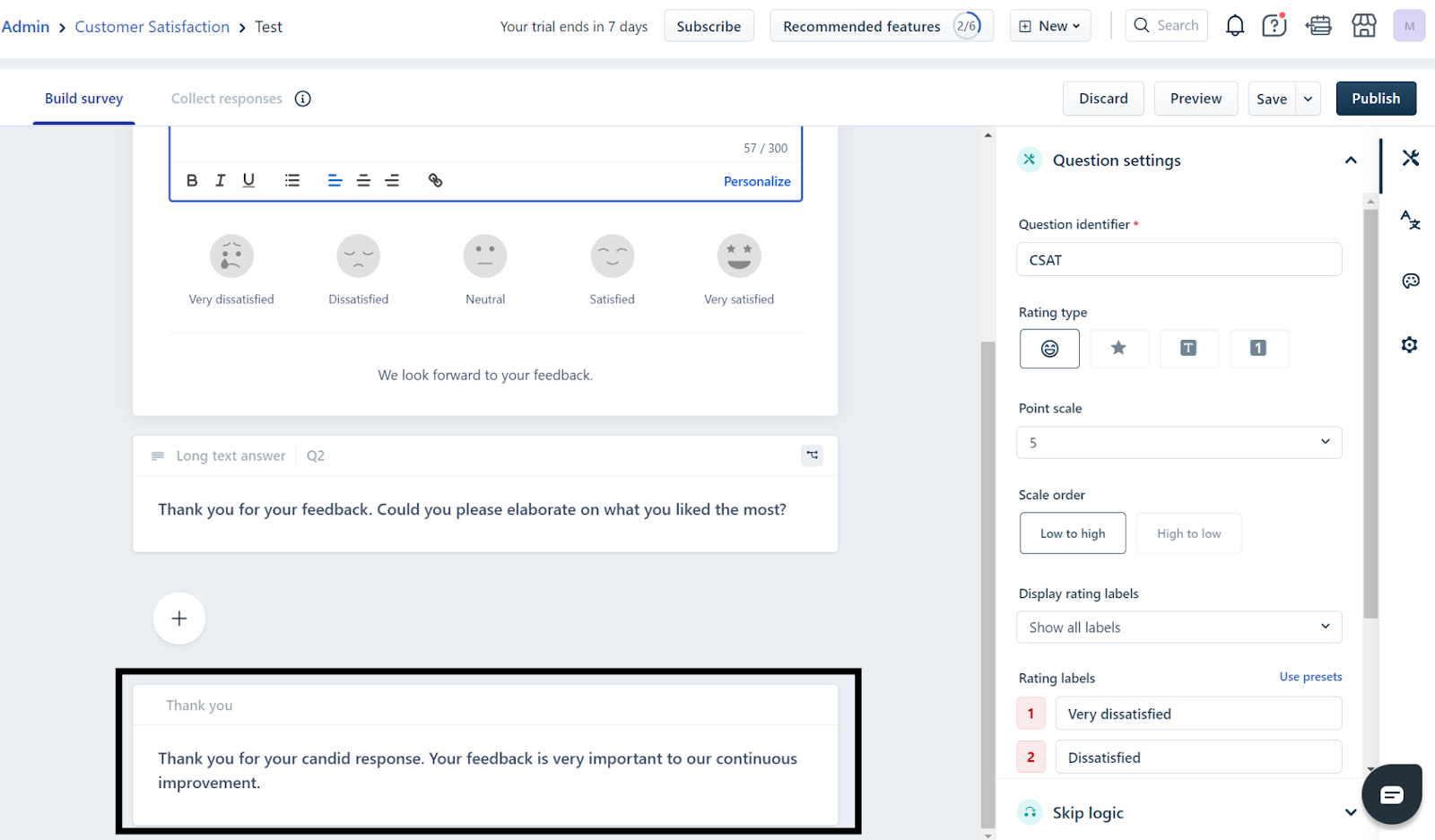
Survey customization settings
The right panel on your screen lets you customize the survey questions and change the survey settings to suit your needs.
You can select the rating scale visuals from smiley faces/emoticons, stars, text boxes, and a numbered rating scale.
You can also select the scale range (choose up to a 10-point scale). Select the order in which the score options appear, and customize the rating labels.
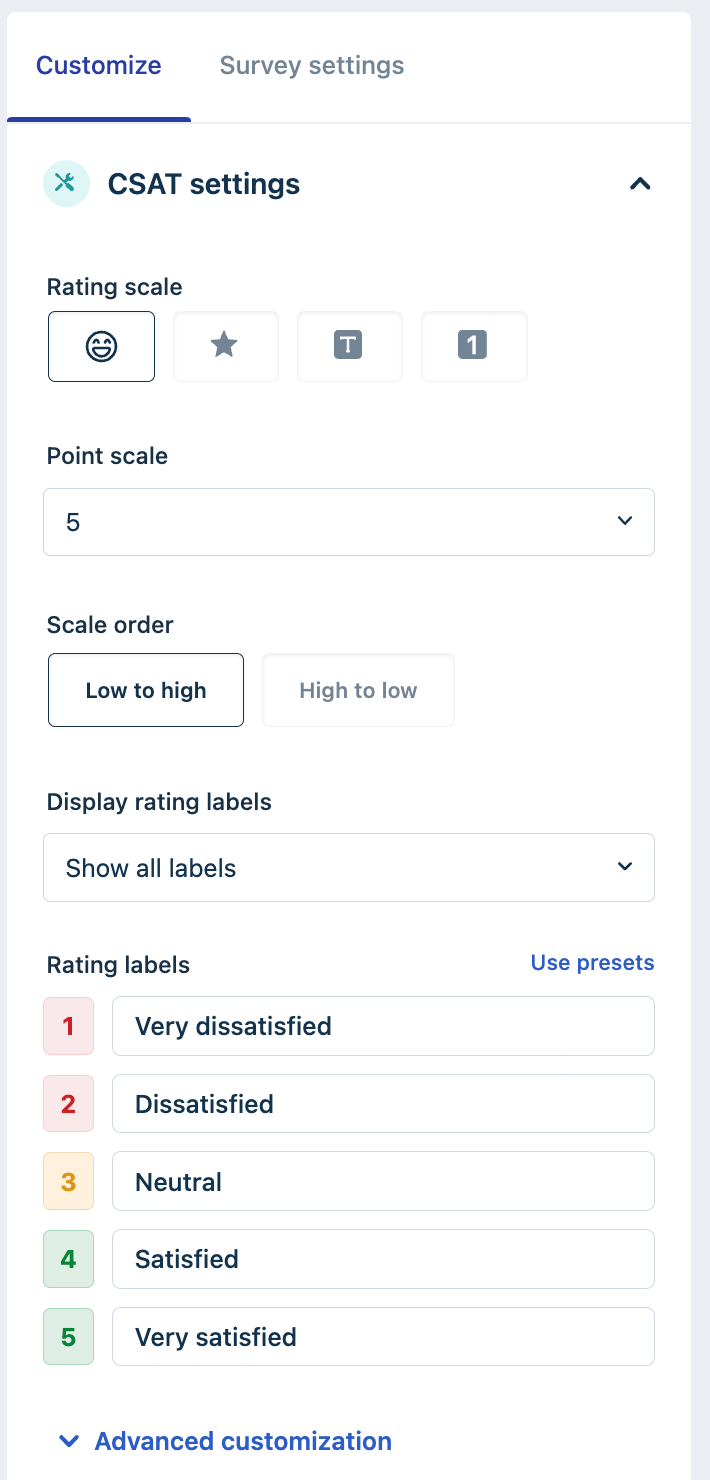
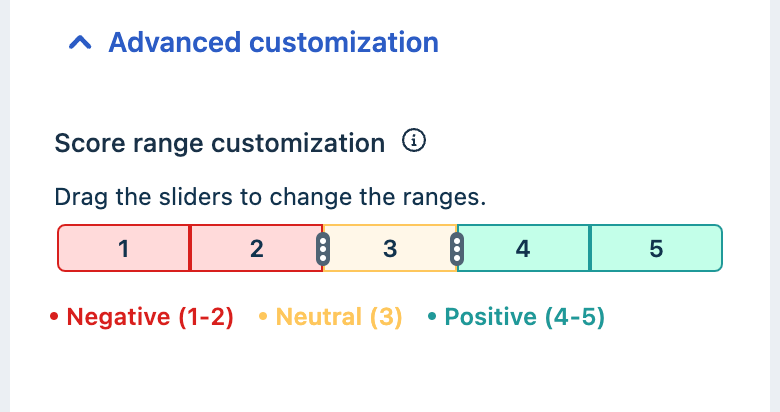
Click 'Advanced customization’ to change the score range and define the negative, neutral, and positive score groups per your preferences. This configuration is used to classify CSAT rating distribution in ticket notes, Analytics, and Dashboard.
Survey look and feel customization
The right panel has four icons that let you customize the look and feel of your survey.
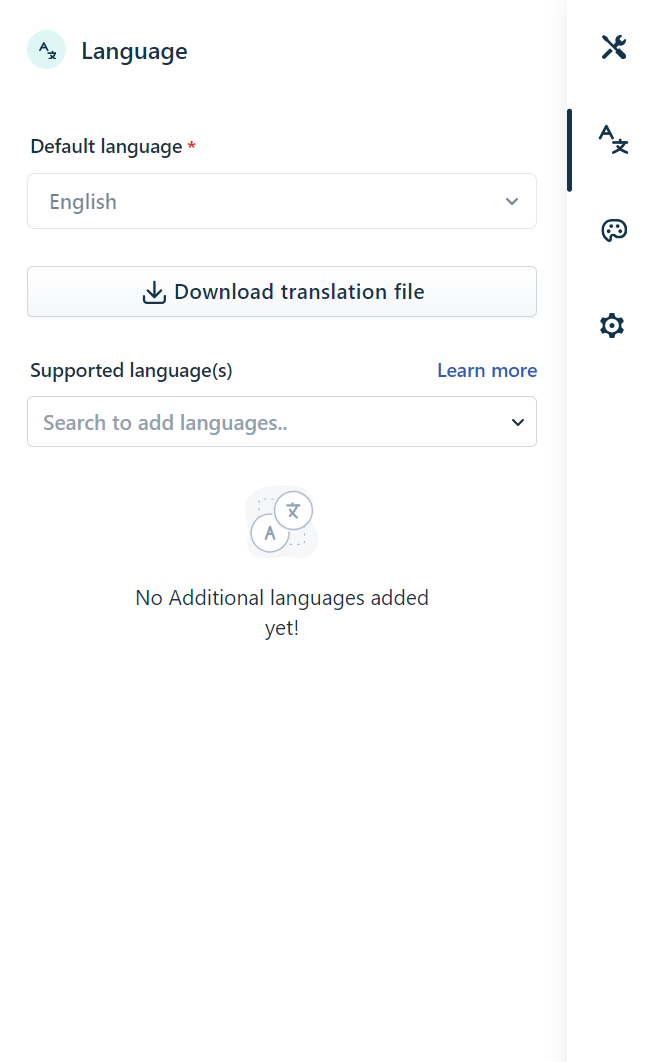
The ‘Languages’ setting lets you define the language in which you want your survey to be displayed
You can have multiple languages for a survey. This can be added in the language section.
The default language is set to English; you can add more languages in the ‘Supported Languages’ field.
You can also send surveys in the contact’s preferred language - which language the contact gets the survey in is decided based on the language of that contact.
By default, your surveys will inherit branding details (such as Logo, Favicon or Brand Colors) from the portal for all channels other than WebChat. Each channel can be associated to a portal via Freshdesk. In case of WebChat, the branding is inherited for CSAT survey. You can further define a fallback from under Survey Design Settings for when a non-primary Portal is not enabled. You can upload your logo, add your company name, set a favicon, choose a layout, and apply brand colors for buttons and backgrounds.
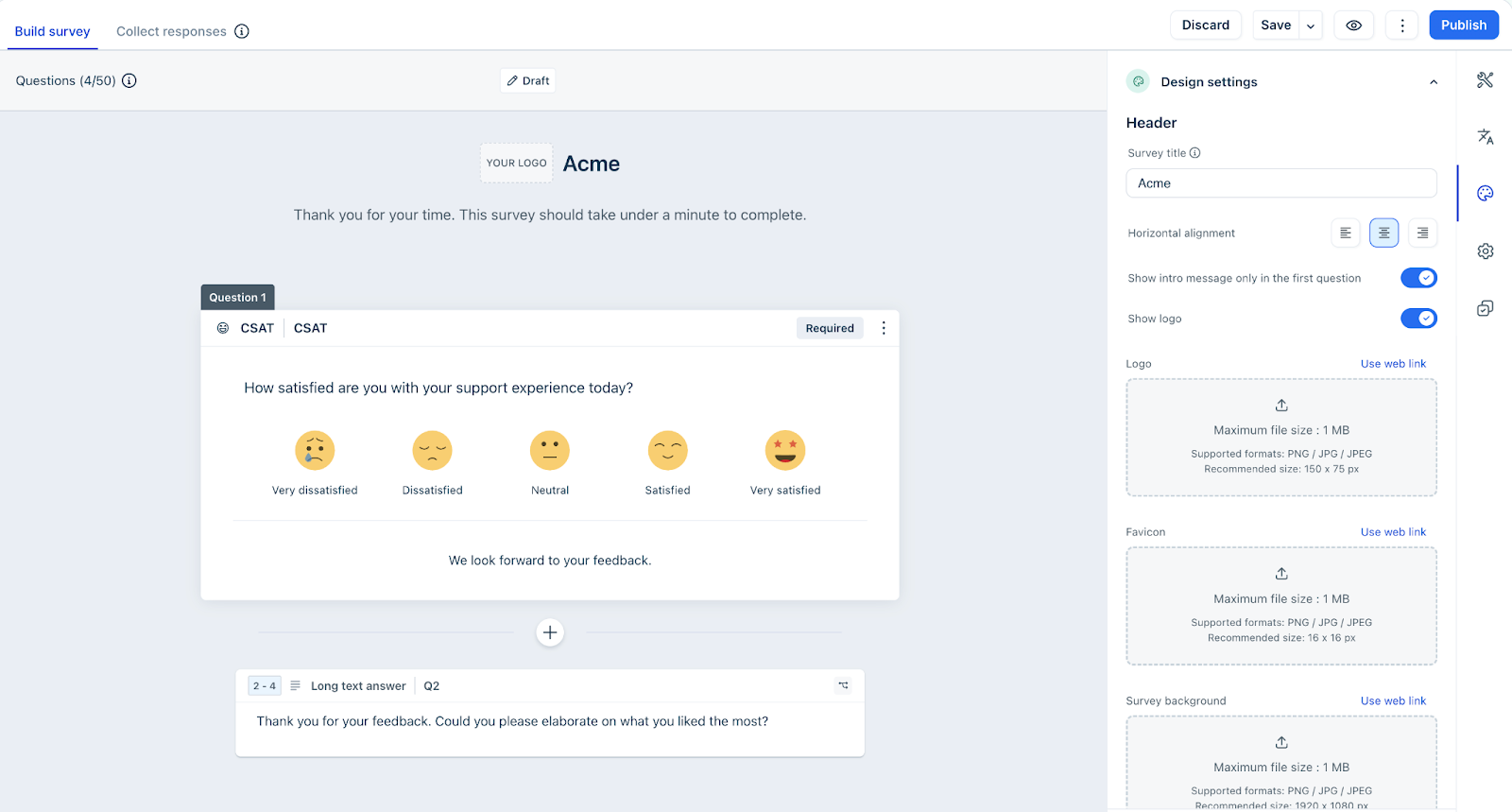
How Survey Branding and Design Settings Work
To help you easily reuse a single survey across multiple brands, your survey’s appearance is primarily controlled by your Portal or Web Chat settings. This is designed to save you time and ensure brand consistency across different touchpoints.
Based on branding hierarchy, each support channel in Freshdesk is linked to a specific product. That product may or may not have an active Portal associated with it. Here is how Freshdesk decides which branding to display:
- When Portal Branding Applies: If the ticket’s channel is linked to an active Portal via product association, the survey will automatically prioritize and inherit that Portal’s branding.
- When Web Chat Branding Applies: For customers using Web Chat on Freshdesk Omni, the survey will always inherit your Web Chat branding whenever the survey is sent through that channel.
- When Specific Survey Settings Apply (Fallback): Configurations made directly in the survey builder’s Design Settings tab are only used as a fallback. For example, these settings will only be visible to the customer if the linked Portal is currently in a disabled state.
Note: For customers using the private beta version of CSAT (enrolled before December 2025 and not yet upgraded to the latest version), local survey design settings are strictly respected. No branding inheritance takes place from Portals or Web Chat.
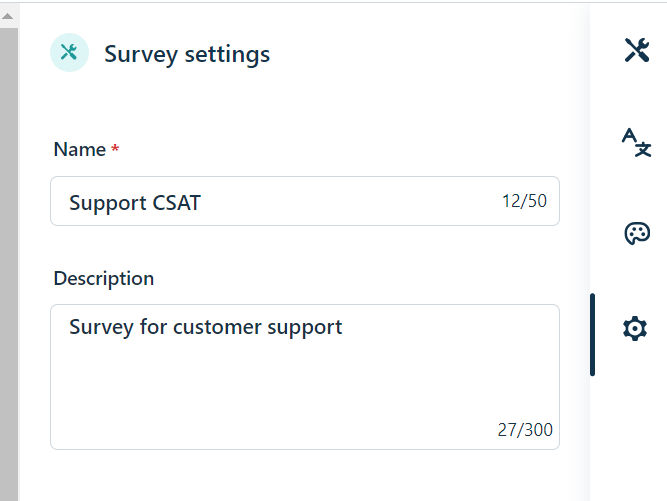
Under Survey settings, you can customize the survey name and add a survey description.
Survey flow - Configuring Skip logic
How the survey moves from one question to another can also be customized. This is done using Skip Logic.
Skip logic lets you create a survey that shows questions to respondents based on their responses. The advantage of implementing question branches is improved response rates, as customers will only see questions relevant to their responses.
Under Question Settings on the right panel, scroll to the bottom and click on Skip Logic.
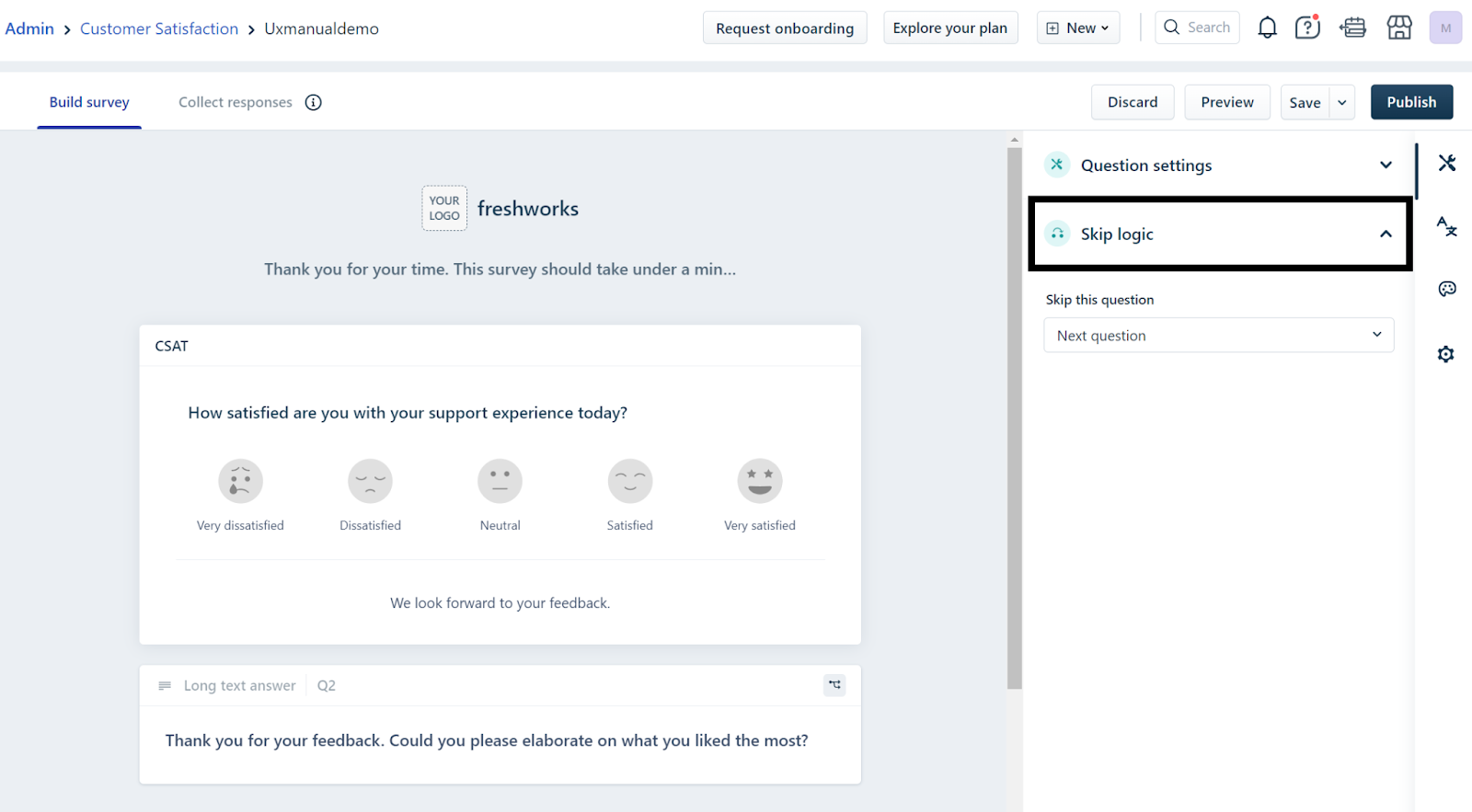
Choose the appropriate action. With Skip Logic, you can direct a user to the next question, specific questions, questions based on the answer, or to the end of the survey.
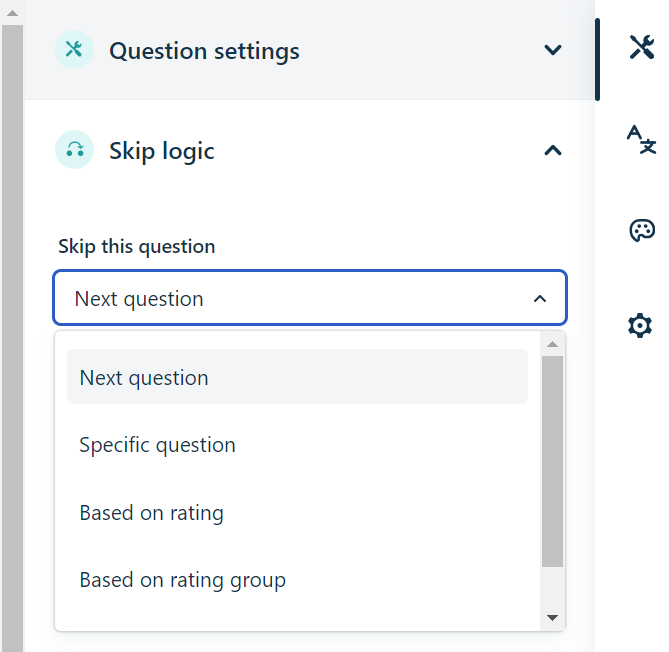
Skip Logic actions
Once a question has been answered, you can:
Direct customers to the next question - Customers will be directed to the next question, irrespective of what their response recorded is.
Direct customers to a specific question - Once a question is answered, customers can be directed to a specific question.
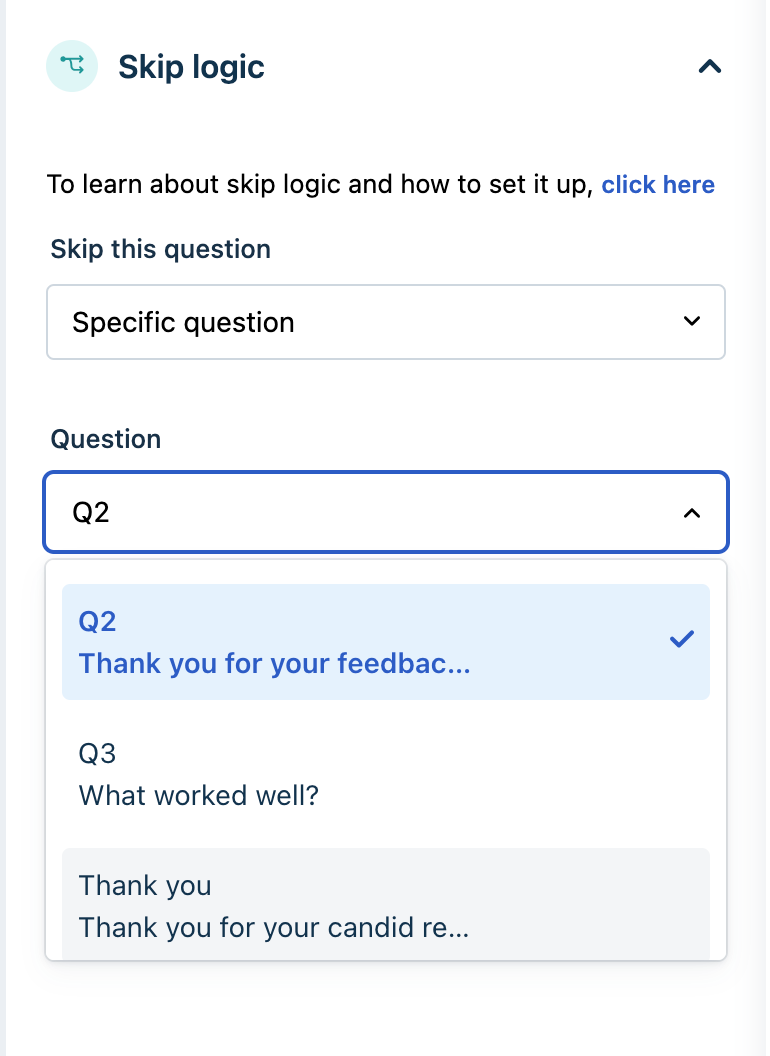
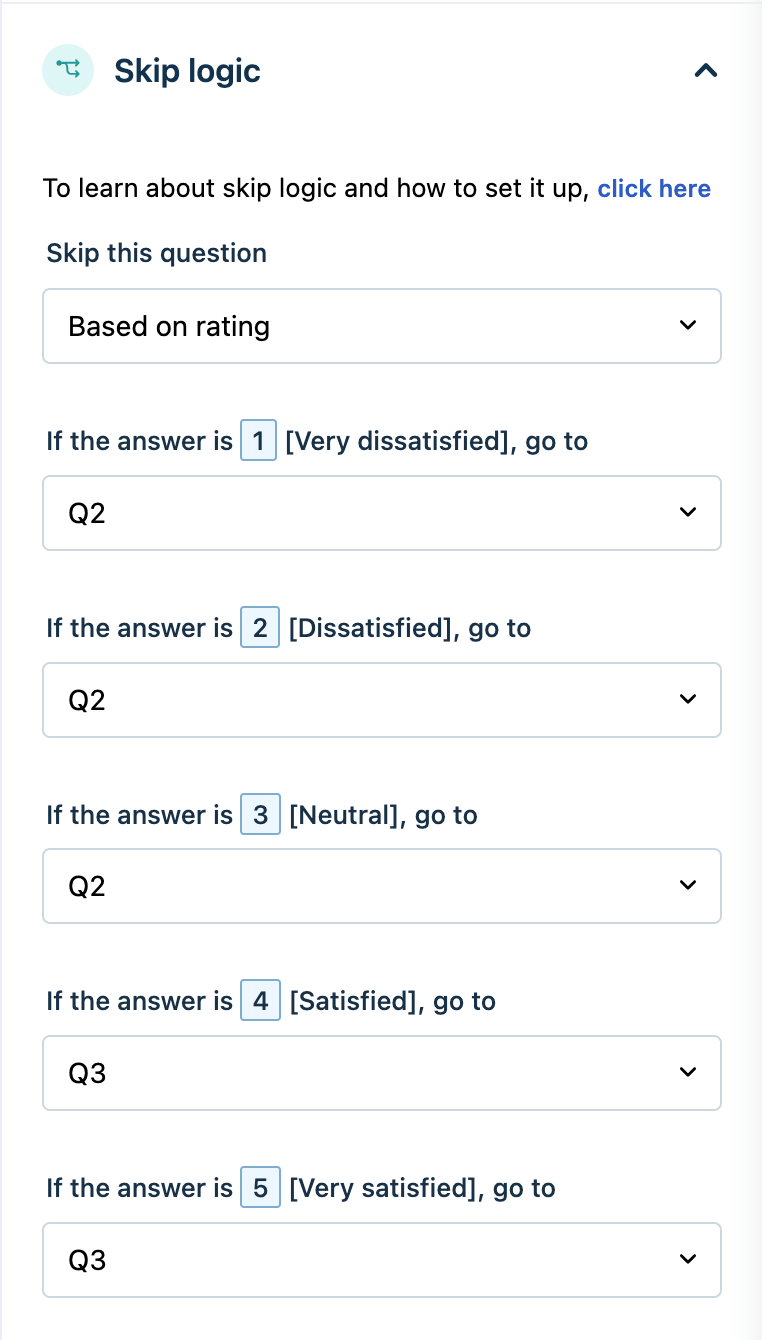
Ask questions based on the rating - Show different questions based on the response shared. Customers can be directed to a question relevant to the answer selected.
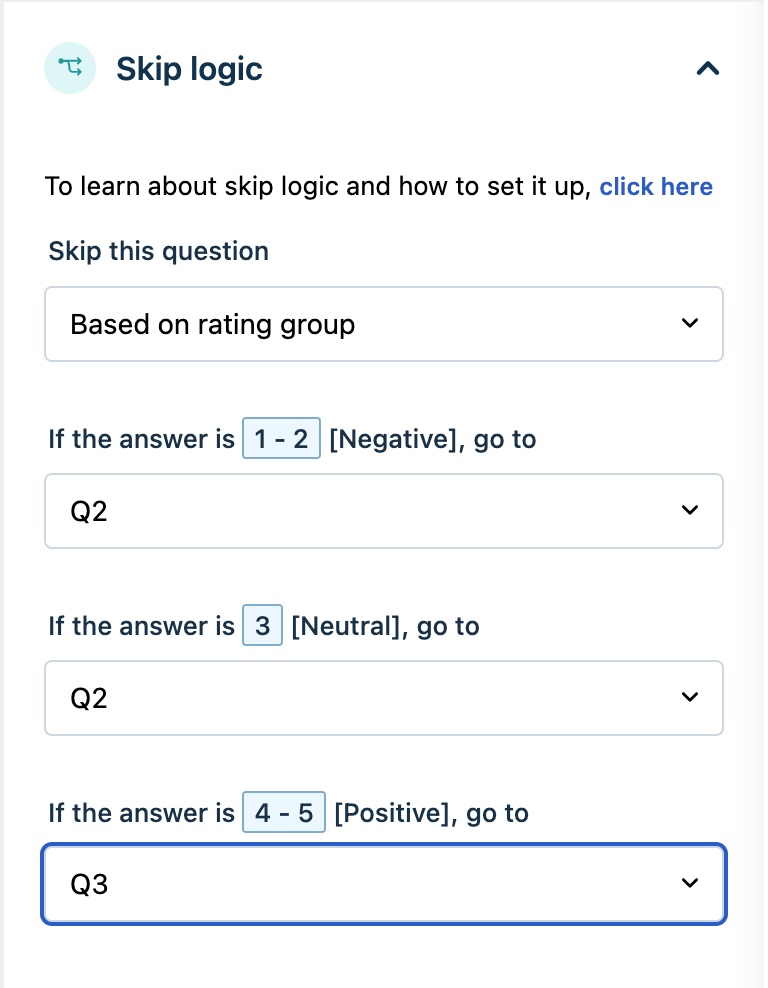
Ask questions based on the rating group - Show questions based on the rating groups (negative, neutral, positive), as defined in the survey settings.
End the survey - Show respondents the configured thank you message as soon as the response is shared and end the survey.
Skip logic can only point to any follow-up questions and not to any previous questions. e.g. Assume you have a 5-question survey. If you are setting up a skip logic for Question 3, the skip can only go to any subsequent questions (Question 4 or 5).
Resolution question
You can include a Resolution Question in your CSAT survey to check whether the customer’s issue was actually resolved. This precedes all other survey questions and can be used as a metric in the Analytics module and also in Ticket update automation.
To configure Resolution question,
Go to Survey Settings > Toggle on Resolution question
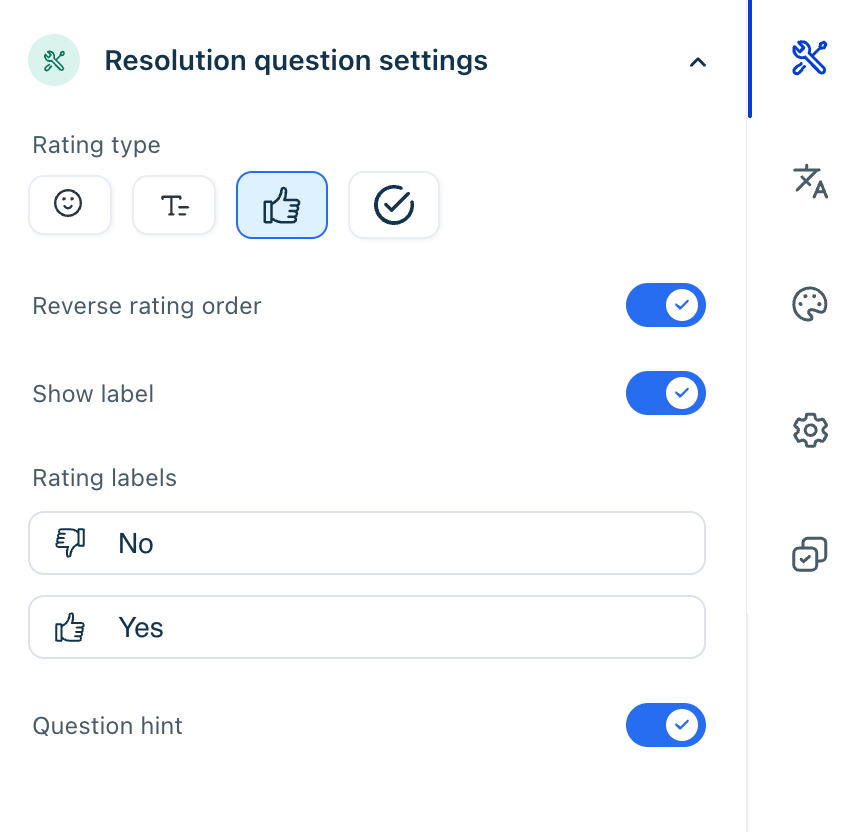
Under Resolution question settings on the right, configure the following:
Question identifier – A unique label (like Q2) used to identify this question in your survey and reports.
Type – Choose the question format. For example, Yes/No, so respondents can select either Yes or No.
Rating type - Choose how the options are displayed (e.g., thumbs up/down, text buttons, checkmarks, or smileys).
Reverse rating order – Flip the order of the Yes/No options (for example, show Yes first instead of No).
Show label – Toggle to display or hide the text labels (Yes/No) under the icons.
Rating labels – Customize the labels for each option (e.g., change “Yes” to “Resolved” and “No” to “Not resolved”).
Skip Logic—Add logic to show or skip follow-up questions based on the customer’s response to this one. For example, if the answer to the Resolution question is no, you can use skip logic here to hide the questions that follow.
Survey statuses
Once created, there are three statuses for a survey:
Draft: A survey is in the draft stage when you are actively making edits and configurations and haven't clicked on ‘Publish.’. A draft is also not visible to the public. You can make multiple changes to a draft survey without worrying about your audience.
Active:
A survey becomes active once it is published. However, it will not start collecting responses unless it is linked to a channel configuration, an automation, or is manually made available to agents to attach to ticket replies. A survey must be in an active state for it to be deployed.Paused: An active survey is paused to make certain changes or edits to the questions or other configurations. While paused, recipients will not receive the survey. However, responses to any pending survey can still be collected.
Saving and enabling a survey
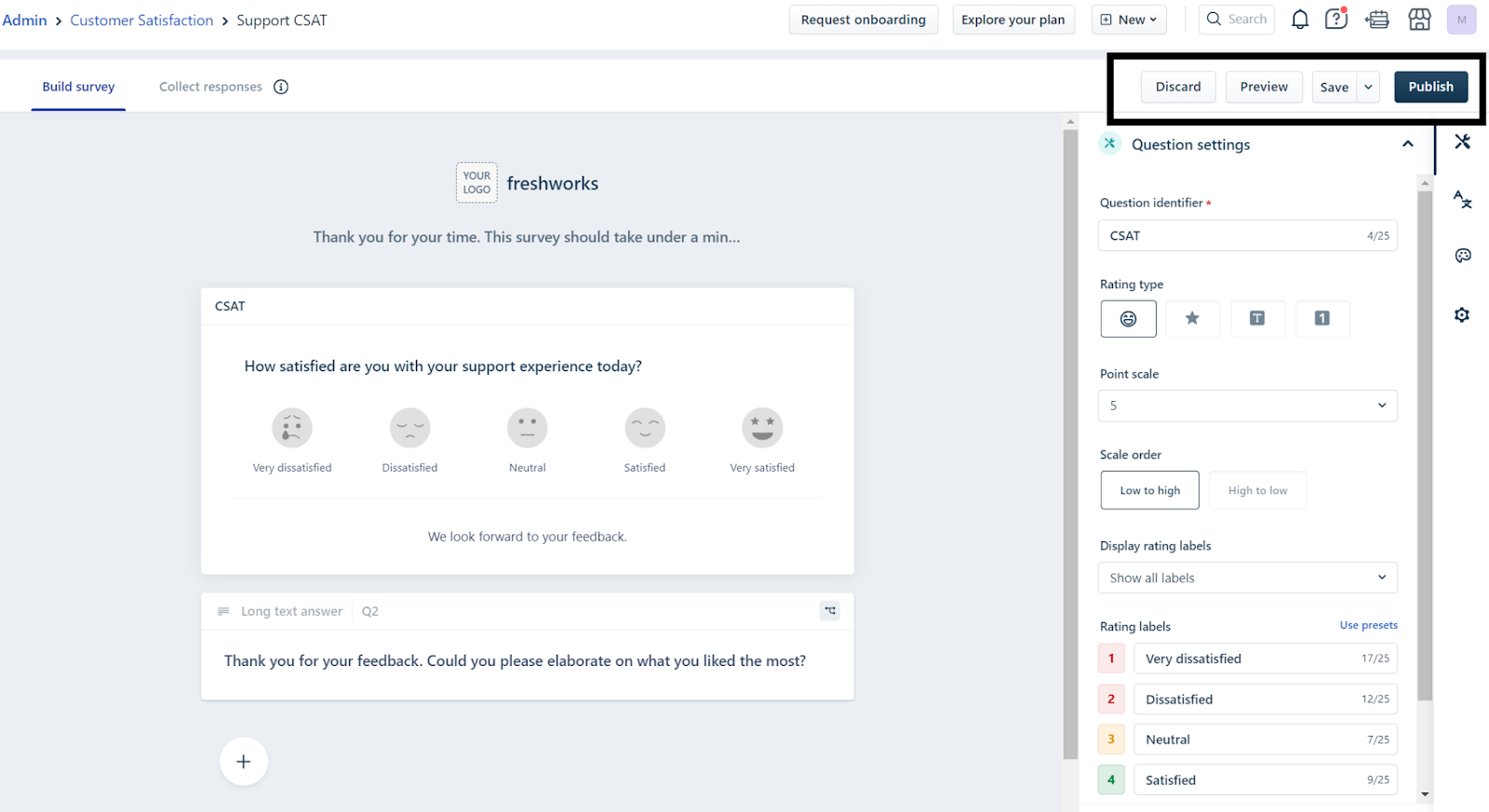
Once you finish customizing your survey, you must save and publish it to enable agents to use them.
Discard - Discard all changes and start building from scratch.
Preview - Preview the survey to understand how it looks.
Save/Save as template - Save the survey to keep it aside for future use. You can also save it as a template to clone and use it to build other surveys.
Publish - A survey will become active only after you Publish it.
Collecting CSAT Survey Responses
Once you have built and published your CSAT survey, the next step is to decide how and when to send it to customers. The Collect Responses tab lets you configure the survey distribution channels, frequency, and triggers.
Note: By default, contacts can submit a survey only once. To allow contacts to retake a survey until it expires, enable Allow contacts to retake the survey until it expires under Collect responses > Send via Automation.
1. Send on Ticket Resolution
Automatically send the survey when a ticket is resolved or closed.
Go to Admin > Customer Satisfaction > [Your Survey] > Collect Responses.
Select Send on Ticket Resolution.
Choose the channels you want to use — Email, Web Chat, WhatsApp, Instagram, or Facebook Messenger.
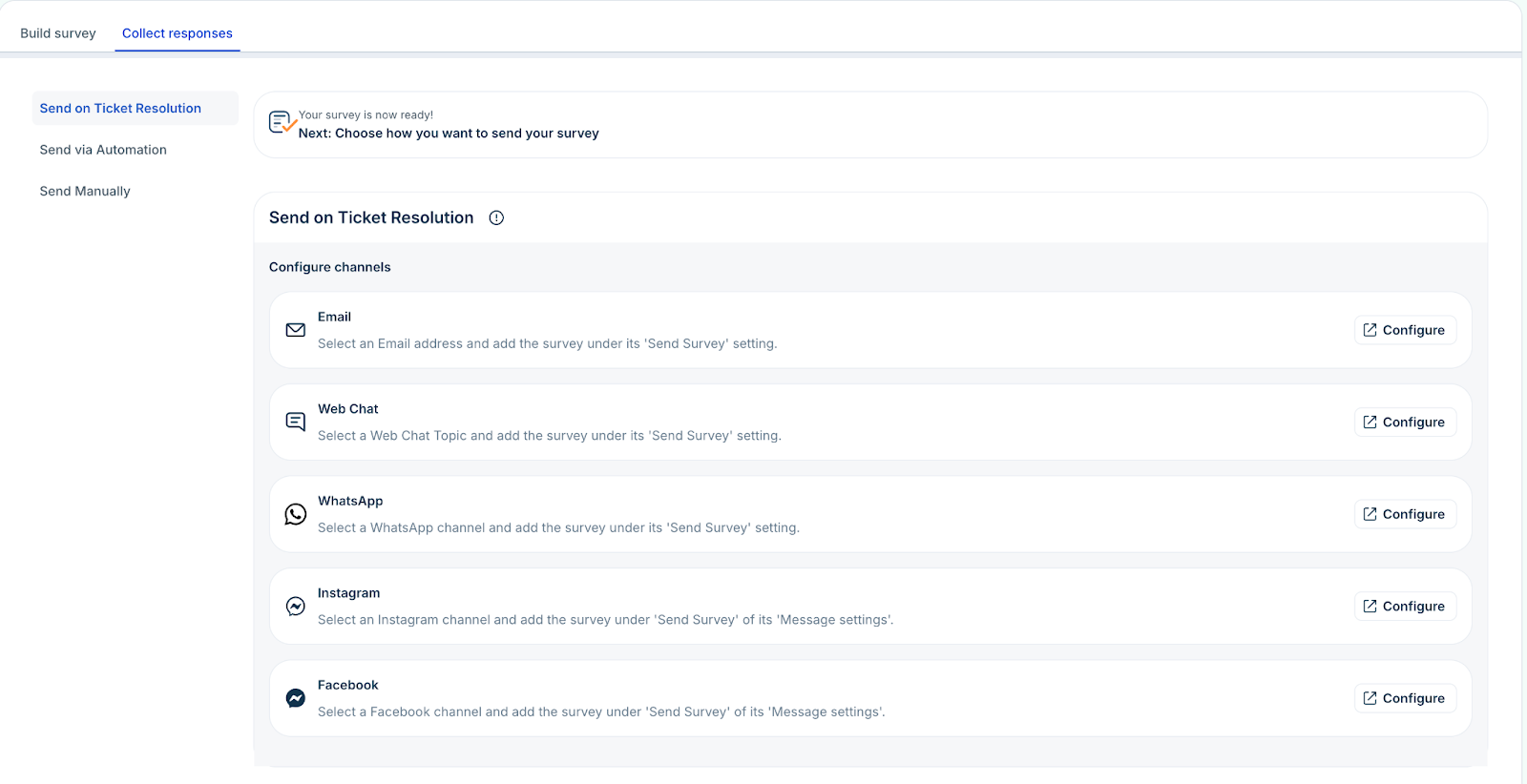
Each channel has its own configuration options to control when and how surveys are sent — let’s look at them in detail:
To configure the email channel,
Click Configure near Email
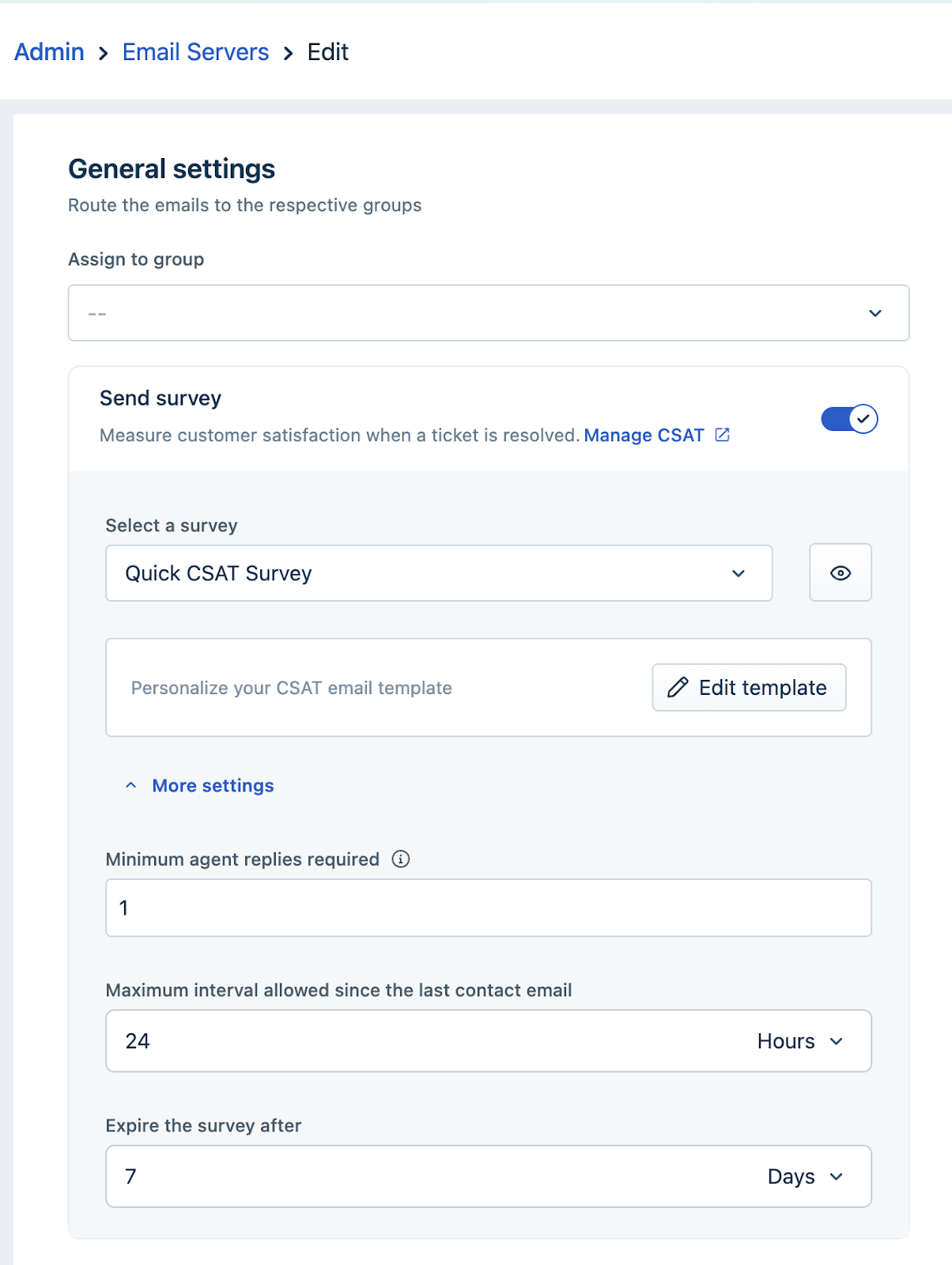
On the Email Servers list page, click configure (gear icon) to the right of the respective support email you want to add a survey to.
In the Edit Support Email page, under General Settings, toggle on Send Survey
Under Select a Survey, select the survey you want and click Edit template to make changes to the subject and body of the survey if required, and click Save.
Click More Settings and define the following parameters for your survey:
Minimum messages required to trigger survey -The least number of messages exchanged in a conversation before a survey is sent.
Time interval to trigger the survey after the last message - The maximum time allowed to send the survey after the contact’s last message.
Expire the survey after - The time limit for the customer to respond before the survey expires.
Web chat
To configure the Web chat channel,
Click Configure near Web Chat
On the Web Chat page, click Web Chat Topics tab
Click Configure near a Topic
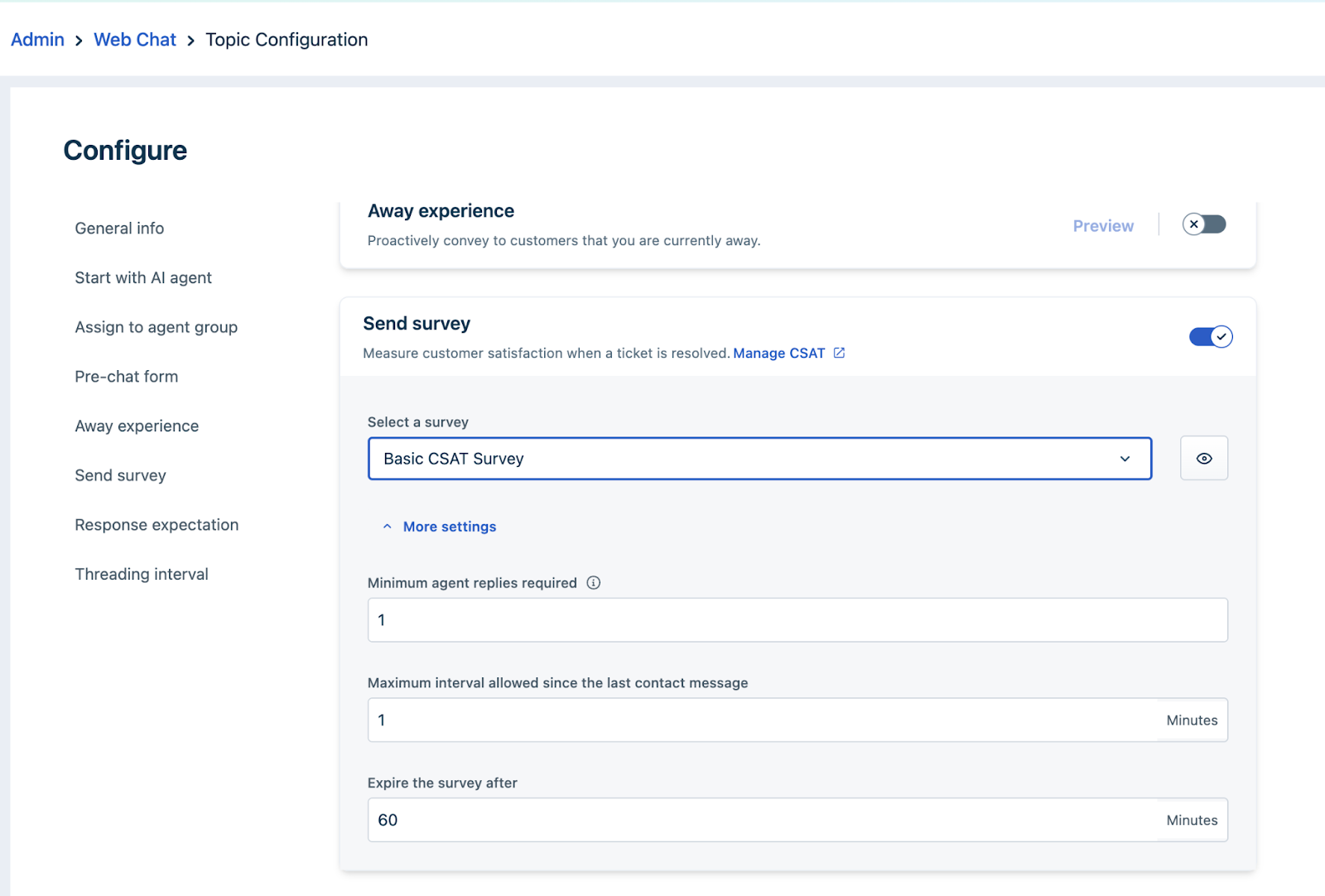
Toggle Send survey section and select the survey you want to add
Click More Settings and define the following parameters for your survey:
Minimum messages required to trigger survey -The least number of messages exchanged in a conversation before a survey is sent.
Time interval to trigger the survey after the last message - The maximum time allowed to send the survey after the contact’s last message. You can configure this value in either hours or minutes.
Expire the survey after - The time limit for the customer to respond before the survey expires.
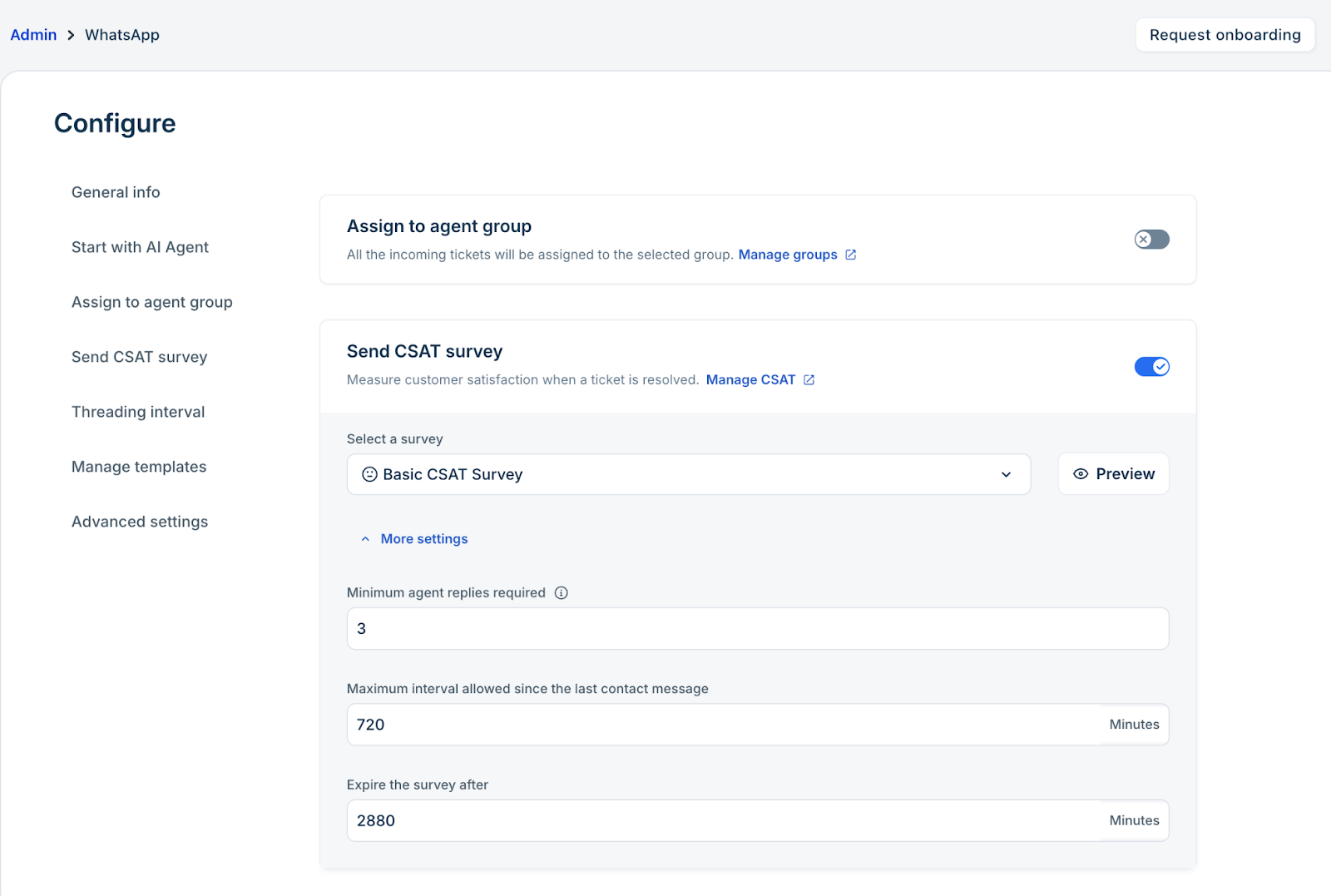
To configure the WhatsApp channel,
Click Configure near WhatsApp
On the WhatsApp list page that appears, click Configure near the WhatsApp number you want to add the survey to
In the Configure page, toggle on Send CSAT survey section. Select a survey from the dropdown and define the following values:
Minimum messages required to trigger survey -The least number of messages exchanged in a conversation before a survey is sent.
Time interval to trigger the survey after the last message - The maximum time allowed to send the survey after the contact’s last message. You can configure this value in either hours or minutes.
Expire the survey after - The time limit for the customer to respond before the survey expires.
Click Preview to see how your link will look with all the details added
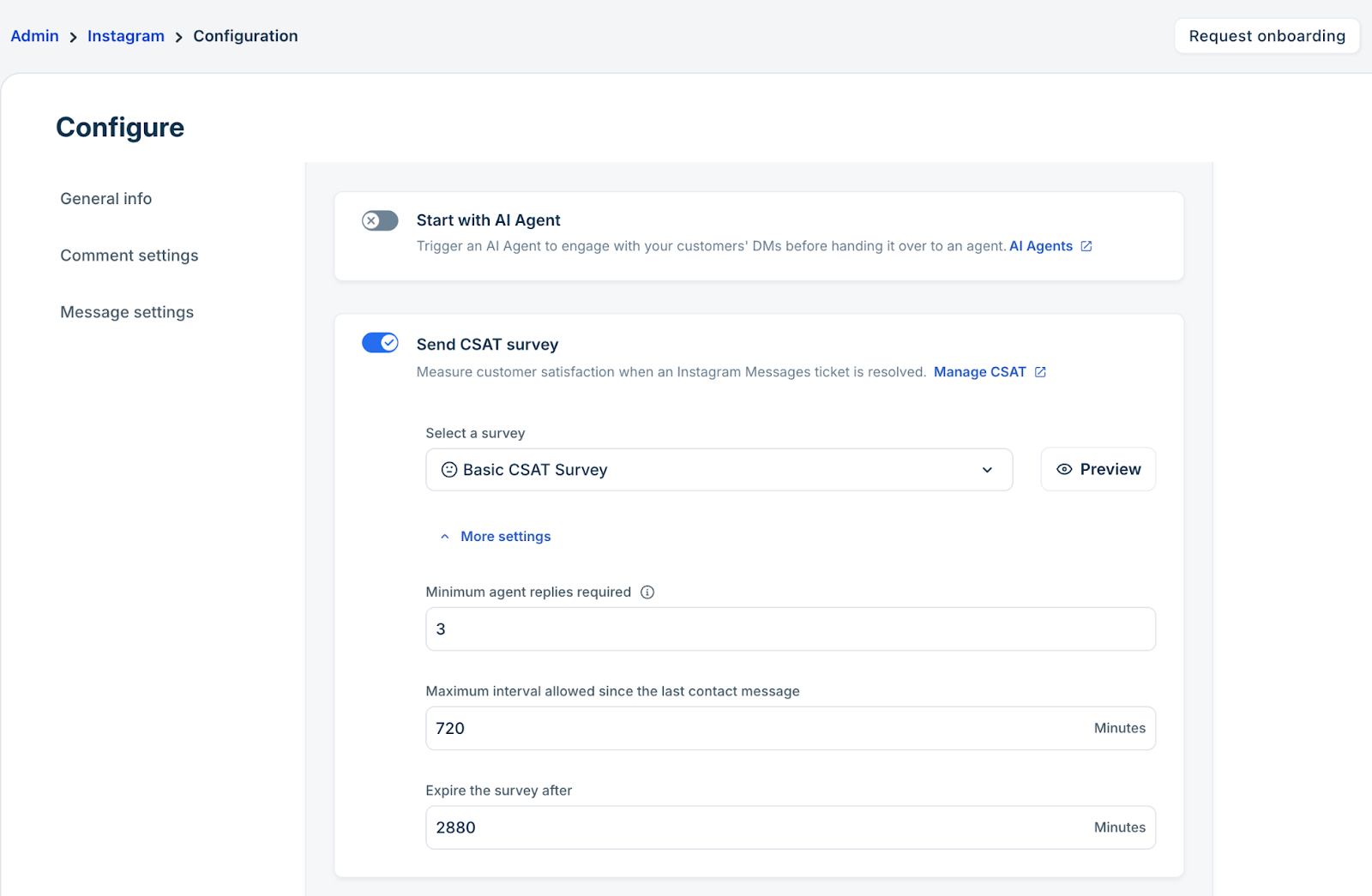
To configure the Instagram channel,
Click Configure near Instagram
On the Instagram list page, click Configure near the business handle to which you want the survey added.
On the Configure page, in the Message settings tab, toggle on the Send CSAT survey section
Click More settings. Here, you can define the:
Minimum messages to trigger a survey -The least number of messages exchanged in a conversation before a survey is sent.
Time interval to trigger the survey after the last message - The maximum time allowed to send the survey after the contact’s last message. You can configure this value in either hours or minutes.
Expire the survey after - The time limit for the customer to respond before the survey expires.
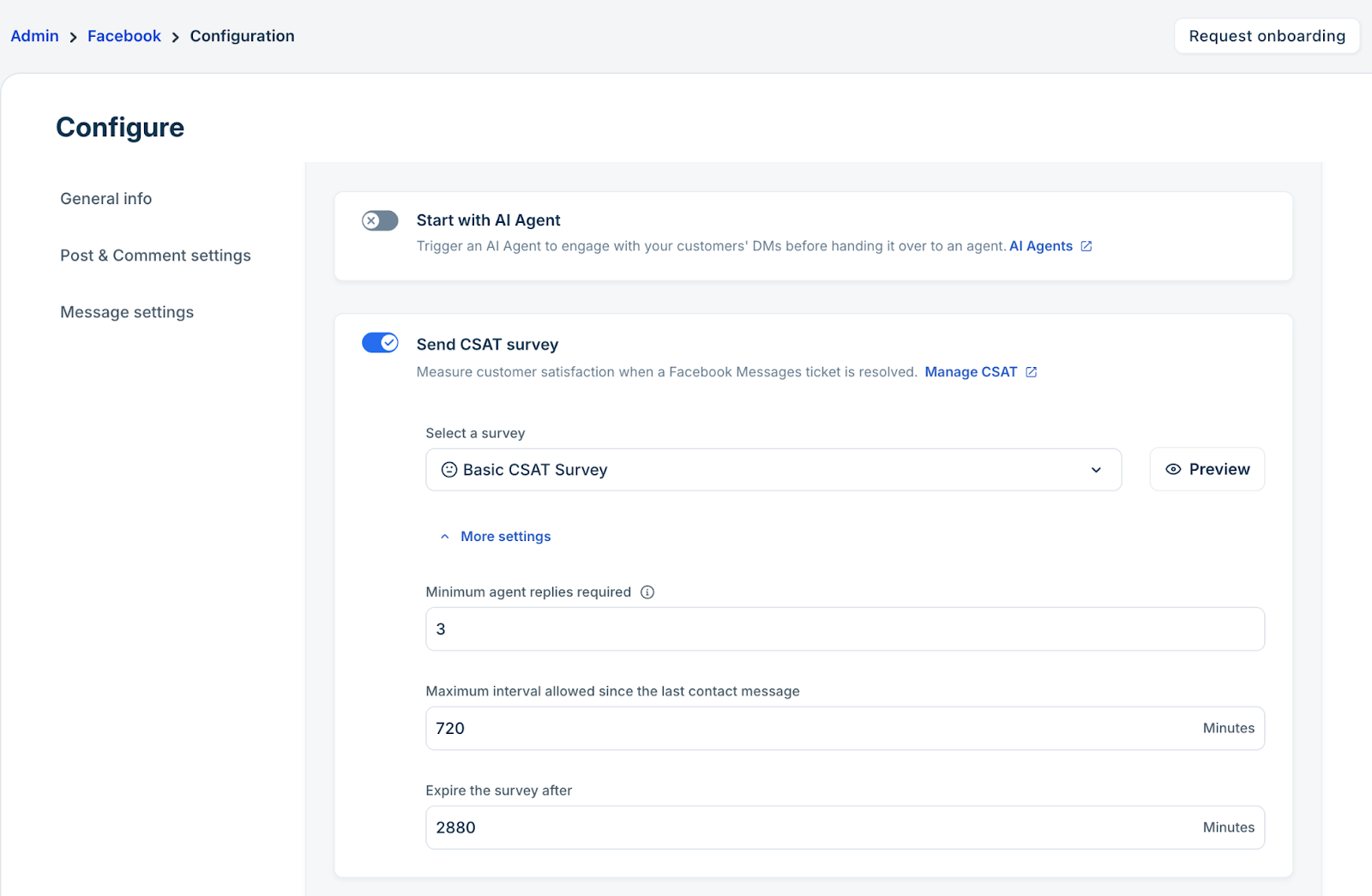
To configure the Facebook channel,
Click Configure
On the Facebook list page, click Configure near the page you want to add a survey to
On the Configure page, in the Message settings tab, enable the Send CSAT survey toggle on
Click More settings. Here, you can define the:
Minimum messages to trigger a survey -The least number of messages exchanged in a conversation before a survey is sent.
Time interval to trigger the survey after the last message - The maximum time allowed to send the survey after the contact’s last message. You can configure this value in either hours or minutes.
Expire the survey after -The time limit for the customer to respond before the survey expires.
Click Customize link. In the Customize Link overlay,
Choose if the survey link text should be the first question in your survey, or if you want to add a custom text
The link is pre-filled using the portal URL as the base, since the web link is rendered on the portal. Admins can update or replace it if needed.
Add a Meta title and description.
View a Preview of how your link will look with all the details added
Note: This Customize link option applies to Meta channels only when the selected survey cannot be rendered interactively. In such cases, a banner appears indicating incompatibility and prompting the admin to customize the link.
2. Send via Automation
You can also use Ticket Automations to control when surveys are sent. This is useful when you want to trigger surveys based on more specific conditions—such as sending them only for high-priority tickets
Note: Surveys can be sent through any configured touchpoint (such as email, Meta channels, or automation-triggered links). However, once a customer submits a response to a specific survey from any touchpoint, all other open requests for that same survey are automatically marked as completed.
You can use the following options to add, customize, and set specific configurations for the surveys that are sent through automations:
Add Survey to an automation rule
To configure surveys through automations,
Go to Send via Automation > Add survey to an automation rule > Select a template
In the Explore Templates page that appears, click CSAT surveys tab to view survey templates
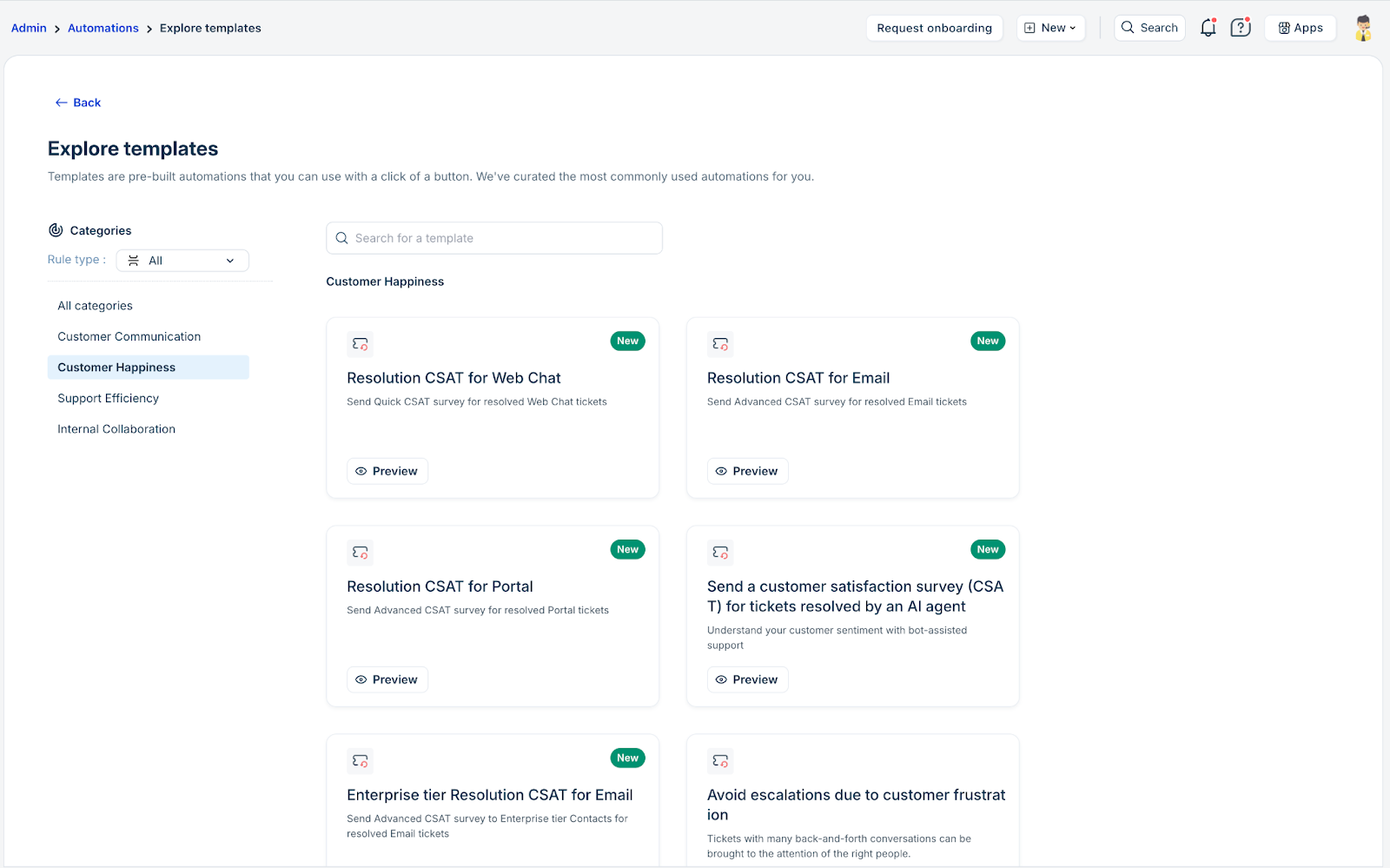
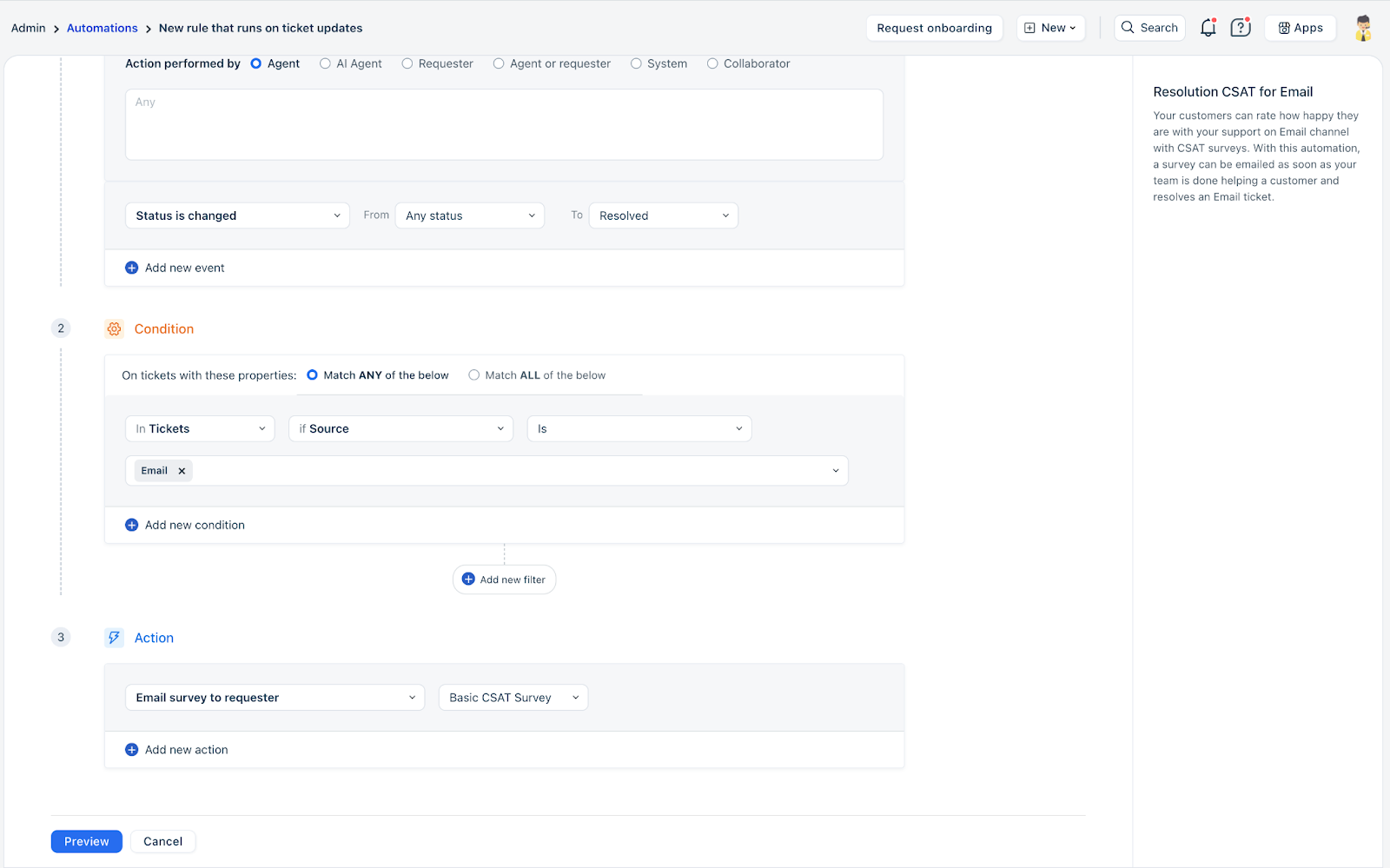
Click Preview to view information about when the survey gets triggered. Click Use template, where you can make changes to define the following about triggering the survey:
Event – choose when the survey should trigger (e.g., when a ticket is resolved or closed).
Condition – add filters to trigger surveys only for specific ticket sources or properties.
Action – Choose how you want to send the survey:
Send survey to requester on source – Deliver the survey on the same channel where the ticket originated (e.g., WhatsApp, Instagram, Webchat).
Email survey to requester – The survey link will be sent via an email template, which is set up under Send survey via Automation, provided the contact has a valid email address. This process applies irrespective of the original ticket channel.I
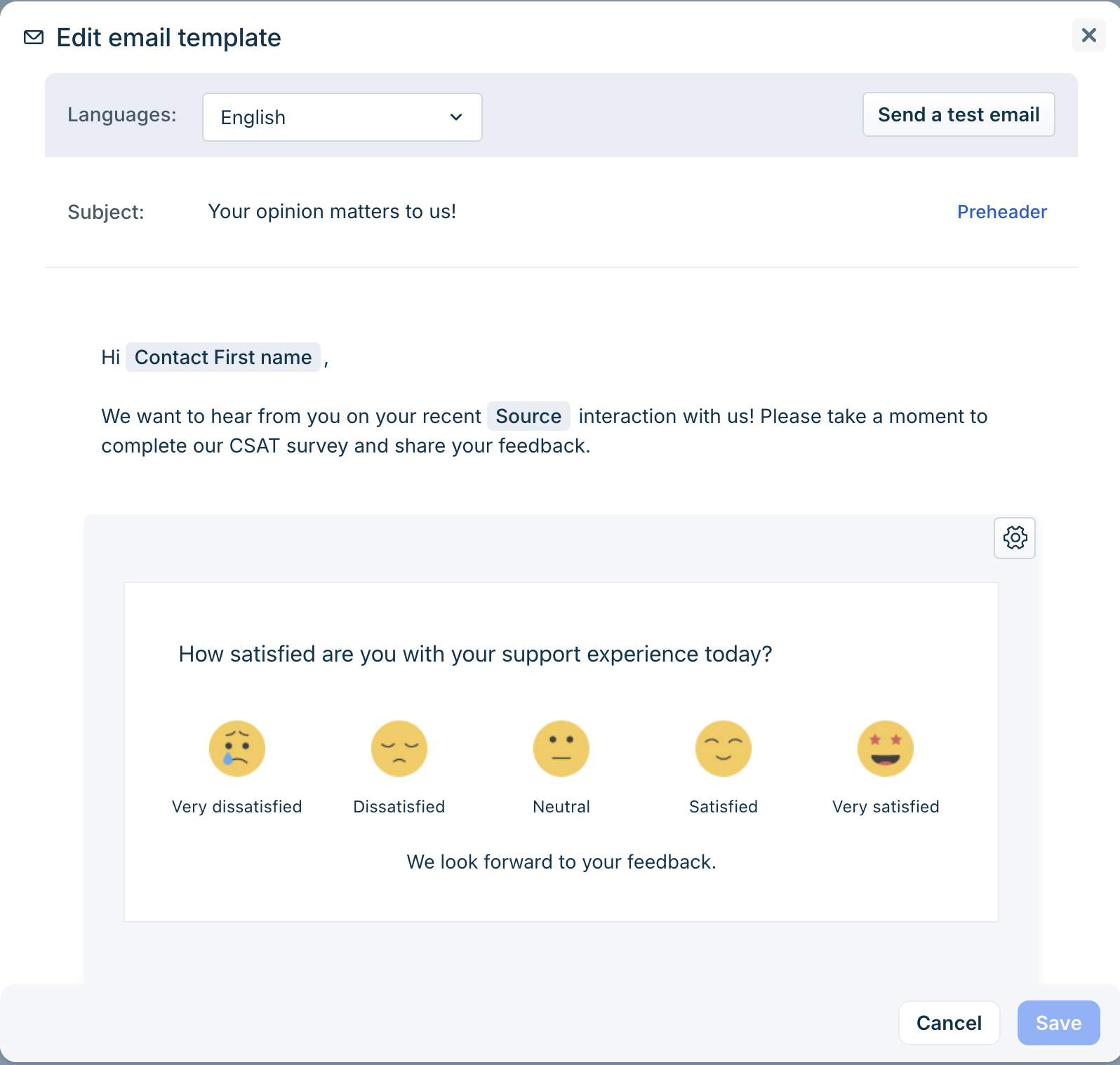
Customize email sent with the survey
To customize surveys sent through automations,
Go to Send via Automation > Customize email sent with the survey
Click Edit. The Edit email template pop-up appears
Add the survey subject and description here.
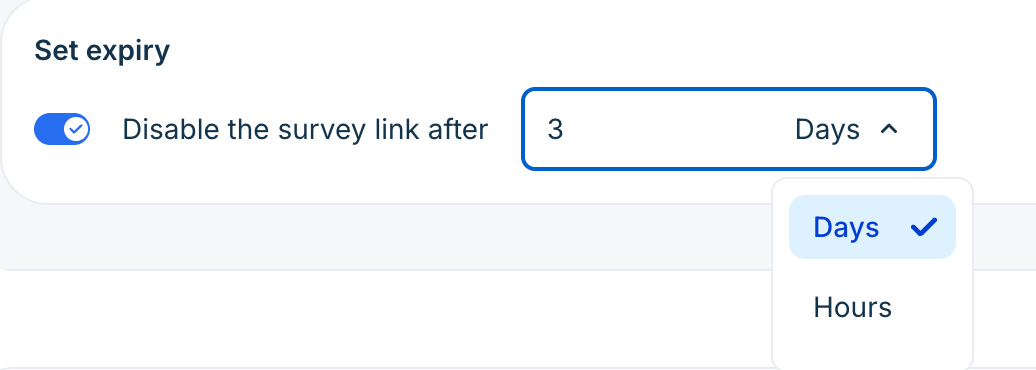
Set expiry - Define when survey links sent via automations should be disabled. You can choose to set the timeframe in hours or days from the dropdown.
3. Send Manually
Agents can manually send the survey in a reply, either inline or as an attachment, directly from the reply editor. Follow the steps below to set access permissions, customize the survey link, and set a timeframe for link expiry:
Enable Agents to add surveys to replies
To give access to agents to add surveys when they respond to customers, toggle on Allow agents to attach this survey in their replies. You can choose from the following access permissions for your survey:
Access to all agents: All Freshdesk agents will have access to this survey.
Access to all groups except: Select this option and specify the groups you want to exclude. All other groups will have access.
Access to specific groups: Specify the groups that should have access to the survey. All other groups will not be able to access it.
Set Expiry - Define when survey links sent manually should be disabled. You can choose to set the timeframe in hours or days from the dropdown.
Survey frequency
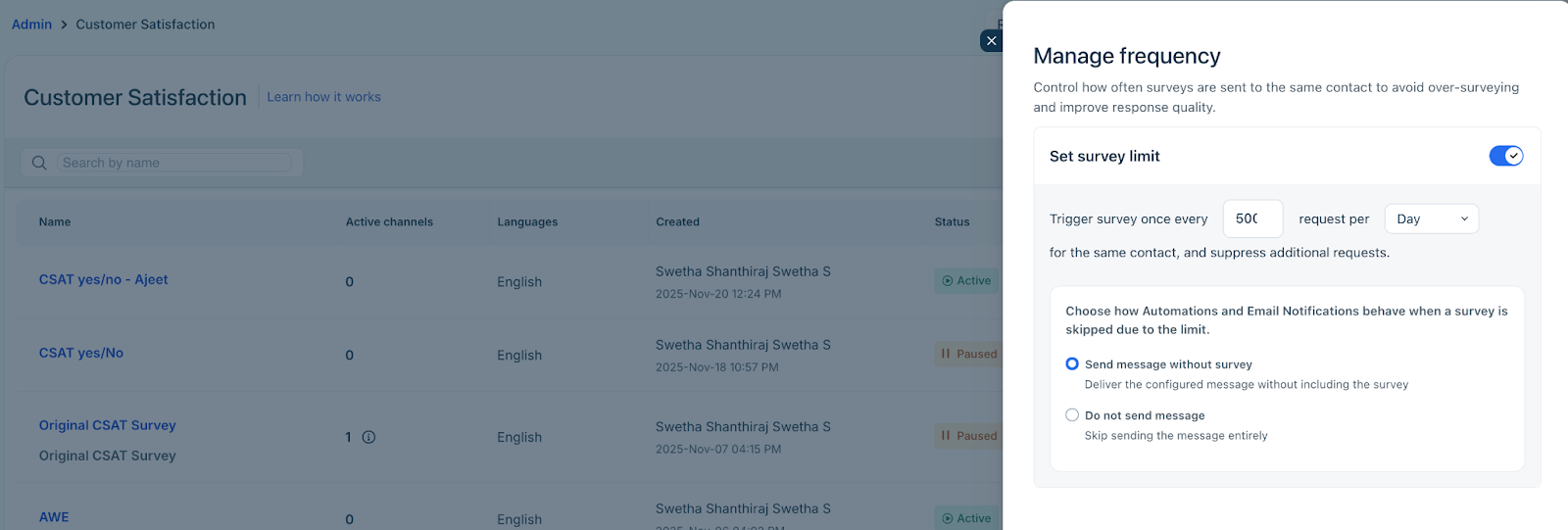
Survey frequency (available only on the Enterprise plan) helps you control how often CSAT surveys are sent to the same contact, preventing survey fatigue and improving response quality.
Admins can set a limit, such as ‘Send one survey every n requests per day/week/month.’
When the limit is reached, additional survey requests for that contact are automatically suppressed for that period.
To configure Survey frequency,
On the Customer satisfaction surveys list page, click Manage frequency.
Toggle on Set Survey limit.
Set a survey limit
– Example: Trigger a survey once every 5 requests per month per contact.
– All other survey triggers for that contact within that window are suppressed.Choose what happens when a survey is skipped:
Send message without survey
The email/automation notification goes out, but the survey is removed.Do not send message
The entire outgoing message is skipped.
Admin warnings
To ensure admins are aware of the impact of frequency limits, Freshdesk logs a note if a survey wasn’t sent on ticket activities due to frequency configuration issues.
Survey Frequency and Agent Experience
If an agent tries to send a reply that contains a survey, but the contact has hit the survey limit, then the reply will fail if CSAT cannot be delivered. A banner will be shown to prevent manual addition of a survey. This ensures agents don’t accidentally bypass frequency rules.
Automate Survey Delivery
Admins can include survey actions as part of their Automation rules to ensure the right surveys are sent at the right time. The following actions are available:
Send survey to requester on source– Deliver the survey on the same channel where the ticket originated (e.g., WhatsApp, Instagram, Webchat).
Email survey to requestor – Send the survey link through email, regardless of the original ticket channel. Include the survey link directly in the email body or attach it for easy access.
Email as source in Send reply - You can also add a CSAT when the Action is Send Reply and the source or channel is Email
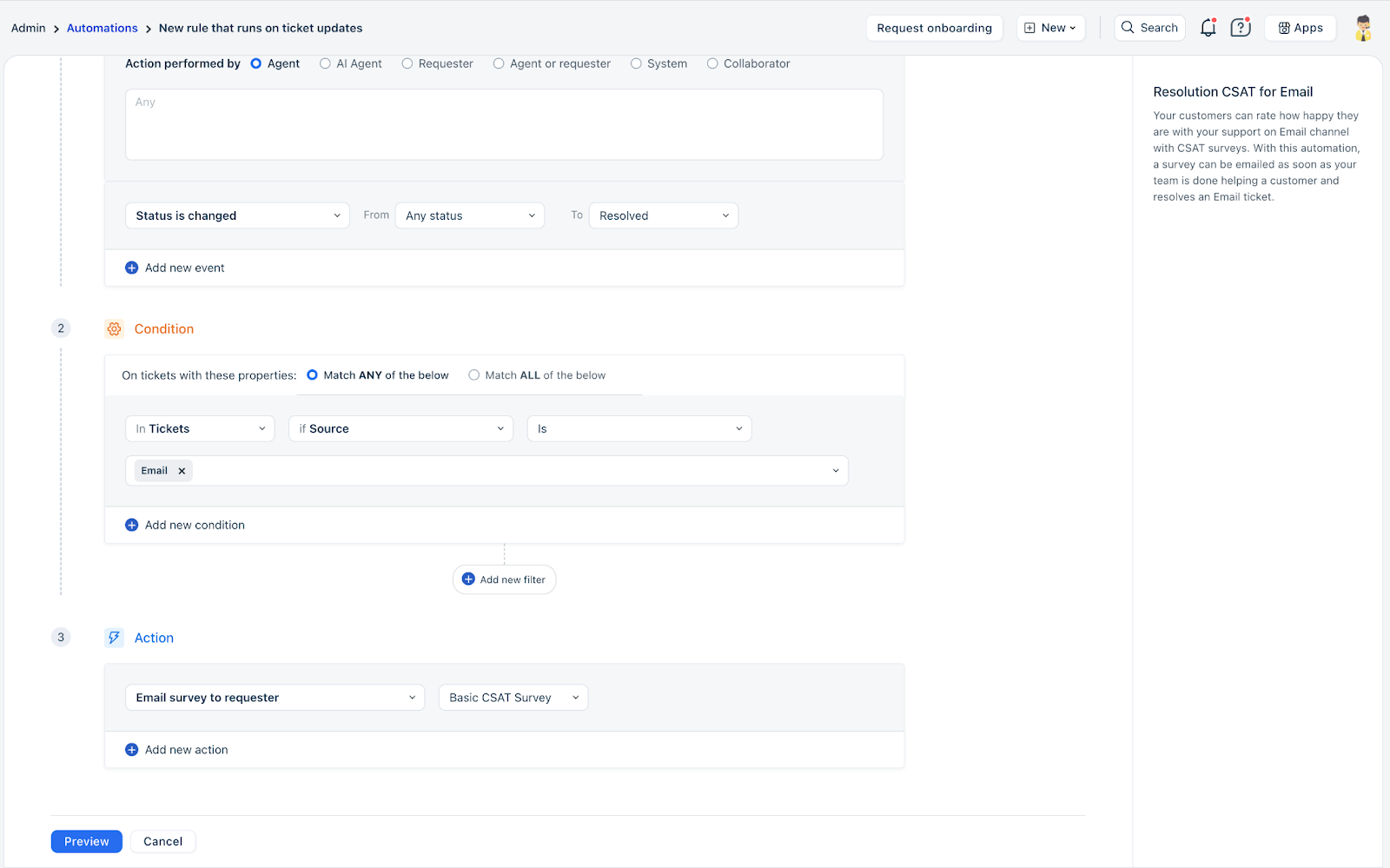
These actions can be combined with conditions like ticket status, priority, or group to ensure surveys are targeted and relevant. You can also edit the email template, customize the survey link, and set an expiry time for survey responses.
Use survey responses in automation conditions
Advanced CSAT survey responses can be used as conditions in ticket automations. In addition to CSAT rating and rating groups, you can create automations based on responses to survey questions, including the resolution question.
For example, you can:
- Escalate tickets where the customer indicates their issue was not resolved.
- Trigger follow-up workflows based on specific survey responses.
- Route tickets to specialized teams based on customer feedback collected through Advanced CSAT surveys.
Add Surveys to Email Notifications
To include a survey in a notification template:
Navigate to the Email Notification Settings:
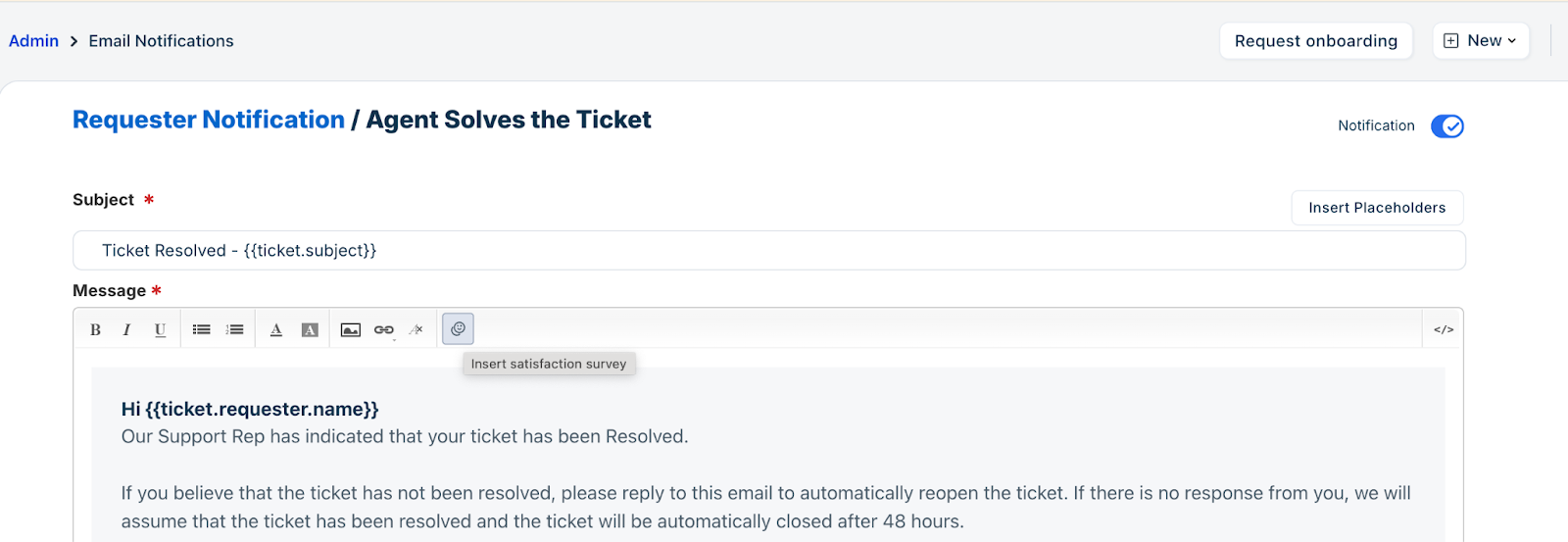
Go to Admin > Email notification > Requester Notifications and select a supported template:
Agent Adds comments to tickets
Agent Solves the Ticket
Agent Closes the Ticket
If you want to add surveys after the above actions by the Agent.
Alternatively, you can go to Admin > Email notification > Templates > Agent Reply Template if you want to add the survey to all Agent responses.
Insert the Survey:
Within the selected template, click Insert satisfaction survey.
Choose the specific survey you wish to include.
Determine Placement:
Select how the survey should be delivered:Inline: The survey is embedded within the main email message content.
Insert Separately: The survey is sent as a distinct, follow-up email after the primary message.
Audit Logs
You can view information on which agent changed the survey status (published/Deleted) and when in the audit logs by going to Admin > Audit Log. You can filter by Survey to view CSAT related changes.

Click here to learn about CSAT agent and end-user experience
Signup Date: Before December 2025
Customer satisfaction score (CSAT score) is one of the best ways to gauge how customers feel about your service and support. It is one of the most straightforward ways to measure customer satisfaction, and it's obtained by asking a simple question, such as 'How satisfied were you with your experience?.’
The Customer Satisfaction Survey is a built-in functionality of Freshdesk that can be used to directly measure helpdesk efficiency and customer satisfaction rating for every support ticket by sending out surveys at different points in the ticket lifecycle. You can use the customer satisfaction report to assess your service and provide better guidelines to train support people in the future based on past results.
Let us now see how you can set up a CSAT survey within Freshdesk.
Setting up a new survey
Go to Admin -> Workflows -> Customer Satisfaction
Click on ‘New Survey’ in the top right corner
Choose a template from our curated list; Freshdesk has a list of 11 pre-built templates to suit any use case.
You can also choose one from the survey templates that you created while building a previous survey.
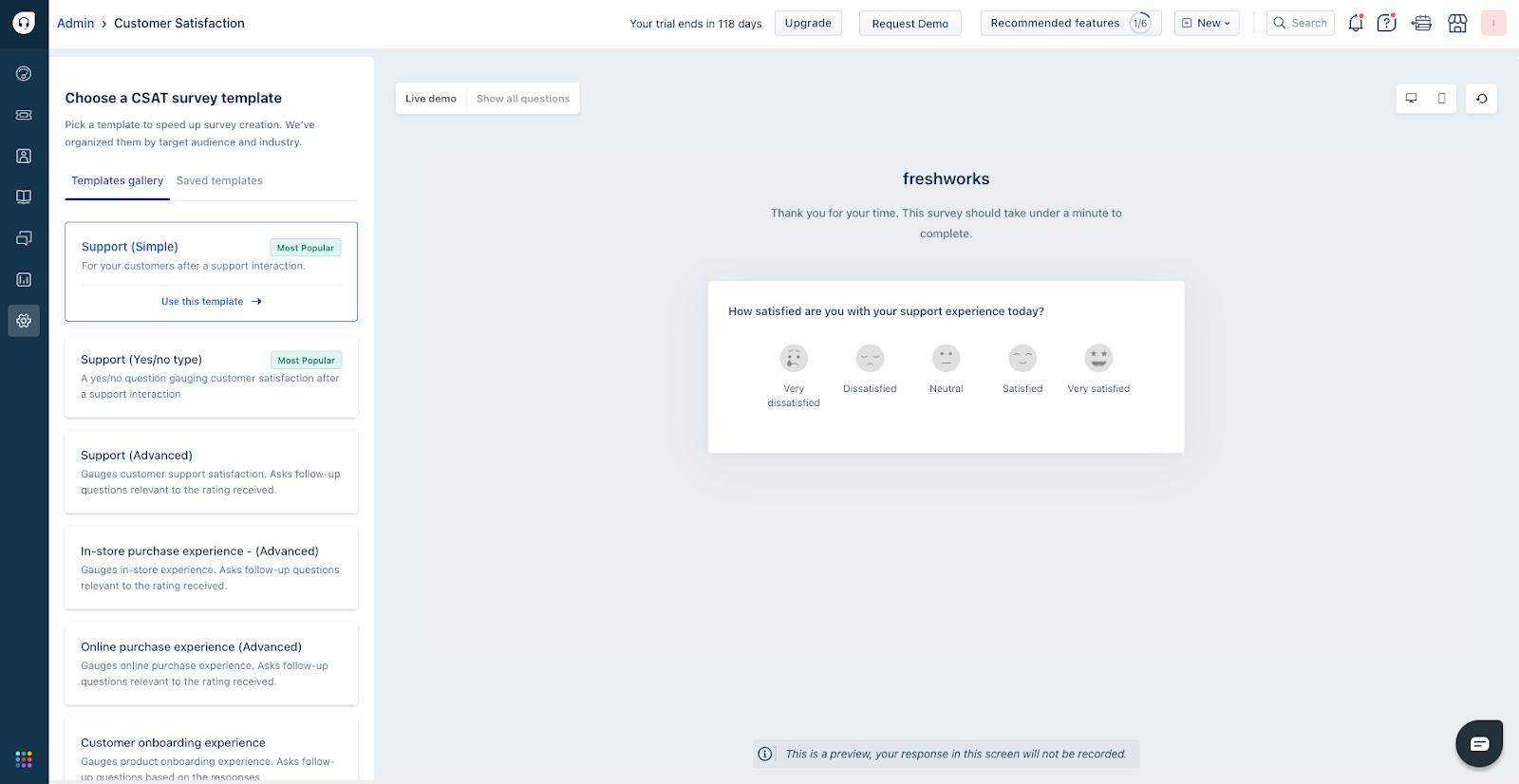
As an example, let us assume you want to create a Support(Simple) survey - choose the template and click on ‘Apply this template.’
Next, you can add a ‘name’ and ‘description’ and hit Apply this template.
Building a Survey
At the very top of the survey screen is the logo. You can click on the logo to change it.
Below the logo is the welcome text. Click on the text to edit it.
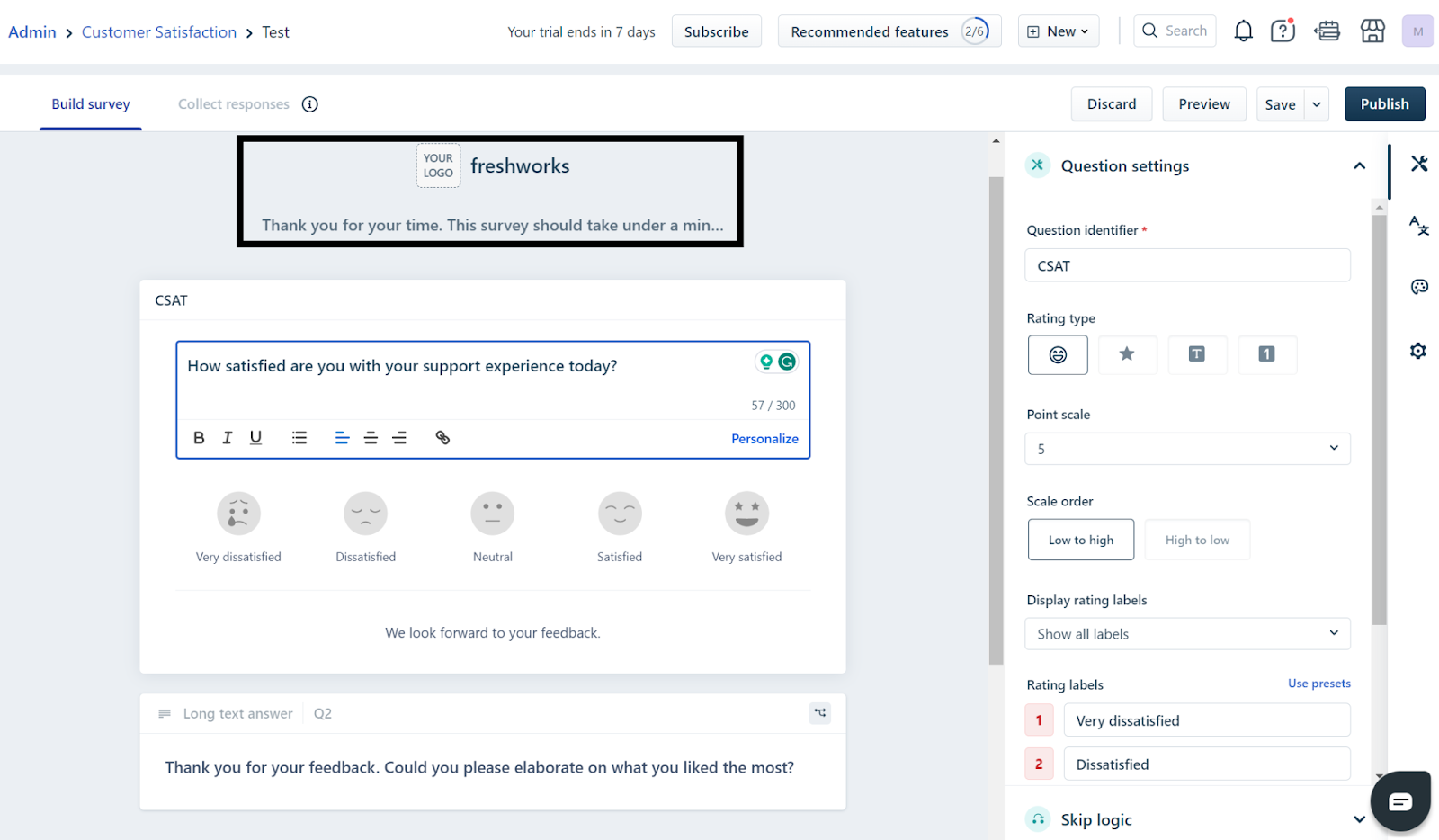
You can click on the question to edit the text and add placeholders to it as per your requirements.
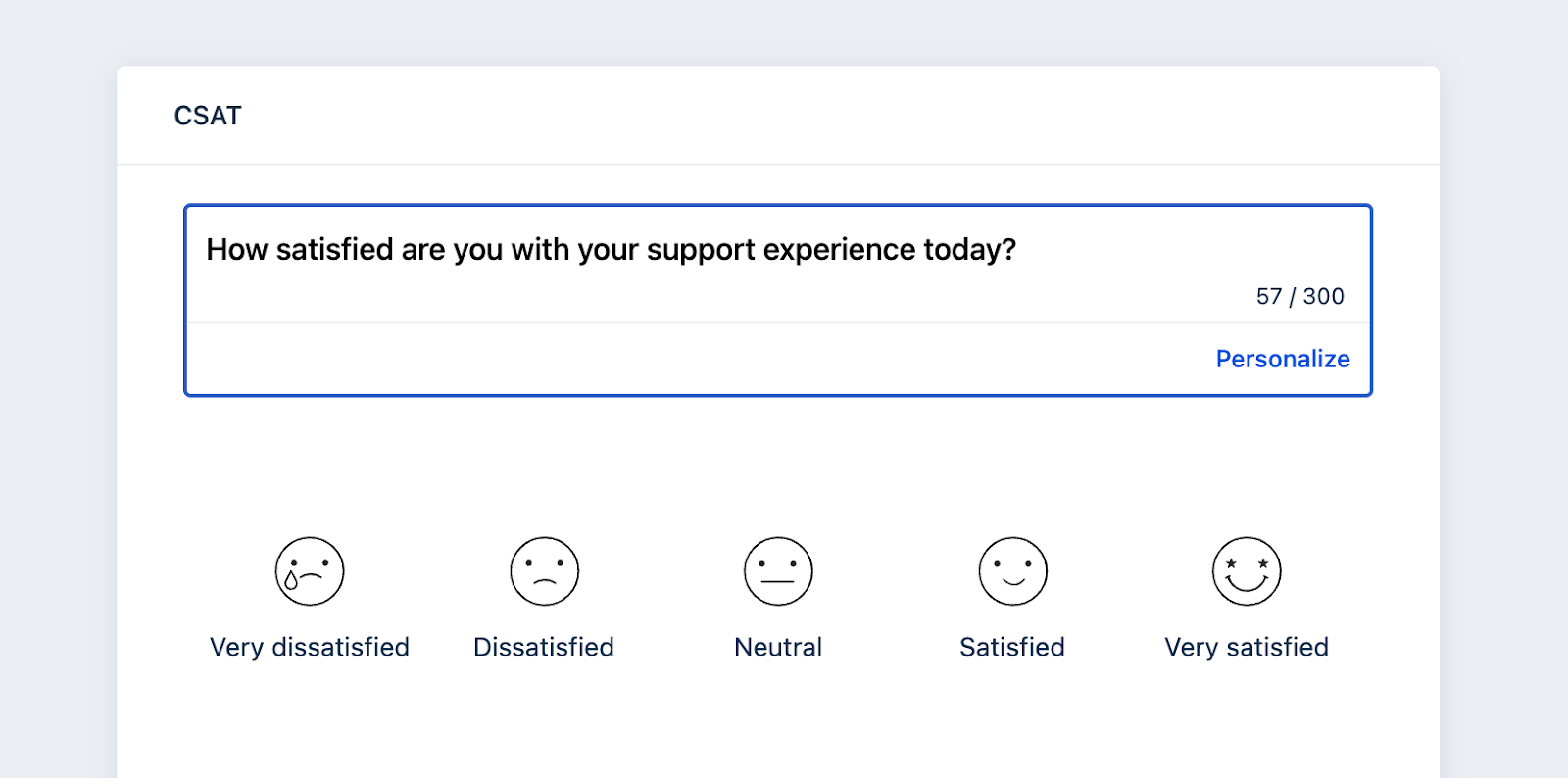
Add new questions by clicking on the '+' button after the questions. The CSAT module supports the following types of questions:
Multichoice - Single answer
Long text answer
Multichoice multiple answers
Rating scale
Yes/No
Short text answer
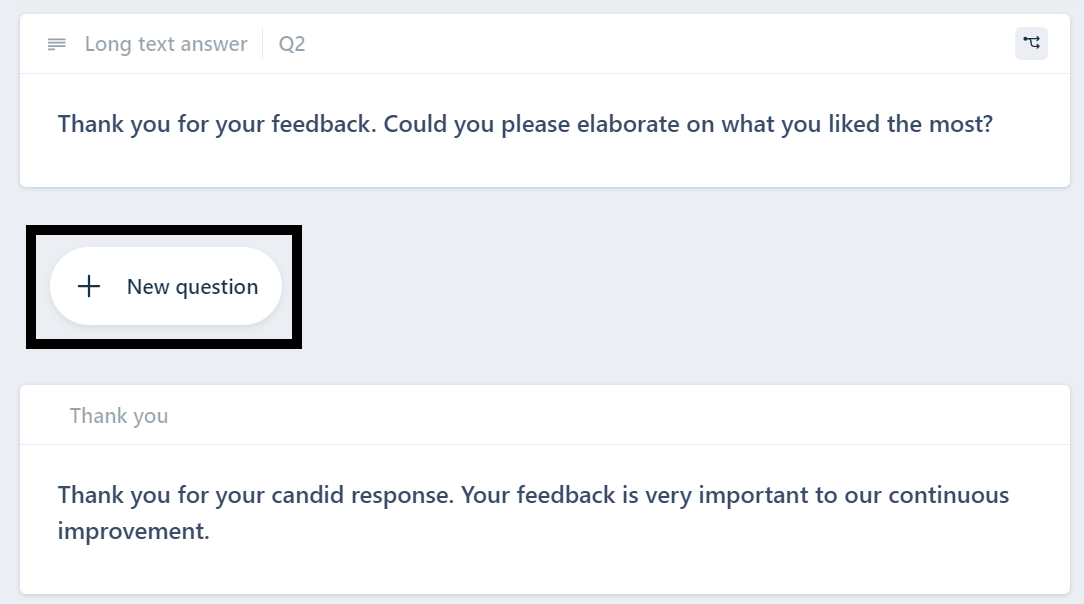
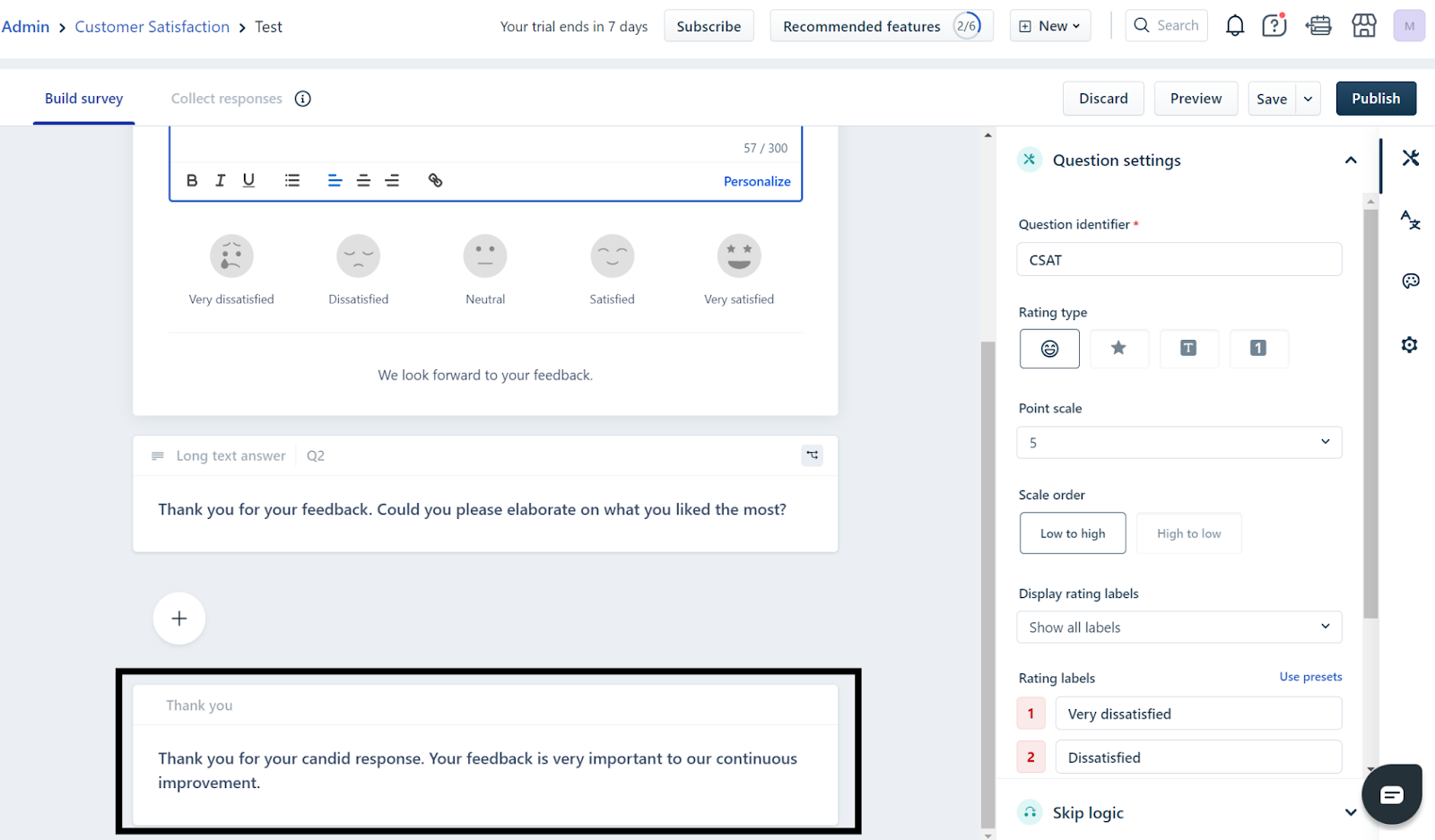
The very last card is the thank-you message. This is displayed when the survey is complete. Click on the text to edit it.
Survey customization settings
The right panel on your screen lets you customize the survey questions and change the survey settings to suit your needs.
You can select the rating scale visuals from smiley faces/emoticons, stars, text boxes, and a numbered rating scale.
You can also select the scale range (choose up to a 10-point scale). Select the order in which the score options appear, and customize the rating labels.
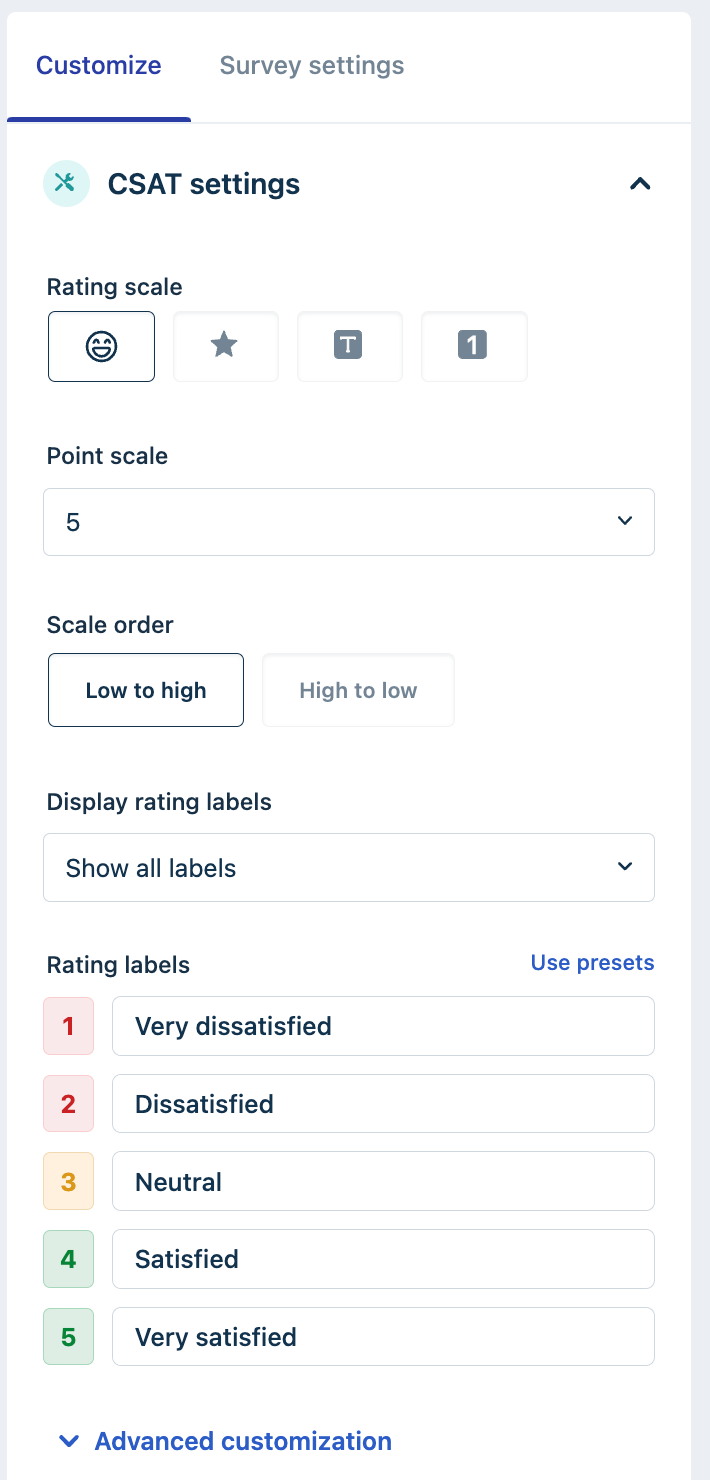
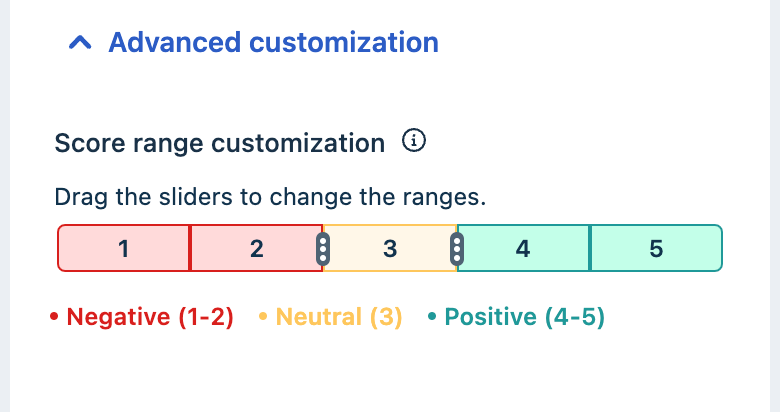
Click 'Advanced customization’ to change the score range and define the negative, neutral, and positive score groups per your preferences.
Survey look and feel customization
The right panel has four icons that let you customize the look and feel of your survey.
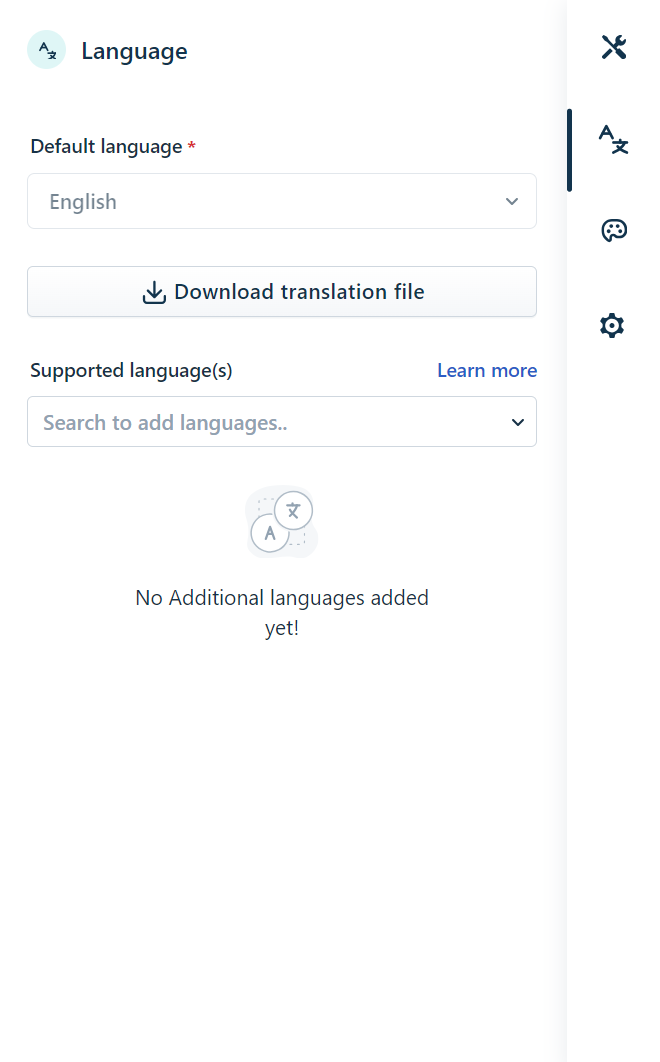
The ‘Languages’ setting lets you define the language in which you want your survey to be displayed
You can have multiple languages for a survey. This can be added in the language section.
The default language is set to English; you can add more languages in the ‘Supported Languages’ field.
You can also send surveys in the contact’s preferred language - which language the contact gets the survey in is decided based on the language of that contact.
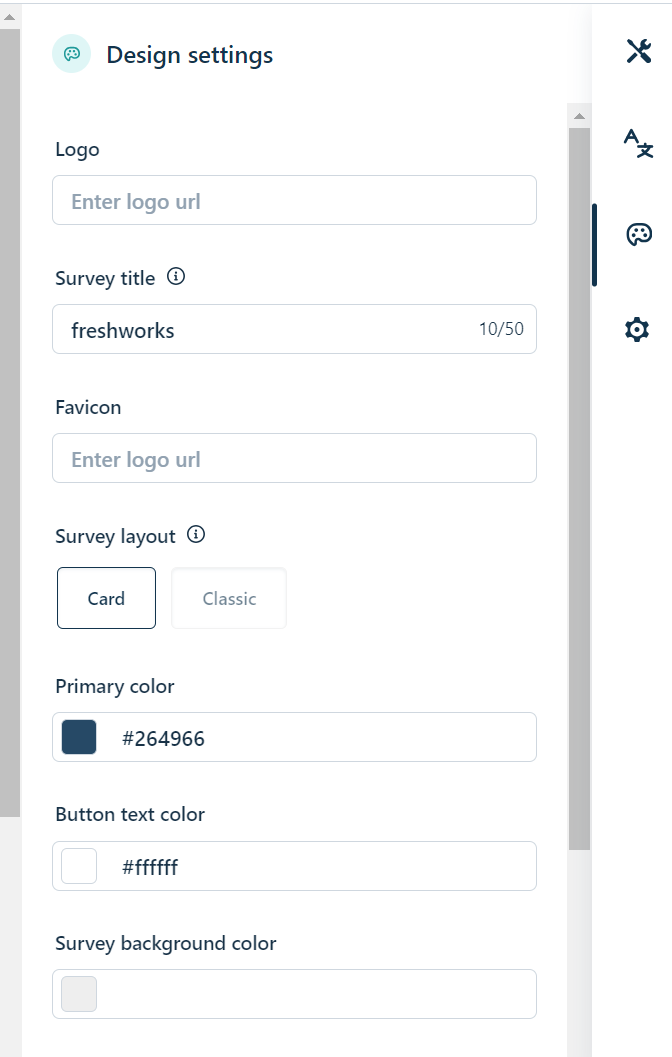
Under design settings, you can upload your logo, add the company name, add a favicon, choose the survey layout, and select your brand colors for buttons, backgrounds, and so on.
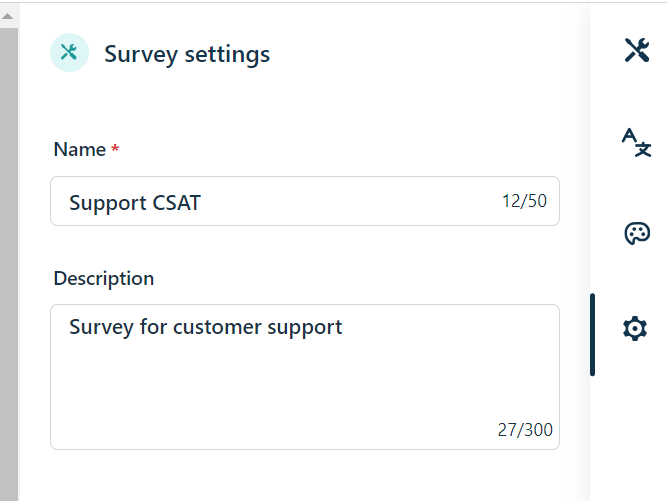
Under Survey settings, you can customize the survey name and add a survey description.
Survey flow - Configuring Skip logic
How the survey moves from one question to another can also be customized. This is done using Skip Logic.
Skip logic lets you create a survey that shows questions to respondents based on their responses. The advantage of implementing question branches is improved response rates, as customers will only see questions relevant to their responses.
Under Question Settings on the right panel, scroll to the bottom and click on Skip Logic.
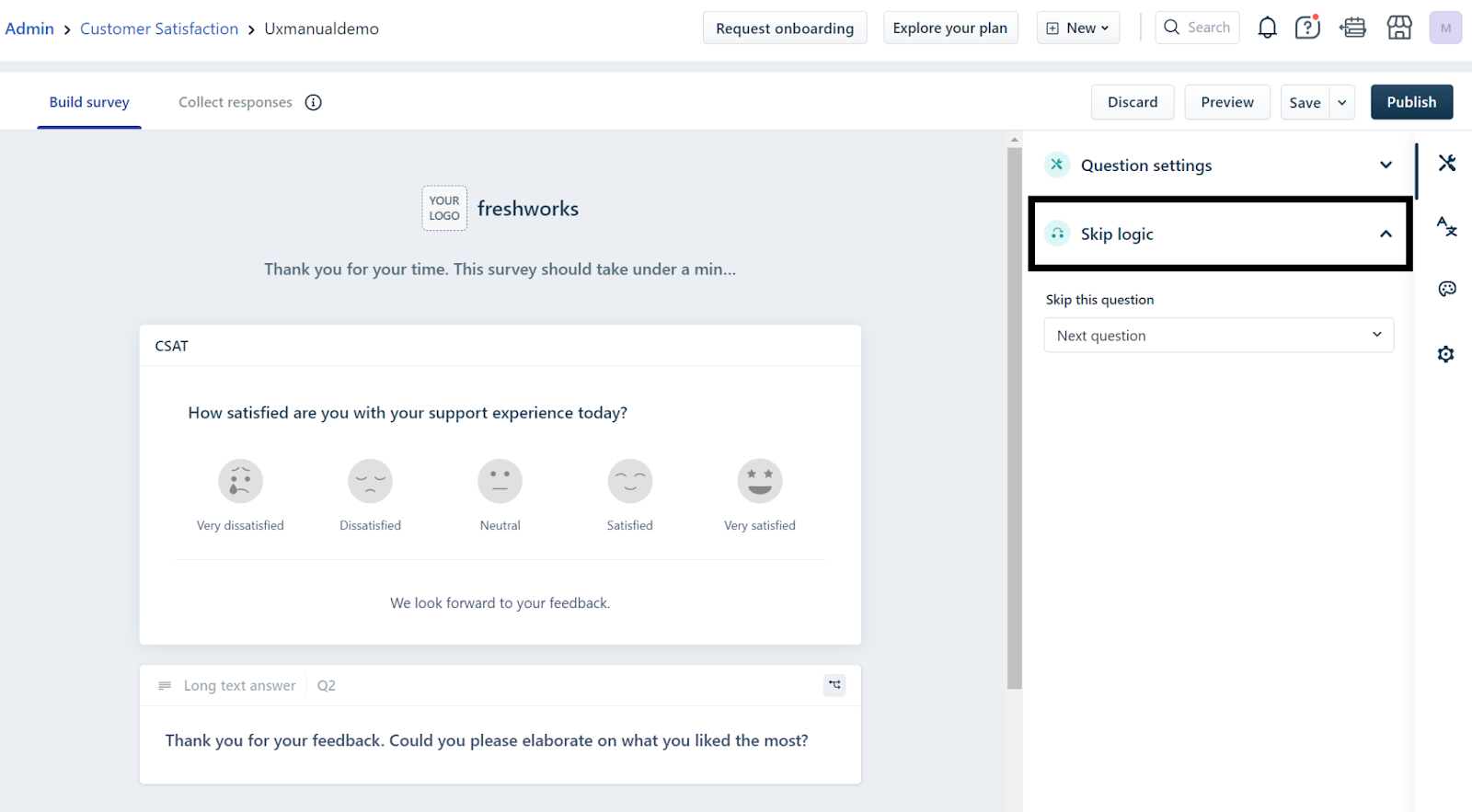
Choose the appropriate action. With Skip Logic, you can direct a user to the next question, specific questions, questions based on the answer, or to the end of the survey.
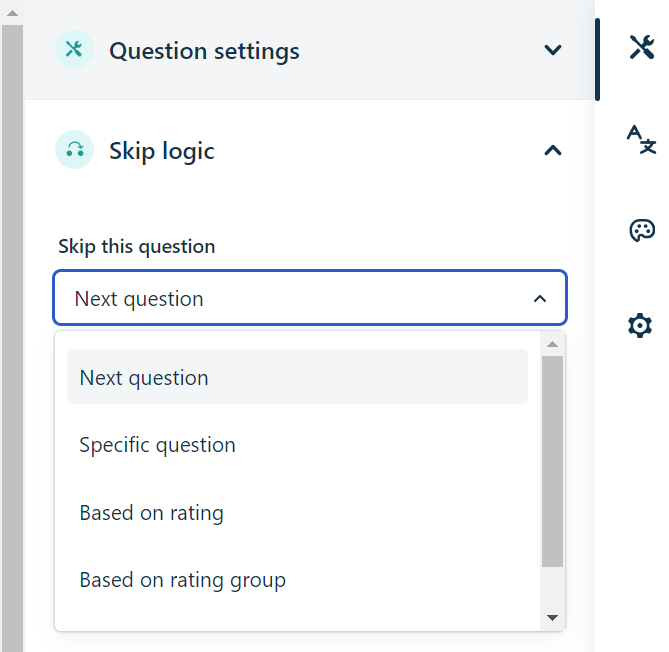
Skip Logic actions
Once a question has been answered, you can:
Direct customers to the next question - Customers will be directed to the next question, irrespective of what their response recorded is.
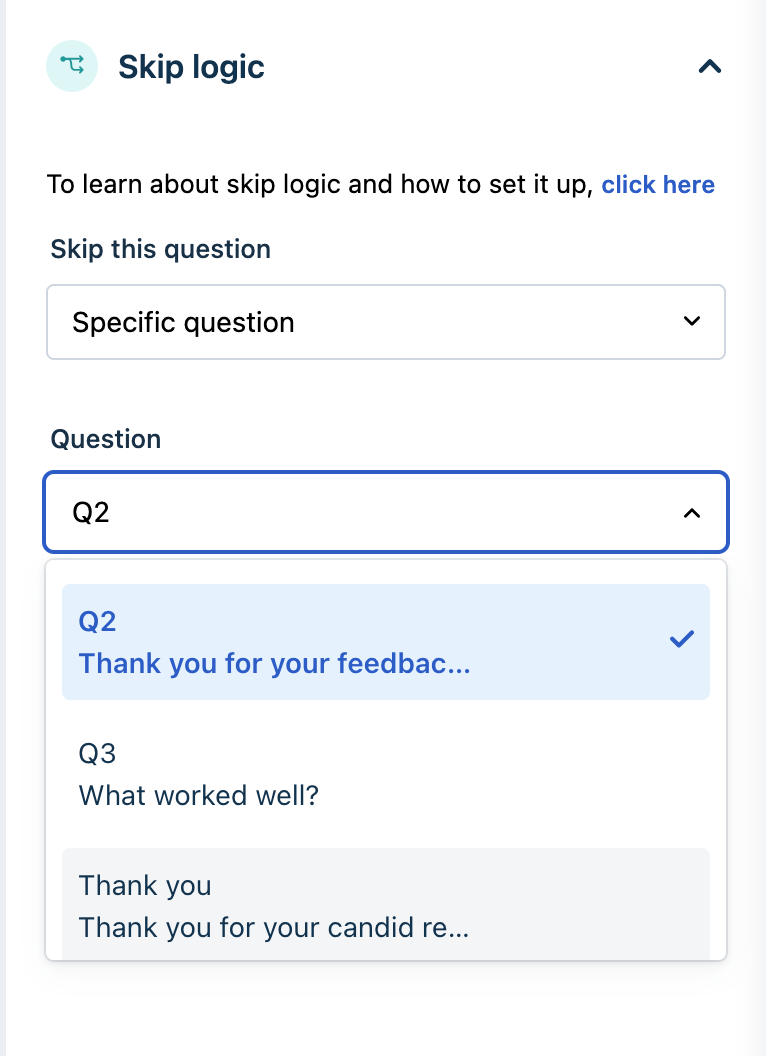
Direct customers to a specific question - Once a question is answered, customers can be directed to a specific question.
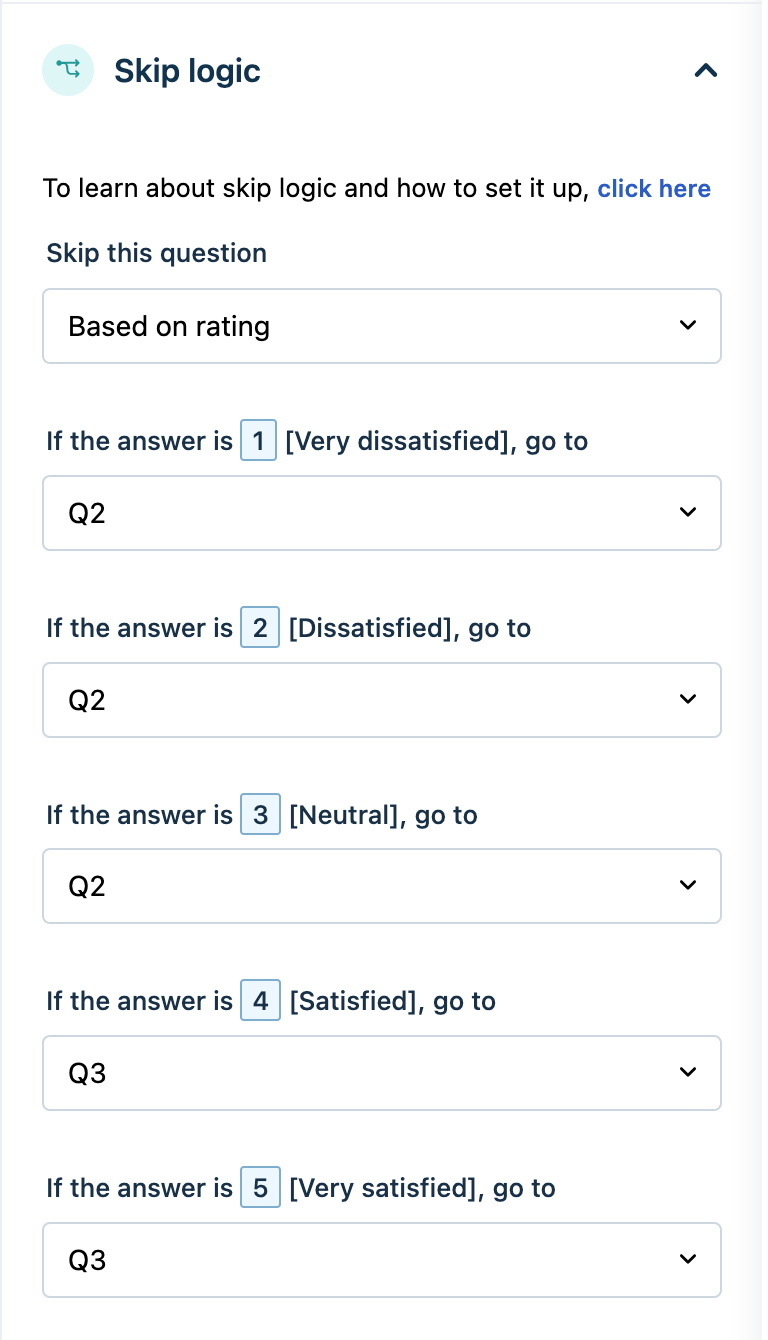
Ask questions based on the rating - Show different questions based on the response shared. Customers can be directed to a question relevant to the answer selected.
Ask questions based on the rating group - Show questions based on the rating groups (negative, neutral, positive), as defined in the survey settings.
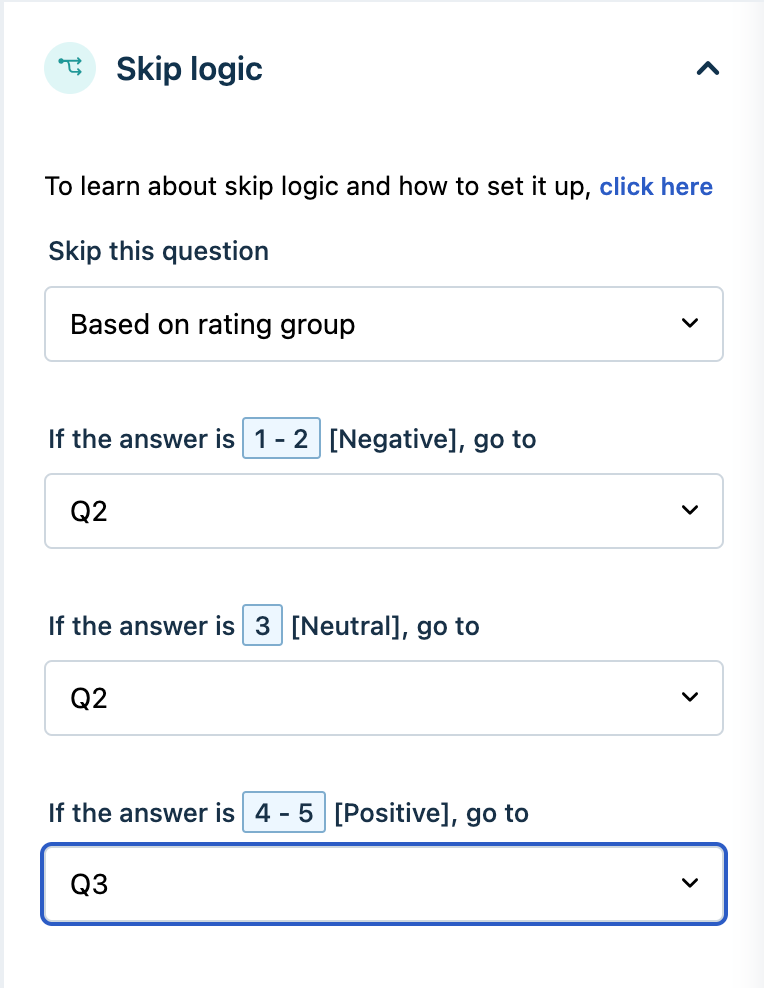
End the survey - Show respondents the configured thank you message as soon as the response is shared and end the survey.
Skip logic can only point to any follow-up questions and not to any previous questions. e.g. Assume you have a 5-question survey. If you are setting up a skip logic for Question 3, the skip can only go to any subsequent questions (Question 4 or 5).
Survey statuses
Once created, there are three statuses for a survey:
Draft: A survey is in the draft stage when you are actively making edits and configurations and haven't clicked on ‘Publish.’. A draft is also not visible to the public. You can make multiple changes to a draft survey without worrying about your audience.
Active: A survey can be made active by publishing it. The survey will not start collecting responses unless it is linked to an automation or made manually available to the agents to attach to ticket replies.
Paused: An active survey is paused to make certain changes or edits to the questions or other configurations. While paused, recipients will not receive the survey.
Saving and enabling a survey
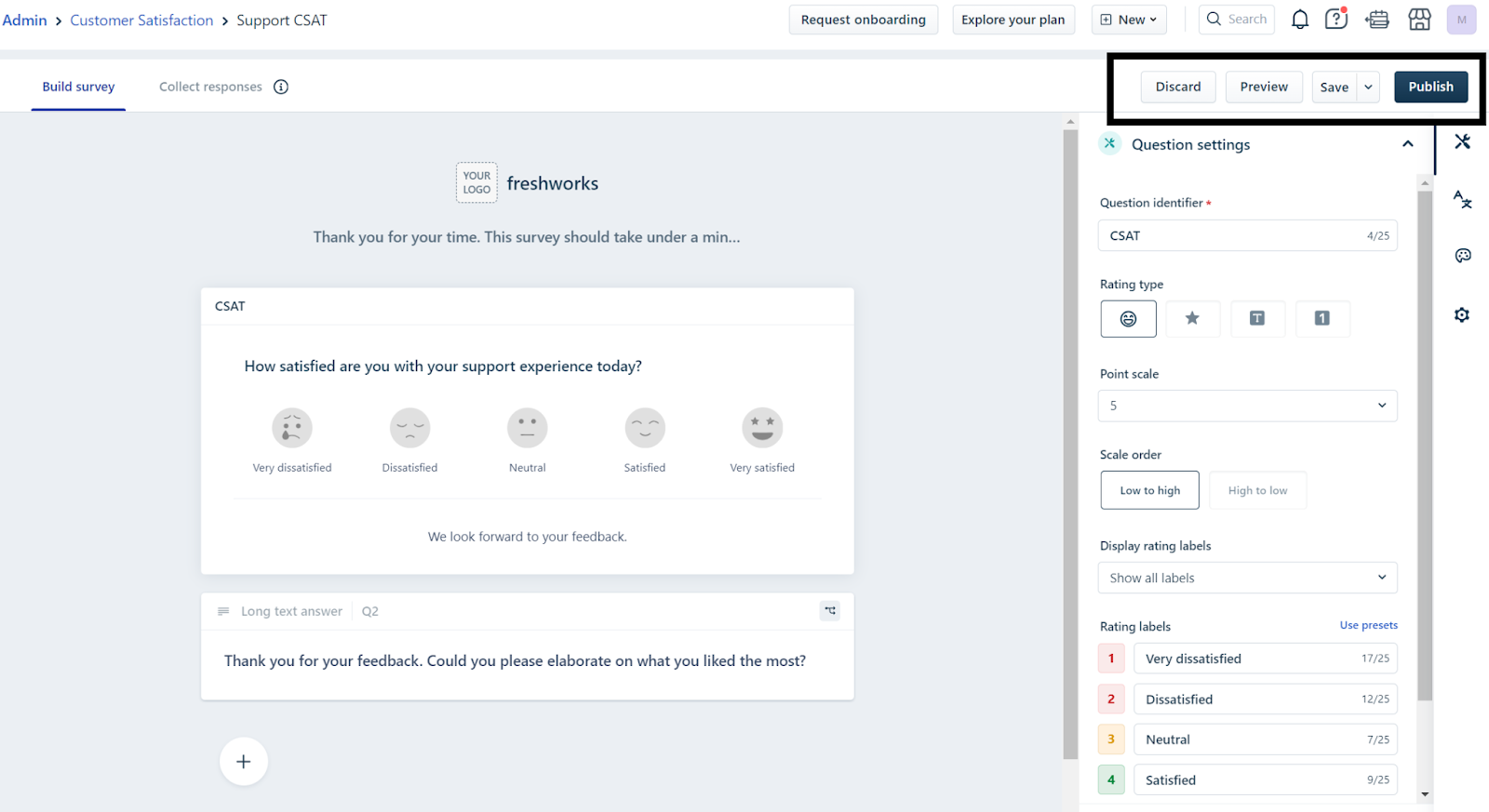
Once you finish customizing your survey, you must save and publish it to enable agents to use them.
Discard - Discard all changes and start building from scratch.
Preview - Preview the survey to understand how it looks.
Save/Save as template - Save the survey to keep it aside for future use. You can also save it as a template to clone and use it to build other surveys.
Publish - A survey will become active only after you Publish it.
Sending out a CSAT survey
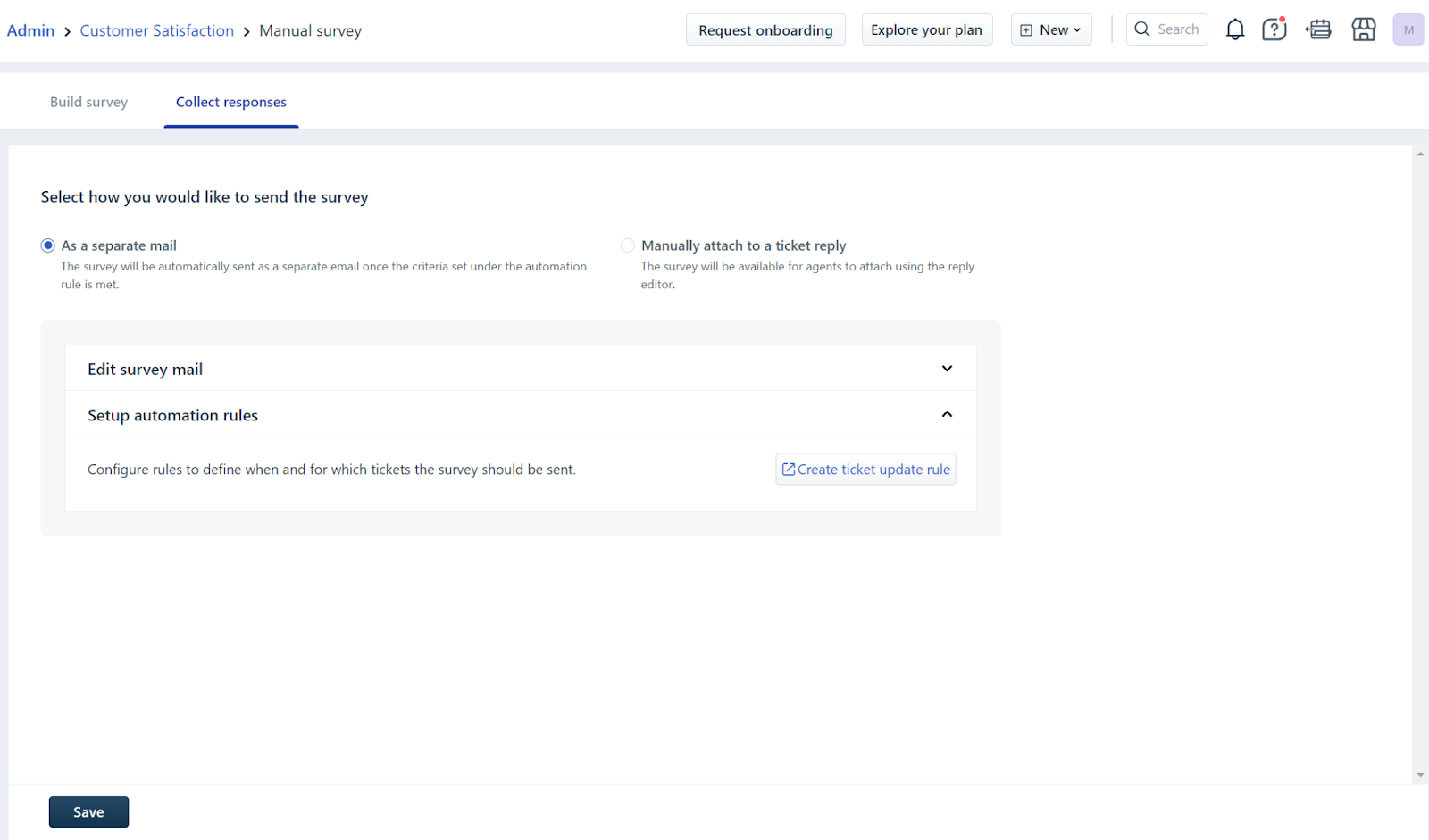
Once you finish building the survey, you have to send it out to customers to collect feedback. With the Freshdesk CSAT module, you can do this in two ways.
As a separate email - The survey will be automatically sent as a separate email once the criteria set under the automation rule is met.
Manually attach to a ticket reply - The survey will be available for agents to attach using the reply editor.
Let us see how to configure each of these in detail.
Case 1 - Send as a separate email
To send out the survey as a separate email, you must set up automation rules to define when the email has to go out; for example, when an agent marks a ticket as Closed. Learn more about ticket update automation rules and how to set them up here.
To send the CSAT survey as a separate email:
Click on ‘Collect responses’ on the top bar
Click on ‘Edit survey mail’ to customize the Subject, Preheader, and body of the email.
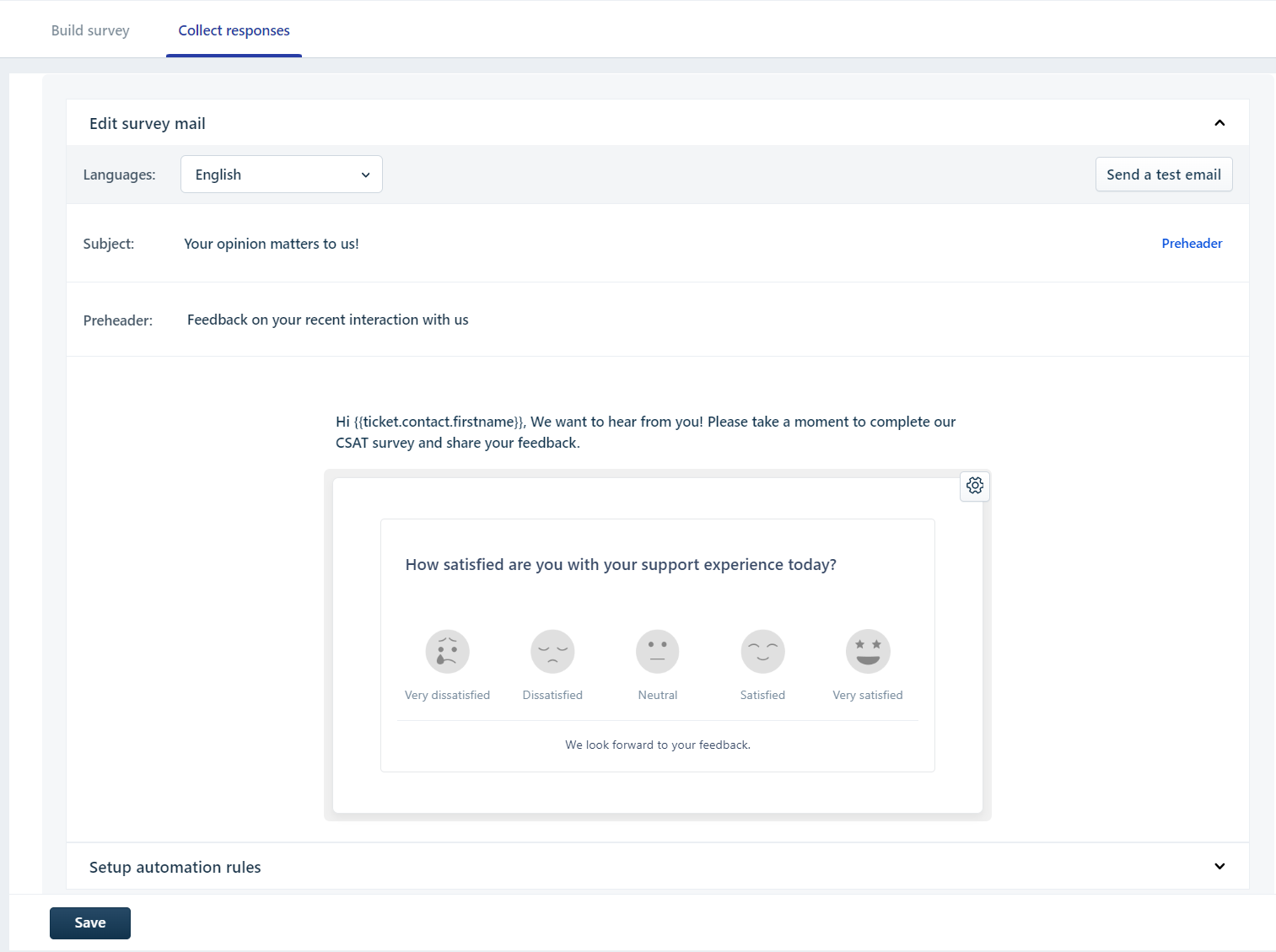
Click on ‘Set up automation rules’ to configure when you want the email to go out. You can create a new Ticket update rule with the conditions you require.
In this example, let us say you want the CSAT email to go out when an agent changes the ticket status. To configure the ticket update rule:
Click on ‘Create ticket update rule’
Create a rule name, say CSAT trigger
Set the conditions as ‘When an action performed by ‘Agent’
Involves any of these events - Status is changed from ‘Any status’ to ‘Closed’
Under Perform these actions, select ‘Send survey to requester,’ and select ‘CSAT survey’
Hit ‘Save and enable’ to save the automation rule
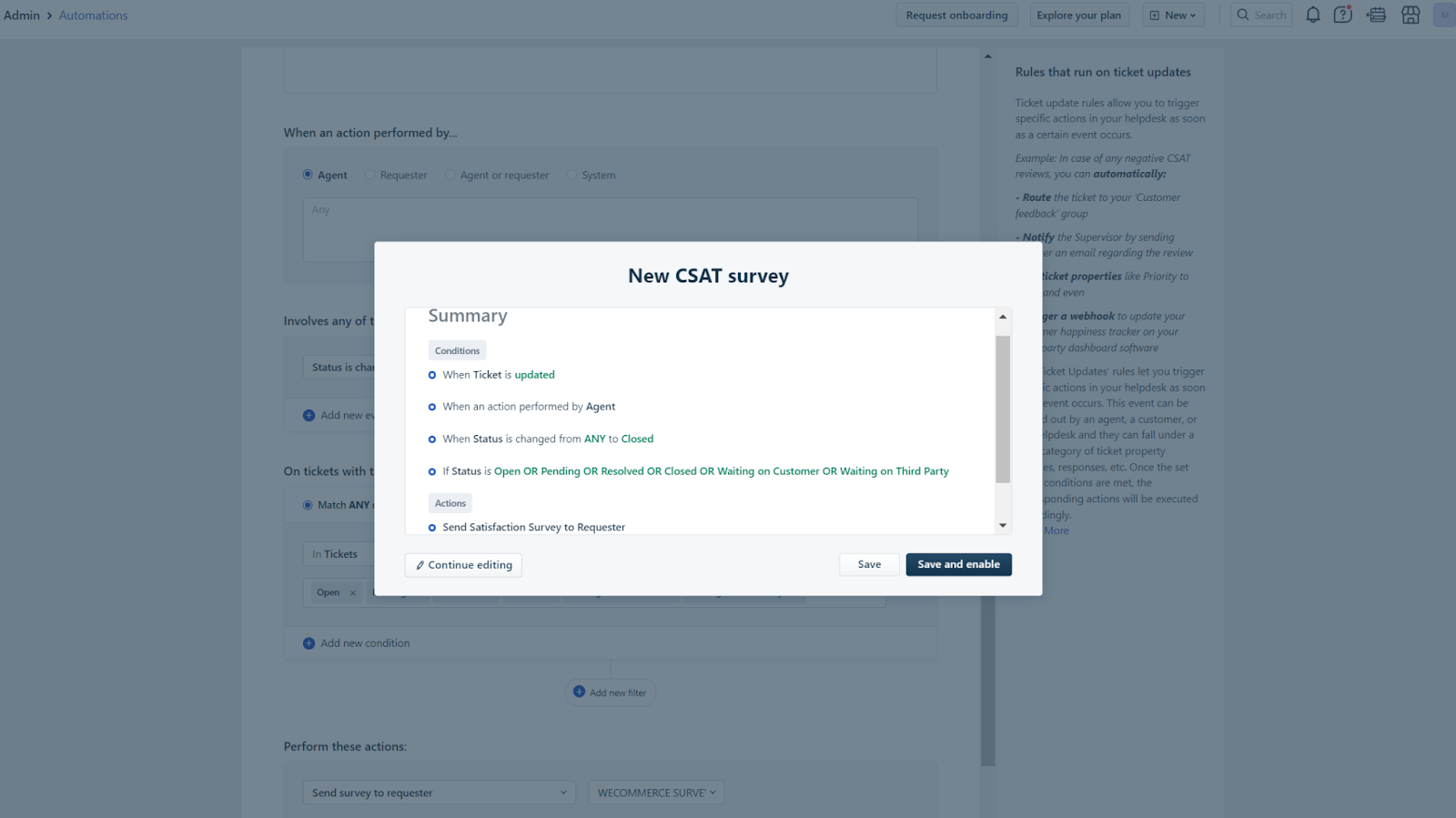
Hit Save on the CSAT page, and the configured survey will now be sent as an email to customers whenever an agent marks a ticket status as ‘Closed.’
Points to be aware of for customers who are currently using the old CSAT module and want to upgrade to the new module:
You have to re-configure any previous automations you may have set up for triggering the CSAT survey
The existing survey that you have set up may not work during the interim when you migrate to the new module
Your data and responses from the old module will be migrated to the new module.
Case 2 - Manually attach to a ticket reply
You can enable agents to attach the survey to a ticket reply manually. You can also set access permissions for each agent group for the survey. Learn more about agent groups here.
To enable agents to attach the survey to a ticket manually:
Click on ‘Collect responses’ on the top bar
Click on ‘Manually attach to a ticket reply.’
Set access permissions for the survey:
Access to all groups
Access to specific groups
Access to all groups except
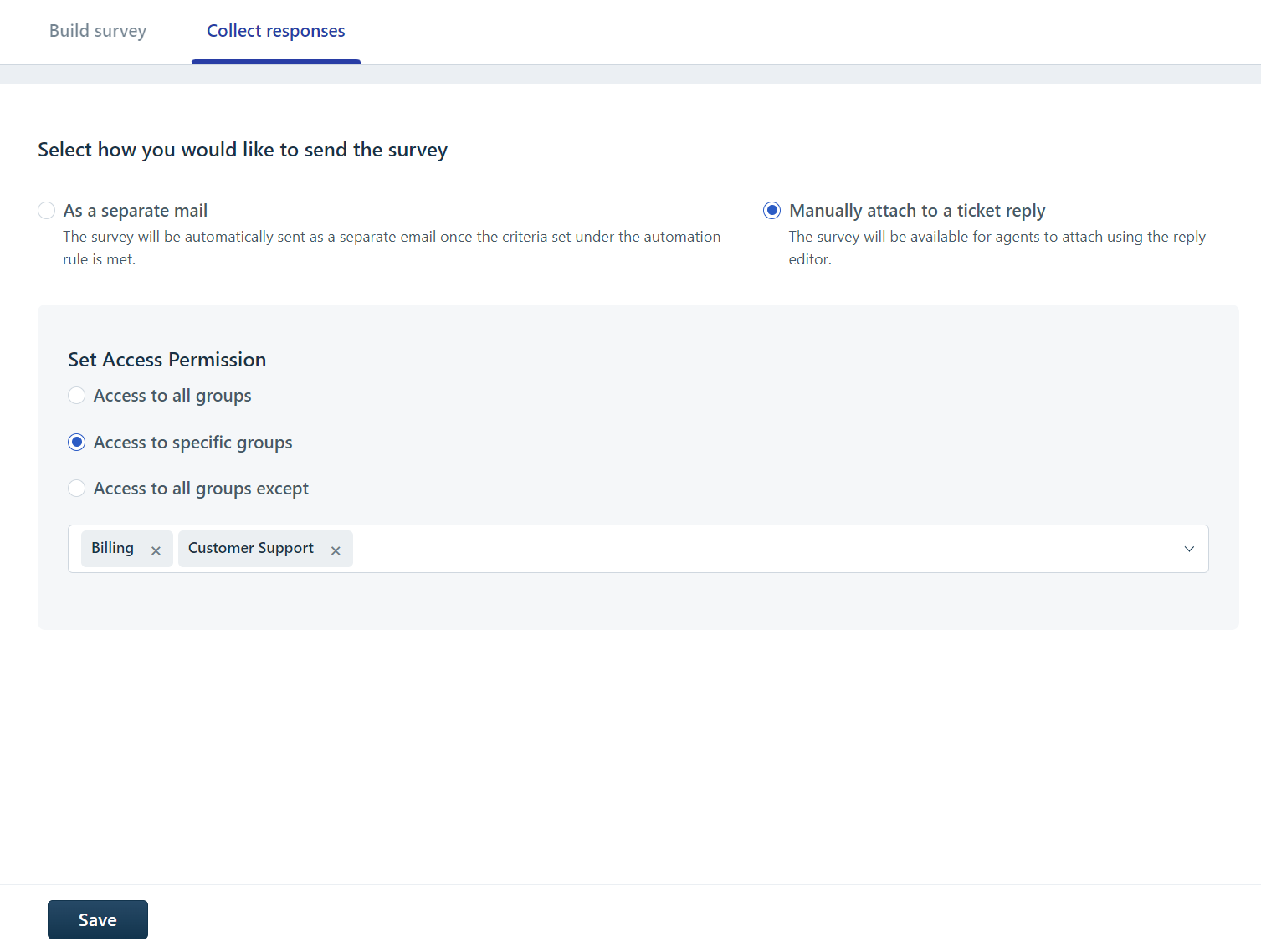
Hit Save and agents will be able to attach the survey through the reply editor.
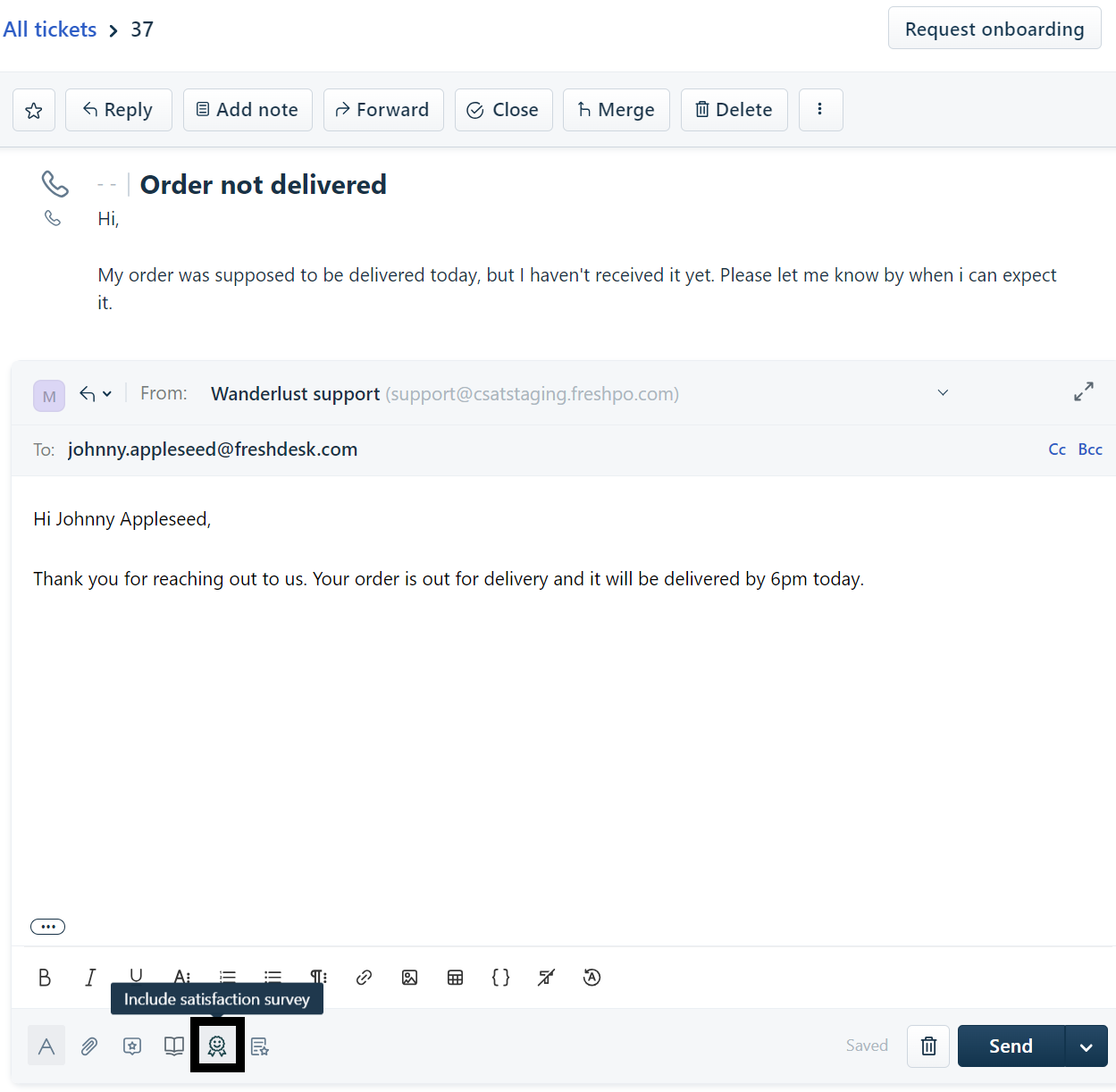
To attach the survey to a ticket:
In the Tickets reply editor, click on the ‘Include satisfaction survey’ icon.
You can choose and preview the survey from the Surveys panel that opens up.
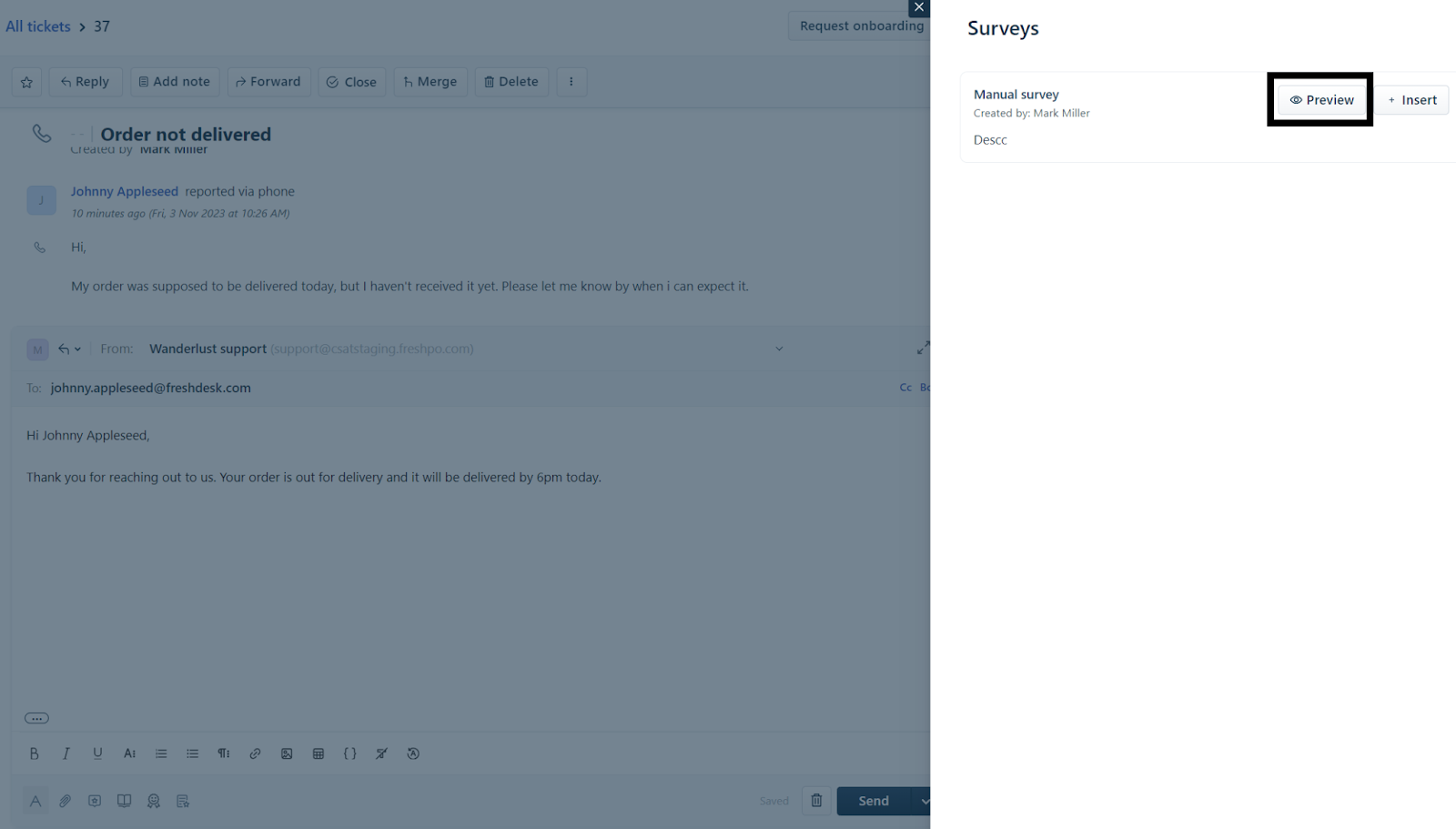
Once you preview the survey, click on ‘Insert,’ and the survey will be added to the ticket.
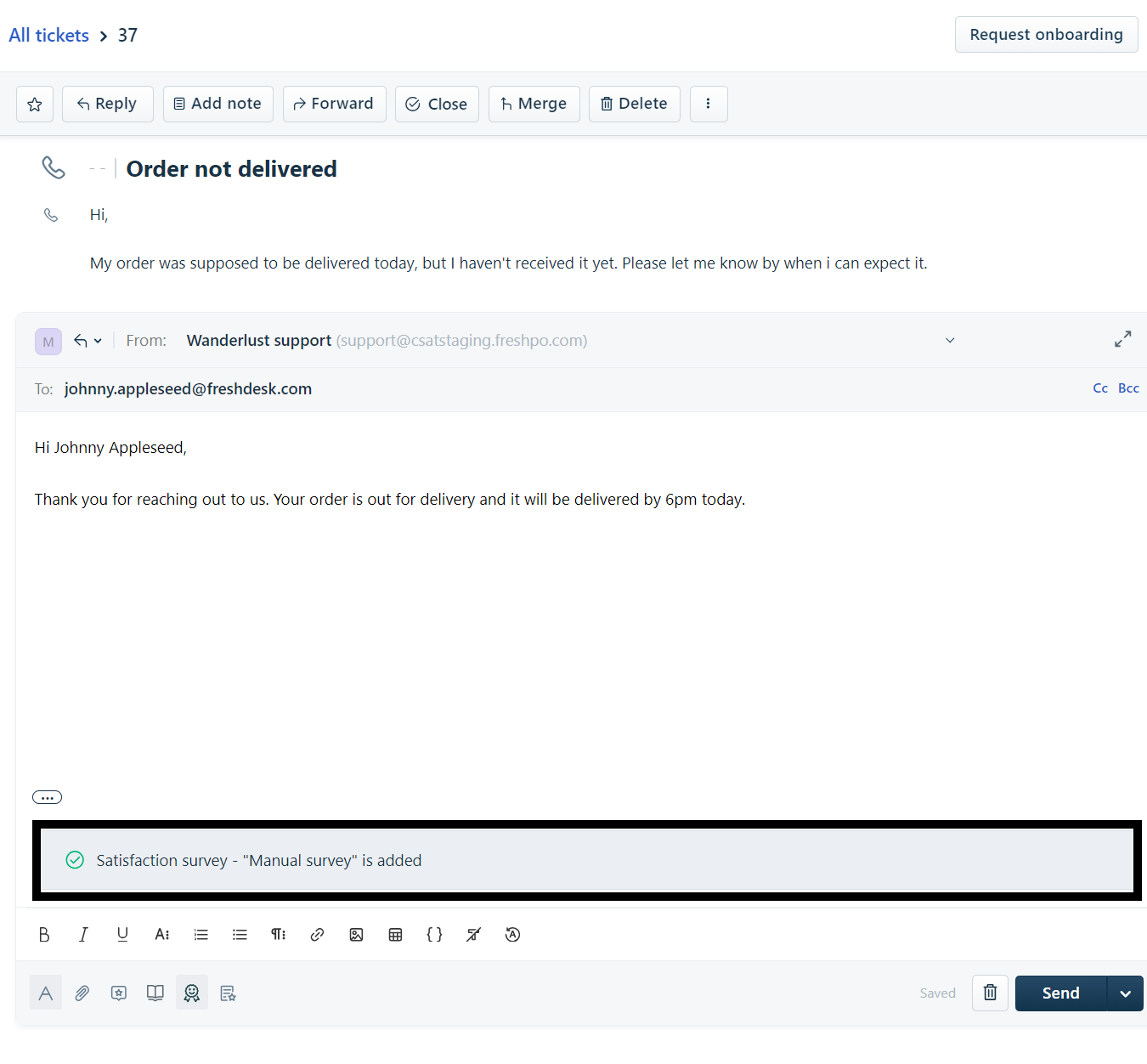
Collecting CSAT survey responses
Responses allow you to view the answers received for the surveys you sent. You can view the responses and perform follow-up actions that help close the loop, gather specific feedback, and more.
Each survey response is created as a ticket, and you can view individual responses on the ‘All Tickets’ page. To get a comprehensive view of survey responses, you can access the CSAT Survey Report, which is available under the Analytics module.
Analyzing responses with the CSAT Survey Report
Get an overview of responses received through the curated CSAT report available under the Analytics module. You can view responses split by percentage (positive, negative, neutral), no. of surveys sent vs. responses received, and more. To access the report:
Go to Analytics → CSAT Results Report
You have five tabs that will help you compare responses
You can filter results by Date Range, Group name, Agent name, and Survey name
The ‘Overview’ tab has four widgets:
Percentage of survey results - Positive/negative/neutral
Responses received - Total no. of surveys sent vs. no. of responses received
CSAT distribution trend - Breakdown of response distribution across positive/negative/neutral
Surveys sent and responses received trend - Graphical visualization of no. of surveys sent vs. responses received
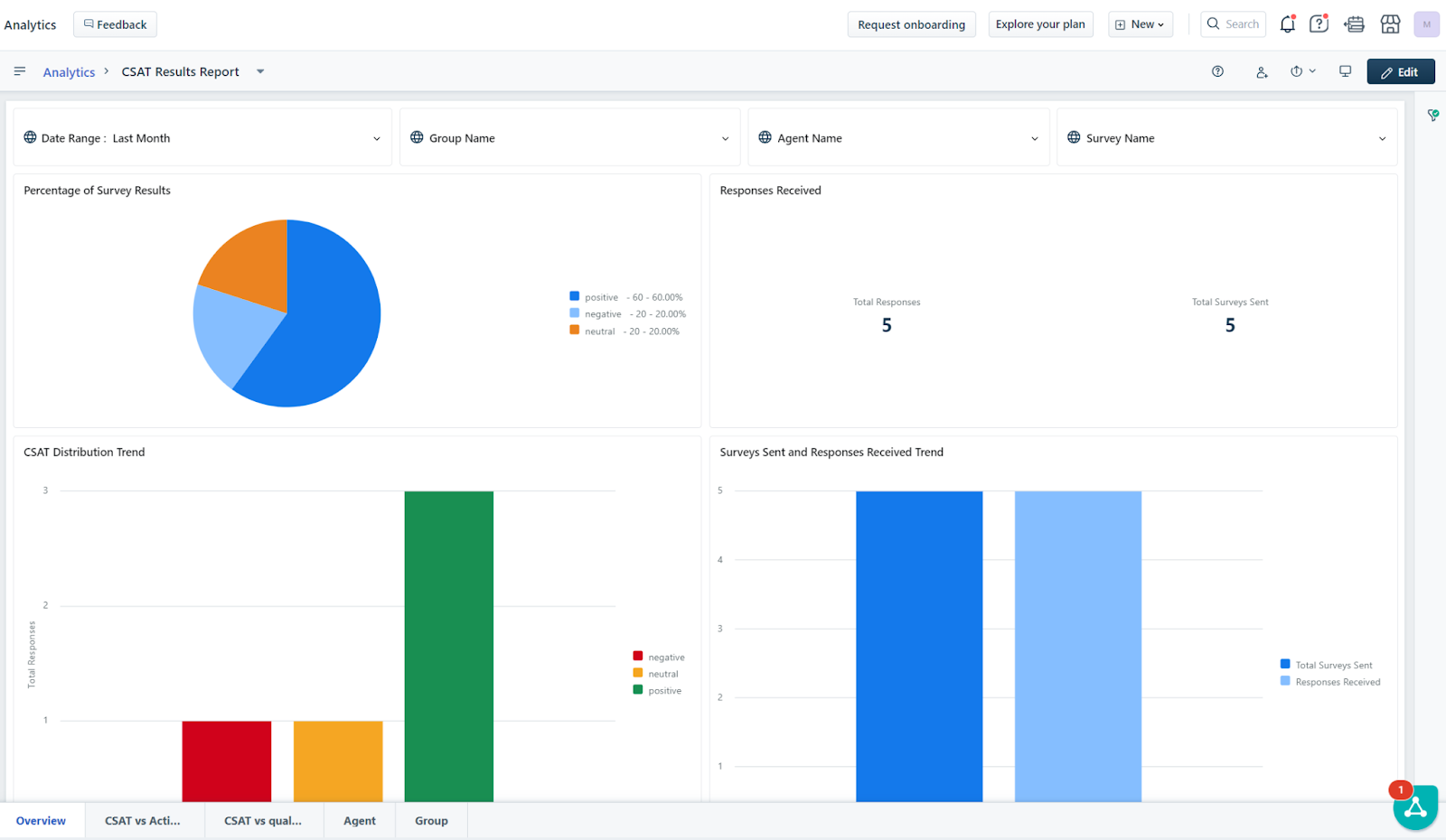
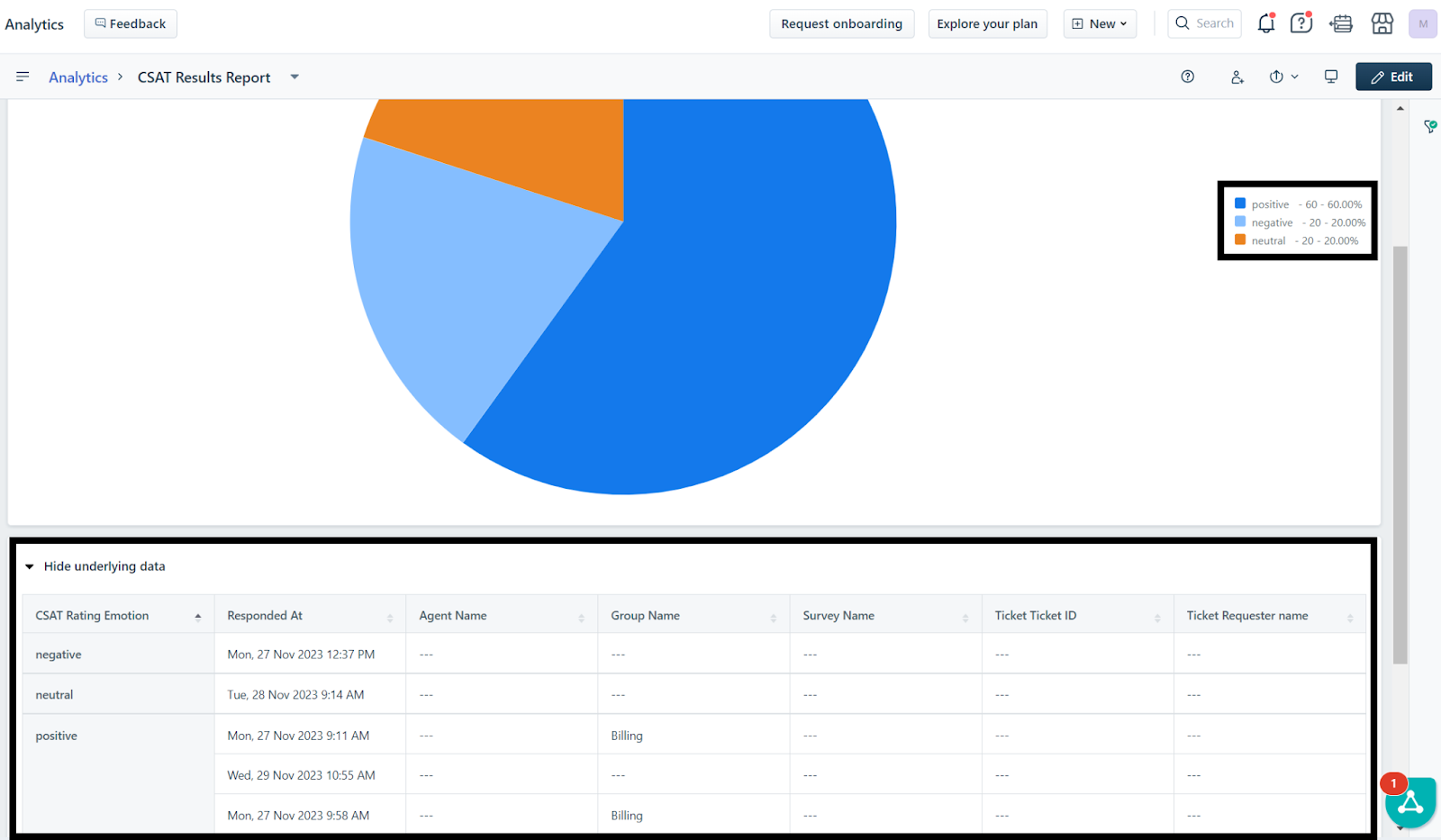
You can expand each widget to view the numbers in detail, and click on ‘Show underlying data’ to view individual responses
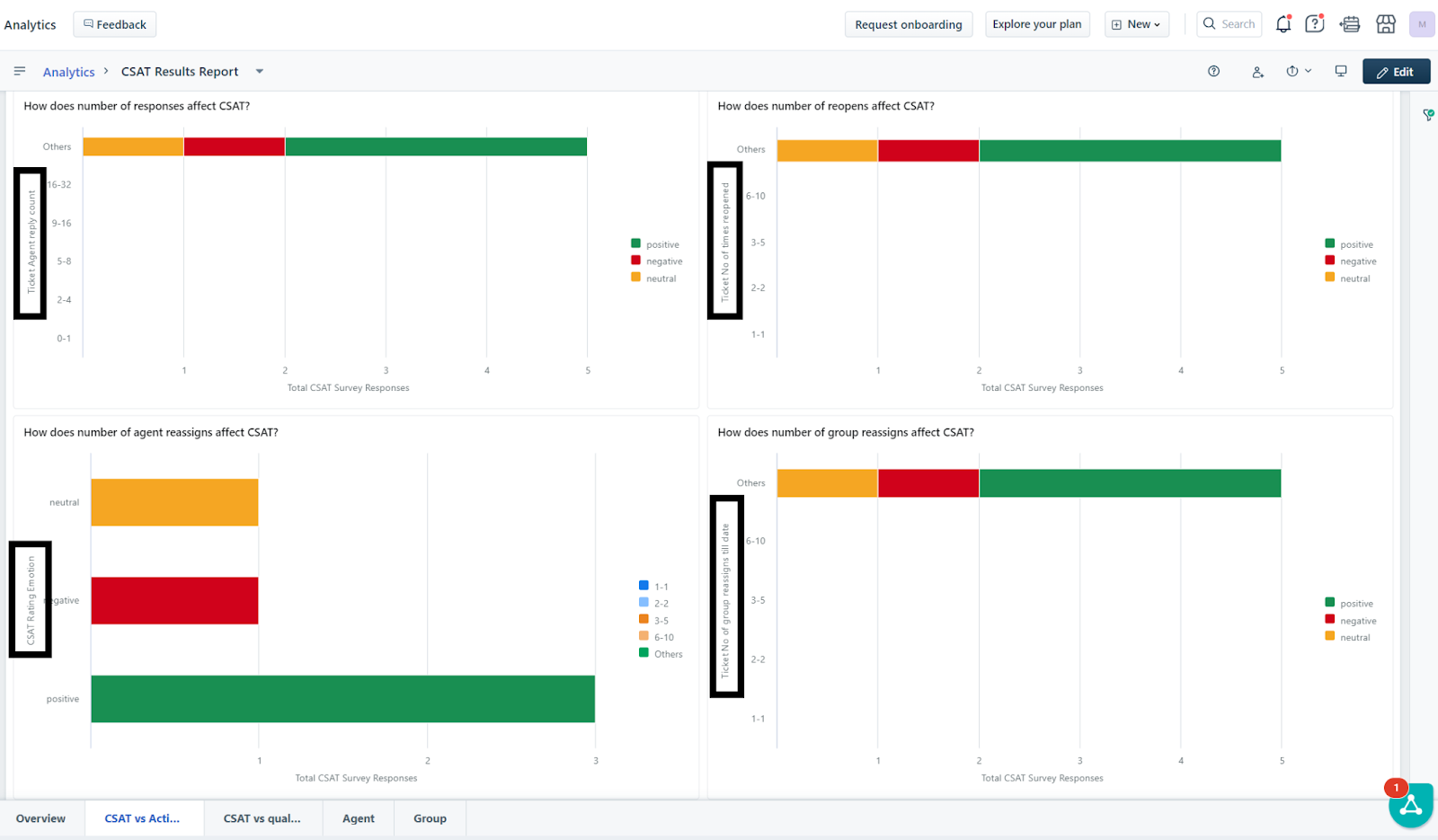
The CSAT vs. Activity tab has four widgets that will give you insights on how ticket actions affect the CSAT rating
CSAT survey responses vs. total agent reply count
CSAT survey responses vs. total agent reply count
CSAT survey responses vs. CSAT rating emotion
CSAT survey responses vs. no. of group reassignments
The CSAT vs. Quality tab has four widgets that will give you insights on how the resolution/response quality affect the CSAT rating
CSAT survey responses vs. ticket resolution time
CSAT survey responses vs. ticket first response time
CSAT survey responses vs. tickets first responded within SLA time
CSAT survey responses vs. tickets first responded within SLA
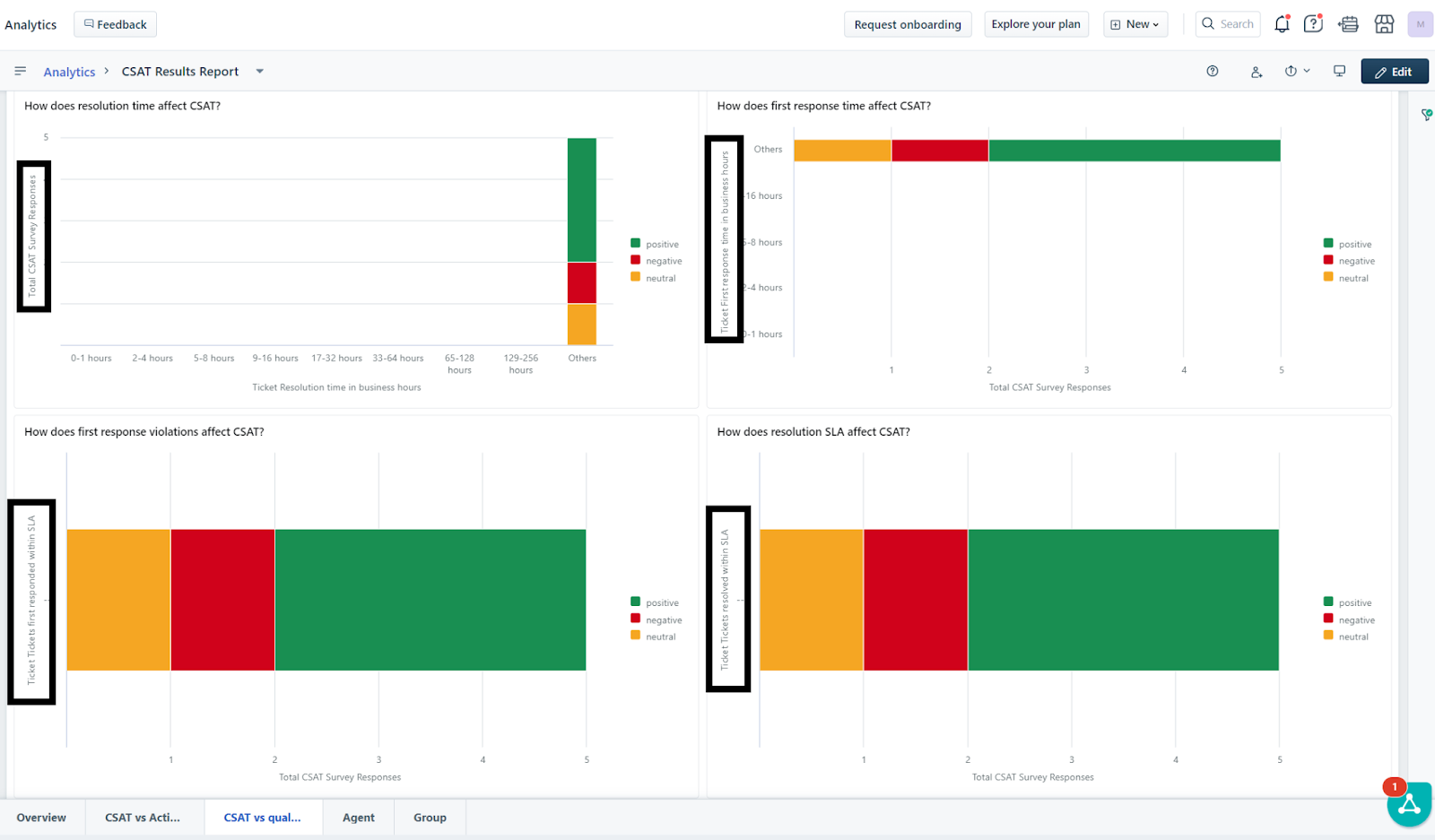
You can also view survey results by Agent and by Group.
Callouts for existing customers using the old CSAT module
Points to be aware of for customers who are currently using the old CSAT module and want to upgrade to the new module:
Your old surveys will be deactivated, and you will have to set up your existing surveys from scratch once we enable the new CSAT module in your account.
You must re-configure any previous automations you may have set up for triggering the CSAT survey.
Your data and responses from the old module will not be migrated to the new module.
Customization of Hebrew and Arabic translation is not supported in the enhanced module.
Previous analytics data from the older CSAT surveys will not be transferred to the new advanced CSAT Survey Reports.
The curated report (CSAT Survey report) will show data once responses start flowing in for the surveys you set up using the upgraded module.
The analytics reports will support metrics to view the ratings for each survey. The rest of the responses cannot be viewed today.
The advanced CSAT widget will replace the dashboard's rating widget.
Unlike before, CSAT surveys cannot be published directly on the support portal. They can be distributed efficiently via email to gather feedback from your customers manually or using automation.
Survey Versioning in Analytics
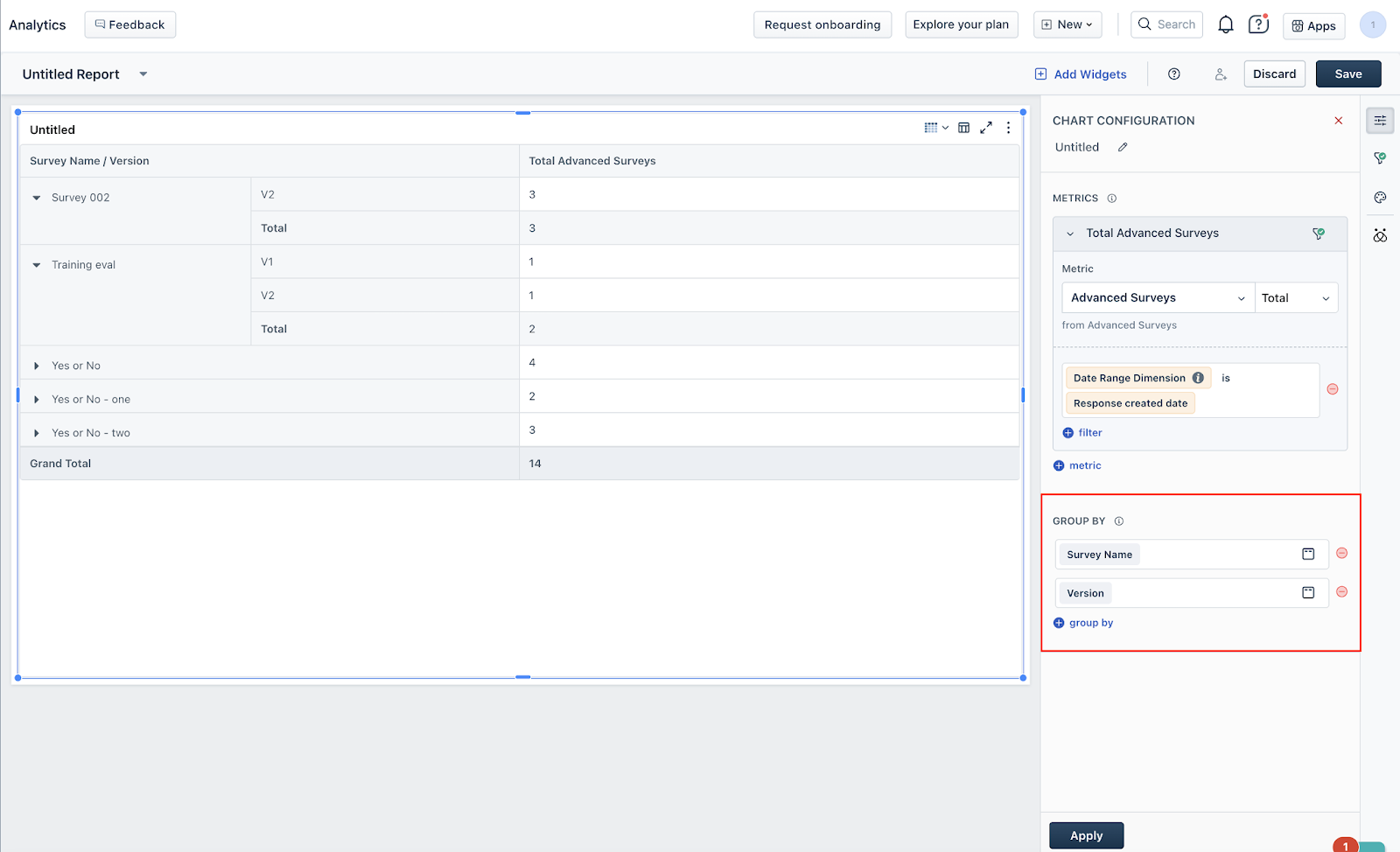
You can filter your surveys by different versions to see which versions have more impact or engagement.
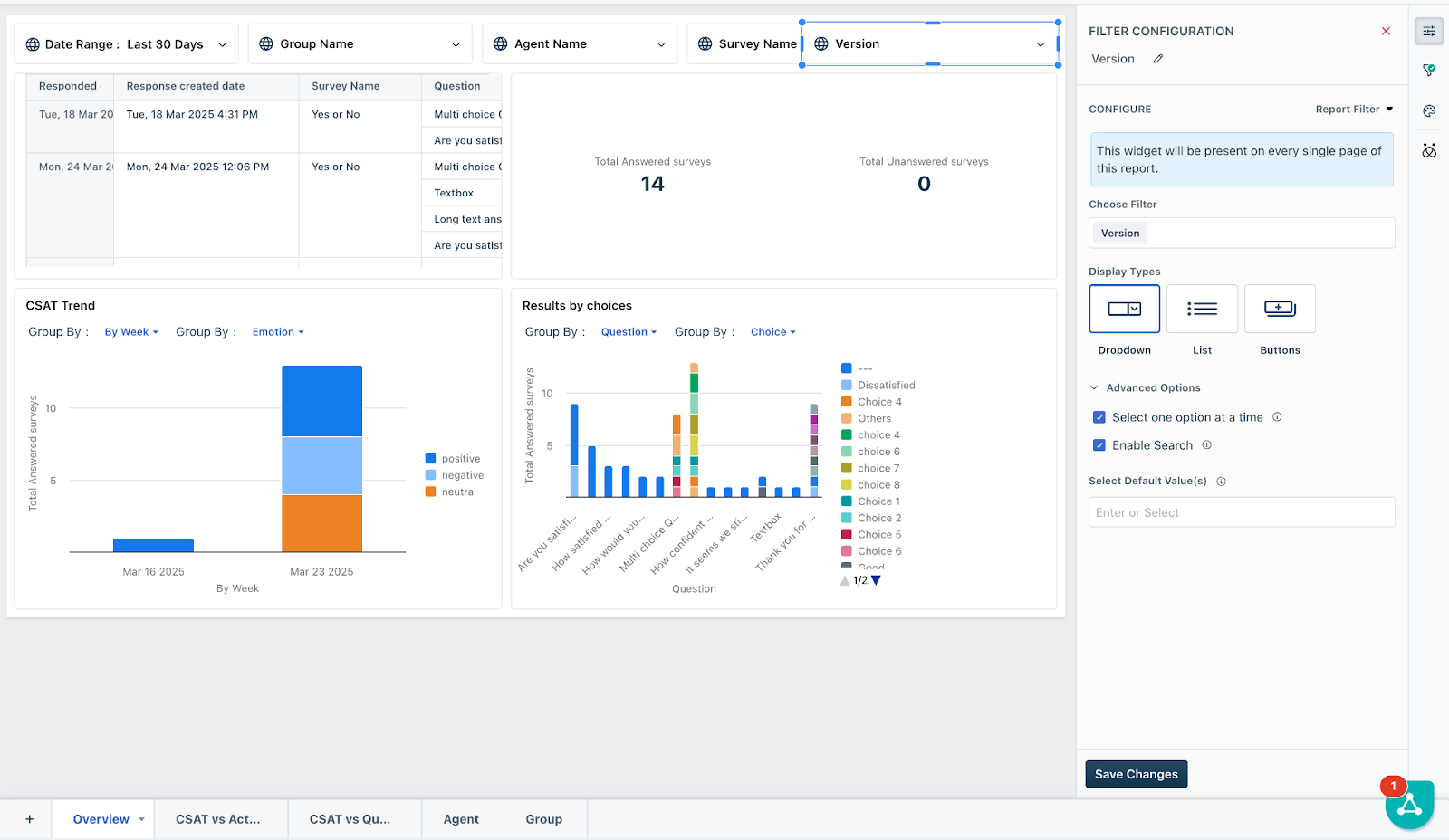
You can use the attribute Survey name with Version to view the list of surveys along with their versions
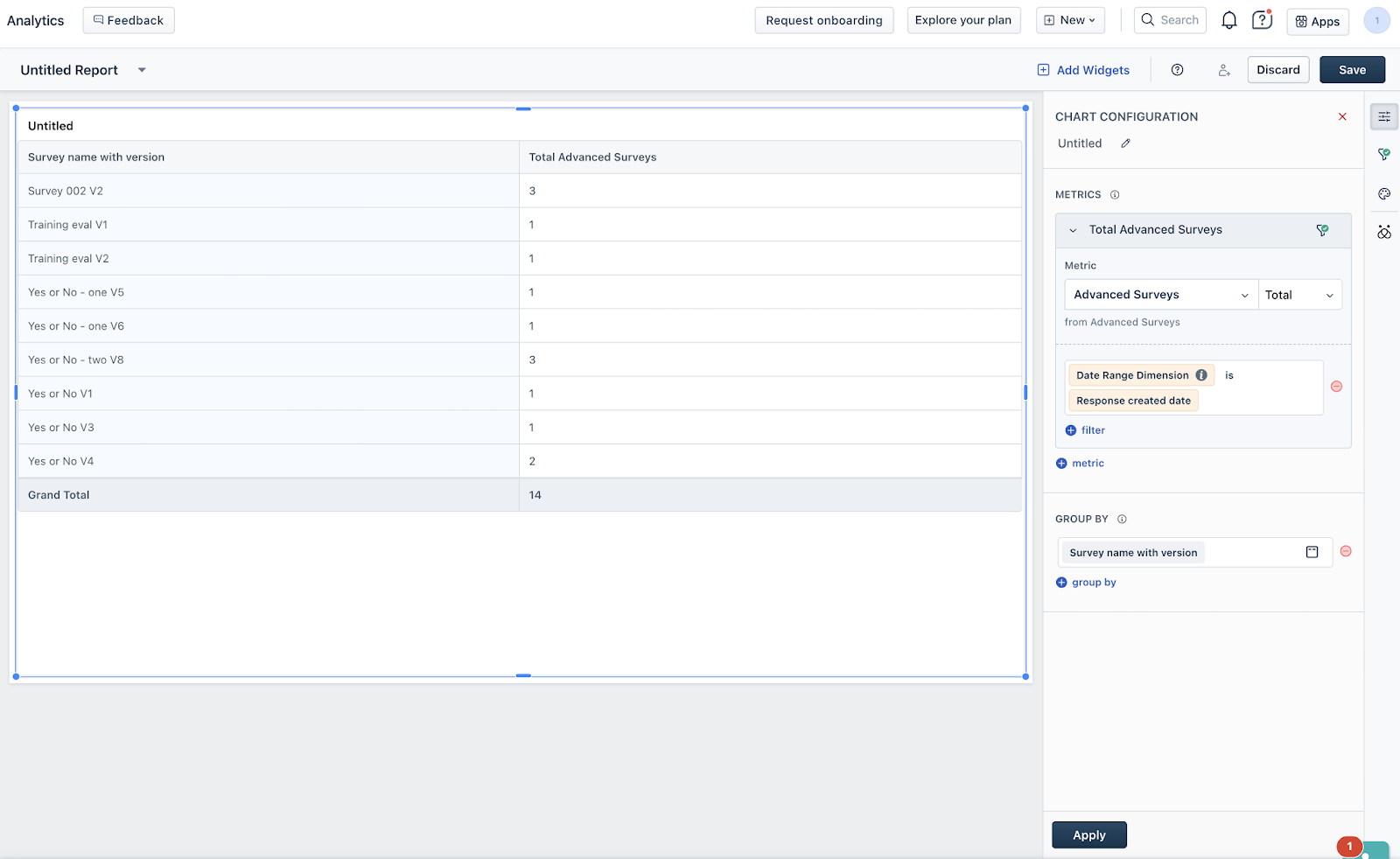
You can also use the attribute Survey and Version, to list the different survey versions.