
 Community
 Video Library
 Agent Training
 Freshservice
 Freshdesk
 Freshchat
 Freshcaller
 Freshsales
 Freshteam
 Freshworks Neo
 Freshsurvey
 Growth
TABLE OF CONTENTS
Web chat widgets enable you to deliver instant, self-service support right on your website or online store. They enable live chat experience with an AI Agent or a human agent, provide quick access to FAQs and solution articles, and offer easy ways for customers to reach you through contact forms.
User requirements: Ensure that you have admin permissions to create and configure web chat widgets.
Overview of web widget
The web chat widget combines self-service and ticketing in a single interface. It can be embedded on your website, help center, or product portal to make support accessible at every touchpoint.
With widgets, you can:
- Enable live chat experience that routes customer chats to an AI agent or human agents for a personalized experience.
- Enable customers to access FAQs and solution articles without leaving your site.
- Embed web forms directly within your website or product to collect customer details.
- Customize the widget’s appearance to match your brand identity.
For a general overview of Web Chat, see Overview of Web Chat Channel.
Widget components
Once you create and configure the widget, you’ll see the following key components that define how customers interact with it. Each section serves a distinct purpose to help customers find the right support quickly.
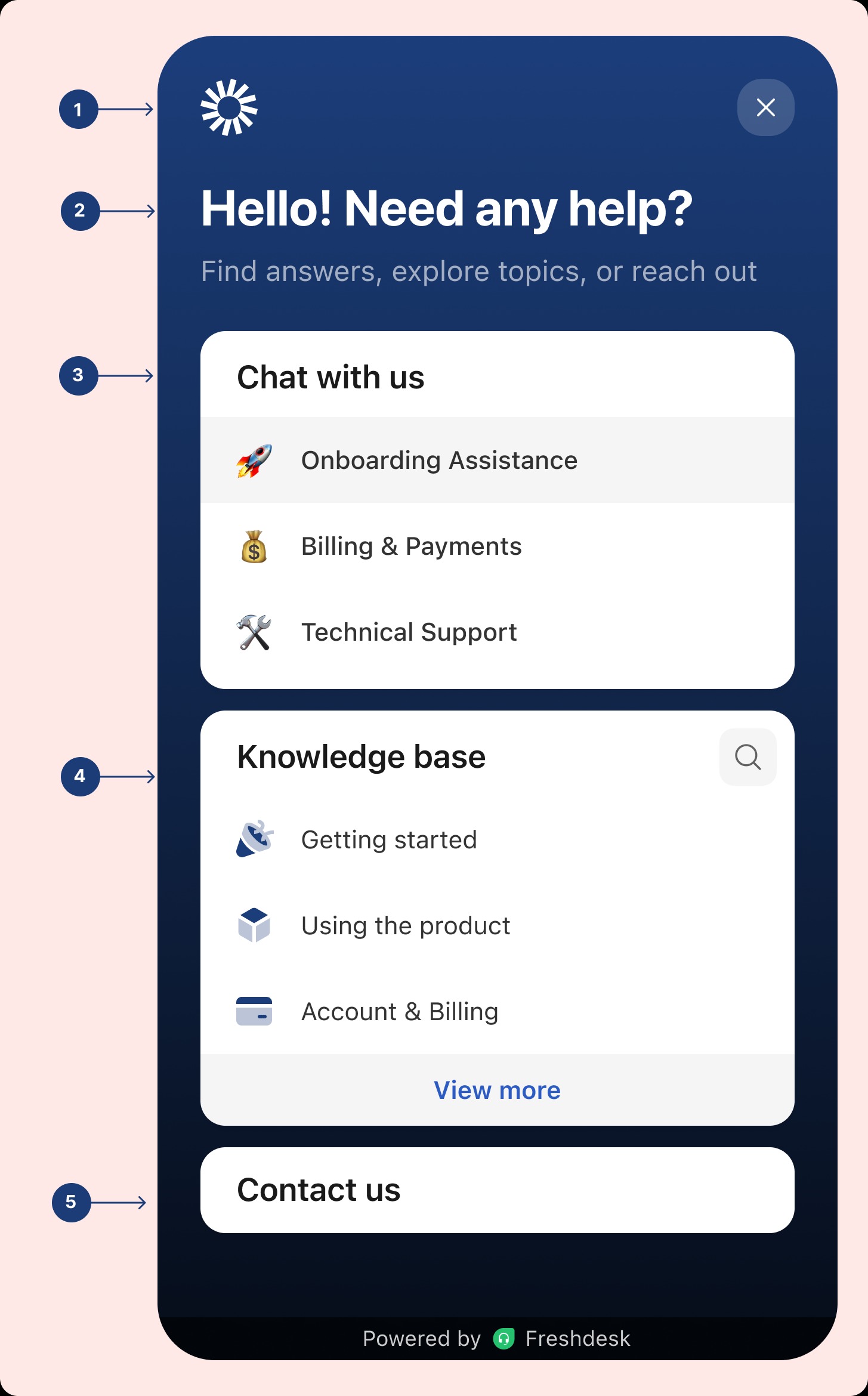
- Widget profile logo
Displays your brand or company logo at the top of the widget - Widget title and welcome message
Your widget name and short welcome message that guide customers on what they can do within the widget. - Knowledge Base section
Displays contextual help content, allowing customers to search or browse without leaving the page. - Chat topics (Available only on Freshdesk Omni)
Lists chat categories (or “topics”) that customers can select when starting a live chat with AI Agent or human agent. Each topic can be routed to a relevant agent group or AI Agent. - Web forms (Contact Us)
Allows customers to raise tickets directly from the widget.
A few points to consider:
- Customers using Freshdesk Omni have full access to all web widget functionality, including the Knowledge Base, Web Forms, and live chat.
- Standalone Freshdesk customers can set up and customize a web widget in lite mode, which includes only the Knowledge Base and Web forms sections.
Create widget
To start offering a self-service experience, you first need to create a widget in your account.
The widget creation step includes:
- Creating the widget
- Configuring the widget
Tip: You can also install Web Chat as a mobile app with our native SDKs for iOS and Android.
To create the widget:
- Log in to your account as an admin and go to Admin > Channels > Web Chat.
- Click Create new > New Widget.
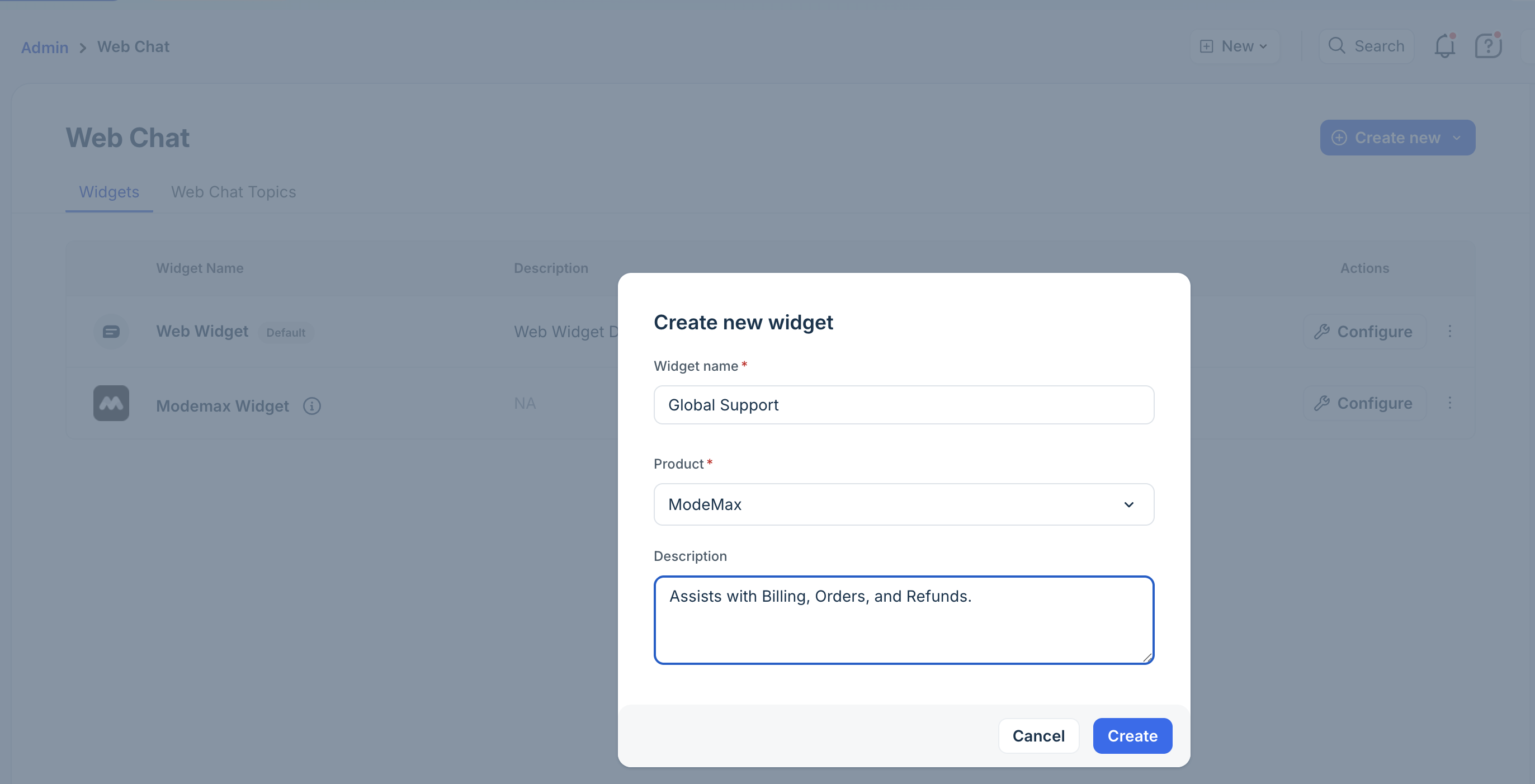
- Enter the widget name.
- Choose the product (only if multiple products exist on your account).
- Enter the description.
- Click Create. You can proceed with widget configuration.
Configure widget
The configuration flow includes customizing its appearance, adding content such as knowledge base articles and chat topics, setting preferences for behavior, generating the deploy code, and managing user authentication for secure access.
As you customize the widget settings, you can preview the experience in the right pane simultaneously. You can also switch between the preview screens to see how each one will appear to the end users.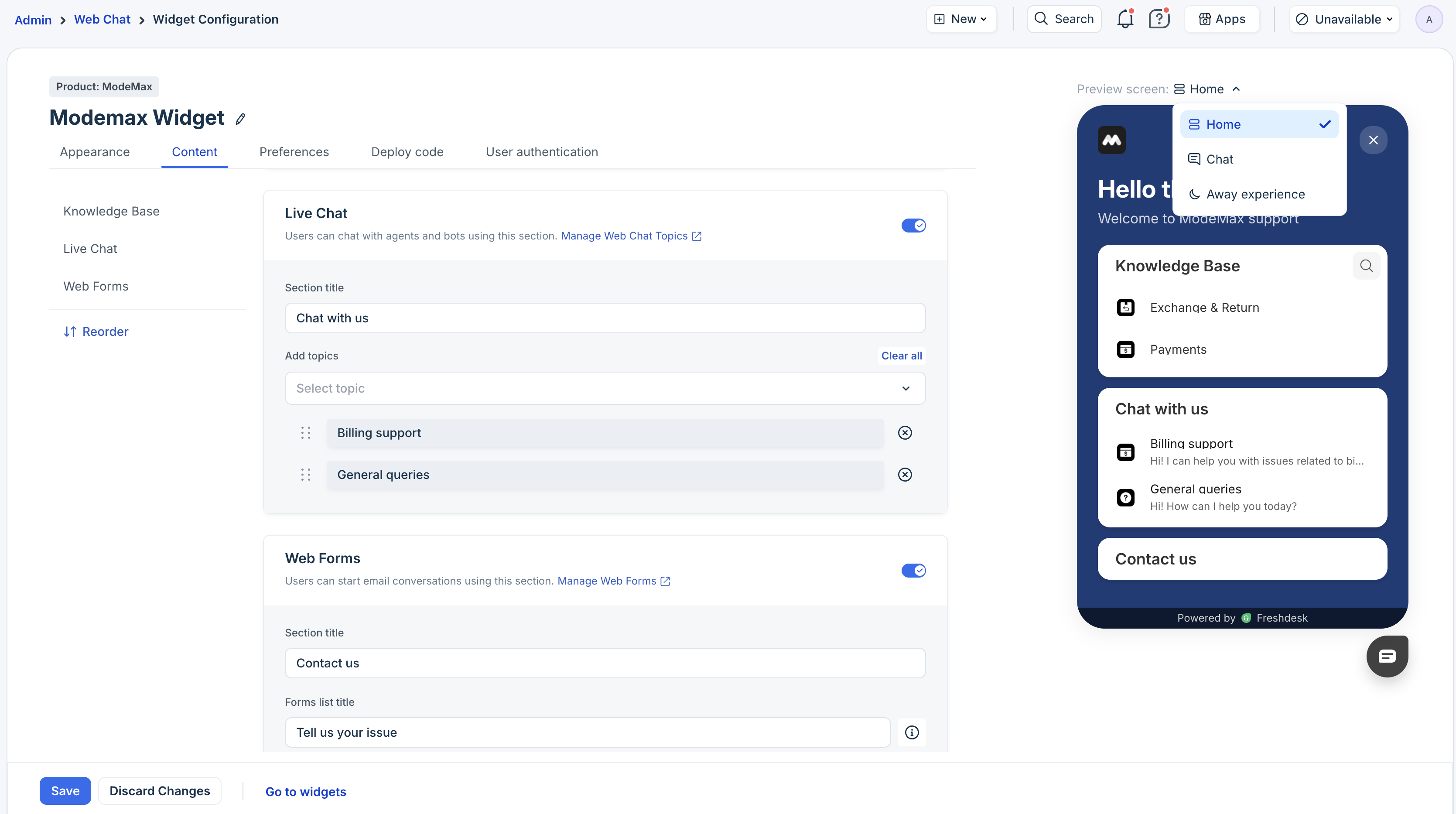
To proceed with the web widget configuration:
- Go to Admin > Channels > Web Chat > Widgets.
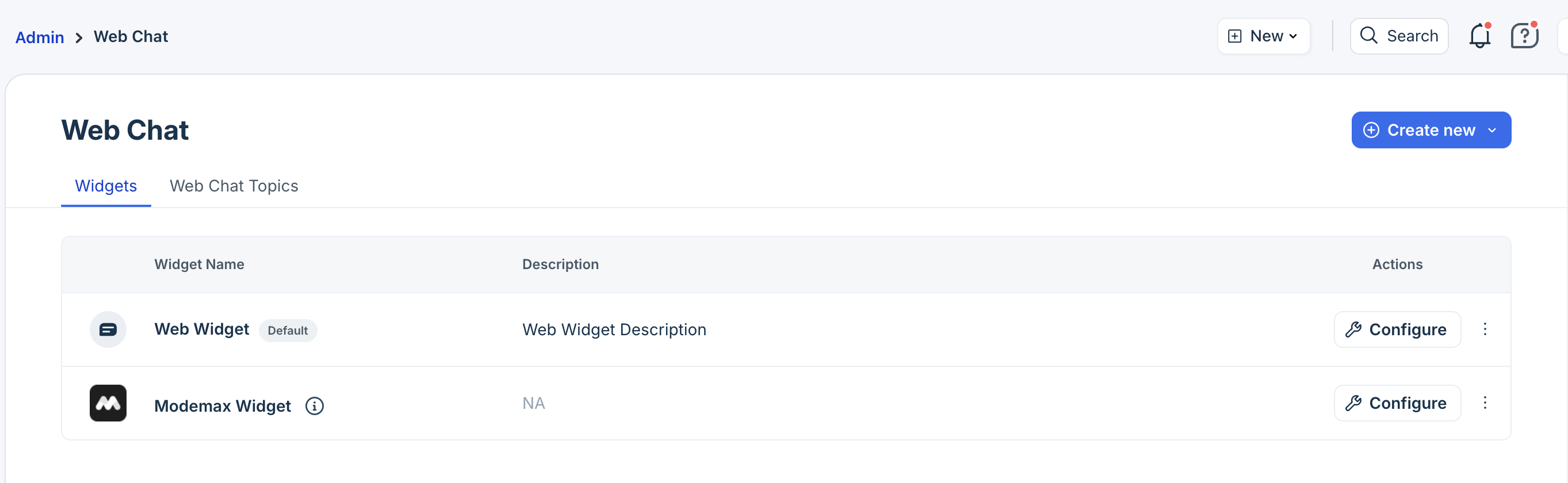
- Click Configure next to the widget you just created or other existing Widget.
The various configuration settings available are:- Appearance
- Content
- Preferences
- Deploy Code
- User authentication
Configure widget appearance
The Appearance tab lets you customize the widget’s look and behavior and includes the following:
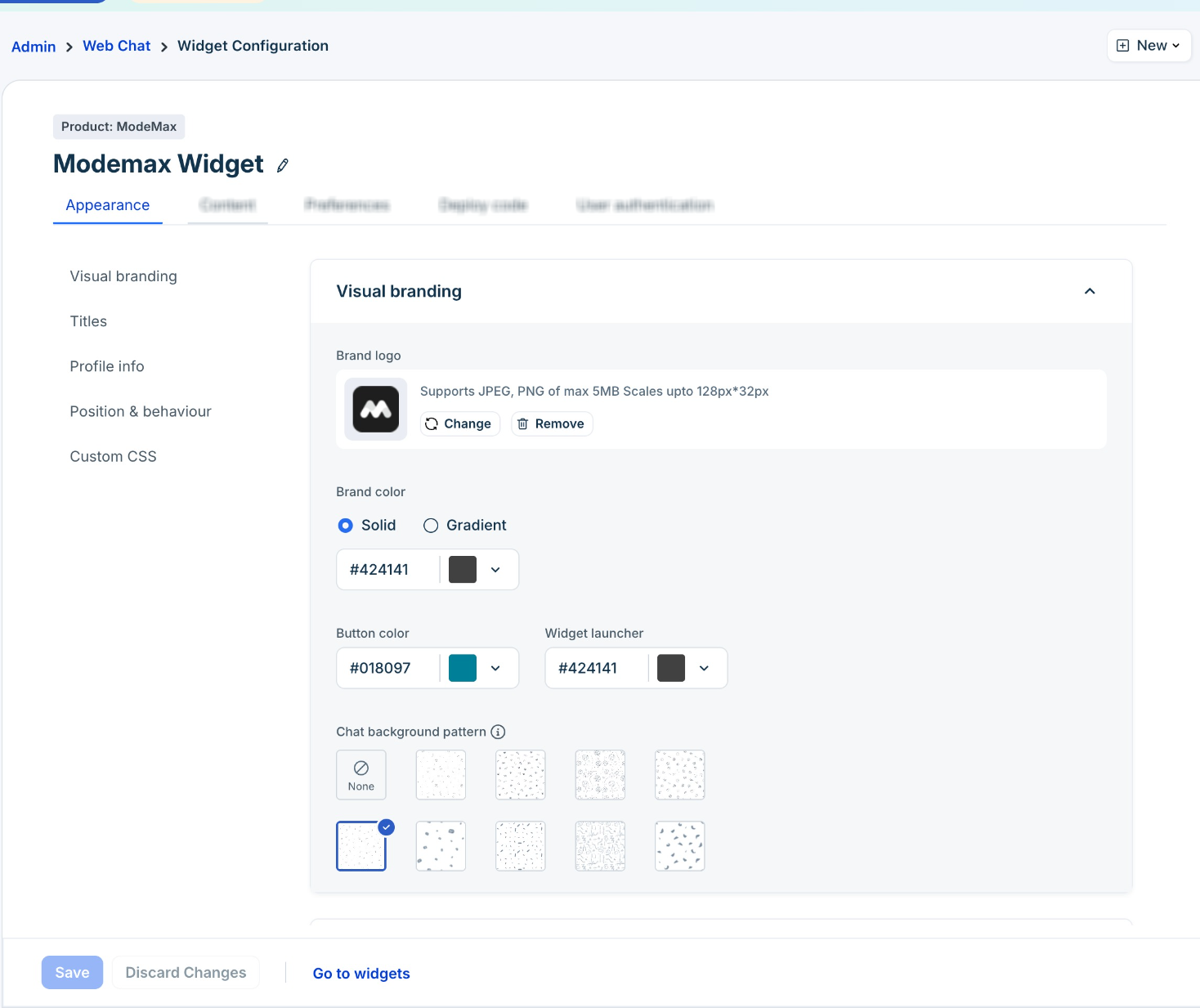
Visual Branding
- Brand logo: Upload a logo (max 5MB; up to 128 × 32 px) in JPEG or PNG format.
- Colors: Choose the colors for the widget background and buttons.
- Chat pattern: Select a background pattern that appears when customers initiate conversations.
Titles
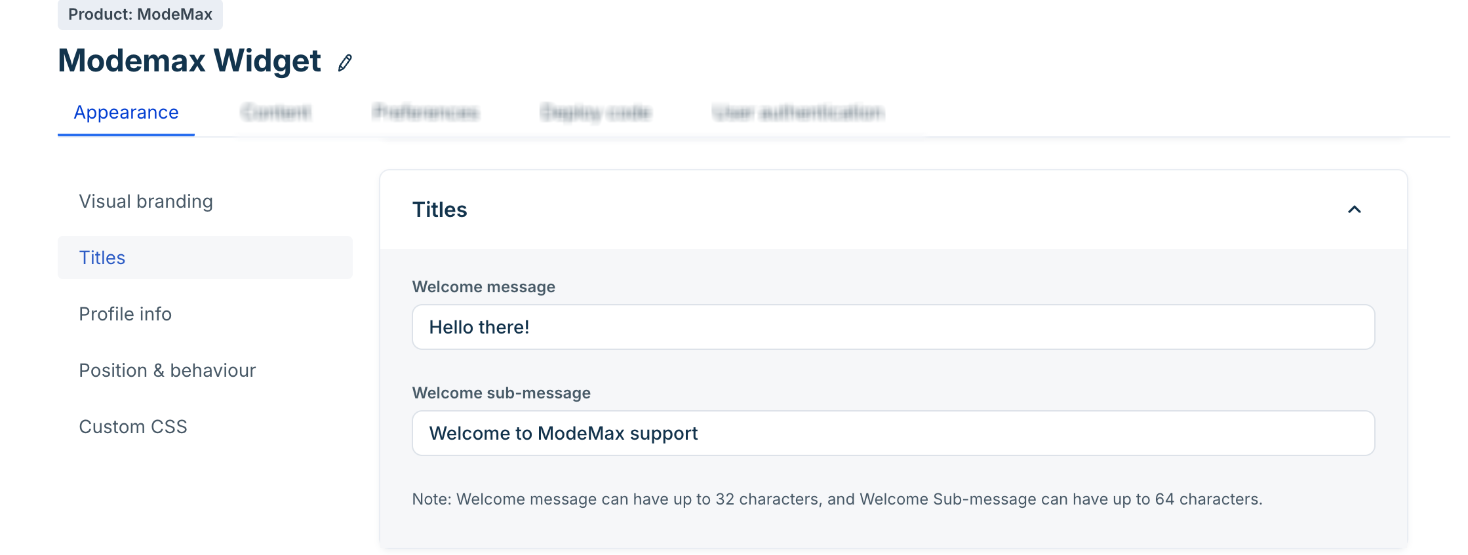
- Welcome Message: Enter a short greeting (up to 32 characters).
- Sub-message: Add a subtitle or tagline (up to 64 characters).
Profile
Upload a profile picture for the welcome message and other messages that are sent by the system (max 5MB; up to 128 × 32 px) and enter your business name to display along with this profile.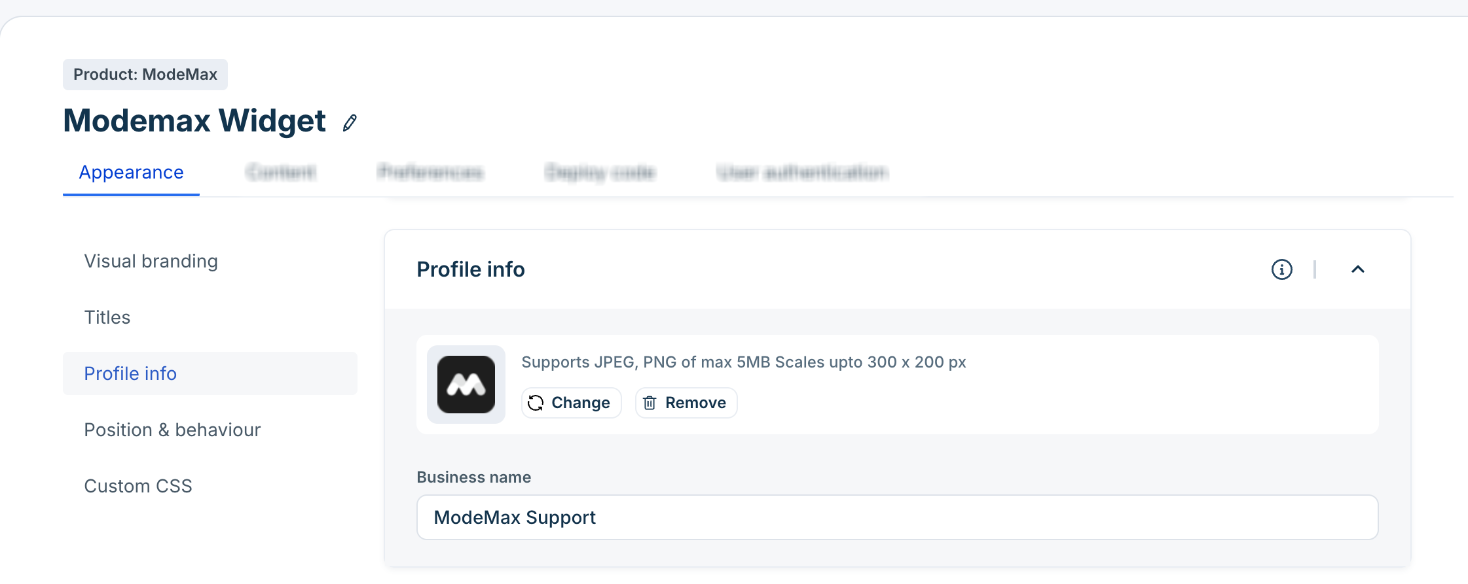
Position and behavior
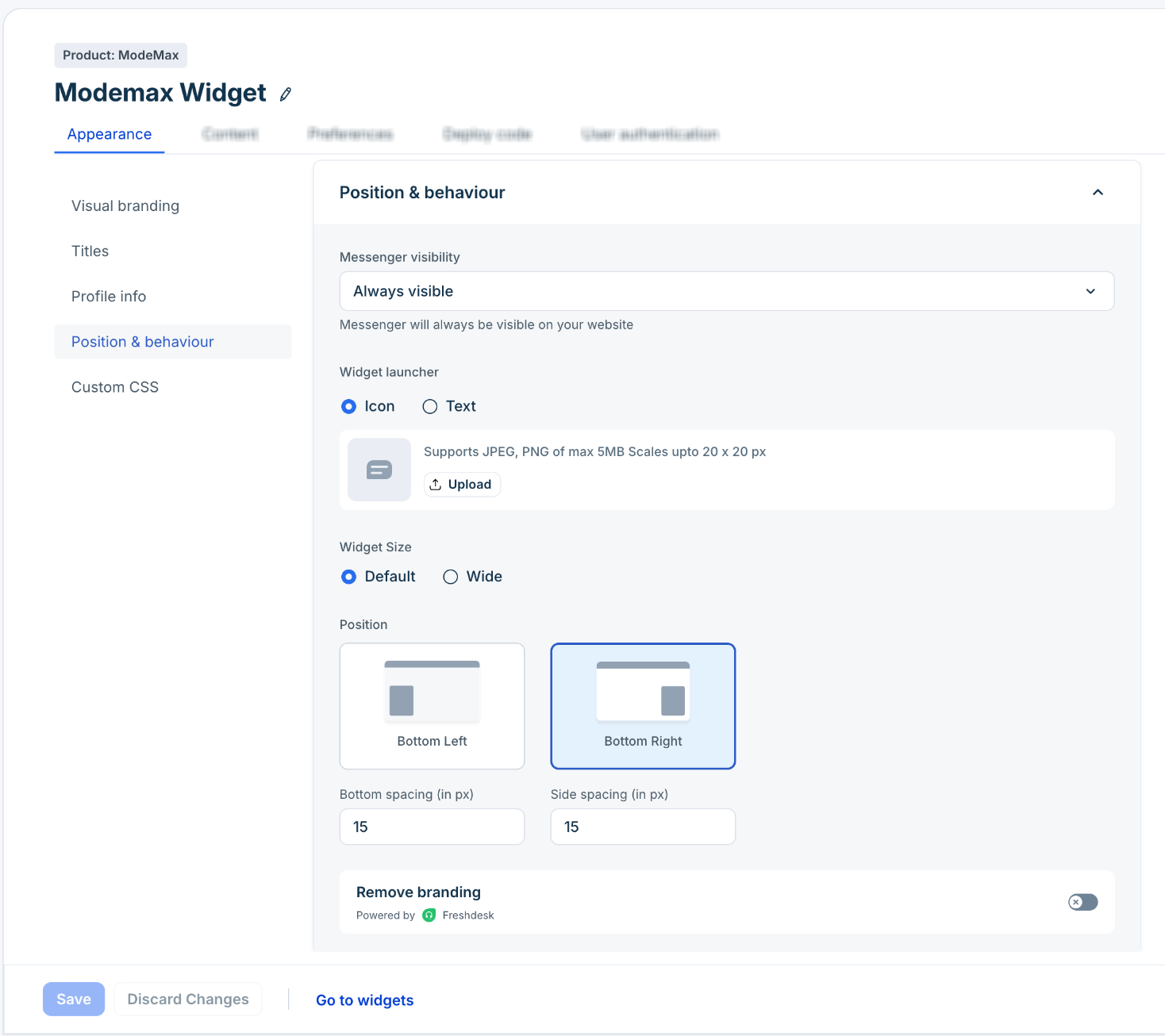
Configure how and where you want the widget to be visible in your Website or portals.
- Visibility: Make your widget always visible, hidden, or only visible within your working hours
- Widget launcher: Choose your preference for widget launcher (the icon or button the customers will click to open the widget). The options are:
- Icon: Upload a relevant image (max 5MB, Scales up to 20 x 20 px).
- Button with text: Enter the text for the button.
- Widget size: Choose between default (compact) or wide.
- Position: Show your widget launcher on the bottom left or bottom right of the page.
- Position Offset in pixels: Fine-tune your widget's position.
- Remove Freshworks branding: Disable Freshworks branding
Custom CSS
For further modifications, apply custom CSS. Your front-end developer can change the font type and size, edit the header and footer elements, adjust the spacing between elements, and much more. For details, see Developer Documentation.
After you’ve made all the changes in the Appearance tab, click Save.
You can now proceed to the Content tab.
Configure widget content
Use the Content tab to embed key resources and actions inside the widget. You can include:
- Knowledge Base
- Live Chat Topics
- Web Forms
Embed Knowledge Base
Display your solution articles directly inside the widget to encourage self-service and reduce chat volume. The widget can show specific categories based on your setup.
For example:
- On your “Pricing” page, display Billing & Payments category.
- On your “Getting Started” page, show setup and onboarding guides.
Note: Before configuring the Content section, ensure you’ve created Knowledge Base categories, folders, and articles. See Create and Organize Knowledge Base.
To embed the knowledge base:
- Go to Admin > Channels > Web Chat > Widgets.
- Click Configure next to the widget name.
- Click on the Content tab and enable Knowledge Base.
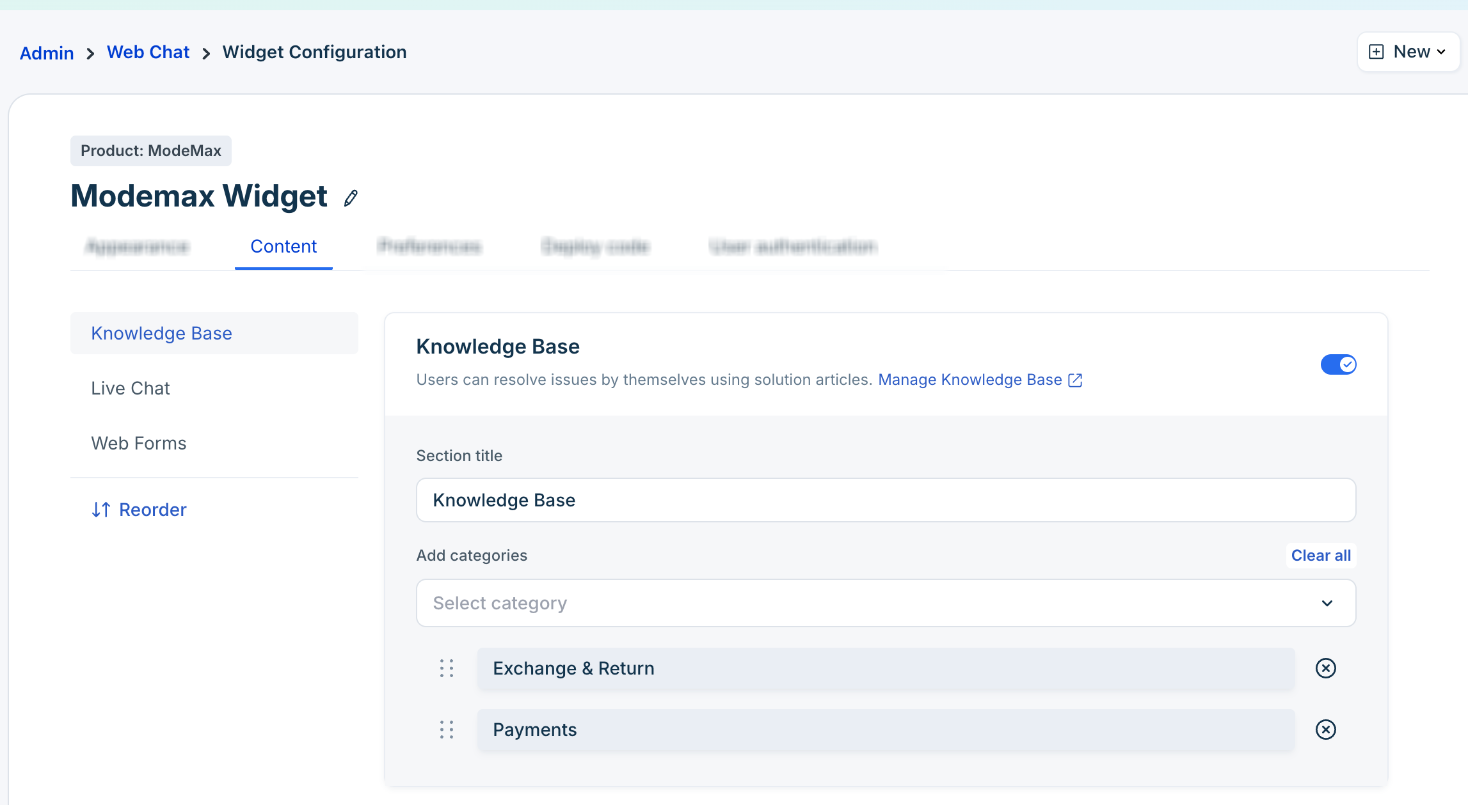
- Enter the Section title. For example, “Knowledge Base” or “Help Center”.
- Add categories from your Knowledge Base to display.
- Click Save.
Here's an example of how the integrated Knowledge Base section looks: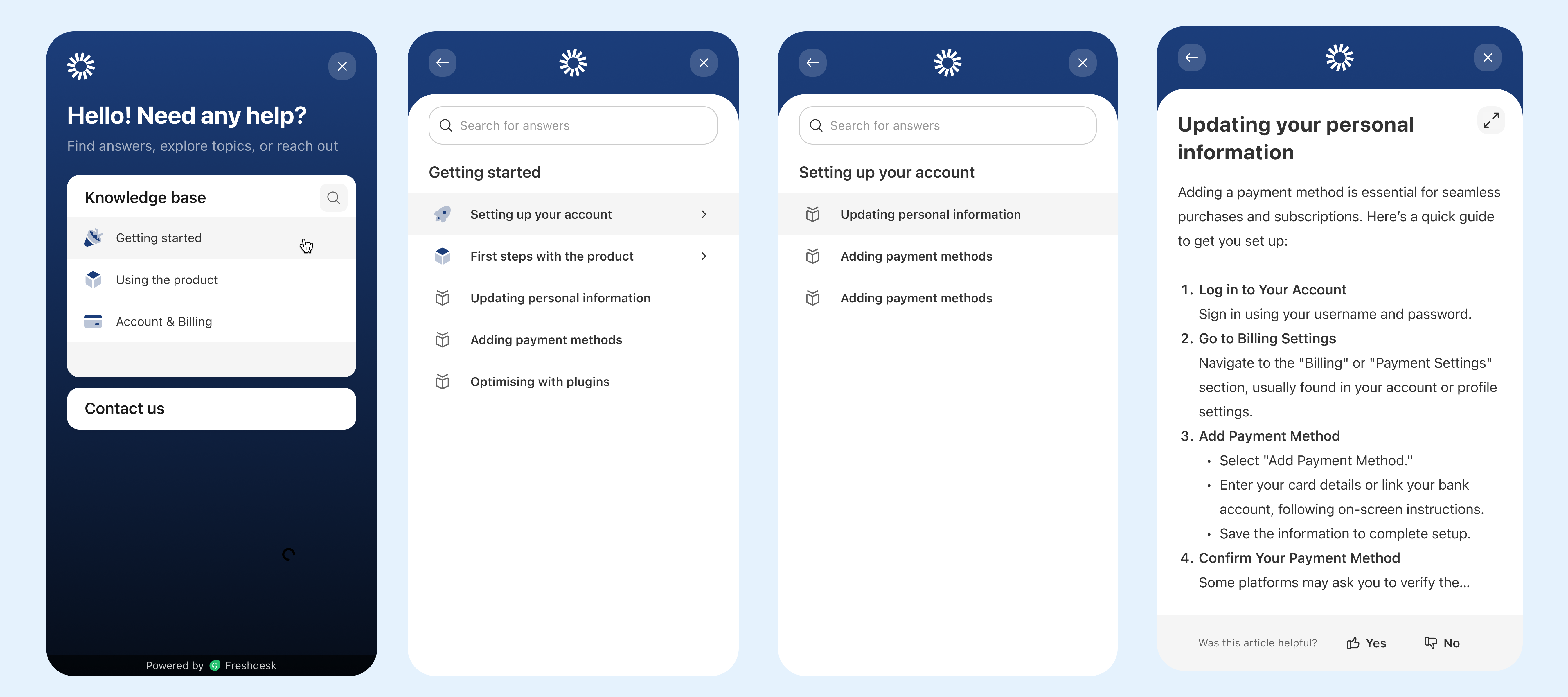
Enable Live Chat (available in Freshdesk Omni only)
Live Chat topics help customers direct their questions to a human agent or AI Agent. The topics are similar to an IVR menu for chat.
For example, create topics like Billing, Orders, or Product Support. When a customer selects a topic, they can be routed to a specific human agent or an AI Agent. For more information, see Create Web Chat Topics.
To enable live chat:
- Go to Admin > Channels > Web Chat > Widgets.
- Click Configure next to the widget name.
- Click on the Content tab and enable Live Chat.
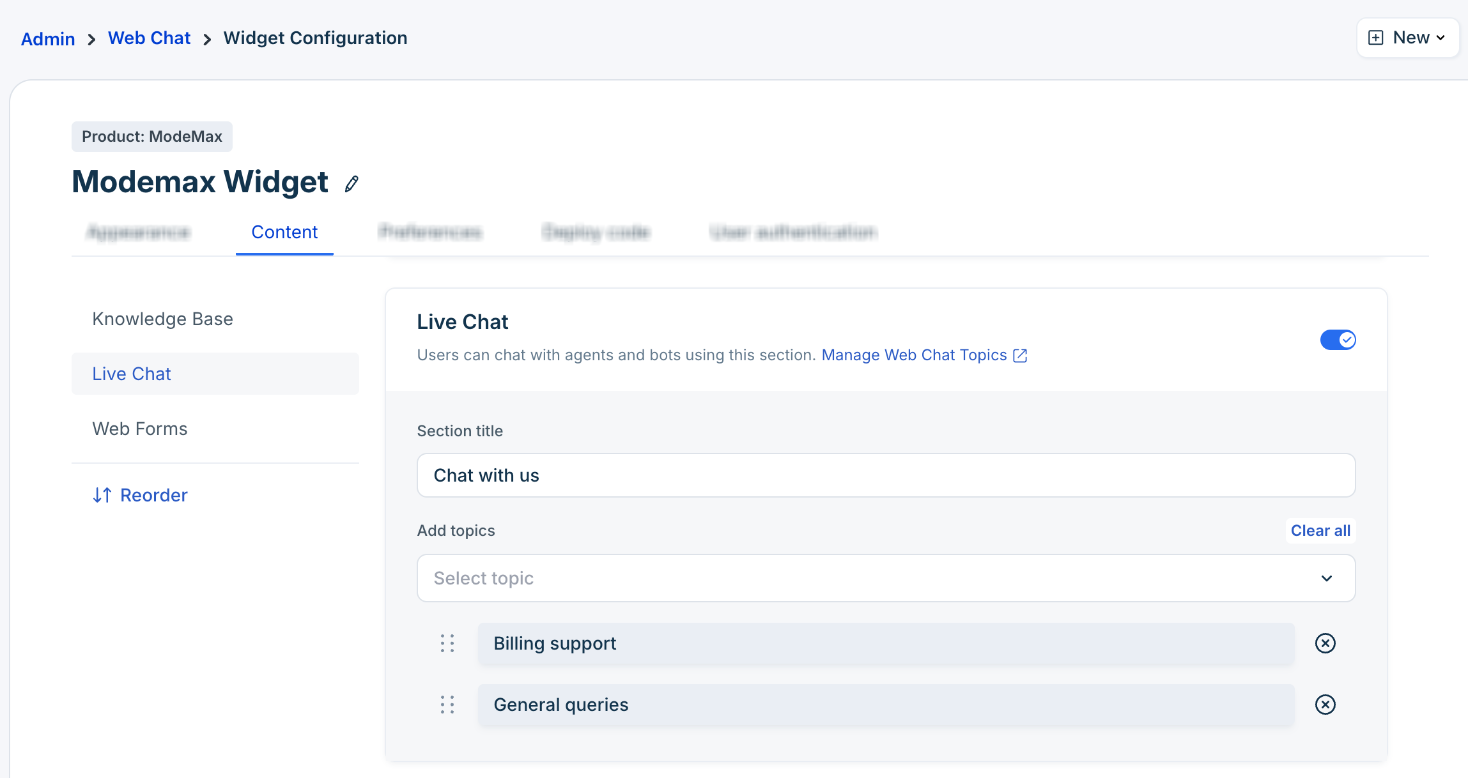
- Enter the section title. For example, “Chat with Us”.
- Select the topics you want to display in the widget.
- Click Save.
Here's an example of live chat experience within the widget: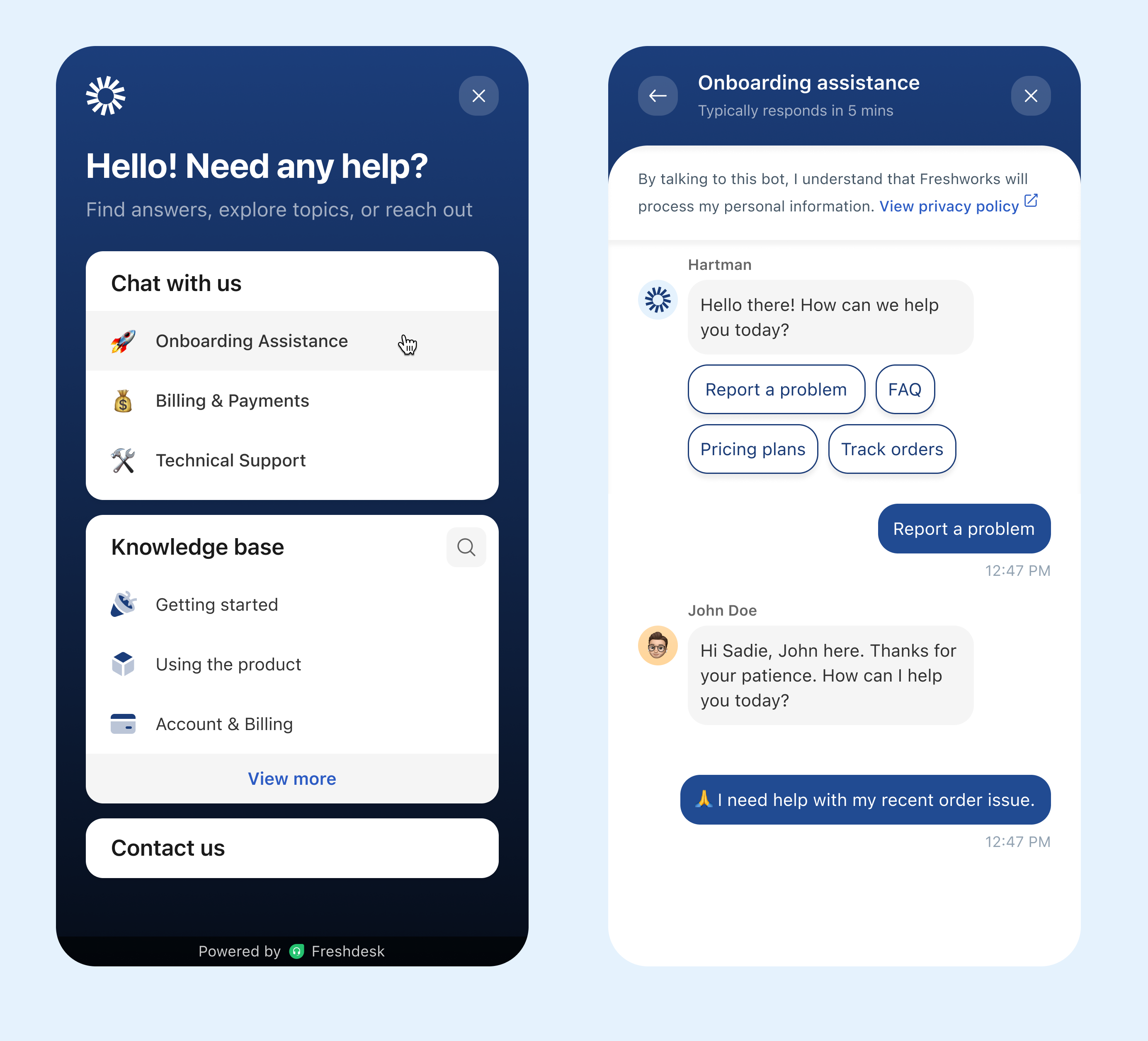
Enable Web Forms
Allow customers to create tickets directly from the widget. You can create separate forms for different purposes, such as product feedback or issue reporting. This ensures customers always have a way to reach your team, even outside business hours.
When customers use the web forms, the tickets will be created with the source as Web Form.
Note: Ensure that the forms you want to use are already created. For details, see Ticket Forms.
To enable web forms in widget:
- Go to Admin > Channels > Web Chat > Widgets.
- Click Configure next to the widget name.
- Click on the Content tab and enable Web Forms.
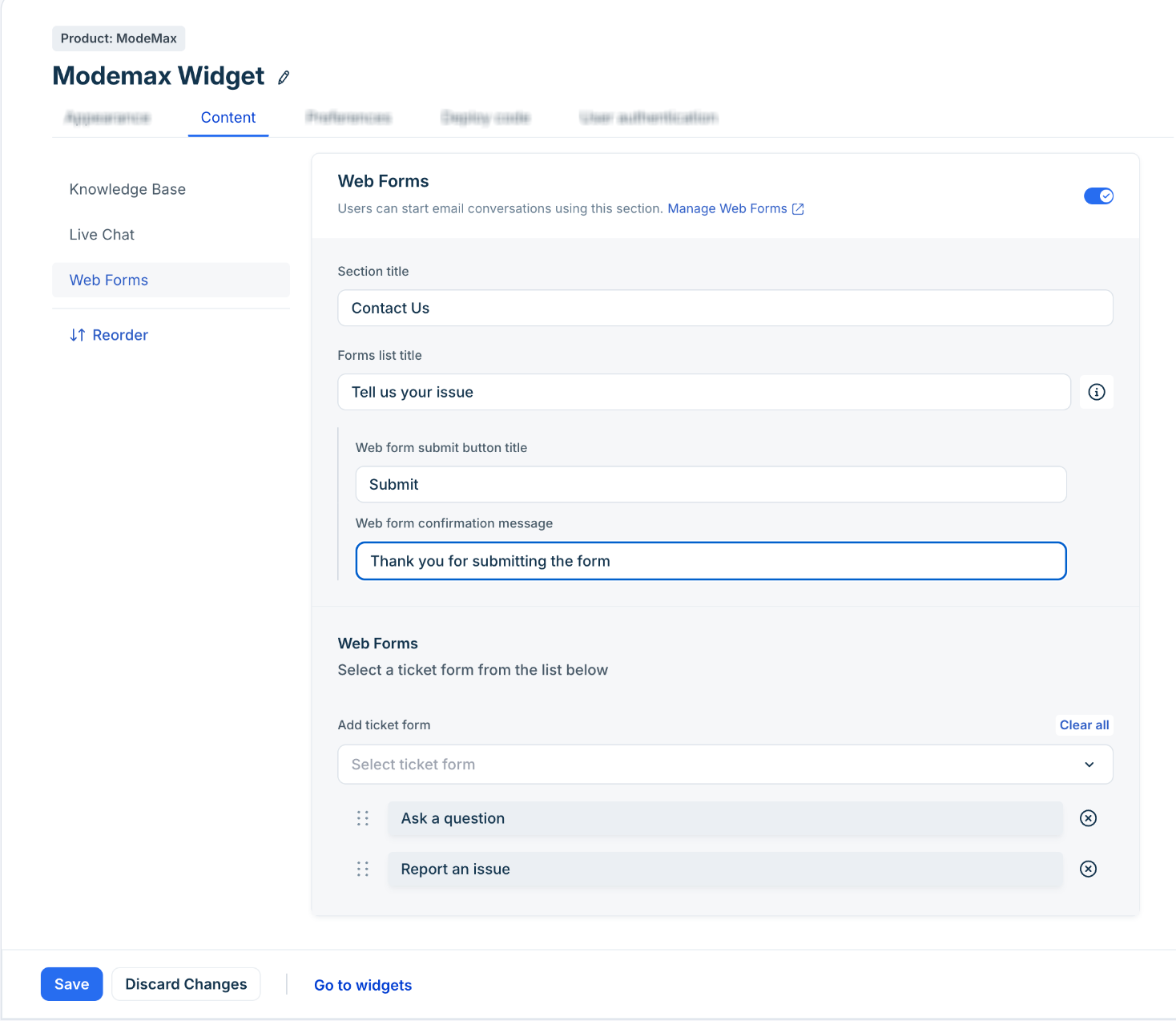
- Enter the following details:
- Section title: Example, “Contact Us”.
- Form title: Example, "Tell us your issue".
- Submit button title: Example, "Submit your query".
- Confirmation message. Example, "Thank you for submitting the query".
- Choose the forms you want to display in the widget.
- Click Save.
The following example shows the web form experience: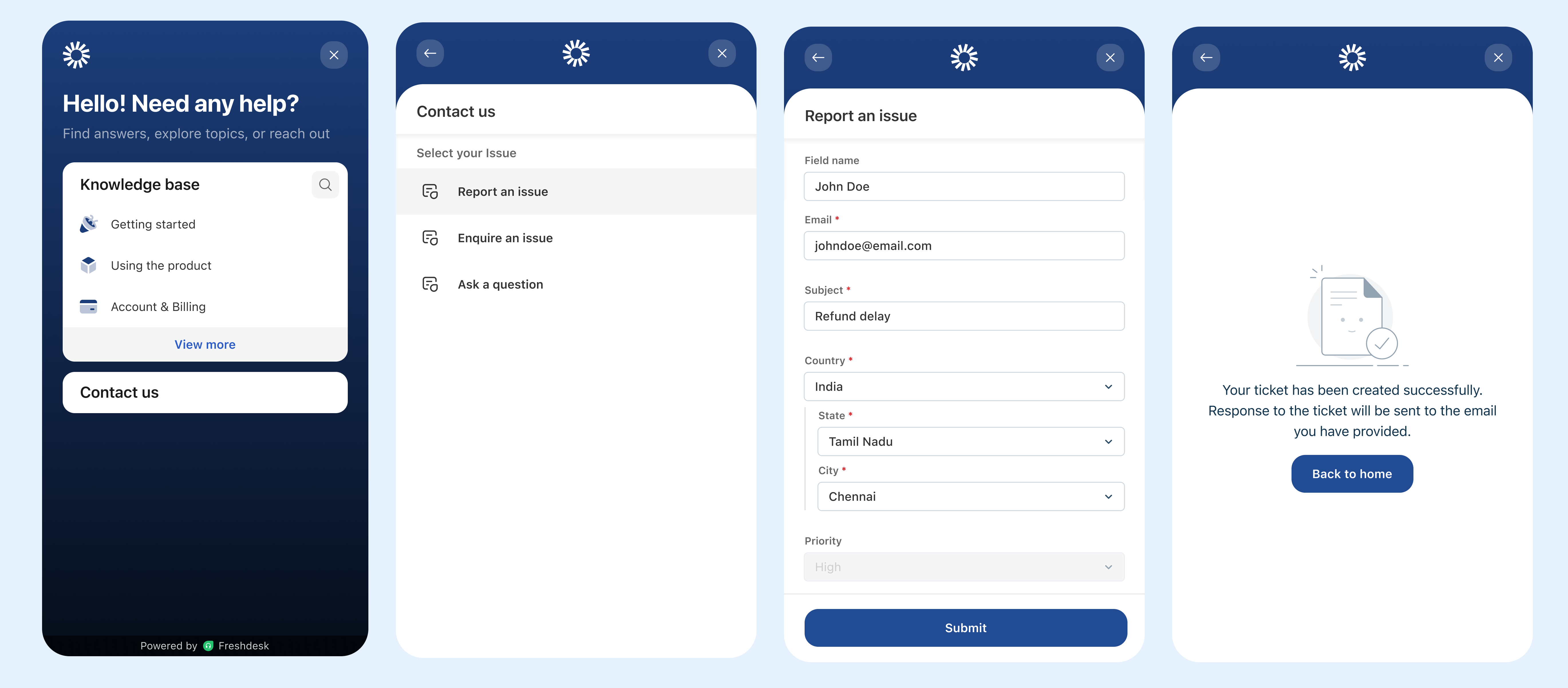
Configure widget preferences
The Preferences tab provides advanced settings to improve chat usability and privacy.
For example, add a sound notification to alert customers whenever agents respond to customers, or allow customers to attach reference files in chat.
To set up additional preferences:
- Go to Admin > Channels > Web Chat > Widgets.
- Click Configure next to the widget name.
- Click on the Preferences tab.
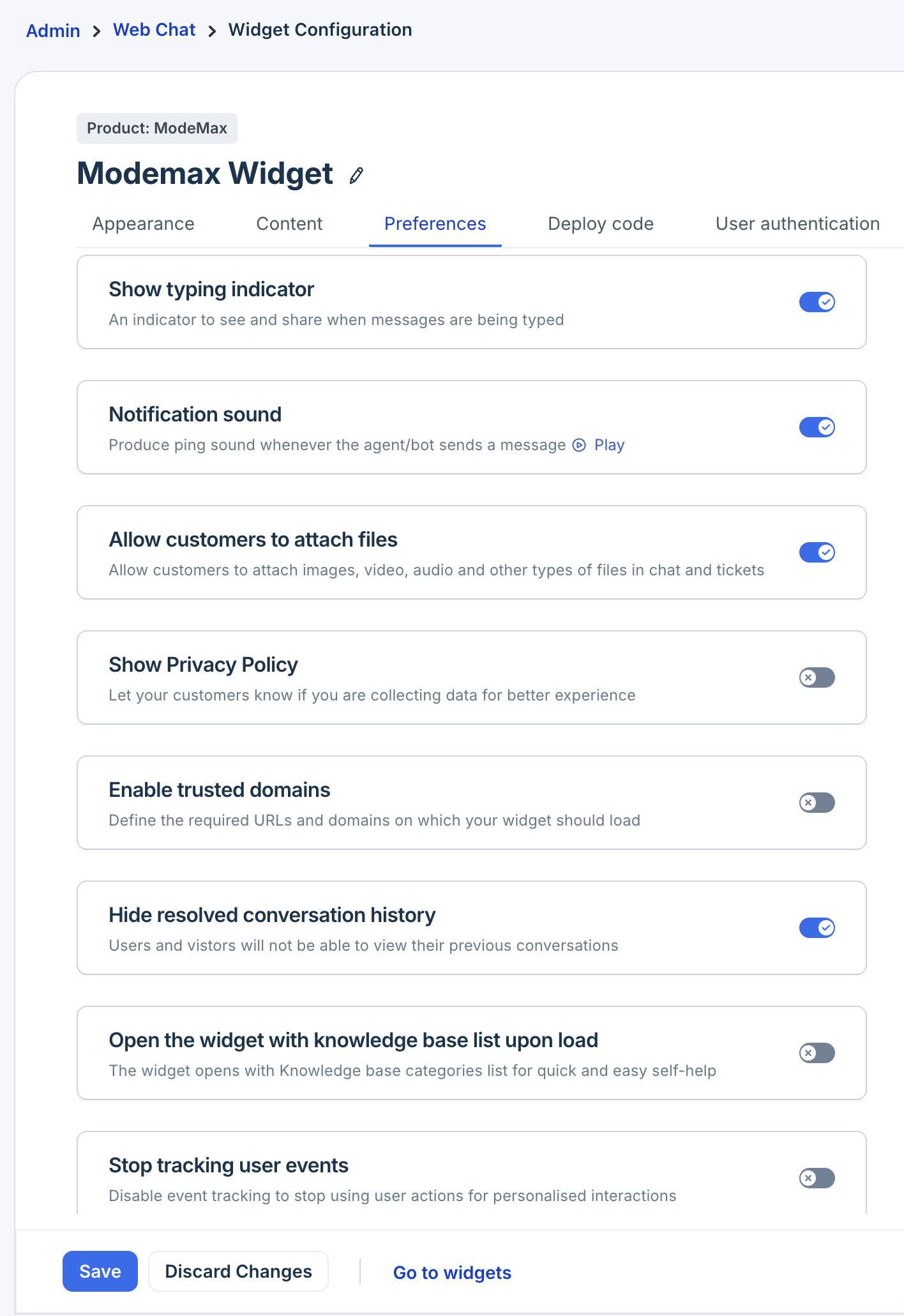
The various options available are:
| Option | Description |
|---|---|
Show typing indicator | Displays an indicator when an agent is typing. |
Notification sound | Plays a sound alert when a response is received by the user. Click the play icon to listen to the preview. |
Allow customers to attach files | Allows customers to share media or other files in the chat. |
Show Privacy Policy | Add a privacy message at the top of the conversation and link to your privacy policy. |
Enable trusted domains | Define specific URLs on which the widget can load. |
Hide resolved conversation history | Prevents customers from seeing past resolved conversations. |
Open the widget with knowledge base list upon load | Displays articles first when the widget opens to encourage deflection via self-service. |
| Stop tracking user events | Disables event tracking to avoid using user actions for personalised interactions. |
| Enable captcha for forms to prevent spam | Prevents spam ticket submissions. |
Deploy widget code
To enable the widget for your customers, you need to embed its code on your website.
- Go to Admin > Channels > Web Chat > Widgets.
- Click Configure next to the widget name.
- Click on the Deploy code tab.
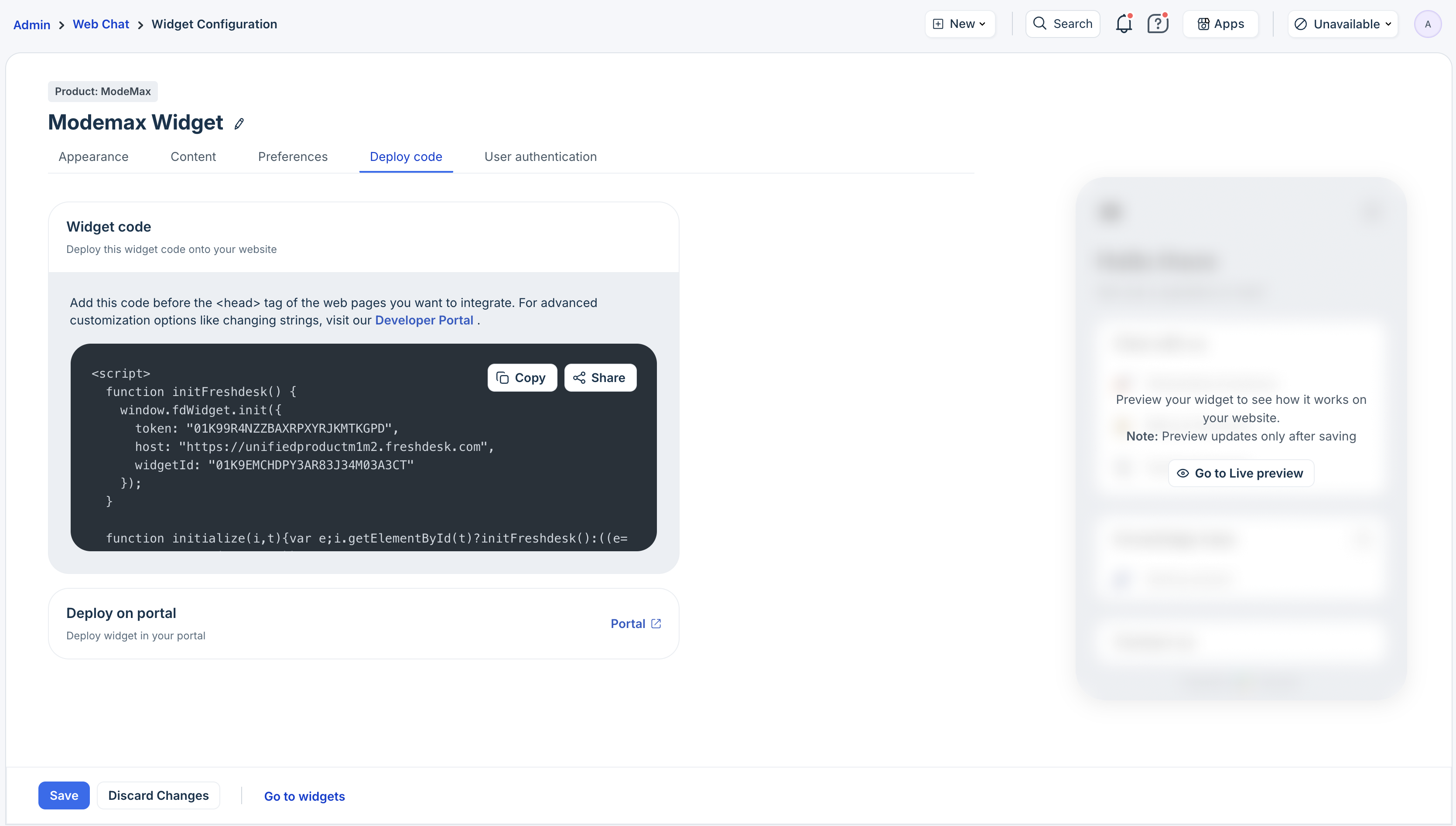
- Copy the widget code snippet.
- Paste it before the <head> tag on every webpage where you want the widget to appear.
Use the preview option to preview how the Widget will look on your portal or Website.
For advanced customization options, see the Developer Documentation.
Deploy the widget on your product portal
- Click the Portal link in the Deploy code tab. You’ll be redirected to the Manage Settings page of your portal configuration.
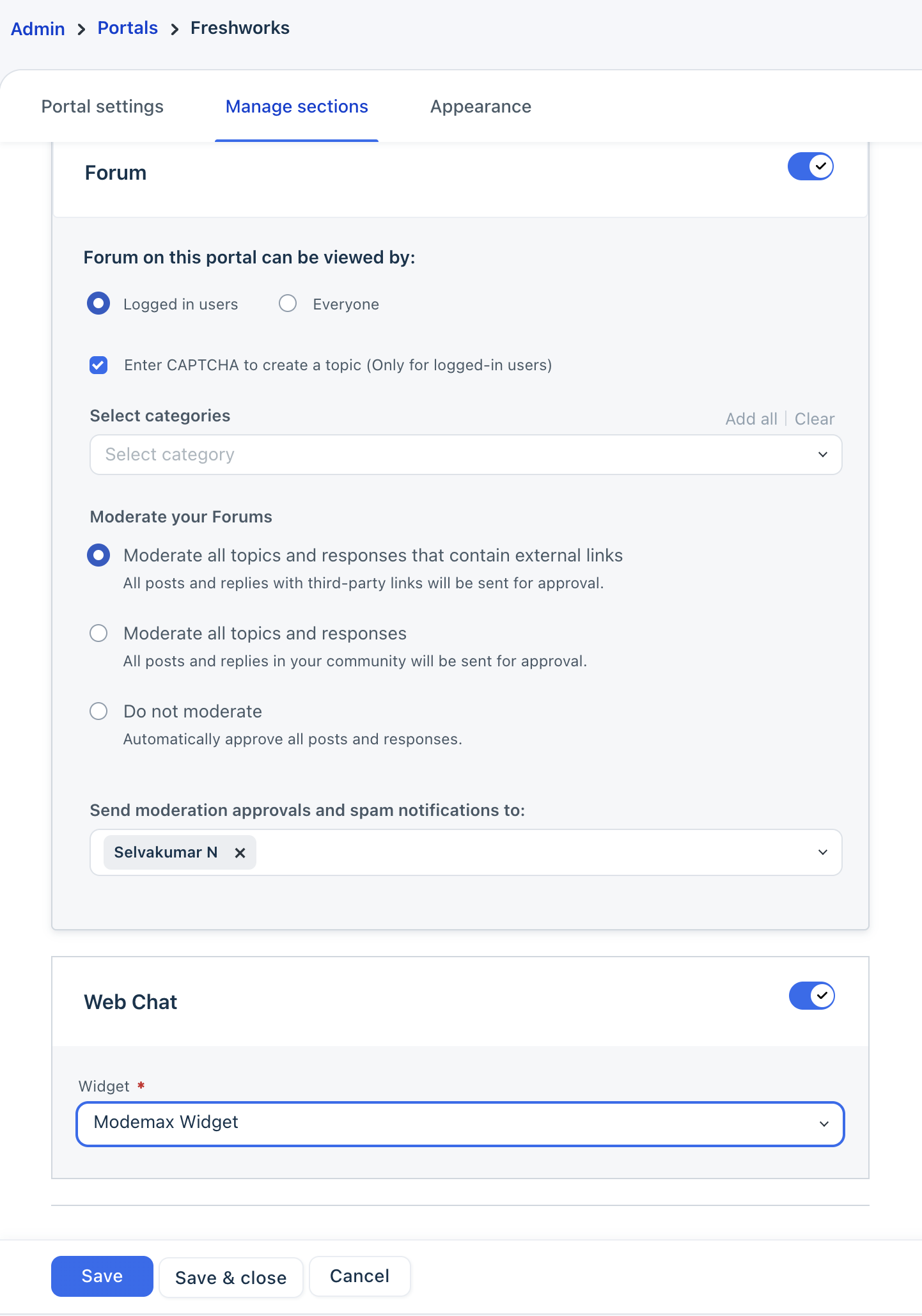
- Scroll down to the Web Chat section and enable it.
- Click Save. The widget will automatically appear on your portal.
Note: The deployed widget is visible on the customer portal only when accessed using a customer profile. If view the customer portal from an agent profile, the widget will not be visible.
Configure user authentication
Use JSON Web Token (JWT) authentication to allow only verified users to access your web widget. This ensures that only logged-in customers can initiate chat sessions or raise tickets through the widget.
For more information, see Authenticate Users via JWT Authentication.
Manage widget
From the web widget page, you can clone, delete, or retrieve the widget code.
- Go to Admin > Channels > Web Chat.
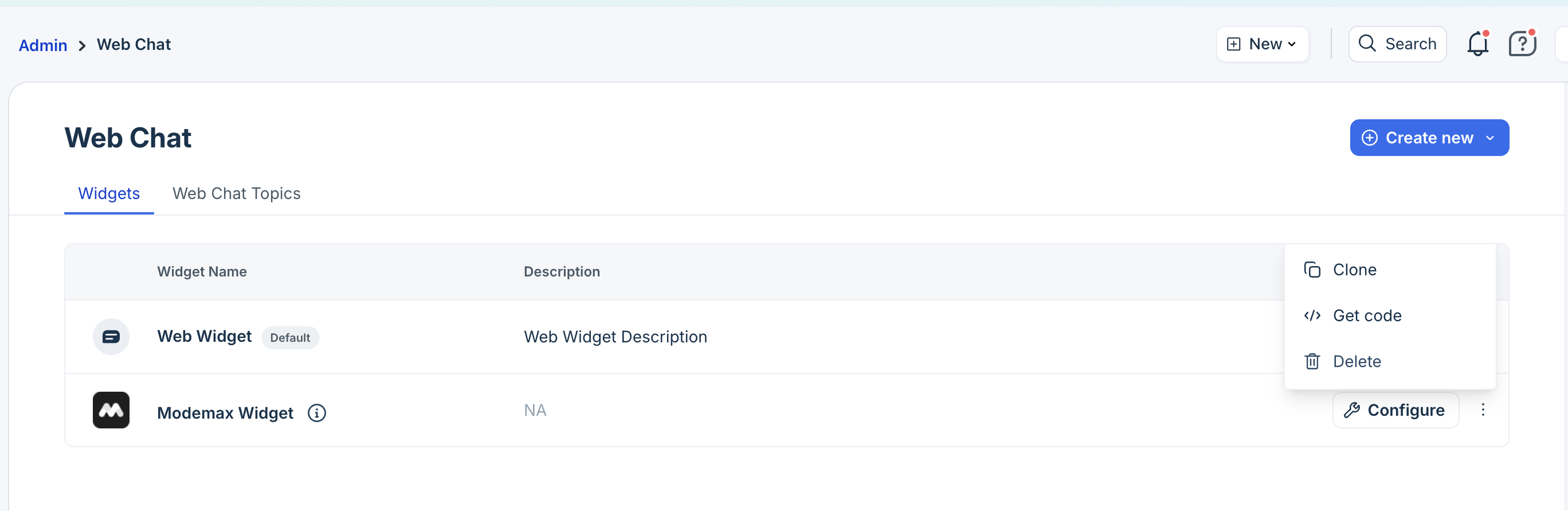
- Click on the three dots next to the widget name.
- Clone: Creates a duplicate of the existing widget, including all its configurations. You can modify the cloned widget as needed.
- Delete: Permanently removes the widget.
Note: This action is irreversible. If the widget is linked to your portals or web pages or mobile chat SDK widget, deleting it will affect those pages and cannot be undone. Make sure you want to proceed before confirming deletion. - Get code: Instantly redirects you to the Deploy code page, where you can copy the widget’s code and use it on your website or portal.
Agent experience
Once the web widget is live, all customer interactions, whether chat messages or form submissions, are automatically converted into tickets. Agents can manage these tickets directly from their Ticket List page, perform all standard actions, and continue conversations across channels without losing context. Similarly, customers can view the Web Chat tickets on the customer portal.
- Channel source:
Web Chat tickets are clearly labeled with a channel/source indicator icon, making it easy to identify them in the inbox. Additionally, the source info displays the topic name, web form, or pre-chat form from which the ticket was initiated. - Filtering options:
Agents can use Web Chat–specific filters in the ticket list view to quickly locate or manage widget-based tickets. - Ticket details:
Agents can view full chat or form contact details to full conversation history, including AI Agent conversations (if any). - Ticket Actions:
Agents can perform all standard ticket actions on Web Chat tickets, including replying, adding notes, and changing the ticket status. They can also perform advanced actions like deleting or modifying ticket fields, executing scenarios, and logging time.
Note: Although most ticket actions can be performed on Web Chat tickets, the merge action is not supported. Hence, Web Chat tickets cannot be merged with other tickets. - Continue conversations via Email:
Agents can use the channel switcher to switch from chat to email.- When switched, an email response is sent over the existing ticket, without creating a new ticket.
- However, this option is available only if the customer’s contact record includes a valid email address.
- Contact Details:
The Contact Info Card appears in the right pane for quick access or edits. Any anonymous users appear with a Visitor tag, which agents can convert into a contact.