
 Community
 Video Library
 Agent Training
 Freshservice
 Freshdesk
 Freshchat
 Freshcaller
 Freshsales
 Freshteam
 Freshworks Neo
 Freshsurvey
 Growth
TABLE OF CONTENTS
Review AI Agent responses
The Improve AI Agent tab allows you to review real customer conversations, identify gaps in your AI Agent’s responses, and refine them to provide more accurate and helpful answers. This helps you enhance your Knowledge Base or Workflows and train your AI Agent for better performance and customer satisfaction.
The AI Agent queries are grouped into the following categories:
- Unanswered queries: Shows customer questions that the AI Agent couldn’t answer
- Answered queries: Displays queries successfully handled by the AI Agent. You can review and refine these answers to ensure they’re accurate, helpful, and contextually appropriate.
- Unhelpful responses: Lists responses or articles that customers marked as unhelpful. Use these insights to identify content gaps and add missing information or new Q&As.
To view and analyze AI Agent queries:
- Log in to your account.
- From the left navigation bar, click AI Agents.
- On the AI Agent Studio page, click on the AI Agent.
- Click Analyze > Improve AI Agent.
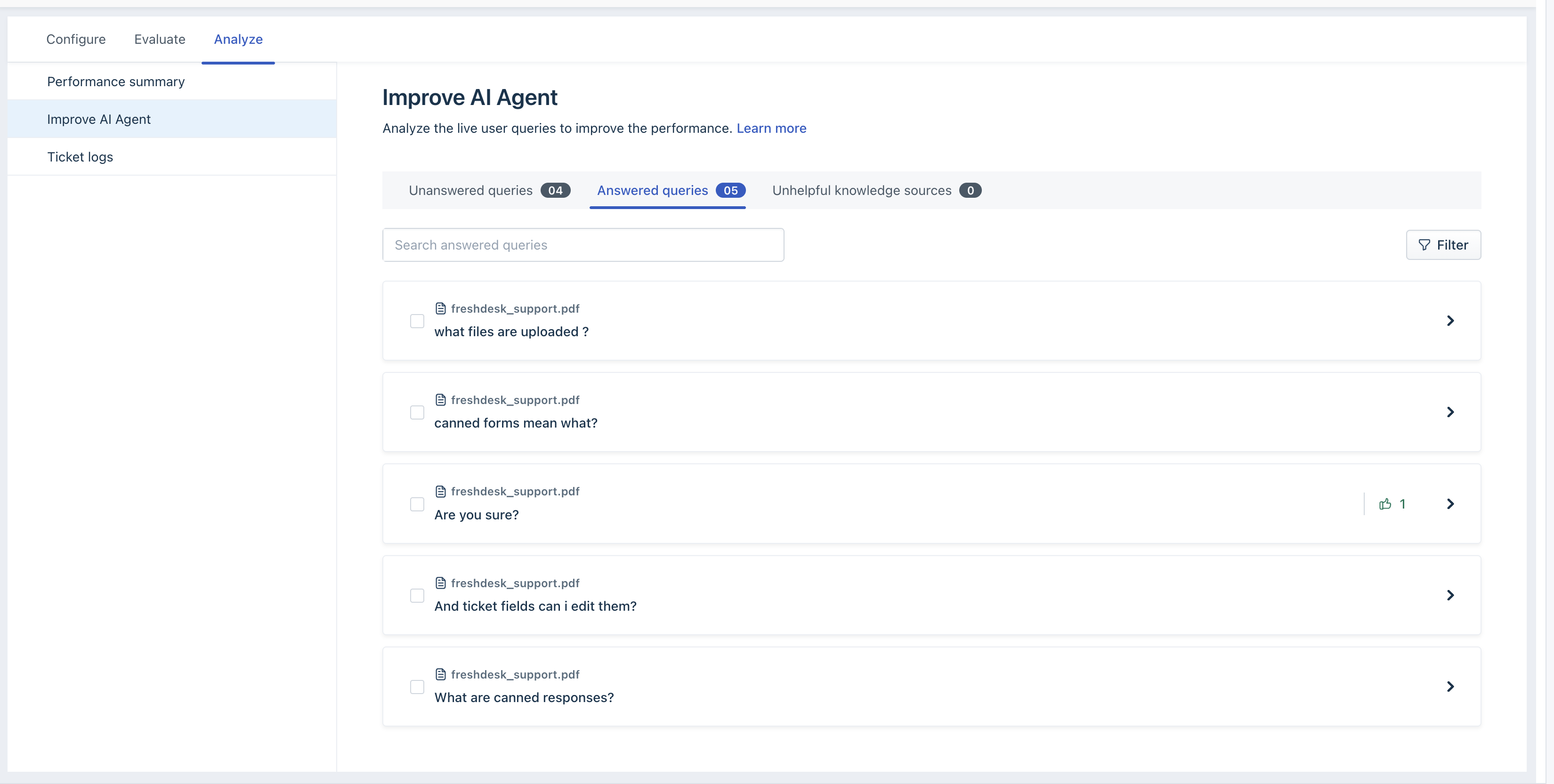
- Choose the query type you want to review:
- Unanswered queries
- Answered queries
- Unhelpful knowledge sources
Take actions on queries
In each section, hover over each entry to perform relevant actions.

For Unanswered Queries
- New question: Add a relevant custom Q&A in your Knowledge Sources section.
- Delete: Remove unnecessary entries.
- Open ticket: View the AI Agent conversations details directly in your Inbox to analyze where the AI Agent couldn’t respond.
For Answered Queries
- Open ticket: Review the conversation details directly in your Inbox to ensure the AI Agent’s response was appropriate.
- New Question: Edit or map to a more precise answer for better accuracy.
- Delete: Remove irrelevant or outdated queries.
For Unhelpful Knowledge Sources
- Update Knowledge Base articles or add new Q&As to address customer feedback.
Articles will be displayed under this section only if three or four customers provide a thumbs-down for a particular answer. A thumbs down from only one customer will not be displayed here.
Filter Queries
You can filter both Answered and Unanswered queries to view specific details and narrow down the results based on defined conditions.
Filter Answered Queries
- In the Answered Queries section, click Filter.
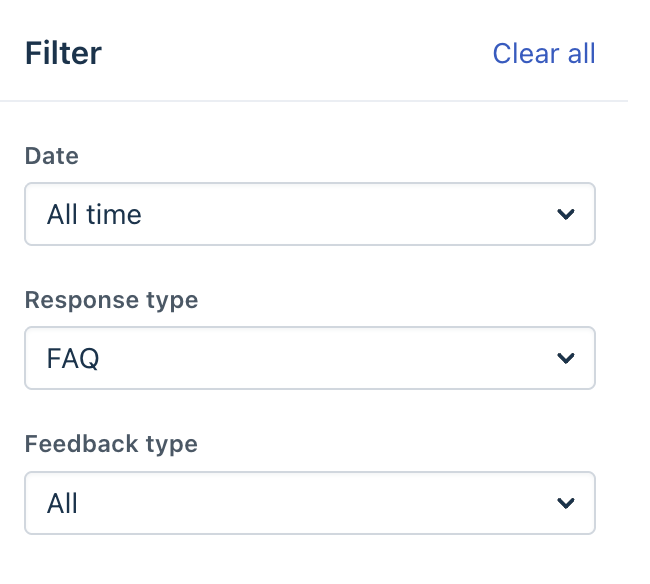
- Choose one or more filter conditions:
- Date: View answers within a specific time range.
- Response type: Filter responses by Q&A, FAQ, URL, or File.
- Feedback type: Filter responses by helpful or unhelpful answers.
- Click Apply.
Filter Unanswered Queries
- In the Unanswered Queries section, click Filter.
- Choose the filter condition:
- Date: View unanswered queries for a selected date range.
- Click Apply to update the list.