
 Community
 Video Library
 Agent Training
 Freshservice
 Freshdesk
 Freshchat
 Freshcaller
 Freshsales
 Freshteam
 Freshworks Neo
 Freshsurvey
 Growth
TABLE OF CONTENTS
About ticket logs
The Ticket Logs page gives you complete visibility into every conversation between your customers and the AI Agent. It captures all messages exchanged in real time, so you can easily review how your AI Agent handles queries and troubleshoot issues when needed.
How can you use the logs?
Ticket logs help you monitor and improve your AI Agent’s performance by offering complete transparency into every interaction.
For example, if a customer reaches out about an unresolved issue, you can search the logs by ticket ID to review the full conversation before troubleshooting.
Ticket logs can be used to:
- Audit conversations and understand how your AI Agent responded to specific queries.
- Investigate issues when customers report unresolved or incorrect answers.
- Identify areas for improvement in your Knowledge Base or AI Agent training.
Tip: In addition to Ticket Logs, you can use the Performance Summary and Improve AI Agent tabs to monitor your AI Agent’s overall performance and identify areas for improvement.
View ticket logs
The Ticket Logs page displays all conversations in chronological order, with the most recent logs displayed at the top. The details include Ticket ID, Customer name, Ticket Status, and last updated time.
To view logs:
- Log in to your account.
- From the left navigation bar, click AI Agent Studio.
- On the AI Agent Studio page, click on the AI Agent.
- Click Analyze > Ticket Logs.
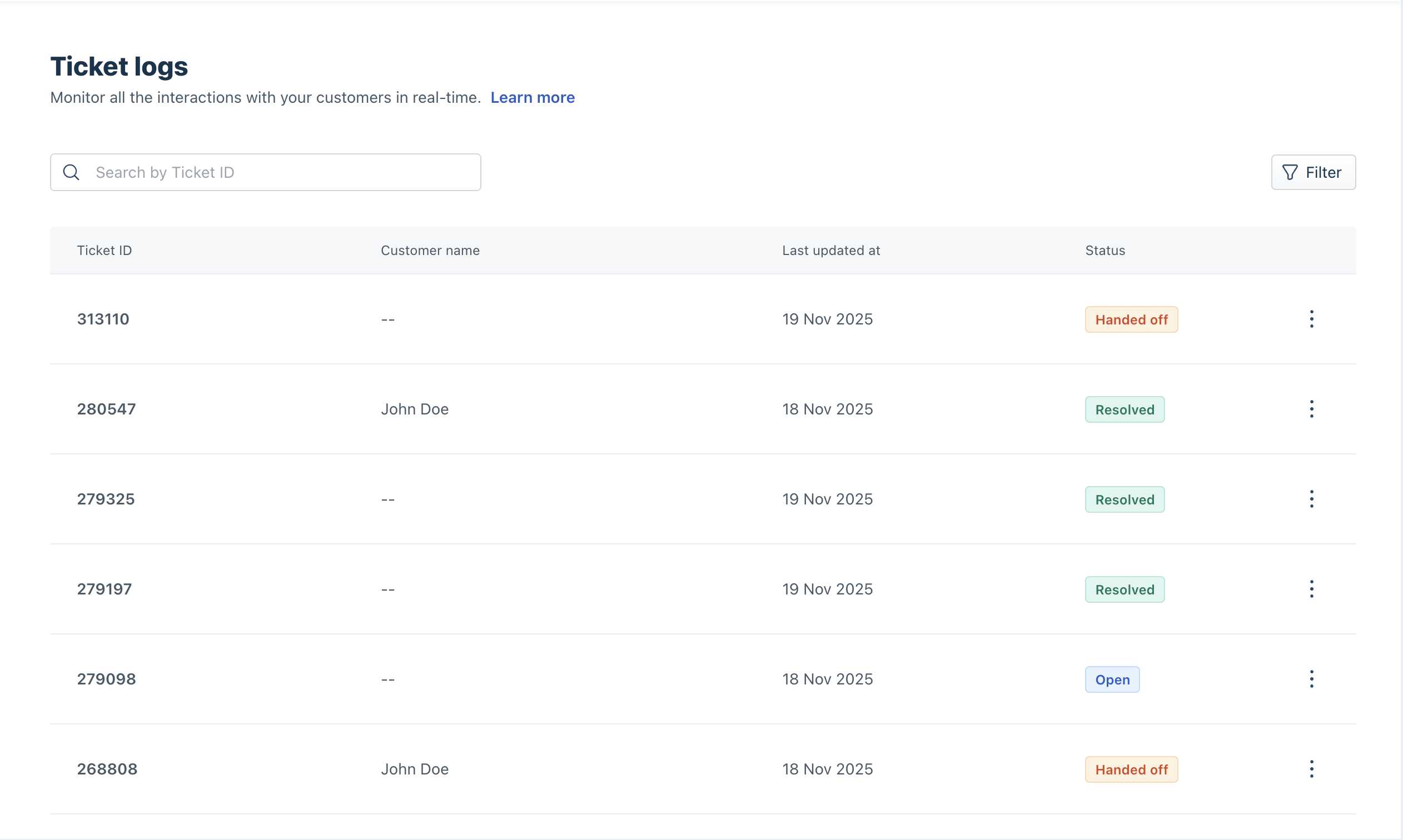 You’ll see a list of all the recorded conversations for that AI Agent, including both customer tickets and preview logs.
To view a ticket directly in your Inbox:
- Click the three dots next to the ticket log.

- Click View in Inbox to open the full ticket conversation.
Note: Ticket logs are generated for both live customer interactions and preview sessions. This ensures that even test conversations are recorded and available for analysis.
Filter logs
You can refine your view using filters to focus on specific tickets or time periods.
To filter logs:
- Click the Filter icon.
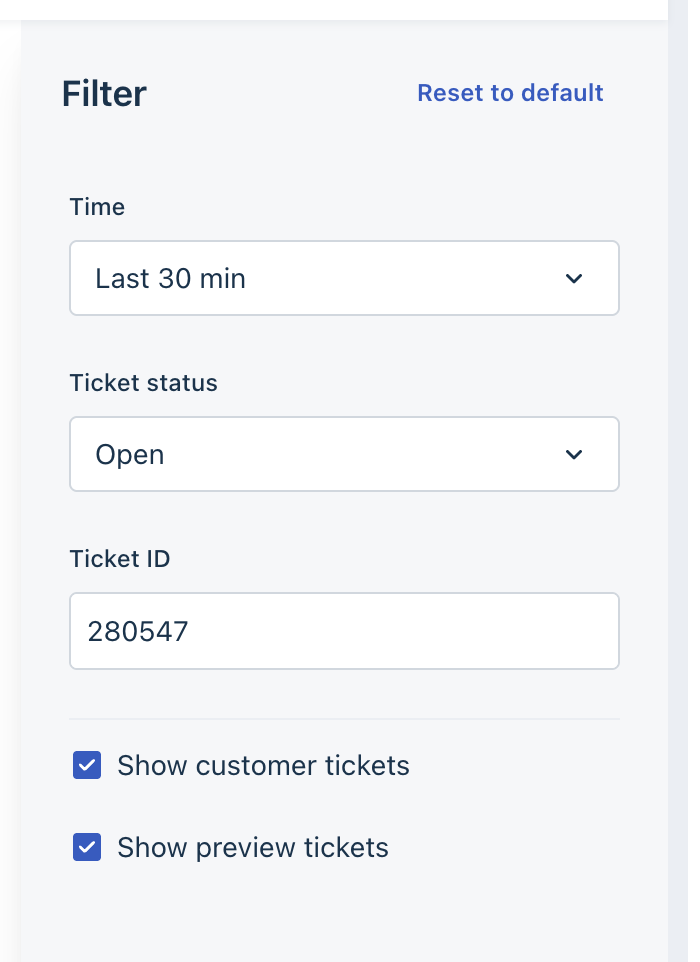
- Choose your preferred filter options:
- Time: Filter logs within a specific date range.
- Ticket status: Filter by new, open, resolved, or agent hand-off tickets.
- Ticket ID: Search for specific customer conversations using ticket ID.
- Customer or preview tickets: Choose to view real or test interactions.
- Click Apply.