
 Community
 Video Library
 Agent Training
 Freshservice
 Freshdesk
 Freshchat
 Freshcaller
 Freshsales
 Freshteam
 Freshworks Neo
 Freshsurvey
Freddy AI Insights in Freshdesk enables you to create customized insights tailored to your team’s specific needs. By defining which data to include and which agent groups to analyze, you can ensure the insights generated are relevant and actionable for your operations.
What are Customized Insights?
Customized Insights let you create additional metrics on top of Freddy AI’s default Proactive Insights. Each metric includes:
- Data filters: Which subset of tickets/incidents to include (e.g., Priority = High, Source = Email)
- Groups: Up to 2 agent groups that the insight should analyze
Freddy AI evaluates these metrics on a regular insight schedule and displays the results to everyone with access to the selected agent groups.
Who can use Customized Insights?
See which permissions allow you to view or manage customized insights.
| Permission | What you can do |
| View Ticket Reports | View all default and customized insights you have permission to see. |
| Manage Ticket Reports | Create, edit, clone, and delete customized metrics. |
How to Create a Customized Metric?
To create a customized metric,
- Go to Freddy AI Insights (left navigation bar) > Settings (gear icon) near Proactive Insights
- On the Insights settings page, click Customization > Customized metrics

- Click Add Customized Metric
- Give your Insights a name, and choose a metric
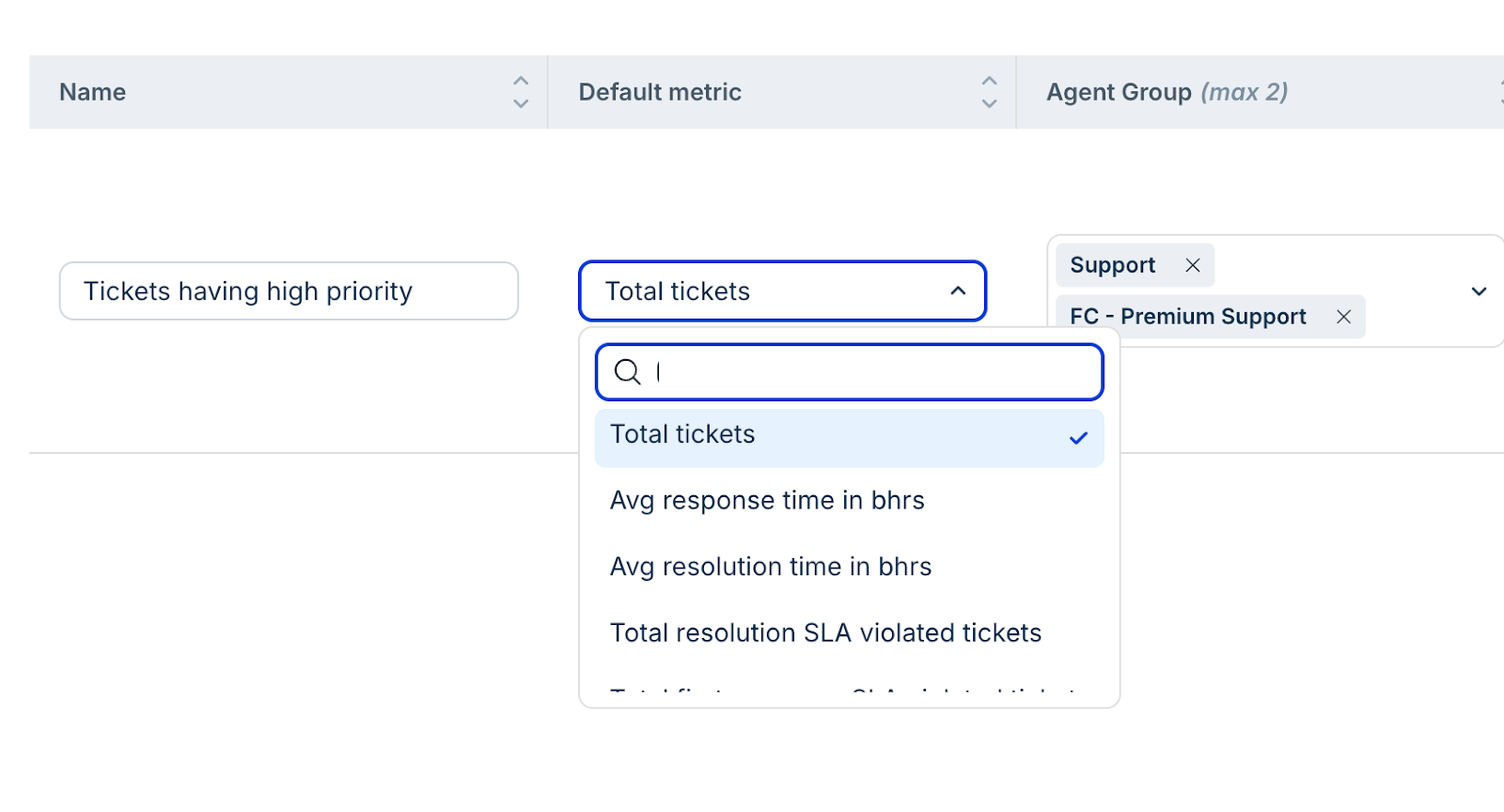
- Select Groups (up to 2) – Choose the agent group this customized insight should analyze. Customized Insights on this particular customized metric will be generated for these agent groups. For example, Support and Premium Support.
- Add up to two data filters.
- Example: Priority is High, Business Impact is Minor
- Keep the filters simple, as each one reduces the dataset, and over-filtering can prevent insights from being generated.
- Click Save
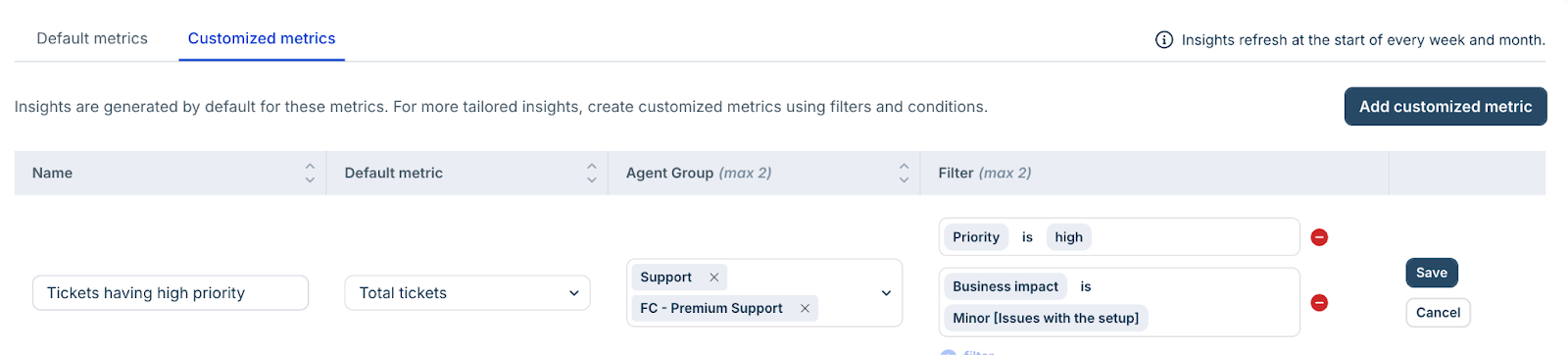
Insights appear on the next scheduled run. If there isn’t enough eligible data, no insight may appear.
Examples of Customized Insights
| Name | Metric | Filters | Groups |
| High-Priority Spike by Email | Incoming Ticket Volume | Priority = High, Source = Email | L1 Support, L2 Escalations |
| SLA Breaches in APAC (Chat) | SLA Violations | Region = APAC, Channel = Chat | APAC Support |
| Network Category Stability Check | Avg Resolution Time | Category = Network | Network & Connectivity Team |
Key Limits (Guardrails)
Understand the quotas and restrictions when creating customized insights.
- Maximum customized insights per account: 35
- Maximum groups per customized insight: 2
- Maximum filters per metric: 2
- Default metrics supported: Only metrics already supported by Freddy AI Insights
- Visibility: Anyone with access to the selected groups can see the insights
- Timing: Insights appear according to the regular schedule; sufficient eligible data is required
Manage Customized Insights
Learn how to edit, delete, or disable insights, and understand ownership rules.
- Edit: Customization > Customized Metrics > select a metric > Make changes > Save
- Delete/Disable: Remove or temporarily disable metrics to free up quota
- Ownership: Any Manager can edit any custom configuration
Best Practices
Tips to ensure customized insights are actionable and maintainable.
- Start narrow but not tiny: Use 1–2 high-signal filters. Relax filters if insights don’t appear.
- Name clearly: Include metric, filters, and groups in the name for quick scanning.
- Review quarterly: Retire stale insights to stay under the 35-metric limit.
FAQs
Common questions about creating and viewing customized insights.
- Why don’t I see my custom insight right away?
Insights appear on the next scheduled run and only if enough eligible data exists. - What does “enough data” mean?
Each metric has a minimum data requirement to reliably detect changes. - Who can view customized insights?
All users with access to the selected agent groups can view them. Only agents with the Supervisor role or higher can edit. - How many customized insights can I create?
Up to 35 per account. Delete or consolidate older ones to free capacity. - Can I target more than two groups?
No. Use another customized metric for additional groups. - Do filters use AND or OR logic?
Filters are combined using AND logic; each filter narrows the data slice.
Troubleshooting
Solutions to common issues when creating or viewing customized insights.