
 Community
 Video Library
 Agent Training
 Freshservice
 Freshdesk
 Freshchat
 Freshcaller
 Freshsales
 Freshteam
 Freshworks Neo
 Freshsurvey
 Growth
TABLE OF CONTENTS
This article explains custom properties in your chatbot and how you can set, reference, and manage them across bot flows and conversations.
Prerequisites:
- Ensure you have access to the chatbot you want to configure.
- Ensure your bot flow has at least one dialog. You set a property from an action inside a dialog.
Understanding custom properties
Custom properties help your chatbot remember information collected from customers. Instead of asking for the same information multiple times, the chatbot stores the value and reuses it throughout the conversation or across future interactions, depending on the selected storage scope.
You can use custom properties to:
- Reuse information collected during a conversation.
- Personalize customer interactions.
- Route conversations using conditional logic.
- Populate ticket properties automatically.
- Pass customer information to external systems through API calls.
When you create a custom property, you can choose where its value is stored. The selected storage scope determines how long the value is available and where it can be used. The options are:
- Chatbot Variable: Stores the value for the current bot flow. Use this for temporary values that control the conversation flow.
- User property: Stores the value permanently for the customer and makes it available across future conversations. Use this for customer information such as language or location.
- Ticket property:
- Stores the value until the ticket is resolved. Use this for issue-specific information that should be available to support agents.
Common use cases
Custom properties help your chatbot retain and reuse information collected during conversations. By storing values as properties, you can reduce repetitive questions, personalize customer interactions, and automate business workflows.
The following examples illustrate how custom properties can be used:
Collect information once and reuse it throughout the conversation
Customers often need to provide information such as an order ID, booking reference, account number, or email address. Instead of requesting the same information multiple times, store it as a custom property when it is first collected. The chatbot can then reuse the value in subsequent dialogs, API requests, or ticket properties without asking the customer again.
Example: An e-commerce support bot asks for an order ID at the beginning of the conversation. The stored value is later used to check the order status, initiate a return, or process a refund.
Capture customer menu selections
Messaging platforms such as WhatsApp often use numbered menus to simplify navigation. Store the customer's selection as a custom property so the chatbot can determine the appropriate conversation path or pass the selected value to downstream systems.
Example: A customer selects:
- 1 – New booking
- 2 – Cancellation
- 3 – Ticket status
The chatbot stores the selected option in a property named Type and uses it to create a ticket or trigger the appropriate workflow in Freshdesk.
Set a property in a bot flow
You set a property from an action in the dialog where the value becomes available. To set a property, follow these steps:
- Go to AI Agent Studio > Chatbots.
- Select your chatbot.
- Open the dialog where you want to set the property.
- Click New action, then select Set property.
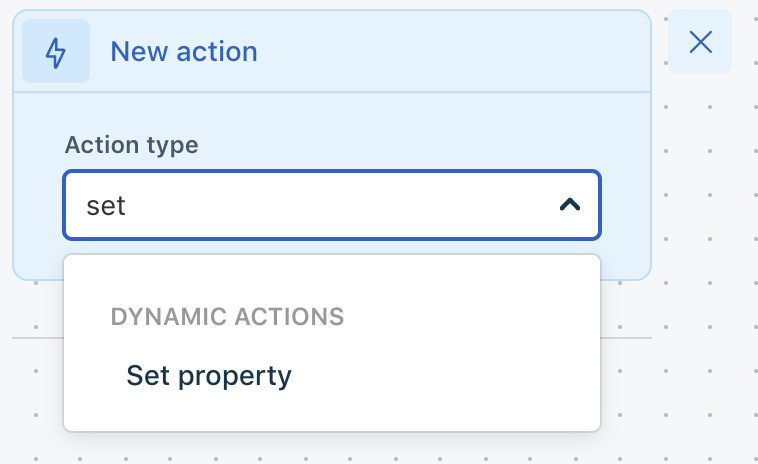
- Configure the following fields:
- Save in: Choose where to save the value. For details on each option, see
- Property name: Enter a name for the property. You use this name to reference the property elsewhere in the flow.
- Property value: Enter a static value, or insert a dynamic one. A static value is alphanumeric text that applies to every conversation. For a dynamic value, click + to open the placeholders, then choose an existing dialog, API, parameter, or function, or create a new one.
Note: Property names can contain only letters, numbers, hyphens (-), and underscores (_).
- Set dependent field values.
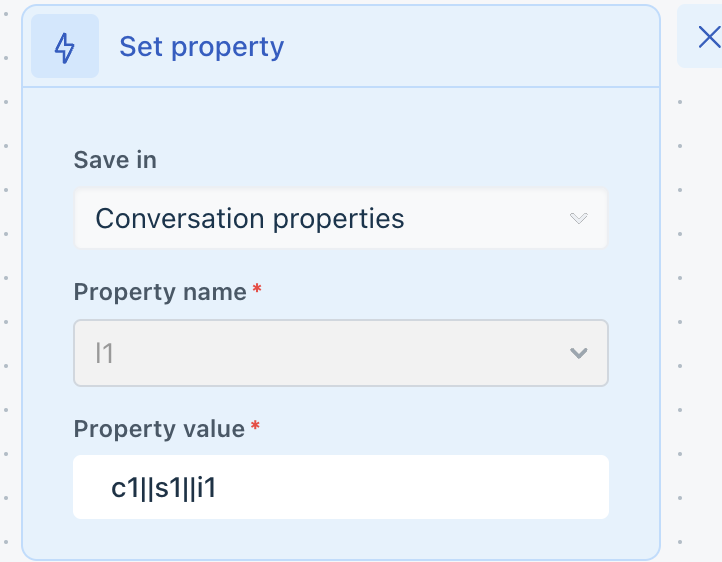 If you use custom properties to populate dependent fields, pass all levels of the field hierarchy in a single property value. Separate each level with a double pipe (||).For example:
- Property name: Type
- Property value: type1||type2||type3
The chatbot passes the dependent field only when the property value includes all configured levels of the hierarchy. If you provide only one level, the dependent field is not passed.
Reference a custom property in a dialog
You can reference a saved property in any dialog in the flow. To reference a custom property, follow these steps:
- Click + to open the placeholders.
- Select Properties.
- Search for or select the Property name you used.

Important: Property names are case-sensitive. Reference the name exactly as you saved it.
Note: Only User properties will be synced with Contacts. If you create a user property in Contacts, it is available in the Set property action. Similarly, user properties captured by the chatbot are saved to the customer's contact record. Chatbot Variables and Ticket properties are not synced and remain available only within their respective scopes.
View captured properties in a conversation
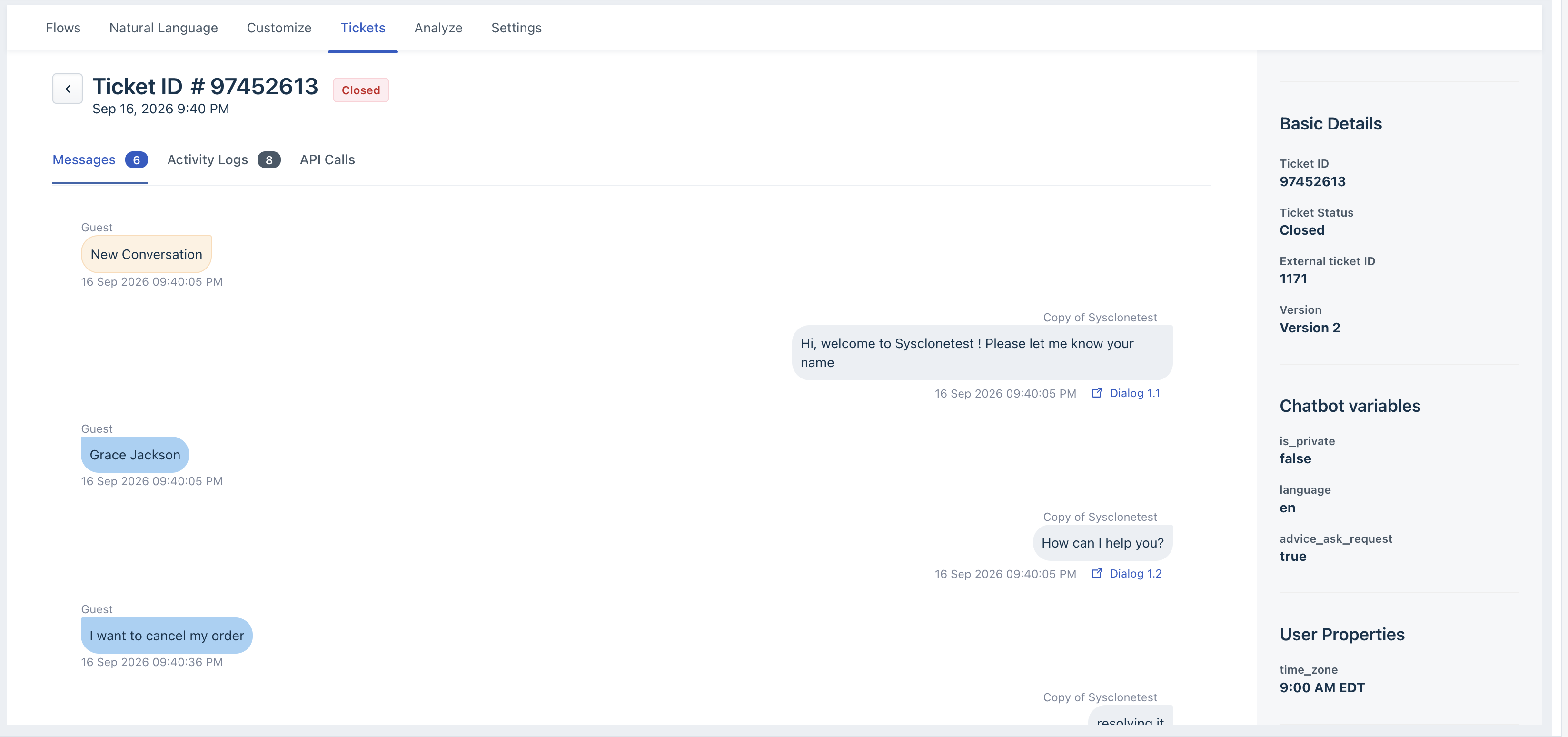
The Ticket logs show the properties captured in each bot conversation. To view them, follow these steps:
- Click on the Tickets tab.
- Open the ticket you want to check.
- In the sidebar, you find the value under chatbot variables, user properties, or ticket properties.
Manage the custom properties in a bot
The custom properties page lists every property the current bot uses. Use it to create, edit, and delete properties.
To open the page, go to Configure > Custom properties.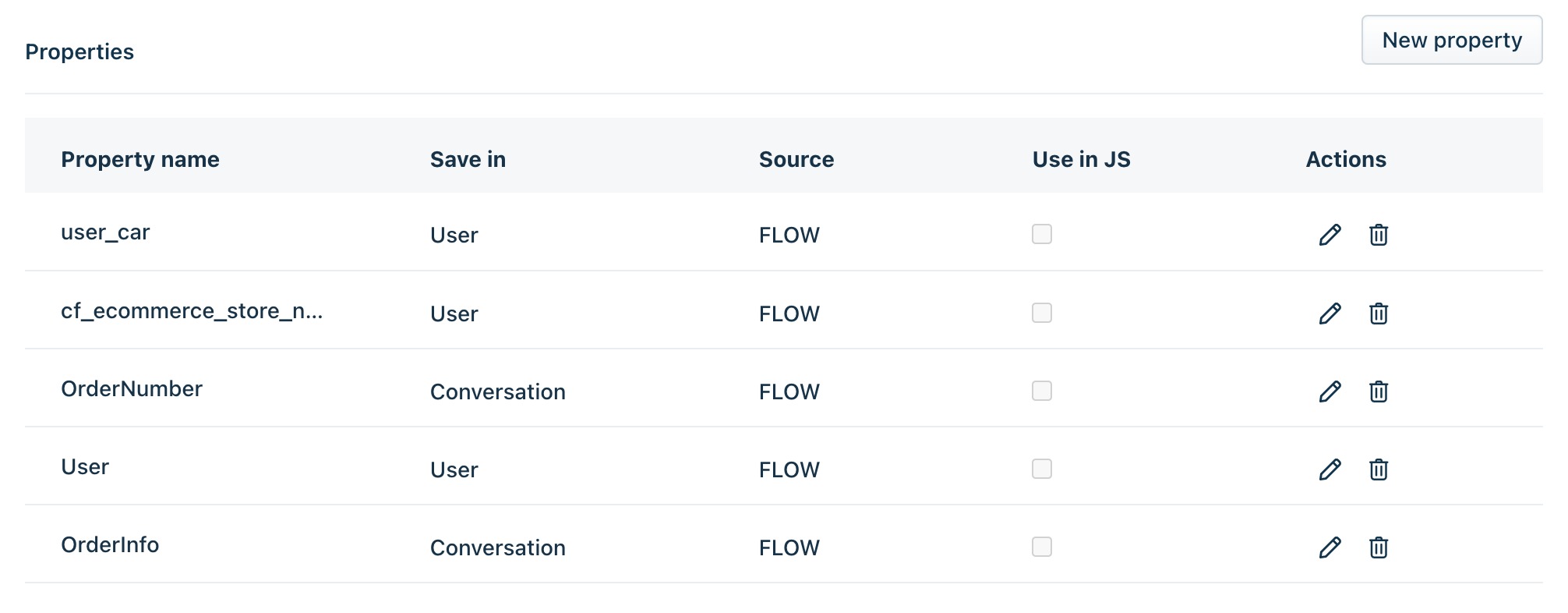
You can edit the following details: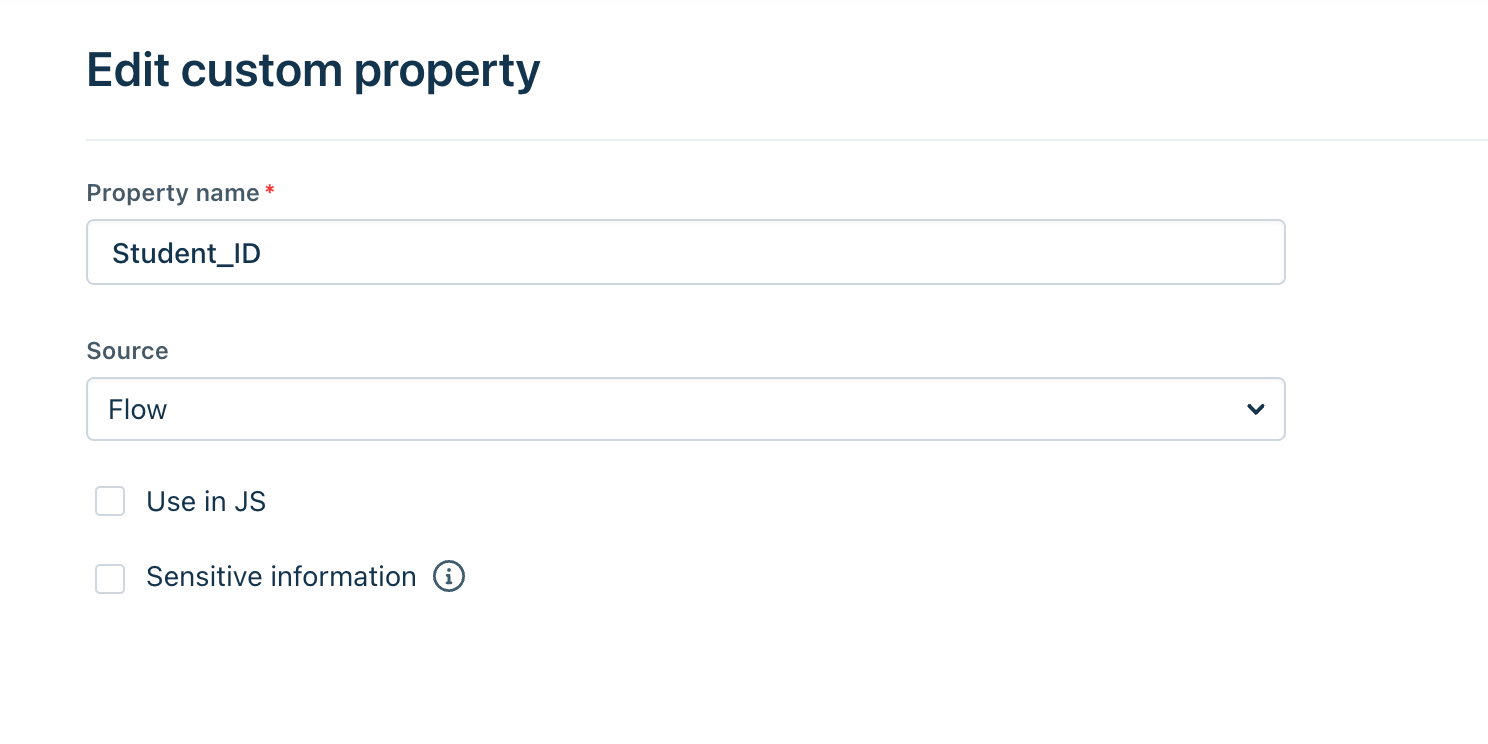
- Property name - The name used to reference the property throughout the flow.
- Source - Specifies whether the property value comes from the bot flow or an API call. z
- Use in JS - Makes the property available in the widget embed code so it can be accessed from your website or application.
Note: Before deleting a property, ensure that it is no longer used in any bot flow. Deleting a property can break flows that reference it.