
 Community
 Video Library
 Agent Training
 Freshservice
 Freshdesk
 Freshchat
 Freshcaller
 Freshsales
 Freshteam
 Freshworks Neo
 Freshsurvey
 Free
Free Pro
ProNote: The improved Reply Suggester feature is currently in an Early Access Program for a select group of Freshdesk customers. Soon, this feature will be broadly available for all users.
This article explains how to configure Reply Suggester and how it generates proactive reply drafts for tickets. Reply Suggester displays drafts as inline ghost text in the reply editor and grounds them in solution articles, similar resolved tickets, and canned responses.
TABLE OF CONTENTS
- Prerequisites
- Overview of Reply Suggester
- Enable Reply Suggester
- Configure Reply Suggester data sources
- Ticket activities that generate suggestions
- Identify an available suggestion
- Behavior with signatures and templates
- Follow-up drafts
- Provide feedback on suggestions
- Common scenarios for Reply Suggester
- Use Reply Suggester with other Copilot features
Prerequisites
Before configuring Reply Suggester, ensure that the following requirements are met:
- Ensure your account has a Freddy AI Copilot license on a supported plan.
- Ensure you have Administrator access to configure Reply Suggester at the account level.
- Ensure agents are assigned a Freddy AI Copilot license and have permission to reply to tickets under Admin > Roles > Permissions > Tickets.
- Enable Solution Article Suggester, Canned Response Suggester, and Similar Tickets Suggester to allow agents to open and review source articles, similar tickets, and canned responses used for a suggested reply.
- Ensure the solution articles you want Freddy AI to use as grounding sources are published. Draft and unpublished articles are not used for grounding.
Overview of Reply Suggester
Reply Suggester is a Freddy AI Copilot capability that generates a contextual reply draft for a ticket before an agent begins composing a response.
Reply Suggester performs three actions:
- Retrieves content relevant to the customer's query from the knowledge base and past tickets.
- Generates a professional response using that content.
- Cites the sources used to generate the draft, so the agent can validate the response before sending it.
Freddy AI generates suggestions only for active tickets that are not in a Resolved or Closed state.
Note: There might be a 9-10 seconds delay for reply suggestions to appear.
Enable Reply Suggester
To enable Reply Suggester:
- Go to Admin > Freddy > AI Copilot.
- Turn on Reply suggester.
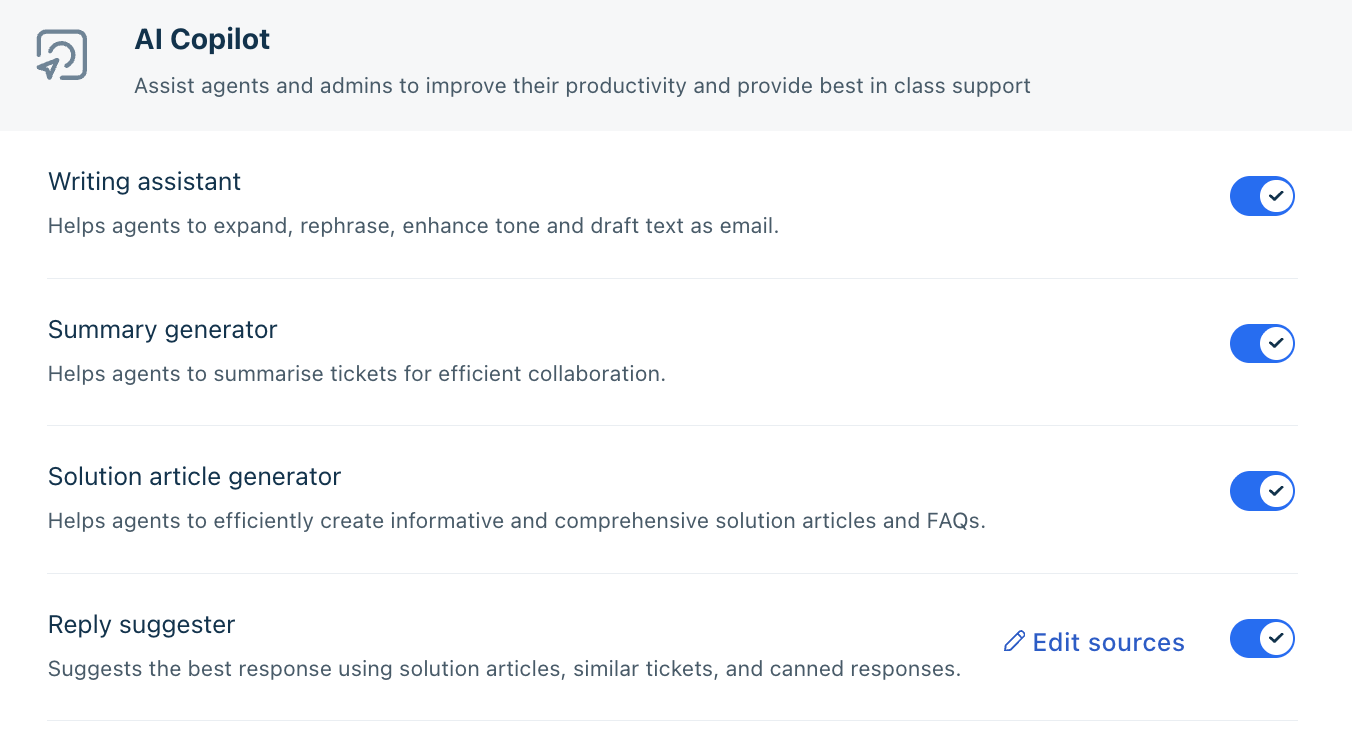
Reply Suggester is enabled for all Copilot-licensed agents whose role includes permission to reply to tickets.
Configure Reply Suggester data sources
You can choose which data sources Freddy AI uses and which note types generate suggestions.
To configure the data sources:
- Select Edit sources next to the Reply suggester toggle. The Reply suggester configuration modal opens.
- Under data sources, select or clear Solution articles, Similar tickets, and Canned responses.
- Under Show suggestions on, select Ticket's public notes, Ticket's private notes, or both.
- Select Save.
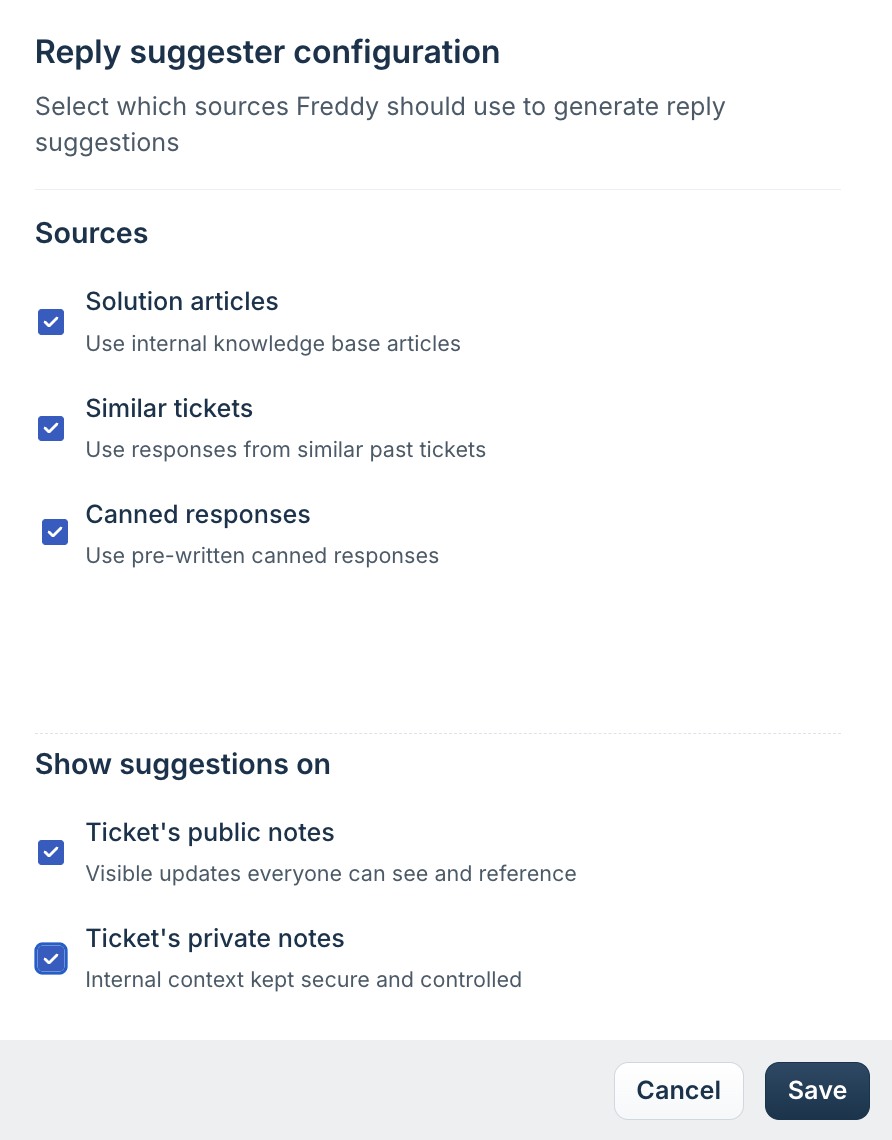
When you disable a data source or note type, it is removed from the Reply Suggester workflow at the account level. Agents cannot override a source or note type that you have disabled.
Knowledge sources used for grounding
Freddy AI can use up to three knowledge sources to ground each draft. All three sources are enabled by default.
Data source | Contribution to the reply draft |
Solution articles | Published help center articles that match the ticket context. Freddy AI can use public, private, and bot articles. Each article is listed with its visibility: visible to all users, bots, or agents. An article becomes available for grounding approximately 6 hours after publication. Unpublished articles are excluded. |
Similar tickets | Up to three previously resolved tickets with comparable issues. Tickets in any other status are not returned as suggestions. A ticket becomes available for grounding approximately 24 hours after it is resolved. |
Canned responses | Saved reply templates that match the current issue. It also considers canned responses that helped resolve similar tickets successfully in the past. |
The Freddy suggests banner lists articles and tickets relevant to the initial customer message. Note that for multi-turn conversations, the AI-generated reply draft is dynamic and evolves with each new message; therefore, the suggested draft may differ from the initial banner recommendations as the context deepens.
Ticket context used for drafting
Freddy AI uses the full ticket context rather than only the latest customer message. This includes:
- The ticket title and description.
- All customer and agent replies in the thread.
- Public and private notes on the ticket.
Freddy AI reads private notes for context only. Internal-only information and internal conversations are not included in a customer-facing draft.
Channel and platform coverage
Reply Suggester currently functions for Email and Portal tickets. We plan to extend this feature to all real-time channels in the upcoming weeks, including web channels, real-time channels, and custom sources via API.. Suggestions are generated at every turn of the conversation, with drafts automatically updating for each new message. Freddy AI effectively parses all conversation formats, from long-form email threads to short-form chat and comment blocks.
Ticket activities that generate suggestions
Freddy AI begins generating a draft when a triggering event occurs, even before an agent opens the ticket. The following events trigger suggestion generation:
- Ticket assignment — When a ticket is assigned to a Copilot-licensed agent, Freddy AI analyzes the conversation and prepares a draft.
- New customer reply — When a customer responds, Freddy AI generates a new draft based on the updated conversation, whether or not the agent is viewing the ticket.
- A different Copilot agent opens the ticket — Freddy AI generates a draft in real time for the visiting agent, using only the ticket data and knowledge sources that agent is permitted to view. Each agent has a separate cached draft aligned with their access level.
- Ticket reopened from Resolved or Not Spam — Freddy AI treats the ticket as new context and generates a draft that accounts for the previous resolution attempt.
- Ticket description changed — Freddy AI regenerates the draft based on the updated description.
Note: In an upcoming release, proactive generation will be limited to two conditions:
1. the ticket is assigned to the Copilot-licensed agent, and
2. the ticket has at least one conversation.
Identify an available suggestion
Freddy AI uses red dot badges and hover tooltips to indicate suggestions. A red dot appears on: Reply in the ticket toolbar, the Reply tab in the collapsed reply editor, Write with AIin the footer. After an agent opens a ticket, it may take a few seconds for the red dot to appear while the suggestion generates.
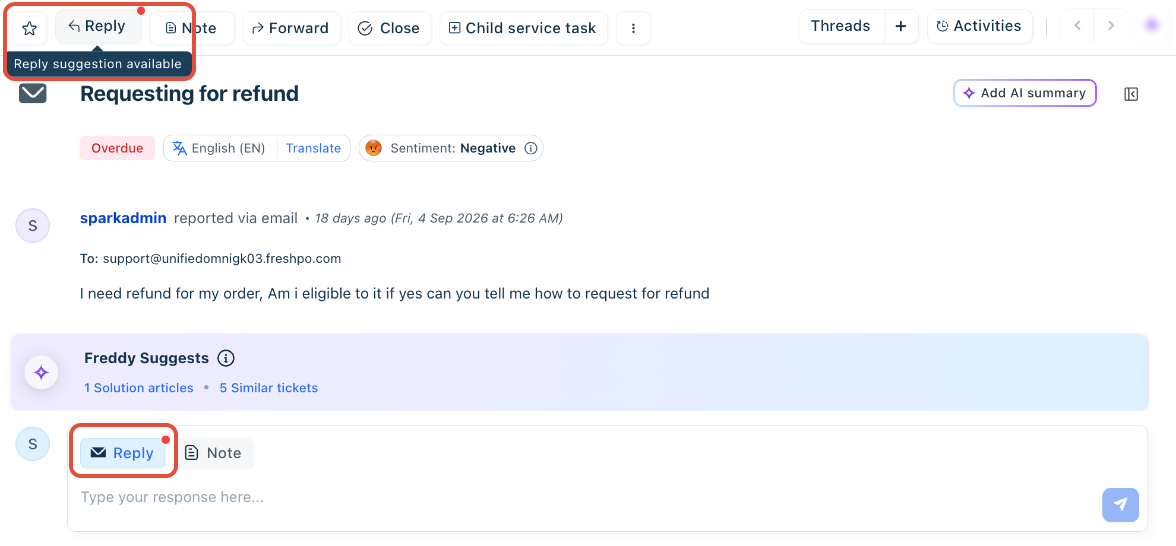
The Insert smart reply option appears at the top of the Write with AI dropdown and displays a red dot when a suggestion is pending.
Accept, dismiss, and restore a suggestion
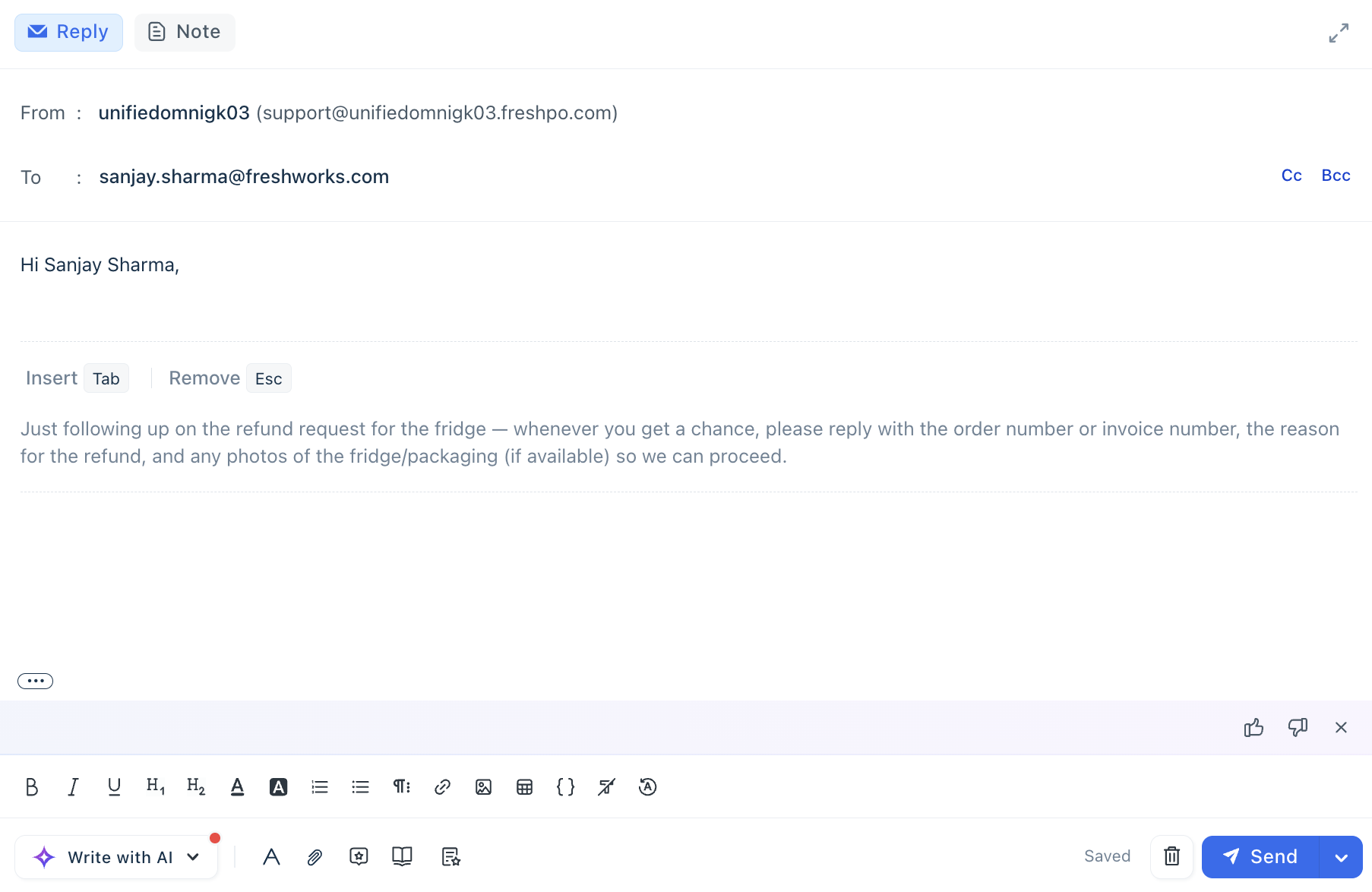
The draft appears as light-grey ghost text at the current cursor position in the reply editor, between the greeting and the signature block. An inline hint row shows Insert (Tab) and Remove (Esc). Freddy AI does not remove or overwrite text that an agent has already entered. 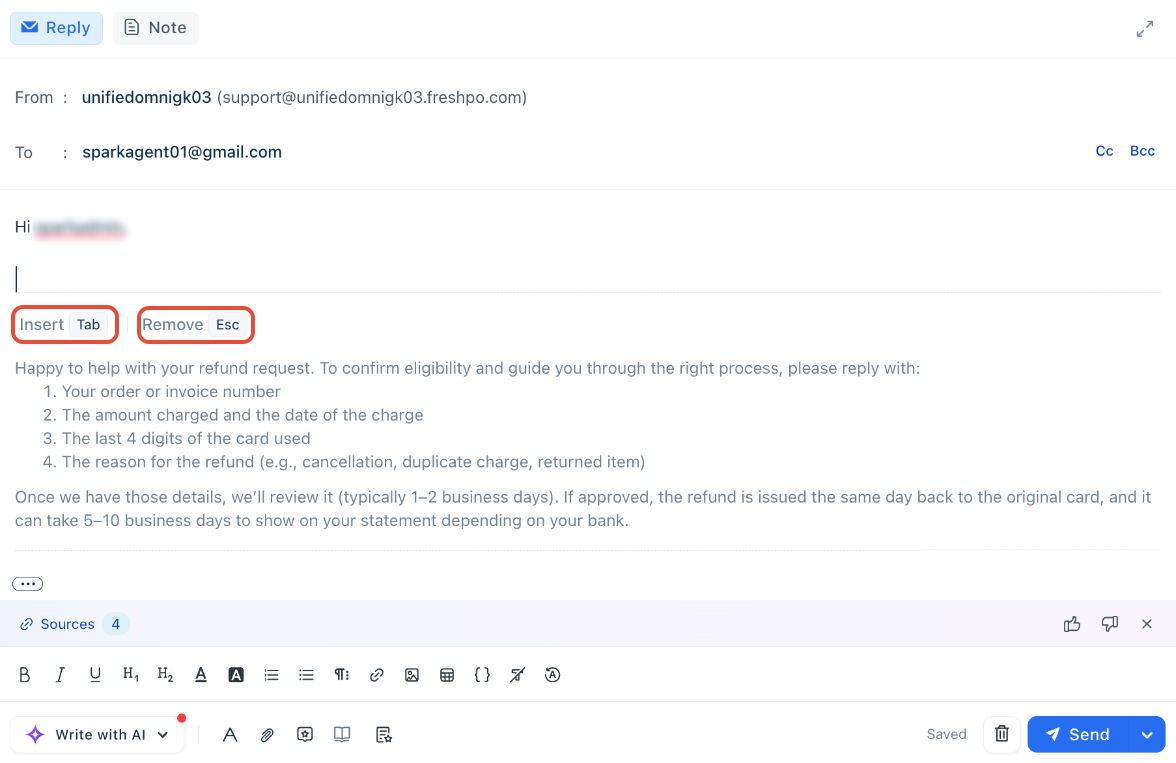
- Press Tab to accept the ghost text, which inserts the suggestion as standard text.
- Press Esc to discard suggested text, noting that a second press closes the editor.
- Continue typing to dismiss ghost text and enter your own text at the cursor position.
- Select Insert smart reply from the Write with AI dropdown to restore a dismissed suggestion.
- Manage multi-turn conversations by selecting Insert smart reply again to generate an agent reply draft with updated context.
Review suggestion sources
The suggestion banner includes a Sources link. Select Sources to open the Sources panel on the right side of the ticket. The panel lists the items Freddy AI used to generate the draft, each identified by type:
- The ticket number identifies a similar ticket.
- Knowledge article identifies a solution article.
- Canned response identifies a canned response template - will be available soon.
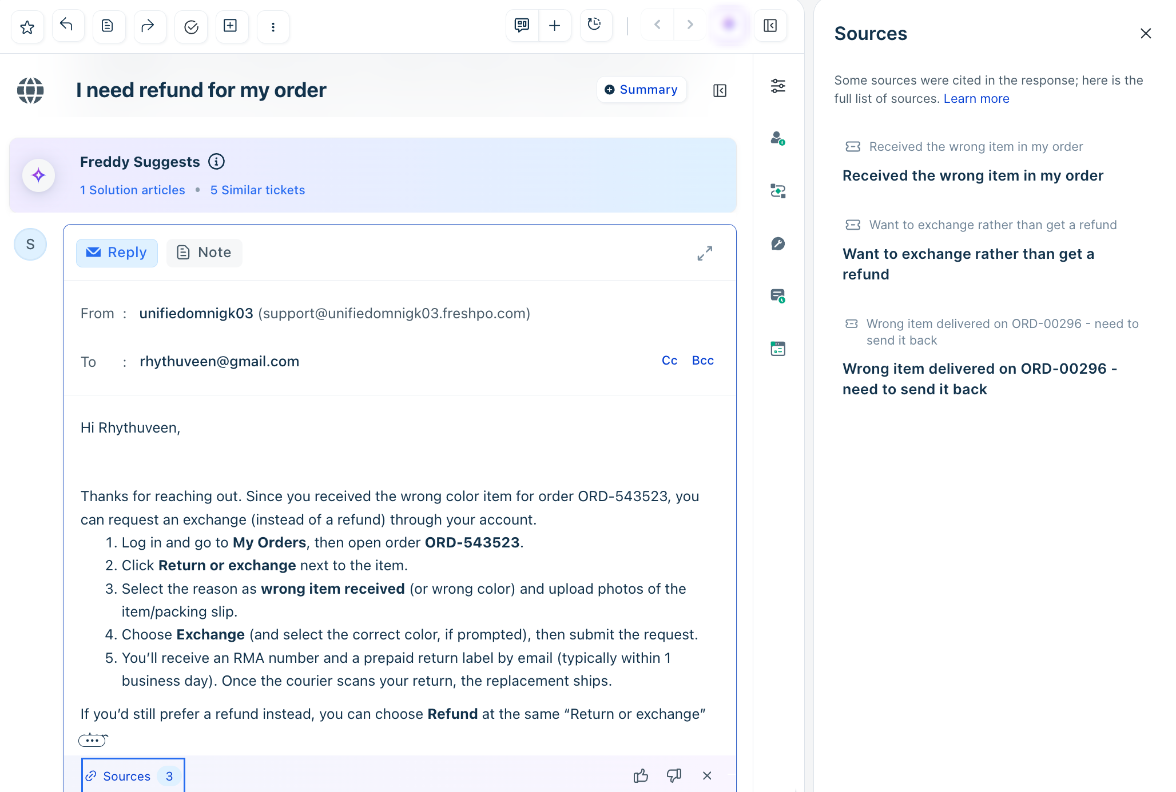
Select a source to open its details in the same panel.
Refine a suggestion with Write with AI
The writing assistant options in the Write with AI dropdown remain active while ghost text is displayed.
Selecting a writing assistant option applies that action and moves the ghost text to an accepted state. The same actions are available when the suggestion has already been accepted.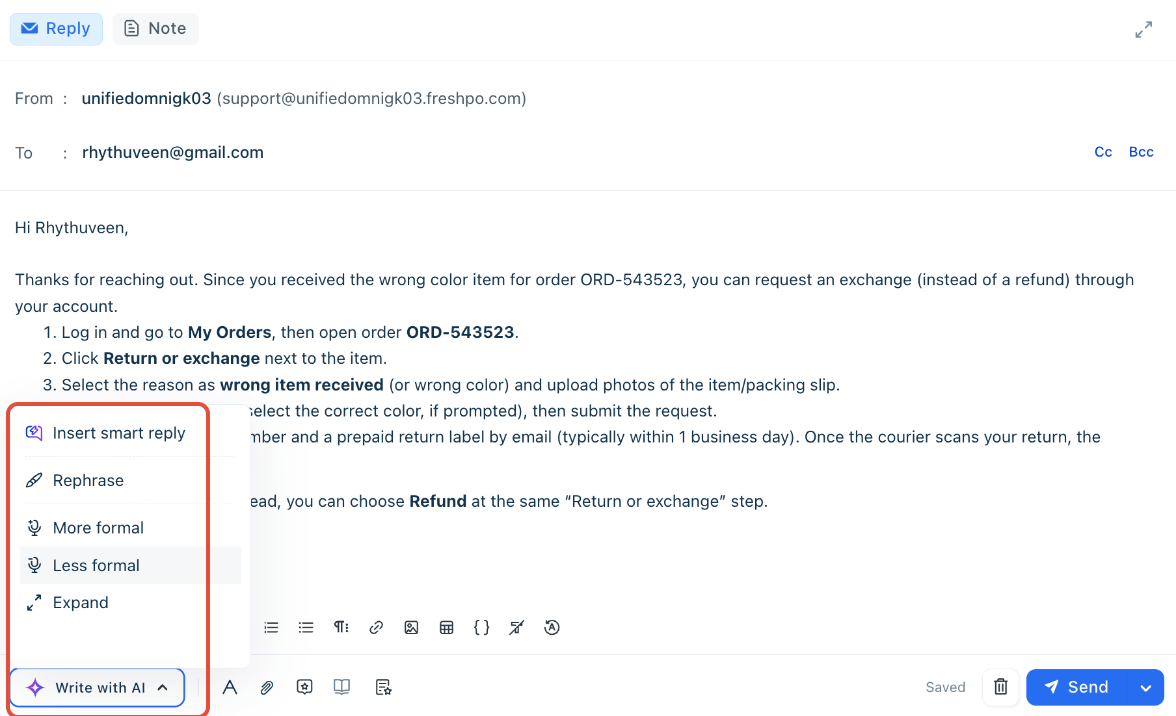
Note: Using any Writing Assistant option accepts the current ghost text and applies the requested change.
Behavior with signatures and templates
Freddy AI adapts the generated reply to each agent's reply configuration.
- Profile-level signature configured — Freddy AI generates only the reply body. The signature remains at the bottom of the editor as configured. To configure a profile signature, select Profile picture > Profile settings > Signature.
- Email notification reply template configured — Freddy AI generates only the body content and preserves the header, branding, footer, and closing. The suggestion is inserted at the default cursor position defined in the template. To configure a reply template, go to Admin > Email Notifications > Templates > Agent Reply Template. For detailed steps, see Configuring email notifications.
- Marketplace signature app in use — When a team uses an app such as Dynamic Signature or Signature Management Plus, Freddy AI generates the reply body only. For configuration details, refer to the app's guide in the Freshdesk Marketplace.
- No signature or template configured — Freddy AI displays the ghost text at the top of the reply editor.
Follow-up drafts
Reply Suggester also generates follow-up drafts. When an agent is the last person to respond to a ticket and returns while waiting for a customer reply, Freddy AI generates a check-in based on the previous response.
The follow-up depends on the previous agent's reply:
- A solution was shared in the previous reply — Freddy AI drafts a check-in asking whether the solution resolved the issue.
- The previous reply requested details from the customer — Freddy AI drafts a reminder asking whether the customer needs further help.
Provide feedback on suggestions
Use the Helpful (thumbs-up) and Not helpful (thumbs-down) controls beside the Sources section to provide feedback. If selecting Not helpful, choose a reason (e.g., outdated, incorrect info, or wrong source) and submit. Administrators can use this feedback to track performance and adoption via the Freddy AI Copilot value report.

Common scenarios for Reply Suggester
Reply Suggester supports the following scenarios.
Scenario | How Reply Suggester applies |
High-volume L1 queries, such as order status, returns, and product information | Freddy AI generates a response for repeat queries using published articles. Agents can validate the response against the cited sources before sending it. |
New agents handling technical queries | Freddy AI generates responses grounded in technical articles and resolved tickets, so newly onboarded agents can review and edit responses based on verified content. |
Inconsistent responses across a team, such as billing and plan queries | Freddy AI generates responses using the same published articles and canned responses, which keeps wording consistent across agents. |
The accuracy of these scenarios depends on the coverage and currency of your published solution articles and resolved tickets.
Use Reply Suggester with other Copilot features
Reply Suggester can be used alongside other Freddy AI Copilot capabilities as part of the ticket workflow.
When you need to | Use this alongside Reply Suggester |
Get up to speed on a long ticket before reviewing the draft | Copilot Summarize, for a concise recap of the conversation |
Adjust the tone, length, or language of the suggested reply | Writing Assistant, through the Write with AI dropdown. Note: Using any Writing Assistant option accepts current ghost text. |
Understand how Copilot fits into the wider Freddy AI feature set |