
 Community
 Video Library
 Agent Training
 Freshservice
 Freshdesk
 Freshchat
 Freshcaller
 Freshsales
 Freshteam
 Freshworks Neo
 Freshsurvey
 Growth
 Pro
ProNote: The improved Reply Suggester feature is currently in an Early Access Program for a select group of customers on Freshdesk. Soon, this feature will be broadly available for all users.
TABLE OF CONTENTS
- Prerequisites
- Ticket context and knowledge signals used for drafting
- Ticket activities that initiate proactive replies
- Reply Suggester setup and source controls
- Review, verify, and insert a suggestion
- Scenarios with configured signatures and templates
- Follow-up drafts and recommendation guardrails
- Provide feedback on suggestions
- Get the most from Reply Suggester
- Explore common use cases
- Supported channels and platforms
- Use Reply Suggester with other Copilot features
Freddy AI’s Reply Suggester prepares a contextual reply draft even before an agent opens the ticket. As soon as ticket activity occurs — such as a customer reply, reassignment, or ticket update — Freddy AI analyzes the full conversation history, including customer messages, agent replies, and internal notes, to proactively generate a response grounded in solution articles, similar resolved tickets, and canned responses.
By the time an agent begins reviewing the ticket, a ready-to-send draft is already waiting, helping teams respond faster while maintaining consistency and accuracy.
In this article, learn how administrators can enable and configure Reply Suggester, and how agents can use it to resolve tickets faster and more consistently.
Prerequisites
To ensure seamless performance, your account must meet specific licensing and permission requirements.
- Plan and Access: Requires Growth or higher plan with a Freddy AI Copilot license.
- Admin Permissions: Administrator access is required for account-wide configuration.
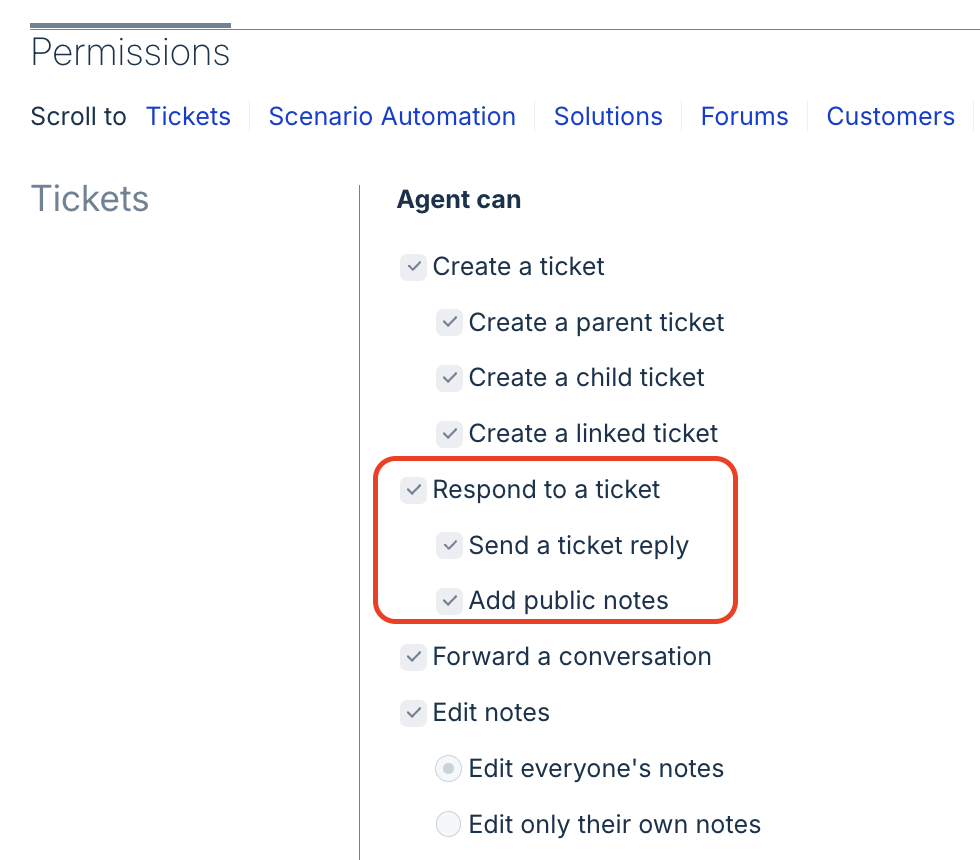
- Agent Configuration: Agents must be assigned a Freddy AI Copilot license and have permission to respond to a ticket. Administrators can verify or update this under Admin > Roles > Permissions > Tickets.
- Ticket Status: Suggestions are generated only for active tickets that are not in a Resolved or Closed state.
Ticket context and knowledge signals used for drafting
Freddy AI does not rely only on the customer's latest message. It reads the full ticket context before drafting a reply, including:
- Ticket title and description.
- All customer replies and agent replies in the thread.
- Public and private notes on the ticket.
Important: Private notes are read for context only. Freddy AI is designed to never surface internal-only information or internal chatter in the draft it generates for the customer.
Ticket activities that initiate proactive replies
Reply Suggester is proactive by design: Freddy AI begins generating a draft as soon as a triggering event occurs — before the agent opens the ticket. Here is what happens in each scenario.
Ticket assigned to a Copilot agent
The moment a ticket is assigned to a Copilot-licensed agent, Freddy AI starts analyzing the conversation and generating a draft. By the time the agent opens the ticket, the suggestion is already waiting in the Copilot slider.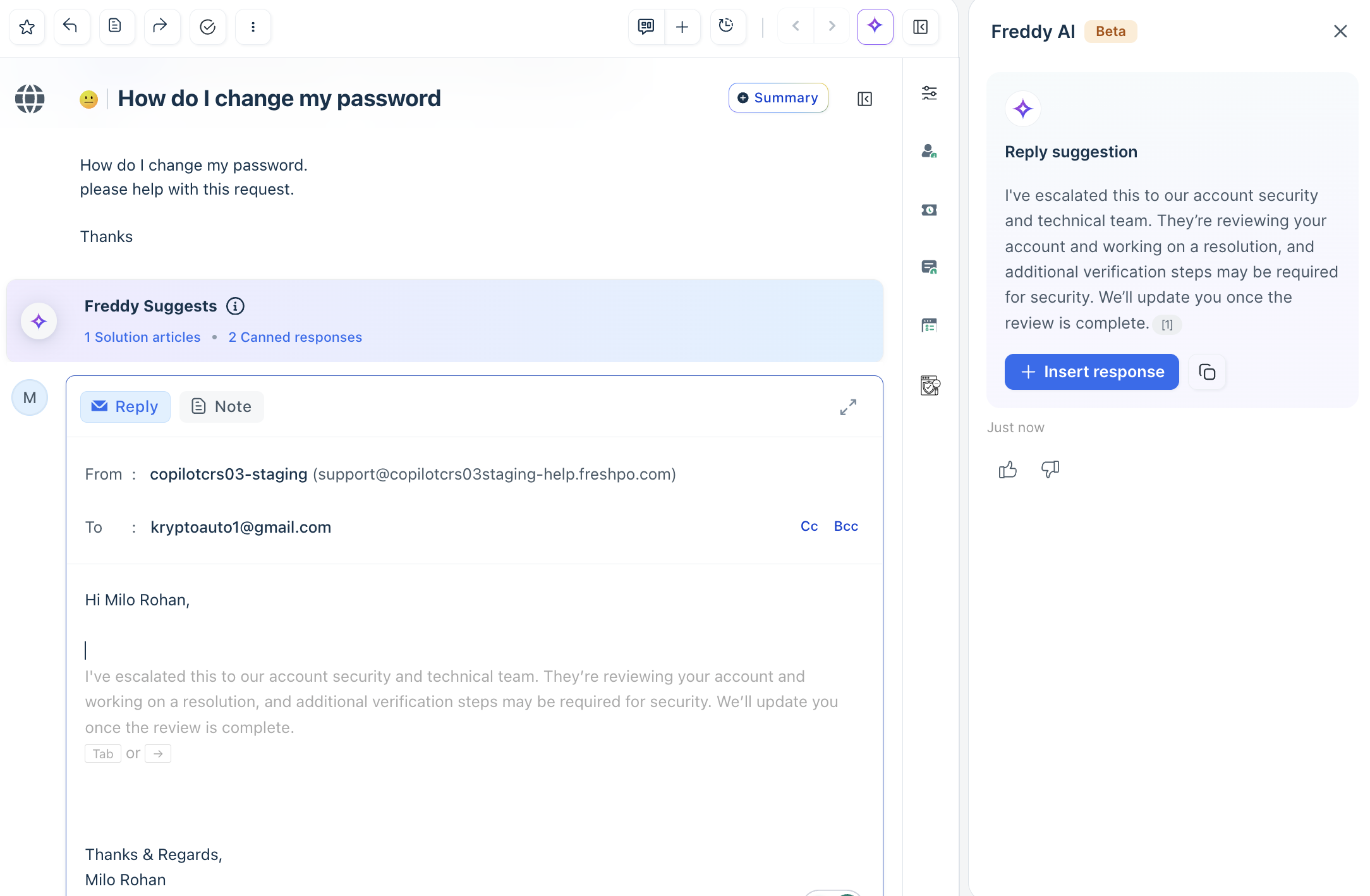
Example: A customer writes in about a password reset. The ticket is assigned to John. Before John clicks on the ticket, Freddy AI has read the description, matched it against similar resolved billing issues, and drafted a reply citing the relevant solution article.
A new customer reply arrives
When a customer responds to an existing ticket, Freddy AI immediately generates a fresh draft for the assigned agent — whether or not the agent is currently viewing the ticket. The new suggestion reflects the updated conversation, not the prior exchange.
Example: An agent sent a troubleshooting step and is waiting for the customer. The customer replies, saying the issue persists. Freddy AI re-evaluates the new context and generates a follow-up draft addressing the updated situation — ready before the agent returns.
A different Copilot agent opens the ticket
When a Copilot agent other than the assigned agent opens a ticket — to cover for a colleague or assist with an escalation — Freddy AI generates a suggestion tailored to that agent specifically. Since the visiting agent may differ from the assigned agent, the reply draft is generated in real time when the ticket is opened rather than proactively ahead of time. Freddy AI applies access controls: only ticket data and knowledge sources that the visiting agent is permitted to view are used.
Example: The assigned agent, John, is on leave. His colleague Bob opens the ticket to assist. Freddy AI generates a draft for Bob using only the sources he has access to — his suggestion may differ from John's based on their respective permissions.
Note: Each agent has their own cached draft aligned with their access level. The suggestion made by the visiting agent is separate from that of the assigned agent.
Ticket reopened from Resolved or Not Spam
When a resolved ticket is reopened — because the customer followed up or an agent reactivated it — Freddy AI treats it as a fresh context and generates a new draft that accounts for the full conversation history, including the prior resolution attempt.
Example: A customer's issue was marked resolved three days ago. They reply, saying the problem has returned. Freddy AI generates a draft that acknowledges the prior interaction and addresses the recurrence — rather than repeating the same solution that was already tried.
Ticket description changed
If a ticket description is modified after it is created — such as an agent adding details from a phone call — Freddy AI considers this a significant change and regenerates the draft based on the updated description.
Example: A ticket arrived as a vague 'it's not working' message. An agent updated the description after a call: 'Dashboard graphs not loading for accounts created after March 2025.' Freddy AI picks up the updated description and generates a substantially more relevant draft.
Note: Suggestions are cached per agent and ticket context. If none of the above events have occurred since the last generation, the cached draft is served instantly — no reprocessing.
Reply Suggester setup and source controls
Admins can enable Reply Suggester from the Freddy AI settings panel.
- Go to Admin > Freddy AI.
- Locate Reply Suggester under Copilot and toggle it ON.
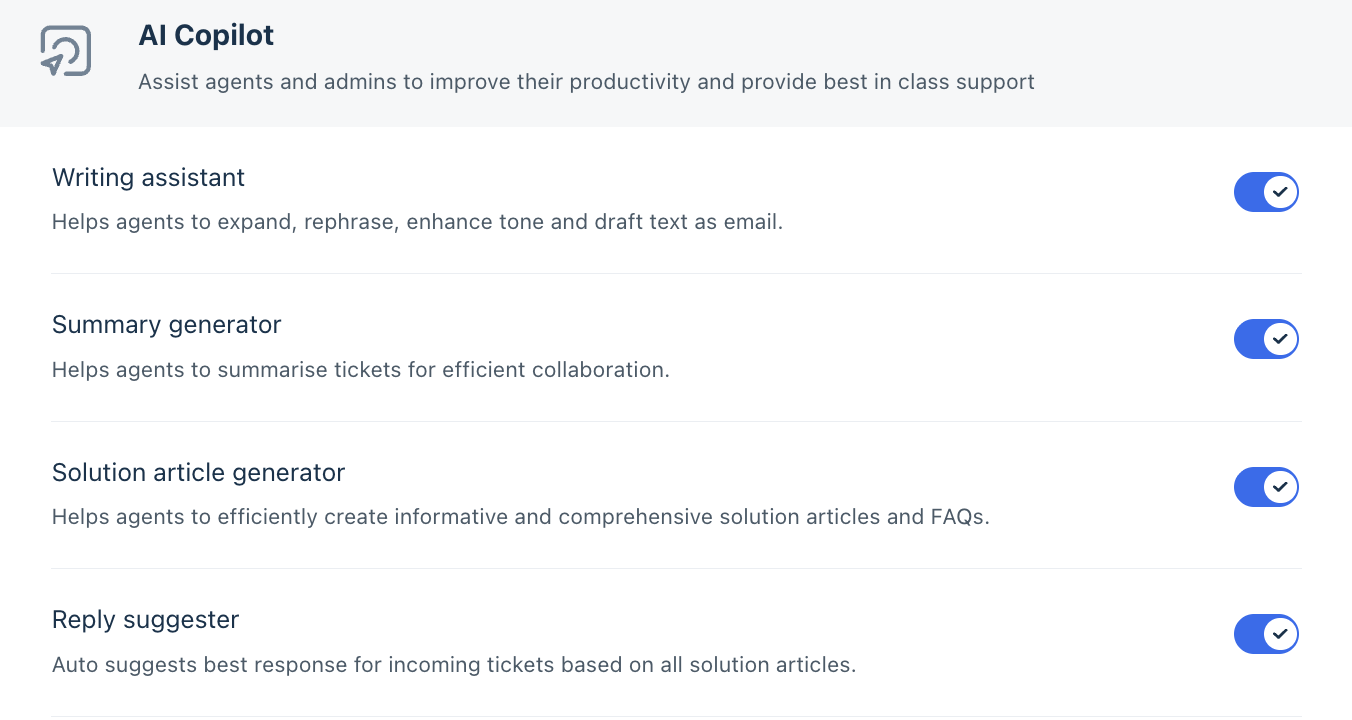
- The feature is enabled for all Copilot-licensed agents with the reply to ticket permission enabled for their role.
Once enabled, the Freddy AI Admin page displays a configuration panel where each data source can be independently toggled on or off. All three sources are enabled by default to give agents the richest possible suggestions from day one.
Data source | Contribution to reply suggestion |
Solution Articles | Help center articles that match the customer's query — Freddy AI retrieves the most relevant ones for the current ticket context. |
Similar Tickets | Up to 3 previously resolved tickets with comparable issues. Freddy AI uses these to ground the draft in real resolutions. PII from historical tickets is automatically removed. |
Canned Responses | Pre-approved reply templates matched to the current ticket context for quick, consistent answers. |
Note: Disabling a data source removes it from suggestions account-wide. Agents cannot override a source that an admin has disabled.
All three sources refresh automatically with every new customer reply, so suggestions always reflect the latest turn of the conversation. These source refreshes are specific to the Reply Suggester use case and do not affect the standard Freddy banner.
Review, verify, and insert a suggestion
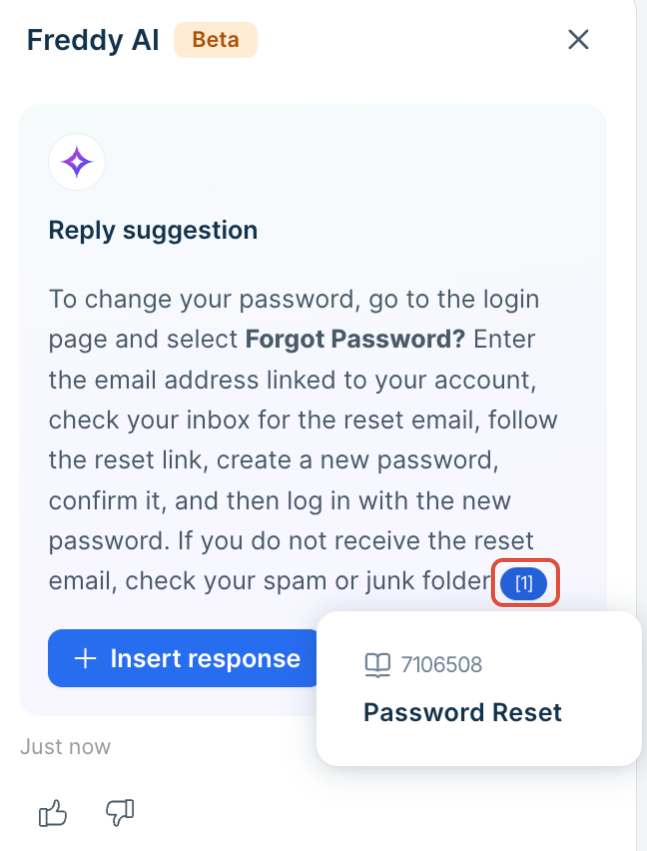
The draft appears in the Copilot slider alongside inline numbered citations — each linked to the exact source Freddy AI used: a specific solution article or a similar resolved ticket. The Copilot slider shows a cycling progress indicator so agents always know what is happening.
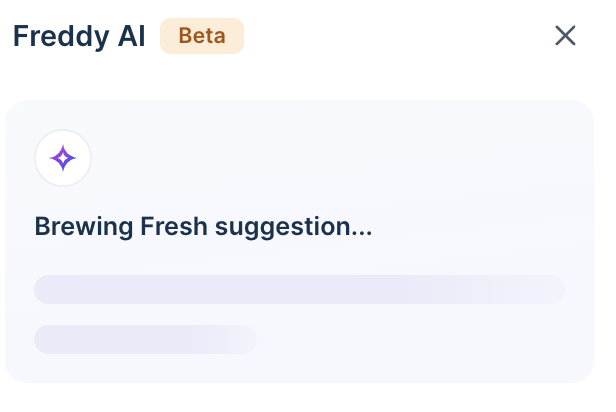
Hover or click a citation to view the source directly in the slider, so agents can verify accuracy without opening a new tab.
Inserting the suggestion
Once satisfied, click Insert Response. Where the text lands depends on the state of the reply editor:
Reply editor is open: The text inserts at the current cursor position. If the agent has already started typing — a greeting, a partial response — that content is fully preserved. Freddy AI never removes or overwrites what the agent has written.
Reply editor is closed: Clicking Insert Response opens the editor and places the text at the default insertion point — between the reply template and the agent's signature, if both are configured.
Reply template in action: When a reply template is configured, Freddy AI inserts the suggested reply at the default cursor position defined for that template. The cursor placement in the Agent Reply Template determines where agents begin typing when they click Reply.
Note: In every case, Freddy AI never removes or overwrites text the agent has already typed. The suggestion always inserts alongside existing content.
Accepting suggestions as ghost text
Agents can also receive suggestions as ghost text — greyed-out text appearing directly inside the reply editor while composing. No slider interaction needed.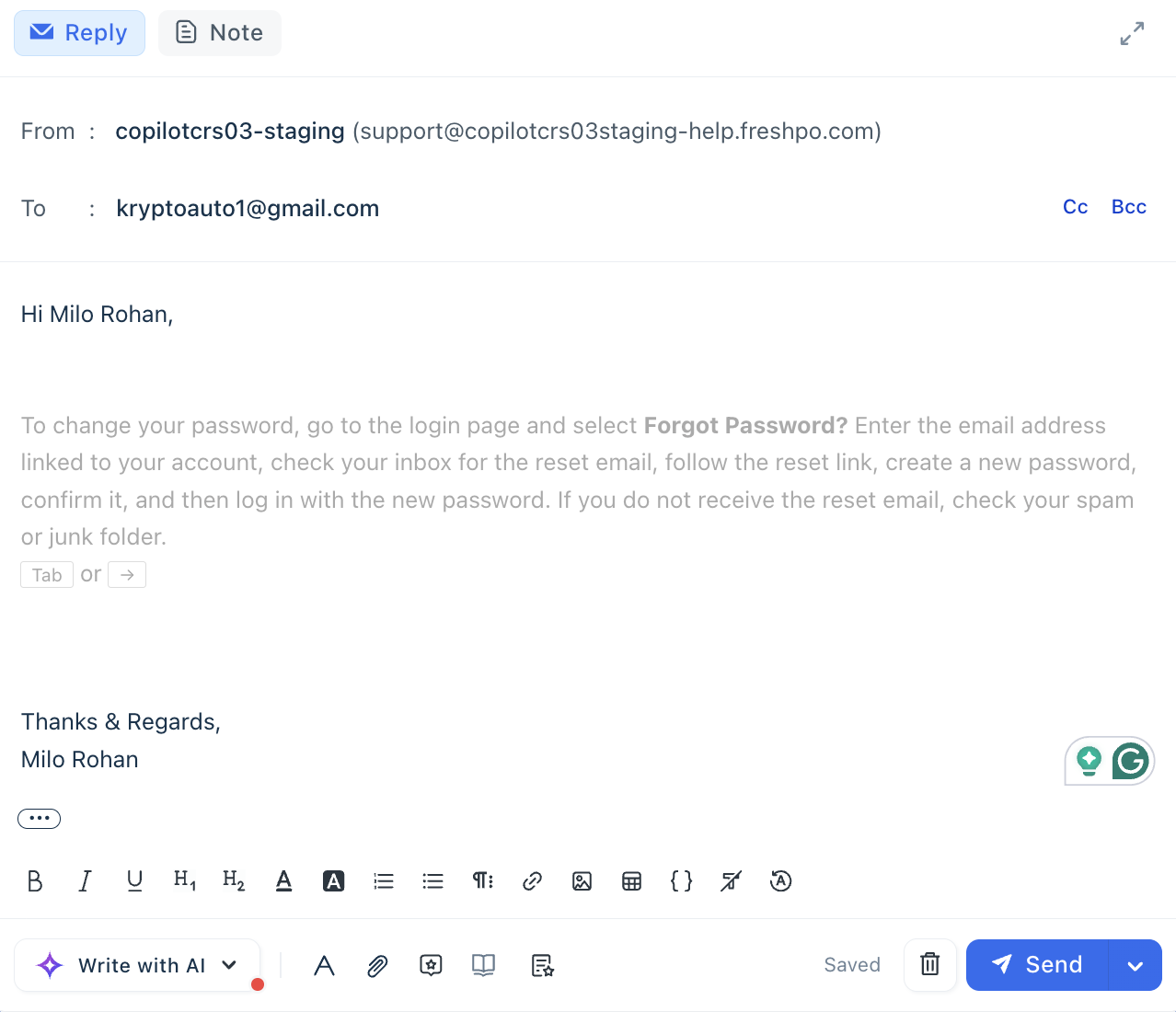
- Press Tab or the Right arrow key to accept the ghost text. <after tab press - insert ss>
- Simply continue typing to dismiss it — it disappears without any action. <>
Tip: Ghost text is the fastest path to a sent reply for repetitive, high-volume query types — accepting takes a single keystroke.
Scenarios with configured signatures and templates
Freddy AI adapts its output to each agent's reply configuration. Here is what gets generated in each scenario.
Profile-level signature configured
Freddy AI generates only the reply body. The agent's signature stays at the bottom of the editor exactly as configured.
To set up a profile signature, click on your Profile picture or icon > Profile Settings > Signature.
Email notification reply template configured
Freddy AI generates only the body content, maintaining the original structure—including header, branding, footer, and closing. When a reply template is configured, Freddy AI inserts the suggested reply at the default cursor position defined for that template. The cursor placement in the Agent Reply Template determines where agents begin typing when they click Reply.
The generated reply draft and ghost text within the reply template use this same insertion point, ensuring AI-generated content appears in the intended location within the template — for example, between the email body and the signature block.
To set up a reply template, go to Admin > Email Notifications > Templates > Agent Reply Template. See Set up email notifications for detailed steps.
Marketplace signature app in use
If your team uses an app such as Dynamic Signature or Signature Management Plus, Freddy AI generates the eply body. For further details, refer to your app's configuration guide in the Freshdesk Marketplace.
No signature or template configured
If no signature or template is configured, Freddy AI displays the ghost text at the top of the reply editor. Accepting the suggestion inserts the body content directly into the editor.
Follow-up drafts and recommendation guardrails
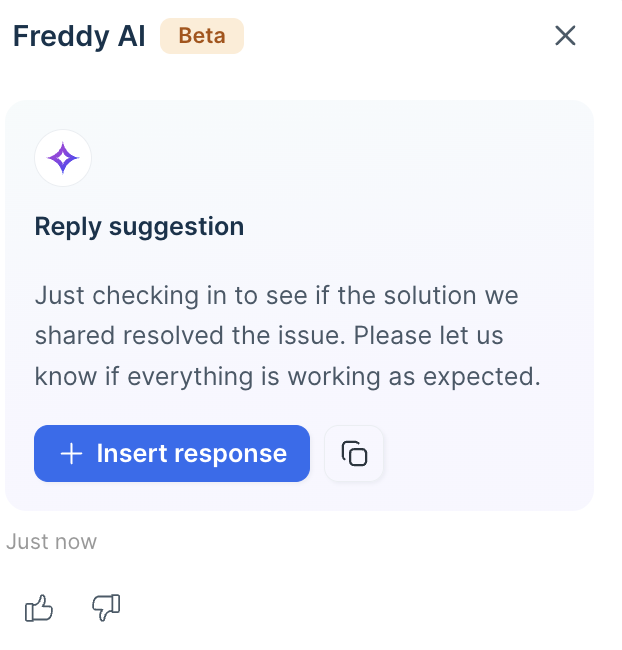
Reply Suggester goes beyond first replies. When an agent was the last to respond on a ticket and returns while still awaiting a customer reply, Freddy AI proactively drafts a follow-up:
- Solution shared in the prior reply: Freddy AI drafts a check-in — for example: "Hi, Just checking in to see if the solution we shared resolved the issue. Please let us know if everything is working as expected."
- Waiting on details from the customer: Freddy AI drafts a gentle reminder — for example: "Hi, I'm following up to confirm everything is working properly now. If you need help with anything else, feel free to let me know!"
Freddy AI applies quality checks before surfacing any suggestion. If relevant sources are missing, the draft confidence is low, or the same solution was previously shared, Freddy AI suppresses the draft and shows "No new suggestions" instead of a generic or repetitive reply.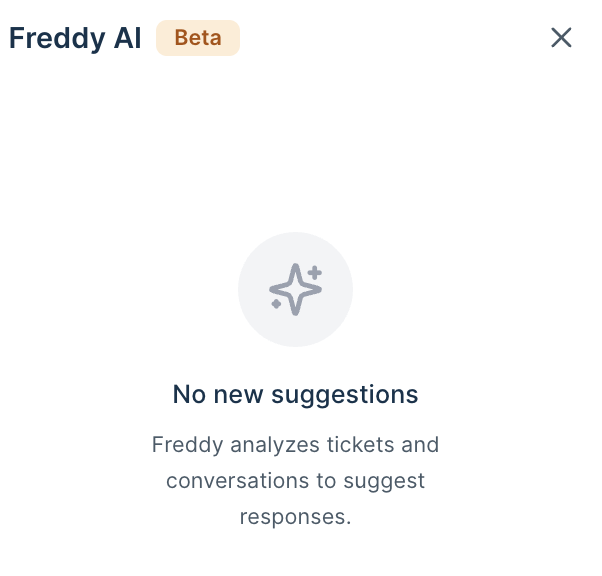
Note: "No new suggestions" is a deliberate quality indicator, not an error. It means Freddy found no source that produced a sufficiently accurate or novel draft for this ticket. Agents can proceed with a manual reply in these cases.
Provide feedback on suggestions
After reviewing a suggestion, agents can rate it using the thumbs up / thumbs down icons in the Copilot slider. One click is all it takes, and the signal directly informs how Reply Suggester is evaluated and improved.
- Thumbs up: Signals that the suggestion was accurate, relevant, and useful. Positive signals help identify which source combinations and query types Reply Suggester handles well.
- Thumbs down: Signals that the suggestion was inaccurate, irrelevant, or unhelpful. These are reviewed to identify where prompt quality, source coverage, or retrieval needs improvement.
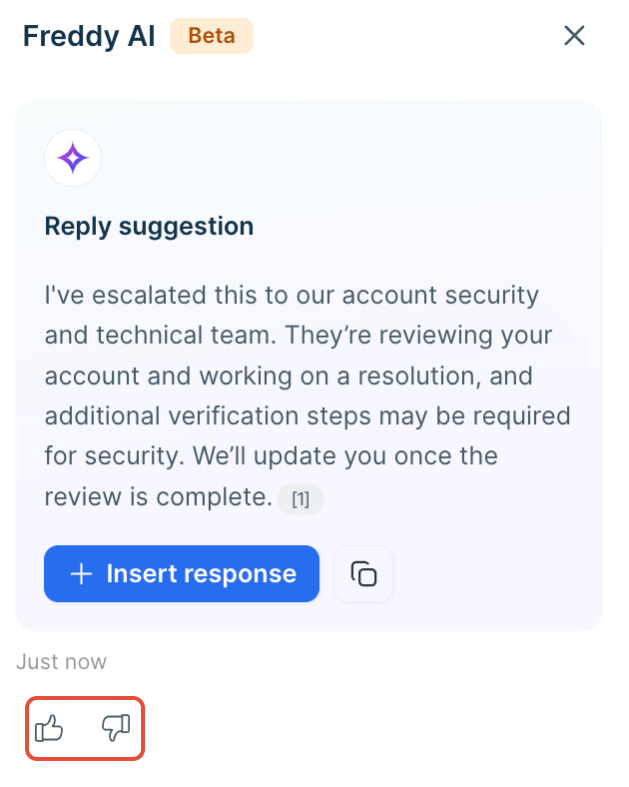
Acceptance rates and feedback signals are tracked per feature, giving admins a data-driven view of Reply Suggester's performance over time.
Get the most from Reply Suggester
For administrators
- Keep solution articles current. Freddy AI finds articles based on how closely they relate to the ticket. Articles that are outdated or have vague titles are less likely to appear reliably.
- Maintain canned responses for high-volume query types. Pre-approved language for common queries gives Freddy AI a direct, ready-made draft to draw from.
- Disable unreliable sources. If similar tickets or canned responses in your account are low-quality, disabling that source prevents Freddy AI from grounding drafts on poor data.
For agents
- Check citations before inserting. Each citation links to the exact source used. A quick check prevents an inaccurate draft from reaching the customer.
- Edit rather than dismiss. If the draft is mostly right, edit it in the reply editor. It is faster than composing from scratch.
- Use ghost text for speed on standard queries. A single keystroke accepts the suggestion — no slider, no copy-paste.
- Rate every suggestion. Thumbs up or down takes one click and helps administrators identify where the feature needs tuning.
Explore common use cases
The following scenarios illustrate how different support teams can put Reply Suggester to work immediately.
| Use case | Scenario | How Reply Suggester helps |
|---|---|---|
| High-volume L1 queries | An e-commerce team handles hundreds of daily queries about order status, returns, and delivery. | Freddy AI surfaces a ready-to-use draft the moment the ticket is opened. Agents validate it against cited solution articles and send — without composing from scratch. Resolution times drop and agents handle more tickets per shift. |
| Ramping up new agents | A SaaS company onboards new agents who struggle to craft accurate responses to technical queries. | New agents receive contextually grounded suggestions backed by resolved similar tickets and knowledge base articles. They learn from accurate drafts rather than guessing, reaching full productivity faster and with lower training overhead. |
| Consistent responses at scale | A telecom team receives complaints about inconsistent replies to billing and plan queries. | Freddy AI draws from the same approved sources — canned responses and solution articles — for every agent handling the same query type. Response accuracy stabilises and customer complaints related to conflicting information reduce. |
Tip: To get the most from Reply Suggester, keep solution articles and canned responses up to date. The richer the knowledge base, the more grounded and accurate Freddy AI's drafts will be.
Supported channels and platforms
Reply Suggester works consistently across all ticket channels — Email, Chat, and Customer Portal — and is fully supported on both Freshdesk Standalone and Freshdesk Omni (Unified). Freddy AI automatically adapts its context parsing to the channel format, handling short-form chat transcripts and long-form email threads appropriately.
Use Reply Suggester with other Copilot features
Freddy AI Copilot features are designed to work together. The combinations below show how Reply Suggester fits into a broader ticket workflow — from understanding the issue to closing it out.
| When you need to… | Use this alongside Reply Suggester | Learn more |
|---|---|---|
| Get up to speed on a long ticket before reviewing the draft | Copilot Summarize — read a concise recap of the conversation, then assess the suggestion with full context | Summarize tickets with Freddy AI Copilot |
| Adjust the tone, length, or language of the suggested reply | Copilot Assist — insert the draft, select the text, and apply any rephrase, shorten, or translate action | Improve response quality with Freddy AI's Writing Assistant |
| Update ticket fields while replying, without switching context | Ticket Field Suggestions — Freddy suggests priority, category, and type from the same ticket context used for the reply draft | Ticket Field Suggestions with Auto Triage with Freddy AI Copilot |