
 Community
 Video Library
 Agent Training
 Freshservice
 Freshdesk
 Freshchat
 Freshcaller
 Freshsales
 Freshteam
 Freshworks Neo
 Freshsurvey
Overview
Integrating Freshsales Suite with Freshservice allows you to:
View and create Freshservice tickets directly from Freshsales Suite
Sync Contacts and Accounts between both products
Prerequisites
Before setting up the integration, ensure that you have:
Admin access to both Freshsales Suite and Freshservice accounts
API keys from both products
Step 1: Obtain API keys
In Freshsales Suite
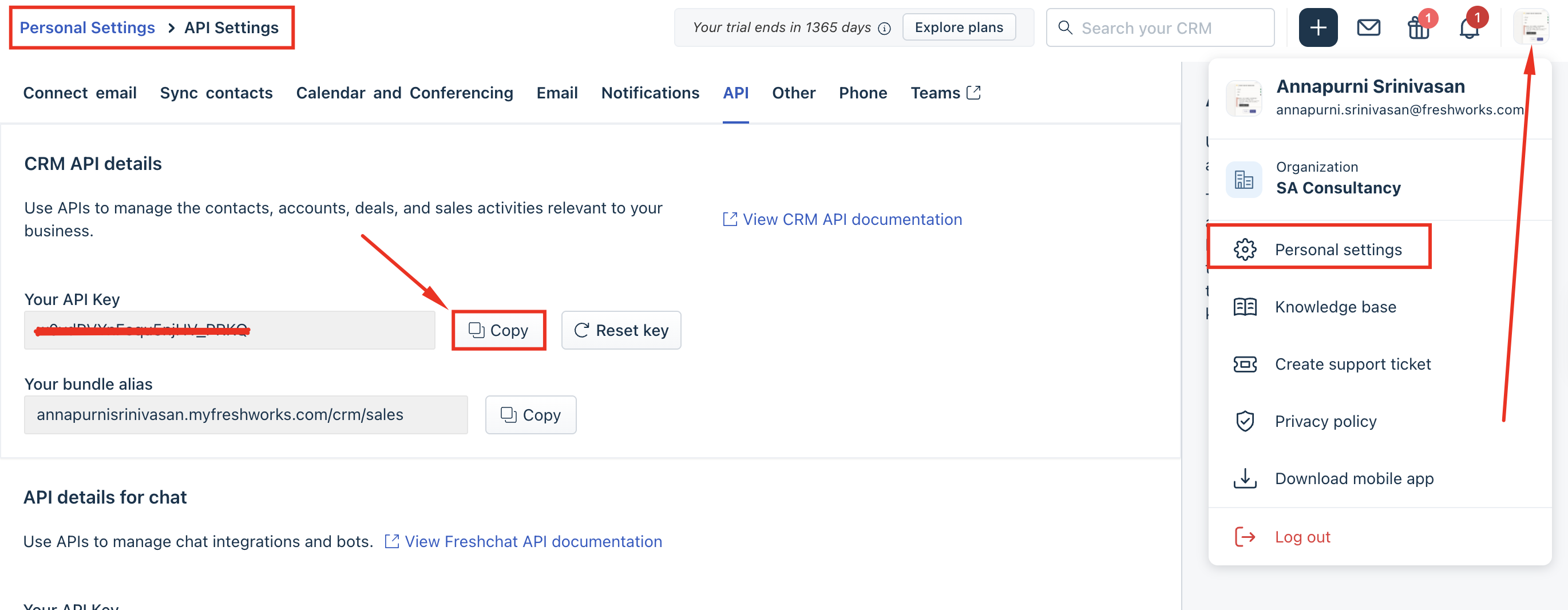
Navigate to Personal Settings > API settings.
Copy your API key.
In Freshservice
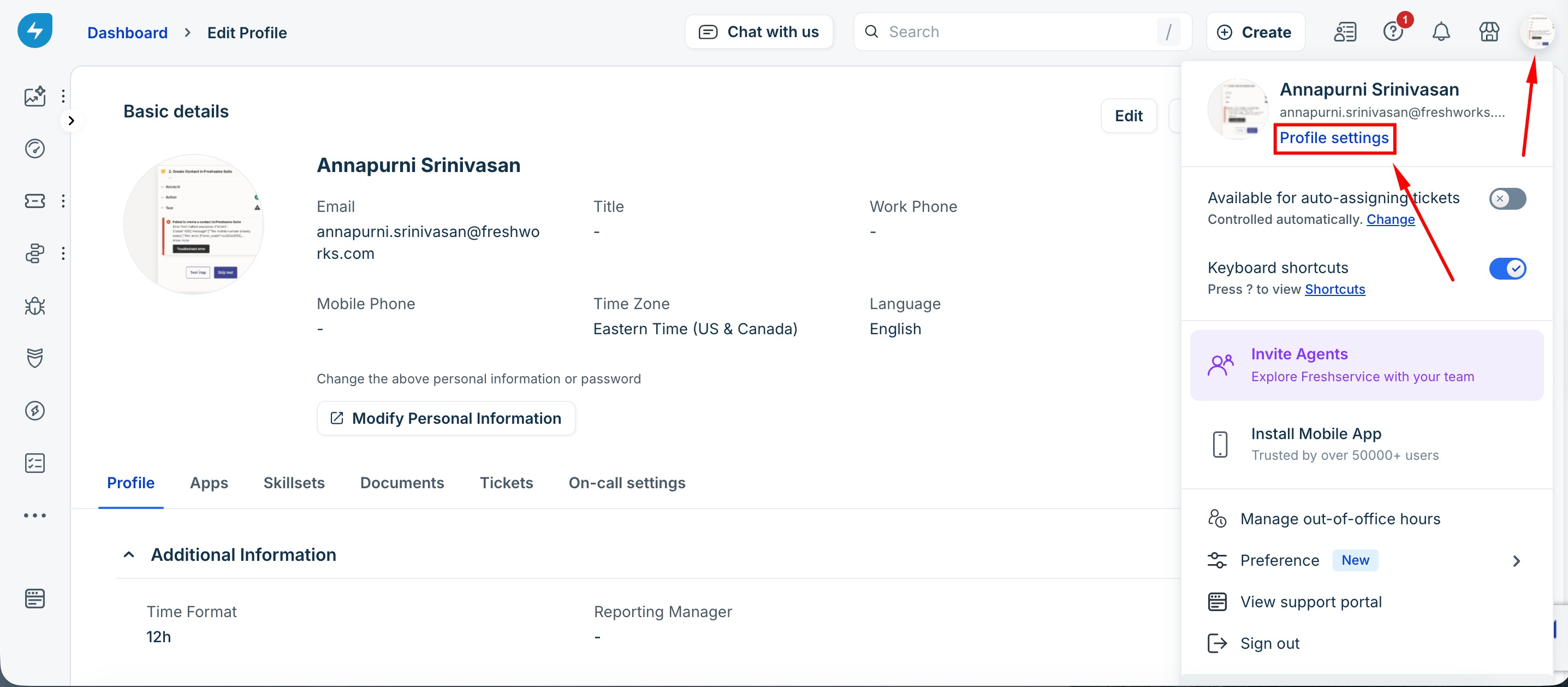
Go to Profile Settings.
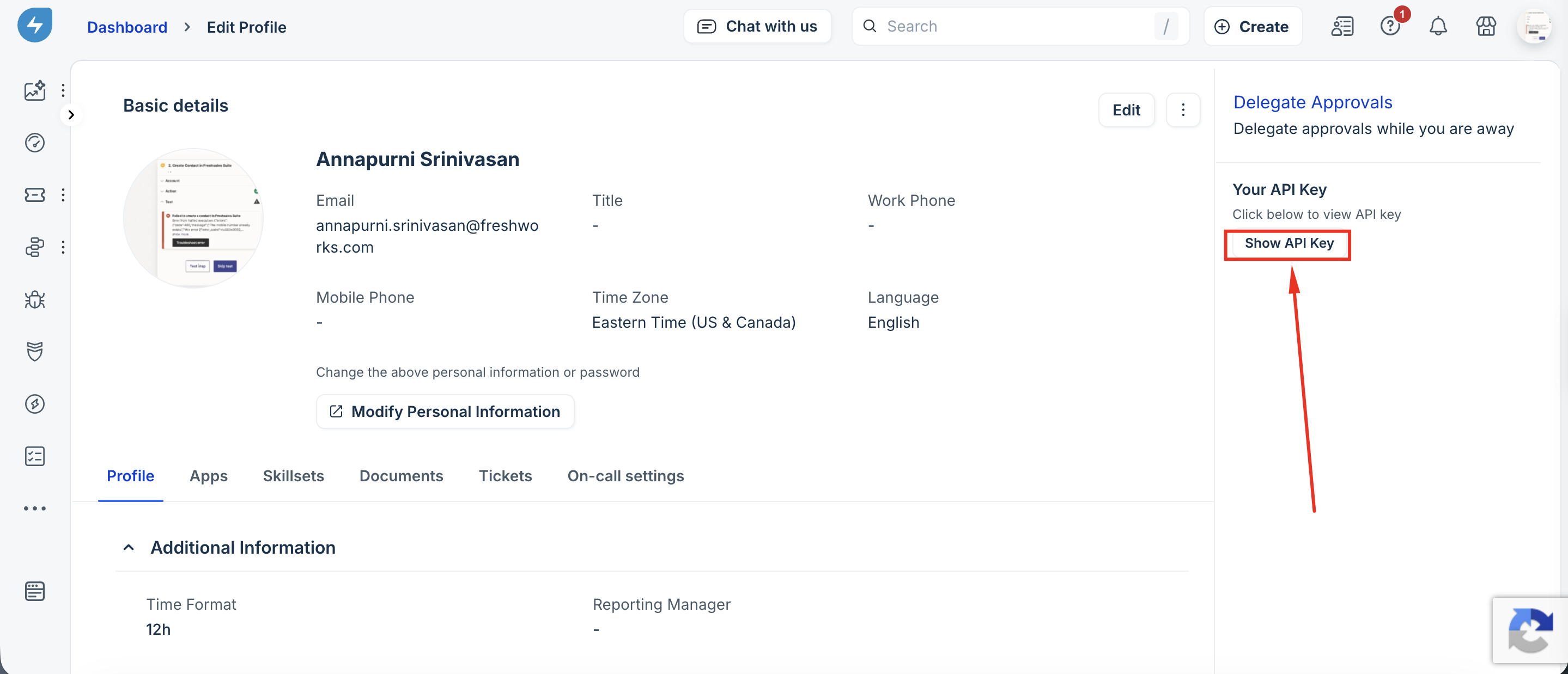
Copy your API key.
Step 2: Install the Freshservice app
In Freshsales Suite, go to Admin > Marketplace.
Search for and install the Freshservice app.
Enter your Freshsales Suite domain and API key.
Enter your Freshservice domain and API key.
Click Save.
Step 3: Enable Contact and Account Sync
This step is optional.
To sync Contacts and Accounts between Freshsales Suite and Freshservice:
In Freshservice, install the FCRM Contacts Sync app from the Marketplace.
Configure the sync settings as required.
Troubleshooting: "Error on Fetching Agents"
If you encounter the "Error on Fetching Agents" error during setup, try the following steps in order:
1. Verify credentials
Confirm that both domain names and API keys are entered correctly and that there are no extra spaces.
2. Confirm admin access
Ensure that you are logged in as an admin in both Freshsales Suite and Freshservice.
3. Refresh and retry
Refresh the browser page and attempt the connection again.
4. Clear cache
Clear your browser cache and cookies, then try the connection again.
5. Reconnect
Disconnect the app completely, then reinstall and reconfigure it.
Permission conflicts
If you hold admin roles in both Freshsales Suite and Freshservice, permission conflicts may occur.
If the error persists after completing all the troubleshooting steps:
Generate a HAR file while reproducing the error.
Contact Freshworks Support with the HAR file and details of the issue.