
 Community
 Video Library
 Agent Training
 Freshservice
 Freshdesk
 Freshchat
 Freshcaller
 Freshsales
 Freshteam
 Freshworks Neo
 Freshsurvey
TABLE OF CONTENTS
The Confluence Search Connector indexes content from your Confluence spaces so AI Agents can return it in search results. Customers can search once in Freshdesk and get answers from both the Freshdesk knowledge base and Confluence, without switching tools.
Prerequisites
- Ensure you have installed Merge Events for Confluence from the Atlassian Marketplace. Freshdesk uses Merge to connect to your Confluence account.
- Ensure you have administrator access to Confluence, including permission to view and manage the spaces you want to sync.
- Ensure you have administrator privileges to install and configure apps.
Note: Use a dedicated service account to install and authorize the integration. If the admin account used for setup later loses access to certain articles, those articles are treated as deleted and removed from the search index for all users.
Note: You can connect all private and restricted spaces, but currently, public spaces cannot be indexed or searched.
Connect the Confluence Search Connector
To connect Confluence spaces to AI Agent Studio, install the Confluence Search Connector app, authorize the account, and select the spaces that you want to use as knowledge sources.
Install and authorize the connector
- Log in as an admin.
- Go to AI Agent Studio and select the preferred AI Agent for which you want to connect the Confluence spaces as a knowledge source.
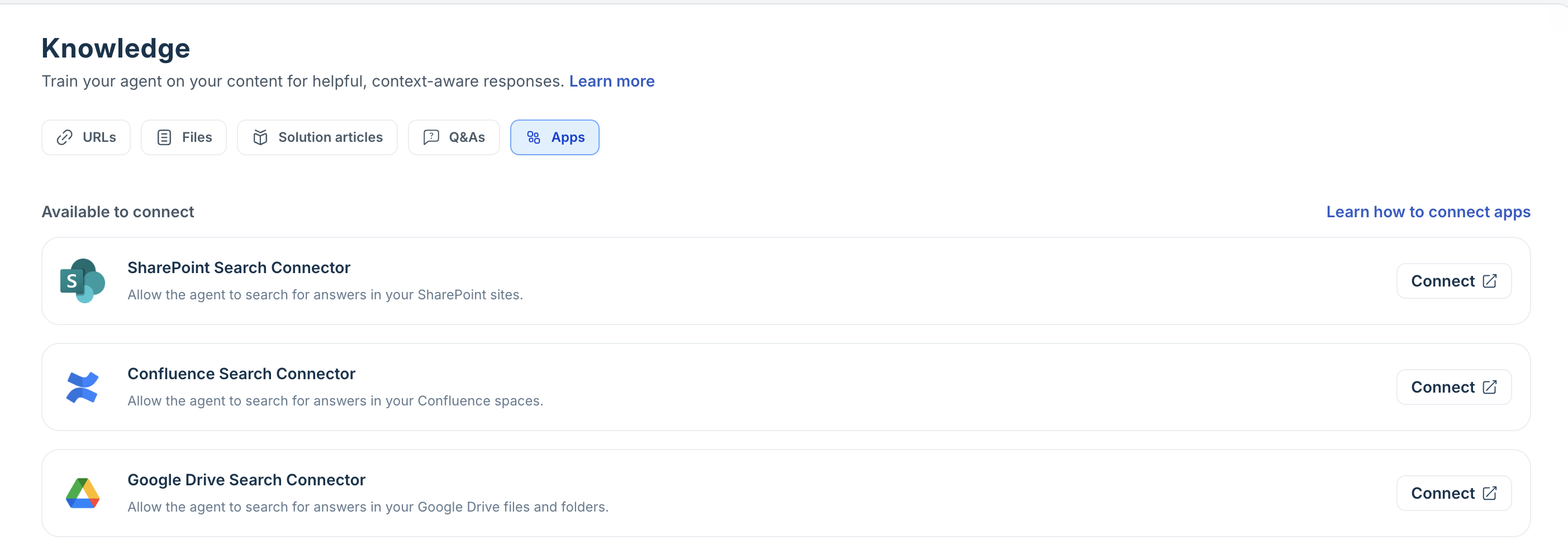
- Click Build > Knowledge > Apps.
- Click Connect next to the Confluence Search Connector app. You will be redirected to the app page.
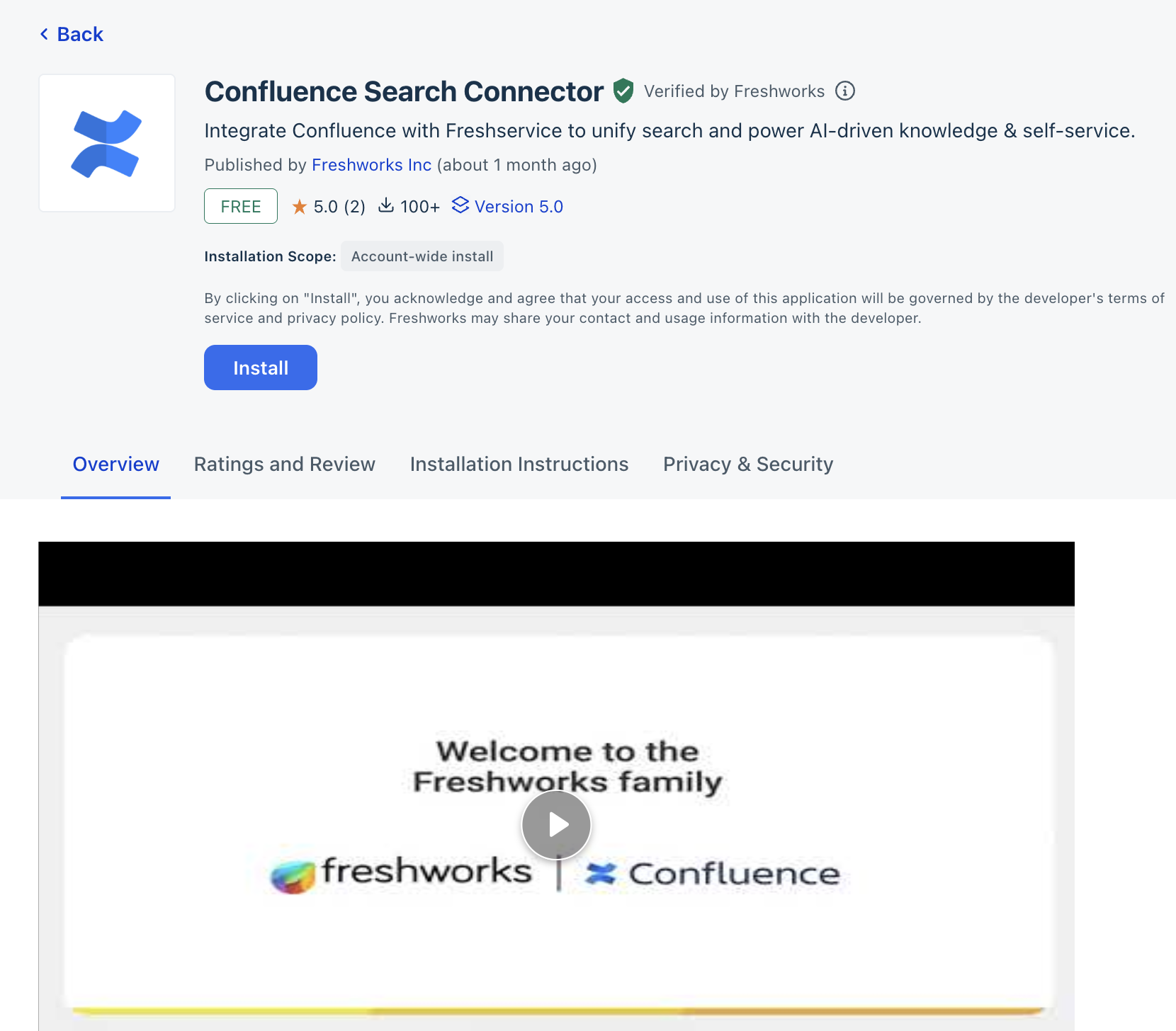
- Click Install.
- After the installation is complete, click Connect now to connect your Confluence account.
Freshdesk partners with Merge, a third-party integration, to establish a secure connection to your account.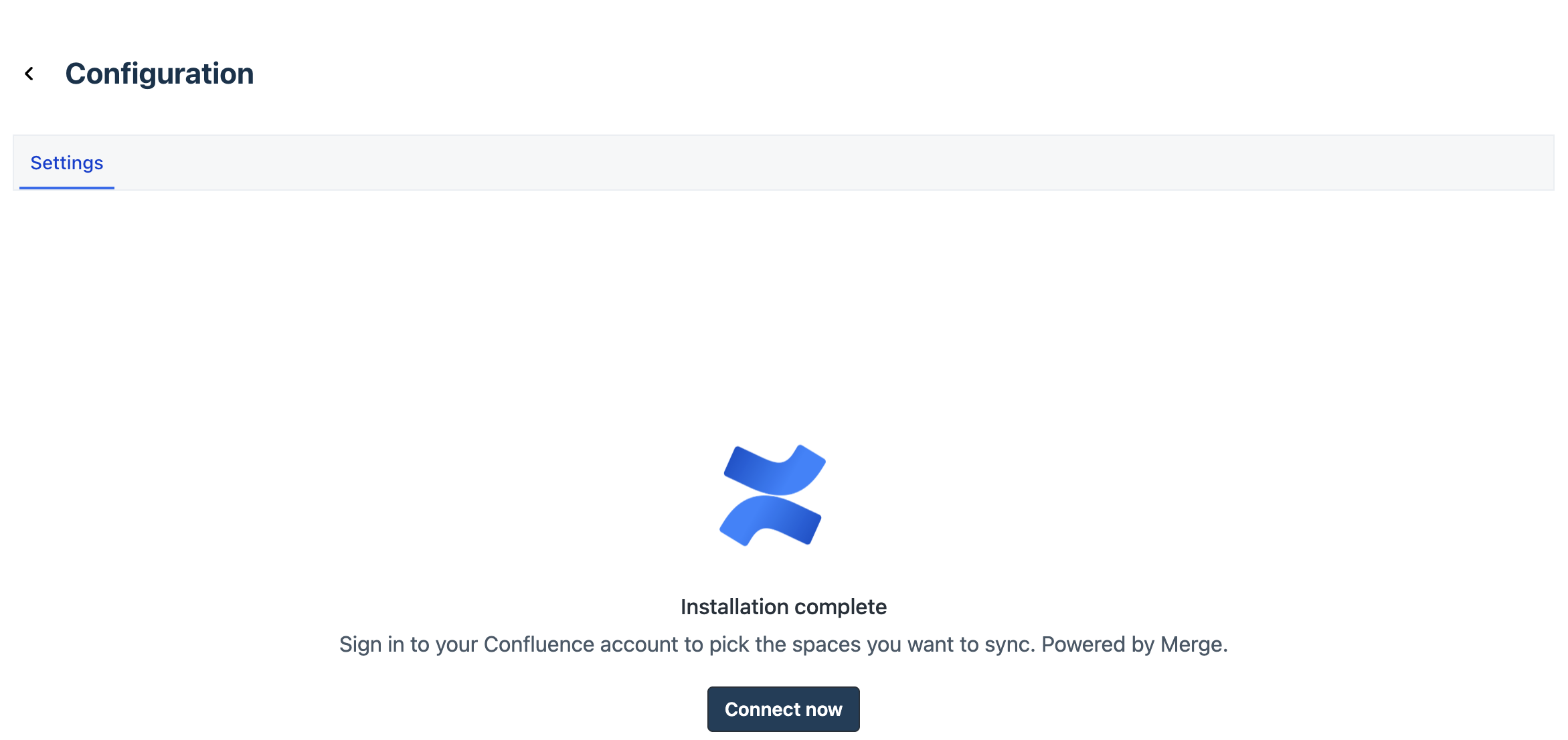
- Select the required authentication method, and then click Next to authorize access. We recommend authenticating with your Confluence credentials.
- Review the requested file access permissions, and then click Next.
- Enter the URL of the Confluence site you want to sync, and then click Next.
- Select the site details and click Accept to grant Merge access to that Confluence site.
- After you successfully sign in, click Next to continue configuring Confluence.
Select Confluence spaces
After you connect your Confluence account, select the spaces to use as knowledge sources for your AI Agents.
Note: You can connect all private and restricted spaces, but currently, public spaces cannot be indexed or searched.
- Once your Confluence account is successfully connected, you are redirected to the Confluence Search Connector app configuration page.
- Select the spaces that you want to use as knowledge sources. Use the search option to find a specific space, or Select all.
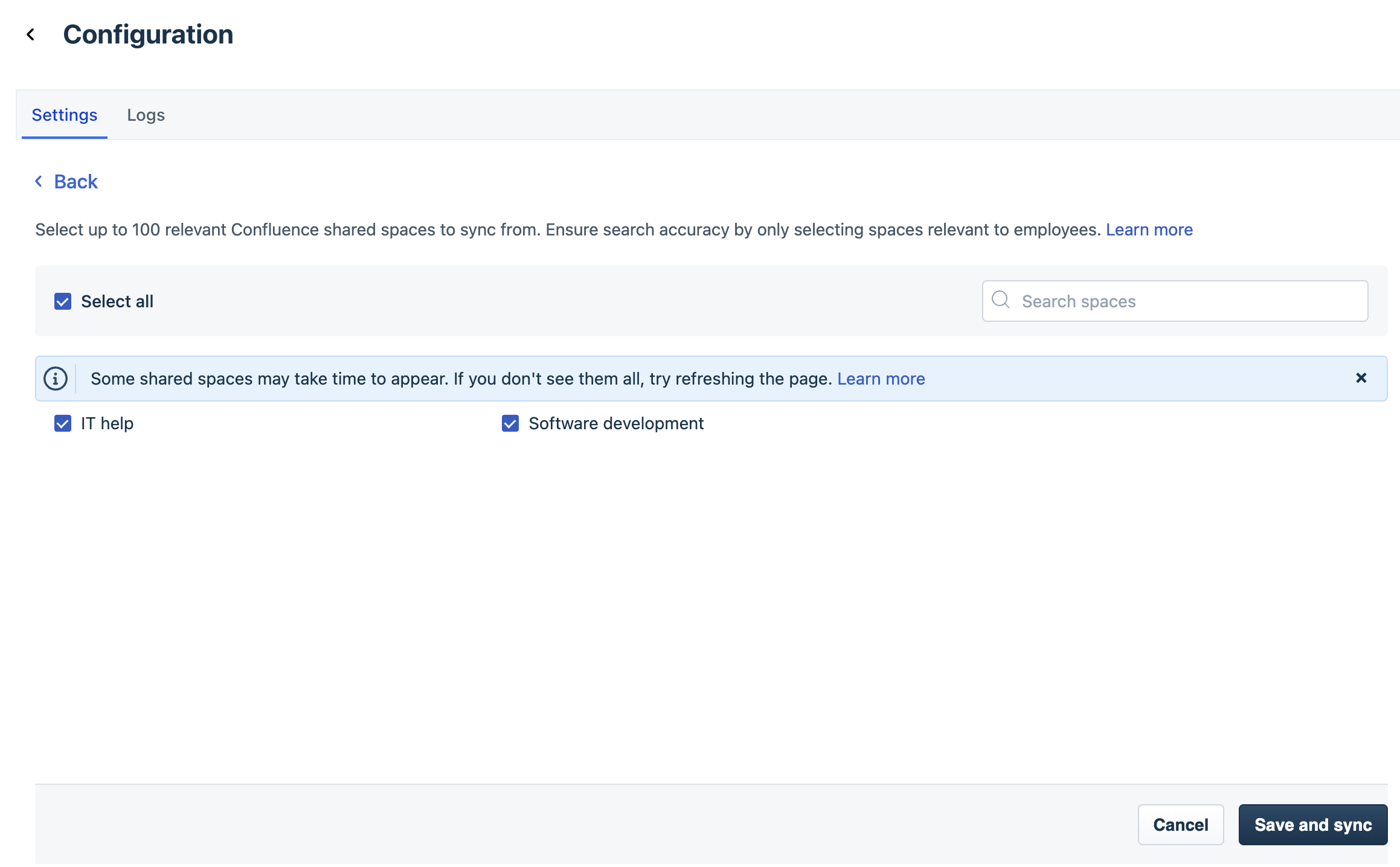
- Click Save and sync.
- After the sync is complete, a Sync Successful tag appears next to your Confluence account. You can view the number of synced spaces and the last synchronization time on the Apps page.

Note: Spaces don't always appear immediately. Load time depends on the number of spaces and pages, system load, and network latency. If a space is missing from the list, reload the page and try again. Sometimes, even after a successful sync, individual document errors may occur due to unsupported file formats, large file sizes, empty documents, and so on.
Tip: You can select up to 100 spaces. For the best results, we recommend selecting spaces that contain relevant and up-to-date information.
Manage spaces and synchronization
You can add or remove the Confluence spaces connected to AI Agent Studio and monitor synchronization.
- Go to AI Agent Studio and select the preferred AI Agent.
- Click Build > Knowledge > Apps.
- On the Confluence Search Connector card, click Manage spaces.
- Select or clear the spaces that you want AI Agent Studio to use as knowledge sources.
- Click Save.
- To refresh the sync or disconnect the account, click the three-dot menu next to your Confluence account and select the option you need.
View and edit app settings
You can sync more spaces and monitor the logs directly from the app settings.
- Click App Settings.
- On the Confluence Search Connector app page, click Edit settings. You are redirected to the Configuration page, where you can view the sync status.
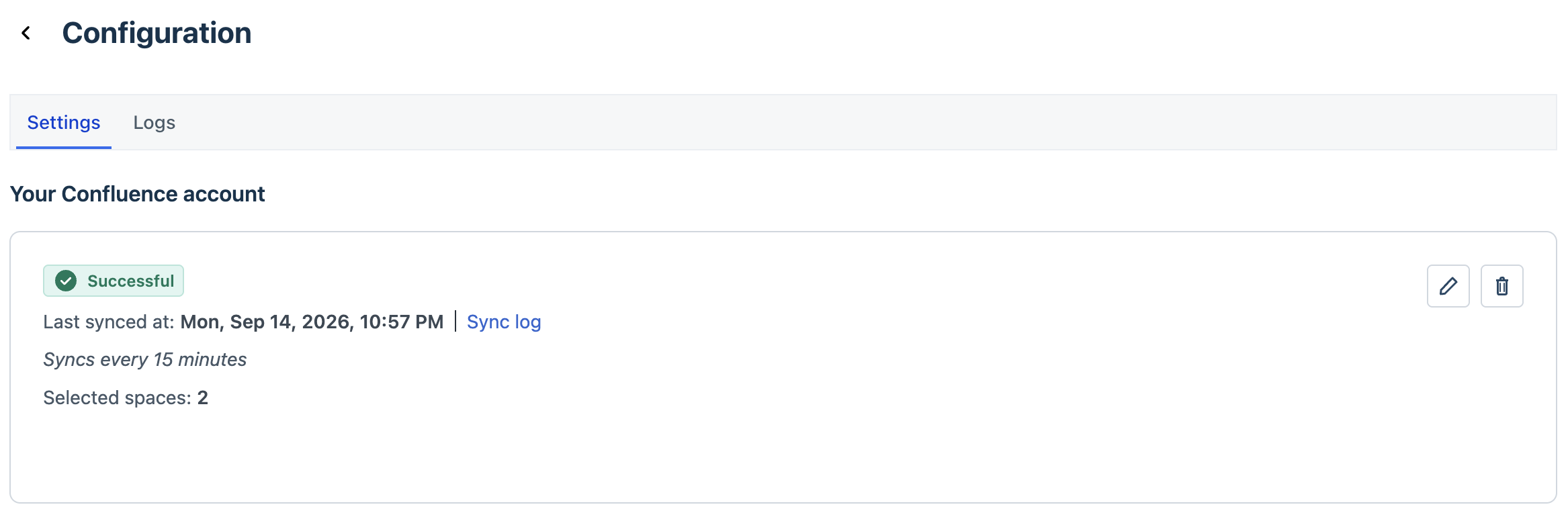
- Click Sync log next to the last synced timestamp to view sync history. The sync log includes the sync time, status, and the number of documents or spaces added, deleted, or modified. Each sync is marked Success or Failed. A failed status usually indicates a system error or one or more failed files.
- To add more spaces, click the edit icon (pencil) on the Settings tab and then select the spaces you want to sync.
- Click Save and sync.
Known limitations
The following limitations apply:
Limitation | Details |
Permission update delay | ACL changes in Confluence can take up to 24 hours to apply to search results. If you revoke a user's access to an article, that user might still see results from it during that window. |
Space deletion | Deleting or archiving a space in Confluence isn't detected automatically. Its articles remain in the search index until the next full sync. |
Attachment deletion | Deleting an individual attachment from a Confluence page isn't detected. The attachment remains in the index until its parent article is removed. |
Attachment size limit | Attachments of 50 MB or larger are skipped during sync and don't appear in search results. |
Admin access changes | If the admin account used to set up the integration loses access to certain articles, those articles are treated as deleted and removed from the index for all users. Note: We recommend using a dedicated service account for installation and authorization. |
Publicly shared articles | Articles shared by public link aren't identified or indexed. Only internally accessible, permission-controlled content is searchable. |
Frequently asked questions
- What happens when part of my data is in Confluence and the rest is in the Freshdesk knowledge base?
AI Agents search both sources and return the most relevant response by unifying content from across them. You don't need to duplicate Confluence content in Freshdesk. - How does the AI Agent ensure that users only see documents they have access to?
When a user asks a question, the AI Agent checks whether that user has access to the content retrieved from Confluence to answer the query. The user's email address upholds the access privileges between Confluence and Freshdesk. Ensure that the email address field is populated in Confluence and that it matches the email address in Freshdesk. - What search methods are used for retrieving results from Confluence?
A hybrid search method that combines context-based search and keyword search. - In what scenarios will data not sync?
Data doesn't sync when a document is empty, the file format isn't supported, or the file size exceeds 50 MB. - Are texts from tables and images included in the indexed content?
No. Currently, text within tables and images isn't extracted or indexed. Only plain text content is parsed during the sync. Support for table and image content is being explored based on customer feedback. - How long does the initial sync take?
It depends on the number of files and their total size. On average, syncing 1,000 files totaling 250 MB takes around 3 hours. - What should I do if I face data sync issues?
For persistent data sync errors, contact your CSM or email support@freshdesk.com. To find out why a specific document failed, contact the support team