
 Community
 Video Library
 Agent Training
 Freshservice
 Freshdesk
 Freshchat
 Freshcaller
 Freshsales
 Freshteam
 Freshworks Neo
 Freshsurvey
Applicable Plans:
| Freshdesk | Pro, Enterprise |
| Freshdesk Omni | Pro, Enterprise |
Table of contents
- Overview
- Types of advanced automatic routing
- Enable advanced automatic routing
- Use case: How does each routing method work in a scenario?
- Automatic ticket assignment to agents
- Changing agent availability status
Advanced Automatic Routing (powered by Omniroute) enables you to streamline the process of assigning tickets to your team. In this article, you will learn how automatic routing can enhance team efficiency and improve workflow management.
Overview
As an admin, it is important to ensure that all incoming support tickets are assigned quickly and fairly to the right agents within a group. By default, you can manually assign tickets to your group. While this may work for small teams, it becomes harder to manage tickets across different channels with growing ticket volume and team size.
However, with advanced automatic routing (powered by Omniroute), you can automatically route tickets based on agent availability, workload, skills, and routing preferences. This saves you time, reduces delays, and ensures every ticket gets the right attention.
Key benefits of advanced automatic routing
- Equal ticket distribution: Ensures that no single agent is overloaded while others remain idle.
- Faster ticket assignment: Tickets are assigned instantly instead of waiting for manual assignment.
- Better agent productivity: Agents know exactly which tickets to work on.
- Improved customer experience: Customers receive timely responses from the most appropriate agent.
Prerequisites
Since advanced automatic routing is configured at the group level, ensure you have set up the basics before proceeding:
- Create groups: Organize agents into groups such as Billing, Technical Support, or Sales. Advanced automation routing methods are applied within groups. For details, see Add Groups.
- Define business hours: Add working hours to ensure tickets are assigned only when the agents are available during their working hours. For details, see Configure Business Hours.
- Set team (agent) availability: Tickets will be assigned only to available (online) agents. As an admin, you can control who can set agent availability and monitor it in the Agent Availability Dashboard.
- Configure Omniroute settings: Omniroute is the routing engine that powers automatic routing. With Omniroute, you can:
- Set agent capacity, the number of tickets an agent can handle during the configured business hours
- Control who can set agent availability
- Choose ticket assignment preferences
For details, see Configure Omniroute.
Types of advanced automatic routing
Freshdesk offers the following automatic routing methods:
- Round-robin: Tickets are assigned to available (online) agents within a group in a circular order, ensuring an equally balanced workload.
- Load-based: Tickets are assigned based on the capacity agents can handle across channels.
- Skill-based: Assign tickets to agents based on their skills.
Tip: Check out the comparison table below for a detailed view.
How does advanced automatic routing work?
When a new ticket is created in Freshdesk, the system first checks the group settings to determine whether Advanced Automatic Routing is enabled for that group.
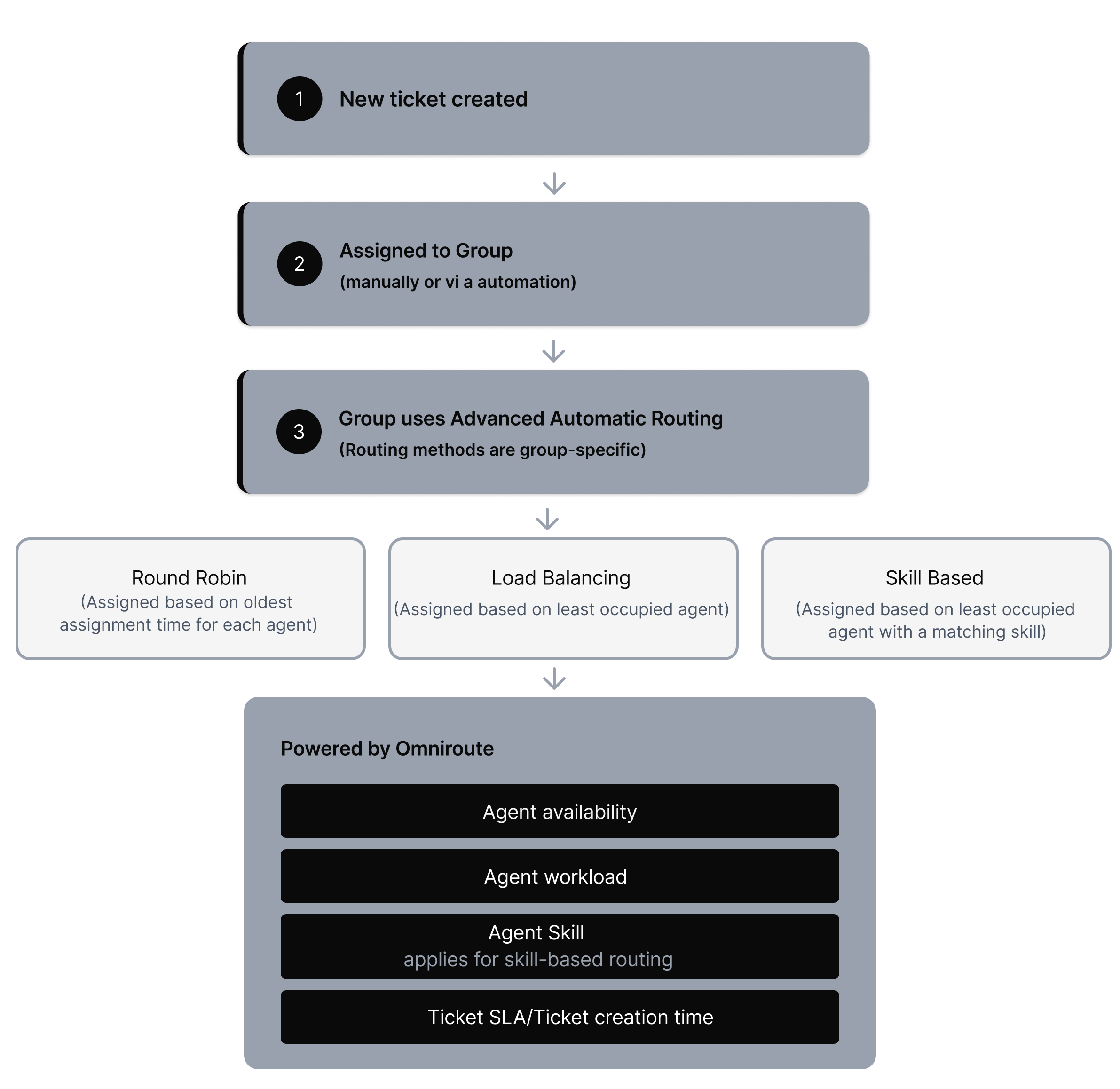
Here’s how it works:
- Identifies the assignment type
Freshdesk identifies the automatic routing method configured for that group. This could be round-robin, load-based, or skill-based. - Checks Omniroute preferences
All automatic ticket assignment methods are powered by Omniroute. Based on the Omniroute settings, the following checks are done:- Agent availability: Only agents with an Available (online) status are considered. As an admin, you can decide who can control an agent’s availability across channels.
- Agent capacity: This checks the agent’s capacity to address tickets across channels/queues. For example, if an agent has already reached their maximum ticket capacity, they will not receive additional tickets.
- Assignment preference:
Checks the ticket assignment order, whether tickets should be assigned based on the ticket’s age or SLA priority.
- Based on the automatic ticket routing method, the ticket is assigned to the most suitable agent. For details, see Configure Omniroute.
This table provides a comparison of each routing method:
| Assignment type | How are tickets assigned? | Agent availability required? | Workload balance | When to use? | Powered by Omniroute? |
|---|---|---|---|---|---|
| Round-robin | Tickets are assigned to agents in a circular order based on each agent’s capacity. | Yes. Only available (online) agents are included. | Ensures a fair distribution of tickets per agent. | Small teams or teams handling transactional queries with simpler complexity. For example, order status, simple FAQs | Yes |
| Skill-based | Tickets are routed to agents with matching skills and capacity (language, product). | Yes. Only available agents with matching skills are considered. | Ensures tickets go to the most qualified agents; workload balance depends on agents’ skills and capacity. | Multilingual support, specialist product teams, and technical escalations requiring subject-matter expertise. | Yes |
| Load-based | Tickets are assigned based on each agent’s capacity (how many tickets they can handle at once). | Yes. Only available agents are included. | Balances workload by preventing overloading; optimises for quicker resolutions compared to Round-robin. | For larger support teams with higher ticket volumes that require quicker resolutions. | Yes |
Enable advanced automatic routing
To enable Advanced Automatic Routing for a group:
- Log in to your account as admin.
- Go to Admin > Groups.
- Click on the edit icon next to the group.
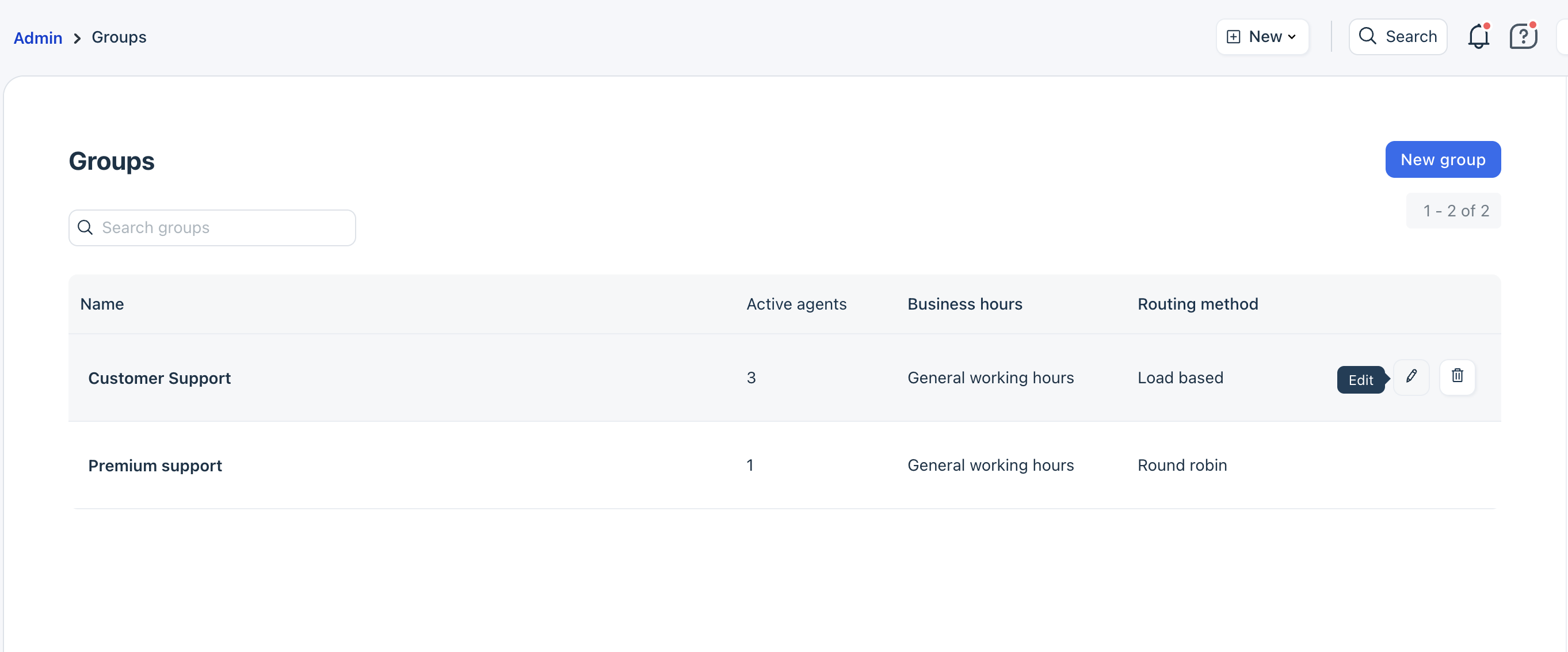
- Switch to the Group Properties tab.
- Select Advanced Automatic Routing.
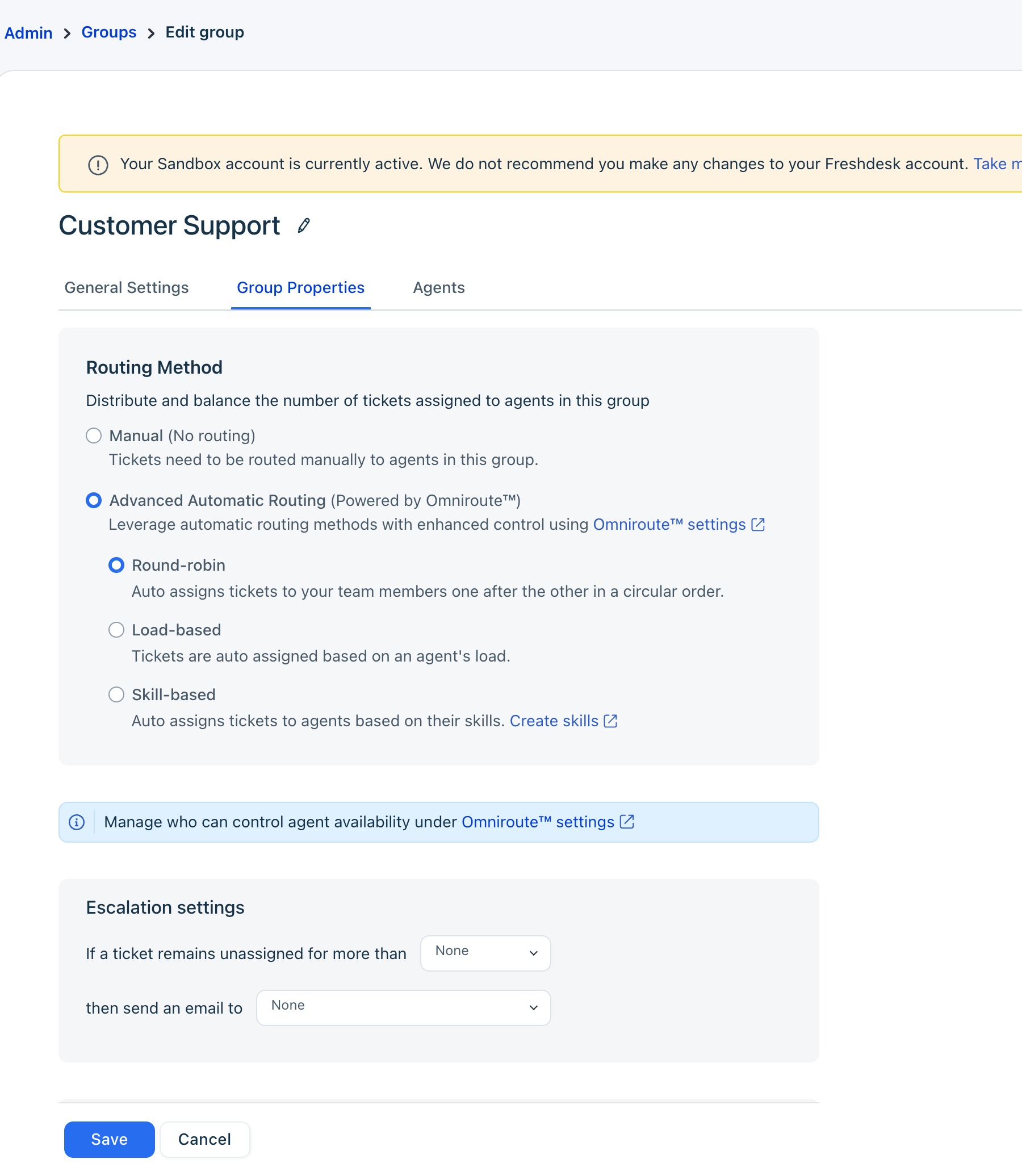
- Choose your preferred routing method.
Use case: How does each routing method work in a scenario?
Use case 1: When all agents are available and have the same capacity
Imagine you run an e-commerce support team with five agents in the “Order Support” group. Each agent has a ticket capacity of five, and all the agents have 0 tickets currently assigned to them
Let’s say three new tickets are received:
- “Where is my order?”
- “I need to update my shipping address.”
- “My payment failed—what should I do?”
Round-robin method
With Round-robin enabled, here’s how tickets will be distributed:
- Ticket 1 --> Agent A
- Ticket 2 --> Agent B
- Ticket 3 --> Agent C
The next ticket will be assigned to Agent D, then Agent E, and the cycle will restart with Agent A.
Load-based method
With Load-based enabled, here’s how tickets will be distributed
- Ticket 1 --> Agent A
- Ticket 2 --> Agent B
Ticket 3 --> Agent C
The next ticket will be assigned to Agent D, then Agent E, and the cycle will restart with Agent A.
Note: Load-based and round robin behave similarly if all agents have the same load
Use case 2: When all agents are available and have different capacity
Let’s take the same example as above, but the agents have a different number of tickets assigned to them. The ticket capacity for each agent is 5.
| Agent A | 5 (last assignment time 10:00 AM) |
| Agent B | 3 (last assignment time 11:00 AM) |
| Agent C | 2 (last assignment time 12:00 PM) |
| Agent D | 2 (last assignment time 12:05 PM) |
| Agent E | 1 (last assignment time 11:15 AM) |
Round-robin method
- Ticket 1 --> Agent B
- Ticket 2 --> Agent E
- Ticket 3 --> Agent C
- Ticket 4 --> Agent D
This is based on the last assignment time of the agents. Agent A is at full capacity and will not get any tickets assigned to them until they resolve one of their tickets.
Load-based method
- Ticket 1 --> Agent E (ticket is first assigned to Agent E to optimise for assigning to the least occupied agent)
- Ticket 2 --> Agent C (since load for C, D, E will be the same after ticket 1 is assigned, the next ticket will be assigned based on “Last assignment time”)
- Ticket 3 --> Agent D (based on comparing “Last assignment time” between D and E )
- Ticket 4 --> Agent E (least occupied agent with only 2 tickets)
- Ticket 5 --> Agent B (since load for B, C, D, E will be the same, that is, 3 tickets, ticket 5 will be assigned based on “last assignment time” of B, which is the oldest)
This solution article discusses how to automatically assign tickets to agents in a group and how to update an agent's availability.
Applicable Plans:
| Freshdesk | Pro, Enterprise |
| Freshdesk Omni (formerly CSS) | Pro, Enterprise |
| Omnichannel (classic) | Pro Omnichannel, Forest Omnichannel |
| Freshdesk (previous plans) | Estate, Forest |
| Omnichannel (classic - previous plans) | Estate Omnichannel, Forest Omnichannel |
Automatic ticket assignment to agents
You can choose to assign tickets either manually or automatically to your agents or groups. However, when you have set up an automation rule to run on ticket creation to assign a ticket to a group, all agents on that group will receive a notification, but the ticket will still be unassigned. Freshdesk's automatic ticket assignment helps you automate this process of assigning tickets to the agents who are online in the selected group.
Different types of automatic ticket assignment
- Round-robin ticket assignment:This method assigns tickets to agents who are online in that group in a circular fashion. E.g., In an e-commerce business, tickets are usually transactional, involving questions on recent orders, refunds, FAQs, etc.
- The round-robin ticket assignment distributes the tickets equitably among agents so that the workload is equally balanced. Round robin focuses on equitable distribution. By the end of the day, every agent will have handled an equal number of tickets.
- Use this when all agents are equally proficient or if you want new joiners to ramp up quickly by handling a variety of ticket types. Learn more about the round-robin ticket assignment.
- Load balanced ticket assignment: With a load-balanced assignment of tickets, you can define the number of tickets an agent can handle at any given time. This way, you can ensure that your agents aren't overwhelmed; especially those who already have a lot of pending tickets.
- Load-based ticket assignment is supported by Omniroute. You'll be able to set the global limit and the assignment preference under Omniroute.
- Load balanced ticket assignment optimizes for speed of response. Agents who resolve tickets faster will be assigned more, which helps maximize quick resolution times. Be mindful that faster agents might end up with more tickets. Note: If you don't have the latest version of Load based ticket assignment powered by Omniroute, please write to support@freshdesk.com. The older version is no longer supported.
- Skill-based ticket assignment:When you have specific agents in a group who are more skilled at handling certain kinds of tickets, you will want to route those tickets directly to these agents. E.g., If you have a global customer base, you might have agents specialized in handling tickets from a specific language, say Spanish.
- Within each group, you would want to assign tickets that have Spanish as the requester language to the Spanish-speaking agents, in a uniform manner. Skill-based ticket assignment in Freshdesk will assign tickets to the right agents based on the agent skills that you've defined. In the above example, 'Spanish' is the skill you can map to an agent. When a ticket-skill and an agent-skill match, the ticket will be automatically assigned to the agent.
- Skill-based routing assigns tickets based on agent expertise. This is ideal when you have agents handling different types of tickets, or if you want new joiners to handle simpler tickets. Use this to ensure high-priority tickets are directed to the right agents. Learn more about skill-based ticket assignment.
Changing agent availability status
Incoming tickets are automatically getting assigned to the agents, so your job as a supervisor just became easier. However, there could be several instances when an agent might want to avoid getting more tickets, such as when he/she is working on a high priority ticket or is on the phone with a customer.
Agents can change their availability if you've given them the privilege - You, as an Admin or Supervisor, have the ability to let your agents choose whether they want to be assigned tickets through the automatic ticket assignment.
Here is a quick guide to giving agents the privilege to change their availability:
- Login to your support portal as an Administrator.
- Go to Admin > Team > Groups.
- Select the group you want to give the agents the privilege of changing their availability.
- Turn on the toggle for Automatic ticket assignment or Omniroute and click the check the box to Allow agents to change their availability for automatic ticket assignment.
- Click Save.
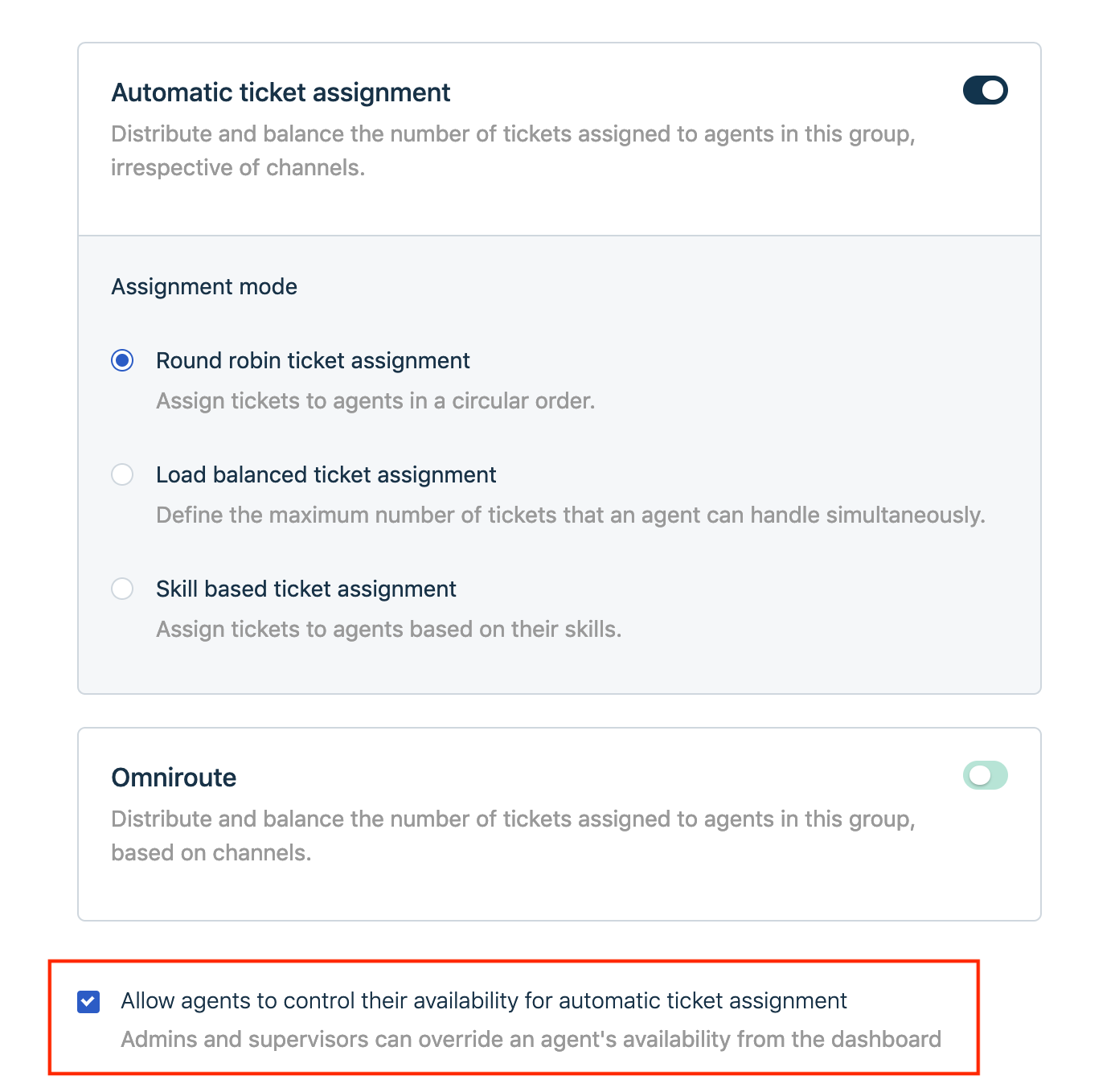
To change the availability of the agents,
- Login to your support portal as an Administrator.
- From the Dashboard, navigate to the Available Agents widget > View details
- From here you can set the availability of your agents

If the option Allow agents to control their availability for automatic ticket assignment is enabled, the agent can set the availability by following the steps below:
- Click the status icon from the Nav bar
- Select your status to Available
