
 Community
 Video Library
 Agent Training
 Freshservice
 Freshdesk
 Freshchat
 Freshcaller
 Freshsales
 Freshteam
 Freshworks Neo
 Freshsurvey
Applicable Plans:
| Freshdesk | Pro, Enterprise |
| Freshdesk Omni | Pro, Enterprise |
Table of contents
- About Round-robin ticket assignment
- Examples of Round-robin ticket distribution
- Enable Round-robin assignment
About Round-robin ticket assignment
Round-robin ticket assignment is one of the three ticket assignment methods available in Freshdesk. It ensures that incoming tickets are distributed equally among agents in sequence. With Roun-robin, you can maintain a balanced workload and improve response times by assigning tickets automatically to available agents.
User requirements: Ensure that you have admin access to enable or disable round-robin ticket assignment.
Before you begin:
Before setting up Round-robin, ensure you understand a few key concepts:
- Omniroute settings
All automatic ticket assignments are powered by Omniroute. With Omniroute, you can:- Manage agent availability
- Control agent ticket load capacity
- Choose assignment preference order
- SLA Impact
Only tickets with an active SLA timer count towards an agent’s workload and are picked for assignment.
Note: You can decide which statuses should be excluded from counting toward an agent’s ticket capacity, even when the SLA timer is active in Assignment Preferences.
How does Round-robin ticket assignment work?
When a new ticket is received or reassigned from another group, the round-robin method follows a sequential order to ensure tickets are distributed equally among available agents.
Flow:
- Checks agent availability
Verifies the agents in that group to see who is online and available to take new tickets. - Checks agent capacity
Counts the number of SLA-ON tickets each available agent currently has. If an agent is already at maximum ticket capacity, they will be skipped from ticket assignment.
Note: As an admin, you can choose which statuses to exclude from counting toward an agent’s ticket capacity, even when the SLA timer is active in Assignment Preferences. - Checks ticket assignment preference
If multiple tickets are waiting for assignment, the assignment preference order will be checked to determine which ticket to assign. - Agent’s last assignment time is evaluated
The timestamp of each agent’s last assigned ticket is checked. The ticket will be routed to the agent who has gone the longest without receiving one. - The cycle continues for subsequent tickets.
Note: When multiple tickets are received at the same time, the ticket priority is determined by the assignment preference configured in Omniroute.
Examples of Round-robin ticket distribution
Usecase 1: When all agents are available and have the same capacity
Imagine you run an e-commerce support team with 5 agents in the “Order Support” group. Each agent has a ticket capacity of five.
Let’s say three new tickets are received:
- “Where is my order?”
- “I need to update my shipping address.”
- “My payment failed—what should I do?”
With Round-robin enabled, here’s how tickets will be distributed:
- Ticket 1 → Agent A
- Ticket 2 → Agent B
- Ticket 3 → Agent C
The next ticket will be assigned to Agent D, then Agent E, and the cycle will restart with Agent A.
Use case 2: When all agents are available, but have different capacities and assignment times
Now, let’s say each agent has a capacity of 2 tickets at a time.
- Agent A already has 2 open tickets.
- Agent B has 1 open ticket last assigned at 10:00 AM.
- Agent C has 1 open ticket last assigned at 10:30 AM.
When a new ticket is received:
- Agent A is skipped as they don't have bandwidth.
- Ticket is assigned to Agent B since their last assignment time is older than Agent C.
Enable Round-robin assignment
To enable Round-robin assignment method:
- Log in to your account as admin.
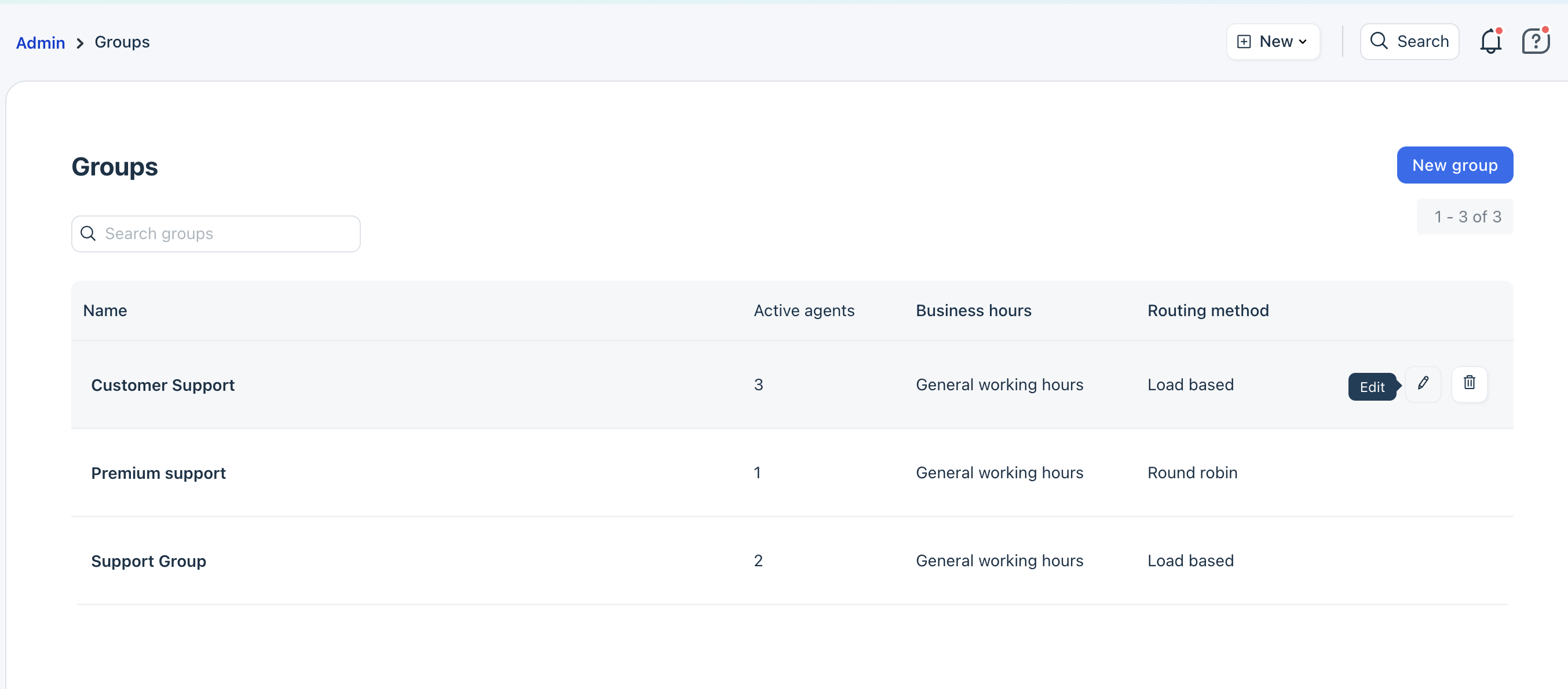
- Go to Admin > Groups.
- Click on the edit icon next to the group.
- Switch to the Group Properties tab.
- Select Advanced Automatic Routing.
- Choose Round-robin.
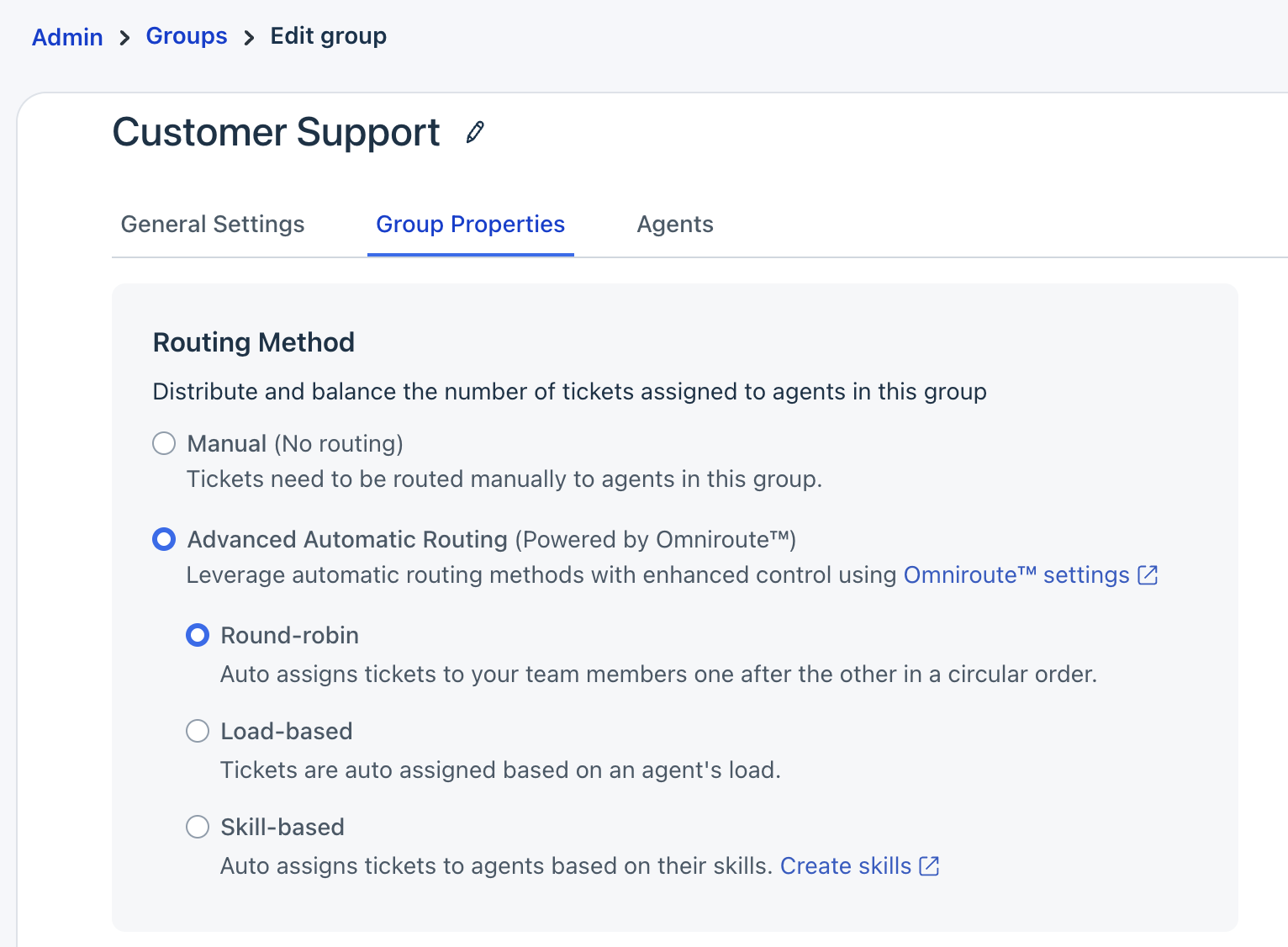
- Click Save.
Learn more
Applicable Plans:
| Freshdesk | Pro, Enterprise |
| Freshdesk Omni (formerly CSS) | Pro, Enterprise |
| Omnichannel (classic) | Pro Omnichannel, Enterprise Omnichannel |
| Freshdesk (previous) | Estate, Forest |
| Omnichannel (classic-previous) | Estate Omnichannel, Forest Omnichannel |
Note: Refer to Freshdesk upcoming changes to discover what's new regarding the Round-robin logic.
Round-robin ticket assignment is a method used in customer support systems to evenly distribute incoming tickets among available agents in a sequential manner, ensuring fair workload distribution and efficient handling of customer inquiries.
How automatic ticket assignment through Round-robin works
When tickets are assigned to a group for the first time or reassigned from another group - for example, transactional tickets involving questions on recent orders, FAQs etc. - the Round-robin system will assign them in a circular fashion to the agents who are online in that group. This guarantees that incoming tickets are equitably distributed among online agents, which not only saves you time but lets your agents get to work immediately.
Scenarios where Round-robin ticket assignment can help
- When you have a high volume of incoming tickets, it can be a laborious process to manually assign tickets to online agents. By using Round-robin, each ticket will be automatically allocated to an agent who is online as soon as the tickets enter a group. This will cut down on the time spent assigning tickets, and improve your response and resolution times.
- Letting agents pick tickets to work on could result in them cherry-picking the easier ones, for example. Round-robin guarantees the fair allocation of incoming tickets to your team.
- Round-robin prevents tickets from stagnating when the supervisor isn't around to assign tickets to the agents in groups.
Quick guide to setting up automatic ticket assignment through Round-robin
- Log in as an admin
- Go to Admin > Team > Groups > Edit > Group Properties

- Use the toggle to enable Automatic ticket assignment.
- Depending on your plan, you'll see options for automatic ticket assignment to choose from.
- Click Save.
Note: Configuring agent availability status is only feasible when automatic ticket assignment is not enabled.