
 Community
 Video Library
 Agent Training
 Freshservice
 Freshdesk
 Freshchat
 Freshcaller
 Freshsales
 Freshteam
 Freshworks Neo
 Freshsurvey
Applicable Plans:
| Freshdesk | Pro, Enterprise |
| Freshdesk Omni | Pro, Enterprise |
Table of contents
- About Omniroute
- Configure agent load settings
- Configure channel-specific queues (available in Freshdesk Omni only)
- Choose assignment preferences
- View Group routing methods
About Omniroute
Omniroute is Freshdesk's routing engine that powers each automatic routing method in Freshdesk based on agents' ticket load, availability, and assignment preferences.
Note: A few Omniroute features and capabilities are avilable only for Freshdesk Omni customers. These are clearly indicated wherever applicable in this article.
With Omniroute, you can:
Efficiently balance agent workload
Add a default initial load for every new agent and customize agent capacities based on channel-specific queues.- Streamline multichannel support with queues (available in Freshdesk Omni only)
Use channel-specific queues to organize tickets by their source and route them to agents best suited to handle them. - Flexible assignment preferences
Define flexible assignment preferences that align with your team's workflows based on ticket creation time or SLAs - Gain complete group visibility
View all groups and their applied assignment methods at a glance, giving you full visibility into your team's performance and workload distribution.
User Requirements: Ensure that you have admin permissions to configure Omniroute Settings.
Prerequisites:
Before proceeding, ensure you have set up and understand the following:
- Advanced automatic routing
Omniroute settings apply only when you enable the Advanced Automatic Routing option for the groups in your account. So, ensure you have created groups and enabled this option. - Agent status and availability
Tickets will be automatically assigned only to available agents. Ensure that you have configured the correct availability for your team.
The Omniroute configuration page includes the following tabs:
- Agent load settings: Configure ticket handling capacity for each agent.
- Queues (Freshdesk Omni only): Organize tickets by source and channel type
- Assignment preferences: Set rules for ticket routing behavior.
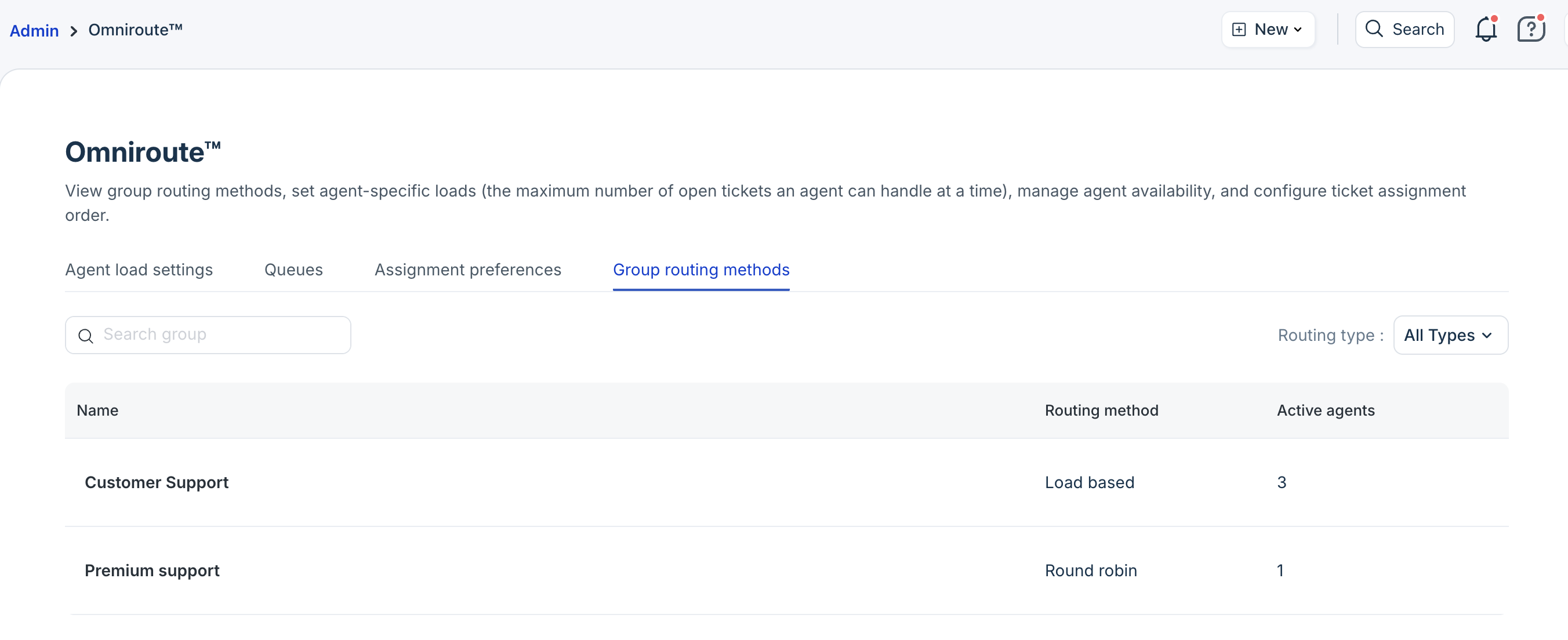
- Group routing method: View group information for each agent.
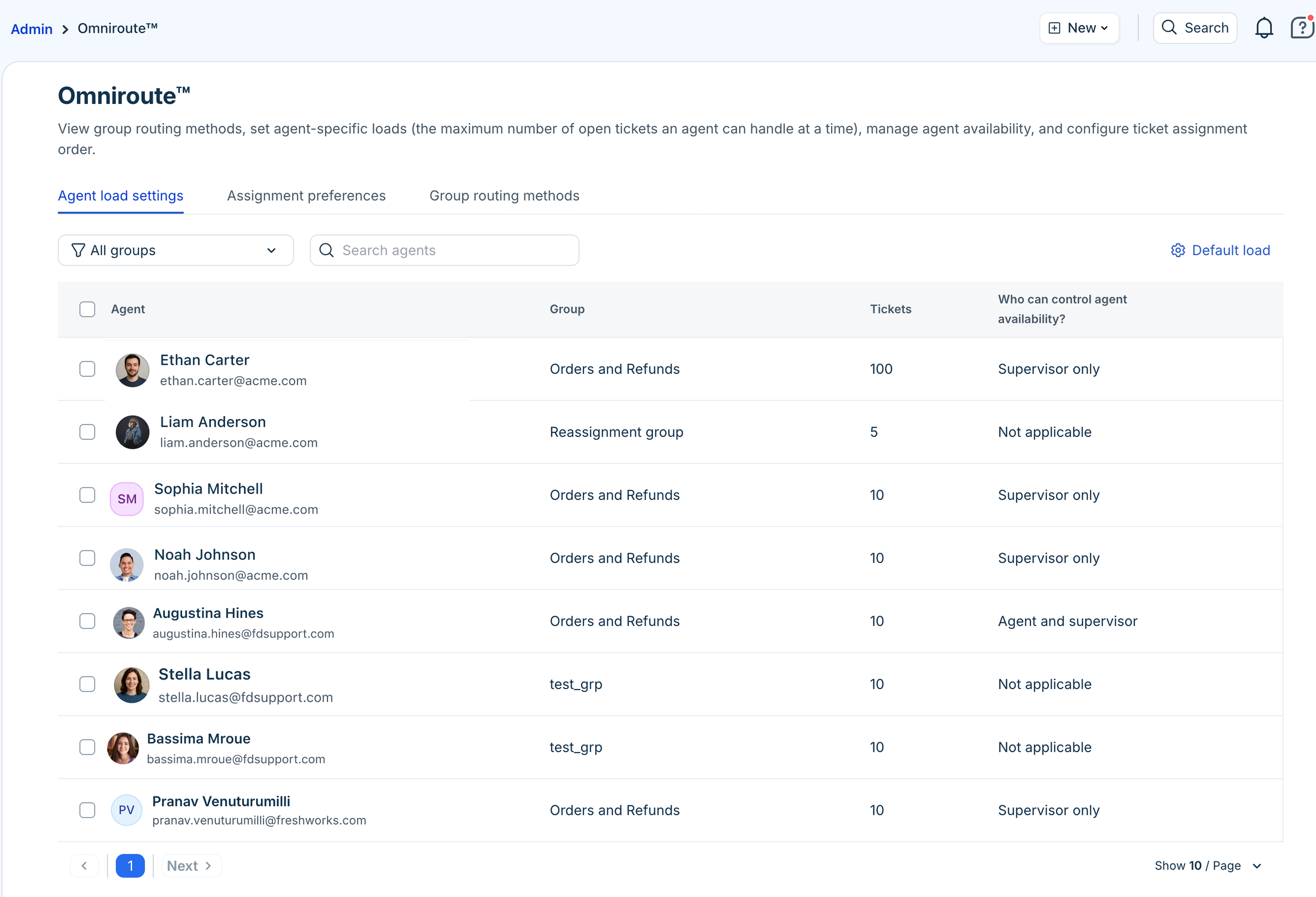
Configure agent load settings
An agent's workload, or capacity, is the number of tickets they can manage within a given business hour. This capacity is crucial for automatic routing, as tickets will not be assigned to an agent once their capacity is reached.
With agent load settings, you can:
- Define a default initial load for each new agent added to your account
- Customize load settings based on channel-specific queues (available in Freshdesk Omni only).
- Manage who can control agent availability
To view the agent load settings:
- Log in to your account as admin and go to Admin > Omniroute.
- Click Agent load settings.
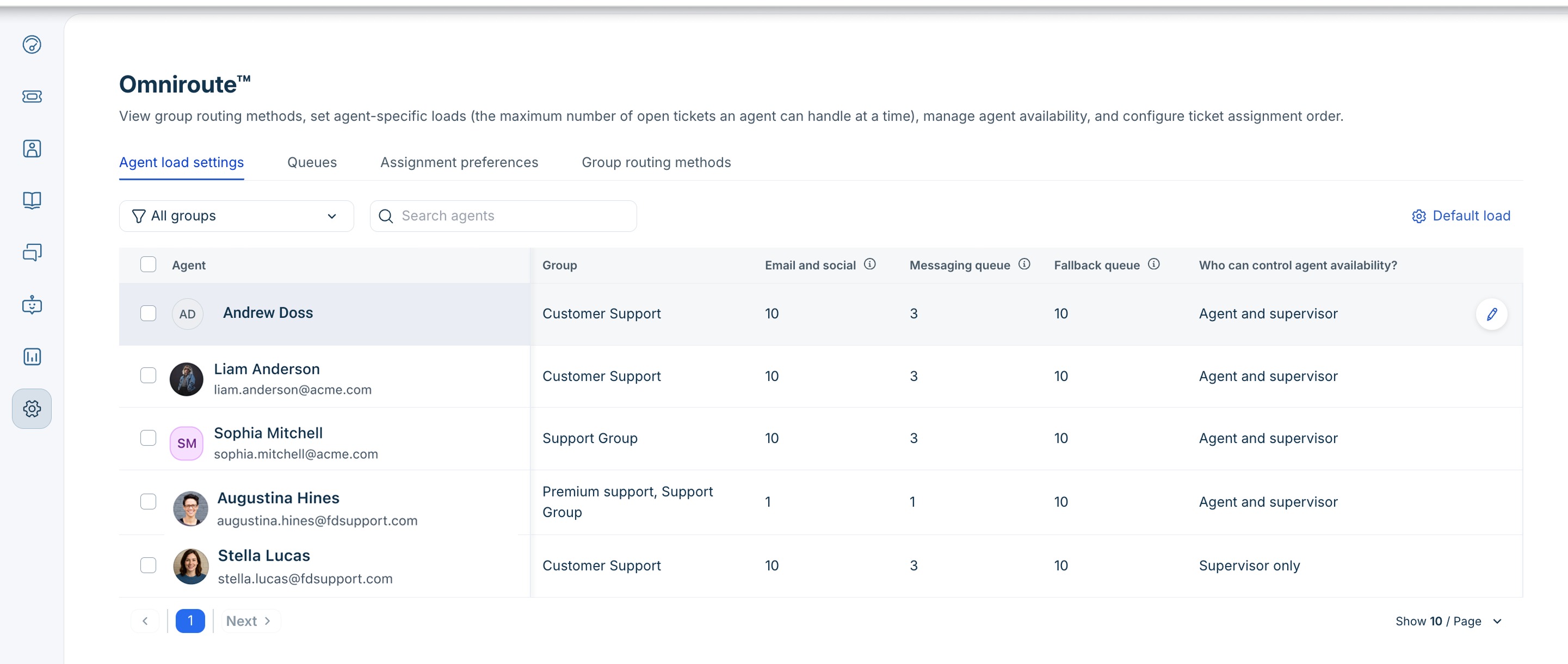
The different options you can find here are:
| Column | Description |
|---|---|
Default load | Allows you to define the default initial load for any new agent added. |
Agent | The list of agents in a group with the Advanced Automatic Routing option enabled. |
Group | The group associated with the agent. |
| Queues (available only in Freshdesk Omni) | Displays ticket capacity for each channel-specific queue. For example, if you set the Email queue to 10, that agent can work on a maximum of 10 email tickets. Note: The queue-specific load allocation is available only for Freshdesk Omni customers. The Standalone Freshdesk customers see a common "Tickets" column for overall capacity. |
Who can control agent availability? | Indicates whether admin/supervisor or agent controls availability |
Filter and search | Use the dropdown to filter agents by group or the search box to find specific agents. |
How to set a default initial load
The default initial load you set up is automatically applied to each new agent added to your account.
- On the Omniroute page, click Agent load settings.
- Click Default load (gear icon).
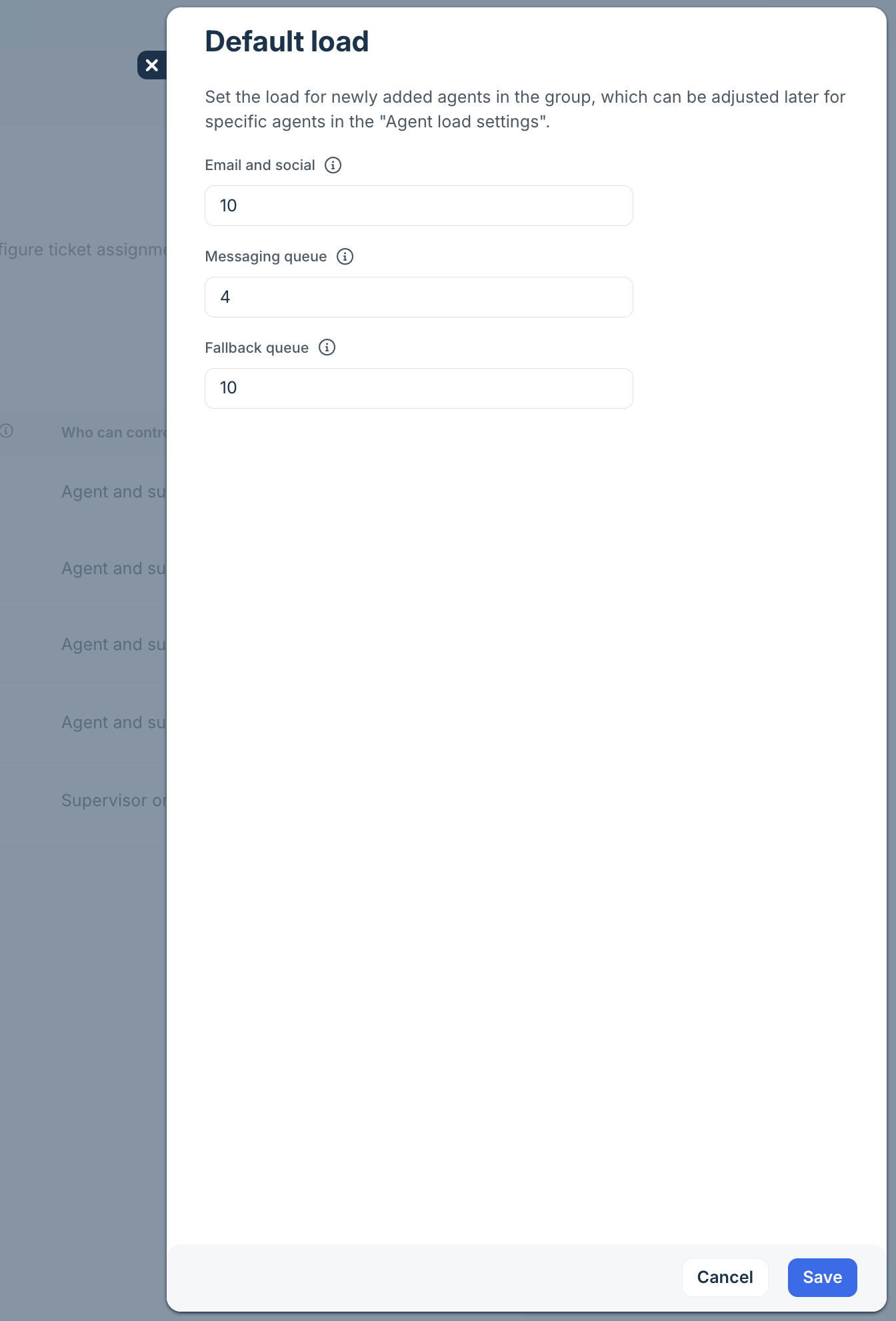
- Set a default ticket load for individual channel-specific queues in your account. In the example above, you can set the default load for Email, Chat, and the fallback queue. For more details on configuring queues, see Configure Queues.
If you are a stand-alone Freshdesk customer, you can set a common ticket load setting. - Click Save.
How to set queue-specific agent load (available in Freshdesk Omni only)
For each agent, you can split their ticket capacity across different default channel-specific queues.For example, if the total ticket capacity of an agent per business hours is 20, you can split this across the queues as follows:
Email Queue: 5
Messaging Queue: 10
Fallback Queue: 5
To customize loads for each queue:
- In the Agent load settings tab, choose the agent for which you want to customize loads and click on the edit icon.
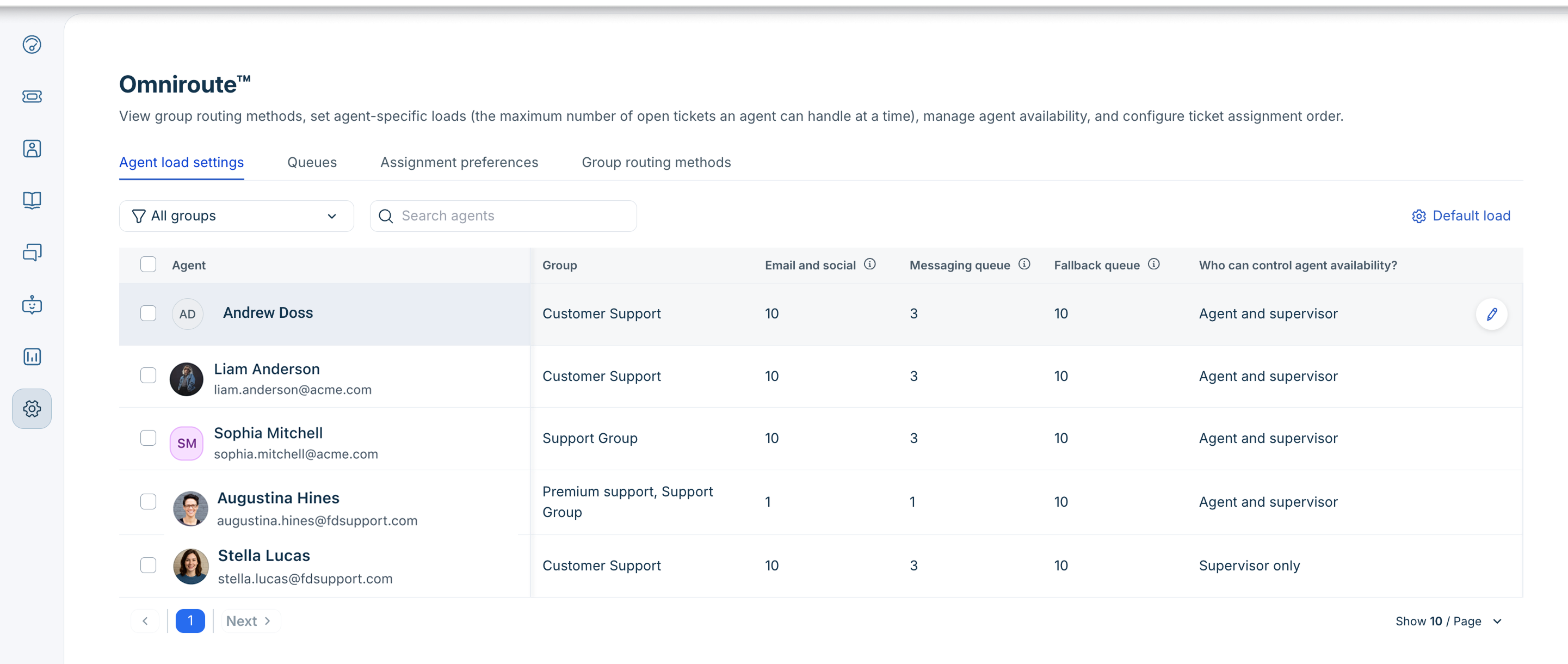
- Enter the agent's ticket capacity for each queue and click on the tick icon.
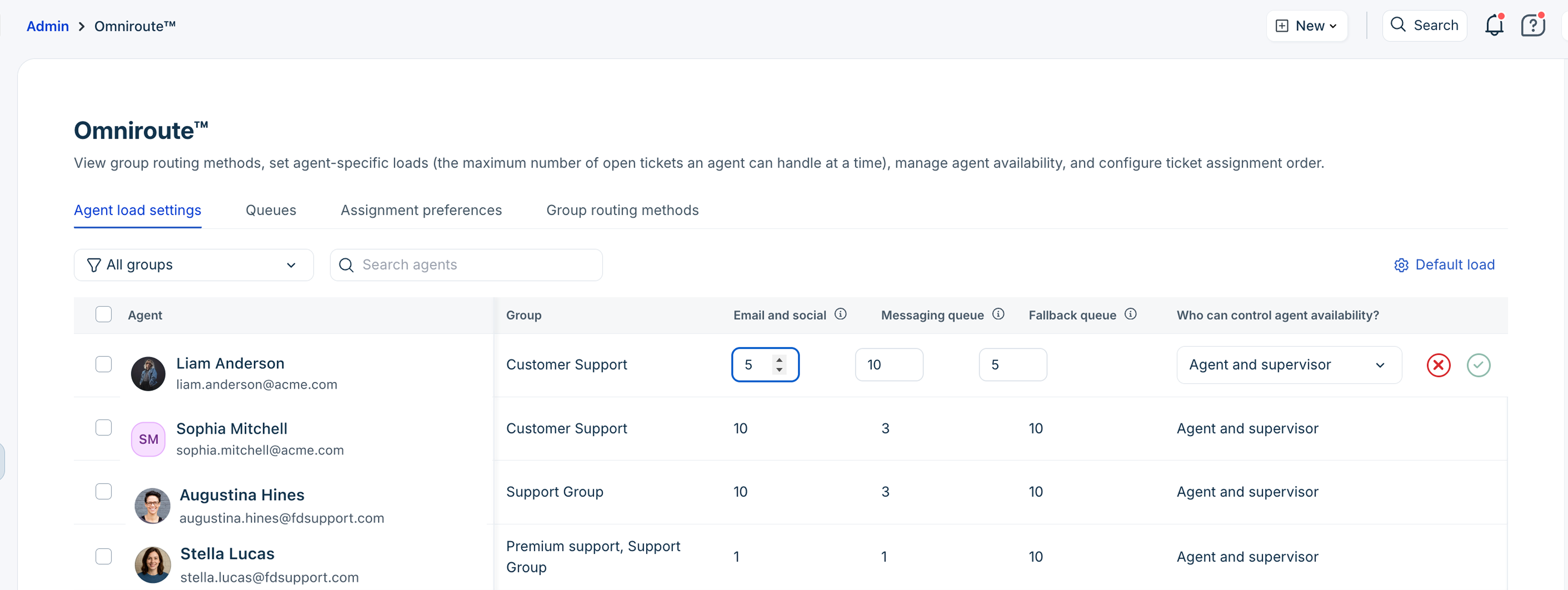
If you are a standalone Freshdesk customer, you will see a common Tickets column where you can specify the overall ticket capacity for that agent. Enter the common ticket capacity for agents in the Tickets column.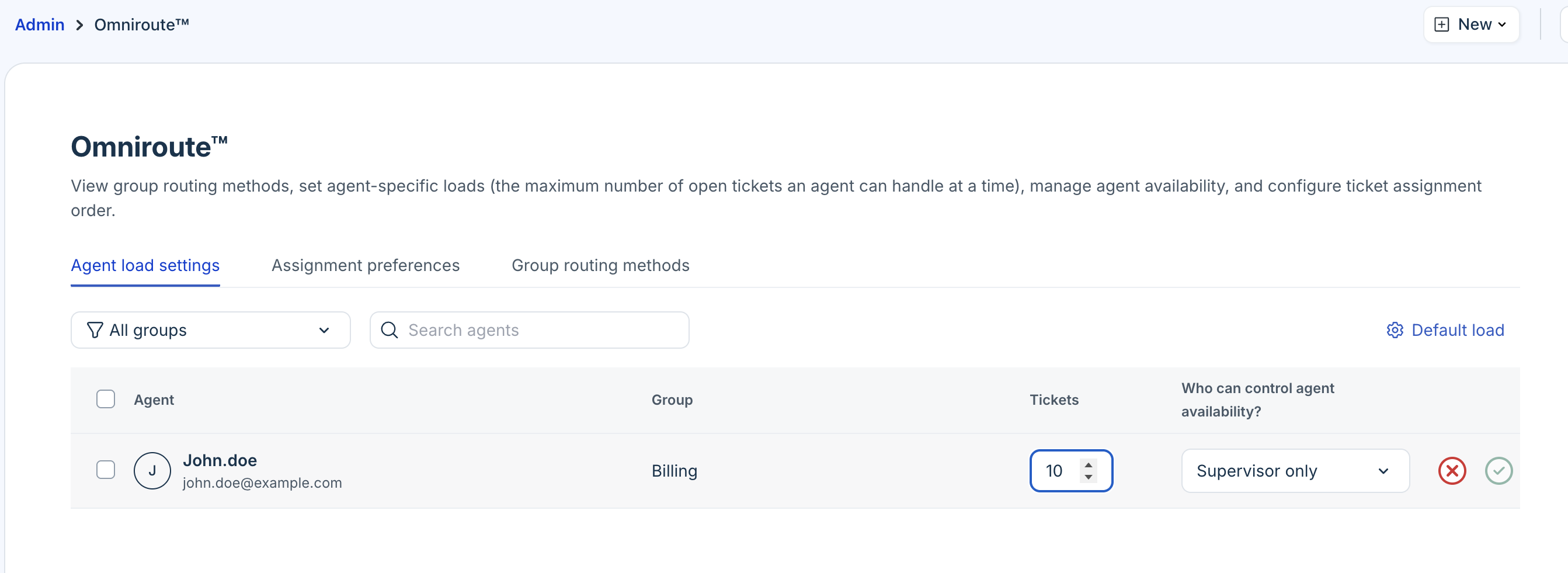
Who can control agent availability
Tickets are automatically routed only to Available (online) agents. By default, only admins can view and update an agent’s availability from the Agent Availability dashboard. With this setting, you can extend this control to Agents and Supervisors, or Supervisors only. When you provide this control to agents, they can change their own status using the Availability drop-down next to their profile.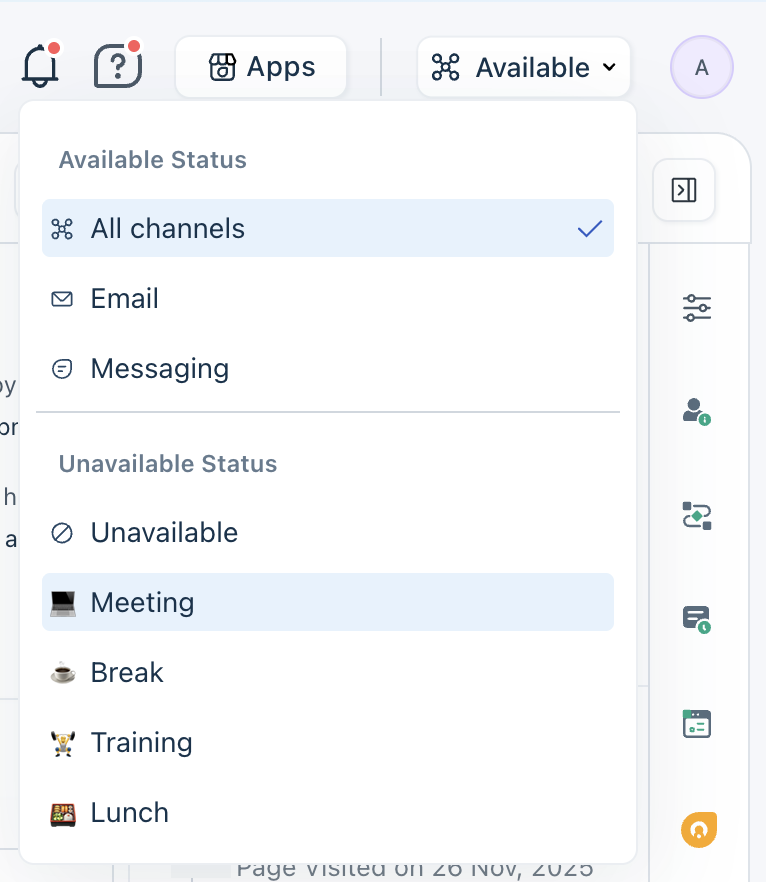
A few things to note:
- Supervisors and administrators can always update an agent’s availability, even when control is set to “Agent.”
- The Availability drop-down is visible only when agent-level control is enabled. This applies to all roles, including admins and supervisors.
- For groups with Manual Routing, agent availability is turned off by default. You can enable it to allow agents or supervisors to manage availability. This does not impact routing but can be useful for tracking how long agents remain in specific statuses.
To control agent availability:
- In the Agent load settings tab, choose the agent for whom you want to manage availability settings.
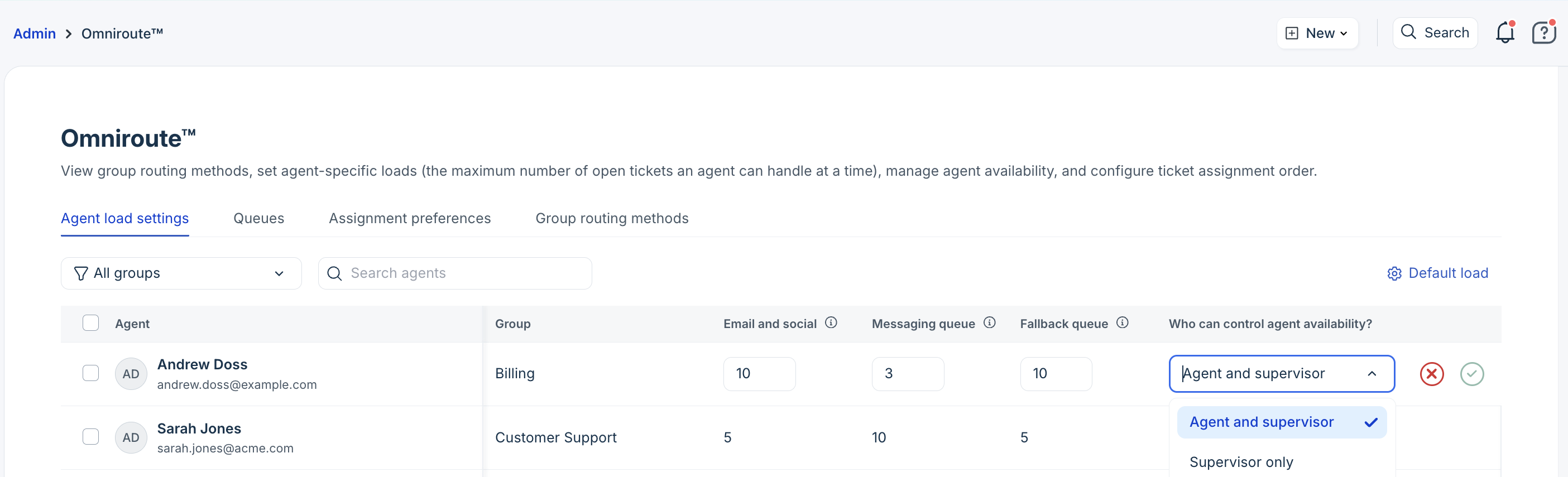
- Under the Who can control agent availability column, choose from:
- Agent and supervisor: Agents and supervisors control their own availability from the Availability drop-down menu visible next to their profile.
- Supervisor: Only supervisors or admins can change agent status from the Agent Availability dashboard.
For more information, see Configure agent status.
Configure channel-specific queues (available in Freshdesk Omni only)
Queues allow you to organize your tickets based on the ticket source, such as email, WhatsApp, portal, etc. With queues, you can set your team’s availability and assign agent ticket loads specific to these queues. For more information, see Configure Queues.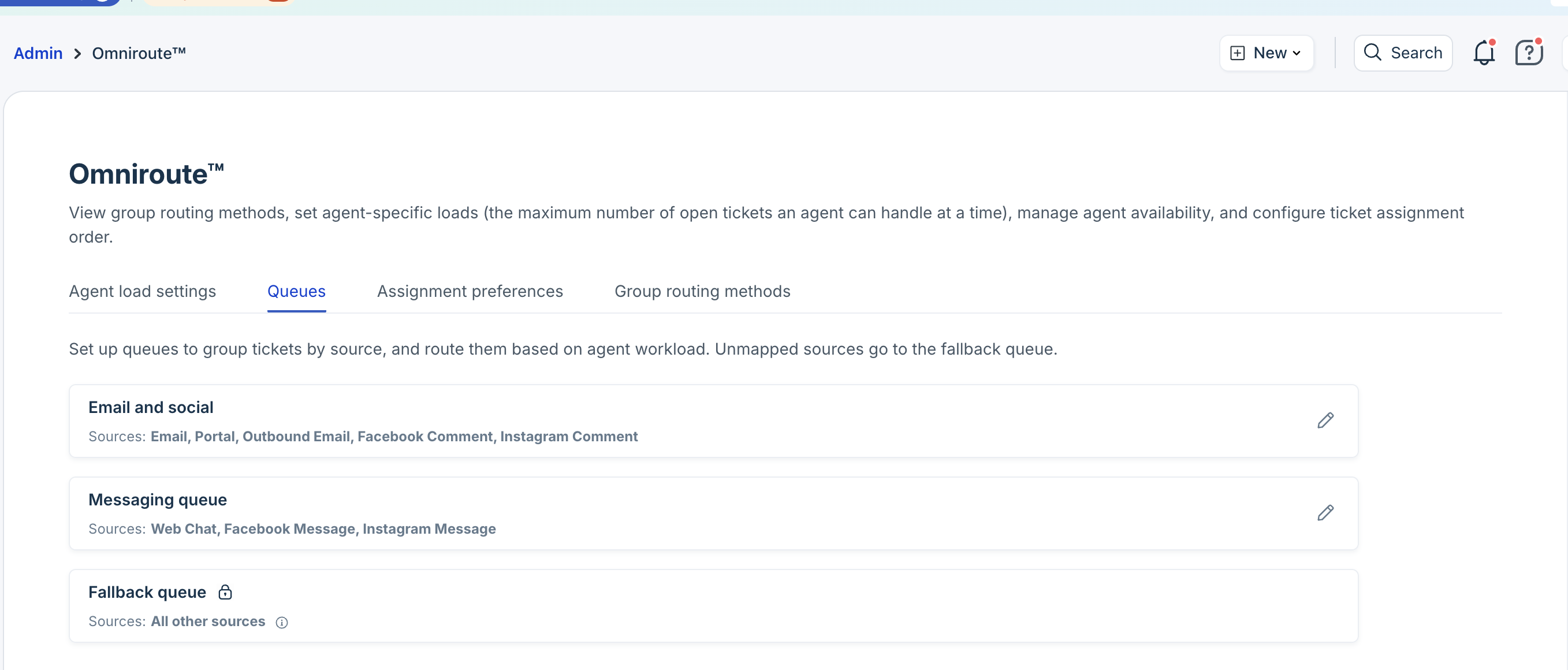
Choose assignment preferences
The Assignment Preferences tab lets you configure the rules for ticket assignment, so your team can handle tickets more efficiently. This tab includes the following options:
- Assignment order: Choose the preferred assignment order in which tickets should be assigned to your agents.
- Idle timeout (available in Freshdesk Omni only): Automatically change an agent’s status to Idle after a period of inactivity.
- Agent load behavior by status: Decide which ticket statuses should count towards an agent's workload.
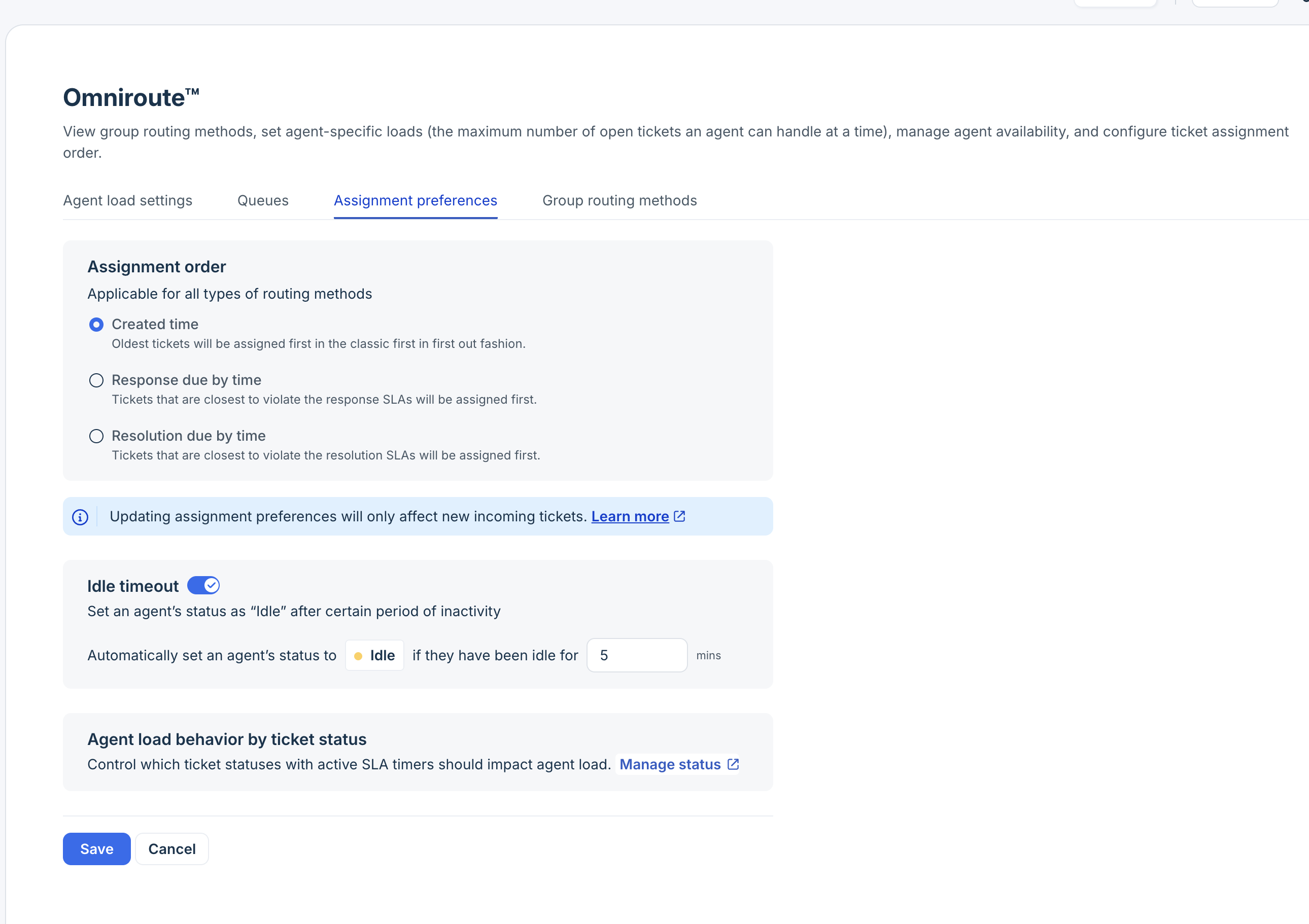
For more details, see Configure Assignment Preferences.
View Group routing methods
Use this tab to quickly scan the group information. You can get a quick overview of groups, their routing methods, and the number of agents within each group. You can also use the filter option to refine the list by Routing Type.
Applicable Plans:
| Freshdesk | Pro, Enterprise |
| Freshdesk Omni (formerly CSS) | |
| Omnichannel (classic) | Pro Omnichannel, Enterprise Omnichannel |
| Freshdesk (previous) | Estate, Forest |
| Omnichannel (classic-previous) | Estate Omnichannel, Forest Omnichannel |
NOTE: If you are an Omnichannel customer and using Omnichannel Groups & Business hours, you can add a threshold limit on tickets and calls. Use IntelliAssign in Freshchat to configure chats assignment.
Freshdesk offers different types of ticket assignment methods (round-robin, load-balanced, skill-based) that allow you to effectively manage ticket workflows by automatically routing tickets to different groups.
For example, you can choose load-balanced ticket assignments for a group and define the number of tickets an agent can handle at any given time.
With Omniroute™, you can configure additional settings for load-balanced and skill-based ticket assignments to balance the workload across multiple channels in one place.
This is useful when you want to support customers across multiple channels like Freshdesk, Freshchat, and Freshcaller, and effectively manage the workload in each platform.
The Omniroute settings allow you to:
- Assign load simultaneously for tickets and chats and enable phone calls
- Choose assignment preference for tickets
This article gives you details about:
Setting up Omniroute™
Log in as an admin
Go to Admin > Workflows > Omniroute™
Here you will find the following tabs:
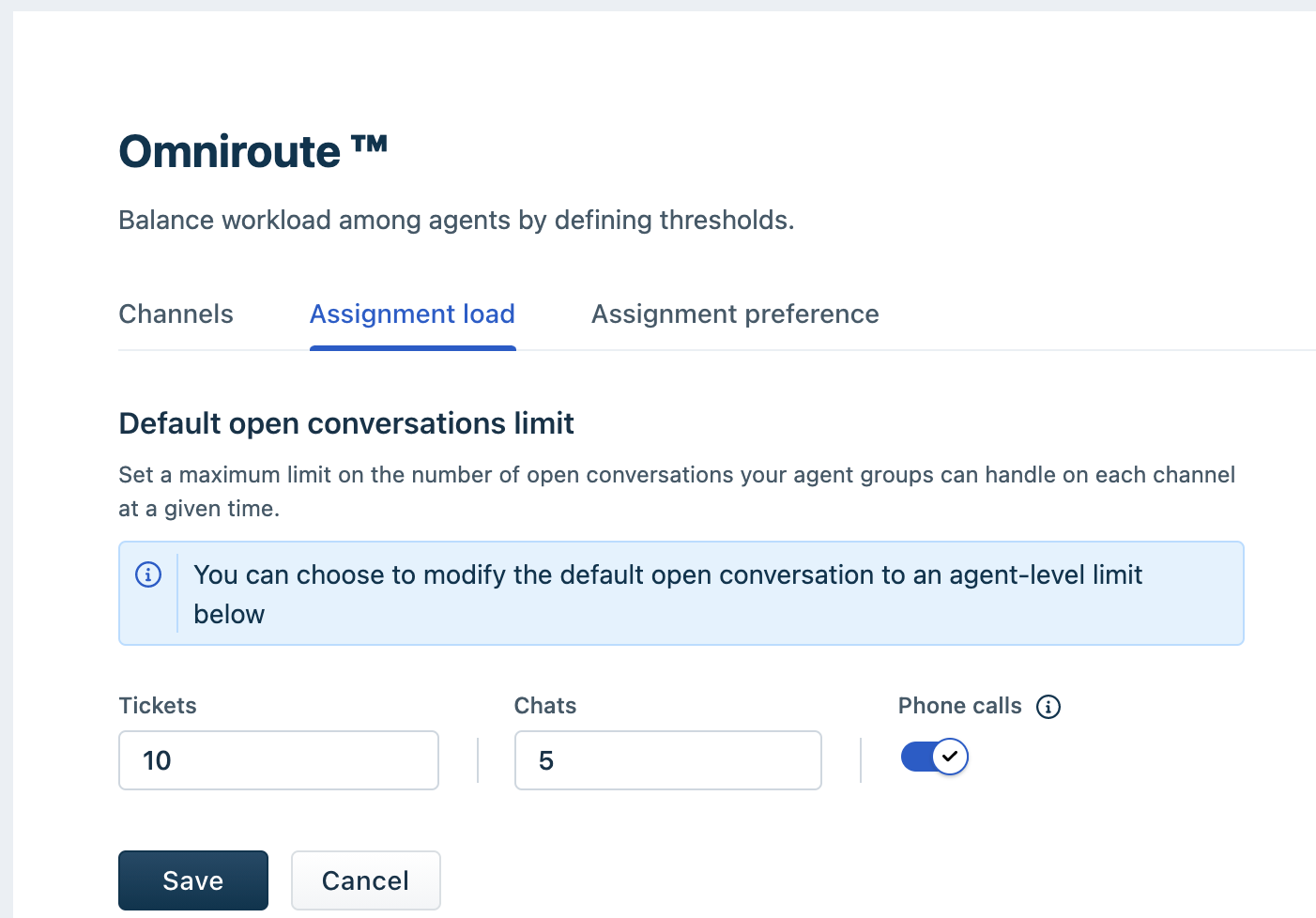
Assignment Load: Assign the ticket and chat load, and enable phone calls.
Assignment Preference: Select the preference for ticket assignments. Check out the steps below for more details.
Setting up assignment load
With this tab, you can choose to set the ticket and chat load and enable phone calls at a global level or at an agent level.
- Default open conversation limit: Enter the maximum number of tickets and chats each agent in your account can handle at a given time. Also, toggle the phone calls option to allow agents to receive calls.
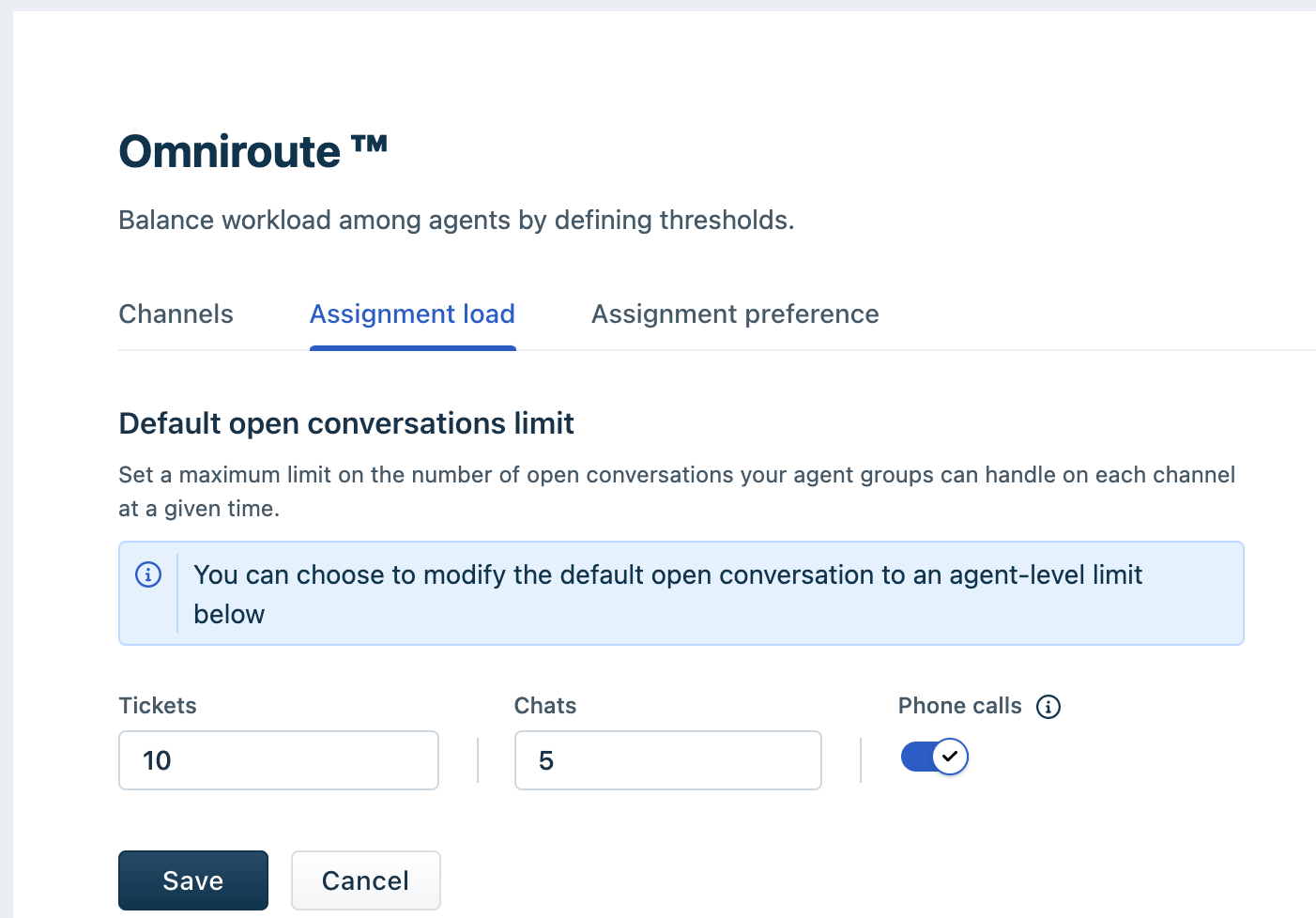
In the above example, every agent in your account will have 10 tickets and 5 chats assigned at a given time and can receive calls. Note: This is a global setting and will be applied to all agents in your account. - Agent-level open conversation limit: Enable this option to set the ticket and chat load at an agent level. Once enabled, you will see the list of all agents in your account. You can filter and view them by groups or search for a specific agent.

To enter the limit at an agent level:
- Click on the edit icon next to the agent name and enter the maximum number of tickets and chats that can be assigned to the agent at a given time.

- Toggle the Phone calls option to allow the agent to attend phone calls.
Finally, click on the green check mark to save the changes.
- Click on the edit icon next to the agent name and enter the maximum number of tickets and chats that can be assigned to the agent at a given time.
Note: If you are an Omnichannel customer using Omnichannel Groups & Business hours, you can only add a threshold limit on tickets and calls. However, you can use IntelliAssign in Freshchat to configure chat assignments. In this case, here's how your Omniroute page will look: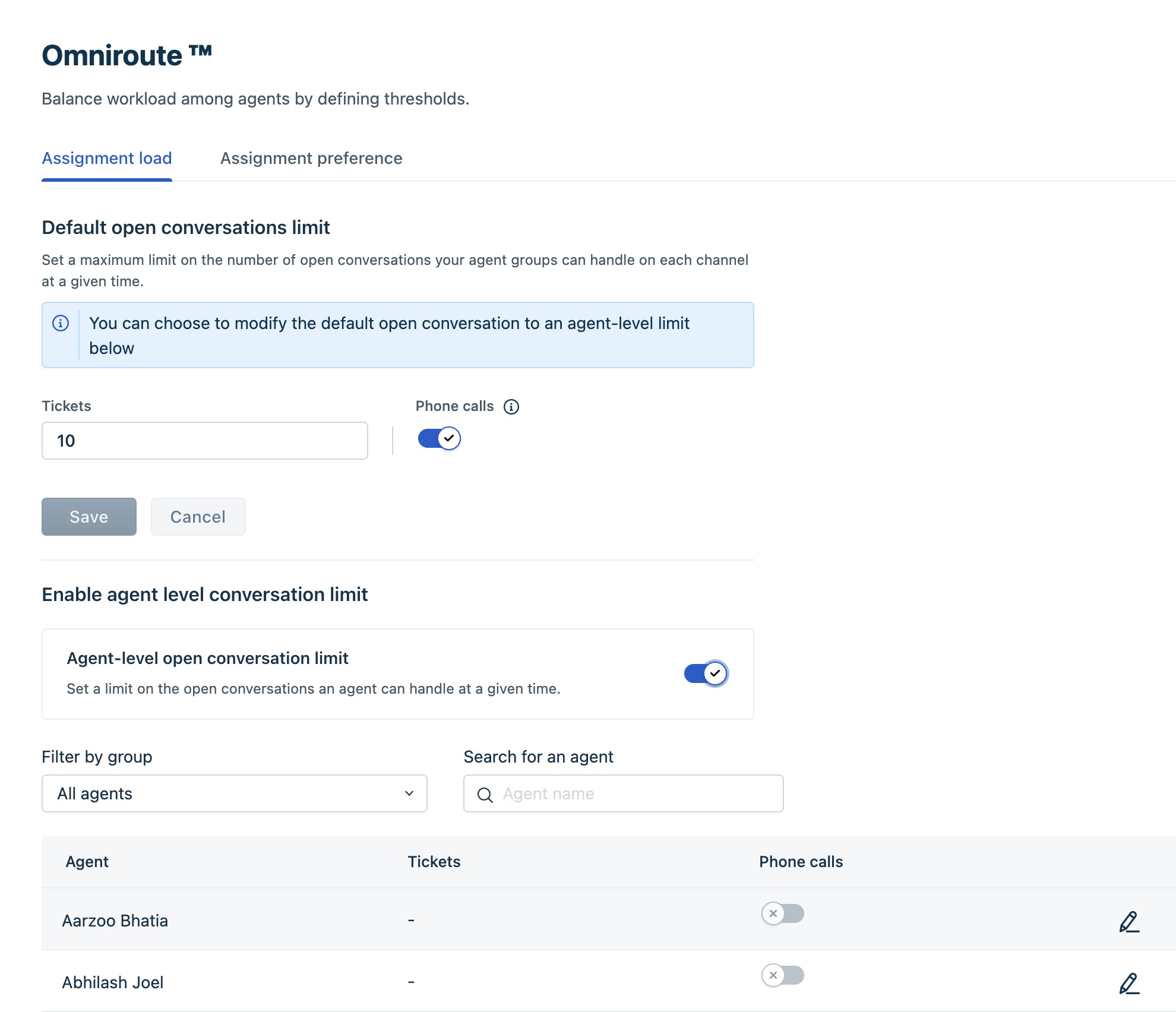
Configuring assignment preference
The Assignment preference tab determines the order in which tickets are assigned. 
- Ticket creation time: Choose this option to assign tickets based on their created time. This way, agents can respond/resolve older tickets first. Example: Let's assume there are 3 tickets (A, B, and C) in a queue, with ticket A created at 10:00 AM, B at 10:30 AM, and C at 11:00 AM. Based on the condition, Ticket A will be assigned first, B second, and C third.
- Response due by time: Choose this option to assign the tickets that are closest to violating the response SLA. This condition will consider the ticket's first or next response SLA and assign them first. For a new unassigned ticket, the first response due by time will be considered for ticket assignment, whereas for a ticket with a recent response from the customer, the next response due by time will be considered. Example: Let's say we have two tickets with the following created time and SLA times.
Ticket
Created Time Assignment status Response SLA Ticket A 9:00 AM Unassigned 4 hours Ticket B 10:00 AM Unassigned 1 hour Whenever an agent is available and has the capacity to handle more tickets, ticket B will be given higher priority over A and will be assigned to the agent as it is closer to violating the SLA.
Resolution due by time:
Choose this option to assign tickets closest to breaching the resolution SLAs. This condition identifies tickets closest to violating the resolution SLAs and will assign them first. It gives agents enough time to respond or resolve tickets before they breach the resolution due by time.
Note: While computing the current load of an agent, only tickets with SLA ON status will be considered.
Monitoring agent availability
The automatic ticket assignment works only when your agents are available to attend tickets. So an agent's availability is an important factor for automatic ticket assignment.
As a supervisor or admin, you can easily monitor an agent's availability across all channels on the Agent Availability dashboard and quickly enable or disable their availability directly from the dashboard.
To view the agent availability dashboard, click on the Live Dashboard icon from the left panel. Click on "View details" in the "available agents" widget.
The agent availability dashboard view varies based on the availability of Omniroute feature on your account.
Standalone Freshdesk without Omniroute: You will see your agent's availability with the timestamp of when the agent was last available.

Freshdesk with Omniroute: The timestamp is not available
 Omnichannel accounts, will have the following view:
For more details on the Omnichannel agent availability dashboard, check out this article.