
 Community
 Video Library
 Agent Training
 Freshservice
 Freshdesk
 Freshchat
 Freshcaller
 Freshsales
 Freshteam
 Freshworks Neo
 Freshsurvey
 Growth
 Pro
ProTABLE OF CONTENTS
Overview of Queues
Queues help you efficiently organize, route, and manage tickets across multiple support channels. With queues, you can define how tickets are distributed, manage agent workloads, and customize agent availability for each channel. This ensures that every ticket reaches the right agent at the right time, improving response times, reducing overload, and maintaining consistent SLA compliance.
With Queues, you can:
- Distribute tickets intelligently: Route incoming tickets to available agents based on their queue and workload.
- Customize agent workloads: Define different ticket limits for each queue so agents handle only the tickets they can manage per channel.
- Manage agent availability: Allow agents to set their status (Available, Busy, Idle, etc.) at the queue level.
- Improve performance across channels: Ensure fair and efficient handling of multichannel support requests.
User Requirements: Ensure that you have admin permissions to configure Omniroute Settings.
How do queues work with advanced automatic ticket routing?
When Advanced Automatic Routing is enabled, tickets are assigned only to available agents based on their defined capacity and active queues. Automatic routing ensures tickets are equally distributed while considering agent workload limits, availability, and SLA priorities.
Here’s how queues impact automatic ticket routing:
- Agent workload by queues
Each agent in your team has a defined ticket handling capacity, the maximum number of tickets they can manage within a given time frame. When queues are enabled, you can split this total capacity across different channels or ticket sources.
Automatic routing considers these queue-based limits and assigns tickets only until the agent’s capacity in that specific queue is reached. This ensures agents are not overloaded with tickets from one source while others remain unattended.
Example:
If an agent’s total ticket capacity per business day is 20 tickets, you can allocate:- 12 tickets to the Email Queue
- 8 tickets to the Messaging Queue
Once the agent reaches the limit in a queue (example 12 Email tickets), no additional Email tickets will be assigned. However, they can still receive Messaging tickets if capacity remains available.
Tip: You can add queue-specific agent loads from the Agent Load Settings tab in Omniroute.
- Agent availability based on queues
Agents often handle tickets from multiple channels, such as Email, Chat, or Social Messaging. However, not every agent needs to be available for every queue all the time. With queue-based availability, you can control when and where agents receive tickets, ensuring focused responses and efficient workload management.
Admins and supervisors can define agent availability at the queue level rather than globally. This helps teams manage multichannel operations better.
Example:
A support agent, Jane, works on both Email and WhatsApp tickets. During the day shift, Jane is available for Email tickets, while in the evening shift, she switches her availability for Messaging (WhatsApp) tickets.
This ensures that:- Jane receives tickets only from the queues she’s available
- Other agents in the Messaging Queue continue handling chat tickets during her unavailable hours
Tip: You can manage queue-level availability from the Agent Availability Dashboard or agents can use the Availability drop-down.
Configure Queues
The default queues include:
- Email Queue: Manage traditional support tickets submitted via email or the customer portal.
- Messaging Queue: Handle real-time conversational tickets from social or chat channels.
- Fallback Queue: Capture tickets from sources not assigned to any other queue.
Note: You cannot create new queues, but you can edit the existing ones and remap ticket sources.
To configure the default queues:
- Log in to your account as an admin.
- Go to Admin > Omnirotute.
- Click on the Queues tab. Here you can see the default queues.
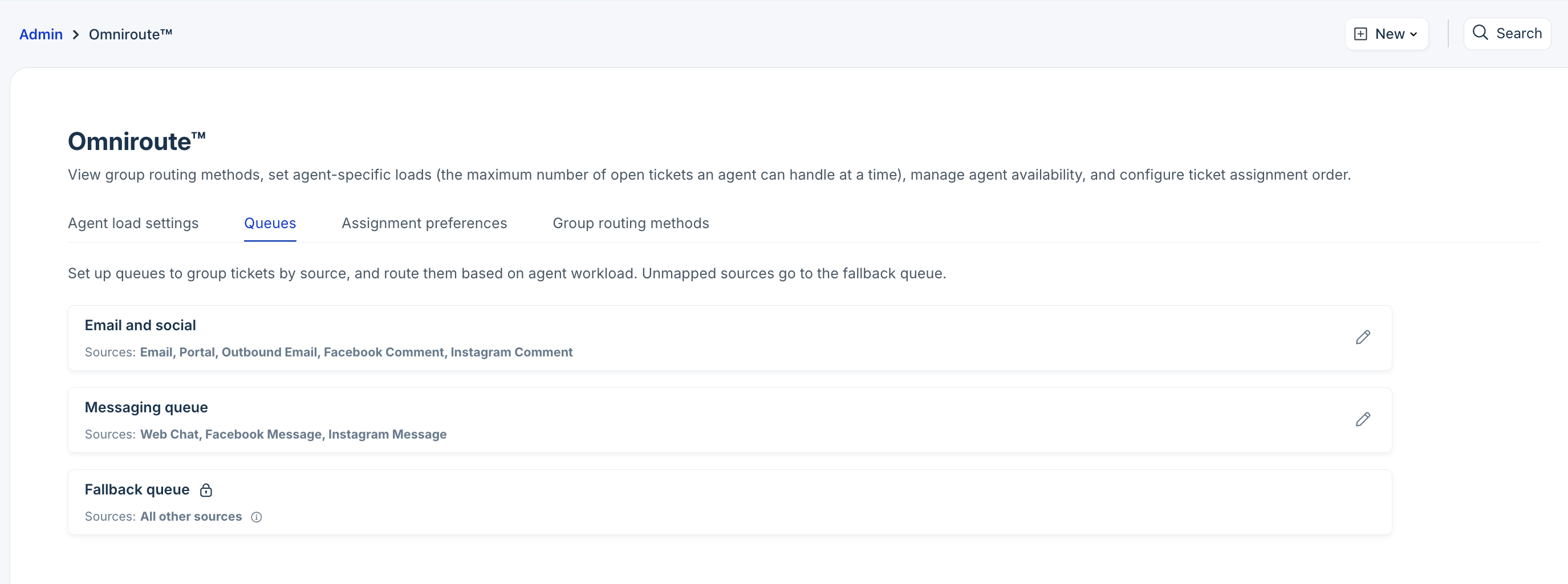
- Click on the edit icon.
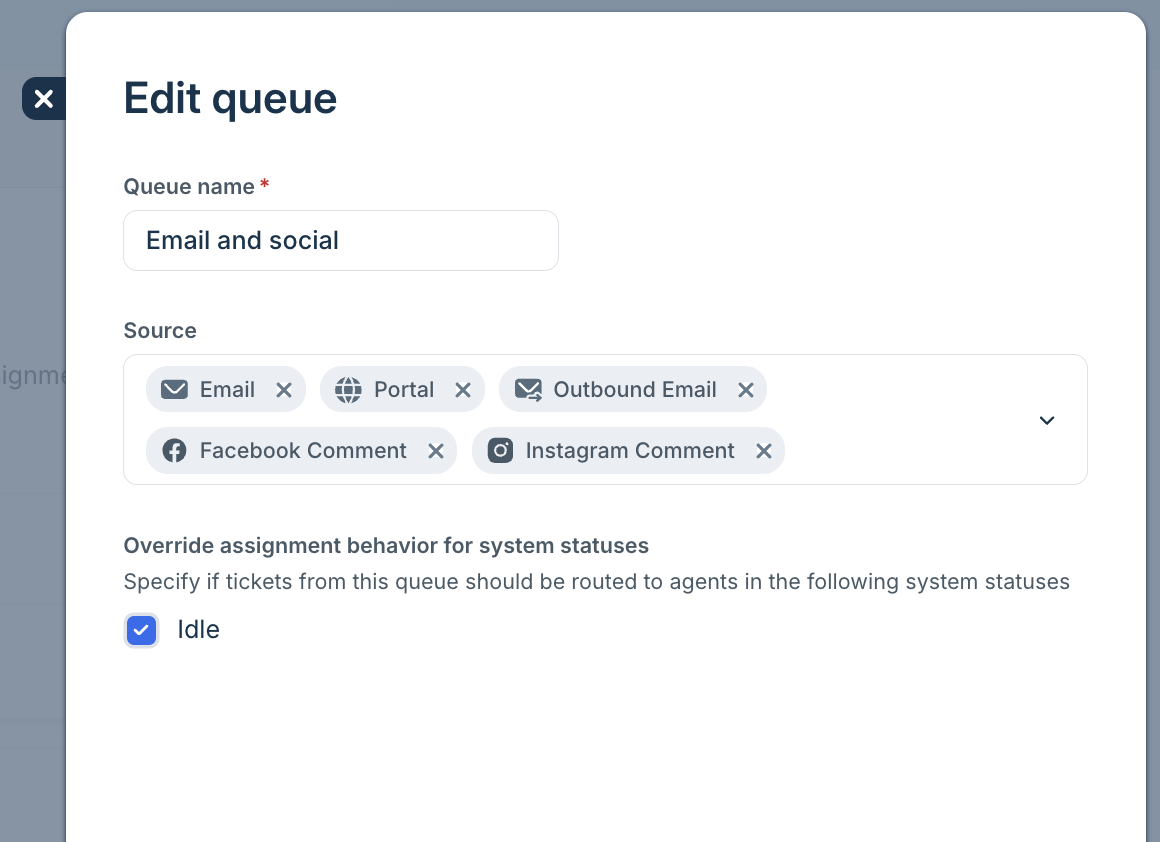
- Update the queue name if required.
- Select or modify the ticket sources you want to map to this queue. For example, add Web Chat as a source to the Email and social queue.
- Choose whether to override assignment behavior for agents who are Idle or On Call.
Note: Enable this if you want agents to continue receiving tickets even when they are in Idle or On call status. - Click Save.
Example Configuration Scenarios
A few examples of how you can utilize a queue for equal ticket distribution:
| Scenario | Configuration | Result |
|---|---|---|
Separate chat and email workloads | Assign Web Chat to the Messaging Queue and limit ticket capacity per agent | Ensures Chat agents are not overloaded with email tickets |
Dedicated after-hours messaging team | Set Messaging Queue availability for agents working in different time zones | Only agents specific to this queue receive tickets from chat or social channels after hours |
Prioritize email tickets | Adjust Email Queue capacity to allow more tickets | Agents spend more time resolving email tickets first |