Community
 Video Library
 Agent Training
 Freshservice
 Freshdesk
 Freshchat
 Freshcaller
 Freshsales
 Freshteam
 Freshworks Neo
 Freshsurvey
Applicable Plan
| Freshdesk | Pro, Enterprise |
| Freshdesk Omni | Pro, Enterprise |
About agent status
Agent status in Freshdesk helps you manage your team’s availability and workload. With statuses, you can:
- Monitor your agents and check if they are online, offline, or occupied with other activities
- Create custom statuses that reflect the real-world scenarios of your support team
- Control whether agents can manage their own status or whether this should be restricted to admins.
Why is agent status important?
Agent status plays a crucial role in:
- Ticket assignment: If Advanced Automatic Routing is enabled, tickets will be assigned only to Available agents.
- Operational visibility: Admins can see which agents are online, away, or busy, helping in workload planning.
- Fair distribution: Custom statuses and channel-specific queues ensure tickets don’t pile up with unavailable agents.
Understanding agent status names and types
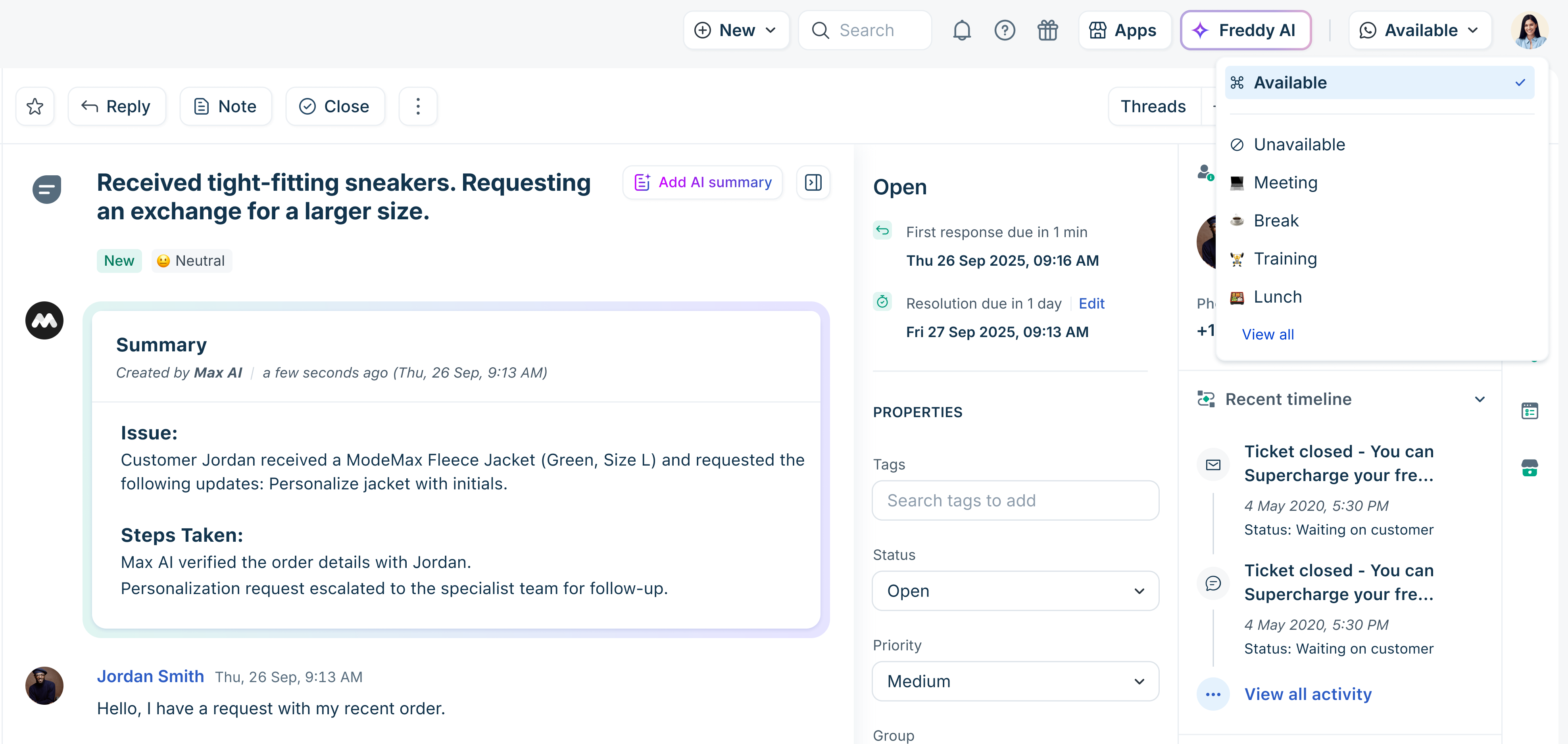
By default, admins can view and modify agent availability through the Agent Availability dashboard. Additionally, you can allow agents to set their availability using the Availability drop-down menu.
Each status has two parts:
- Status name: A label describing what the agent is doing. For example, Lunch, Meeting.
- Status type: Indicates whether they are available to receive tickets. For example, available, busy.
The default status types are:
- Available: Agent is online and ready to receive tickets.
- Unavailable: Agent is offline and cannot receive tickets. Unavailable statuses are further grouped into:
- Busy: The agent is occupied with work-related activities. For example, Meeting, Training.
- Away: The agent is not at their desk or unavailable due to personal reasons.
Advanced agent status options (available in Freshdesk Omni only)
Some status features are available on the Freshdesk Omni plan or specific integrations (like Freshcaller). These advanced options provide more granular control over where and when agents can take tickets, particularly in multichannel support environments.
The key advanced options include:
- Queue-specific availability statuses
- Idle status
- On call status
Queue-specific availability statuses
You can configure agent availability at a queue or channel level. This means agents can be marked available for certain ticket queues but unavailable for others.
What are queues?
Queues allow you to categorize incoming tickets by their channel or ticket source and are primarily used for automatic ticket routing. The default queues include:
- Email Queue: Tickets from email and portal.
- Messaging Queue: Tickets from channels like WhatsApp or Facebook.
- Fallback Queue: Any tickets that don’t fit into the other queues.
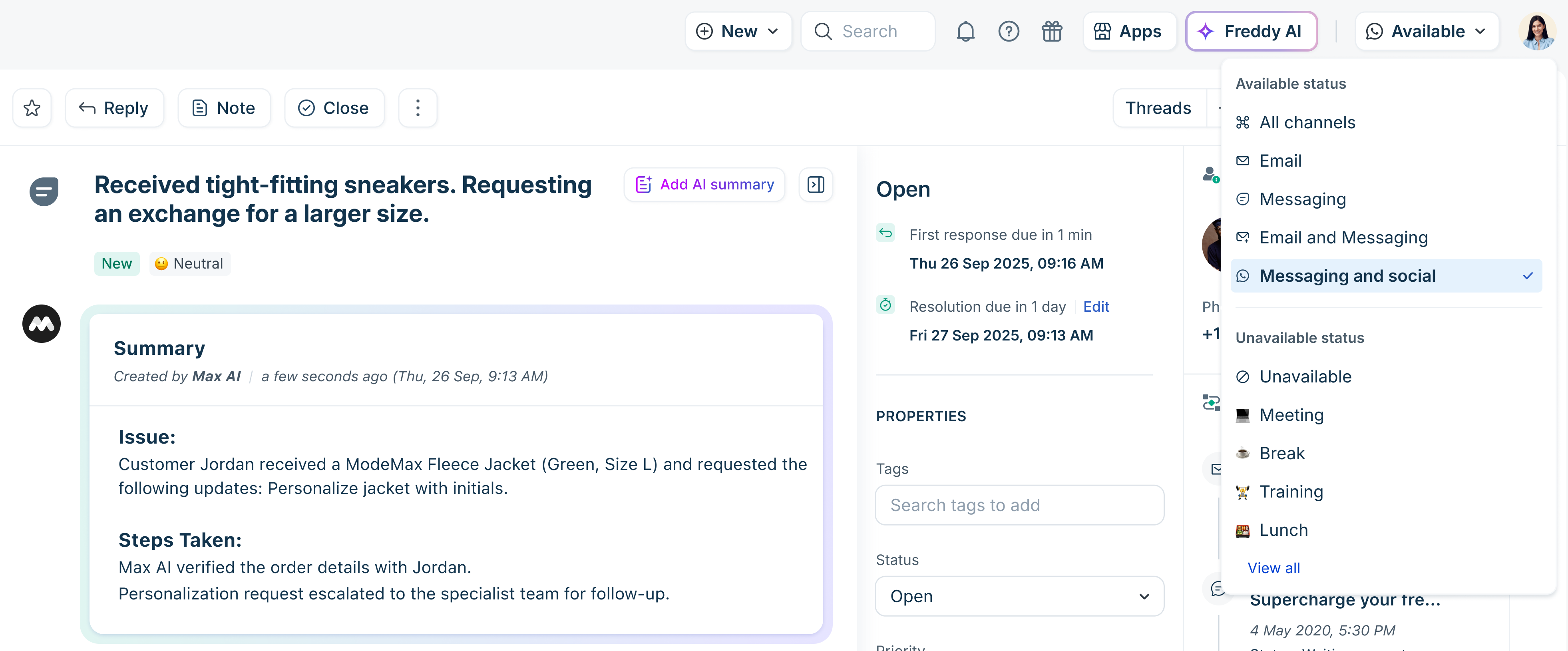
How does queue-specific availability status work?
You can define availability at a queue level. This offers more granular control over where and when agents can receive tickets, especially in multichannel scenarios.
For example, Available -> Email Queue, indicates the agent receives tickets only from Email and Portal sources. For more details, refer to Queues.
Idle status
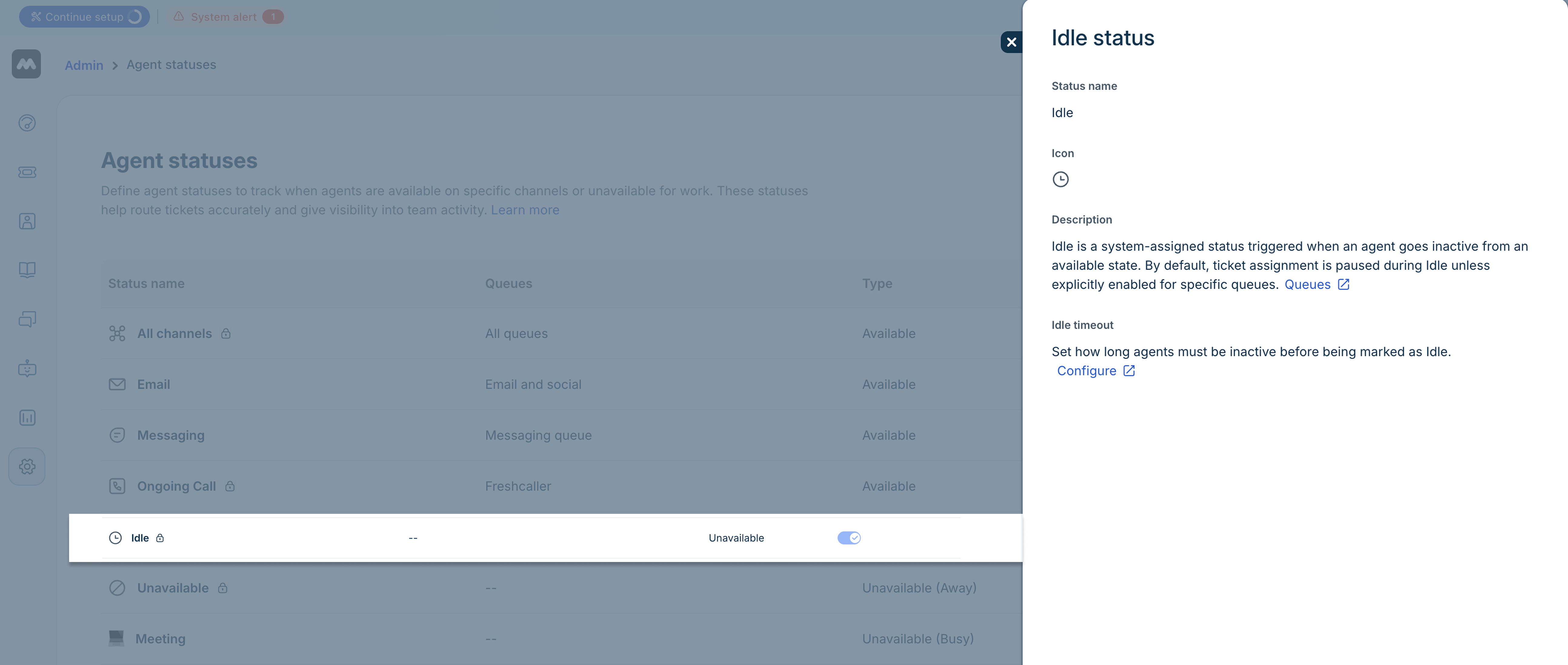
The Idle status is triggered automatically when an agent remains inactive for a predefined period. As an admin, you can set this inactivity period (idle timeout) in Assignment Preferences. Once the threshold is reached, the agent’s status automatically changes to Idle.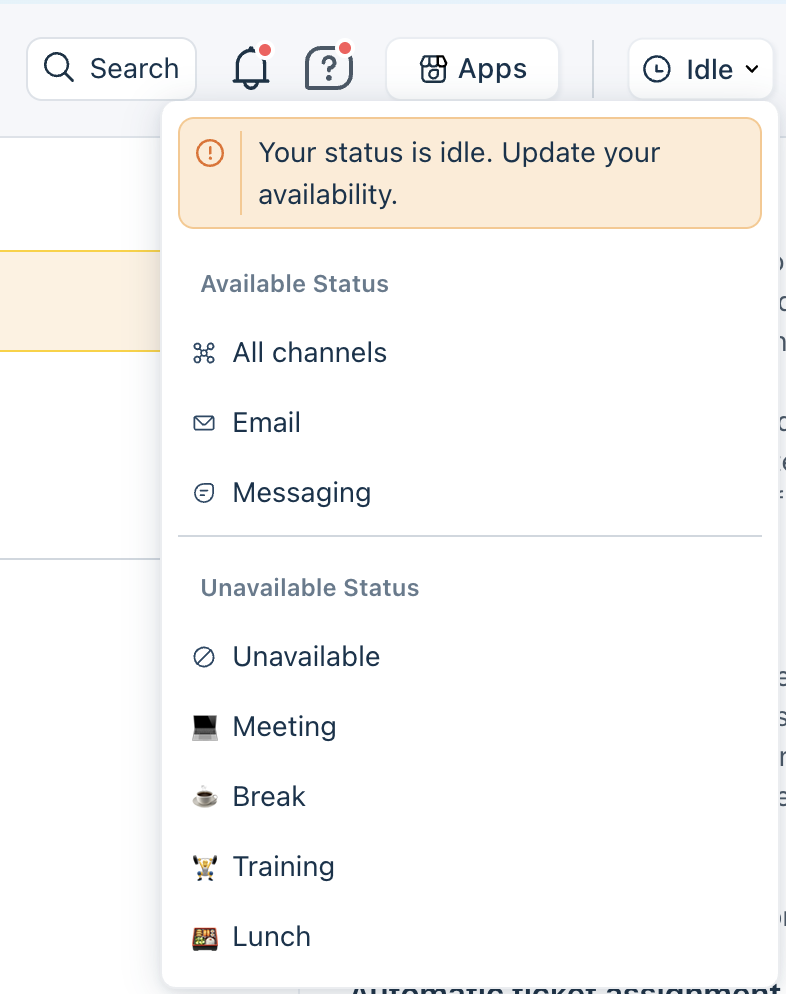
By default, agents in Idle status do not receive new tickets. However, you can control how tickets are handled when Idle status is applied with the following options.
- Override assignment behavior for system statuses in Queue Configuration
Use this option if you want agents to continue receiving new tickets even when they are Idle. For more details, see Configure Queues. - Reassignment Preferences in Advanced Group Properties
Use this option to reassign tickets from agents in Idle status. For details, see Organize Agents in Groups.
Note: The idle status behavior is available only on Freshdesk Omni.
To view the idle status:
- Log in to your account as an admin and go to Admin > Teams > Agent Status.
- Click on the eye icon next to the Idle status. You can do the following:
- Override assignment behavior: Navigate to the Queue page to override the idle status behaviour and resume automatic ticket assignment.
- Idle timeout: Click Configure to navigate to the Assignment Preference page to configure the idle timeout duration.
On-call status (Freshcaller integration)
If you have a Freshcaller integration, agents may appear in On call status while handling live calls.
- By default, On-call agents do not receive tickets.
- You can override this behavior in Queue settings.
Here’s a summary of all the agent status names and the availability (status type):
Status name | Description | Status (availability) type | Availability |
Available | Indicates the agent is online and available. | Available | Default |
Unavailable | Indicates the agent is offline | Unavailable | Default |
Lunch | Indicates the agent is unavailable for personal work. | Unavailable (Away) | - |
Meeting | Indicates the agent is unavailable for work-related tasks. | Unavailable (Busy) | - |
Break | Indicates the agent is unavailable for a short break. | Unavailable (Away) | - |
Training | Indicates the agent is unavailable for work-related training. | Unavailable (Busy) | - |
All channels* | Indicates the agent is available in all queues (channels). | Available | Freshdesk Omni |
Email* | Indicates the agent is available only in the Email queue | Available | Freshdesk Omni |
Messaging* | Indicates the agent is available only in the Messaging queue | Available | Freshdesk Omni |
Idle* | Indicates the agent is inactive. | - | Freshdesk Omni |
On call | Indicates the agent is answering calls and unavailable to receive tickets Note: This applies only when you have the Freshcaller add-on and your agents attend calls. | Freshcaller |
*Agent statuses exclusive to Freshdesk Omni
View agent status
To view and manage the default agent statuses:
- Log in to your account and go to Admin > Teams > Agent Status. You can view all the default and advanced (Freshdesk Omni-specific) statuses.
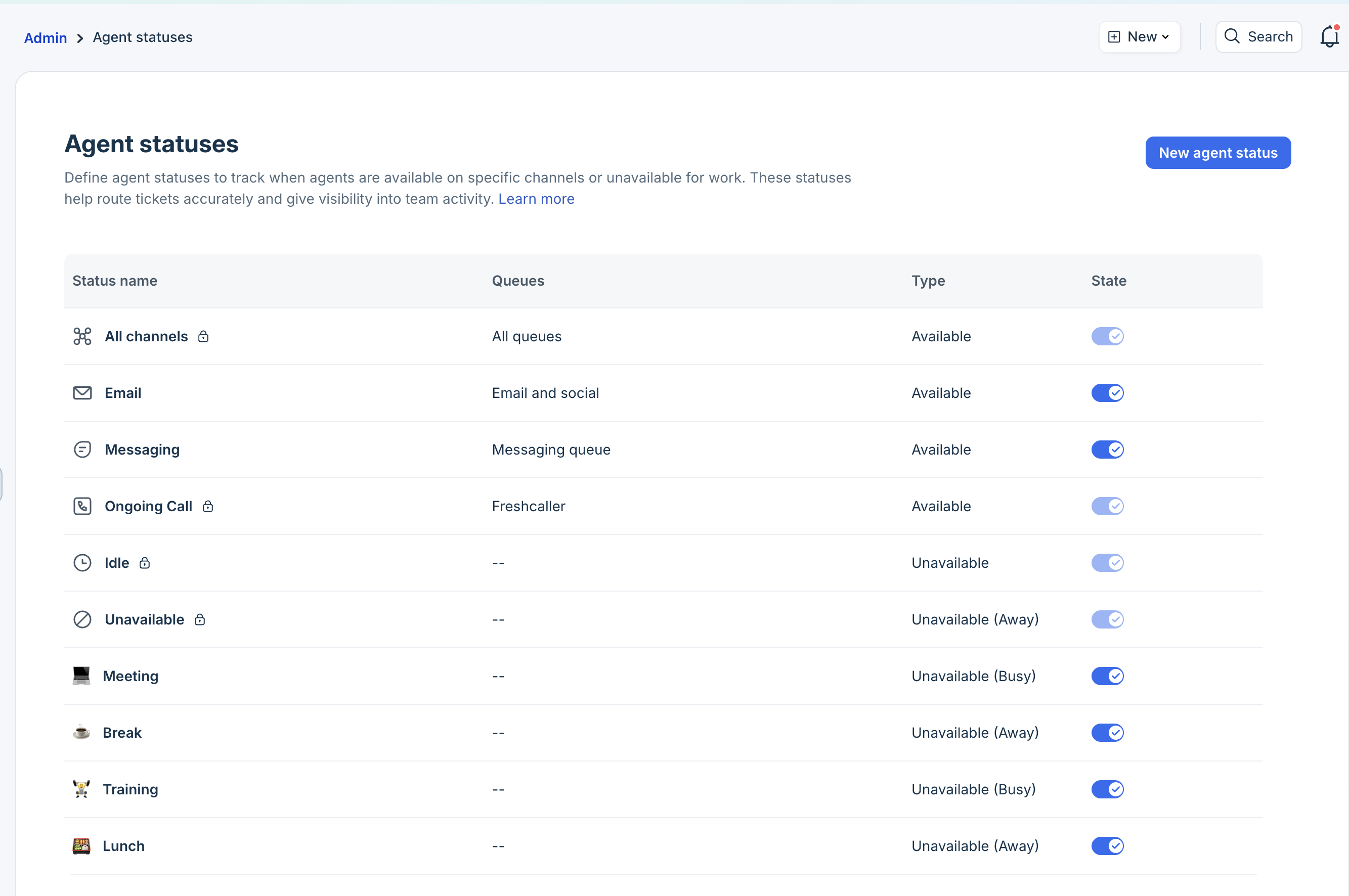
- Click on the toggle option to enable or disable any status. When disabled, the status will not appear on the Agent Availability dashboard or in the Availability drop-down menu.
Add custom agent status
In addition to the default agent statuses, you can create custom statuses, map required queues (ticketing sources), and let your agents use this status.
For example, you can create a custom status called “Email Escalation Review” (Unavailable) to allocate dedicated time for agents to review escalated email tickets before responding to customers.
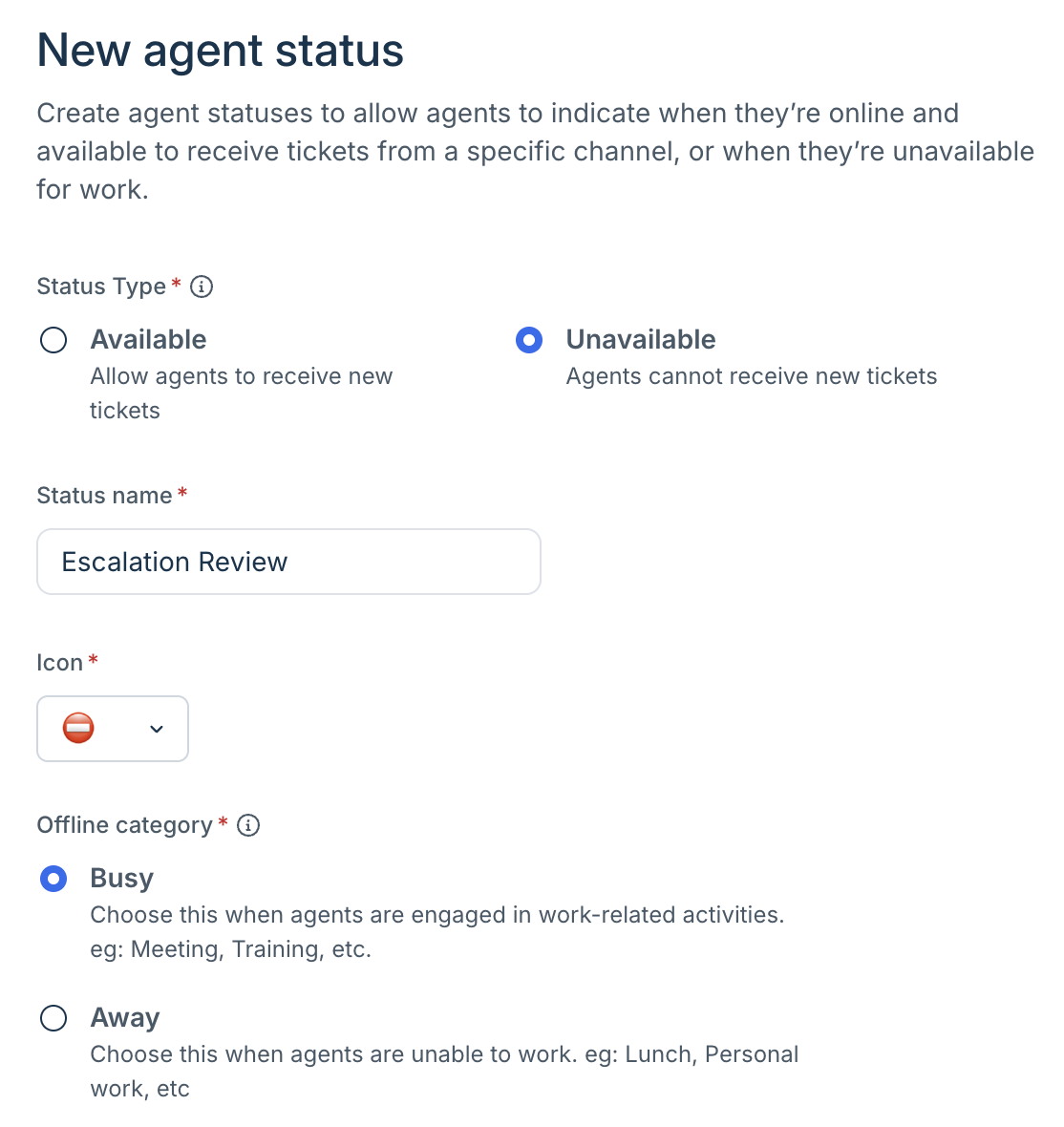
To add a custom agent status:
- Log in to your account and go to Admin > Teams > Agent Status.
- Click New agent status.
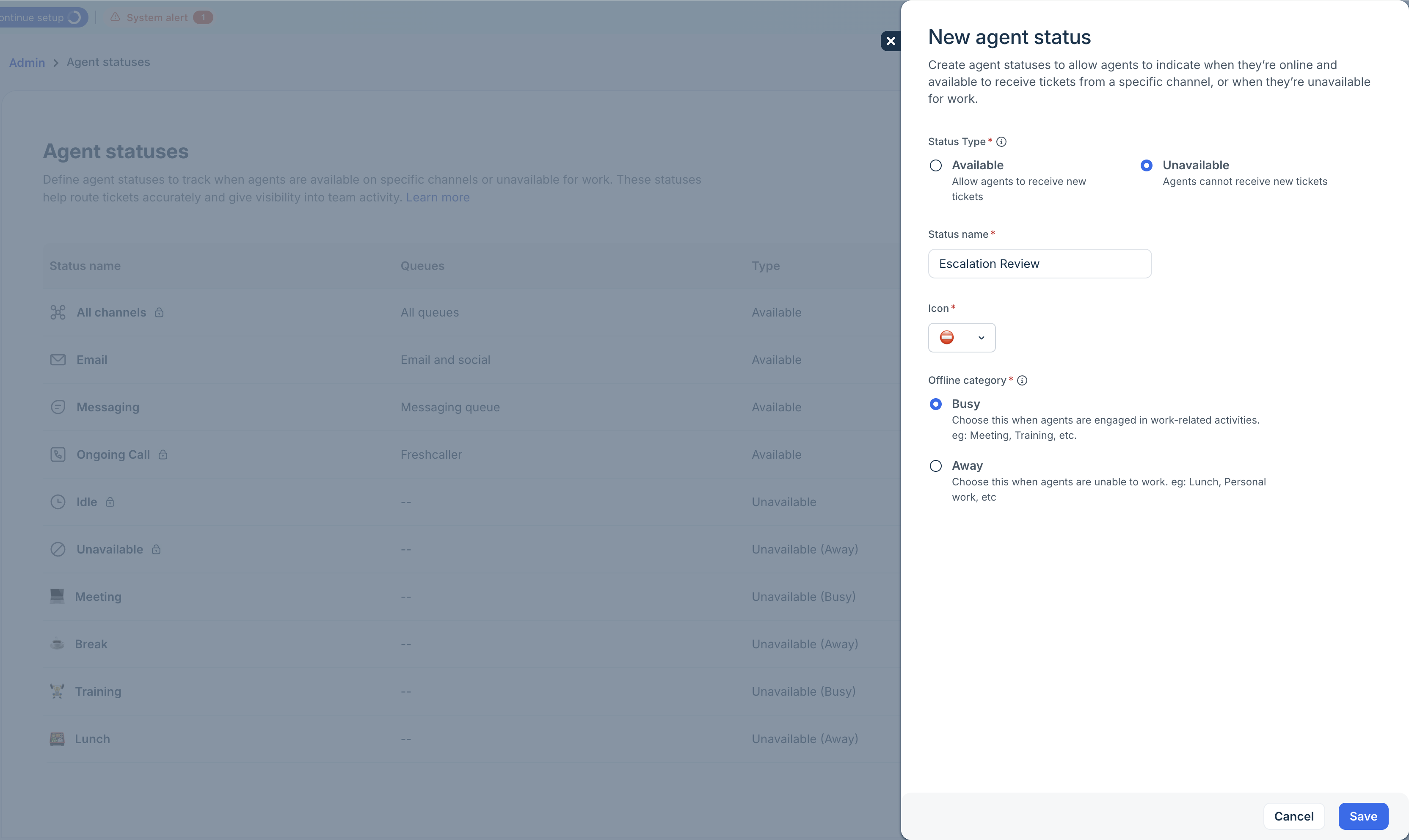
- Select the status type:
- Available: Agents can receive tickets.
- Unavailable: Agents cannot receive tickets.
- Enter the status name.
- Choose a matching icon to represent the status.
- Based on the status type, provide additional details:
- Available: Associate the status with one more queue.
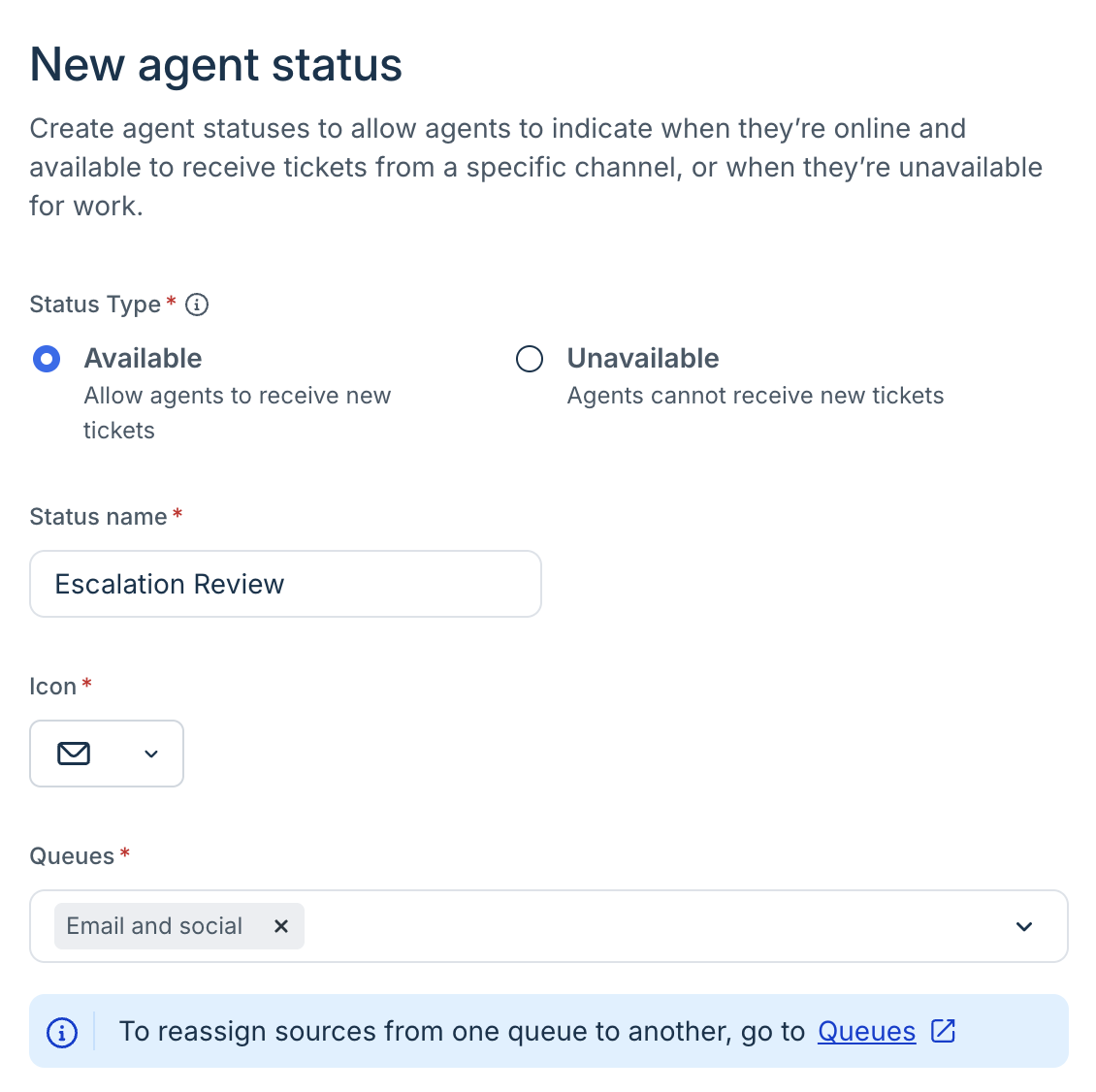
- Unavailable: Select the offline category. The options are Away and Busy.
- Available: Associate the status with one more queue.
- Click Save.
Allow agents to set availability
By default, only admins can view and change agent availability from the Agent Availability. However, you can also allow agents to control their status in Omniroute Settings and let them decide when they want to be assigned tickets.
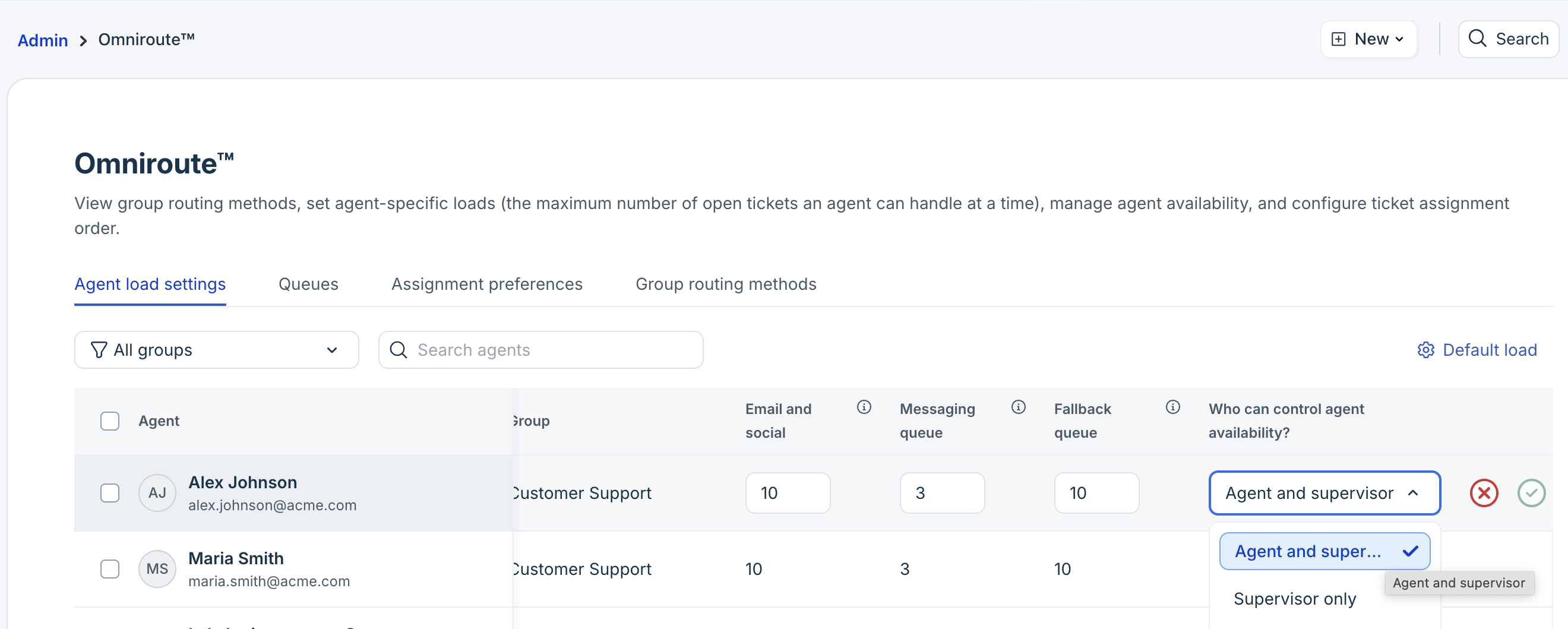
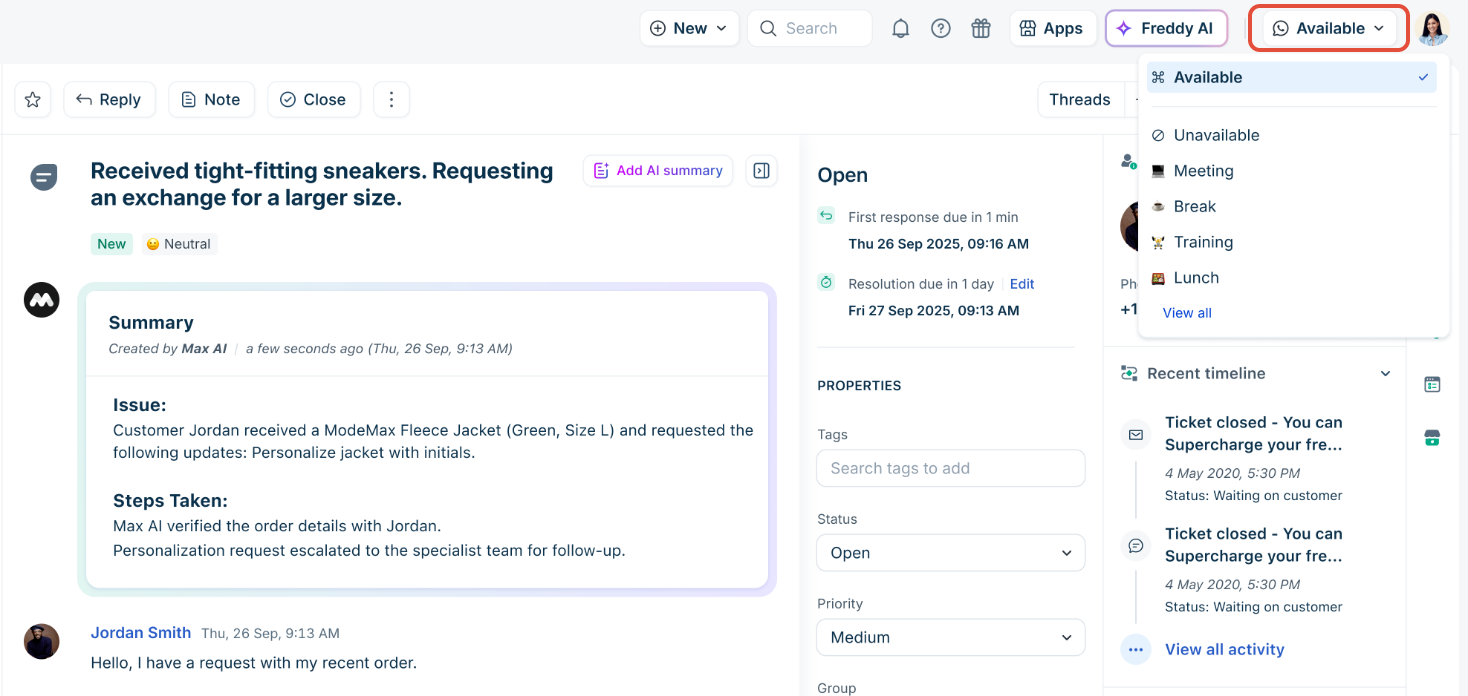
When you provide access to agents, the availability drop-down menu will appear next to each agent’s profile. Agents can select their status to reflect their current work or personal situation.
Monitor agent availability
Once you’ve set up agent statuses, the next step is to monitor how your team uses them. As an admin or supervisor, you can easily track availability in real time and analyze trends over
time.
Agent Availability Dashboard
Gives you a real-time snapshot of your team’s current availability. With this view, you can:
- Quickly see who is available or unavailable at any moment.
- Manually change an agent’s status if ticket routing needs to be adjusted.
- Balance workloads by moving agents across statuses or queues during busy periods.
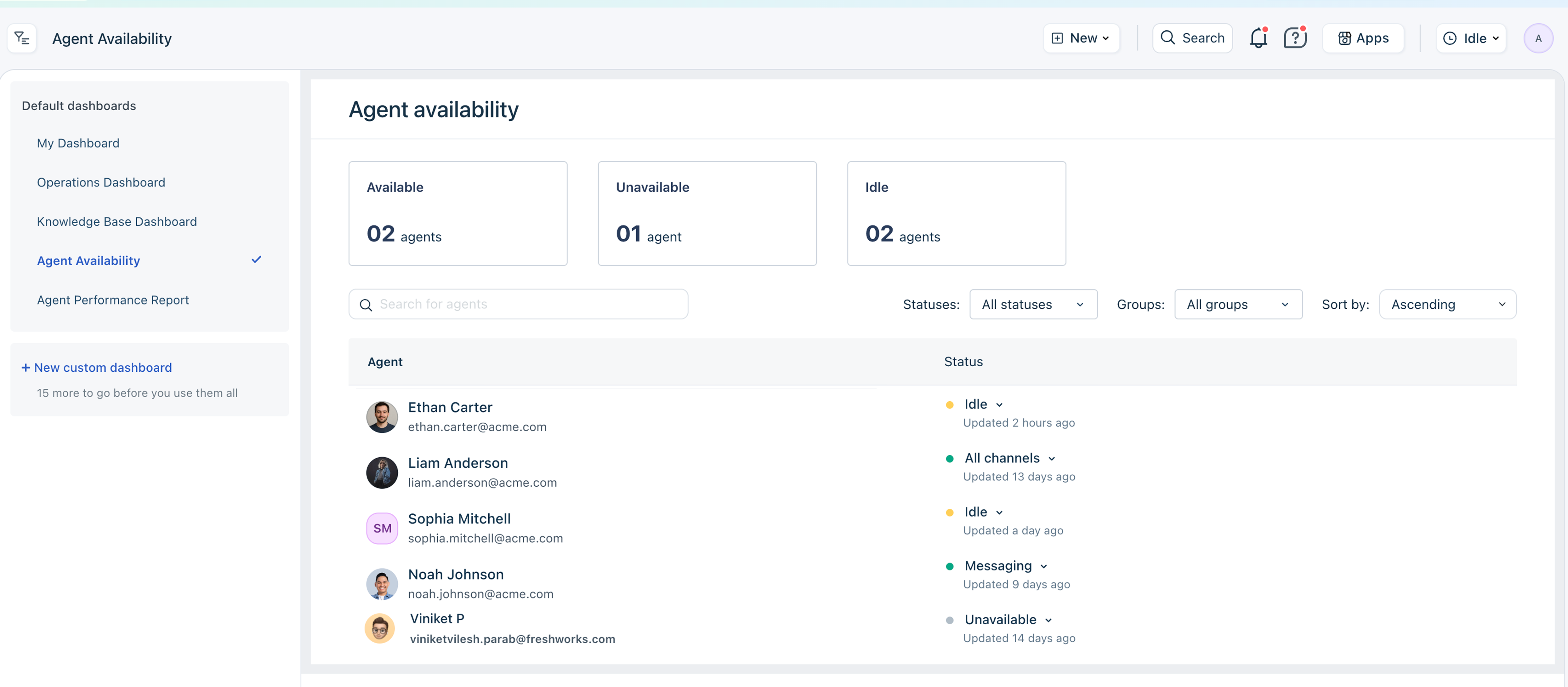
For more information, see Agent Availability Dashboard.
Agent Performance Report
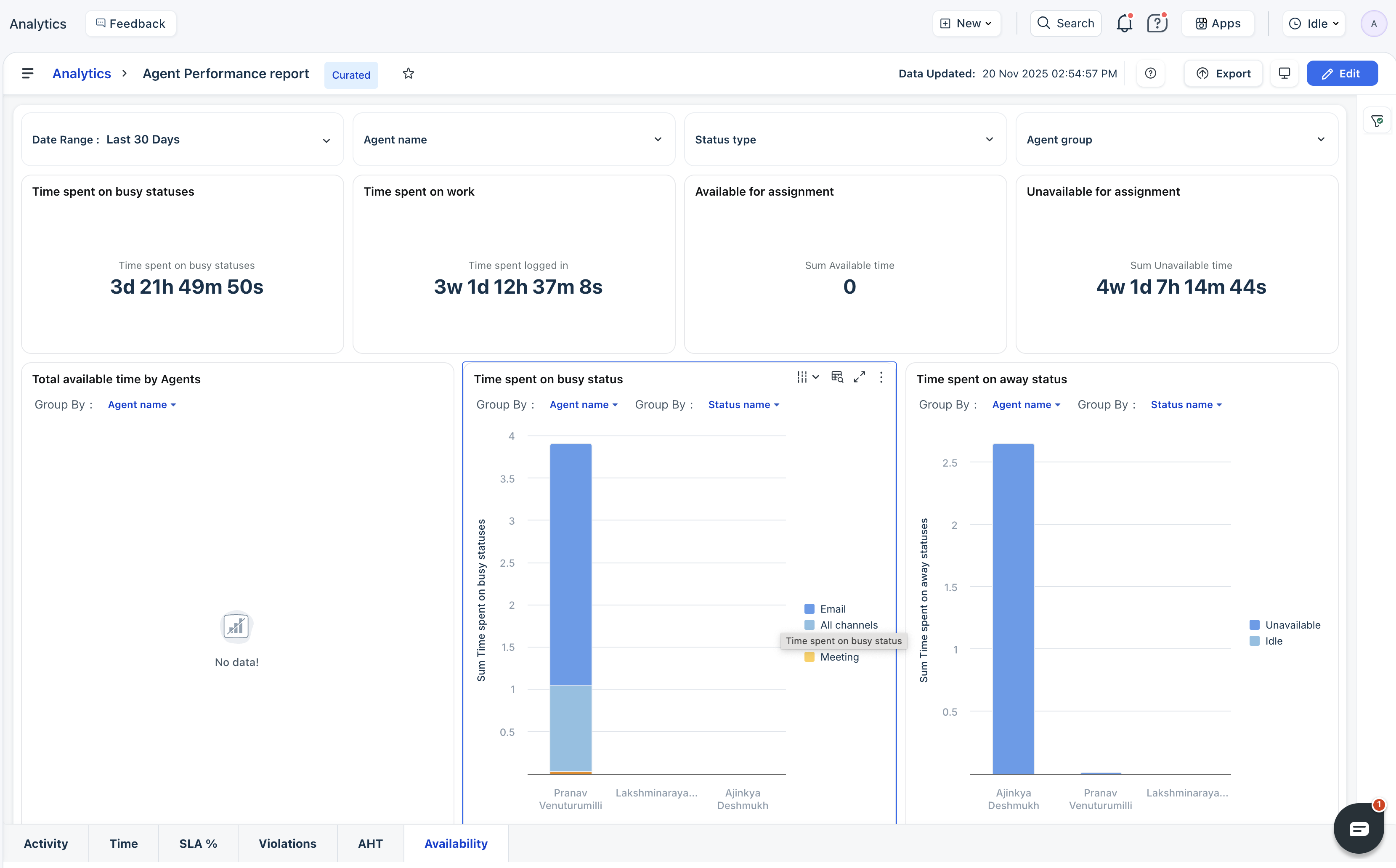
The Availability tab in this report provides historical insights into how agents spend their time, offering various metrics such as Time spent on work, unavailable time, Time spent on specific statuses, and more.
Learn More
Applicable Plans
| Freshdesk | Pro, Enterprise |
| Freshdesk Omni (formerly CSS) | Pro, Enterprise |
| Omnichannel (classic) | Pro Omnichannel, Enterprise Omnichannel |
| Freshdesk (previous) | Estate, Forest |
| Omnichannel (classic-previous) | Estate Omnichannel, Forest Omnichannel |
With Custom agent status, admins/supervisors can get complete visibility into how agents spend their time when they're unavailable to assist customers. Only an agent who is 'Available' will be assigned issues.
There are two default statuses available within your Freshdesk account - Available and Unavailable. In addition to these default statuses, you will be able to add custom statuses that agents can choose when they're not available to take new tickets.
Note:
- Only admins and account admins can set up and enable new custom statuses
- You will not be able to rename a custom agent status once created and saved
To add a new custom status:
Log in as an admin and go to Admin > Team > Agent Statuses
Here you can see the list of default and custom statuses available.
Click on New Agent Status.
Enter the status name and select a matching emoji.
Click Add agent status.

The new custom status added will now be visible to all agents.
Types of custom statuses:
When you create a custom agent status, you can mark it as either 'Away' or 'Busy' to denote if the agent is engaged in work-related tasks or away from their desktop. For instance, an agent might be assisting a customer over Zoom while they're unavailable to handle new issues.
- Away - The agent is logged in but unavailable to address issues due to non-work-related activities. Eg: Lunch, Coffee break, etc.
- Busy - The agent is logged in but unavailable to address customer issues due to work-related tasks. Eg: Meeting, Workshop, etc.
Setting your availability status as an agent:
As an agent, you can see a small computer icon in the top right corner when you log into your account. You will be able to view all default and custom agents by clicking on them and can choose a relevant status based on the activity that you're doing.

Who can access/change agent availability statuses?
Only those agents that are part of a group with 'Admin' or 'Account Admin' access can create new agent statuses. Learn more about groups here.
Agent Availability Report
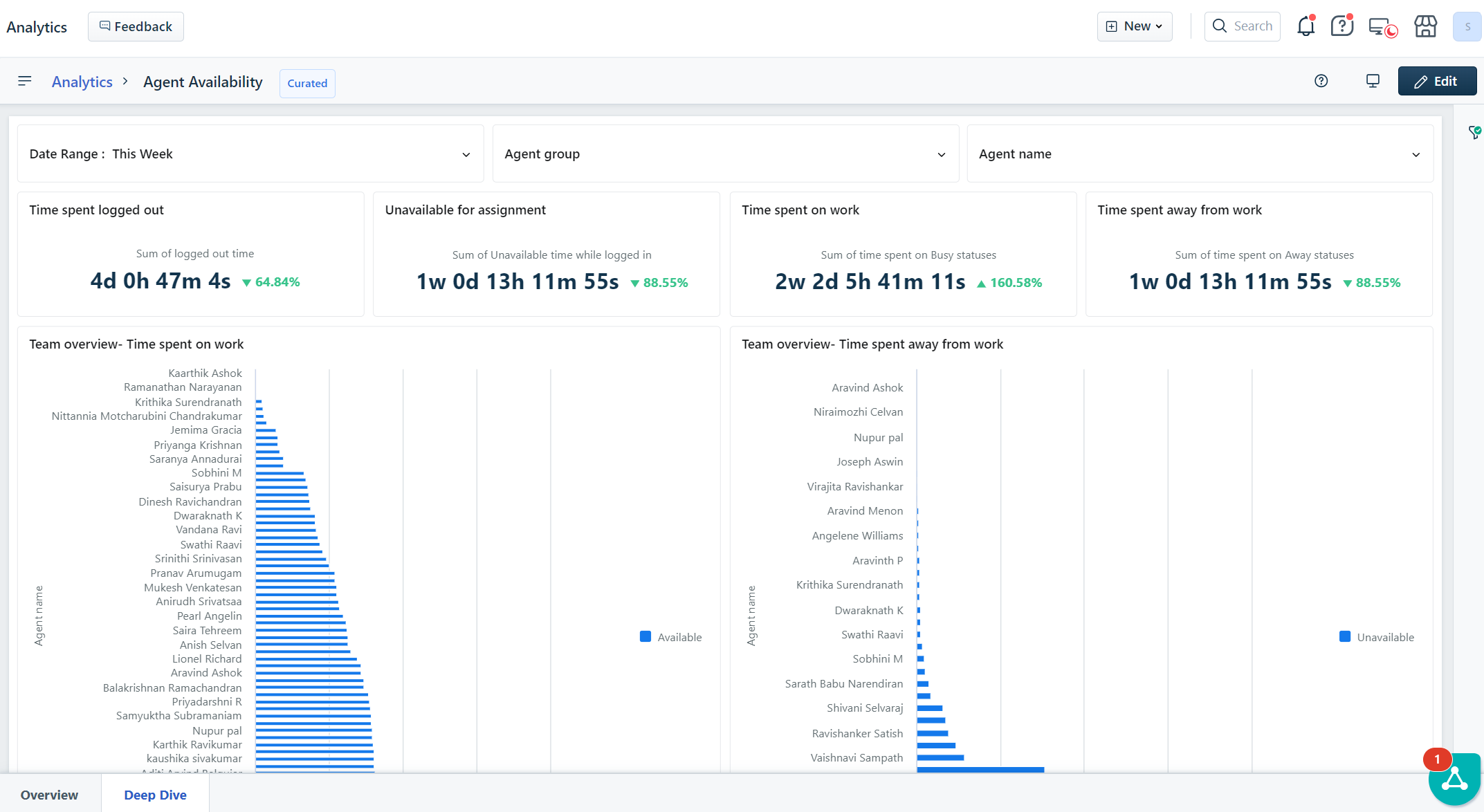
The curated report gives you an overall view of agent availability. There are two tabs in the report:
1. The Overview tab gives you overall information like the time spent logged in, available time, agent availability, and more. You can also filter by date range, agent groups, and individual agents to view specific data on each of these metrics. 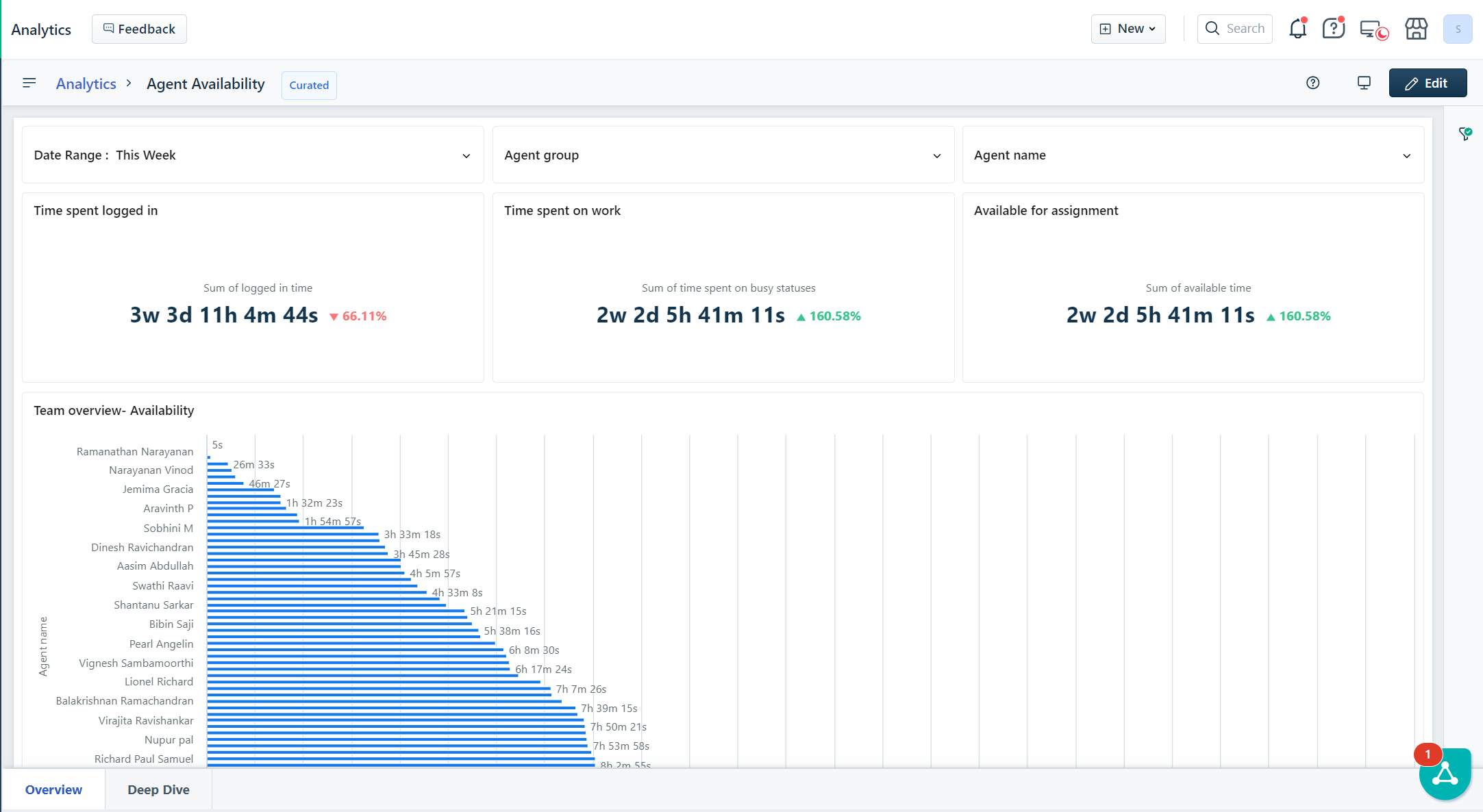
2. The Deep Dive tab gives you information on the time spent logged out, unavailable time when logged in, time spent on work, and more. You can also filter by date range, agent groups, and individual agents to view specific data on each of these metrics.