
 Community
 Video Library
 Agent Training
 Freshservice
 Freshdesk
 Freshchat
 Freshcaller
 Freshsales
 Freshteam
 Freshworks Neo
 Freshsurvey
 Sprout
 Forest
The Agent Availability Dashboard provides a consolidated view of your team’s availability across all queues (channels) and helps you monitor real-time statuses and know who is available to receive tickets and attend calls.
Additionally, agent availability directly impacts automatic assignment as tickets will be automatically routed only to available agents. For more information on agent status and availability, see Configure agent status.
With Agent Availability dashboard, you can:
- Quickly see who is available, unavailable, or idle at any moment.
- Manually change an agent’s status if ticket routing needs to be adjusted.
- Balance workloads by moving agents across statuses or queues during busy periods.
User requirements: Ensure that you have admin or supervisor permissions to access the Agent Availability dashboard.
Access the Agent Availability Dashboard
- Log in to your account as an admin or supervisor.
- Click on the Dashboard icon in the left pane.
- From the hamburger menu at the top left corner, click Agent Availability Dashboard.
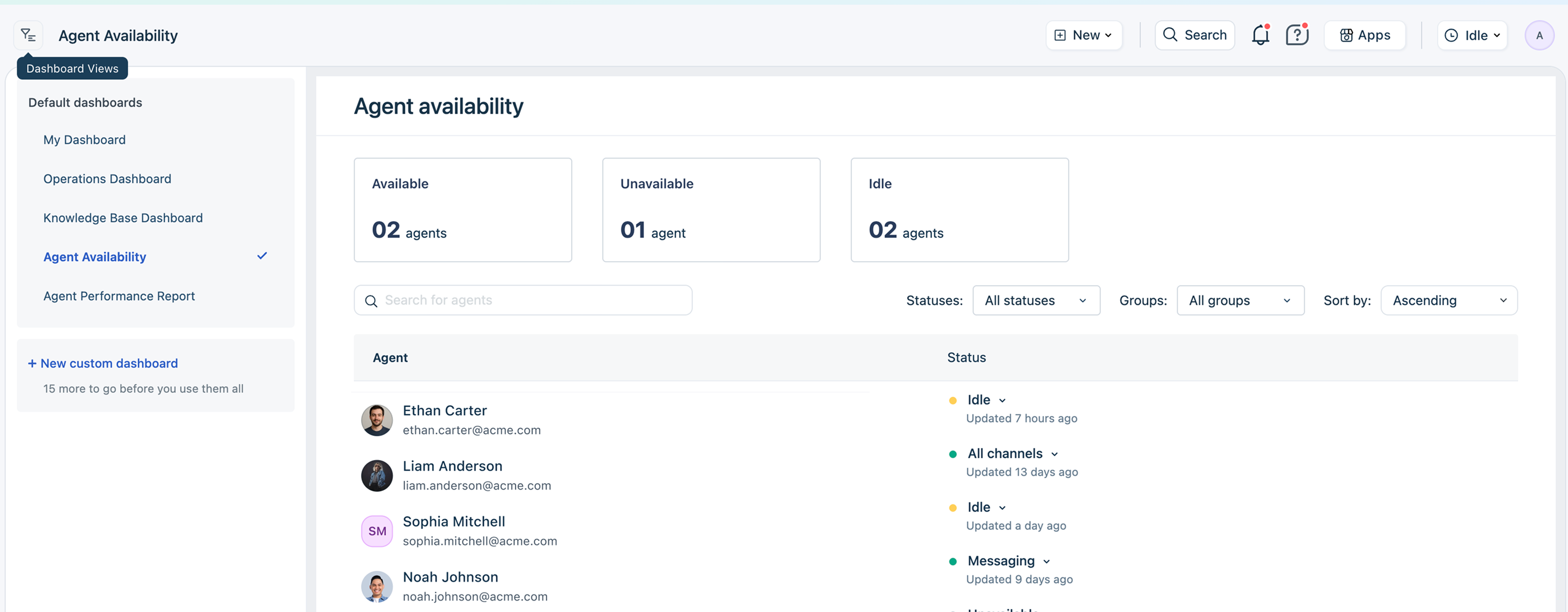
Key components of the Agent Availability Dashboard:
- Agent status widgets
Provides a quick snapshot of default statuses and shows how many are Available, Unavailable, or Idle. - Agent list table
Displays each agent’s name, email, current status, and last updated time. - Filters and sorting
Easily filter and scan the agent list by group and sort them in ascending or descending order.
Manually change agent status
- In the Agent Availability dashboard, search for the agent you want to update.
- Click on their current status.
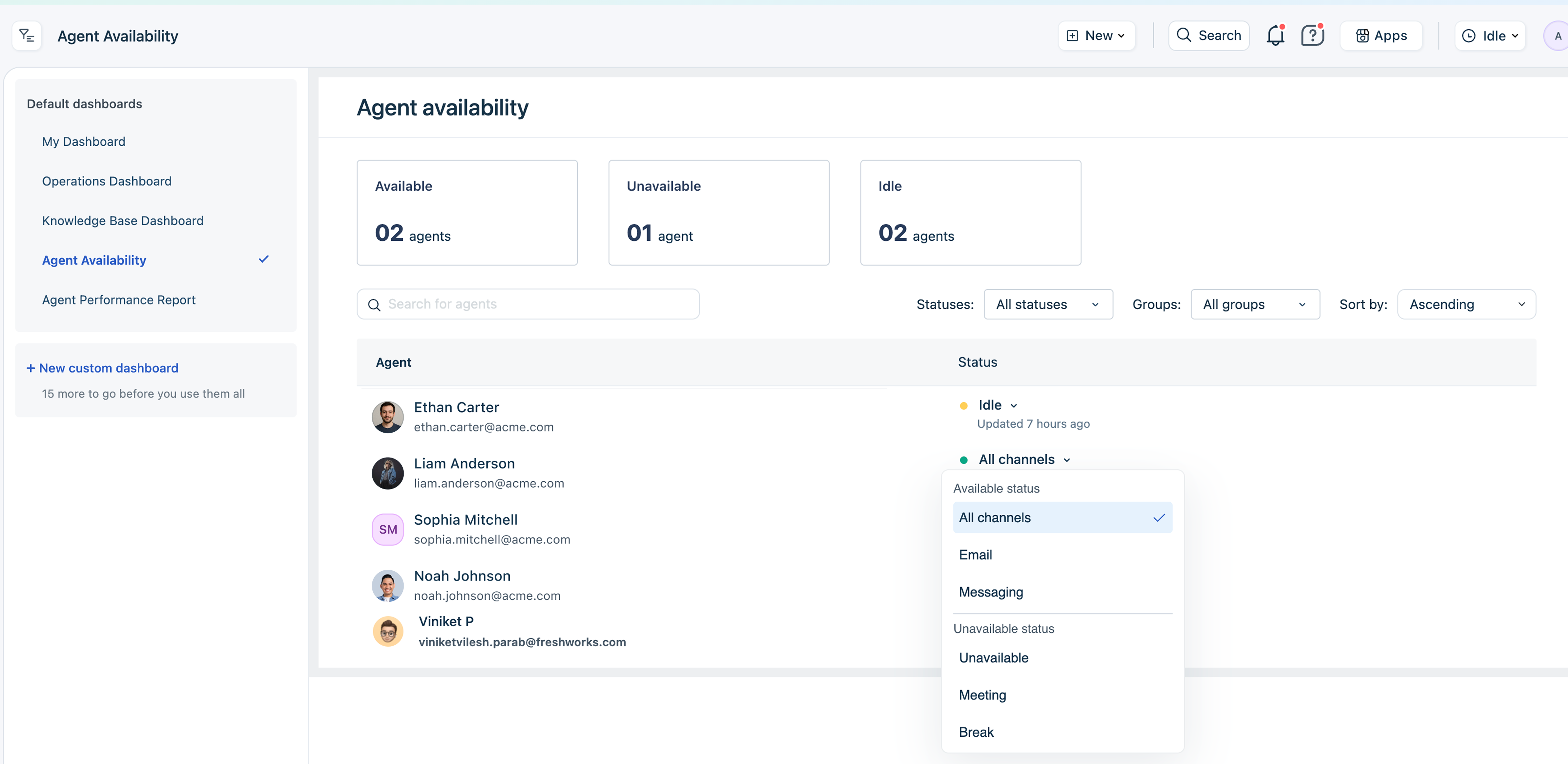
- From the status drop-down, select the new availability status (for example, Available, Unavailable).
The change takes effect immediately, and ticket assignment will adjust accordingly.
Note: Agents can belong to multiple groups with manual or automatic ticket assignment. Hence, ensure that you manage agent availability carefully to prevent any negative impact on groups with automatic ticket assignment.