
 Community
 Video Library
 Agent Training
 Freshservice
 Freshdesk
 Freshchat
 Freshcaller
 Freshsales
 Freshteam
 Freshworks Neo
 Freshsurvey
 Free
Free Enterprise
TABLE OF CONTENTS
- Prerequisites
- Get started with Proactive Insights
- Use Proactive Insights to drive improvements
- Default metrics supported for Proactive Insights
- Focus insights with custom metrics
- Types of Insights supported
- Frequency of insight generation
- Personalize and filter your insights view
Proactive Insights, part of Freddy AI Insights, continuously monitors your Freshdesk helpdesk to surface timely trends, anomalies, and rising or falling metrics — so you can act before issues escalate. This article explains how to enable Proactive Insights, configure custom metrics, and interpret the insights Freddy AI generates.
Prerequisites
Before you begin, ensure the following conditions are met,
- You have administrator access to your Freshdesk account.
- Freddy AI Insights feature is enabled on your account.
- Access to Proactive Insights is granted through the Freddy Insights role, assigned by the account administrators.
Get started with Proactive Insights
Proactive Insights uses Freddy AI to automatically analyze your helpdesk data and highlight what matters most — without requiring you to manually build reports. Freddy monitors a core set of helpdesk metrics on a weekly and monthly basis, detects patterns and anomalies, and ranks insights by their criticality so you see the most urgent signals first.
Insights are color-coded to indicate severity at a glance:
- Red — high criticality
- Amber — medium criticality
- Yellow — low criticality
- Green — positive insights
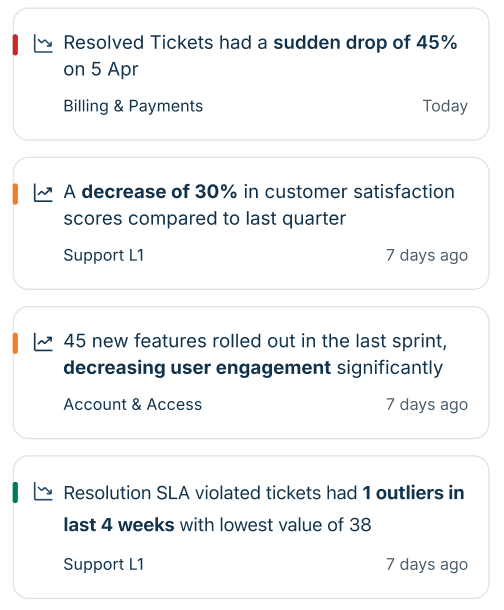
The insight cards in the left pane are sorted by importance as assessed by Freddy AI, with the most critical insights appearing at the top.
Explore capabilities
Proactive Insights provides the following capabilities:
- Automatically monitors 7 default helpdesk metrics — no manual setup required
- Detects spikes, drops, trends, outliers, and majority patterns in your data
- Surfaces root causes for metric changes, broken down by category, sub-category, region, and channel
- Generates weekly and monthly insights with configurable refresh frequencies
- Supports custom metrics so you can focus Freddy AI on the exact slice of data you care about
- Lets you save filtered views by agent group and metric, persisting across browser sessions
Enable the Proactive Insights feature
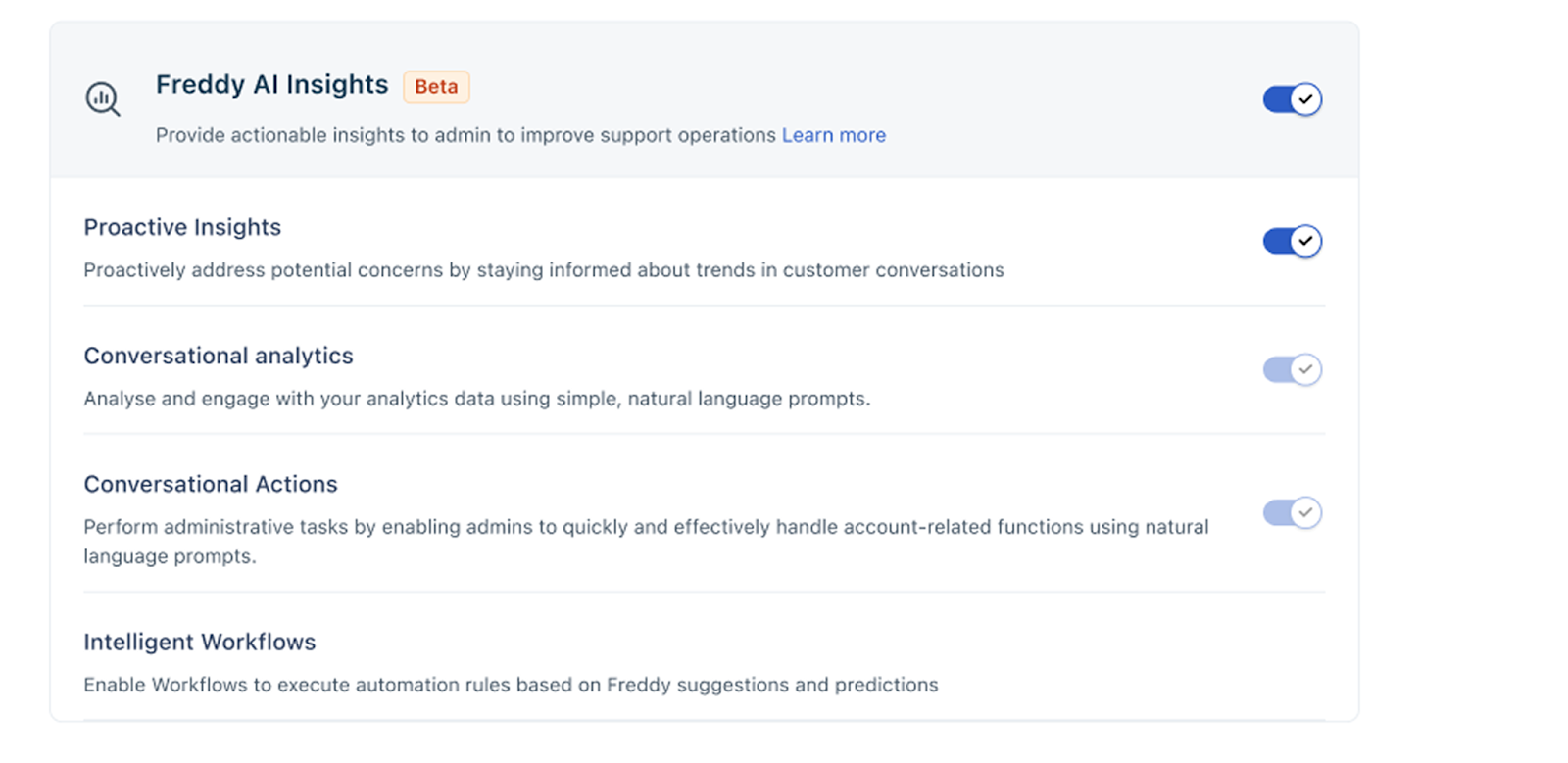
To enable Proactive Insights, follow these steps. After you toggle the feature on, it will be active within 24 hours.
- Log in as an admin.
- Go to Admin > Freddy.
- Locate Enable Freddy AI Insights and toggle it ON.
- Locate Proactive Insights and toggle it ON.
Assign the Freddy Insights role
Once the Proactive Insights feature is enabled, assign the Freddy Insights role to the relevant user by following the steps below,
- Go to Admin > Agents and select the relevant agent.
- Click Edit Agent and scroll to Settings > Roles.
- Click Add roles and select Freddy Insights. Ensure the Scope for ticket visibility is set to All tickets.
- Click Update agent.
Use Proactive Insights to drive improvements
You can now access Proactive Insights from the Freddy AI Insights page on the left navigation pane. The following scenario walks through a common use case: identifying and addressing a spike in ticket volume.
A sudden spike in ticket count can signal widespread product failures, payment errors, or regional outages. Use Proactive Insights to catch these trends early and take corrective action before they escalate.
- Go to Freddy AI Insights on the left navigation pane.
- Select the relevant insight — in this case, the insight related to Total tickets.
- Review the Leading causes could be section to view potential reasons for the increase.
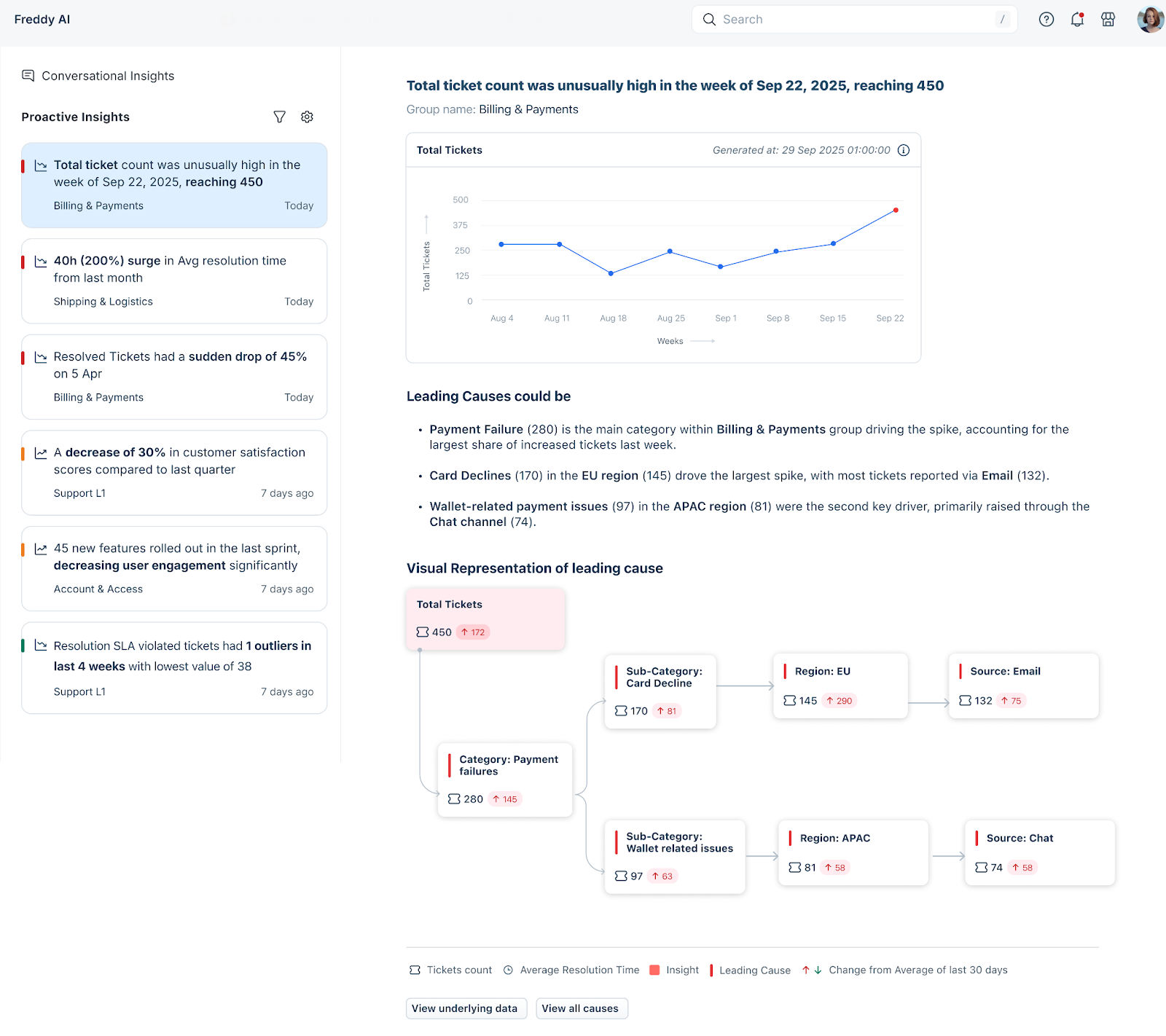
- Scroll down to view a tree map of the underlying root causes, along with a natural language summary.
- Click View underlying data to explore the details further.
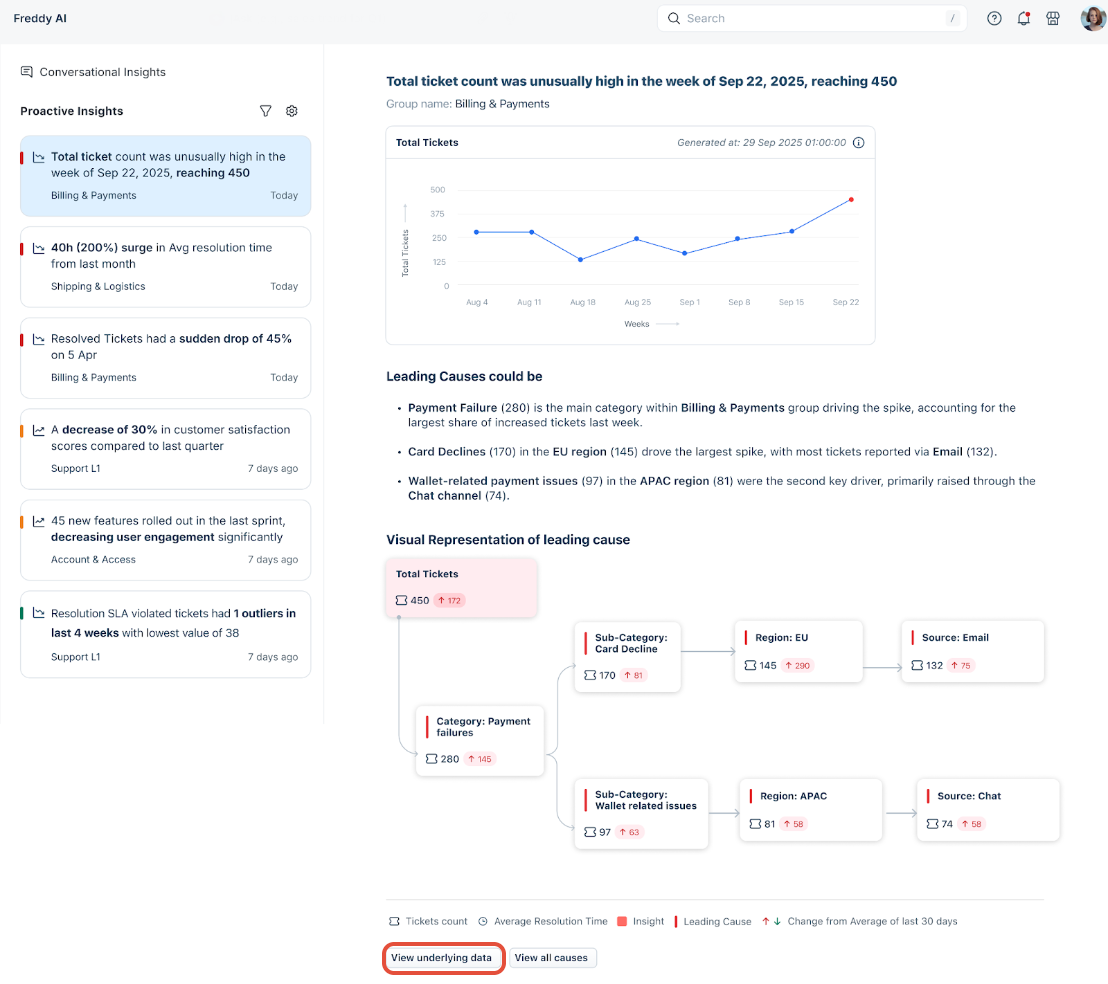
Freddy AI provides a visualization of the weekly ticket trend, along with a breakdown of the leading causes by category, subcategory, region, and channel. This structured view helps support teams quickly pinpoint the source of a surge and prioritize fixes.
Default metrics supported for Proactive Insights
Freddy AI generates insights from a core set of default helpdesk metrics. These metrics refresh automatically at the start of every week and month.
Metric | Description |
Total tickets | Total ticket volume created. |
Avg response time in business hours | Average time taken by agents to send the first reply. |
Avg resolution time in business hours | Average time to fully resolve tickets. |
Total resolution SLA violated tickets | Number of tickets that breached resolution SLA. |
Total first response SLA violated tickets | Tickets that breached first-response SLA. |
Avg first response time in business hours | Average time to first agent response. |
Total resolved tickets | Tickets resolved within the selected period. |
Focus insights with custom metrics
Admins can create customized insights by starting with any default metric, then narrowing the scope with filters and agent group associations. This allows Freddy AI to generate insights from a specific slice of data rather than across all tickets.
Create a customized metric
To create a customized insight,
- Log in as an admin.
- On the Freddy AI Insights page, click the Settings (gear icon).
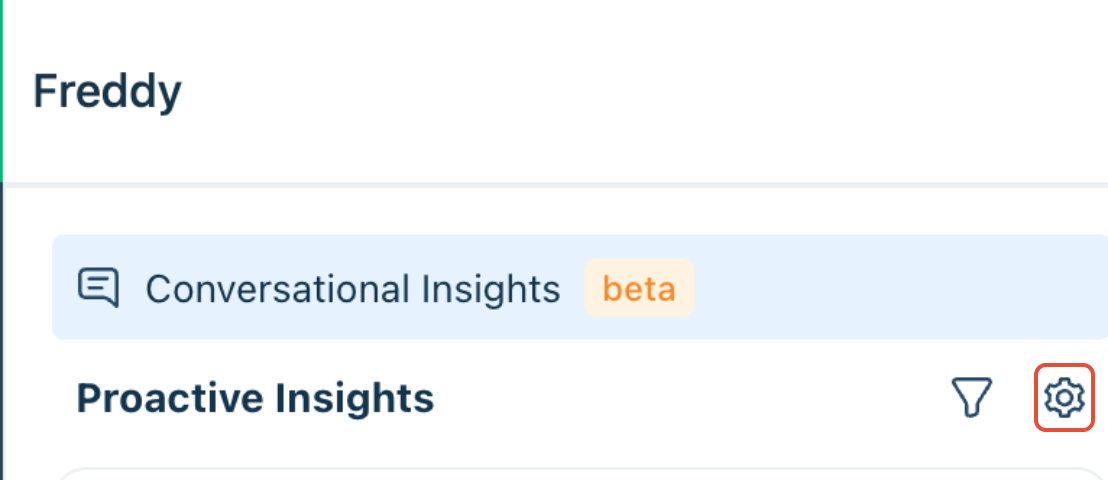
- Go to Customized metrics and click Add customized metric.
- Enter a name for your custom metric.
- Select the default metric to tie it to.
- Select up to 2 agent groups to associate with the metric.
- Add up to 2 filter conditions to narrow the data scope.
- Save the metric. Freddy AI will now monitor only that specific slice of data and generate insights when patterns or anomalies appear.
Example configuration — Avg first response time for a specific group:
- Default metric: Avg first response time in business hours
- Agent group: Support
- Filter: First response time (calendar hours) > 2
With this setup, Freddy AI monitors only tickets handled by the Support group where the first response took more than 2 hours, and generates insights when patterns or anomalies emerge.
Benefits of custom metrics
Custom metrics help you get more targeted, actionable insights from Freddy AI:
- Focus insights on the exact teams or ticket conditions you care about
- Identify delays or spikes within specific groups rather than across all data
- Surface context-aware insights instead of broad trends
- Enable faster corrective actions for targeted operational improvements
Types of Insights supported
Freddy AI generates the following types of insights. Each type is designed to surface a distinct pattern or anomaly in your helpdesk data.
Insight type | Description | Example |
Majority | Highlights the dominant or maximum value for a metric or group. | 80% of the Premium support team’s SLA violated tickets are from the Hardware category. |
Outliers | Detects metric values that are unusually high or low within a given time frame. | Two anomalies were observed in the Premium support team’s average resolution time. The largest value of 1hr 2mins was observed in the week of January 1. |
Trend change (spike and fall) | Identifies any significant increase or decrease in a metric over a time period. | A 15% spike was observed in the Premium support team’s average resolution time in the week of January 15, 2025. |
Longest increase/decrease | Finds sustained growth or drop periods in metrics. | Premium support team’s tickets saw the longest period of increase, 17%, from the week of January 5 to February 7. |
Recent change | Compares the most recent data point to the previous one for a given time period. | Last week, the Premium support team’s average resolution time was 27% lower compared to the previous week. |
Overall trend | Tracks the general upward or downward movement of a metric over the selected period. | 22% increase in Premium support team’s average resolution time observed in the last 12 weeks. |
Frequency of insight generation
Freddy AI generates insights on the following schedules. A minimum number of data points is required before insights are activated for a given metric.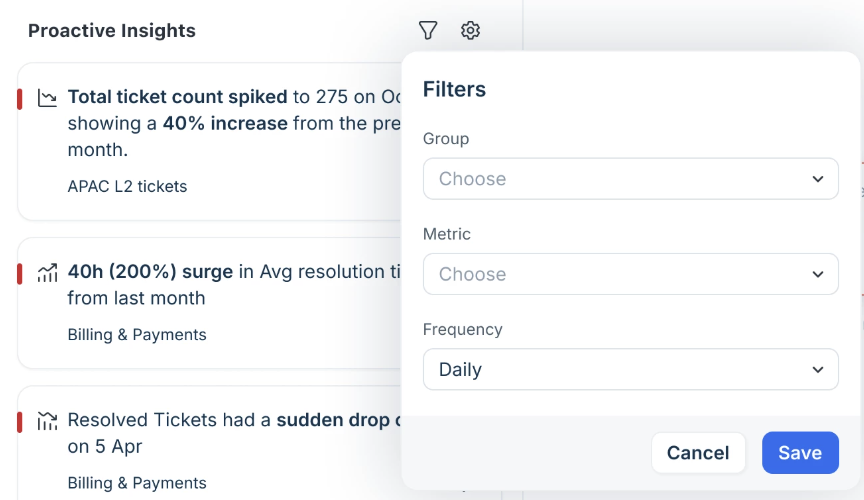
Frequency | Look-back period | Minimum data required | Refresh schedule |
| Daily | 30 days | 30 days | Everyday |
Weekly | 12 weeks | 6 weeks of data | Every Monday |
Monthly | 1 year | 6 months of data | First day of every month |
Personalize and filter your insights view
When you have access to a large number of agent groups, it can be time-consuming to locate the most relevant insights. Use the Agent Group and Metric filters on the Freddy AI Insights page to create a focused view that surfaces only the insights that matter to you.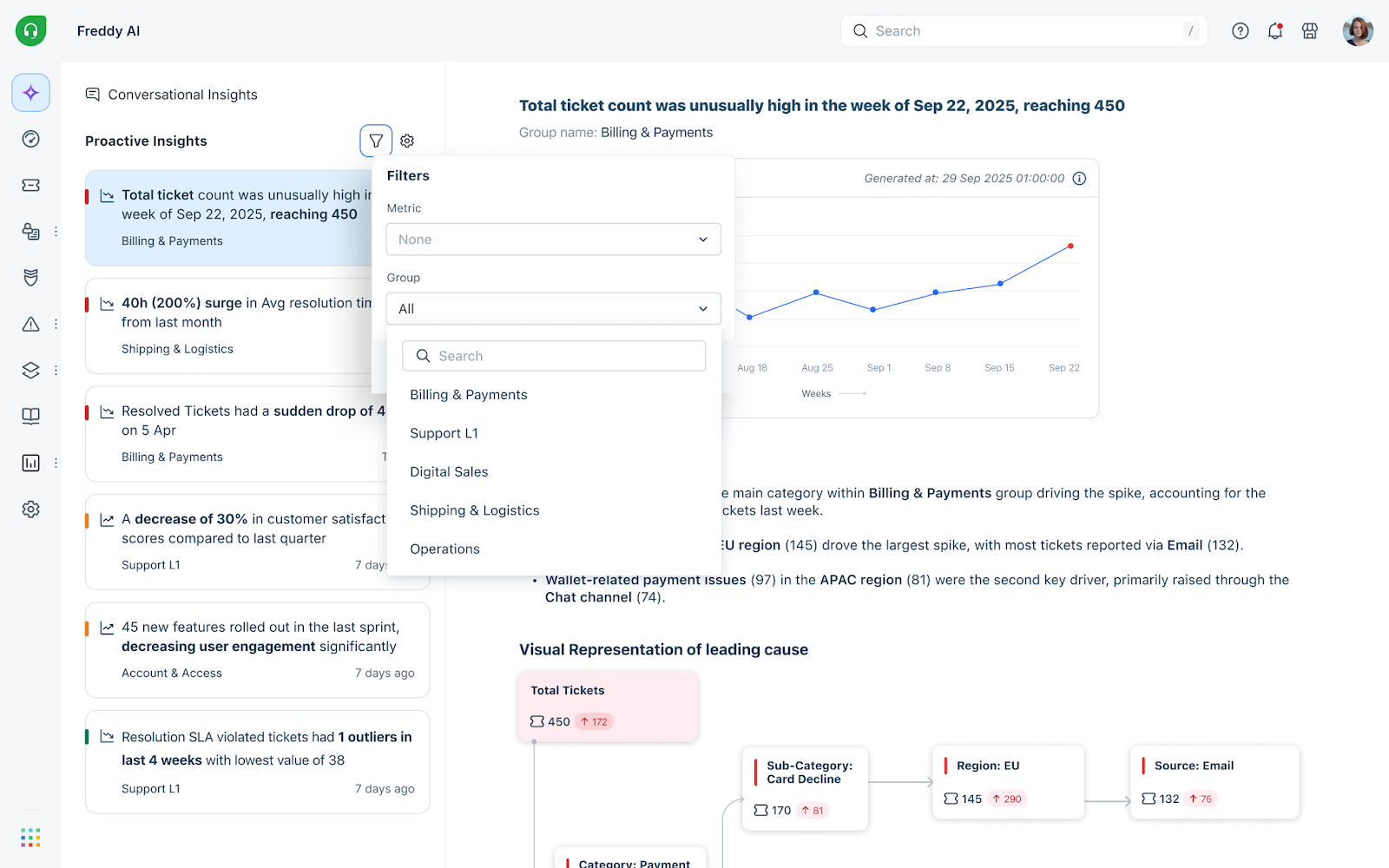
Once you apply your filters, a Filtered view appears, displaying only the insights matching your preferences. This view persists across browser sessions — each time you return to the Freddy AI Insights page, your last saved filter is automatically applied. This is especially useful for leaders who oversee many agent groups but regularly focus on a specific subset.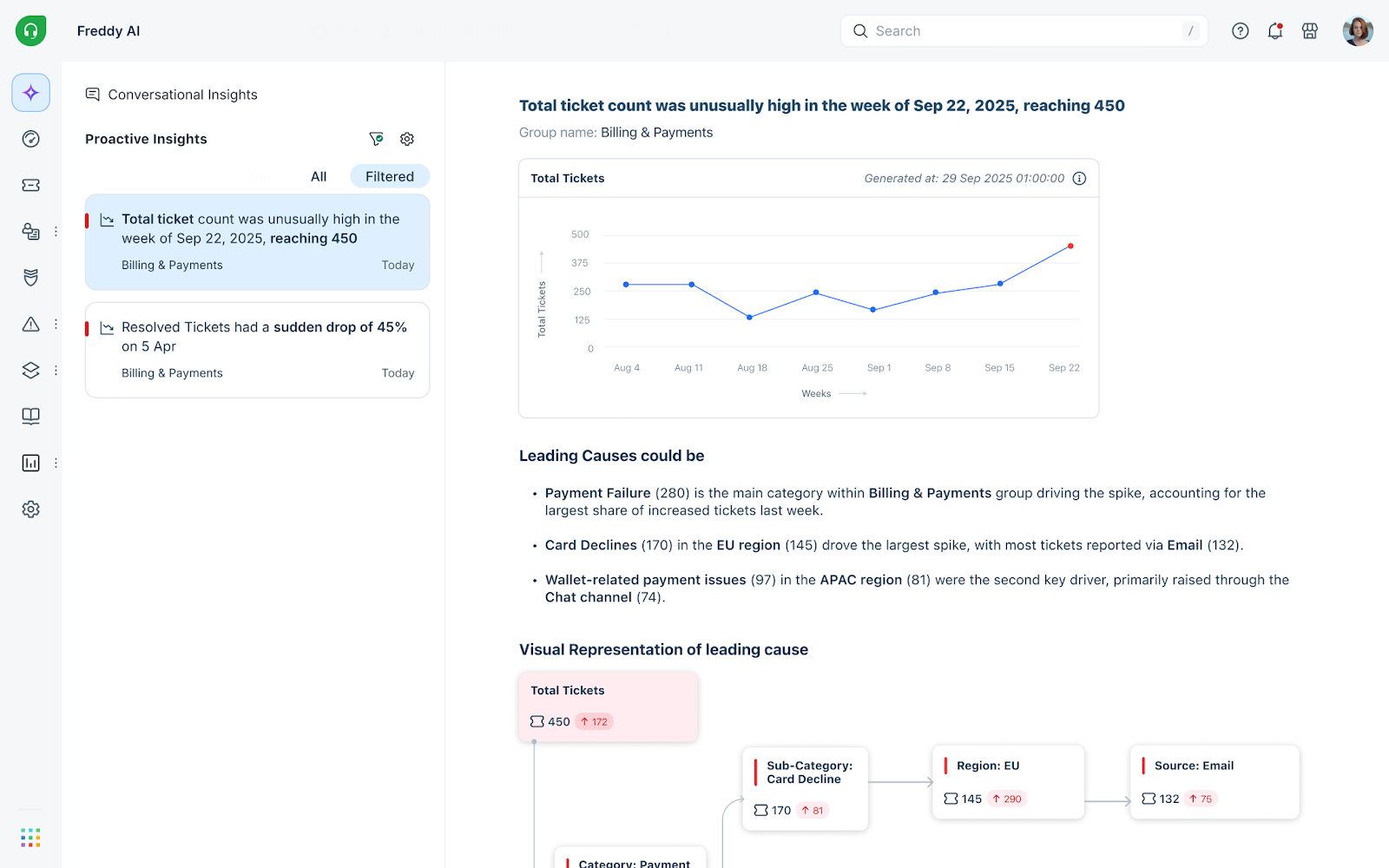
Tip: Sort insight cards by criticality color to quickly identify your highest-priority issues: red indicates high criticality, amber indicates medium, yellow indicates low, and green indicates a positive trend.