
 Community
 Video Library
 Agent Training
 Freshservice
 Freshdesk
 Freshchat
 Freshcaller
 Freshsales
 Freshteam
 Freshworks Neo
 Freshsurvey
 Growth
TABLE OF CONTENTS
- Overview
- Understanding threading logic
- Here’s a visual flow of threading logic:Channel-specific threading behavior
Threading logic in communication channels, such as email, WhatsApp, Facebook, Instagram, and Web Chat Widget (live chat), refers to how incoming customer messages are grouped into a single, connected ticket thread.
Overview
Threading logic determines whether a customer’s reply should reopen an existing ticket or create a new one, based on a configurable time window known as the threading interval. This feature helps maintain organized, contextual ticket management across channels, ensuring agents and customers stay aligned without unnecessary duplicate tickets.
Why threading logic matters?
- For customers
- Keeps related discussions in one place for better continuity
- Avoids confusion from multiple tickets about the same issue
- For agents
- Reduces clutter caused by duplicate tickets
- Helps agents focus on active, relevant issues
- Simplifies decision-making on whether to reopen or create a new ticket
- For admins
- Offers control over how long a ticket remains active for replies
- Enables consistent threading behavior across different channels and topics
Understanding threading logic
When an agent resolves a ticket, it’s considered closed but not forgotten. If the customer replies again within the defined threading interval, the same ticket automatically reopens. If the reply comes after the threading interval, a new ticket is created.
Admins can configure this interval in days, hours, or minutes for each supported channel. The interval determines how long a resolved ticket remains open for follow-ups.
For example:
- If the interval is set to 48 hours, any customer reply within two days will reopen the same ticket.
- Replies received after 48 hours will create a new ticket.
Here’s a visual flow of threading logic: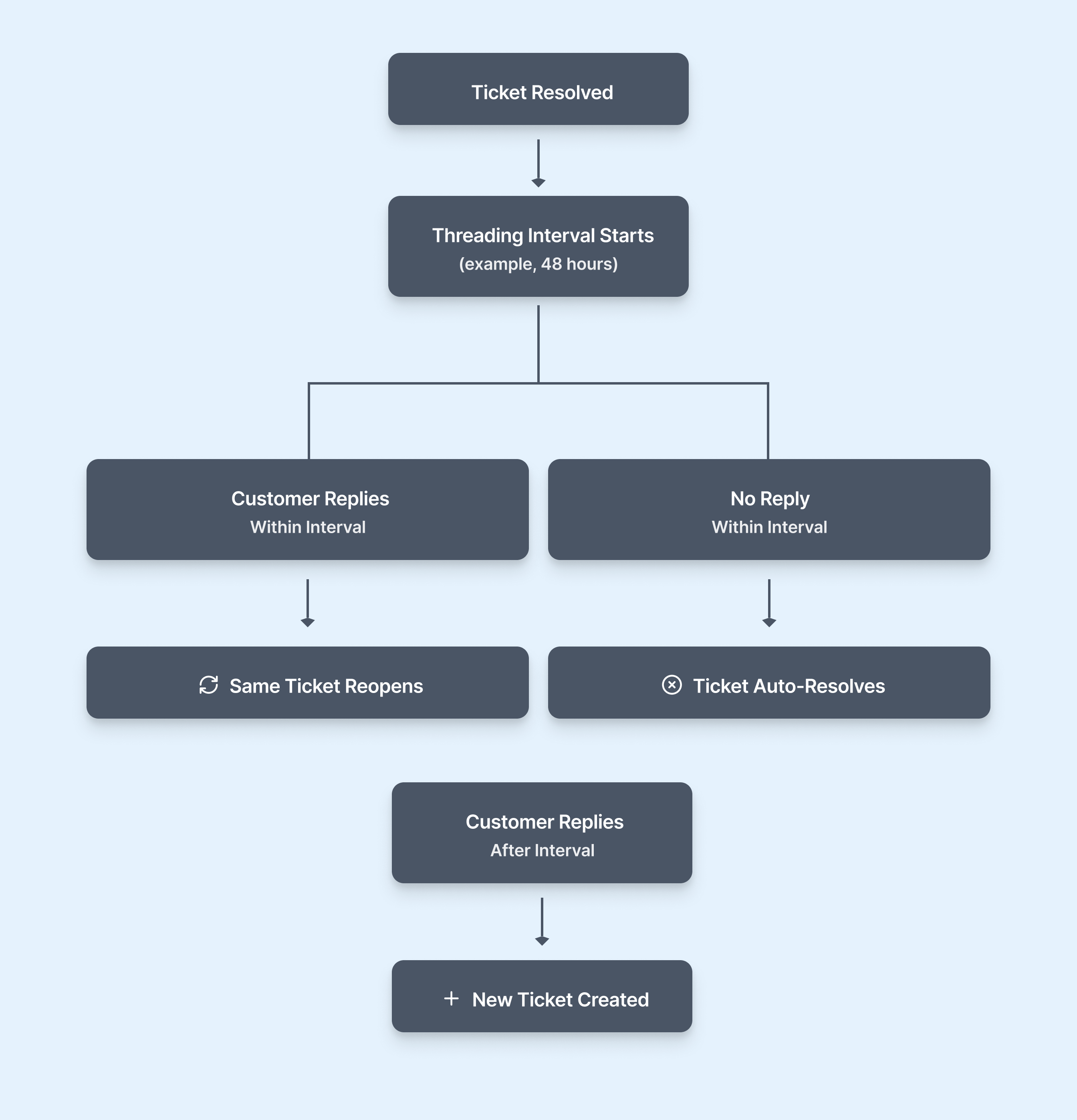
Channel-specific threading behavior
You can customize the threading logic for each channel to ensure consistent ticket handling with how customers interact on that platform.
- Threading logic in Web Chat
- Threading logic in Email
- Threading logic in WhatsApp
- Threading logic in social messaging channels (Facebook and Instagram DM)
Note: If you have assigned AI Agents to channels, the threading logic cannot be configured again at the individual channel or Web Chat topic level. In this case, the threading logic will default to 0 minutes.
Threading logic in Web Chat
When customers use Web Widget on your Website or portal, every chat message is linked to a ticket under a specific topic.
- Within the threading interval:
If a customer sends another message about the same topic before the interval ends, the previous ticket will automatically reopen. The agent assigned earlier continues the conversation without losing context. - After the threading interval:
Once the interval expires, any new message starts a new ticket. This helps agents separate old discussions from new ones.
Example:
A customer contacts you on Web Widget about “Returns and Refunds.”
- The agent resolves the ticket after answering.
- Two hours later, the customer sends another message on the same widget.
- If the threading interval is set to 4 hours, the same ticket reopens.
- If the interval is set to 1 hour, the system creates a new ticket.
Configure threading logic for Web Widget
- Click Admin Settings > Channels > Web Chat >Web Chat Topic.
- Click Configure next to the topic name.
- On the Topic Configuration page, click Threading interval.
- Set the interval in minutes, hours, or days.
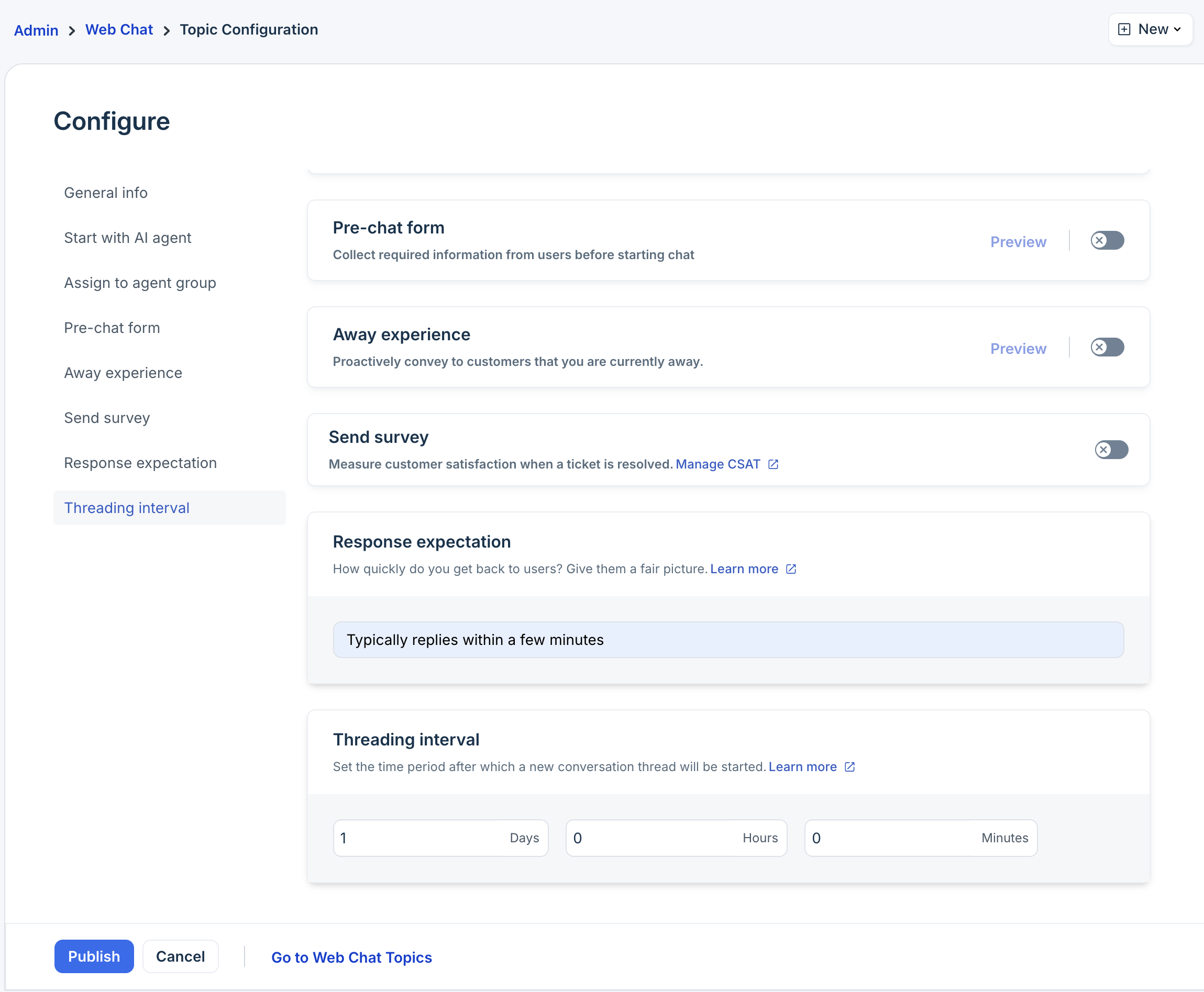
- Click Publish.
Threading logic in Email
Threading for email-based tickets works differently, as it depends on email headers and identifiers.
- If the customer replies to an existing email thread, the identifiers in the email header (like Message-ID or In-Reply-To) match, and the message attaches to the same ticket.
- If the customer starts a new email or replies without matching identifiers (for example, forwarding the thread or sending a fresh email), a new ticket is created.
This ensures continuity when replies are sent within the same thread, while avoiding the incorrect merging of unrelated emails.
Example:
Customer sends an email to support@acme.com to check about a refund.
- The agent replies with the refund details and resolves the ticket.
- The customer replies to the same email thread the next day.
- If the system detects a matching identifier (e.g., subject or message ID) and the response is within the threading interval, the same ticket reopens.
- If the identifier doesn’t match or the interval has expired, a new ticket is created.
For more information, see Overview of Email Channel.
Threading logic in WhatsApp
Threading logic in WhatsApp ensures that a customer’s ongoing messages stay linked to the same ticket until it’s resolved.
- Within the threading interval: Messages from the same number or account are added to the existing ticket.
- After the interval: Any new message creates a new ticket.
Example:
A customer messages your business number on WhatsApp about an order delay.
- The agent assists and resolves the ticket.
- The customer sends another message after some time.
- If the message arrives within the threading interval (say, 24 hours), it reopens the same ticket.
- If the message arrives after 24 hours, a new ticket is created automatically.
Configure threading logic for WhatsApp
- Click Admin Settings > Channels > WhatsApp.
- Click Configure next to the WhatsApp number.
- On the Configure page, click Threading interval.
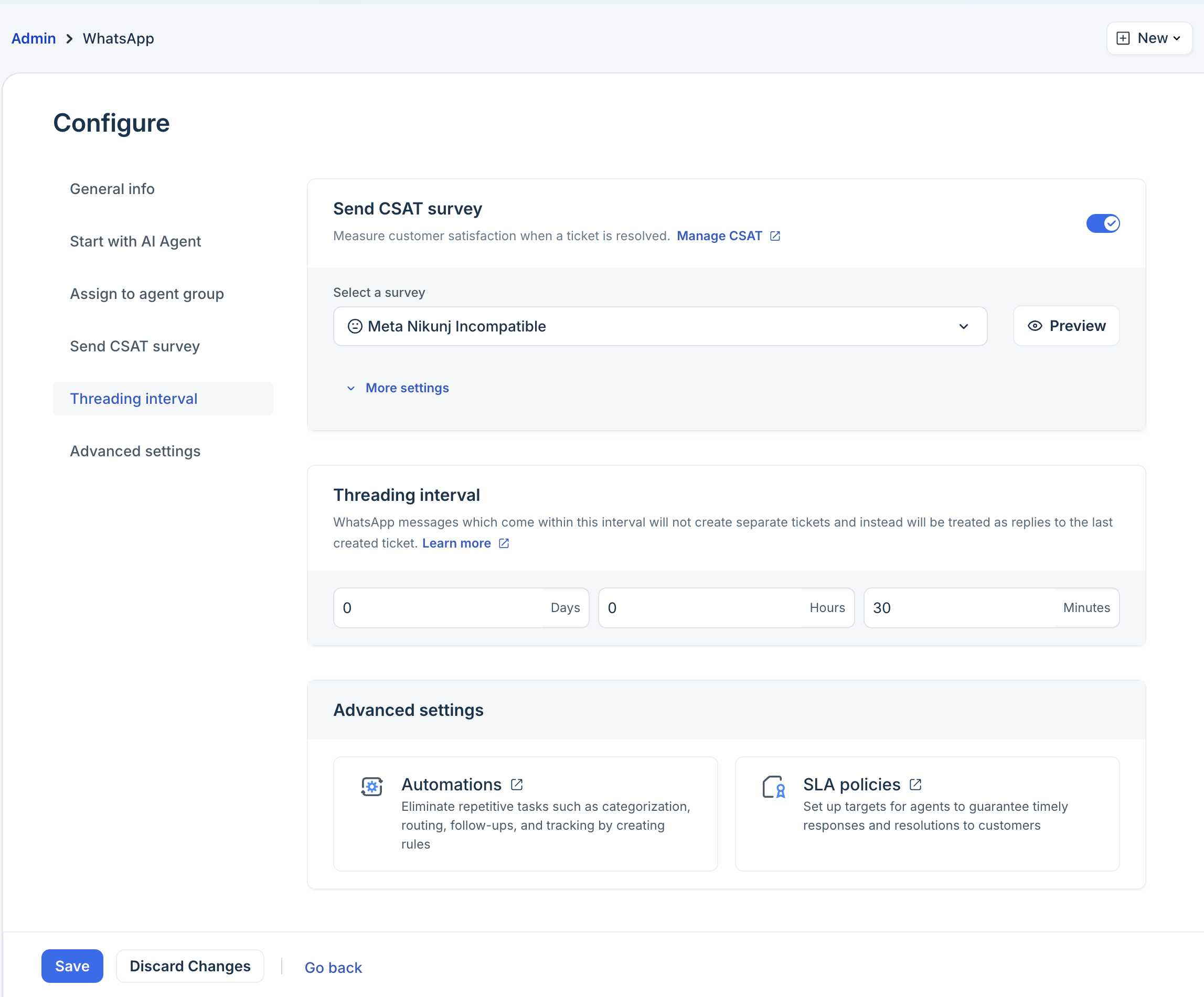
- Set the interval in minutes, hours, or days.
- Click Save.
Threading logic in social messaging channels (Facebook and Instagram DM)
When customers reach out via Direct Message (DM) on Facebook or Instagram, all messages from the same customer are threaded into a single ticket while the ticket remains open. This ensures agents can view the full conversation history within one thread and respond in context.
- Within the threading interval:
If a customer sends another message about the same topic before the interval ends, the previous ticket reopens automatically.
The agent assigned earlier continues the conversation without losing context, allowing for a smooth and continuous customer experience. - After the threading interval:
Once the interval expires, any new message starts a new ticket.
This helps agents separate old discussions from new ones and prevents previously resolved DMs from reopening long after the issue was closed.
Example:
A customer sends a DM on Instagram asking for a shipping update.
The agent responds and resolves the ticket.
- If the customer sends another DM within 24 hours (the configured interval), the same ticket reopens.
- If the customer sends a DM after 24 hours, a new ticket is created automatically.
Configure threading logic for Facebook
- Click Admin Settings > Channels > Facebook.
- Click Configure next to the Facebook page.
- On the Configure page, click Message Settings.
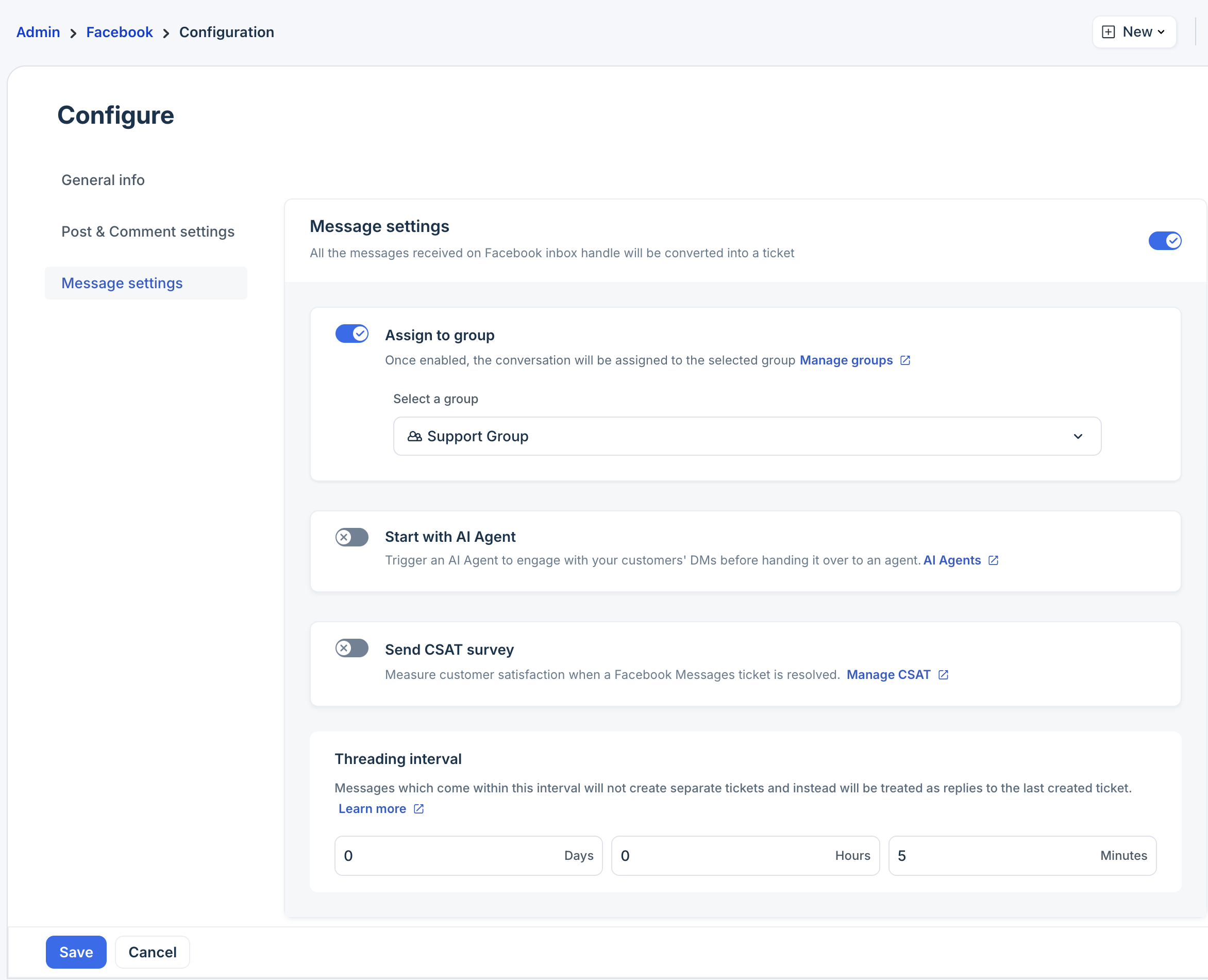
- In the Threading interval section, set the interval in minutes, hours, or days.
- Click Save.
Configure threading logic for Instagram
- Click Admin Settings > Channels > Instagram.
- Click Configure next to the Instagram page.
- On the Configure page, click Message Settings.
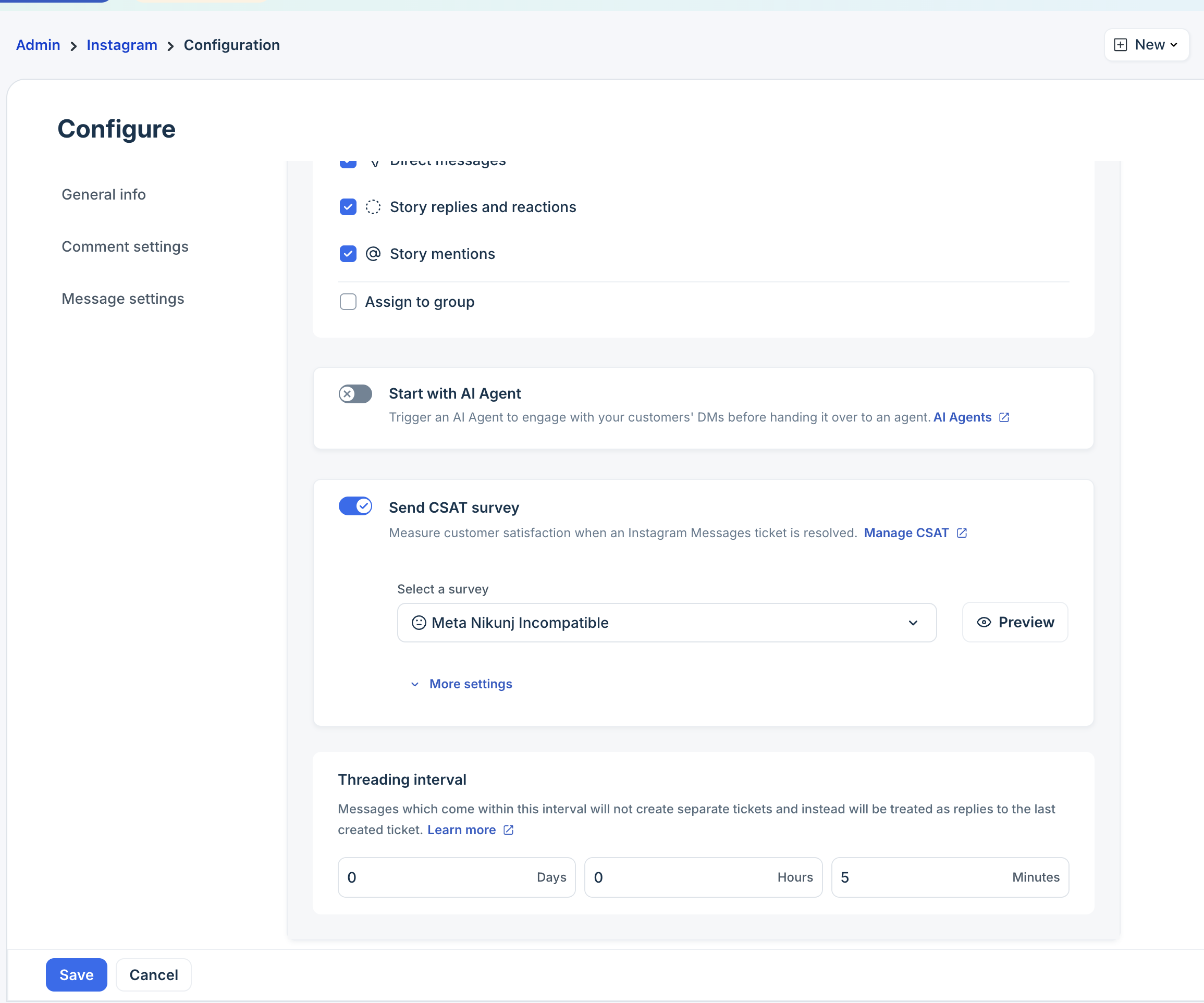
- In the Threading interval section, set the interval in minutes, hours, or days.
- Click Save.