
 Community
 Video Library
 Agent Training
 Freshservice
 Freshdesk
 Freshchat
 Freshcaller
 Freshsales
 Freshteam
 Freshworks Neo
 Freshsurvey
 Growth
TABLE OF CONTENTS
- Prerequisites
- Supported knowledge types
- Add and manage knowledge types
- Manage knowledge effectively
- Error handling & support
Your AI Agent’s response quality depends directly on the knowledge it learns from. By configuring and maintaining Knowledge in AI Agent Studio, you enable the agent to generate accurate, contextual, and reliable responses across customer interactions.
AI Agents learn from a combination of structured and unstructured content, including URLs, files, solution articles, and custom Q&As. The effectiveness of your AI agent is determined not just by what knowledge you add, but how well that knowledge is curated and maintained over time.
Prerequisites
- Ensure you have Administrator access to AI Agent Studio.
- Ensure the AI Agent is already created.
- Ensure URLs are publicly accessible.
- Ensure files are not password-protected and meet size requirements.
Supported knowledge types
You can configure all knowledge for your AI Agent from a single place in AI Agent Studio. At this stage, you not only add content but also ensure it meets the AI's requirements for processing and use.
The following knowledge types are supported:
- URLs: Enable the AI Agent to learn from publicly available web pages such as help centers, product documentation, and policy pages.
- Files: Allow you to upload documents such as manuals, SOPs, and internal guides.
- Solution articles: Use your existing knowledge base content to ensure consistent and structured responses.
- Custom Q&As: Add targeted question-answer pairs for specific scenarios not covered elsewhere.
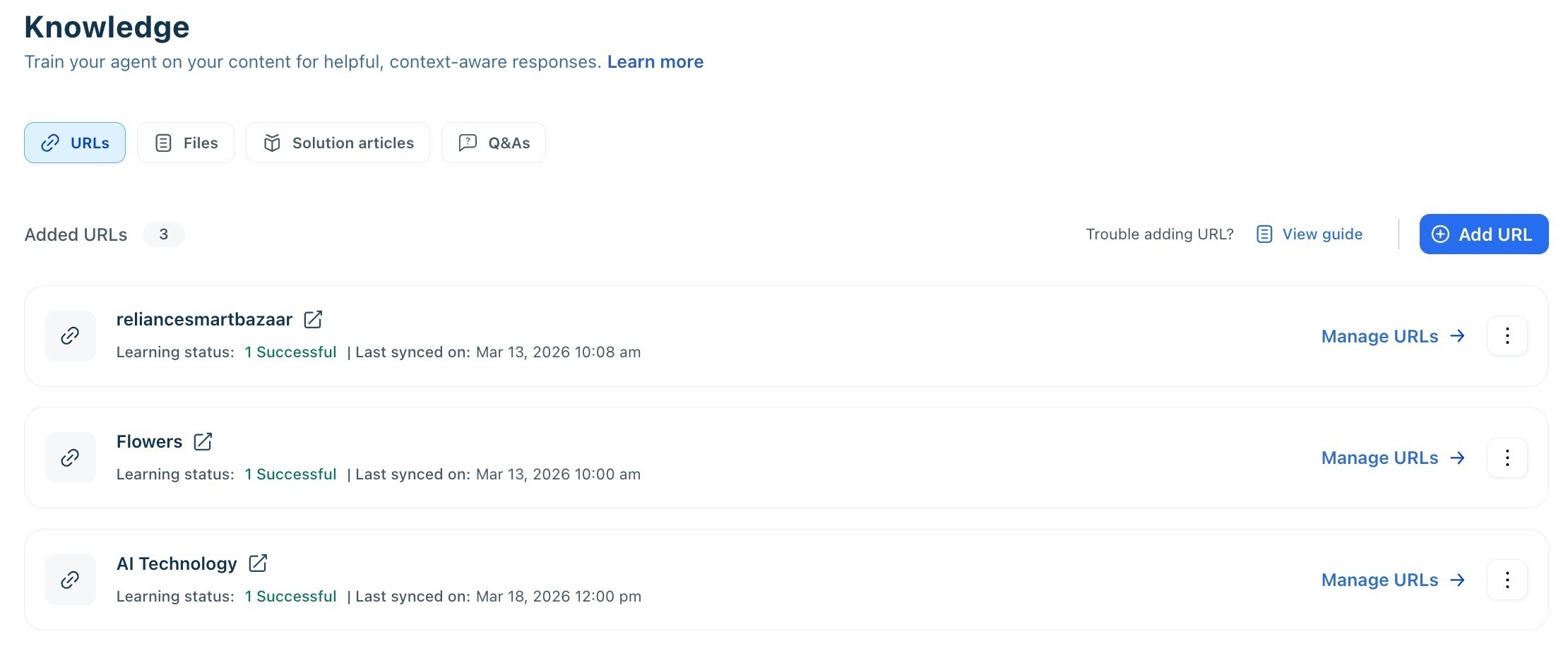 You can add different types of knowledge depending on where your content resides.
| Knowledge type | Best used for | Limits | Supported content | Not supported / constraints |
|---|---|---|---|---|
| URLs | Help centers, policy pages, documentation sites | 10 per AI Agent, 25 per account, up to 3,000 pages/site | Static text content from public web pages | No videos, images, animations, or gated/auth-protected pages |
| Files | SOPs, manuals, internal guides | 200 per AI Agent, 200 per account, max 35 MB/file | .pdf,.docx,.txt (text-based content) | No password-protected files; non-text elements are ignored |
| Solution articles | Structured knowledge base content | Depends on KB setup | Published, publicly visible articles | Private or restricted articles are excluded |
| Custom Q&As | Specific or edge-case queries | No strict limit (recommended to keep concise) | Direct question-answer pairs | Overly long or vague answers reduce effectiveness |
Refer to Write Freddy AI-optimized knowledge content for detailed instructions on improving your writing efficiency and clarity.
Add and manage knowledge types
To access the AI Agent's knowledge tab,
- Go to AI Agent Studio from the left nav bar.
- Select the AI Agent
- Navigate to Build → Knowledge
Add URLs
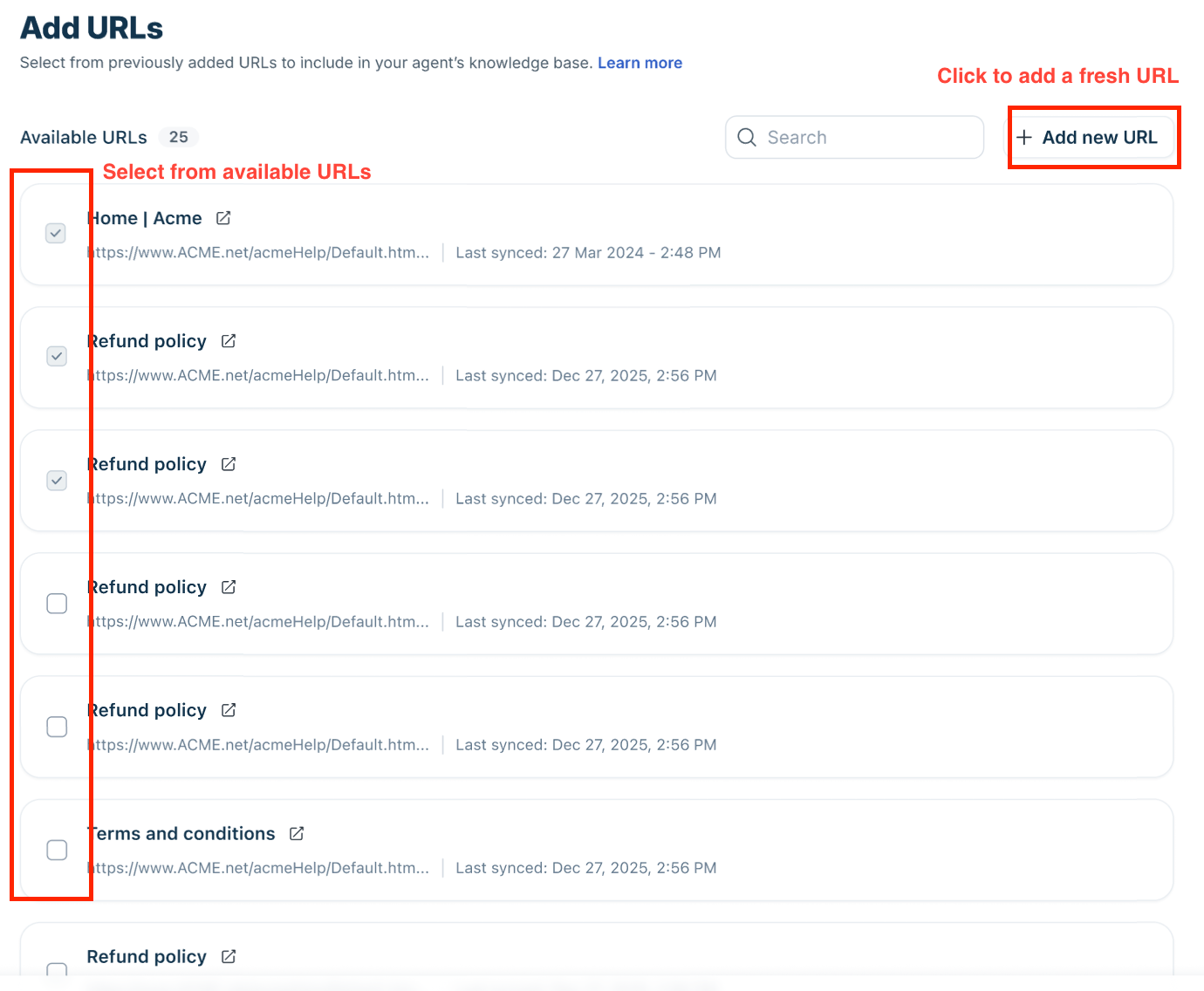
You can add new knowledge or reuse existing content already available in your account.
- Click Add URL
- In the Add URLs page, you can,
- Select from previously added URLs, or,
- Add a new URL not part of any of your AI Agent's knowledge base.
- In the Add new URL pop-up, enter a name, add the URL, then select Add URL.
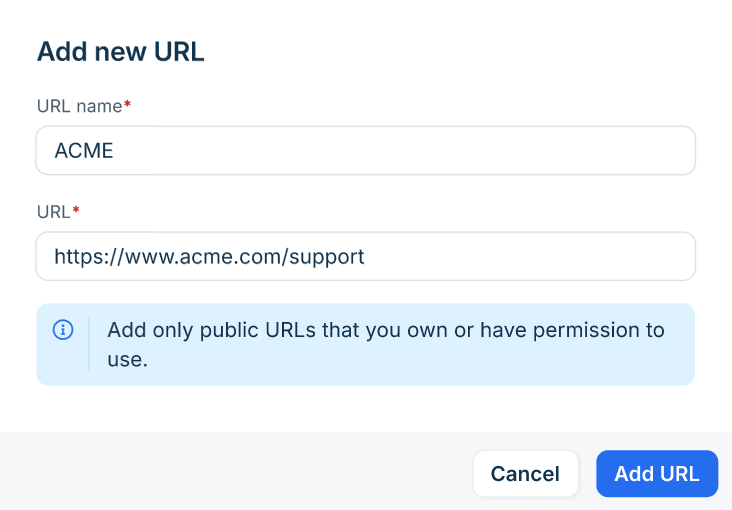
- Save to start learning
Add files
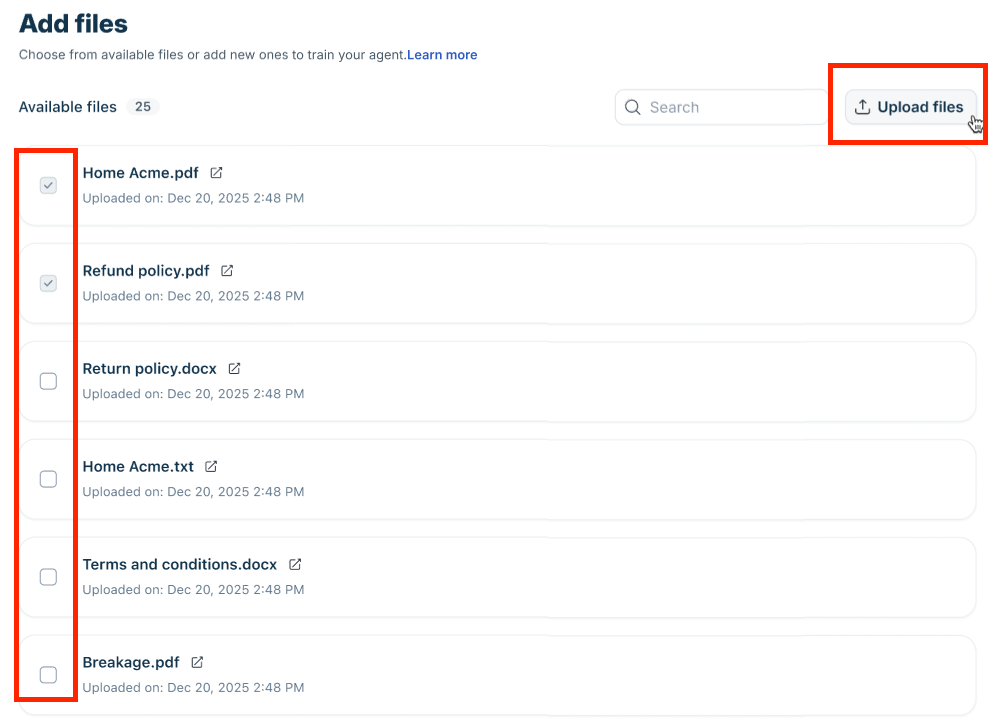
- Click Add files
- In the Add files page, you can,
- Select from previously added files, or,
- Upload a new file not part of any of your AI Agent's knowledge base.
Add solution articles
- Enable Learn from solution articles and provide the following details:
- Portal selection: Choose the knowledge base the AI Agent should learn from (if multiple portals are available).
- Select your AI's learning scope: Choose how broadly the AI Agent should learn:
- All categories – Learns from all articles in the selected knowledge base.
- Selected categories – Learns only from specific folders or topics (use Manage articles to choose).
Note: Only articles visible to All users are used for AI learning.
- Display Article References: Enable the toggle to show article links in AI replies.
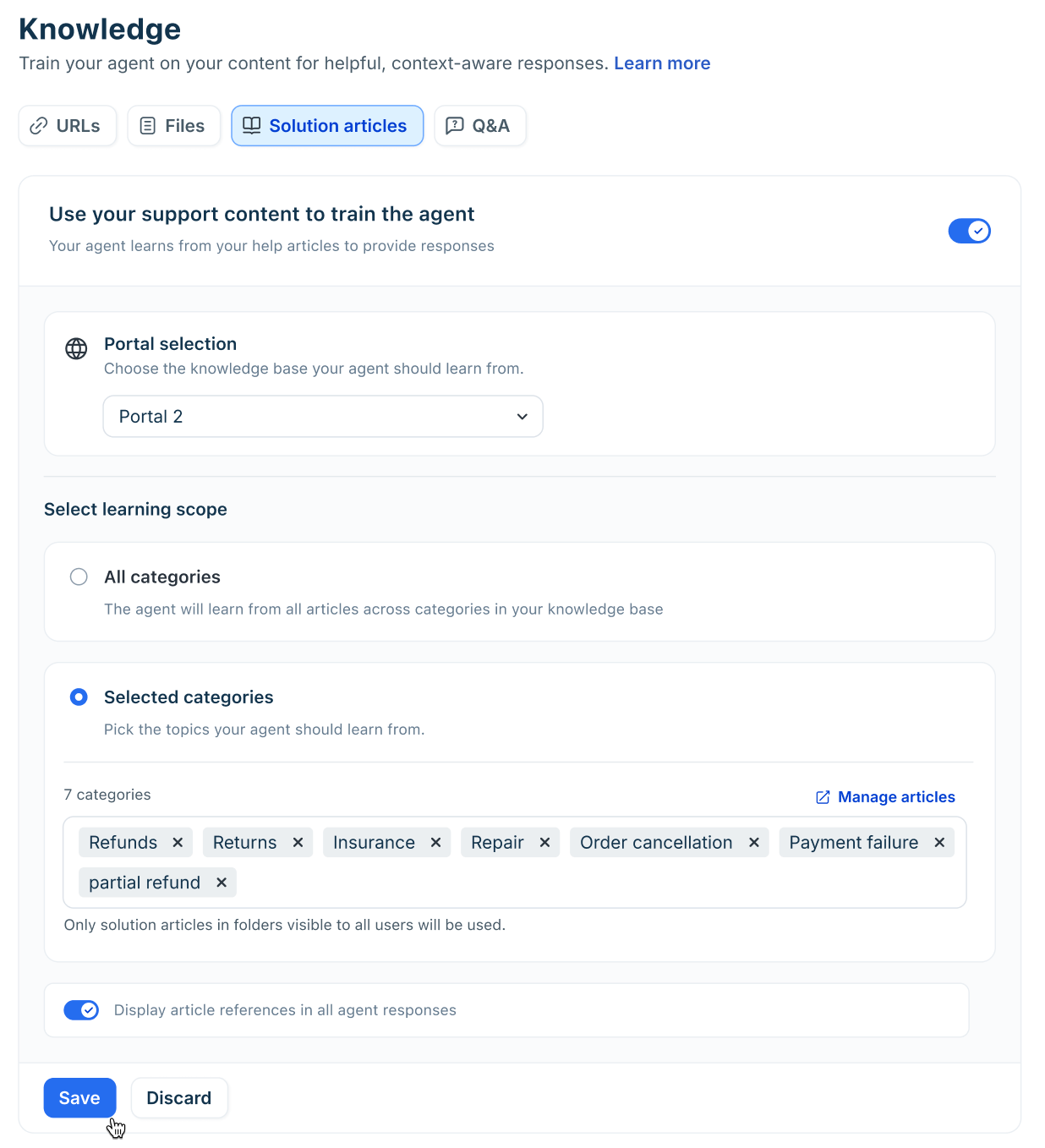
Note: Only publicly visible articles are used for learning. Category selection is supported only in old Freshdesk Omnichannel accounts, not in Freshdesk Omni (formerly Customer Service Suite-CSS) or Freshchat standalone accounts.
Add custom Q&As
- Click New Q&A
- Enter a question and answer
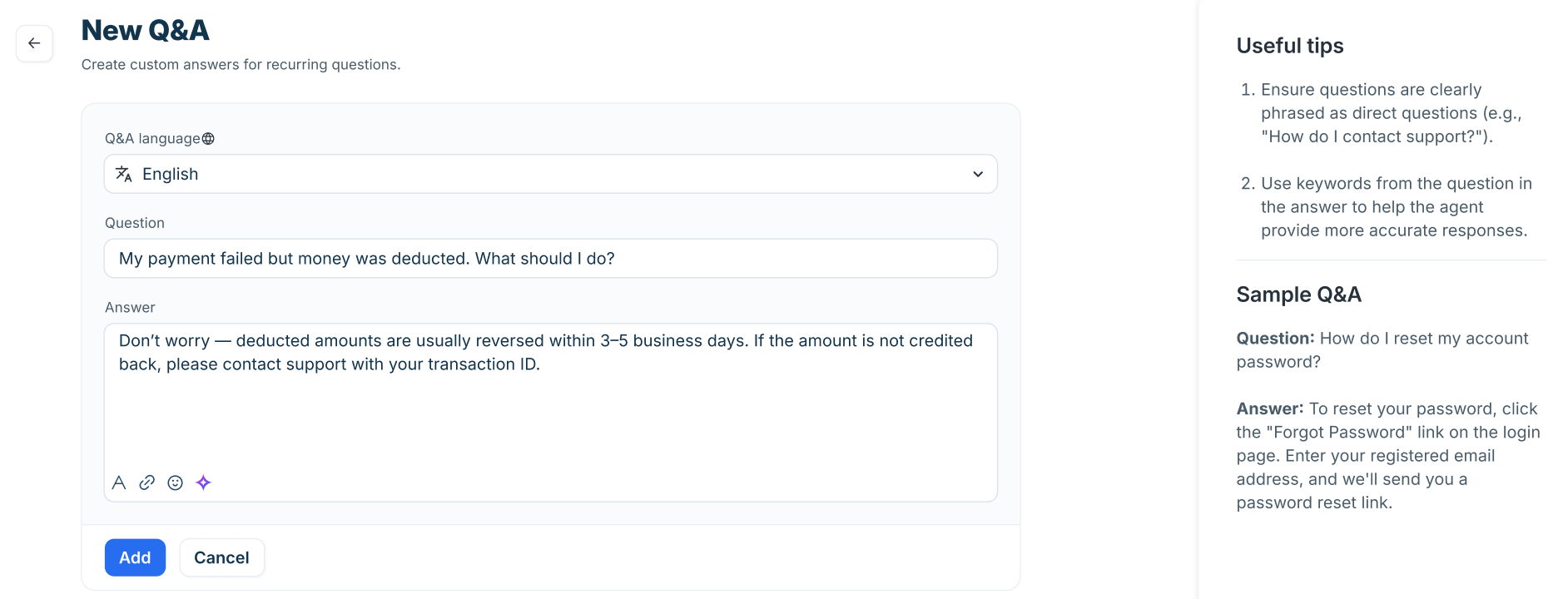
- Save and update anytime
Manage knowledge effectively
Once added, knowledge needs to be actively managed to ensure accuracy and relevance.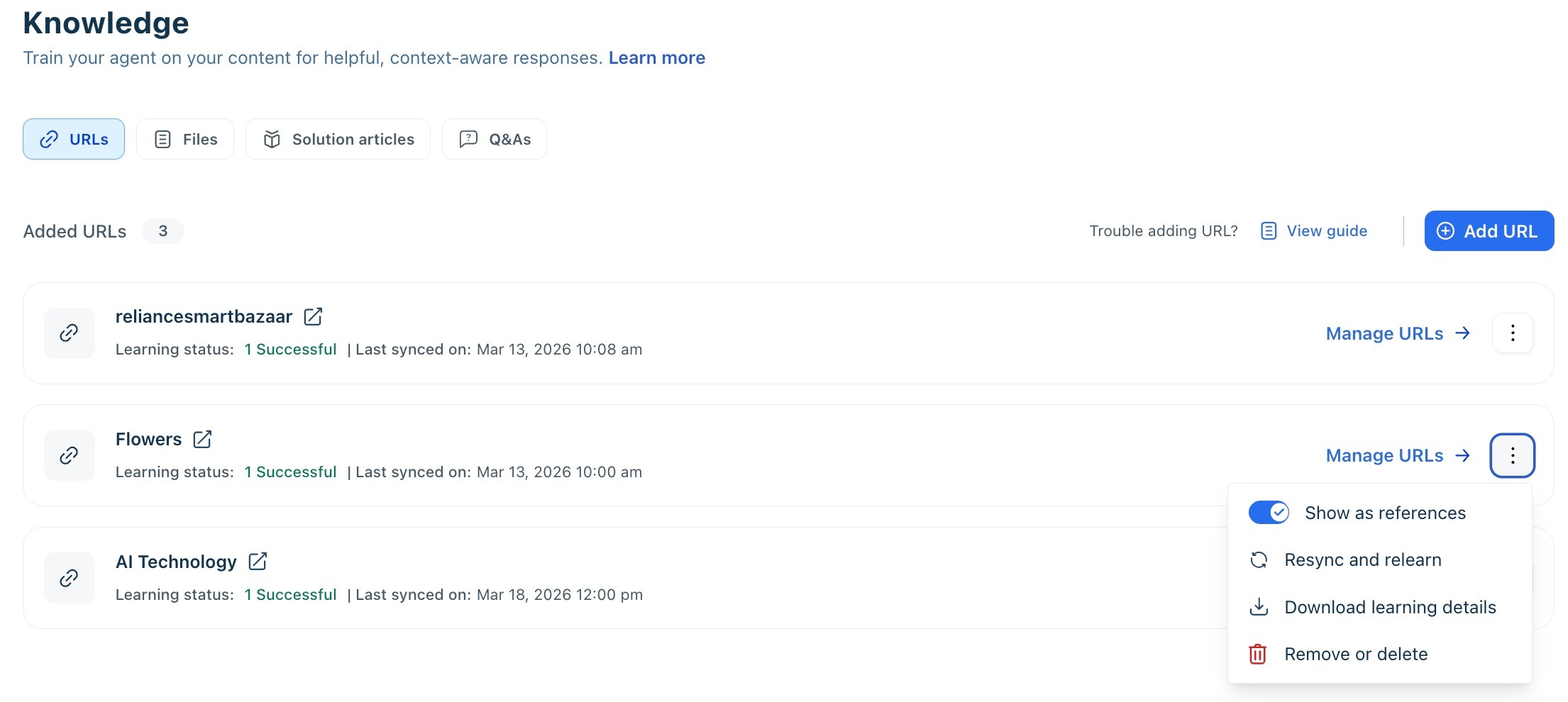
Control how knowledge appears in responses
Each knowledge item can be configured to control visibility:
- Show as references (enabled) → Display source links in responses
- Show as references (disabled) → Use content for learning but hide citations
This allows you to balance transparency with response experience.
Keep knowledge up to date
As your content evolves, ensure your AI Agent reflects the latest information using the Resync and relearn option.
Use this option when:
- Website content is updated
- Documents are revised
Resyncing forces the AI Agent to relearn updated content.
Remove knowledge types
To permanently delete or remove a file or URL:
- Navigate to Admin Settings > Conversation Resources > Files / URLs.
- Locate the specific file or URL you wish to remove.
- Click the three-dot menu next to it and select Delete.
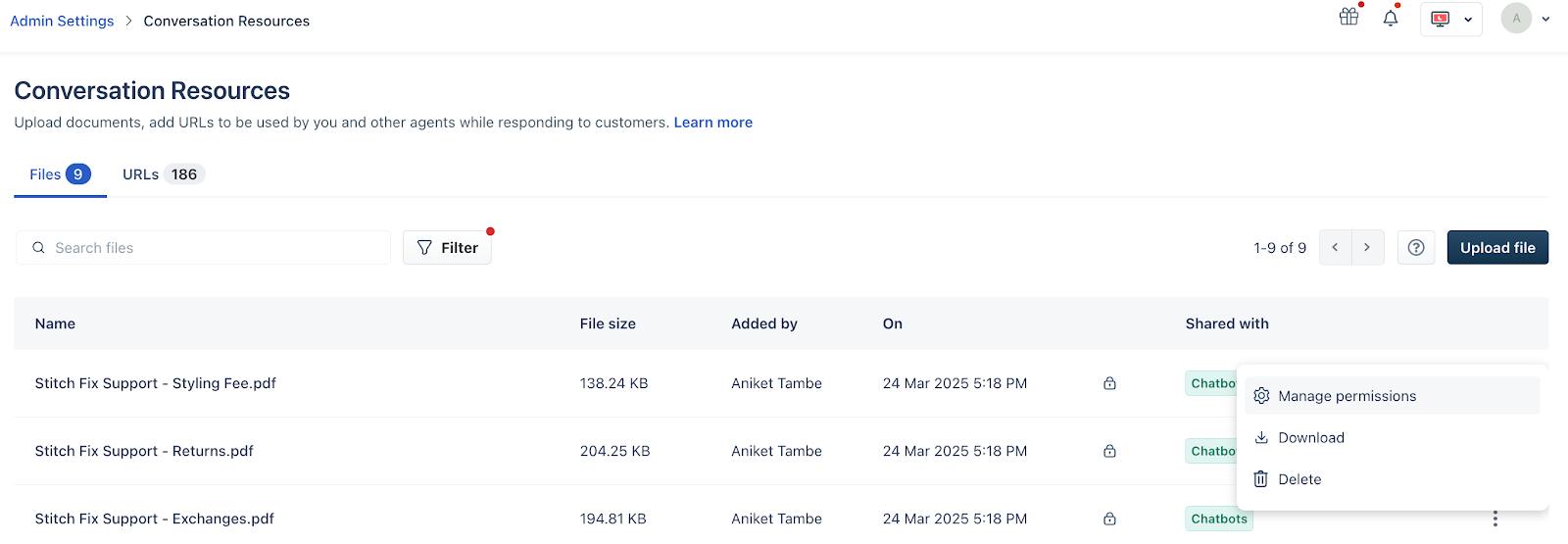
Note: Removing a file or URL from this section permanently deletes it from the AI Agent’s learning pool. This means the bot will no longer refer to this source for any responses. Be cautious while deleting, as this action cannot be undone.
Restore removed knowledge
If previously removed content becomes relevant again:
- Navigate to the respective knowledge type (e.g., URLs)
- Open Removed URLs
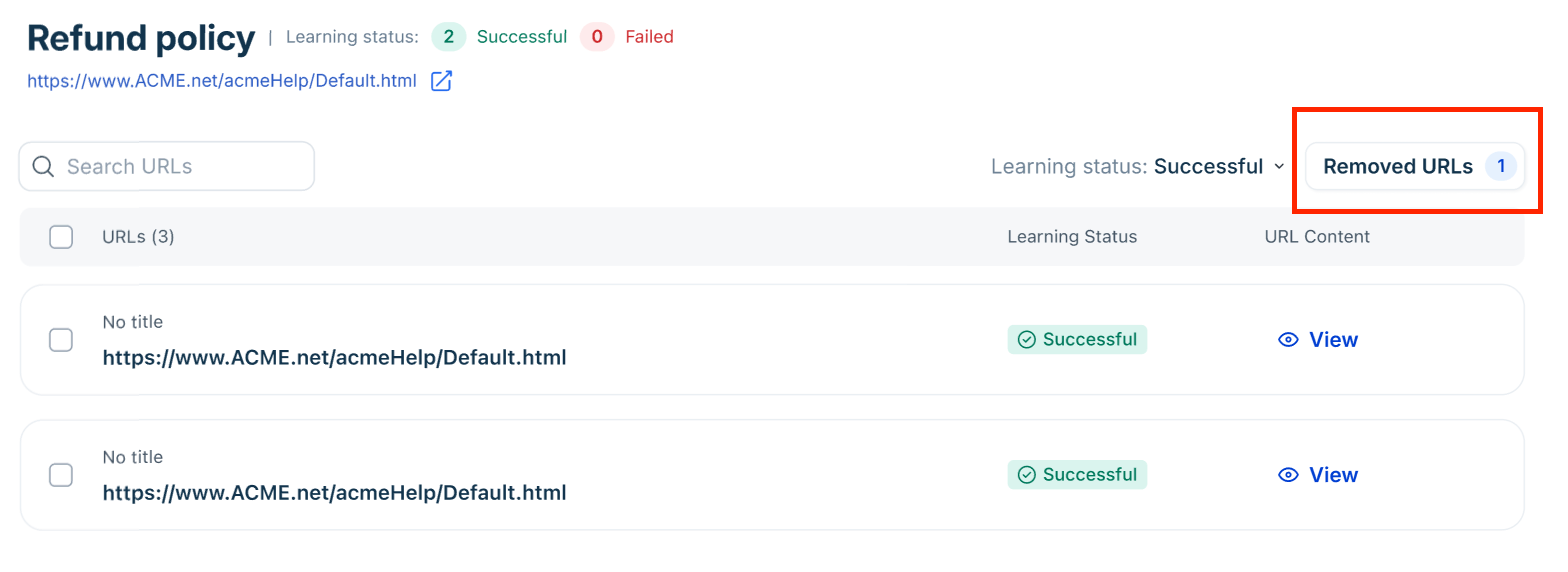
- Select and restore
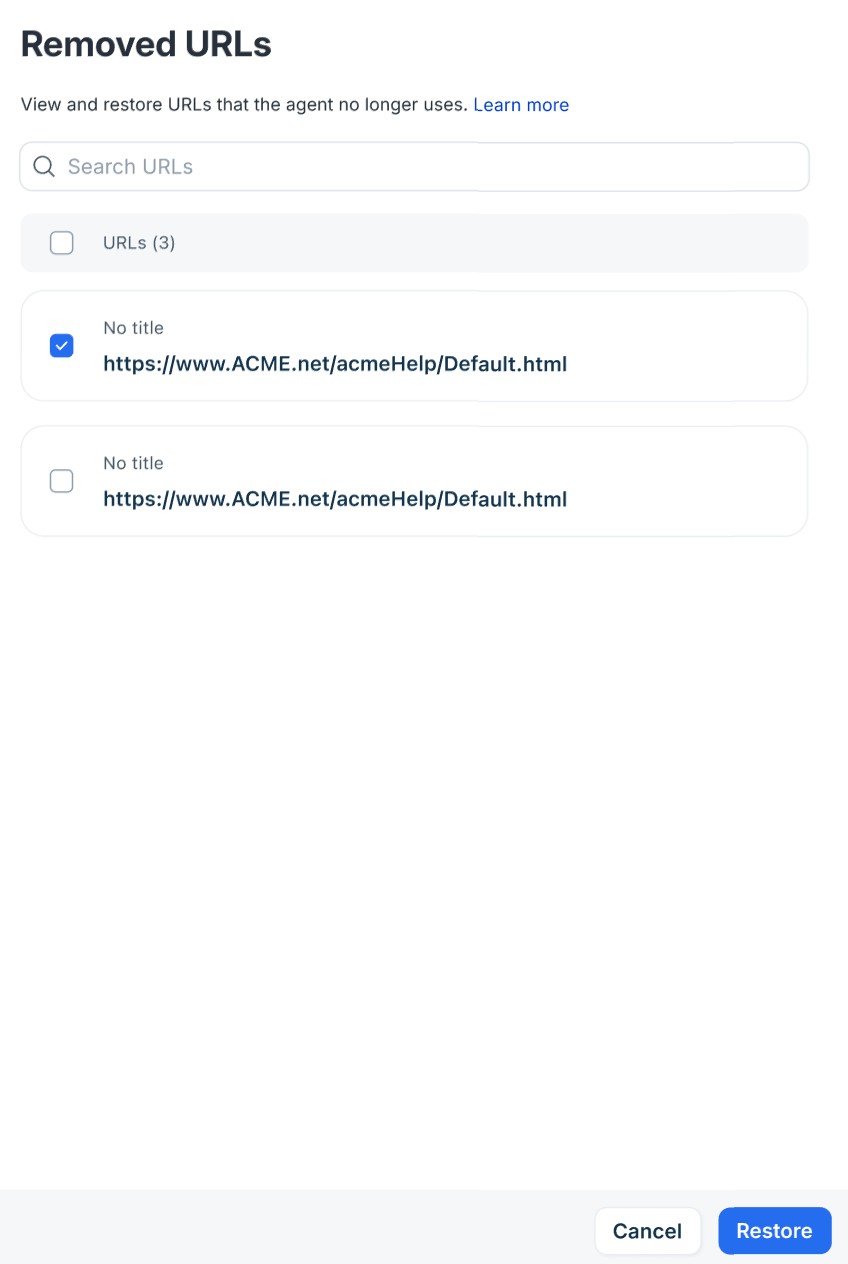
Restored content is reintegrated into the AI Agent’s learning pool.
Review knowledge performance
For each knowledge type (especially URLs), you can monitor:
- Learning status (success/failure)
- Last synced timestamp
- Extracted content preview
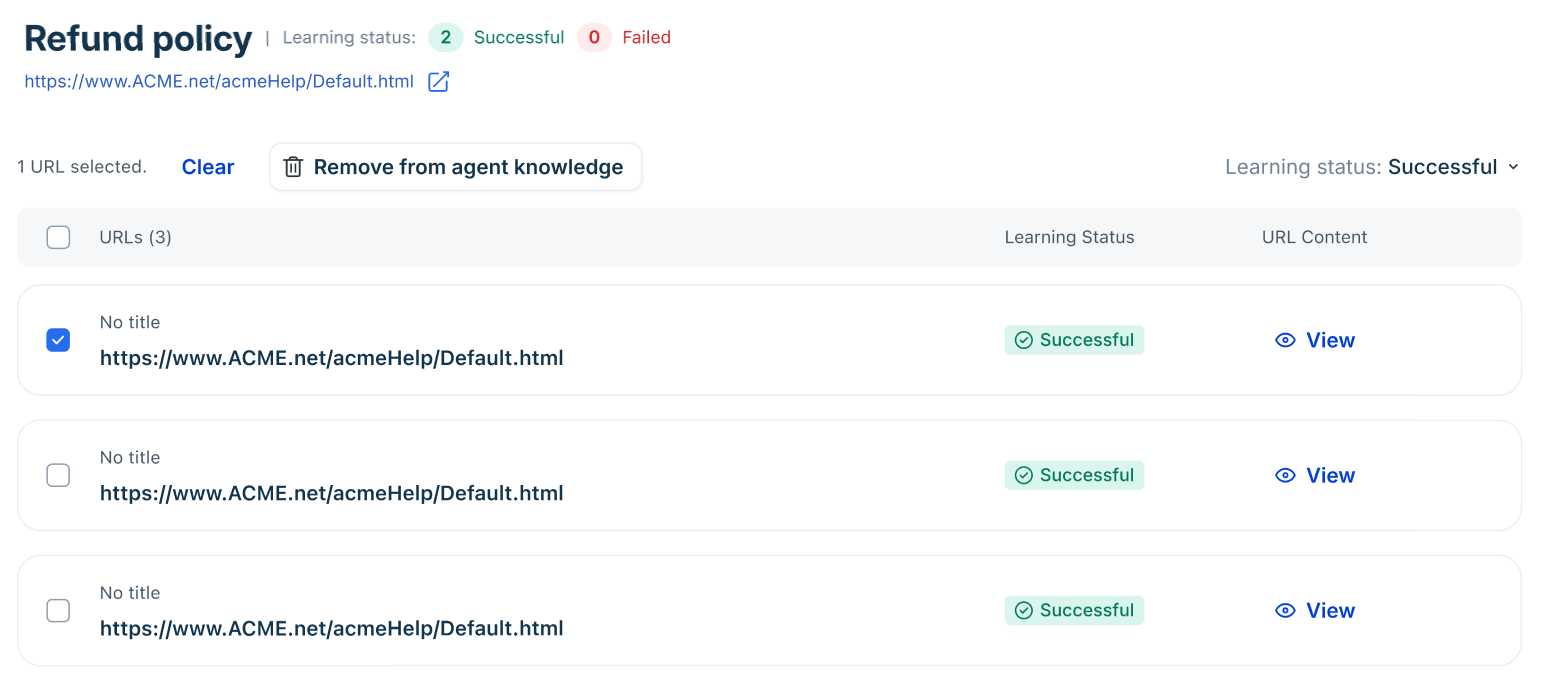
This visibility helps you validate whether the AI Agent is correctly learning from your sources.
Error handling & support
- Issue with file/URL not loading: Ensure there are no blockers or authentication on the page.
- Pop-ups interfering with learning: Reach out to support@freshdesk.com for resolution.
- Need to extend file or URL limits: Contact support@freshdesk.com - requests are evaluated based on your business use case.