
 Community
 Video Library
 Agent Training
 Freshservice
 Freshdesk
 Freshchat
 Freshcaller
 Freshsales
 Freshteam
 Freshworks Neo
 Freshsurvey
 Growth
 Free
FreeTABLE OF CONTENTS
- Structure of AI generated emails
- Sign-off emails using signature management
- Stay compliant with the legal and compliance footer
- Secure customer interactions with fallback message
- Things to keep in mind
The Conversation behavior screen lets you control how your email AI agent structures, tunes, and safeguards every reply it sends. Changes here affect the composition of all outbound AI emails — from the sign-off block and legal footer to the confidence level at which the agent replies and the message customers receive when the agent cannot help.
This article covers all seven settings under Build > Configurations > Conversation behavior. For handover routing, spam handling, feedback buttons, and auto-resolve, see Configure email AI agent trigger rules.
Structure of AI generated emails
All AI-generated emails follow a fixed content order. Understanding this helps you configure each setting appropriately:
- Dynamic greeting — Customer's first name, from the contact record (automatic)
- Main AI-generated response — From your knowledge sources and instructions
- Citations (if enabled) — Configured per source under Build > Knowledge
- Brand signature — Configured in Signature Management
- Feedback buttons (resolution responses only) — Configured under Configurations > Customise customer feedback
- Legal and compliance footer — Configured in Legal & Compliance Footer
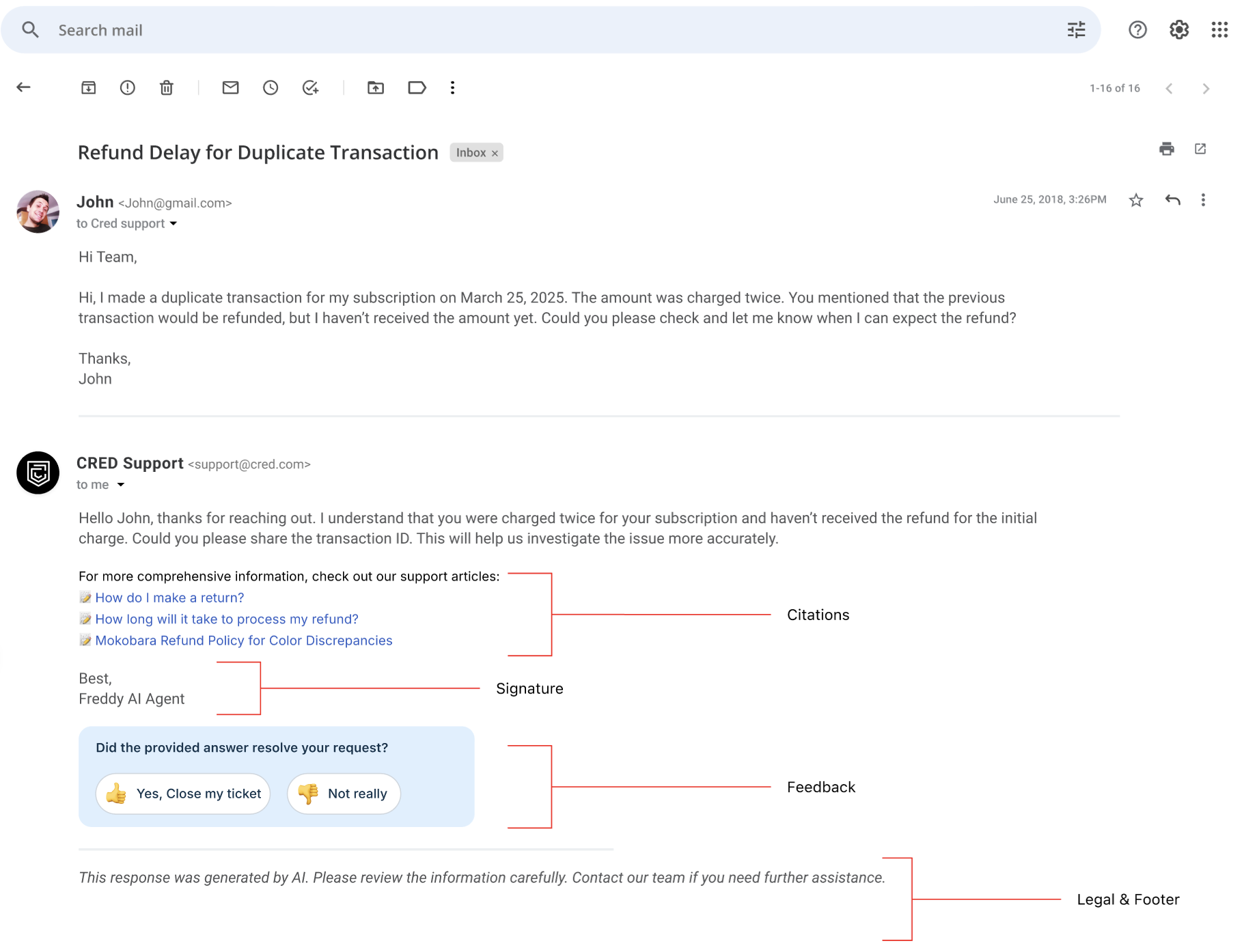
With conversation behavior settings, you can configure AI-generated email signatures, append mandatory legal and compliance disclaimers, and define fallback messages for scenarios where the agent cannot confidently answer a customer query. 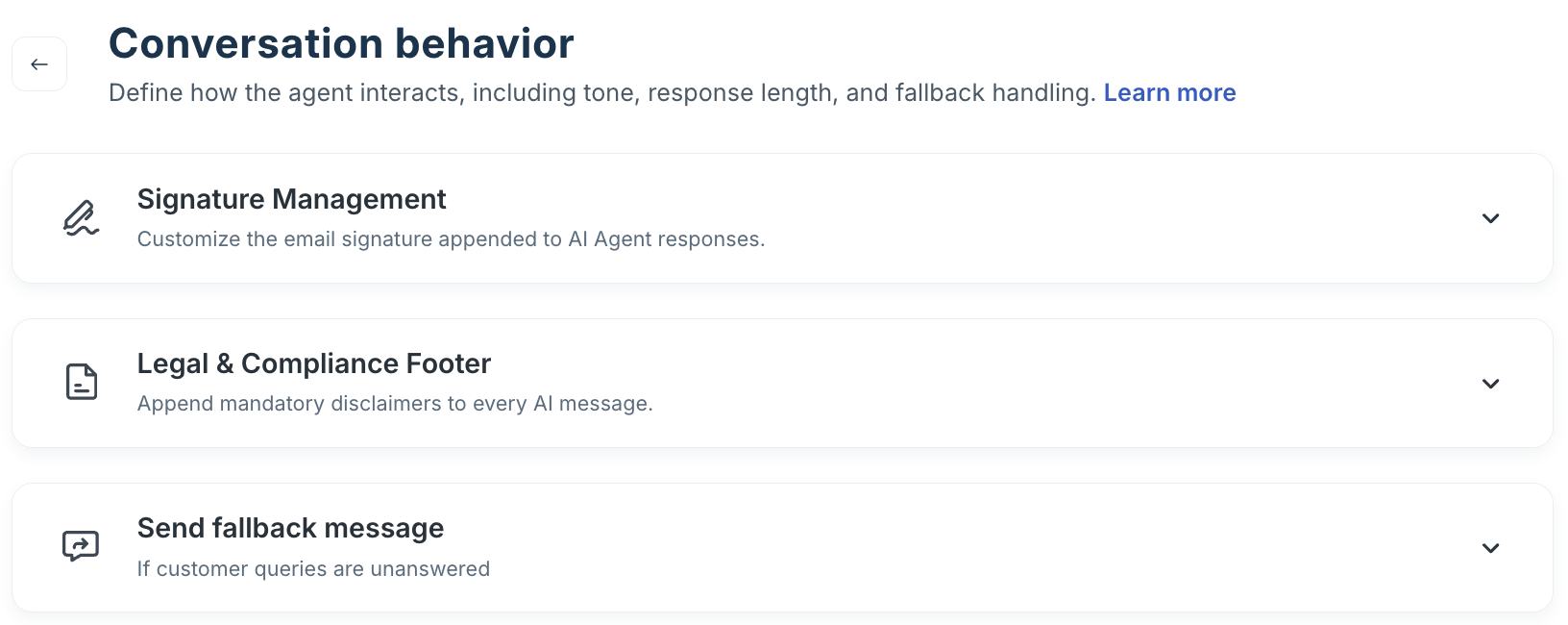
Sign-off emails using signature management
Signature Management controls the sign-off block appended to every AI-generated email — ensuring consistent team identity, contact details, and brand information across all replies.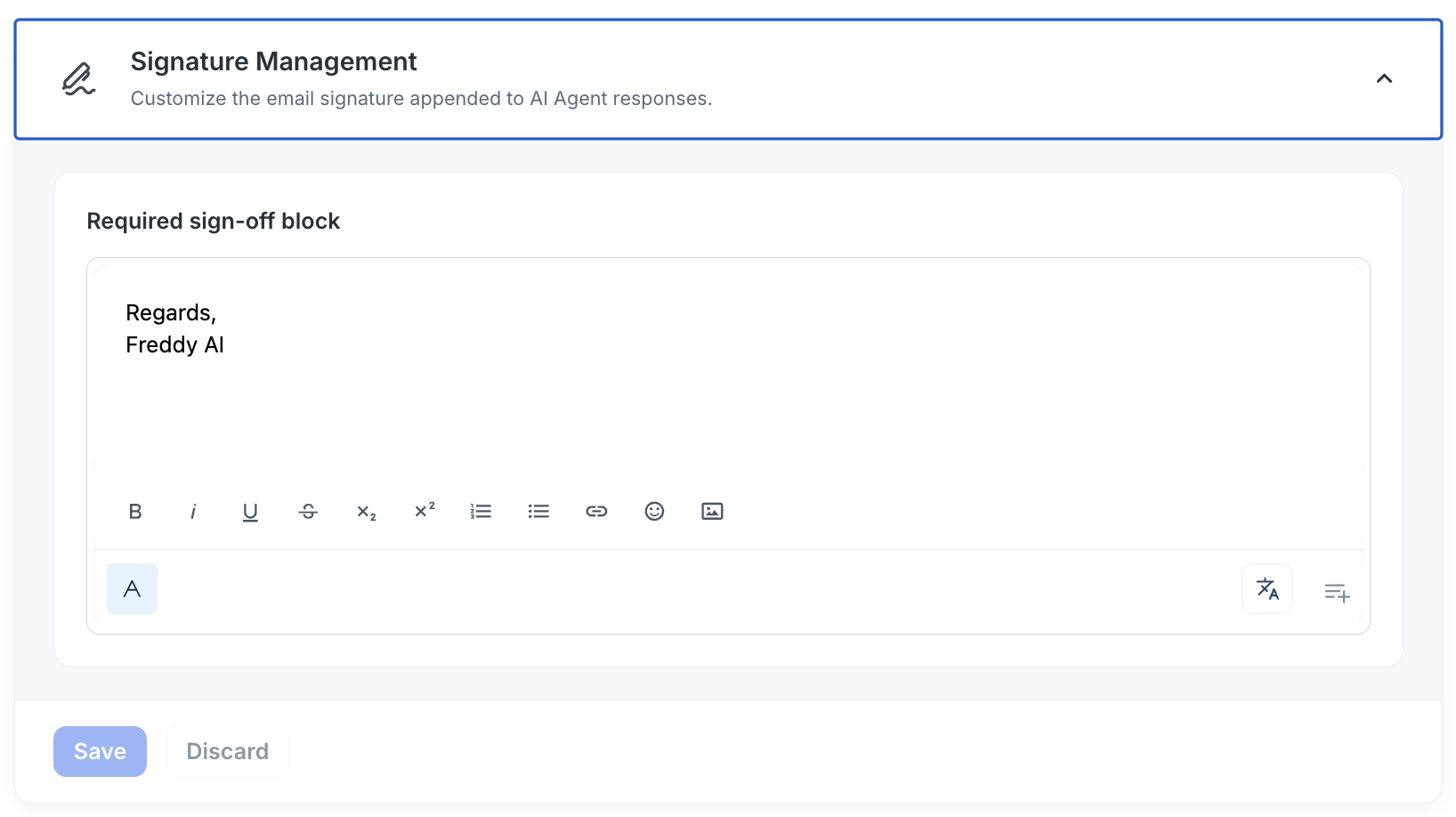
To configure the signature block,
- Expand Signature Management on the Conversation behavior screen.
- In the Required sign-off block editor, compose your signature. Use the toolbar to format text, add links, or insert an image such as a logo.
- Insert dynamic placeholders by selecting Insert Placeholders icon in the editor toolbar. Available categories:
- Ticket: {{ticket.id}}, {{ticket.subject}}, {{ticket.url}}
- Ticket Fields: Custom ticket field values configured in your account
- Helpdesk: {{helpdesk.name}}, {{helpdesk.url}}
- Contact: {{contact.first_name}}, {{contact.email}}, {{contact.phone}}
- Freddy: AI agent name and related system variables
- CSAT: CSAT survey link placeholder
- Select Save. Select Discard to revert to the last saved version.
Best practice: Keep signatures concise — three to five lines. Long signatures push the legal footer further down and can be clipped by email clients on mobile. Test rendering in your most common customer email client before publishing.
When multilingual support is enabled, select Review translations in the signature editor. The Review translations panel shows the primary language version (marked Primary) at the top, editable inline. Auto-translated variants appear for each enabled language — expandable and editable independently.
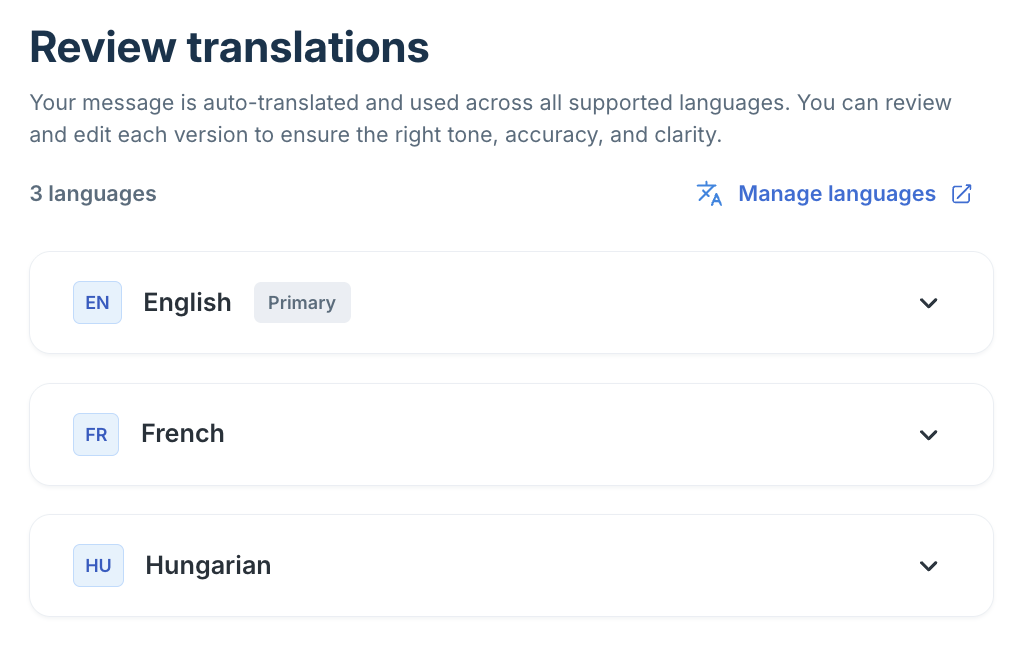
Use the Manage languages link to add or remove supported languages without leaving the screen. Edit any auto-translated variant to fix terminology, adjust formality, or correct brand name casing. Edits to language variants are saved independently from the primary version.
Important: If a language is enabled but no translated signature variant has been saved, the agent uses the primary language signature for all responses in that language. Review and save all active language variants before deployment.
Stay compliant with the legal and compliance footer
The Legal and Compliance Footer appends a mandatory disclaimer to every AI-generated email — regardless of response type. It always appears after the feedback buttons and cannot be placed elsewhere in the content order.
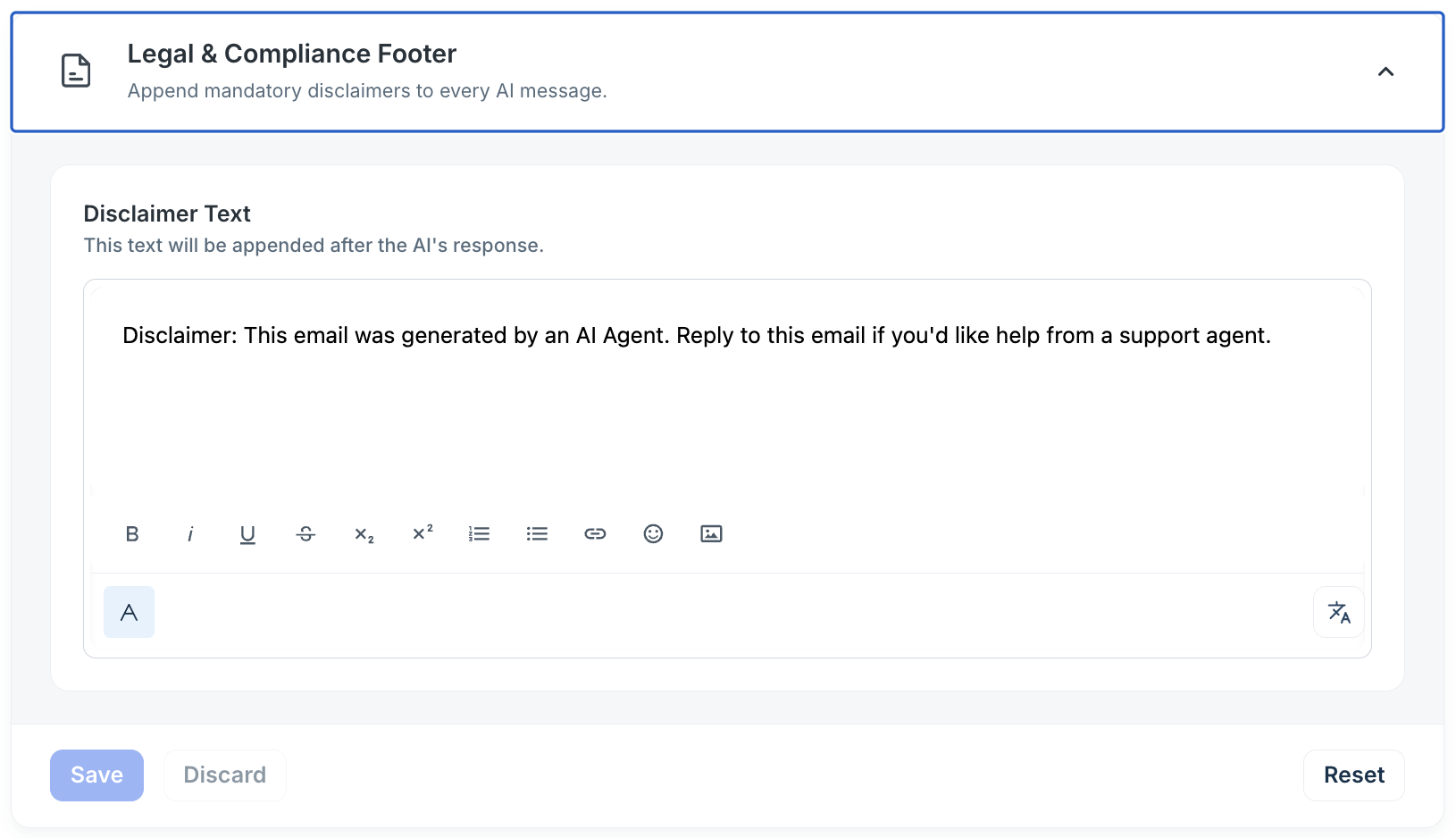
To configure the footer,
- Expand Legal & Compliance Footer on the Conversation behavior screen.
- In the Disclaimer Text editor, enter your legal or compliance copy — AI disclosure statements, data processing notices, regulatory disclaimers, or channel-specific legal mandates.
- Select Save. The footer activates immediately for new replies.
- Select Reset to restore the system-default disclaimer: "This email was generated by an AI Agent. Reply to this email if you'd like help from a support agent."
Character limit: The footer editor enforces a maximum character count. When the limit is reached, the editor displays a 'Max character limit reached' indicator. Keep footer text concise — especially when supporting multiple language variants.
Select Review translations to open the translations panel. Footer variants work identically to signature variants — auto-translated versions appear for each enabled language, each editable independently.
Different regions may require different disclosure language. Validate each language variant with your legal or compliance team before enabling the agent in that market.
Secure customer interactions with fallback message
The fallback message is sent to the customer whenever the AI agent cannot generate any response, even an initial one. This is distinct from a knowledge gap response—the fallback fires at the system level when the response-generation pipeline itself fails or produces no output.
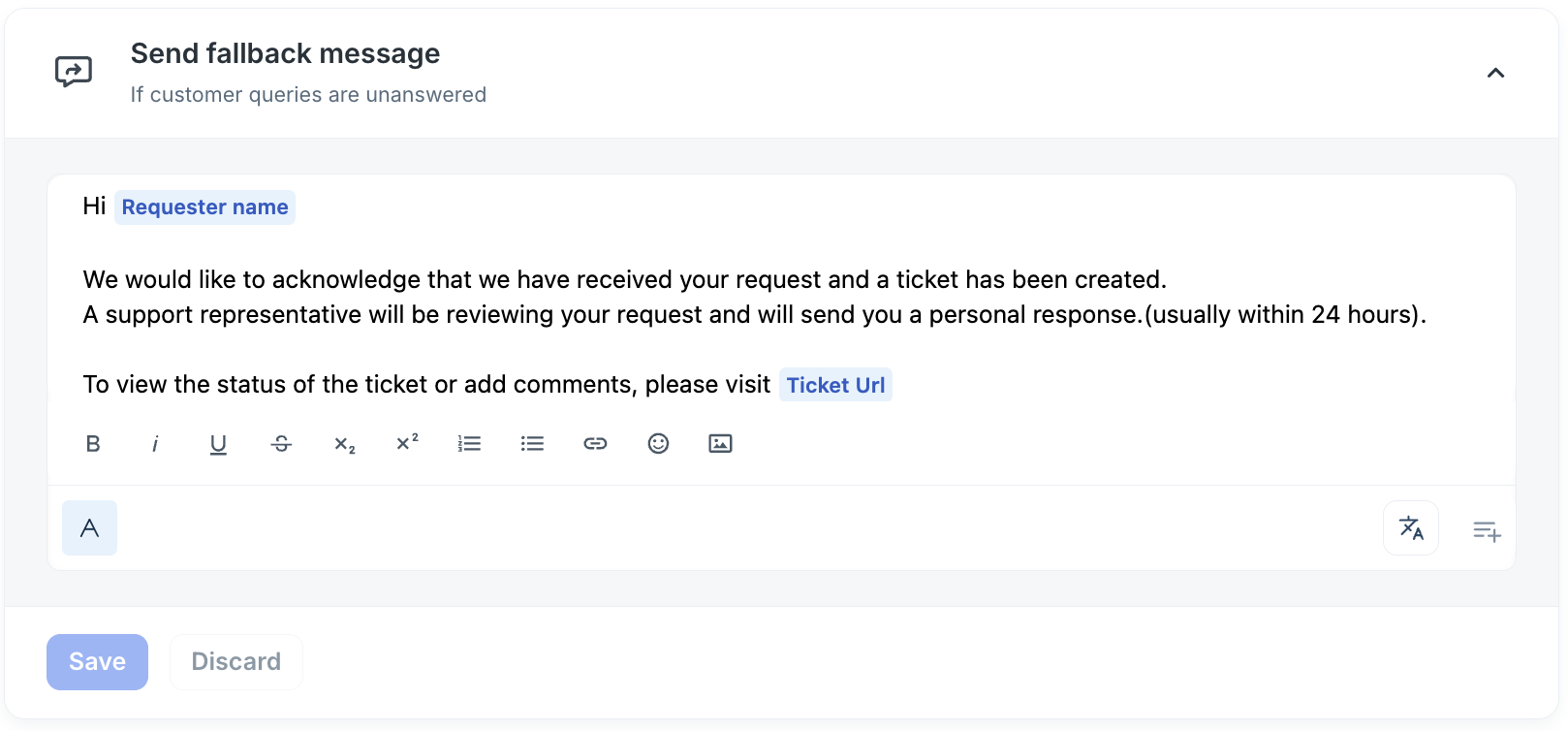
To configure the fallback message,
- Expand Send fallback message.
- Edit the fallback message copy to match your support tone and set customer expectations clearly.
- Include {{ticket.id}} so the customer has a reference for follow-up — for example: "Hi {{contact.first_name}}, we've received your request (Ticket #{{ticket.id}}) and our team will get back to you within [X] hours."
- Select Save. Select Reset to restore the default template.
Best practice: Always set customer expectations in the fallback message — include an estimated response time and an alternative contact path. A fallback that gives the customer nothing to act on increases repeat follow-up volume and reduces satisfaction scores.
Select Review translations to configure language-specific variants of the fallback message. The agent selects the variant based on the language detected in the customer's email.
Things to keep in mind
- Settings apply to new replies only: Changes to Conversation behavior settings take effect for replies generated after saving. Replies already sent are not affected.
- Footer always present: The Legal & Compliance Footer cannot be disabled or moved. It is always the last content block in every AI email, after the feedback buttons.
- Language variant priority: If a language-specific variant exists and is saved, the agent uses it. If no variant exists, the agent falls back to the primary language version.
- Confidence threshold is global per agent: There is no per-topic or per-mailbox confidence setting within a single agent.