
 Community
 Video Library
 Agent Training
 Freshservice
 Freshdesk
 Freshchat
 Freshcaller
 Freshsales
 Freshteam
 Freshworks Neo
 Freshsurvey
Signup Date: After December 2025
Applicable Plans
| Freshdesk | Growth, Pro, Enterprise |
| Freshdesk Omni | Growth, Pro, Enterprise |
An SLA (Service Level Agreement) helps you set clear expectations for how quickly your team should respond to and resolve customer issues. Think of it as a target (or deadline) your team works toward for every ticket or conversation.
You can create one SLA for all tickets or define multiple SLA policies for different types of tickets. For example, shorter targets for social media queries, VIP customers, or urgent issues.
With SLA policies, you can:
- Helps your team prioritize tickets
- Helps you understand if you're meeting response and resolution times benchmark
This article explains how SLAs work in Freshdesk and Freshdesk Omni.
Response and Resolution Time
While configuring SLAs, admins can set the priority of a ticket and define the time expectations for each stage of the response cycle:
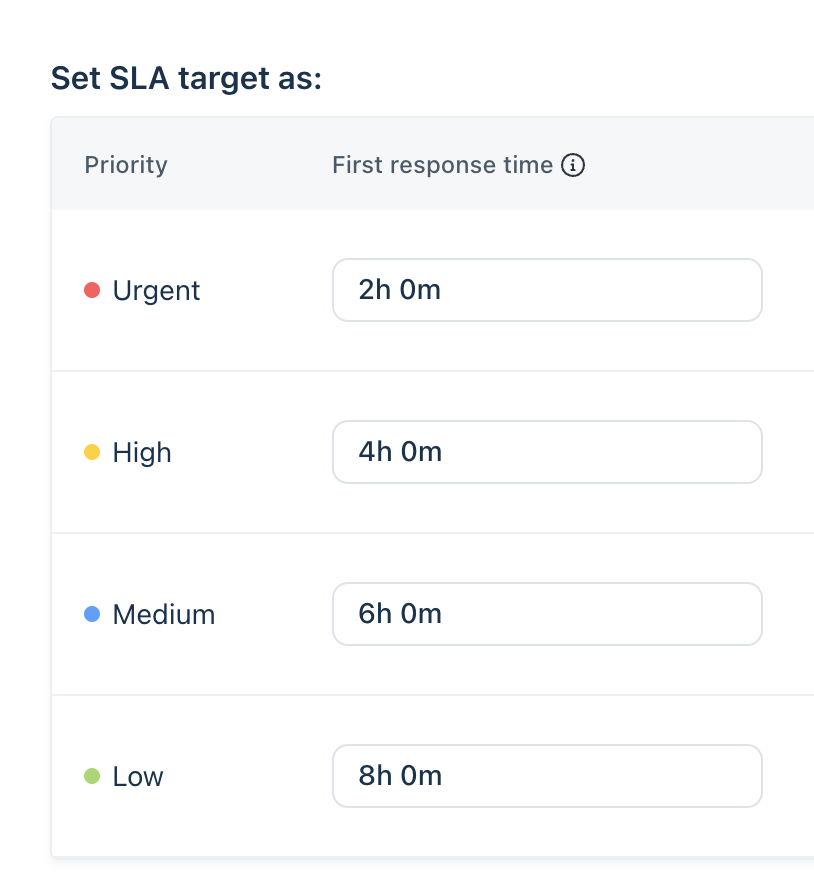
- First Response Time
The time it takes for an agent to send the first reply to a customer after a ticket is created. For example, you can set tickets with a low priority to have a First Response Time of 8 hours.
Notes:
- First Response SLA is calculated when an agent sends a reply or adds a public note on the ticket. This includes responses added through the API using an agent's API key. Replies sent using the Send Reply action in automation rules are not counted toward First Response SLA, because they are treated as system-generated messages rather than agent responses. If you need an automated first response to stop the First Response SLA timer—for example, from an external AI tool—use a webhook to post a public note instead of Send Reply.
- Instagram tickets: Freshdesk does not currently support adding replies or public notes to Instagram tickets through the API. The webhook approach above does not apply to Instagram until API support is available.
- Every Response Time
The time taken to respond to each customer message after the first response (for example, the customer has another question in the same ticket)
- Resolution Time
The total time it takes to fully resolve and close a ticket from the moment it is created.
Create a new SLA policy
All Freshdesk accounts include one default SLA policy. Freshdesk Omni accounts come with two default SLA policies. These default policies apply to all tickets unless you configure additional or multiple SLAs, which are available starting from the Pro plan in both Freshdesk and Freshdesk Omni.
To add a new SLA policy,
Set conditions for SLA
- Log in as an admin.
- Go to Admin > Workflows > SLA Policies.
- On the SLA Policies page, click Add policy.
- Give your SLA policy a name (for example, Premium Support) and add a description.
- In the When a ticket satisfies these conditions section, define the specific criteria for the SLA's application. You can choose from the following default fields:
- Company - For example, you might want to trigger a particular SLA policy only for customers who have purchased your Priority Support Subscription.
- Group - If you want this policy to apply only for specific Agent Groups, you can select them here. For example, you might want to define a different set of service levels for your finance group which has to process refunds.
- Product - if you're supporting multiple products or brands through a single Freshdesk account, you can define which product(s) this particular policy must be applied to.
- Source - you might want to set a different service level target for tickets coming in through Facebook, as compared to those through email.
- Type - you can select the SLA to be enforced based on the type of problem that you are facing; such as a billing problem, or a potentially serious bug as examples.
- Contact segment and company segment - As examples, if you have a list of customers that fall under a "VIP" category, or use a specific product of yours, you can create a separate policy for them.
- Source info - You can refine SLA application even further using Source Info. For example, if tickets from a specific Facebook page needs faster handling, you can target those sources individually.
- Contact Type - If your contacts are tagged by type such as Customer, Partner, Vendor, or Internal User, you can apply different SLA expectations for each category.
For example, you can configure the SLA to apply only to tickets received via email or phone and assigned to agents in the Premium support group.
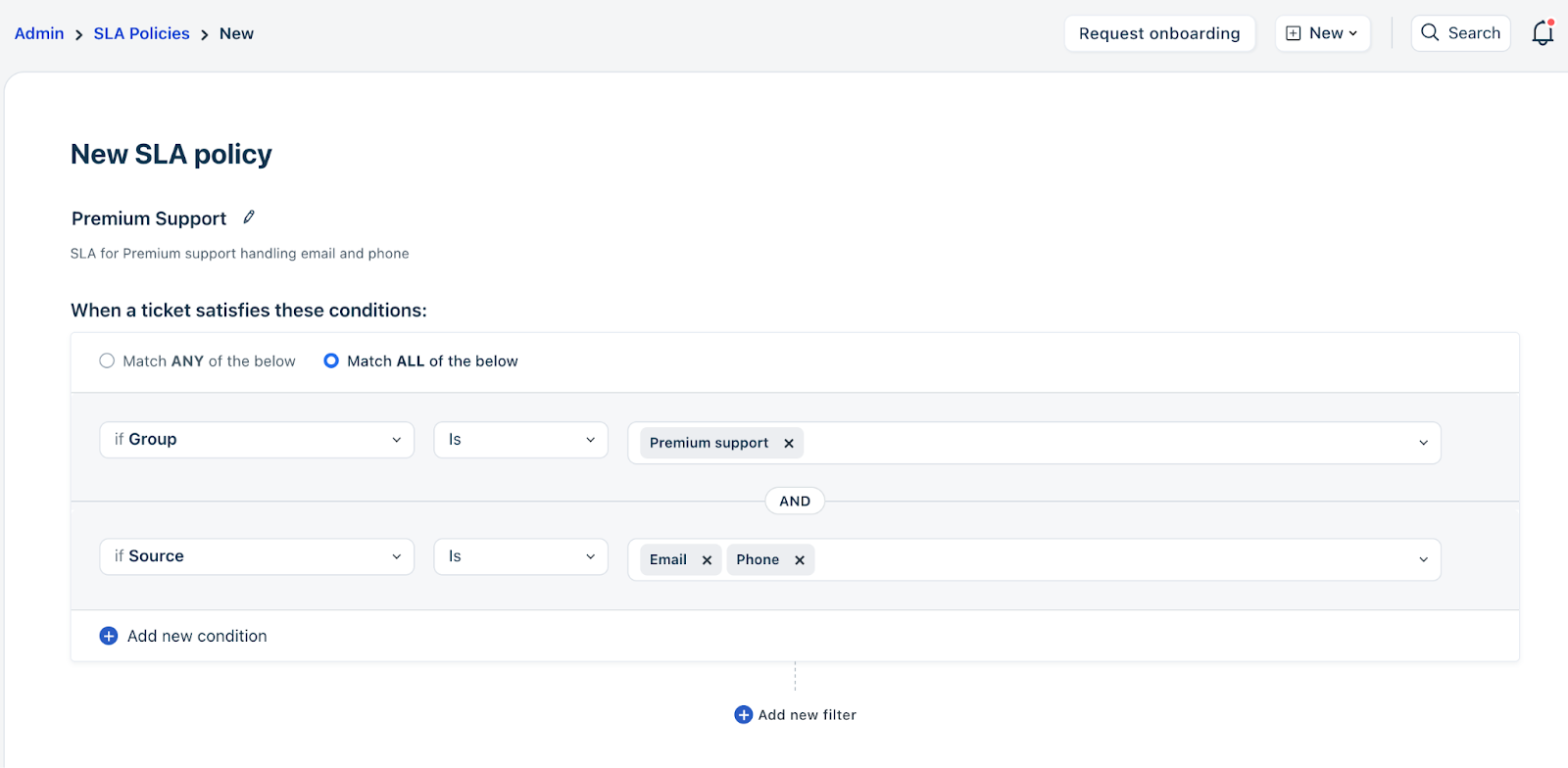
When configuring SLAs or workflows, you can combine multiple conditions using AND or OR to control when a rule should apply.
AND conditions
Use AND when every condition must be true for the rule to run.
Example:
- Group is Escalations
- AND Type is Outage
This SLA applies only if a ticket belongs to the Escalations group and is tagged as an Outage. Both conditions must be met.
OR conditions
Use OR when any one condition can be true for the rule to run.
Example:
- Group is Escalations
- OR Type is Outage
This SLA applies if the ticket is in Escalations or is marked as an Outage. The rule triggers even if only one condition matches.
Note: For customers on the Enterprise plan (both Freshdesk and Freshdesk Omni), custom (dropdown, dependent, and checkbox) fields can be used as conditions. The Enterprise plan supports up to five levels of conditions
Define SLA targets
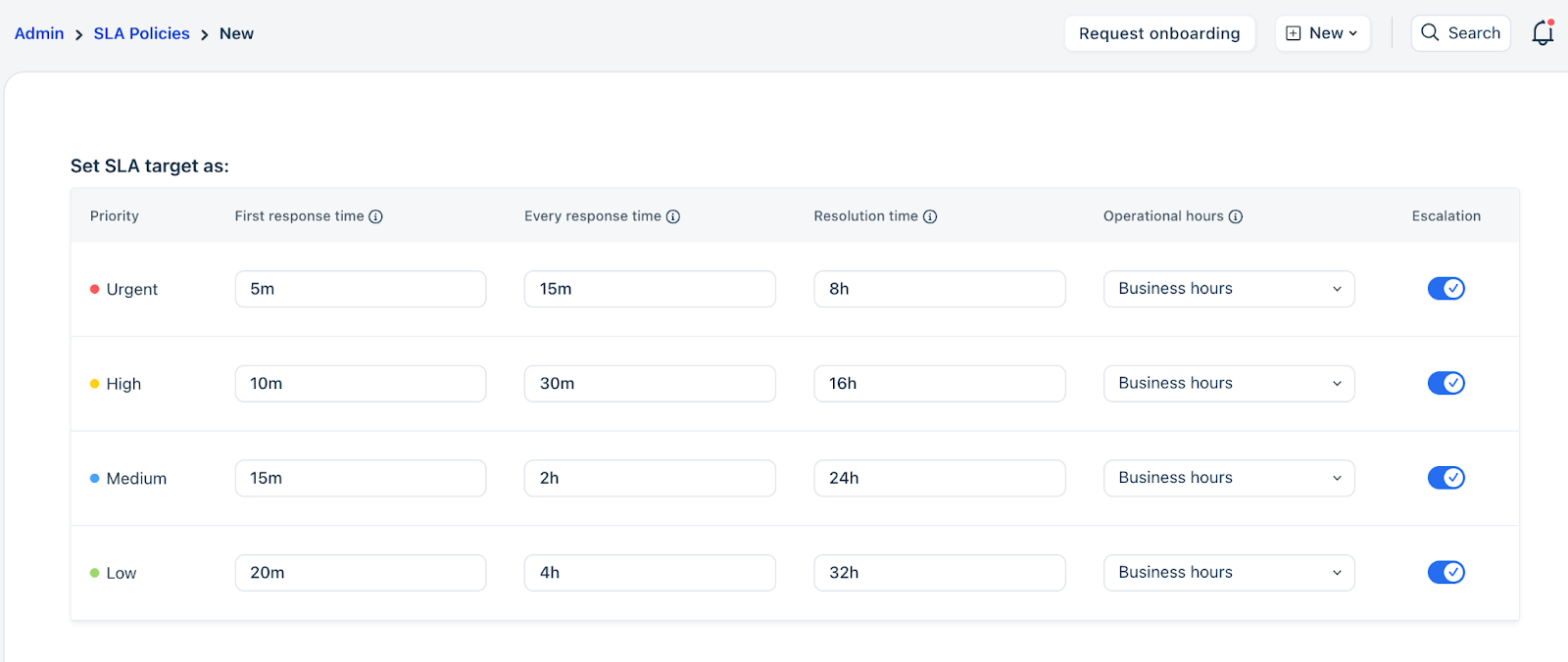
- Under Set target as, define the following target parameters for each priority level Urgent, High, Medium, Low. SLAs can be set in days, hours, and minutes.
- Establish specific first-response, every-response, and resolution-time targets for each priority level.
- Under operational hours, choose whether SLA should be calculated using Business hours you have set or Calendar hours (24*7)
- Toggle Escalations ON if you want alerts when SLAs are violated (available from Pro plan onwards)
Note: The minimum SLAs that you can set for Freshdesk and Freshdesk Omni are as follows:

1) Freshdesk: 5 minutes for both response and resolution times, across all priorities.

2) Freshdesk Omni: You can set the SLA as low as 30 seconds for both response and resolution times, with precise 15-second increments (e.g., 15s, 30s, 45s, 60s, etc.). This is because Freshdesk Omni supports real-time channels, such as web chat and messaging, where customers expect faster responses.
Add reminders for agents (available from Pro plan onwards for Freshdesk and Freshdesk Omni)
- Under the Remind agents when the SLA due time approaches section, you can set reminders for agents before their SLA targets get breached. You can set targets for first response and resolution time. You can set the reminder from 5 minutes to 4 hours. You can also set the reminder to be sent to the agent assigned to the ticket, as well as any other users from the dropdown.

Add escalations (available from Pro plan onwards for Freshdesk and Freshdesk Omni)
- Under the Send escalation when SLA is violated section, you can:
- Define the recipients for the escalation email. This could be the assigned agent and /or managers, team lead, etc.
- You can set the time by which escalation should be sent for first response, next response, and resolution time violations.
- You can set the reminder from immediately (5 minutes) to 1 month.
Escalations can be sent as:
- Emails
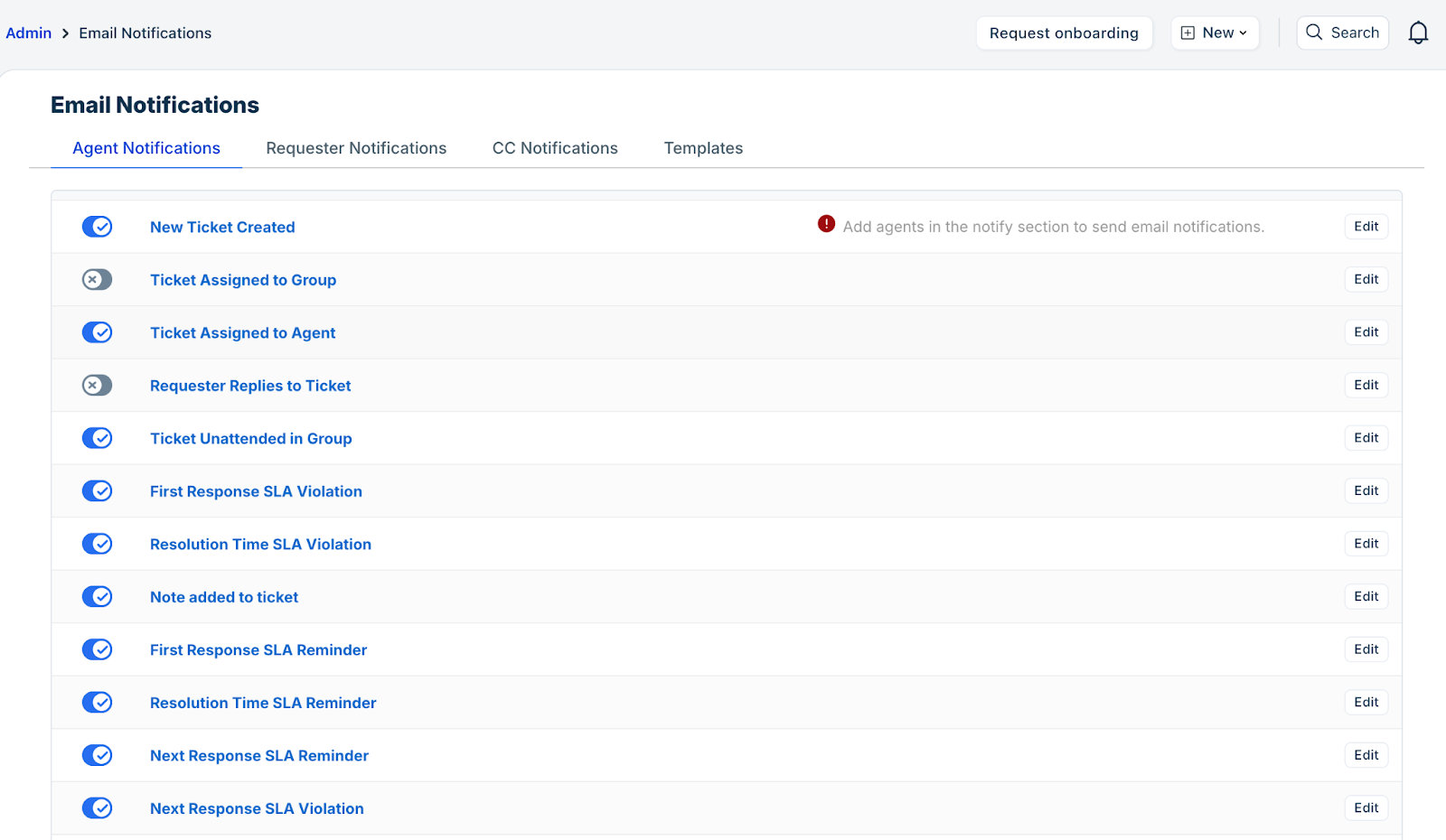
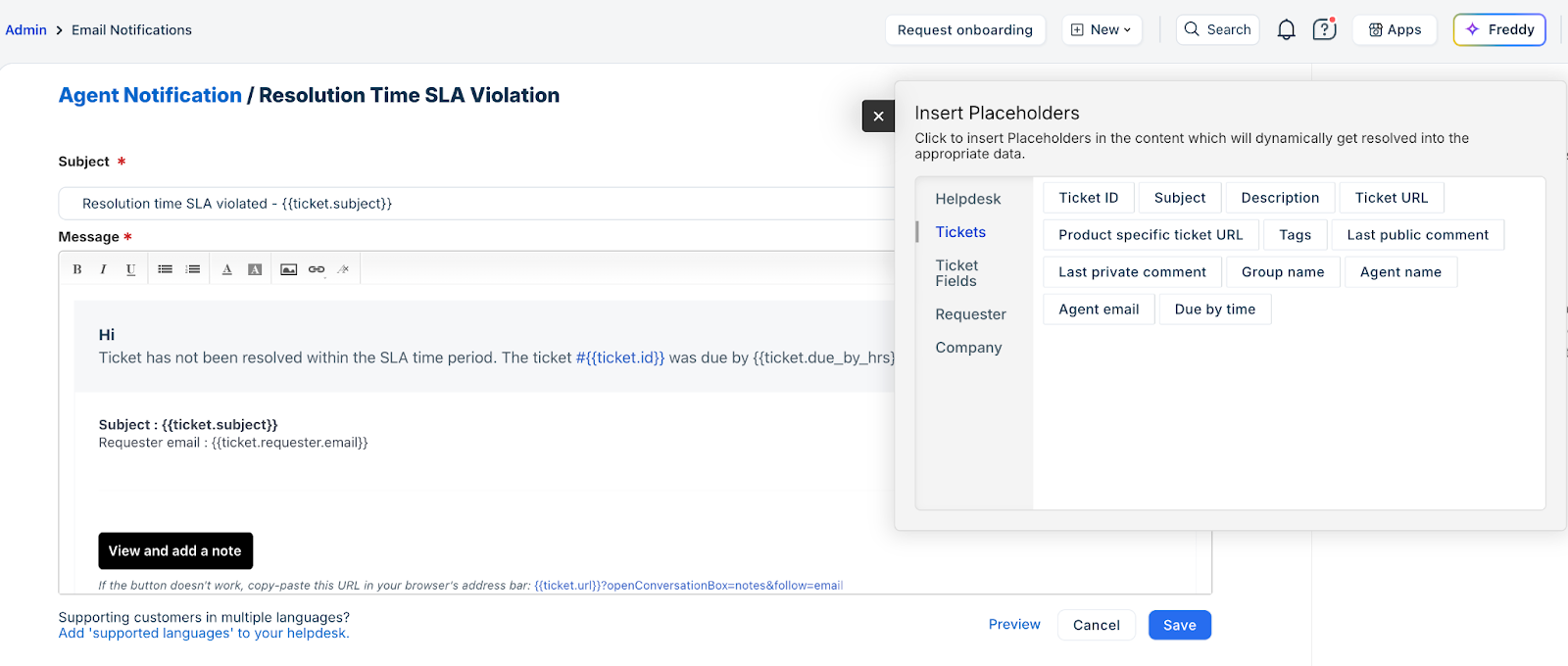
To configure escalation emails, go to Admin > Email notifications > Agent Notifications > You can toggle First response SLA Violation, Next Response SLA Violation, and Resolution time SLA Violation to ON.
Additionally, relevant information regarding the escalation can be conveniently included within the ticket using placeholders.
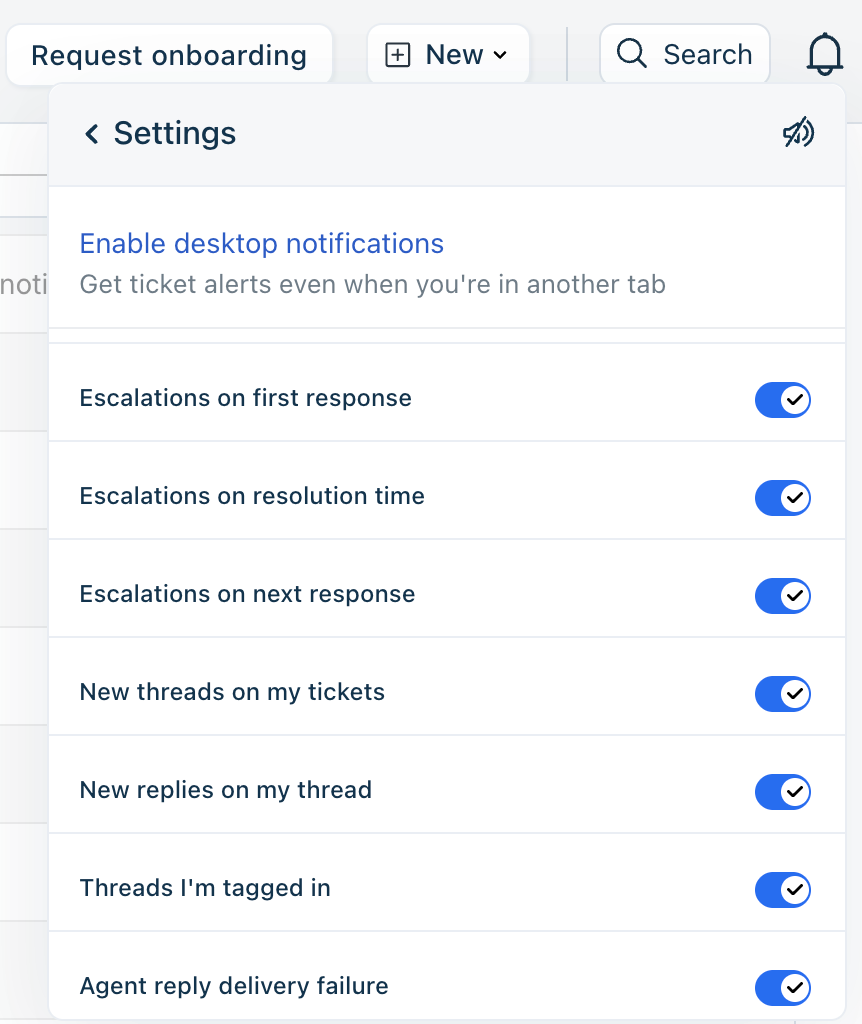
- Desktop notifications
To configure escalations as notifications, click the Bell icon at the top > Settings > Under Desktop notifications, toggle Escalations at first response, Escalations on resolution time, and Escalations at next response to ON.
Order of SLA Policies
The sequence of your SLA policies is crucial. For new tickets, the SLA policy with matching conditions that appears first in the list will be applied.
To change the order of an SLA policy,
- Click Reorder on the SLA Policies page, hover near the policy you want to move, and click Select.
- Move the cursor to where you want to place the SLA policy and click Place here to change the order of the SLA.
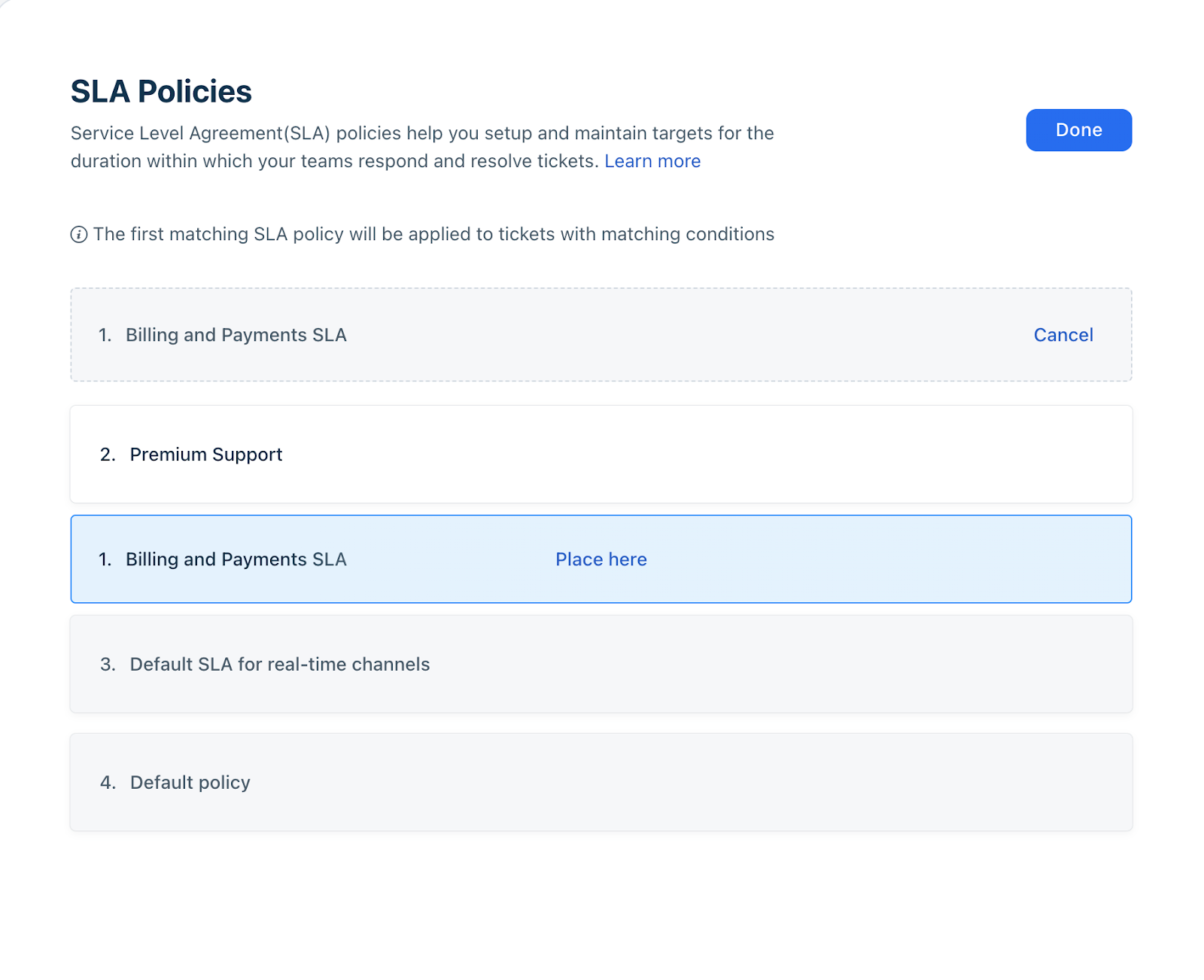
Note: It is recommended to place urgent SLAs (issues or VIP customers) at the top and more generic ones towards the bottom.
Default SLAs in Freshdesk Omni
Freshdesk Omni Default SLA Policies
Freshdesk Omni includes two built-in SLA policies, designed to ensure every ticket—especially those from real-time channels—meets the right-response expectations:
- Default SLA for real-time channels
This policy applies shorter SLA targets to tickets originating from real-time messaging channels, such as Web Chat, Facebook DM, Instagram DM, and WhatsApp, where customers expect faster responses. - Default policy
This policy ensures that every ticket receives an SLA if no other custom or default SLA rule applies.
Setting up Priority
Admins can use automation rules to specify conditions, such as the subject line or customer type (for example, VIP), to set the priority of a ticket. Learn more about setting up automations here. In the Inbox, tickets can be sorted by due by time property, allowing agents to see them in the order of impending SLA breaches.
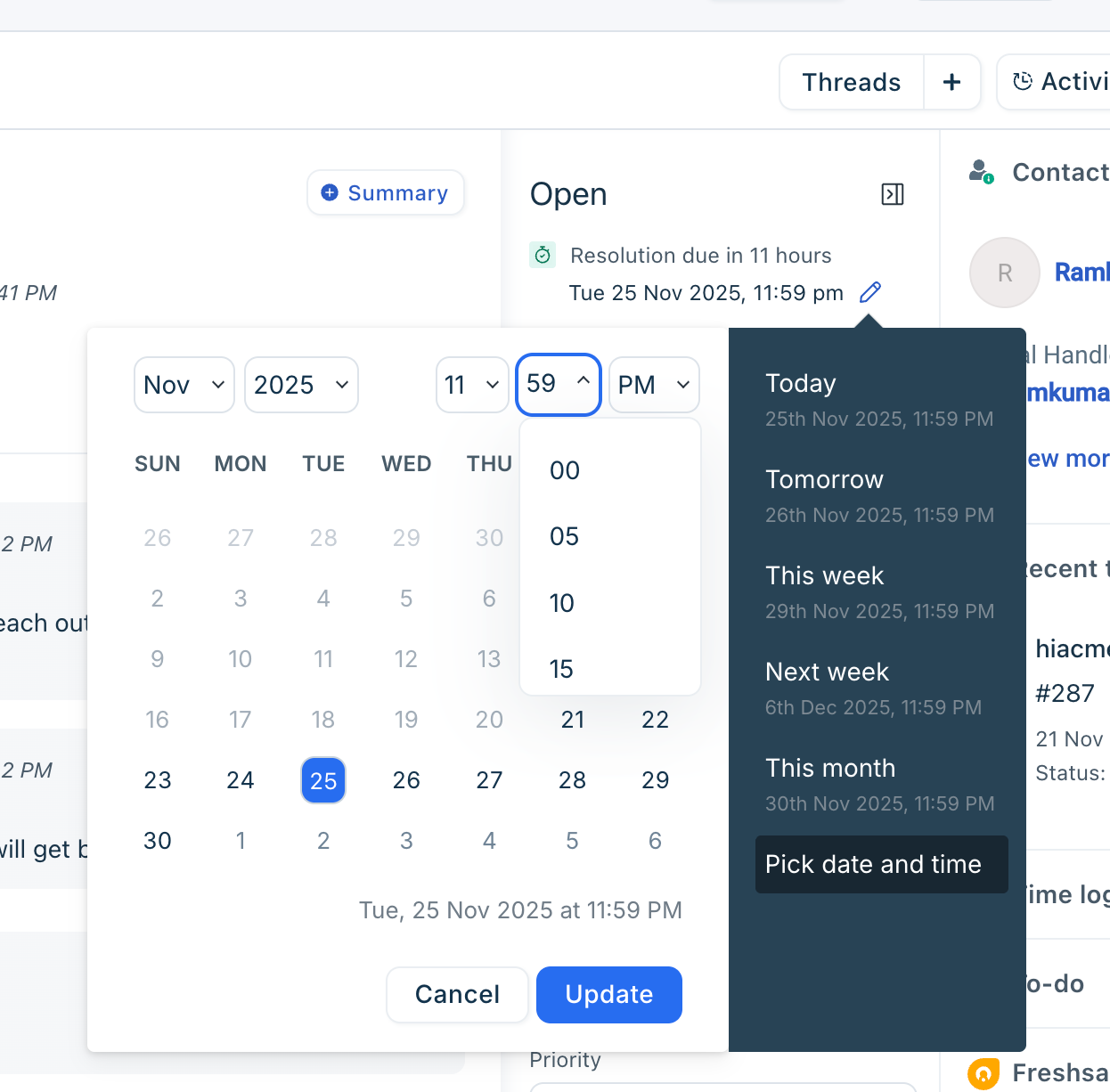
Agents can modify a ticket's resolution due time, typically after discussing it with customers.
SLA changes by Agent
If a ticket requires an SLA adjustment after an agent gains more clarity from the customer, agents can manually update the ticket's First Resolution Due Time and Resolution Due Time.
Note: You can add up to 1000 SLA policies and 500 Business Hours.
Upgrade and Downgrade Behavior
A. Upgrading from Freshdesk to Freshdesk Omni
When you upgrade from Freshdesk to Freshdesk Omni:
- Seconds-level SLA options appear
- Minimum SLA becomes 30 seconds
- Default Chat SLA (Web Chat + WhatsApp) is automatically added
- All your existing Freshdesk SLA configurations remain unchanged
B. Downgrading from Freshdesk Omni to Freshdesk
When you downgrade from Freshdesk Omni to Freshdesk:
- The seconds field is removed if the SLA configured is greater than 5 minutes
- Minimum SLA becomes 5 minutes if the SLA configured is less than 5 minutes
Example:
| Before (Freskdesk Omni) | After (Freshdesk) |
| 4 mins | 5 mins |
| 30 sec | 5 mins |
| 5 min 30 sec | 5 mins |
| 3 days 3 min 30 sec | 3 days 3 min |
- Chat SLA disappears
- Fields specific to Web Chat/WhatsApp become empty
- Custom conditions - Downgrading an account with an SLA having over four conditions, where one relies on a custom field (Enterprise-only), results in the custom field condition becoming empty.
C. Upgrading/Downgrading Between Plans (Same SKU)
| Downgrade Scenario | Impact on SLAs |
| From Enterprise > Pro/Growth | SLAs that rely on custom fields will become invalid. The associated conditions will be removed or set to blank. |
| From Pro > Growth | Only one SLA (the default policy) will remain active. |
Signup Date: Before December 2025
Applicable Plans
| Freshdesk | Growth, Pro, Enterprise |
| Freshdesk Omni (formerly CSS) | Growth, Pro, Enterprise |
| Omnichannel | Growth, Pro, Enterprise |
| Freshdesk (previous plans) | Blossom, Garden, Estate, Forest |
| Omnichannel (previous plans) | Estate, Forest |
An SLA policy (service level agreement) lets you set standards of performance for your support team. They're like a target, or a deadline, within which your team is expected to respond and resolve tickets.
You can set targets for
- the very first response that you send to the customer
- every response that's sent after the first response (Available from Estate)
- the ticket resolution
You can either have a single SLA policy for all tickets or have different SLA policies for different types of tickets. As an example, you can have a shorter SLA target for tickets from Social media or VIP customers. 
In these series of articles, we'll be talking about
- Editing the default SLA policy
- SLA targets for every response
- Reminders and escalations for an SLA policy
Editing the default SLA policy
The default SLA policy applies to all your tickets.
Login as an admin
Go to, Admin > Workflows > SLA Policies

- Because how fast you're required to respond to tickets depends on its priority, you can set-up a different SLA target for the different ticket priorities- urgent, high, medium and low
- Choose whether the SLA should be calculated based on Business or Calendar hours

- If you want to enable escalations when service levels are violated, make sure the Escalation option button is toggled on (Available from Estate onwards)
- Click Save to finish setting up your SLA Policy