
 Community
 Video Library
 Agent Training
 Freshservice
 Freshdesk
 Freshchat
 Freshcaller
 Freshsales
 Freshteam
 Freshworks Neo
 Freshsurvey
 Free
FreeTABLE OF CONTENTS
Forward threads allow agents to collaborate with external stakeholders without cluttering the main ticket conversation. Responses from external recipients are captured in a dedicated thread, helping agents maintain context while keeping ticket conversations organized.
Prerequisites
- Ensure you have permission to forward tickets, replies, or private notes.
About forward threads
Threads enable agents to have focused conversations within a ticket. You can forward an entire ticket, a customer reply, an agent reply, or private notes. Responses from external recipients are added to the same forward thread. Agents can continue the conversation by replying directly within the thread.
You can also add collaborators to a thread (available on Pro and Enterprise plans) to bring the right people into the conversation and resolve tickets faster.
The following limits apply to forward threads:
- A ticket can contain up to 100 threads, and each thread can have up to 400 messages.
- Each ticket conversation item (agent reply, customer reply, private note, or public note) can have up to 5 associated threads.
Create forward threads
To create a forward thread:
- Log in to your account and open a ticket.
- Click Forward. You can also click Threads > Forward this ticket.
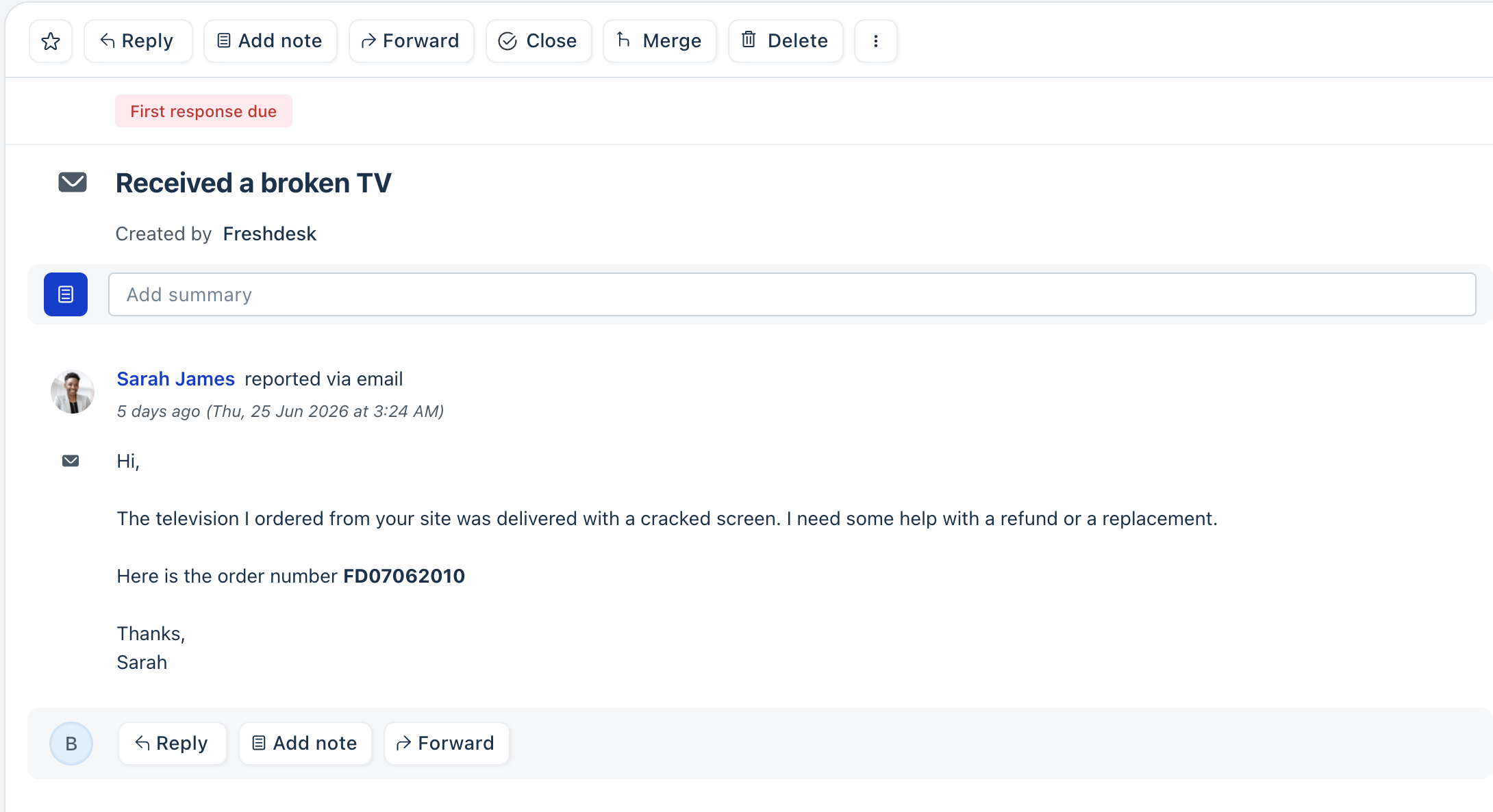
- Enter the recipient's email address.
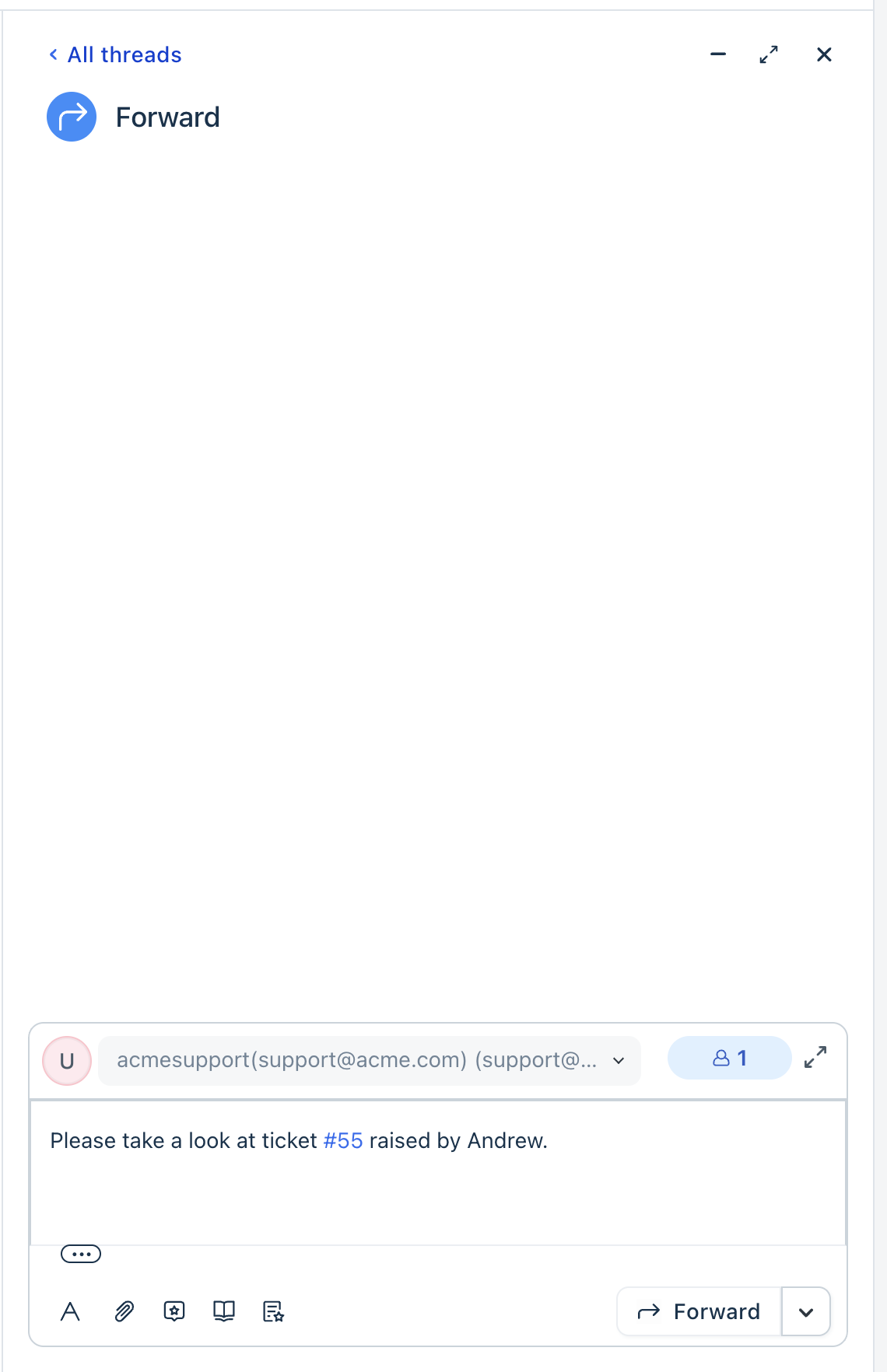
- Add any additional message. You can also add CC or BCC recipients, and attach files.
Note: You can add up to 50 recipients across the To, CC, and BCC fields. - Click Forward.
Additionally, you can forward a specific customer reply, agent reply, or private note. To do this, hover over the conversation and click Forward.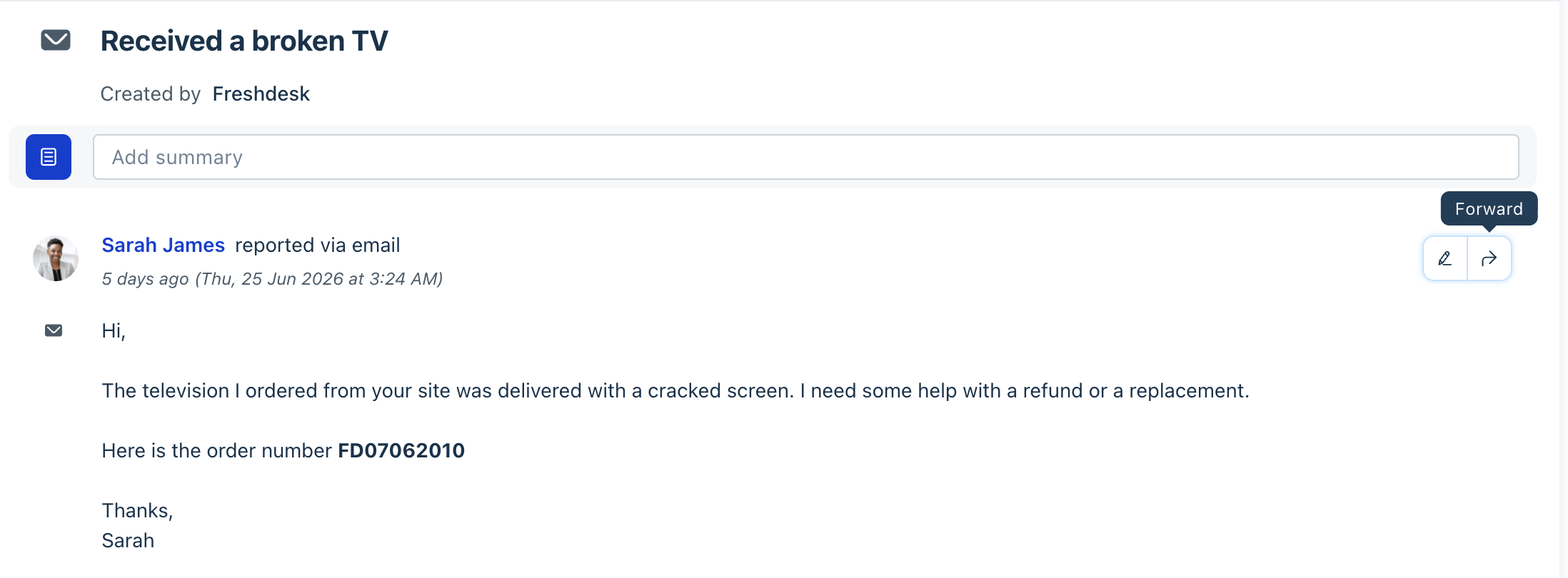
Note: Agents can forward a Ticket, Private Note, or an agent/customer response, only if they have access permissions for forwarding. Agents without permissions can view the forward thread.
Manage forward messages
After creating a forward thread, you can compose messages, add recipients, attach files, use quoted text, and organize thread conversations.
Compose messages
While composing a forward message, you can perform the following tasks:
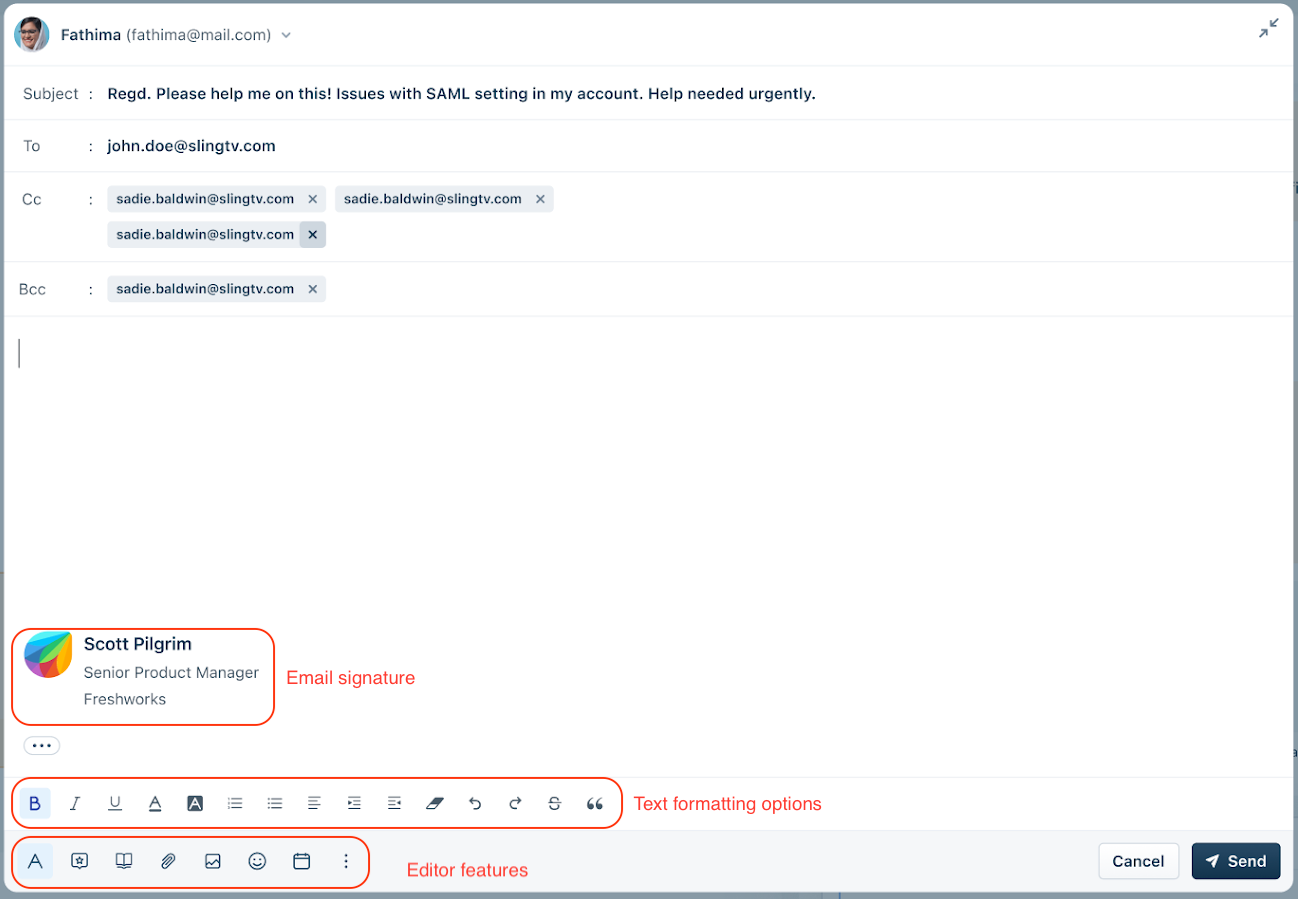
- Edit the email subject line and add additional recipients using the CC and BCC fields.
- Apply rich-text formatting, such as adding bullets or a numbered list, or highlighting text.
- Expand or dock the thread editor while drafting messages.
- Use other editor features, such as canned responses, forms, suggested solutions, and more.
- Include attachments up to 20 MB.
For more details on the editor features, see Reply editor.
You can also configure an email signature from your profile settings. Once configured, your signature is automatically included in new forward threads.
Use quoted text in forward threads
Quoted text gives external recipients context when you forward a conversation.
To add quoted text:
- Create a new forward thread or reply to an existing forward thread.
- Click the More options menu (three dots) below the editor.
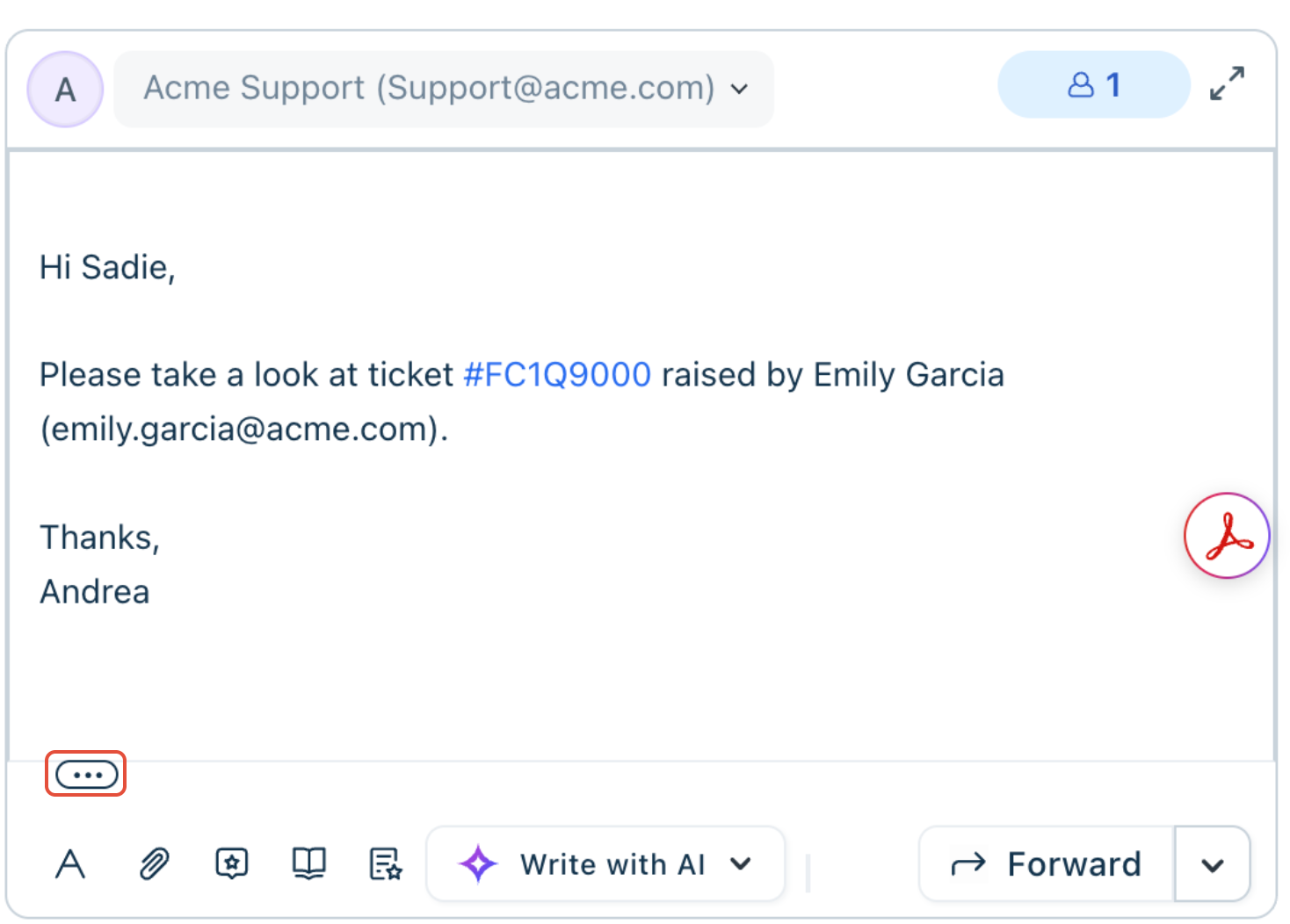
- Select the conversation that you want to include as quoted text.
- Complete your message and click Forward.
Note: Quoted conversations and threads can be up to 1 MB in size. This limit applies only to quoted text and does not include attachments.
Manage thread conversations
View and search threads
- Click Threads on the Ticket Details page to view all threads associated with a ticket.
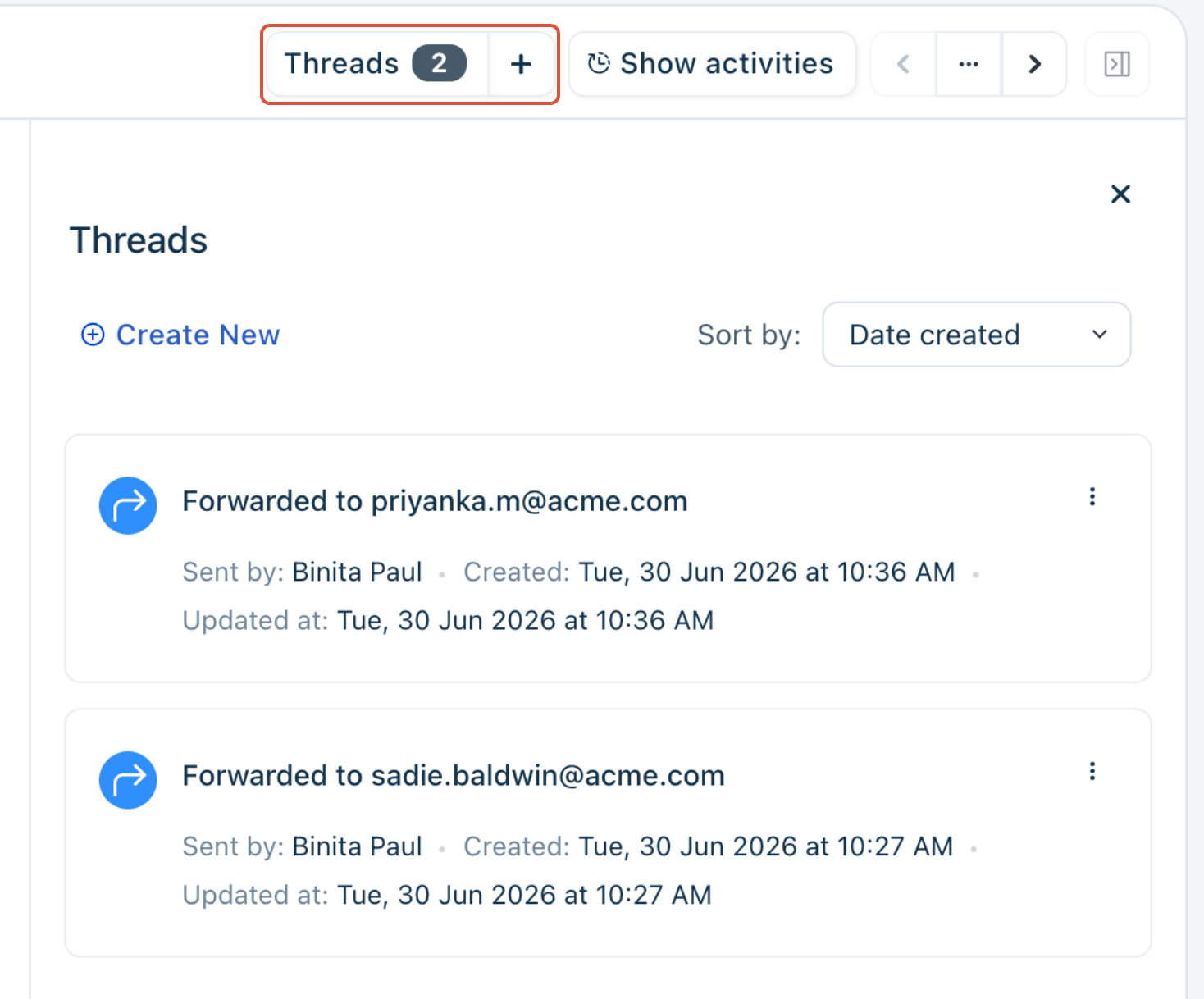
- Search thread conversations using the global search bar. To narrow results to thread messages, enable the Notes & replies filter from Search Settings.
Sort thread conversations
You can control how thread conversations appear within a ticket. The options are:
- Date created
- Last updated
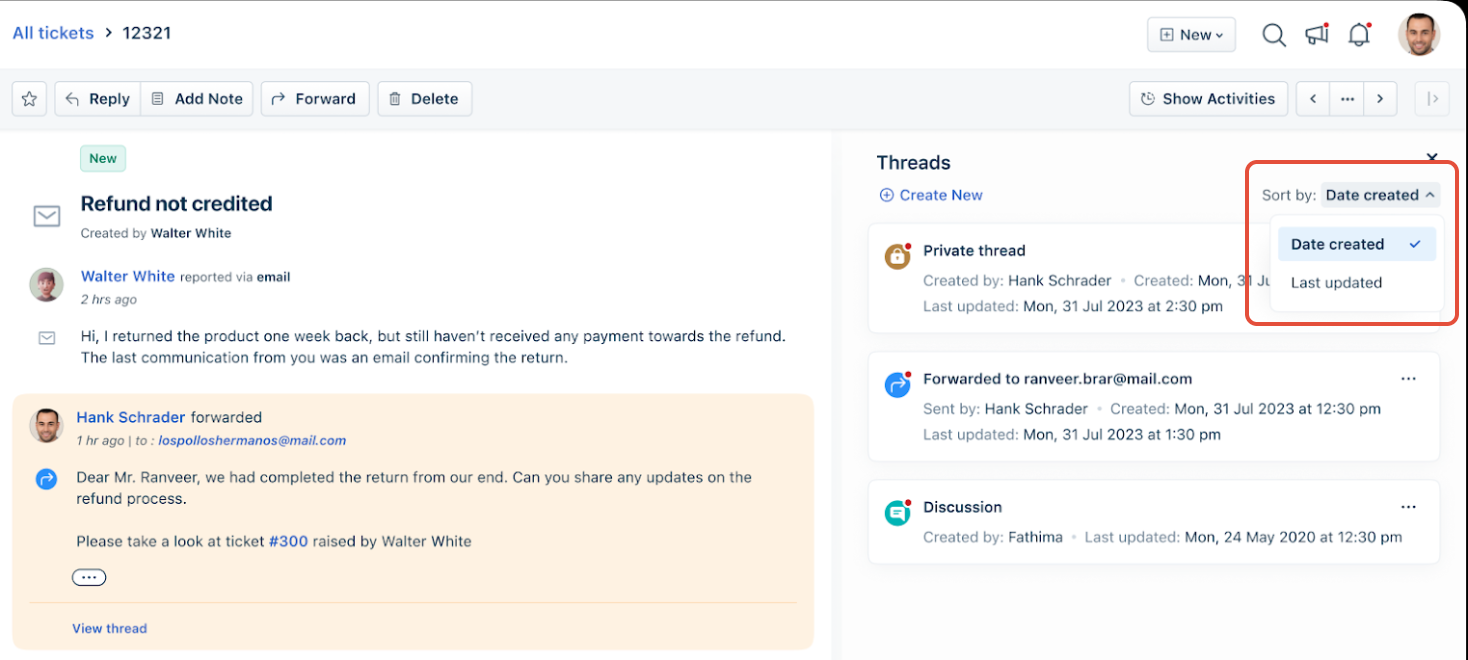
To modify the sorting order, follow these steps:
- Click your Profile icon.
- Select Profile Settings.
- Under Sort conversations, select the preferred sorting option.
Note: Changing the sorting order for Threads also changes the sorting order for ticket conversations.
Track forward thread activity
Freshdesk automatically notifies agents when a forward thread receives new activity. When a ticket or thread receives an update:
- The ticket moves to the top of the ticket list.
- The notification bell displays a red indicator.
- The red dot is visible only to the contributors of the ticket and the thread
Contributors can be
- Assigned Agent
- Agent who started the thread
- Watcher of a ticket
- Agents cc'ed in the thread
- Agents tagged in a thread
- A red dot appears on the Threads button to indicate unread thread activity. The notification is visible only to the contributors of the ticket and the thread. Ticket contributors can be:
- Assigned agent
- Agent who started the thread
- Ticket watchers
- Agents cc'ed or tagged in the thread
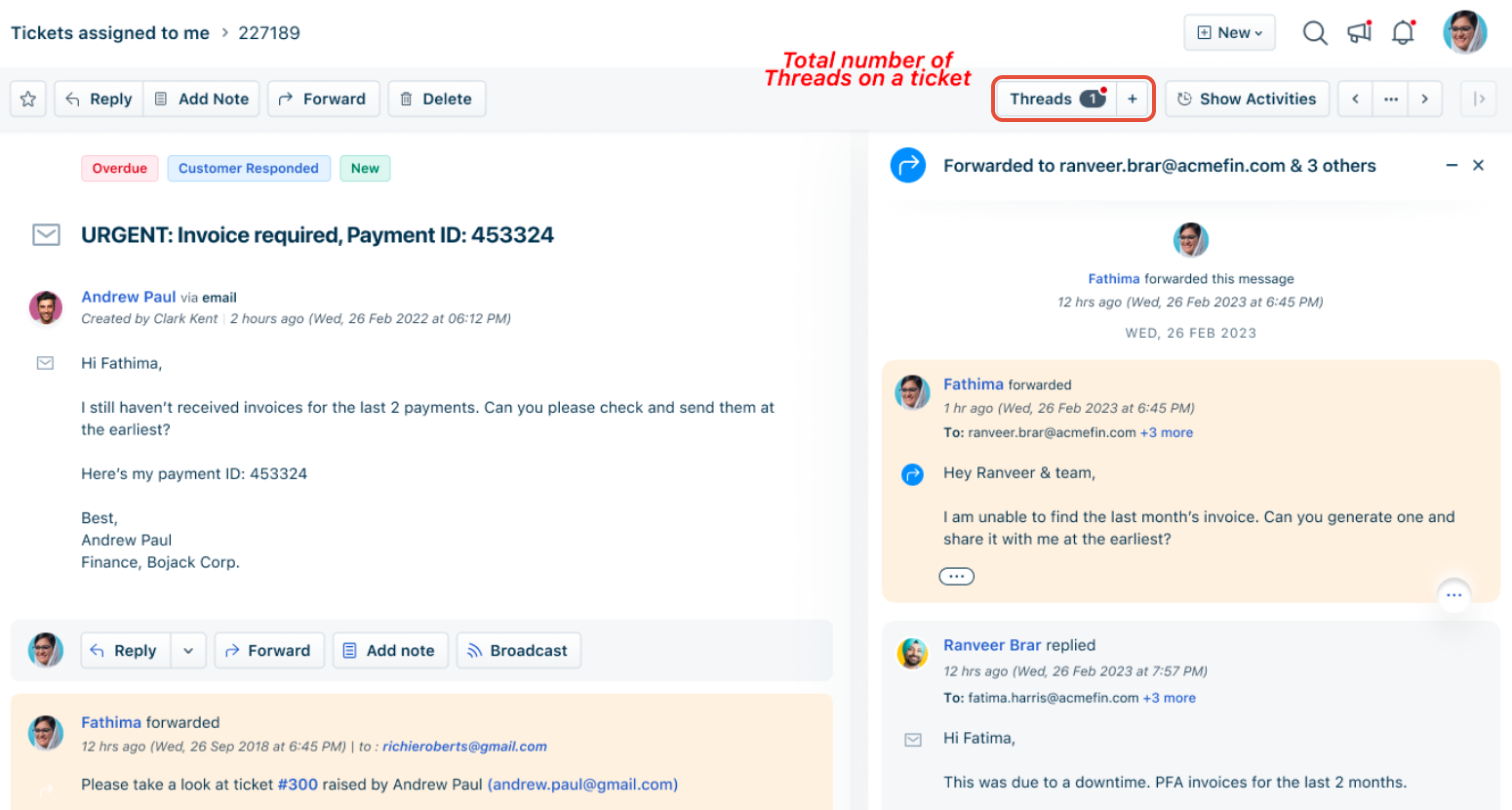
Note: If a forwarded email is not delivered due to an invalid email address or network issue, an error message is displayed within the thread so you can review and resolve the issue.
Configure automations for forward threads
You can create automation rules for Forward Threads to streamline communication with external stakeholders and ensure important updates are not missed.
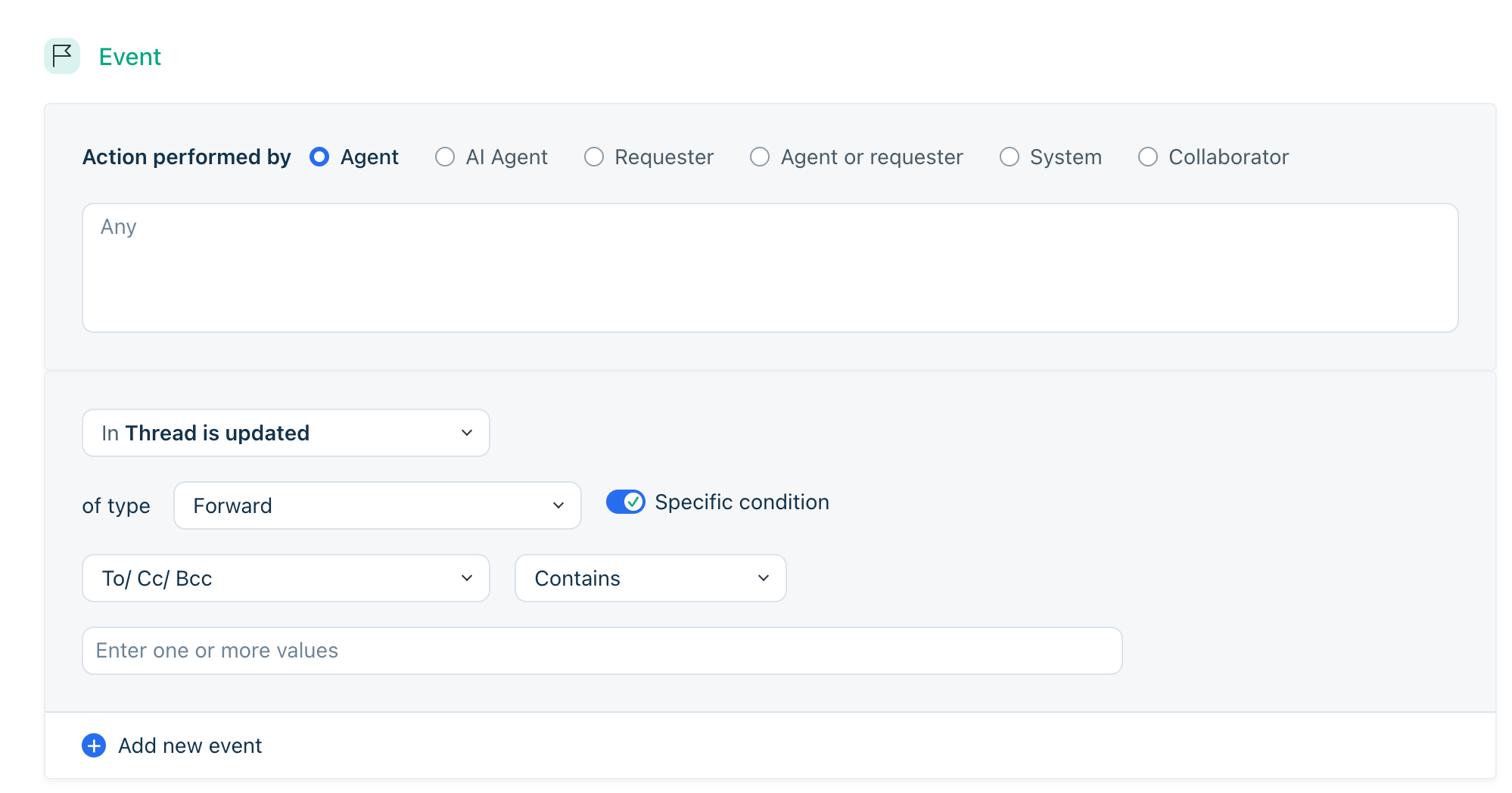
A few use cases where automation for forward threads can be used are:
- Automatically update ticket properties when a Forward Thread is created or updated.
- Trigger escalations when a stakeholder responds to a Forward Thread.
- Send notifications to specific agents or groups when external participants reply.
- Route tickets based on Forward Thread recipients, such as email addresses in the To, CC, or BCC fields.
- Track vendor or third-party interactions through automated workflows.
For more information, see Configuring automations on thread updates on a ticket.