
 Community
 Video Library
 Agent Training
 Freshservice
 Freshdesk
 Freshchat
 Freshcaller
 Freshsales
 Freshteam
 Freshworks Neo
 Freshsurvey
The Signature Management Plus app helps Freshdesk teams create and manage reusable signatures for ticket replies, forwards, notes, and new email conversations. Admins can configure multiple signatures and map each signature to one or more Freshdesk groups or products. Agents can then insert a matching signature from the ticket editor without manually copying or formatting it each time.
TABLE OF CONTENTS
- What you can do with Signature Management Plus
- Before you begin
- Install and configure the app
- Best practices for admins
What you can do with Signature Management Plus
The following are capabilities you get once you integrate the Signature Management Plus app with Freshdesk:
- Create reusable signatures for different teams, brands, products, or support groups.
- Map signatures to Freshdesk groups and products.
- Search for configured signatures by name.
- Preview, edit, and delete signatures from the setup screen.
- Insert matching signatures in ticket replies, forwards, notes, and new email conversations.
- Use placeholders that are replaced with agent, ticket, and product values when a signature is inserted.
Before you begin
Ensure you have the following access or details before installation:
- Freshdesk admin access to install and configure apps.
- Your Freshdesk domain, for example, yourcompany.freshdesk.com.
- A Freshdesk API key with access to read groups, products, roles, and email configuration.
Install and configure the app
To install the Signature Management Plus App:
- Log in to your Freshdesk portal as an admin.
- Go to Admin > Support Operations > Apps.
- Search for Signature Management Plus.
- Open the app listing and click Install.
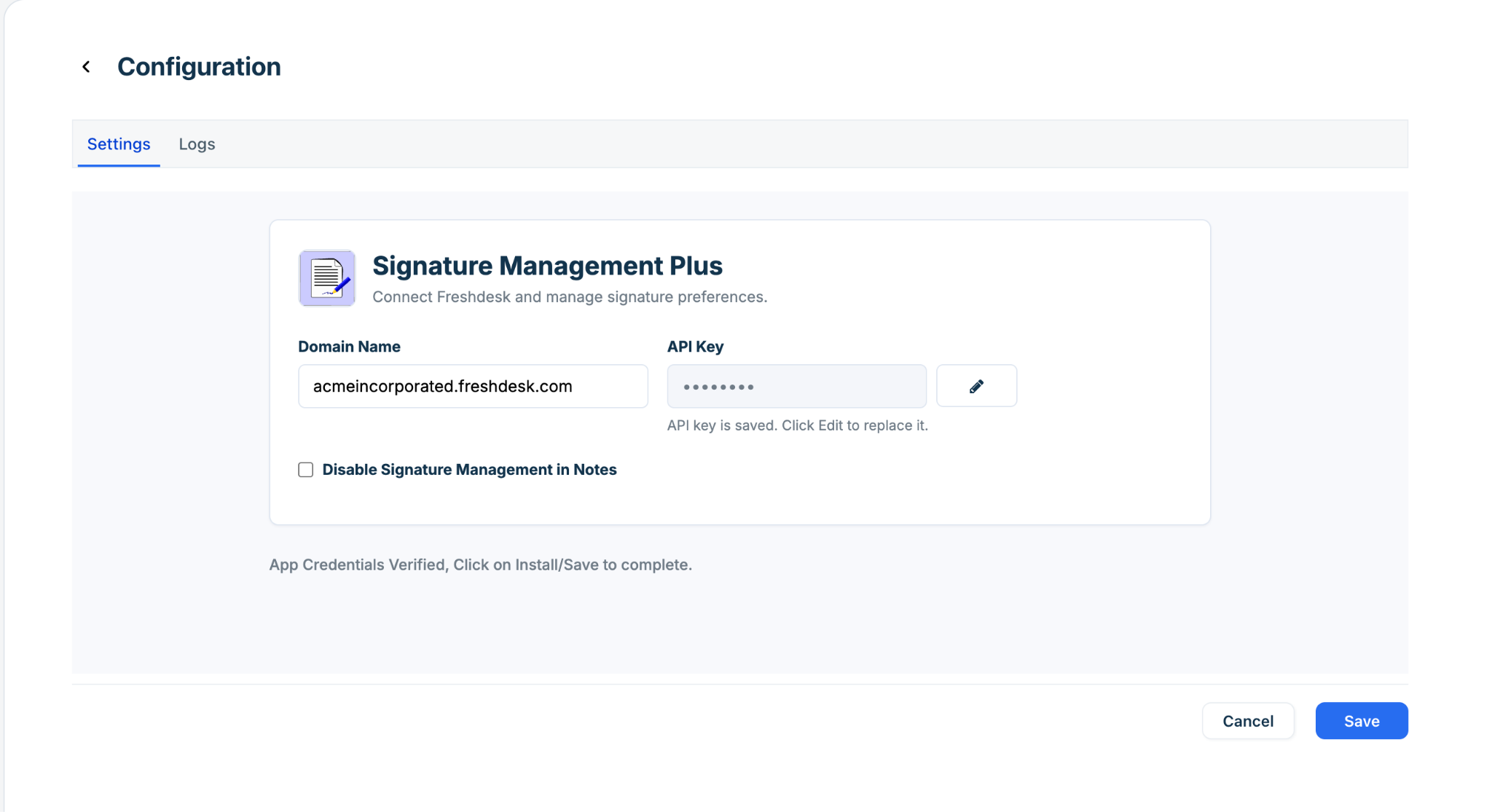
- Enter your Freshdesk domain and API key.
- Click Verify to verify the credentials.
- After verification is successful, save the app configuration.
Tip: Enter only the Freshdesk domain in the domain field. Do not include https://, paths, or trailing slashes.
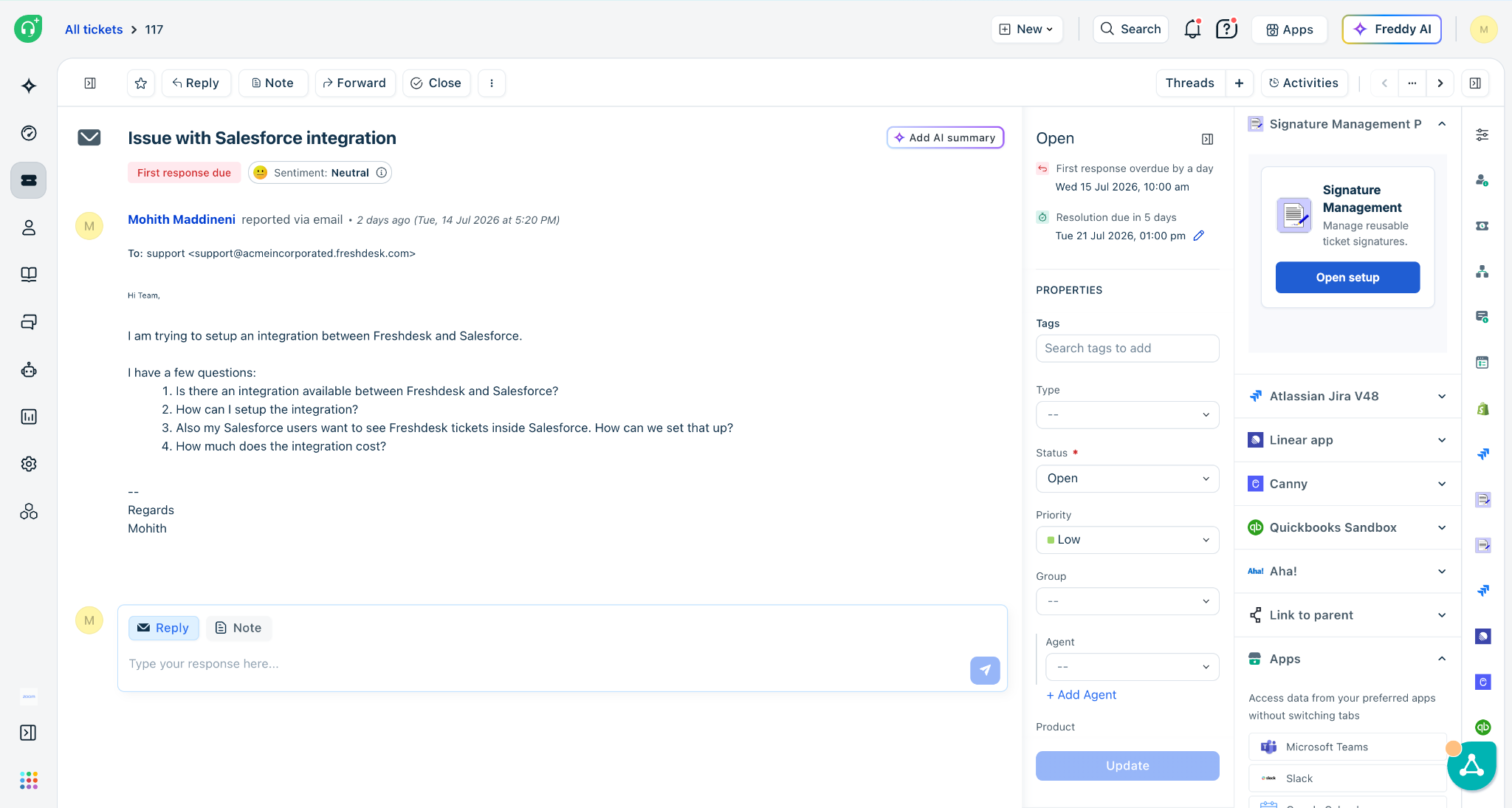
The Signature Management Plus app widget is available from the Freshdesk ticket sidebar. To view the widget:
- Open a Freshdesk ticket.
- In the ticket sidebar, locate the Signature Management Plus app.
- Click Open setup.
Note: Setup is available only to admins, account administrators, or users with the required admin permissions. Non-admin agents can still use configured signatures when replying to tickets.
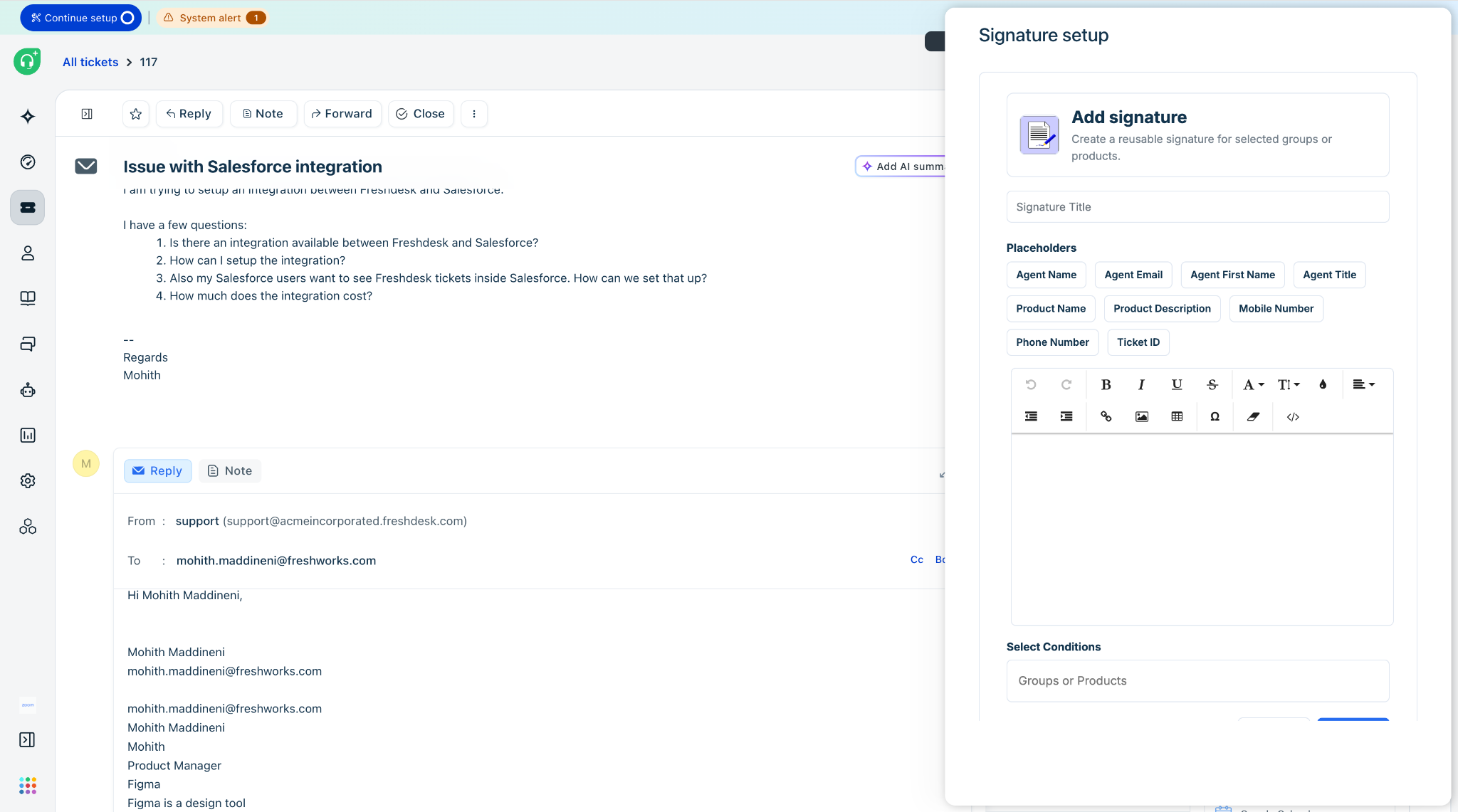
To add a signature:
- Open the app setup screen.
- Click Add Signature.
- Enter a signature name.
- Compose the signature in the editor.
- Add placeholders as needed.
- Select at least one group or product condition.
- Click Save.
A signature name:
- Must contain 4–20 characters.
- Must start with a letter.
- Can contain letters, numbers, spaces, hyphens, and underscores.
Examples of valid names include Billing, Product A, Tier_2, and VIP-Support.
Available placeholders
Placeholders are replaced with corresponding values when the signature is inserted into the editor. If a value is unavailable, the app leaves the placeholder blank instead of displaying the raw placeholder text.
| Placeholder | Inserted value |
| {{ agent.name }} | Logged-in agent's full name |
| {{ agent.email }} | Logged-in agent's email address |
| {{ ticket.agent.firstname }} | First name of the logged-in agent |
| {{ ticket.agent.title }} | Logged-in agent's job title |
| {{ agent.mobile }} | Logged-in agent's mobile number |
| {{ agent.phone }} | Logged-in agent's phone number |
| {{ ticket.id }} | Freshdesk ticket ID |
| {{ product.name }} | Freshdesk product name associated with the ticket |
| {{ product.description }} | Freshdesk product description associated with the ticket |
Map a signature to groups and products
Each signature must be mapped to at least one Freshdesk group or product. A signature is available to agents when the current ticket matches at least one of the selected conditions.
- Select a group if the signature should apply to tickets assigned to that group.
- Select a product if the signature should apply to tickets associated with that product.
- You can select multiple groups and products for a signature.
Preview, edit, search, and delete signatures
From the setup screen, admins can manage existing signatures.
- Use the search field to find signatures by name.
- Click Load more when additional signatures are available.
- Preview a signature before editing or deleting it.
- Edit the signature name, body, or conditions when the team mapping changes.
- Delete signatures that should no longer be available to agents.
Note: The Load more button appears only after the app confirms that additional signature results are available. It does not appear during the initial loading state.
Insert a signature in a ticket reply, forward, or note
To insert a signature:
- Open a Freshdesk ticket.
- Click Reply or Forward, or open the note editor.
- Open the Signature Management Plus signature chooser from the editor.
- Search for a signature, if needed.
- Select the signature and insert it.
The app replaces supported placeholders before adding the signature to the editor. If the ticket has a matching product, product placeholders are replaced with the corresponding product values.
If the ticket does not have a product or the product lookup fails, product placeholders are cleared so that raw placeholder text is not shown to the customer.
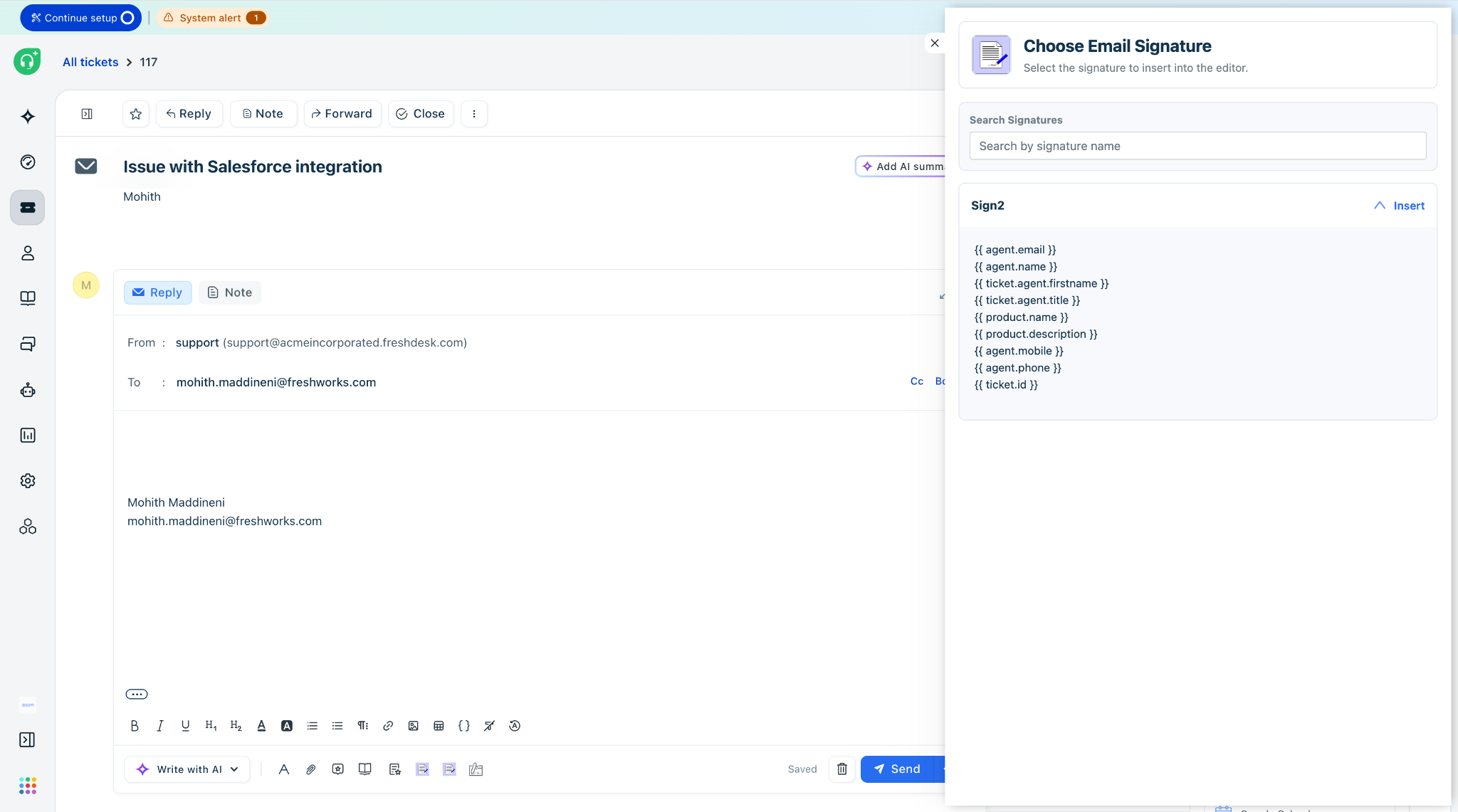
- Open the Freshdesk new email composer.
- Open the Signature Management Plus signature chooser.
- Select a configured signature.
- Insert the signature into the email body.
Troubleshooting
| Issue | What to check |
| The setup button is disabled or unavailable. | Confirm that the logged-in user is an admin, account administrator, or has the required admin permissions. |
| Verification fails during installation. | Check the Freshdesk domain and API key. The domain should not include https:// or a path such as /tickets. |
| A signature is not shown for a ticket. | Confirm that the signature is mapped to the ticket's current group or product. |
| Product placeholders are blank. | Confirm that the ticket has a product and that the configured API key can read Freshdesk products. |
| Only some signatures appear initially. | Use search or click Load more when it appears. The app loads signatures in pages to improve performance. |
Best practices for admins
- Keep signatures concise and consistent with your team's brand guidelines.
- Use product-specific signatures when supporting multiple brands or product lines.
- Review signature conditions after changing Freshdesk groups or products.