
 Community
 Video Library
 Agent Training
 Freshservice
 Freshdesk
 Freshchat
 Freshcaller
 Freshsales
 Freshteam
 Freshworks Neo
 Freshsurvey
 Growth
TABLE OF CONTENTS
- Overview of WhatsApp message templates
- Create WhatsApp templates
- Common template rejection reasons
- Messaging limits for business-initiated conversations
- Using WhatsApp message template in Freshdesk tickets
- FAQs
Overview of WhatsApp message templates
A WhatsApp message template is a predefined message that businesses can use to communicate with customers on WhatsApp for various purposes, such as sending promotions, automatic reminders, and customer support.
When customers contact you on WhatsApp, you can respond to them within the next 24 hours, free of cost. However, you can continue the conversation beyond the 24-hour service window or proactively message your customers only via the approved WhatsApp message templates via the WhatsApp Business Platform.
For details on WhatsApp pricing, see WhatsApp Pricing Policy.
Note: WhatsApp is introducing usernames that allow customers to interact with businesses without sharing their phone numbers. As this feature rolls out, some customers may choose to display only their WhatsApp username instead of their phone number when messaging your business.

To support this change, Freshdesk uses WhatsApp's Business-Scoped User ID (BSUID) to identify customers. For details, see Agent experience for WhatsApp.
Benefits of using WhatsApp message templates:
With WhatsApp's message templates, you can:
- Enhance customer relationships by providing timely and consistent information to customers during their purchase journey.
- Improve brand visibility with personalized content such as names, appointments, or order numbers.
- Continue customer conversations beyond the 24-hour service window.
Before you begin
- Ensure that the Templates you send to customers are approved by Meta. Only approved message templates can be sent to customers. It can take up to 24 hours for Meta to approve your template. To know more about Meta's approval process, see Meta's Template Categories. Also, please note that businesses can only send template messages to users who have subscribed to receive messages (opt-in) from them on WhatsApp.
- Templates may be disabled automatically based on customer feedback and engagement. Once disabled, a template cannot be sent until its quality rating has improved or it no longer violates our business or commerce policies. For more details on common rejection reasons, see Meta Template Guidelines.
Guidelines for creating WhatsApp message templates
The template category guidelines describe how Meta defines the category of message templates.
Meta's message templates fall under their three conversation categories - Marketing, Utility, and Authentication. For each category, Meta clearly outlines the message objective, business goal, and example templates.
Effective June 1, 2023, Meta provides the following template categories:
- Marketing templates: Enable businesses to achieve a wide range of goals, from generating awareness to driving sales, such as sending promotions or offers, informational updates, or invitations for customers to respond/take action. Any conversation that does not qualify as utility or authentication is a marketing conversation.
- Utility templates: Allow you to facilitate a specific, agreed-upon request or transaction or update to a customer about an ongoing transaction, including post-purchase notifications and recurring billing statements. For example, send order status or delivery notifications directly to customers.
- Authentication templates: Enable businesses to authenticate users with one-time passcodes (usually 4-8 digit alphanumeric codes), at multiple steps in the login process (e.g., account verification, account recovery, integrity challenges).
For more information on template guidelines, see Meta's Template Guidelines. Additionally, Meta provides a fourth category called service conversations, which includes all user-initiated conversations that help customers resolve inquiries.
Impact of WhatsApp user name changes on template messages:
- If an agent creates a contact using only a WhatsApp username, they cannot send a business-initiated (proactive) WhatsApp message to that customer. They can send messages only after the customer has initiated a conversation with your business on WhatsApp.
- Agents cannot send authentication templates for contacts which has only WhatsApp usernames as it requires an active phone number.
Cost of WhatsApp message templates
WhatsApp charges a per-message fee for Message Templates sent outside the 24-hour customer care service window, based on the destination country and the number of messages you send. Freshworks includes this fee in your invoices and forwards it to WhatsApp. For more details, see WhatsApp pricing policy.
Note: WhatsApp imposes restrictions on message templates that regulate outreach through these pre-approved message templates. To know more about this, see WhatsApp Message Limits.
Create WhatsApp templates
You can create Templates via your Meta Business Manager.
Prerequisites:
- Ensure that you have a Facebook/Meta Business Manager account
- Ensure that you have a WhatsApp Business Account (WABA)
Step 1: Access Meta Business Manager
- Go to business.facebook.com and select your business from the drop-down.

- Click on the Settings icon next to your business name.
- From the left pane, go to Accounts > WhatsApp Accounts and click on the WhatsApp number/account for which you want to create templates.

- Under the Summary tab, click WhatsApp Manager.
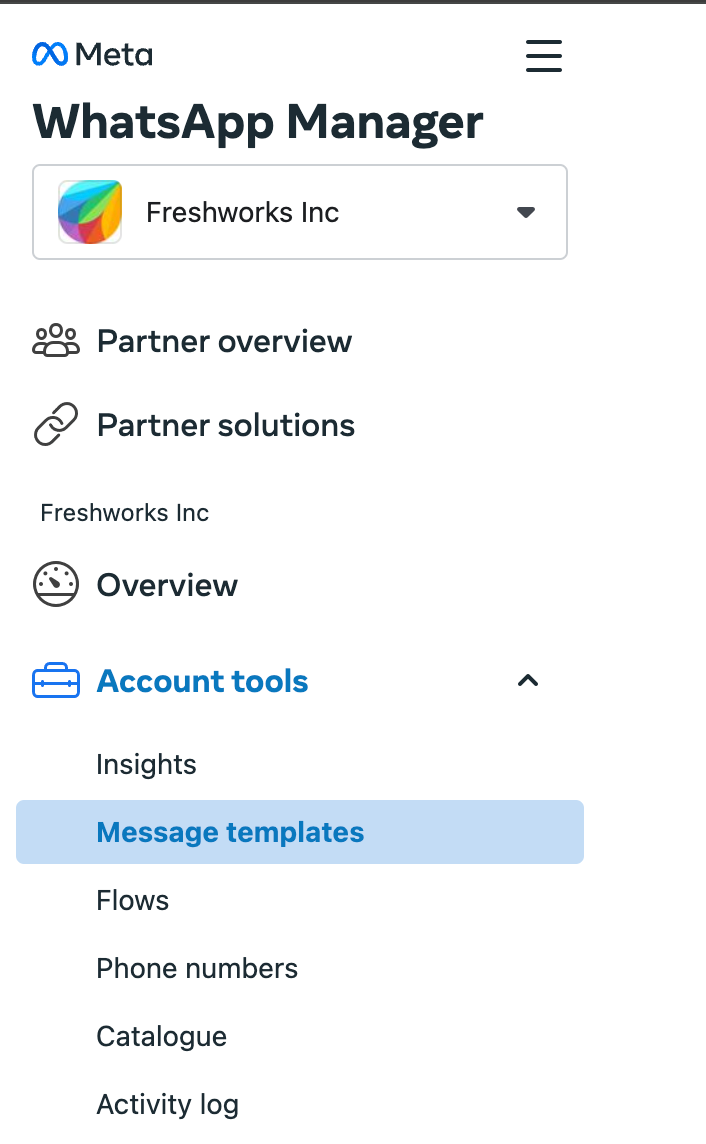
- Under Account tools, click Message Templates.
- You can see all your current message templates.

Step 2: Create Message Template
Note: You can create a maximum of 250 message templates per unverified WhatsApp Business account.
- On the Message Templates page, click Create Template.
- Enter the following details:
- Category: Choose a category to create your template. You can hover over the template types to view details for each template.
- Name: Enter the name of the template. Allowed characters are lowercase letters, numbers, and underscore and the character limit is 512.
Tip: Template names can be used internally to categorize templates. For example: "blackfriday_offer_1", "blackfriday_offer_2" or "delivery_update".
Language: Choose the language your message template should include. You can create message templates in 50 languages. Once you've completed one language, select "Next Language." Check out the FAQ section to learn about the supported languages.
Note: WhatsApp does not provide translations. All message template translations must be entered in the same format. The template name will be the same for all translations.
Click Continue.
Step 3: Design your template message
This step allows you to draft the message for your templates. For Utility and Marketing templates, follow these steps:
- Header (optional): Add a title for your message. You can choose from the following formats:
- Text: Add the title in a text message. Additionally, you can add variables to allow configurable parameters, such as customer name, order number, credit card number, ticket number, etc.
 Note: You can add only one variable in the Header and the character limit for a text header is 60.
 - Media: Add an image, video, document, or share a location as your message header.

- None: If you do not want to add any header, choose None. Note: Ensure to add samples of the variables or media in the header. Do not include any customer information. Cloud API hosted by Meta reviews templates and variable parameters to protect the security and integrity of our services.
- Text: Add the title in a text message. Additionally, you can add variables to allow configurable parameters, such as customer name, order number, credit card number, ticket number, etc.
- Body: Enter the text for your message in the language you've selected. You can choose from the various text formatting options, such as bold, italics, strikethrough, and monospace, or add emojis and variables. For more details on formatting your messages, see Formatting Messages in WhatsApp. You can also add variables to allow configurable parameters, such as customer name, order number, credit card number, ticket number, etc.

You can see the Message Preview on the right pane to preview the message:

Footer (optional): Add a short line of text to the bottom of your message template. Text in the Footer category will be grey in color and the font size will be smaller than the header and body text.
Buttons (Optional): You can add two types of buttons.
Call to Action:
Lets you add a phone number or a website link as a call to action. If you choose to add a website link, you can include a maximum of two URLs, which can be a Static (fixed) website URL or a Dynamic website URL.
This creates a personalized link for the customer to view their specific information on your website by adding a variable at the end of the link.
Note: The website link must include "https" at the beginning of the address.

Quick Reply: Use this to get instant replies from customers. You can add a maximum of three buttons. For example, you can ask for service feedback from your customer using the quick reply buttons.
Body: Hi! Did we solve your query?
Quick Reply buttons: Yes, No

Things to note while adding variables:
- If you use variables in Header and Body, make sure they are formatted correctly. The variable must be enclosed in two curly braces on both sides. The correct format is {{1}}.
- A Header can have only one variable, but the Body content can have any number of variables.
- Ensure that the variables do not contain any special characters such as #, $, or %.
- While adding variables in the Body content, ensure that the variables are sequential, starting from 1. For example, the following message template uses three variables: Hi {{1}}, your order no. {{2}} has been placed. To track your order, please visit {{3}}.
Here, {{1}}, {{2}}, and {{3}} are variables that will be different for each customer.
For Authentication templates, follow these steps
If you use Authentication templates, add the following fields: 
- Code delivery: Choose between Auto-fill or Copy code for how your customers should respond to the code in your phone app. If you choose auto-fill, you can additionally enable zero-tap to automatically send the code to customers without requiring them to tap a button. For more details, see Authentication templates with one-time password buttons.
- Message content: The message content for authentication templates is fixed and cannot be edited. However, you can add additional content, such as a security recommendation statement and/or code expiry time in your message content.
- Button text (optional): You can customize the button text for Autofill and Code delivery.

- Advanced Settings: Set a validity period for your authentication message. If you don't set a custom validity period, WhatsApp sets a standard 30 days as the validity period.

Step 4: Submit the template
After creating the template, click Submit.
Your template will now be sent for review. You can view the status of your template on the Message Templates page. Once your template is approved, you can start sending messages using that template. For more information, see Message templates developer document.
Tip: Check sample templates from Meta.
Common template rejection reasons
Your templates can be rejected for the following reasons. For more details on common rejection reasons, see Message Template Guidelines.
- Typos and grammatical errors in message content.
- Variable parameters are missing or have mismatched curly braces. The correct format is {{1}}.
- Variable parameters contain special characters such as a #, $, or %.
- Variable parameters are not sequential. For example, {{1}}, {{2}}, {{4}}, {{5}} are defined but {{3}} does not exist.
- The message template contains content that violates WhatsApp's Commerce Policy and WhatsApp Business Policy.
- Do not request sensitive identifiers from customers (full payment card numbers, financial account numbers, national ID numbers, or other sensitive identifiers.
- Surveys are ok but do not submit a survey to collect unrelated data from customers
- Message templates cannot contain potentially abusive or threatening content
Additionally, ensure the following:
- Make sure the language selected matches the content and you are not "mixing" languages (Spanglish).
- If you send a test, make sure the format for testing is used.
- If you use "Visit Website" as the Call to Action (CTA), make sure it belongs to the business
- Have clear message names. For example, avoid using vague names like, "template_014", instead use, "bus_ticket_details".
- Always include an example of what the end message will look like, especially when including media messages (this will also be required for approvals)
Messaging limits for business-initiated conversations
Business-initiated conversations are conversations opened as a result of sending a marketing, utility, or authentication template to a WhatsApp user. Messaging limits determine the maximum number of business-initiated conversations a business phone number can start in a 24-hour period.
Business phone numbers are initially limited to 250 business-initiated conversations in a 24-hour moving period. If you reach the messaging limit, you can start more conversations when one or more active conversations end.
Where can you view your messaging limit and quality rating?
You can view your messaging limit and quality rating on the Phone numbers tab on your Facebook Business Manager account:

For more information, see WhatsApp Messaging Limits.
What are the Messaging Limit categories?
Tier 1: Allows your business to send messages to 1K unique customers in a rolling 24-hour period.
Tier 2: Allows your business to send messages to 10K unique customers in a rolling 24-hour period.
Tier 3: Allows your business to send messages to 100K unique customers in a rolling 24-hour period.
Tier 4: Unlimited messages

Automatic Scaling
Once you reach the 1K business-initiated conversations limit, post that, each time you open a business-initiated conversation, Meta determines if your limit should be increased based on the following conditions:
- Is your business phone number connected?
- Is your business phone number quality rating Medium or High?
- In the last 7 days, was your business phone number used to open X or more business-initiated conversations, where X is the business phone number's current messaging limit, divided by 2?
If your business phone number meets all conditions, the limit will be increased by one level, 24 hours later. If its quality rating has been set to Flagged for the last 7 days, your limit will decrease by one level, immediately.
For more details, check Meta's Auto-scaling.
What happens when customers block businesses?
If customers block your number, it may impact your quality rating. 
Negative ratings from customers will also affect tier upgrades:
- If businesses get a low rating, they will be flagged, which affects and impacts the tier-upgrading process
- Quality rating is based on how messages have been received by recipients over the past seven days

For more information, see WhatsApp Business Account Message Quality Rating.
Using WhatsApp message template in Freshdesk tickets
Agents can use pre-approved WhatsApp message templates (created on Meta) to communicate with customers directly from Freshdesk tickets. Templates help you stay compliant while sending proactive notifications, updates, reminders, and alerts, within and outside the 24-hour service window.
You can use message templates to:
- Proactively message customers after the 24-hour reply window expires.
- Send pre-approved notifications, such as order updates, reminders, or alerts, even when the service window is open.
- Start outbound conversations and automatically create new tickets.
Send a proactive message after the 24-hour service window closes
When a customer does not reply within 24 hours, the standard reply editor is disabled. To send a message during this time:
- From the Ticket List page, open any WhatsApp ticket.
- Click on the reply editor. You can see that the reply window is closed.
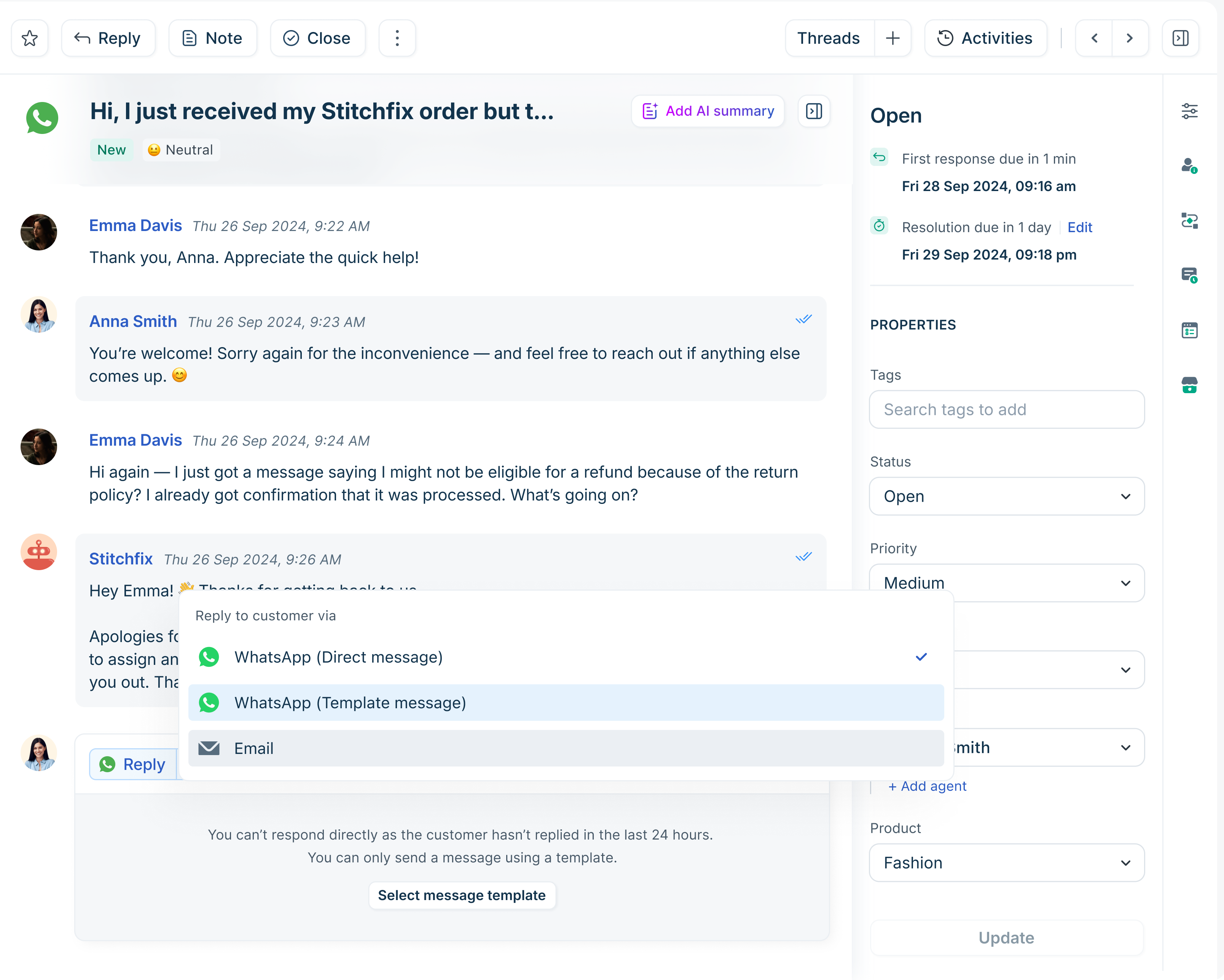
- Click Select Message Template or WhatsApp Template Message from the Reply button.
- Select the relevant approved message template from the drop-down. The preview pane on the right updates instantly.
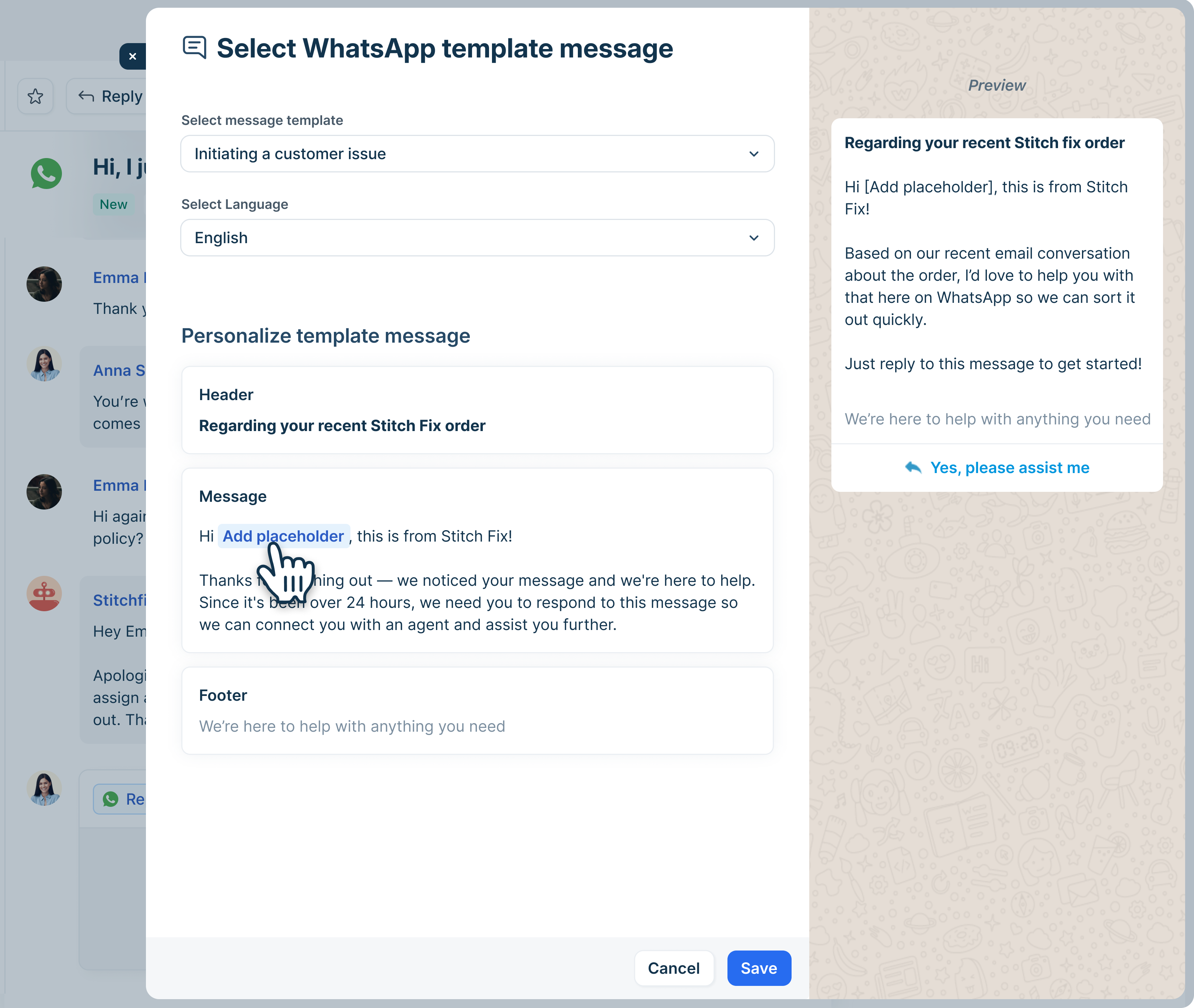
- Select the language.
- Personalize your header and footer messages. For details, see Personalize message templates.
- Click Send from the reply editor.
Send pre-approved messages while the service window is open
You can also use templates during the active reply window to send notifications or promotional messages:
- From the Ticket List page, open any WhatsApp ticket.
- Click on the reply editor.
- Click on the Reply button and select WhatsApp Template Message.
- Choose the template and personalize it as required. For details, see Personalize message templates..
- On the reply editor, click Send.
Send a new message using message template
You can start a one-on-one conversation with a customer and automatically create a new ticket using a pre-approved WhatsApp template. This is useful for outbound campaigns, follow-ups, or initiating contact when no recent communication exists. You can start a conversation using the customer's WhatsApp phone number or their username, depending on the contact information available.
To start a new message with a WhatsApp template:
- On the Ticket List or Ticket Details page, click New > Message.
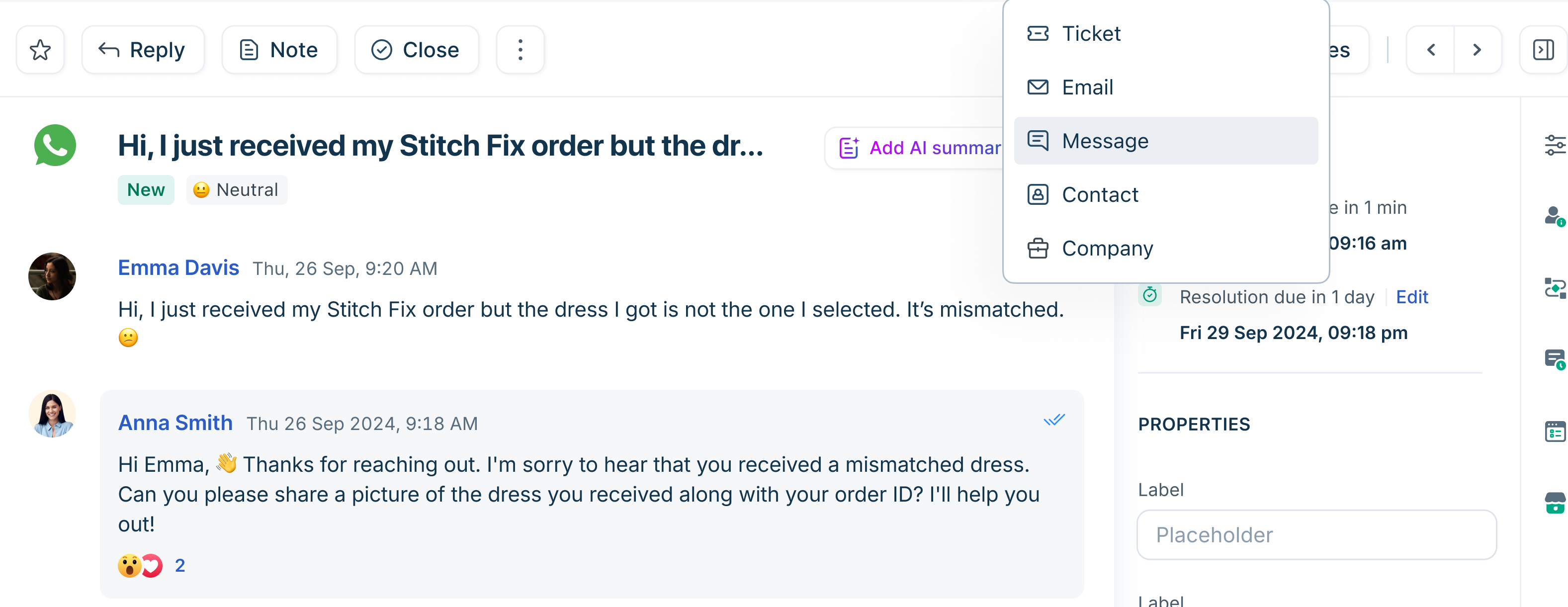
- Select WhatsApp as the source.
- Add the WhatsApp phone number or username in the To field.
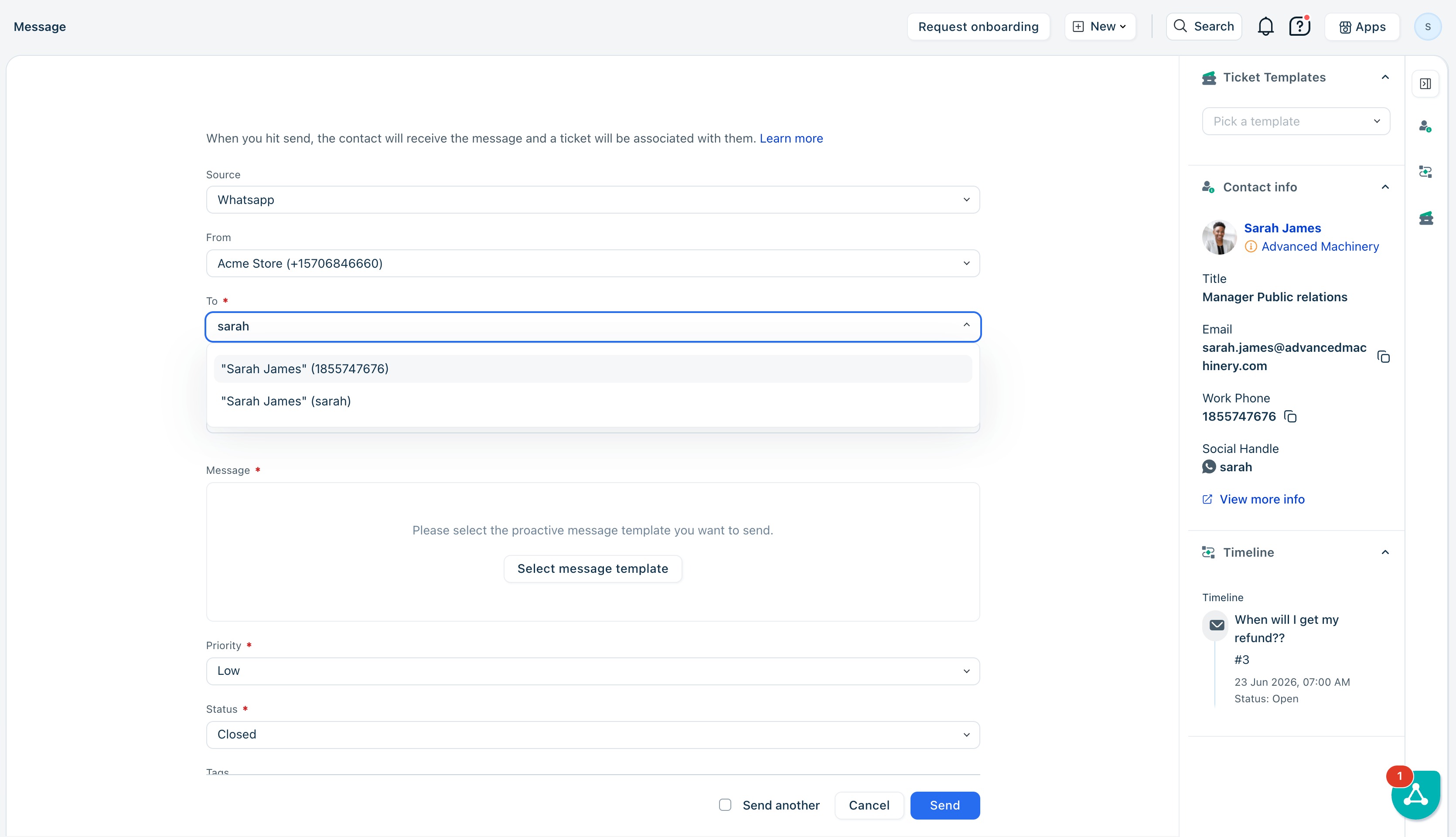
- When you add a contact, the corresponding contact details (contact's username or phone number) will be auto-populated on the right.
- You can also choose a ticket template. The ticket fields will be auto-filled from the template.
- Select the Message Template and personalize the message if required. For details, see Personalize message templates.
Note: The Message Template section will be enabled only after you add the contact in the To field. - Set the ticket priority and status.
- Add more fields if required.
- Click Send. You will be automatically redirected to the Ticket Details page.
If the message fails to send, an error message will be displayed explaining the issue and suggesting the appropriate next steps.
Send campaigns and Flows via API
You can use our API for advanced, automated messaging to set up campaigns and transactional flows. This functionality is ideal for triggered messages (e.g., order confirmations, back-in-stock alerts) and bulk outreach.
All messages sent via the API must still use pre-approved templates to maintain compliance with WhatsApp Business policies.
For detailed information on API endpoints, authentication, and payload structure for sending template messages and initiating flows, please read our API Documentation.
Personalize message templates
You can personalize WhatsApp templates using placeholder variables to dynamically insert customer, ticket, or company properties inside the header or footer messages. This can be used while sending proactive messages within or outside the service window, or starting new outbound messages.
- Personalize the header and footer, such as addressing customers by name.
- Click the placeholder variable option within the header or footer message.
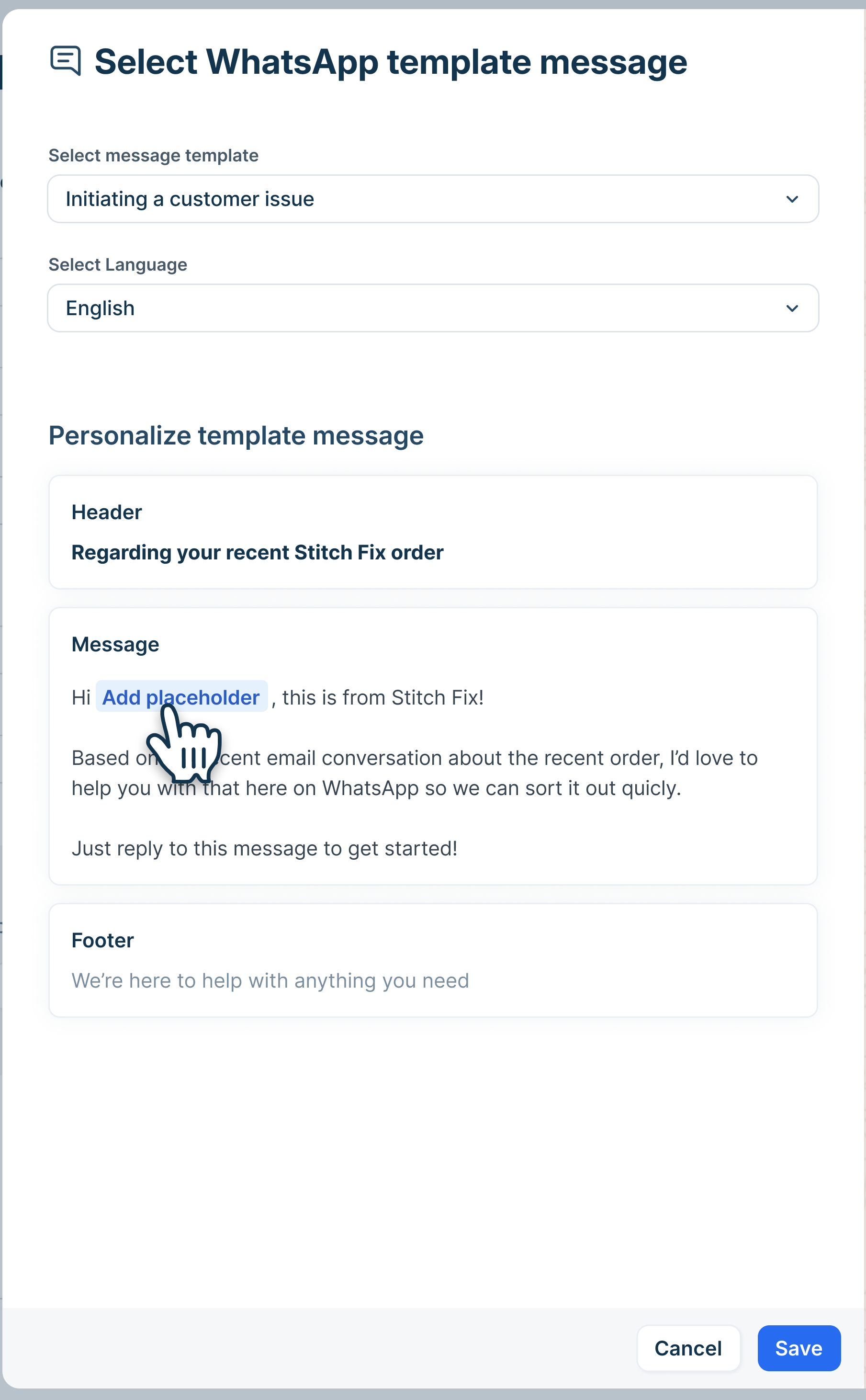
- Select the placeholder type from Ticket, Contact, or Company.
- Select the required placeholder (for example, Contact Name).
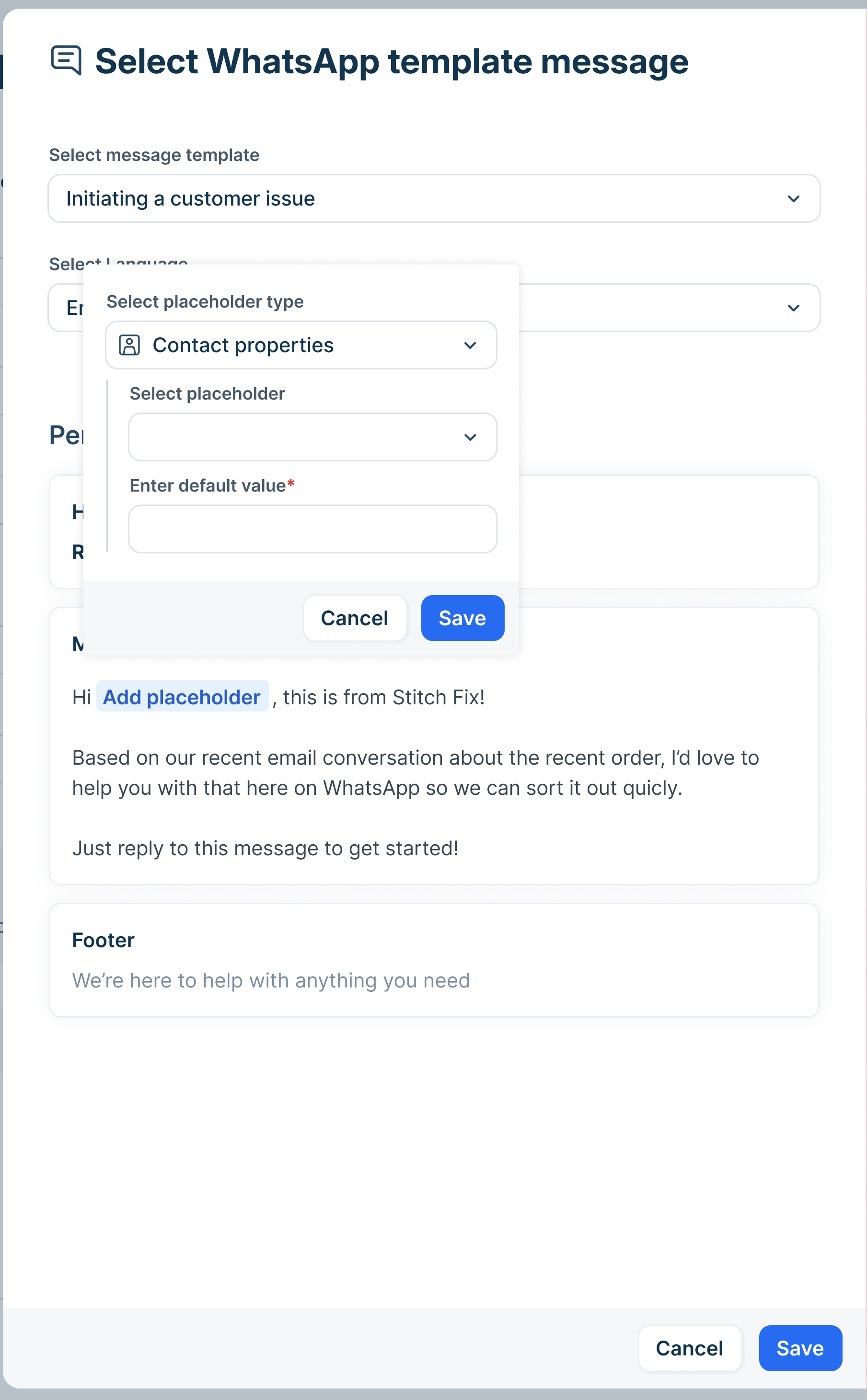
- Enter a default value to be used if the property value is unavailable.
- Preview the message and click Save.
FAQs
- Why are links in Message Templates not clickable on my customer's phone? A link will only be rendered clickable if the recipient has already saved your business number as a contact or if you have an Official Business Account.
- Can we modify/delete an approved message template? Yes. Usually, modified templates are approved instantly, but occasionally, they may take some time. In the meantime, the older approved template will continue to be sent.
- How to check if the Message Templates were successfully sent? You can use the "List all outbound messages" API to retrieve the list of all outbound messages sent from your Freshdesk Messaging account. You can refer to the API documentation here. With the request_id from the POST API call, you can check the status of the Message Templates sent, which will be one of the following:
- Accepted: Message receipt is acknowledged by the recipient.
- Sent: Message is sent to the recipient.
- Delivered: Message is delivered to the recipient.
- Failed: Message delivery failed. If the status is failed, the failure_code and failure_reason attributes are present in the response object.
- Is there a limit on the number of characters in a Message Template?
Yes. The maximum limit is 1024 characters. - Is there a maximum number of message templates allowed per WhatsApp business account?
6000 Message Templates can be added for each verified WhatsApp business account. - How many outbound messages can I send per minute? The maximum tested outbound message rate is 2000 messages per minute.
- Is there a messaging limit for sending out Message Templates? How to increase my messaging limit?
Yes. All businesses can send notifications up to the messaging limit for your phone number. Learn more about messaging limits. You will be automatically upgraded to a higher tier based on the volume and quality of the messages you send. - Do messaging limits apply to user-initiated messages (customer care messages)?
No. When a customer reaches out to you on WhatsApp with a question, you can respond to them within the next 24 hours (defined as the Customer Care Window) without any limitations. All messaging limits apply to business-initiated messages (Message Templates) or any replies you send after the Customer Care Window closes after 24 hours. - How do I get opt-in from my customers?
Understand How to get opt-in for WhatsApp for more information on presenting your users with an opt-in option. - How to know if a user has blocked my business?
Currently, there is no way to see how many or which users have blocked your business. The best way is to listen for status callbacks and if you do not receive the delivered status, then either the user has blocked your business, or they do not have a network connection. - Can I have Message Templates in different languages?
Yes. The following are the supported languages for Message Templates. Please make sure to use the right code for each language:Language
Code
Afrikaans
af
Albanian
sq
Arabic
ar
Azerbaijani
az
Bengali
bn
Bulgarian
bg
Catalan
ca
Chinese (CHN)
zh_CN
Chinese (HKG)
zh_HK
Chinese (TAI)
zh_TW
Croatian
hr
Czech
cs
Danish
da
Dutch
nl
English
en
English (UK)
en_GB
English (US)
en_US
Estonian
et
Filipino
fil
Finnish
fi
French
fr
German
de
Greek
el
Gujarati
gu
Hausa
ha
Hebrew
he
Hindi
hi
Hungarian
hu
Indonesian
id
Irish
ga
Italian
it
Japanese
ja
Kannada
kn
Kazakh
kk
Korean
ko
Lao
lo
Latvian
lv
Lithuanian
lt
Macedonian
mk
Malay
ms
Malayalam
ml
Marathi
mr
Norwegian
nb
Persian
fa
Polish
pl
Portuguese (BR)
pt_BR
Portuguese (POR)
pt_PT
Punjabi
pa
Romanian
ro
Russian
ru
Serbian
sr
Slovak
sk
Slovenian
sl
Spanish
es
Spanish (ARG)
es_AR
Spanish (SPA)
es_ES
Spanish (MEX)
es_MX
Swahili
sw
Swedish
sv
Tamil
ta
Telugu
te
Thai
th
Turkish
tr
Ukrainian
uk
Urdu
ur
Uzbek
uz
Vietnamese
vi
Zulu
zu