
 Community
 Video Library
 Agent Training
 Freshservice
 Freshdesk
 Freshchat
 Freshcaller
 Freshsales
 Freshteam
 Freshworks Neo
 Freshsurvey
Applicable Plans:
| Freshdesk Omni | Growth, Pro, Enterprise |
- Introduction
- Connect your WhatsApp account
- Configure settings for your WhatsApp numbers
- Agent experience for WhatsApp tickets
- Handling error messages
Introduction
WhatsApp integration with Freshdesk allows you to centralize customer interactions, ensure faster responses, and provide a seamless support experience.
Note: WhatsApp is introducing usernames that allow customers to interact with businesses without sharing their phone numbers. As this feature rolls out, some customers may choose to display only their WhatsApp username instead of their phone number when messaging your business.

To support this change, Freshdesk uses WhatsApp's Business-Scoped User ID (BSUID) to identify customers. For details, see Agent experience for WhatsApp.
Prerequisites
Before you proceed, please ensure that the following prerequisites are met:
| What? | Why? | Mandatory? |
|---|---|---|
| A valid phone number | To receive OTP via voice call or SMS for authentication. You can use a landline, mobile, VOIP, toll-free, or international number. Note: While businesses can create WhatsApp user names, a phone number is still required for WhatsApp integration. | Yes |
Meta Business Manager Account | Required to use the WhatsApp Business Platform with Freshworks. Meta uses this account to verify your company’s identity. A WhatsApp Business Account (WABA) is associated with the Meta Business Manager to register phone numbers. Note: We strongly recommend you verify your account to remove limitations. | Yes |
| WhatsApp Business Account (WABA) | WABA lets your business communicate with customers on WhatsApp. | |
| User Permissions | Ensure that you have admin permissions in Freshdesk and your brand's Meta Business Manager Account. | Yes |
| WhatsApp Pricing | Effective July 1, 2025, WhatsApp charges on a per-message basis. In addition, Freshworks applies a 20% markup to the total WhatsApp cost billed from Meta. For details, see WhatsApp Pricing Model. | Yes |
Connect your WhatsApp account
Add your WhatsApp numbers and link your WhatsApp Business Account with Freshdesk to manage your business conversations. You can add multiple numbers to support different business requirements.
Freshdesk offers the following options to connect to WhatsApp:
- Connect a new number: Add a new number to Freshdesk for WhatsApp.
You can add up to 50 numbers. For a trial account, you can add only one number. - Connect a number associated with another provider: Migrate your current number to Freshdesk without changing your WhatsApp account settings.
Connect a new number
You can add a new number that is not already linked to another partner’s API.
Note: Before proceeding, ensure that you have a valid phone number for verification and a Meta account.
To set up WhatsApp business accounts:
- Log in to your account and go to Admin > Channels > WhatsApp.
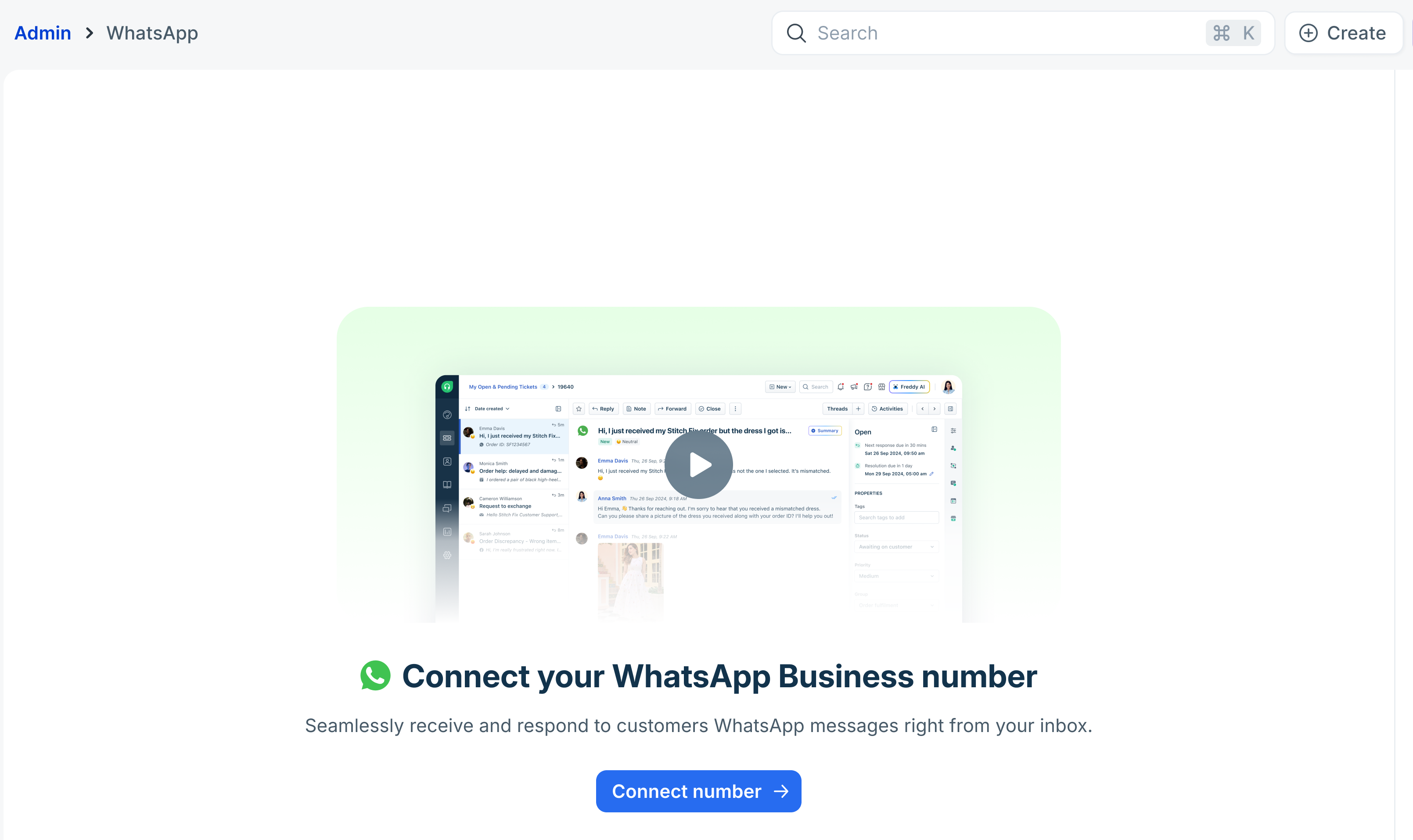
- Click Connect number.
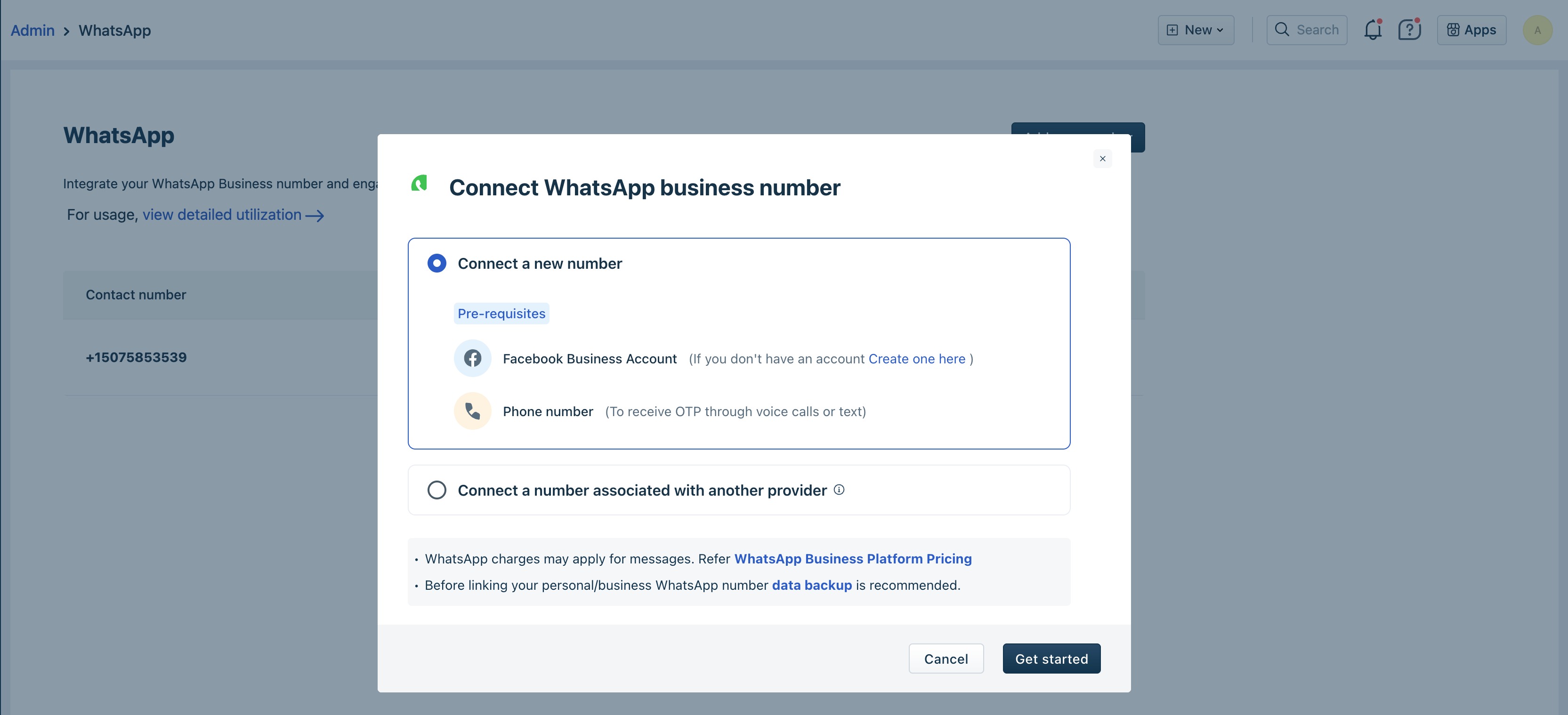
- Select Connect a new number and click Get started.
- You will be redirected to the Meta account page. If you are already logged into your Meta account, you can continue using the same. You can also choose to log in to a different account or create a new Meta account.

- Click Get Started to connect your Meta account with Freshworks and allow the required permissions to manage your WhatsApp account.

- Create a new business portfolio or choose an existing one.
- Enter your business information, such as your business name, email address, and website page, country, and click Next. If you selected your existing business portfolio in the previous step, your details will be autofilled.
Note: If you already have a Meta Business Manager Account, you can continue with your existing account. For more details, see Embedded Signup.
- Create a new WhatsApp business account or select an existing account. Additionally, create or select a WhatsApp business profile, and click Next.

- If you want to create a new WhatsApp business profile, add your business profile details, such as WhatsApp business account name, display name, and category you want customers to see on WhatsApp and click Next.

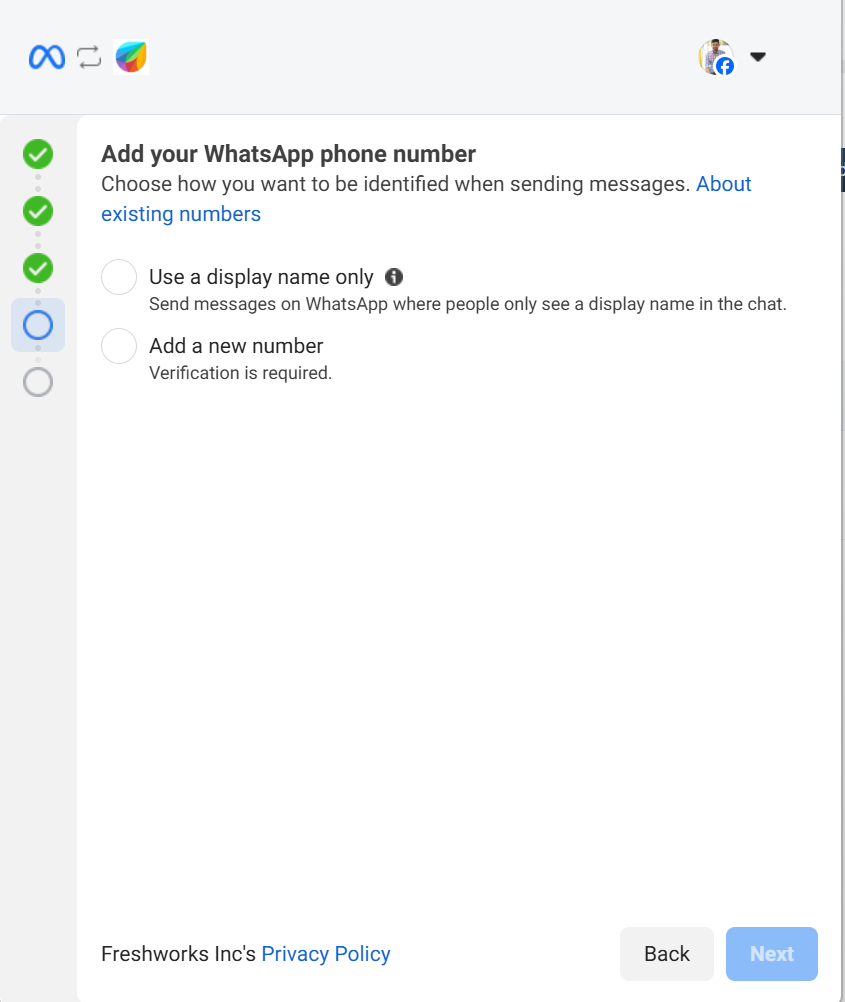
- Select Add a new number and click Next.
- Add phone number details and select how you want to verify this number. You can choose to verify via text message or phone call and click Next.

- Enter the verification code received on your number, and click Next.

- Review the permissions required by Freshworks and click Continue.

- Click Finish. Meta will review your business. However, you can still start using the number for your business.

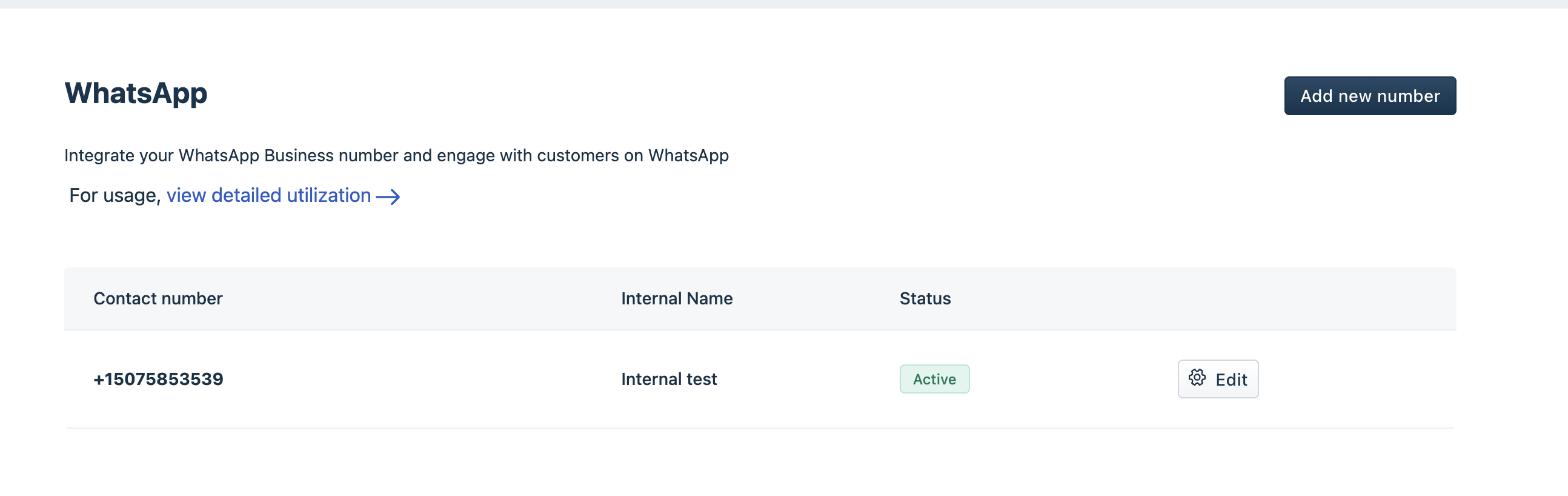
- Once verification is completed successfully, you will find your WhatsApp number in Freshdesk. Additionally, you can modify the number to upload a profile picture and other information, or remove them.
Note: Once Meta verifies your account, you can initiate unlimited conversations. However, until the verification is pending, you can start with the following:
- Initiate 250 business conversations in a 24-hour rolling window.
- Respond to customer-initiated conversations without any restrictions.
- Have two WhatsApp business numbers in an unverified Meta Business Manager account.
For more details, see Verifying your Business in WhatsApp Business Manager.
Configure settings for your WhatsApp numbers
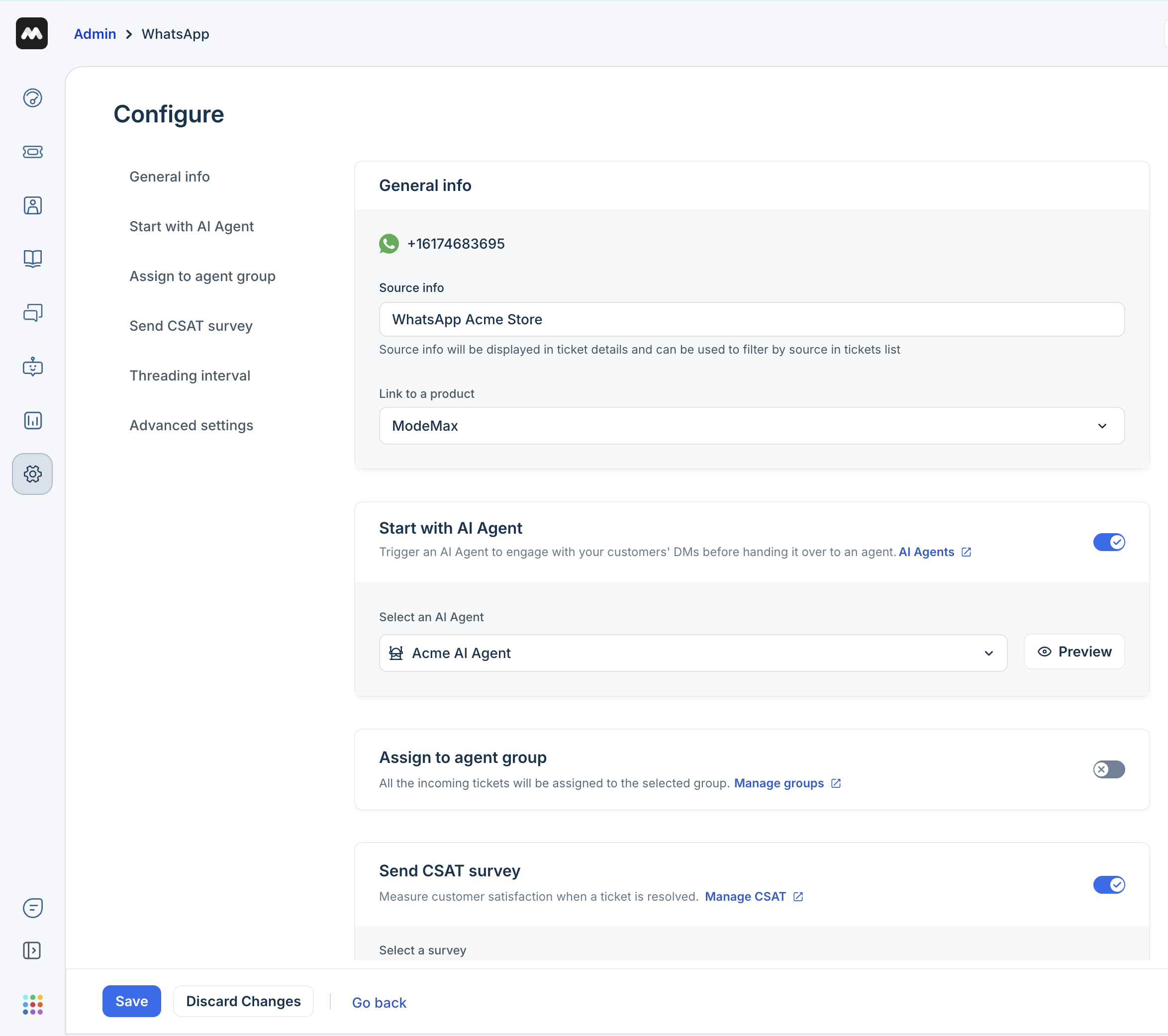
Once you successfully add your WhatsApp Business number, you can configure different settings for the WhatsApp number to enhance your customer interactions on WhatsApp. For example, you can share your products and services with customers by creating a catalog, which will be displayed on your business profile.
To configure settings:
- On the WhatsApp page, click on the Configure button next to the WhatsApp number you want to configure.
- You can see the different configuration settings you can enable/disable for your WhatsApp Business Account.
| Setting | Description |
|---|---|
General Info |
|
Start with an AI Agent (trigger an AI Agent | Set up and link an AI Agent for your WhatsApp number to effectively manage customer conversations. The AI Agent can instantly respond to customer queries using the Knowledge Sources or Workflows, resolving issues faster. For details, see Set Up AI Agent. |
Assign to agent group | Enable this option to route all your WhatsApp conversations to specific groups in your account. Note: If your number is connected to an AI Agent, the conversation will be assigned to the specified group after the AI initiates agent transfer. For details, see Groups. |
Threading interval | Enter the time interval after which you want to start a new conversation thread on WhatsApp with customers. You can set the interval in days, hours, and minutes.
|
Manage templates | Click on this link to open your Meta Business Manager, where you can create, submit for approval, edit, and delete the pre-approved message templates required to initiate business-initiated conversations with customers outside the 24-hour service window. Ensure that you have admin access to the Meta Business Manager. |
| Send CSAT | Trigger CSAT survey to get customer feedback once the ticket is resolved. For details, see Send CSAT. |
Advanced Settings | |
Automations | Eliminate repetitive tasks such as categorization, routing, follow-ups, and tracking by creating rules. For details, see, Automations. |
SLA policies | Set up targets for agents to guarantee timely responses and resolutions to customers. For details, see SLA Policies. |
Manage your WhatsApp profile details
Add profile details for your WhatsApp Business profile to boost your brand visibility and help customers easily connect with your business. For example, you can add a logo and a detailed description for your business to establish your brand value. You can also remove the integration if you no longer need it.
Edit WhatsApp number
To add profile details:
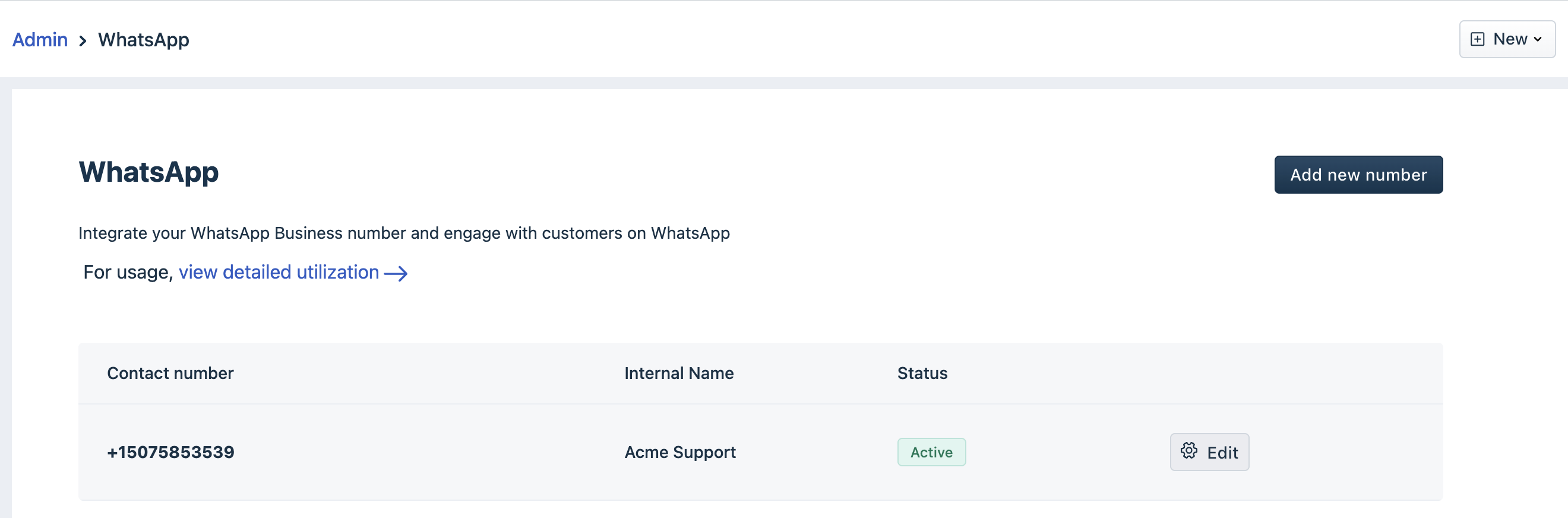
- On the WhatsApp page, click Edit next to the number you want to modify.
- In the WhatsApp Profile tab, add your profile details such as description, address, email, and Website URL, upload a profile picture, and click Save your profile.
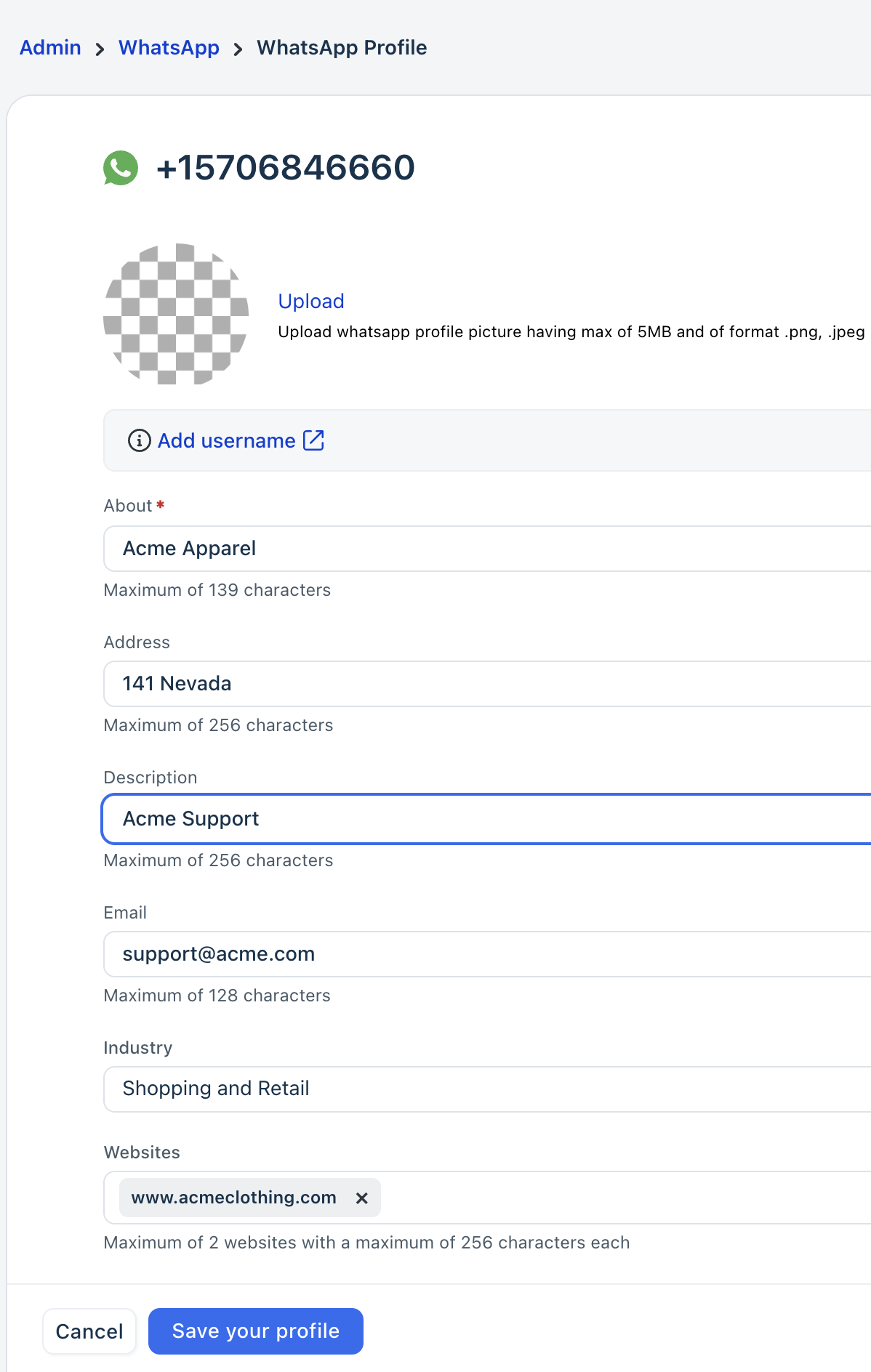 Note: You can upload a WhatsApp profile picture of up to 5 MB maximum in PNG or JPEG formats.
Delete your WhatsApp number
You can delete your WhatsApp numbers and remove the integration with Freshdesk. However, before proceeding with the WhatsApp number deletion, we recommend you check the following:
- When you delete a WhatsApp number, you may experience WhatsApp downtime, which could impact customer interactions.
- Any verified checkmark or messaging limits associated with that WhatsApp number will also be removed.
- All your outstanding WhatsApp invoices will be automatically generated and will be sent to you.
According to Meta, the analytics data is an approximate value and may not match the data displayed in invoices. This is due to minor discrepancies in data processing. Hence, there could be a small delay in the actual usage represented in the metrics. For more details, see Meta Analytics.
To delete your WhatsApp number:
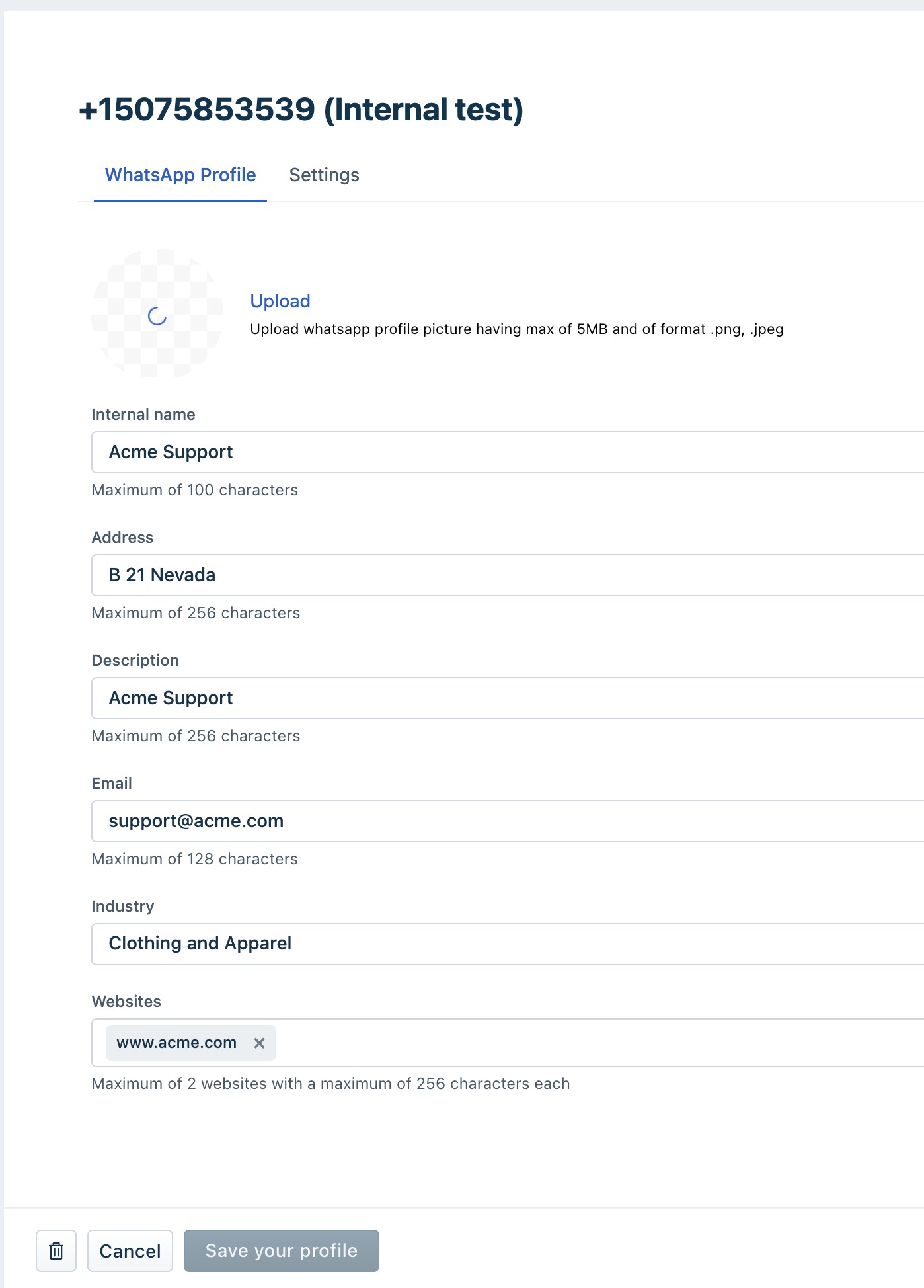
- On the WhatsApp page, click Edit next to the number you want to modify.
- Scroll down and click on the delete icon.
What happens once your WhatsApp number is deleted?
- Your WhatsApp number will be removed from Freshdesk and can be used with other integrations.
- You can still view the history of the deleted WhatsApp number in the WhatsApp utilization report.
- Once the number is deleted, the reply editor will be disabled in all the associated conversations in your Conversation Inbox.
Agent experience for WhatsApp tickets
After your WhatsApp integration is successful, all customer interactions through WhatsApp are automatically converted into tickets. Agents can manage these tickets directly from their Inbox, perform standard ticket actions, and continue conversations without losing context.
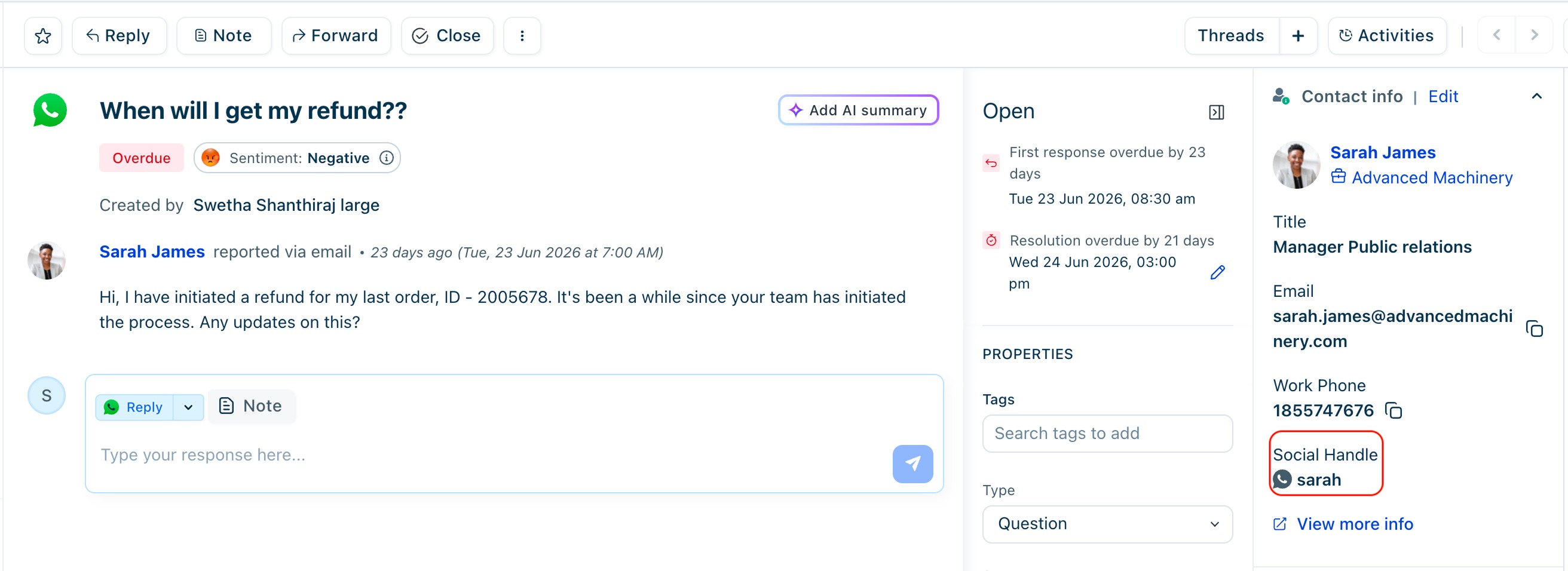
Agents can perform the following tasks:
- Identify customers using a WhatsApp phone number or username
- The Ticket details page displays the customer's WhatsApp phone number or username in the Contact Info pane, based on how they contacted your business.
- Agents can manage conversations in the same way regardless of whether the customer is identified by a phone number or username.
- Freshdesk automatically stores the customer's Business-Scoped User ID (BSUID) to uniquely identify the customer. If the customer later shares their phone number, Freshdesk automatically merges it with the existing contact to prevent duplicate entries.
- If an agent creates a contact using only a WhatsApp username, they cannot send a business-initiated (proactive) WhatsApp message to that customer. They can send messages only after the customer has initiated a conversation with your business on WhatsApp.
- Agents cannot send authentication templates to contacts who only provide WhatsApp usernames, as an active phone number is necessary to send them.
- View WhatsApp source information:
Hovering over the WhatsApp icon in WhatsApp tickets reveals the source info on the Ticket Details page, displaying the WhatsApp channel name next to the channel icon. - Filter option:
Agents can also use the Filters option in the Ticket List to view tickets from WhatsApp.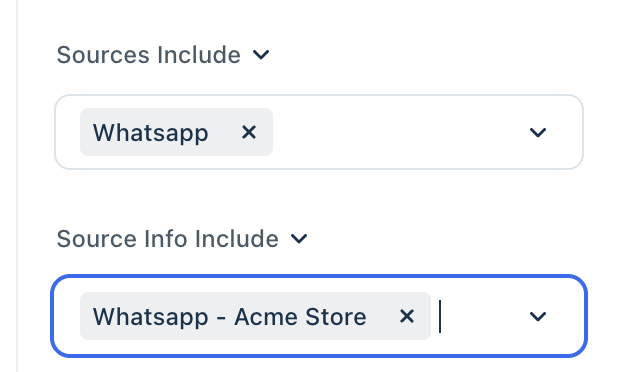
- Perform ticket Actions:
Agents can perform all standard ticket actions on WhatsApp tickets, including replying, adding notes, and changing the ticket status. They can also perform advanced actions like, deleting, performing bulk actions or modifying ticket fields, executing scenarios, and logging time. However, WhatsApp tickets cannot be merged with other tickets.
Replying to WhatsApp tickets
Agents can respond to customer messages on WhatsApp using multiple reply methods, based on the message and plan type.
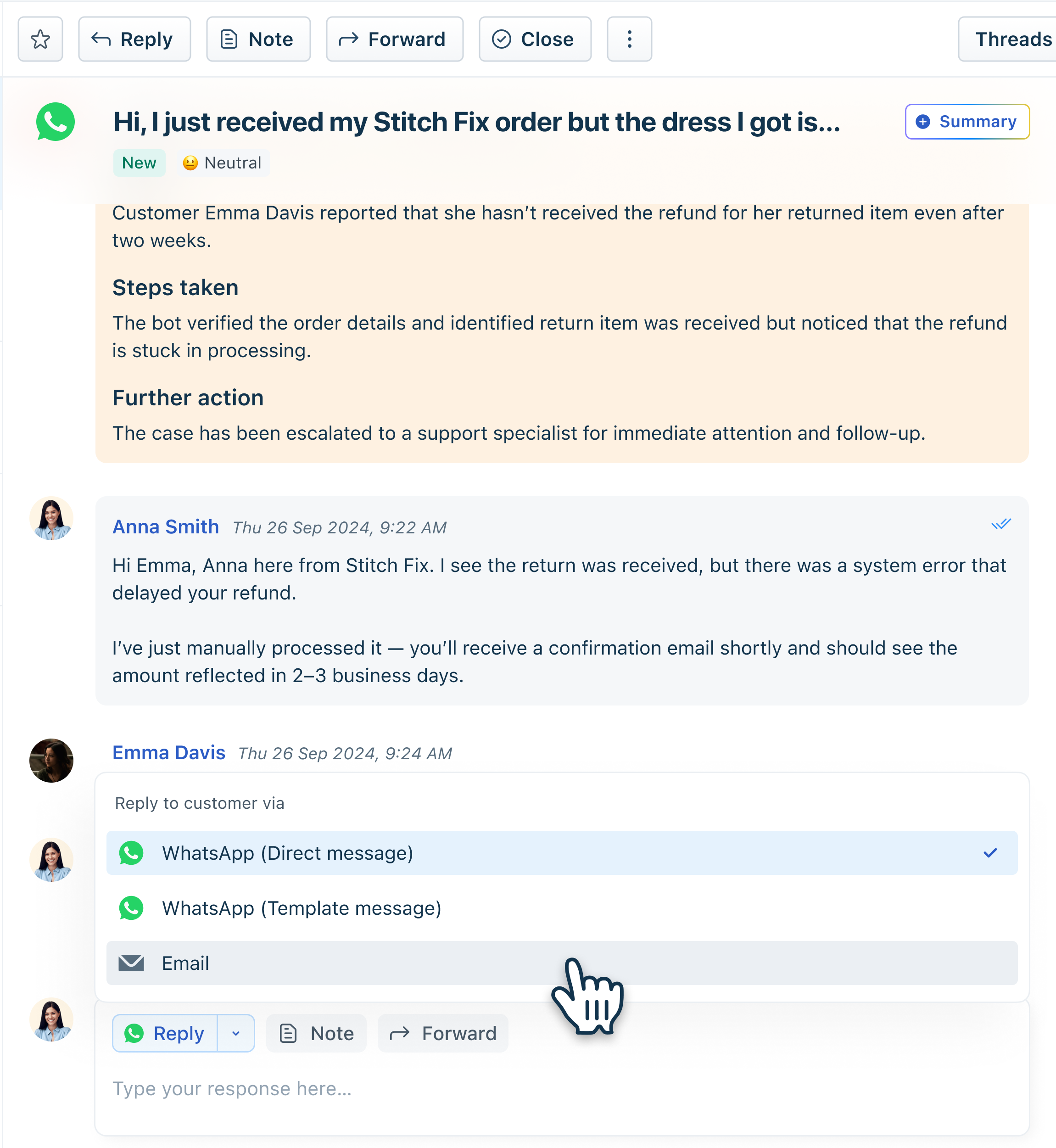
- Direct Message Reply (Default)
This is the standard way to respond to incoming WhatsApp messages.- Agents can type and send free-form text messages directly from the reply editor.
- Use this option for day-to-day conversational support, clarifications, and follow-ups.
- Reply via Template Message (Available from Growth plan)
Agents can send pre-approved WhatsApp template messages to- Send messages outside the 24-hour customer care window.
- Send proactive notifications such as order updates, reminders, or alerts.
These templates must be reviewed and approved by WhatsApp before they can be used. For detailed instructions on creating and managing templates, refer to Template Message.
- Continuing WhatsApp Conversations via Email
In scenarios where a conversation needs to continue over email (for example, when a customer prefers email or when detailed documentation must be shared), agents can use the Channel Switcher to move from a WhatsApp reply to an email reply.
When the channel is switched:- The response is sent as an email on the same existing ticket.
- No new ticket is created, ensuring continuity of the conversation and history.
Note: The option to reply via email is available only if:
- Customer’s contact record contains a valid email address
- The Email channel is configured and active in your account
Message Delivery Status
WhatsApp delivery indicators are reflected in the conversation view to help agents track message status:
- Single tick (Sent): The message has been sent from the system.
- Grey double tick (Delivered): The message has reached the customer’s device.
- Blue double tick (Read): The customer has opened and read the message.
Supported Message Types
The list of message types supported on WhatsApp with Freshdesk:
Except for text messages, all other message types are not supported from AI Agent to users
| Message Type | Direction | Available? |
|---|---|---|
| Text | User to agent | Yes |
| User to AI Agent | Yes | |
| Agent to user | Yes | |
| Image | User to agent | Yes |
| User to AI Agent | Yes | |
| Agent to user | Yes | |
| Audio | User to agent | Yes |
| User to AI Agent | Yes | |
| Agent to user | Via attachment | |
| Video | User to agent | Yes |
| User to AI Agent | Yes | |
| Agent to user | Yes | |
| File | User to agent | Yes |
| User to AI Agent | Yes | |
| Agent to user | Yes | |
| Emoji | User to agent | Yes |
| User to AI Agent | Yes | |
| Agent to user | Yes | |
| GIFs | User to agent | Yes |
| User to AI Agent | Yes | |
| Agent to user | No | |
| Stickers | User to agent | NA |
| User to AI Agent | NA | |
| Agent to user | Yes |
Handling error messages
Error Message | How to resolve? |
An unexpected error occurred. Please try again after some time. If the problem persists, contact support. | Wait a few minutes and try again. If the issue continues, contact support@freshdesk.com |
This phone number is already connected to a WhatsApp business account. Please use a different number. | Use a different phone number that is not already linked to another WhatsApp Business Account. |
Please disable Two-step authentication for this number in your WhatsApp accounts settings and then try again. | Disable Two-step Verification in your WhatsApp settings, then retry the setup. For details, see Two-step Verification. |
We couldn't send a verification code (OTP) at this time. Please wait a few moments and try again. | Wait for a few moments and retry. This may be due to temporary carrier or network delays. |
The verification code you entered is incorrect or has expired. Please try again. | Enter the most recent verification code sent to your phone. If expired, request a new one. |
The two-step verification PIN you entered is incorrect. Please try again. | Re-enter your PIN. If forgotten, reset it from the WhatsApp app. |
You've entered an incorrect PIN too many times. Please wait and try again later. | Wait until the lockout period ends and try again later. |
This phone number has been deleted from your WhatsApp account. Please contact support with proper details. | Contact support@freshdesk.com and provide details proving ownership of the phone number. |
Access to this number has been revoked for Freshworks. Please contact support with proper details. | Contact support@freshdesk.com to restore access. Access permissions must be reinstated in Meta Business Manager. |
This phone number has been flagged for a policy violation and cannot be used at this time. Please refer to WhatsApp's Business Policy for more information. | Review WhatsApp Business Policies and resolve violations through Meta support. For details, see View account violations in WhatsApp Manager. |
Access denied due to WhatsApp policy violations. Please resolve with Meta support. | Resolve the violation with Meta support before continuing. For details, see Troubleshoot restricted WhatsApp Business Accounts. |
You have revoked Freshworks' partner access to your WhatsApp account. Please delete and reintegrate. | Remove the number and reintegrate it.
Note: Only admins can remove numbers and recently used numbers may require a waiting period. |
Phone number removed from your WhatsApp account. Please delete and reintegrate. | Remove the number and reintegrate it. Check for steps in the row above. Note: Only admins can remove numbers and recently used numbers may require a waiting period. |
Issue with phone number. Please delete and reintegrate. | Remove the number and reintegrate it. Check for steps in the row above. Note: Only admins can remove numbers and recently used numbers may require a waiting period. |
You have reached the maximum number of integrations allowed for your plan. Please upgrade your plan to add more integrations. | Upgrade your subscription plan to add more WhatsApp integrations. |
WhatsApp template sync in progress. Please try again in a few minutes. | Wait for a few minutes and try again once the synchronisation is complete. |
Applicable Plans:
| Freshdesk | Growth, Pro, Enterprise |
| Freshdesk Omni (formerly CSS) | Growth, Pro, Enterprise |
Introduction
WhatsApp integration with Freshdesk allows you to centralize customer interactions, ensure faster responses, and provide a seamless support experience.
Prerequisites
Before you proceed, please ensure that the following prerequisites are met:
| What? | Why? | Mandatory? |
|---|---|---|
| A valid phone number | To receive OTP via voice call or SMS for authentication. You can use a landline, VOIP, or international number. | Yes |
Meta Business Manager Account | Required to use the WhatsApp Business Platform with Freshworks. Meta uses this account to verify your company’s identity. A WhatsApp Business Account (WABA) is associated with the Meta Business Manager to register phone numbers. Note: We strongly recommend you verify your account to remove limitations. | Yes |
| WhatsApp Business Account (WABA) | WABA lets your business communicate with customers on WhatsApp. | |
| User Permissions | Ensure that you have admin permissions in Freshdesk and your brand's Meta Business Manager Account. | Yes |
| WhatsApp Pricing | Effective July 1, 2025, WhatsApp charges on a per-message basis. In addition, Freshworks applies a 20% markup to the total WhatsApp cost billed from Meta. For details, see WhatsApp Pricing Model. | Yes |
Connect your WhatsApp account
Add your WhatsApp numbers and link your WhatsApp Business Account with Freshdesk to manage your business conversations. You can add multiple numbers to support different business requirements.
Freshdesk offers the following options to connect to WhatsApp:
- Connect a new number: Add a new number to Freshdesk for WhatsApp
- Connect a number associated with another provider: Migrate your current number to Freshdesk without changing your WhatsApp account settings.
Connect a new number
You can add a new number that is not already linked to another partner’s API.
Note: Before proceeding, ensure that you have a valid phone number for verification and a Meta account.
To set up WhatsApp business accounts:
- Log in to your account and go to Admin > Channels > WhatsApp.
- Click Add new number.
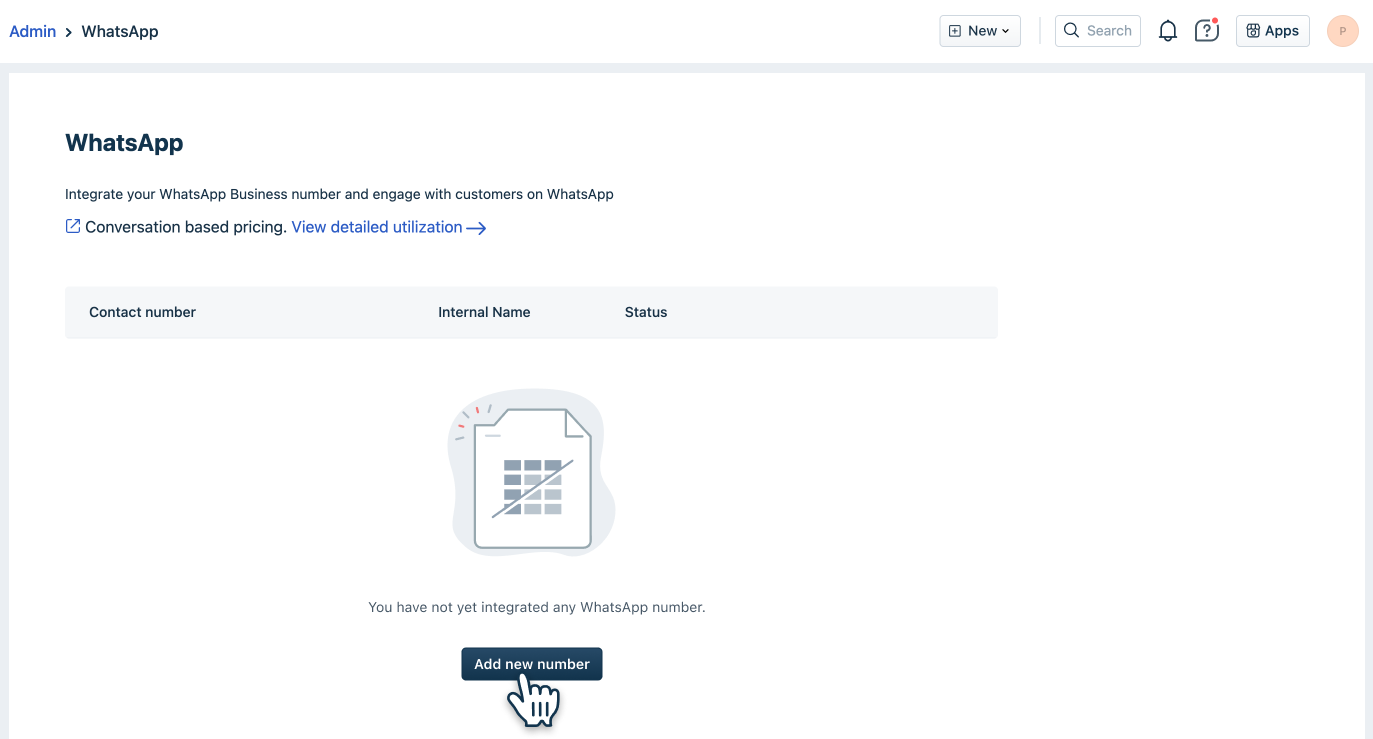
- Select Connect a new number and click Get started.
- On the WhatsApp page, click Connect a new number.
- You will be redirected to the Meta account page. If you are already logged into your Meta account, you can continue using the same. You can also choose to log in to a different account or create a new Meta account.
- Click Get Started to connect your Meta account with Freshworks and allow the required permissions to manage your WhatsApp account.
- Create a new business portfolio or choose an existing one.
- Enter your business information, such as your business name, email address, and website page, country, and click Next. If you selected your existing business portfolio in the previous step, your details will be autofilled.
Note: If you already have a Meta Business Manager Account, you can continue with your existing account. For more details, see Embedded Signup. - Create a new WhatsApp business account or select an existing account. Additionally, create or select a WhatsApp business profile, and click Next.
- If you want to create a new WhatsApp business profile, add your business profile details, such as WhatsApp business account name, display name, and category you want customers to see on WhatsApp and click Next.
- Select Add a new number and click Next.
- Add phone number details and select how you want to verify this number. You can choose to verify via text message or phone call and click Next.
- Enter the verification code received on your number, and click Next.
- Review the permissions required by Freshworks and click Continue.
- Click Finish. Meta will review your business. However, you can still start using the number for your business.
- Once verification is completed successfully, you will find your WhatsApp number in Freshdesk. Additionally, you can modify the number to upload a profile picture and other information, or remove them.
Note: Once Meta verifies your account, you can initiate unlimited conversations. However, until the verification is pending, you can start with the following:
- Initiate 250 business conversations in a 24-hour rolling window.
- Respond to customer-initiated conversations without any restrictions.
- Have two WhatsApp business numbers in an unverified Meta Business Manager account.
For more details, see Verifying your Business in WhatsApp Business Manager.
Connect a number associated with another provider
Besides adding a new number, you can use a phone number already associated with another Business Service Provider (BSP).
- Log in to your account and go to Admin > Channels > WhatsApp.
- Click Add new number.
- Select Connect a new number associated with another provider and click Get started.
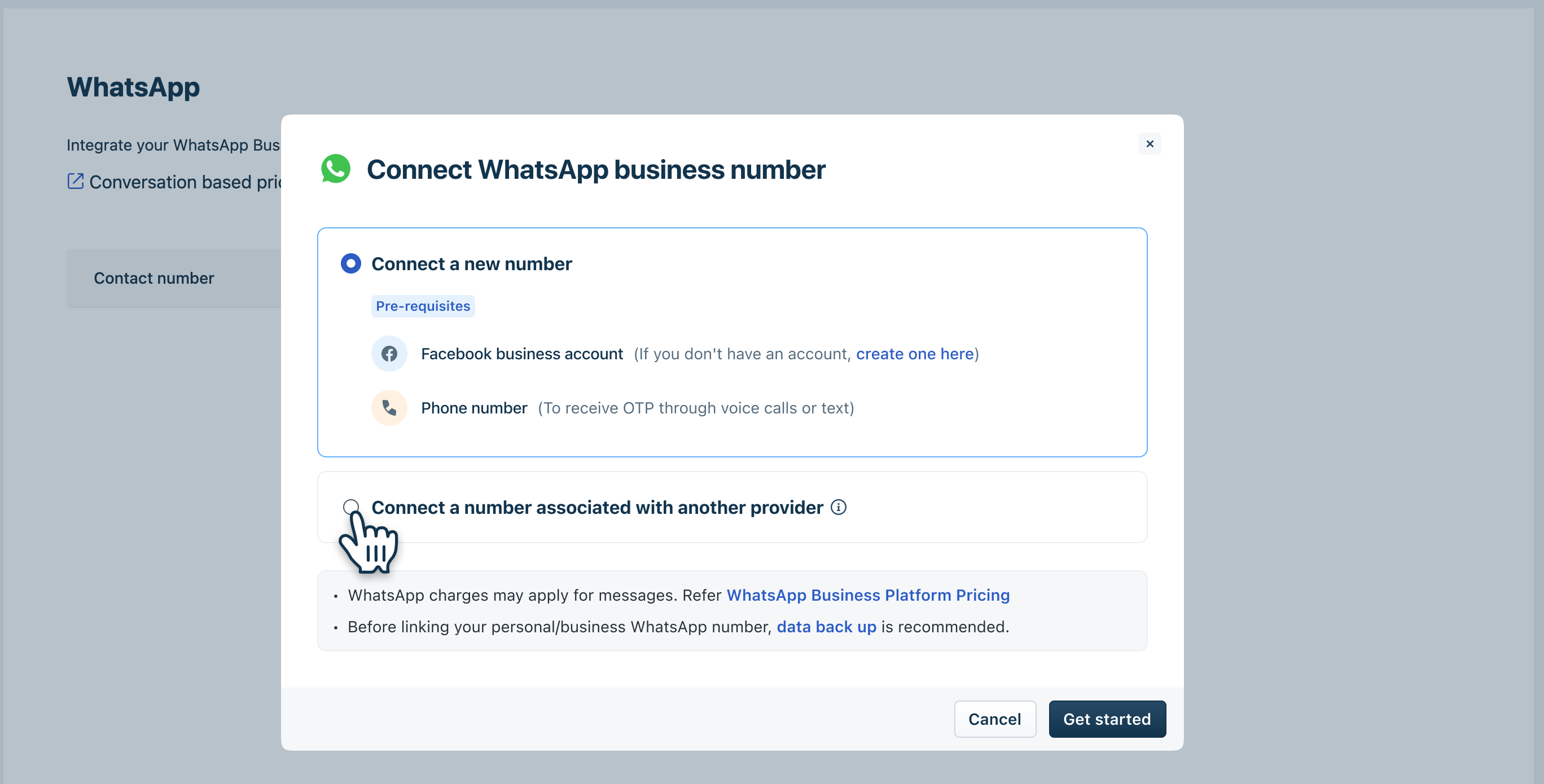 This method requires additional verification; hence, contact support@frehsdesk.com for further assistance.
 - Once our support team confirms, you can see the number in Freshdesk with a verification status - OTP pending.
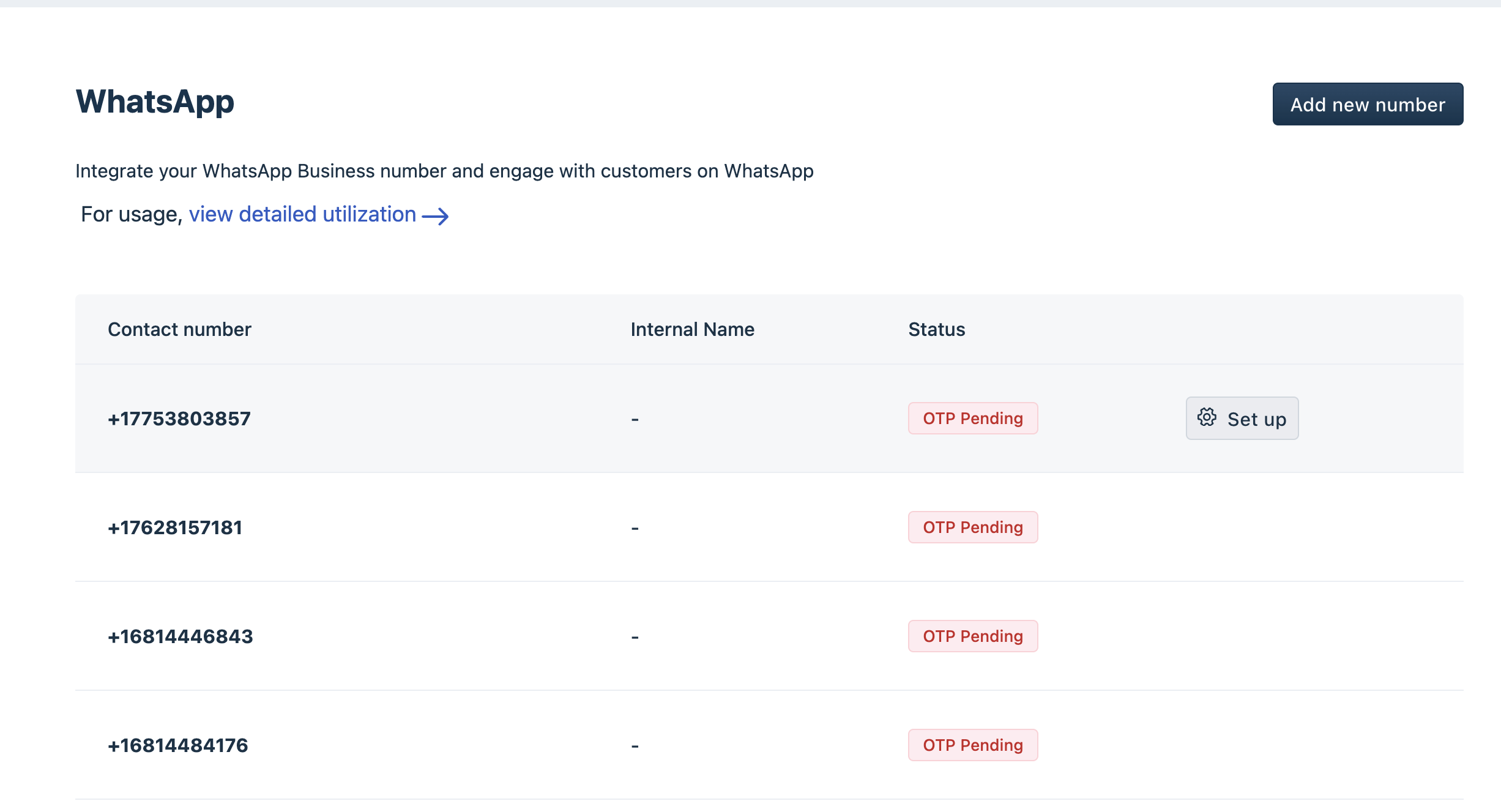
- To complete the setup, you must verify the number. For this, click Set up.
- Choose if you want to verify the number via text message or phone call, and click send OTP.
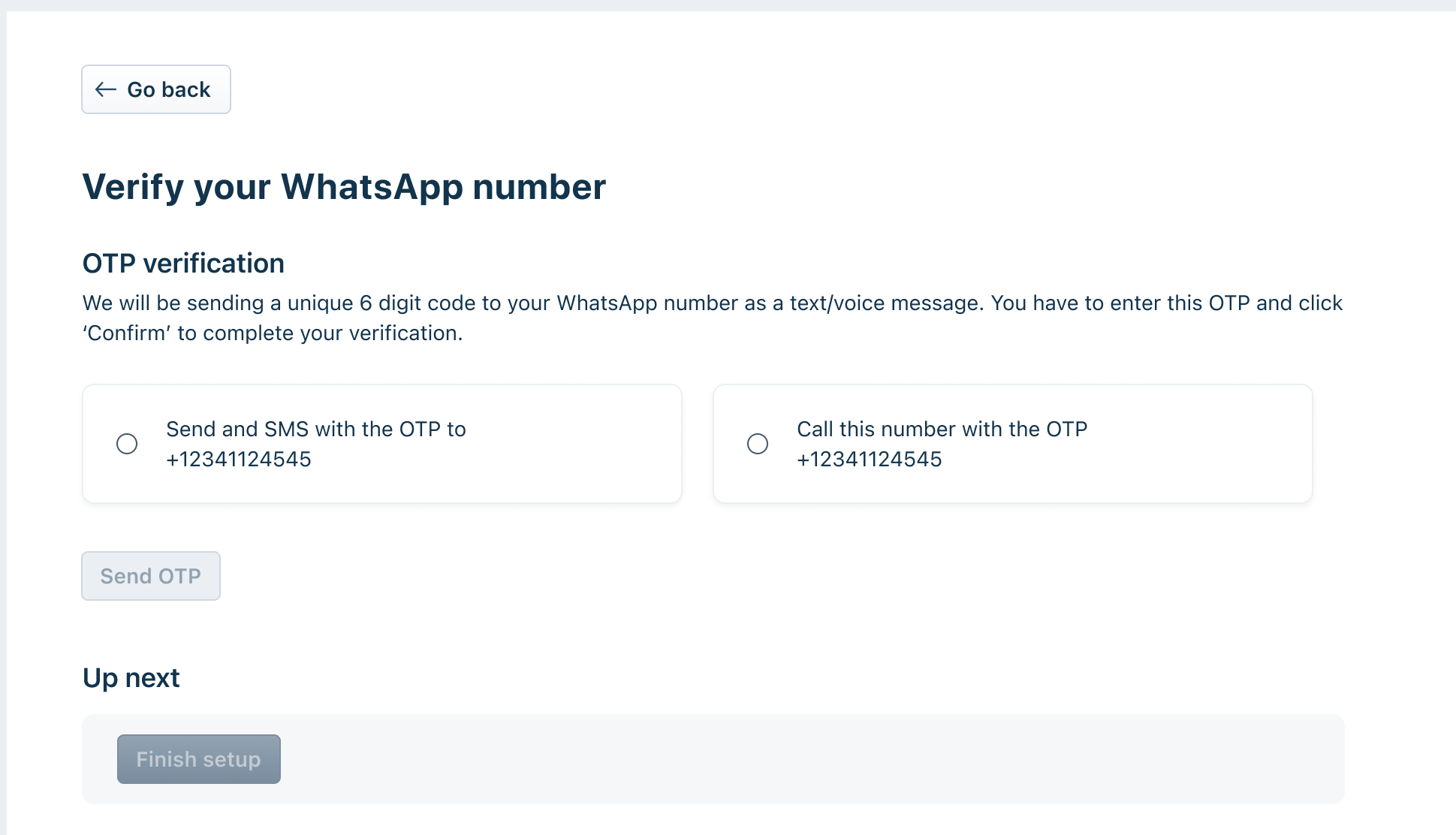
- After OTP verification, click Finish setup. You can modify the number to upload a profile picture and other information, or remove them.
Manage your WhatsApp profile details
Add profile details for your WhatsApp Business profile to boost your brand visibility and help customers easily connect with your business. For example, you can add a logo and a detailed description for your business to establish your brand value. You can also remove the integration if you no longer need it.
Edit WhatsApp number
To add profile details:
- On the WhatsApp page, click Edit next to the number you want to modify.
- In the WhatsApp Profile tab, add your profile details such as description, address, email, and Website URL, upload a profile picture, and click Save your profile.
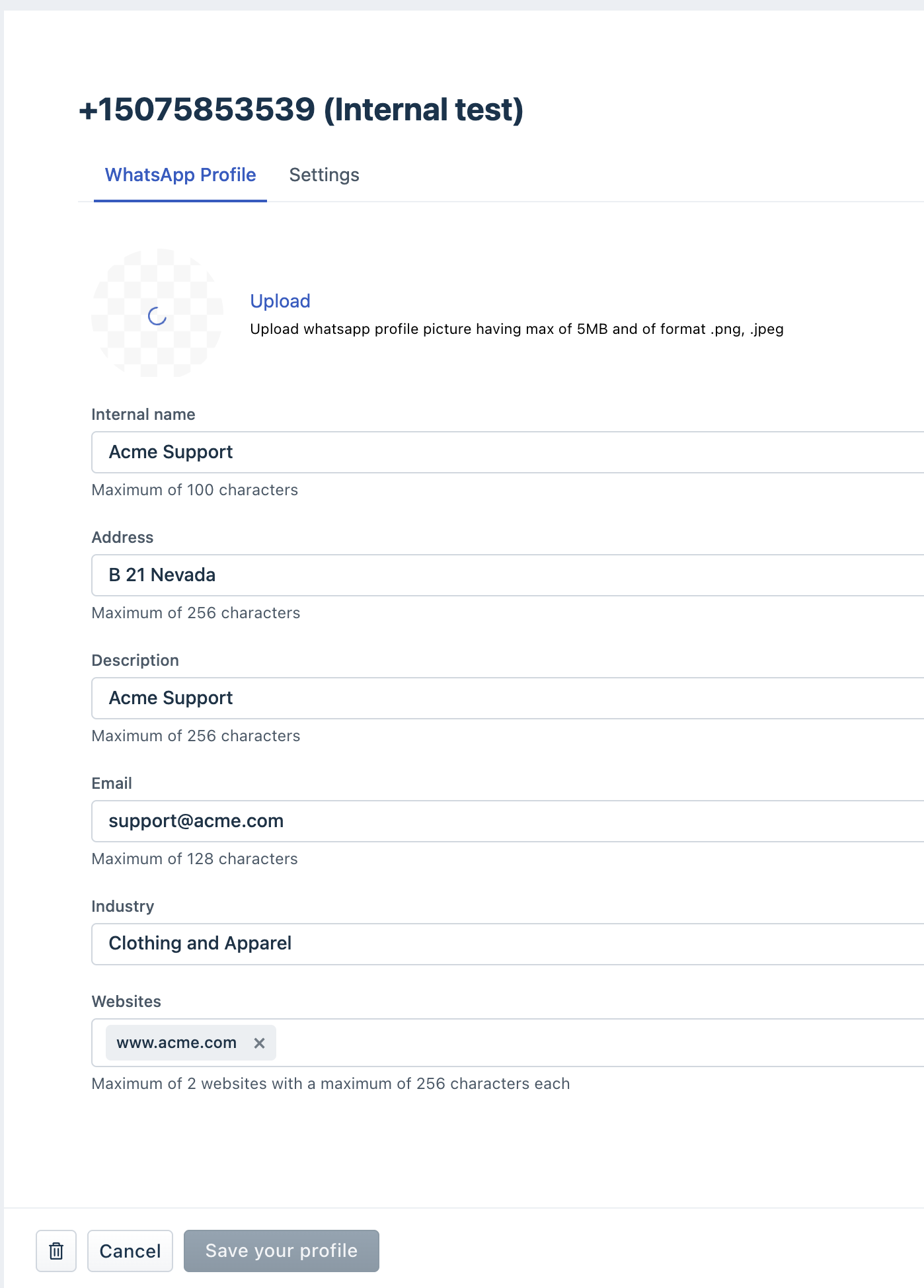 Note: You can upload a WhatsApp profile picture of up to 5 MB maximum in PNG or JPEG formats.
Delete your WhatsApp number
You can delete your WhatsApp numbers and remove the integration with Freshdesk. However, before proceeding with the WhatsApp number deletion, we recommend you check the following:
- When you delete a WhatsApp number, you may experience WhatsApp downtime, which could impact customer interactions.
- Any verified checkmark or messaging limits associated with that WhatsApp number will also be removed.
- All your outstanding WhatsApp invoices will be automatically generated and will be sent to you.
According to Meta, the analytics data is an approximate value and may not match the data displayed in invoices. This is due to minor discrepancies in data processing. Hence, there could be a small delay in the actual usage represented in the metrics. For more details, see Meta Analytics.
To delete your WhatsApp number:
- On the WhatsApp page, click Edit next to the number you want to modify.
- Scroll down and click on the delete icon.
What happens once your WhatsApp number is deleted?
- Your WhatsApp number will be removed from Freshdesk and can be used with other integrations.
- You can still view the history of the deleted WhatsApp number in the WhatsApp utilization report.
- Once the number is deleted, the reply editor will be disabled in all the associated conversations in your Conversation Inbox.
Interact with customers on WhatsApp
Whenever a customer initiates a conversation via WhatsApp, a new ticket will be created with the channel as WhatsApp. Please note, if the customer's phone number is already mapped to a contact, the new ticket will be created under the requester's name. Otherwise, a new contact will be created for the contact number.

Agents can reply to the tickets by clicking on the Reply button. This will continue the conversation as a thread in the same ticket.

Threading interval: By default, a threading interval is set to 24 hours. Any replies coming in after 24 hours will create a new ticket within Freshdesk. This interval can be extended up to 48 hours under WhatsApp settings.
Set SLAs and automation rules for WhatsApp messages
You can set up custom SLA policies for tickets coming in through WhatsApp as a channel and make sure your agents adhere to these SLAs by sending them notifications periodically.
Set SLAs
- Go to Admin > Workflows > SLA Policies.
- Click Add Policy.
- Enter the policy name and description.
- Under conditions, choose Sources, and select WhatsApp.
- Provide your SLA targets and click Save.

For more information, see SLA Policies.
Modify automation rules
You can also set up automation rules to route tickets coming in via WhatsApp to dedicated agents.
- Go to Admin > Automations.
- Click New Rule.
- Under ticket properties, choose Sources, select WhatsApp, and provide the necessary rules for ticket creation.

For more information, see Automation Rules.