
 Community
 Video Library
 Agent Training
 Freshservice
 Freshdesk
 Freshchat
 Freshcaller
 Freshsales
 Freshteam
 Freshworks Neo
 Freshsurvey
 Growth
TABLE OF CONTENTS
- How is migration done?
- How to migrate your existing WhatsApp number to Freshdesk?
- Disable two-factor authentication
- Check if WABA display name is approved
- Provide a new WABA ID or destination WABA created via Freshworks
- Verify the migrated number
How is migration done?
Migration allows you to use the same WhatsApp phone number for your business but move to a different BSP, retaining the most significant features from the existing WABA. Here's a summary of what will be migrated from your existing WABA:
What's retained? | What's lost? |
| WABA display name Quality rating Green tick (if any) All approved message templates Messaging limits | Conversations Contacts |
Freshworks provides help and support for BSP migration. This involves creating a new WABA linked to your Meta Business Manager account, which serves as the destination for transferring assets from your current WABA. Migration can happen only between two WABAs within the same Meta Business Manager account.
Once migrated, you can use your existing WhatsApp number with Freshworks for all your business communication.
Note: WhatsApp BSP Migration is a seamless and zero-downtime process.

How to migrate your existing WhatsApp number to Freshdesk?
If you currently use the WhatsApp Business API with another provider (BSP) and want to migrate your existing phone number to Freshdesk, follow the steps below.
Create a Freshdesk support ticket to initiate migration request
- Log in to your account as admin.
- Go to Admin > Channels > WhatsApp.
- Click Add New Number.
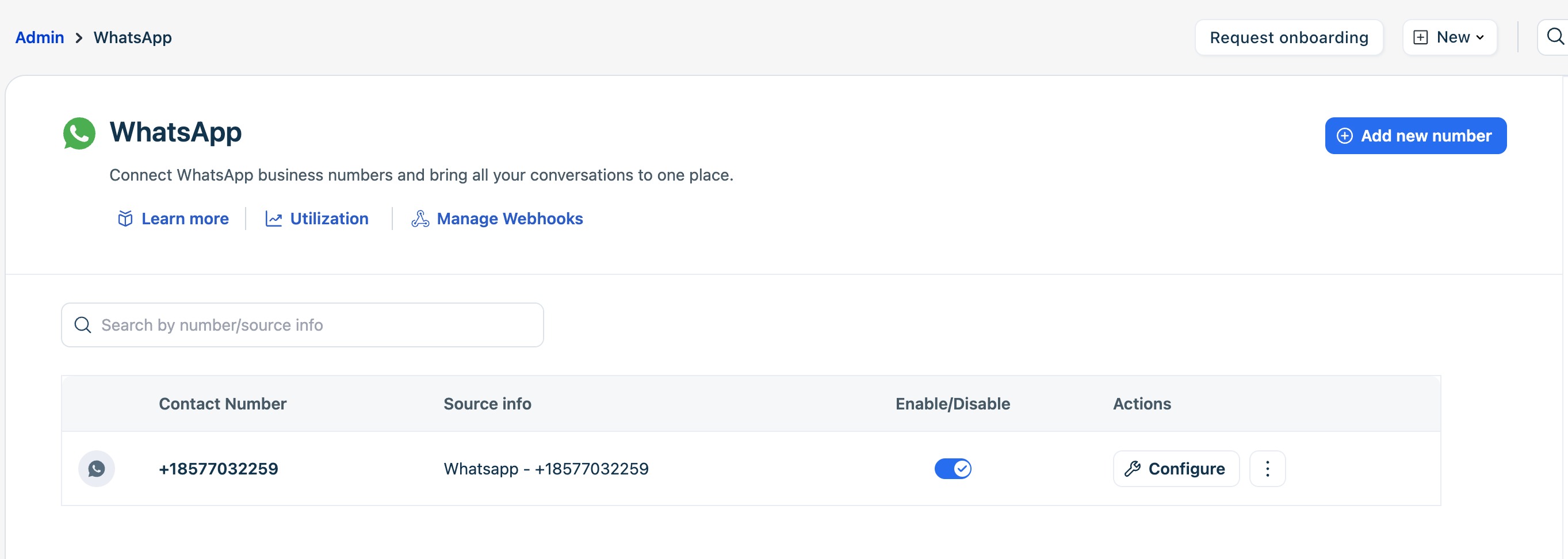
Select Connect a number associated with another provider.
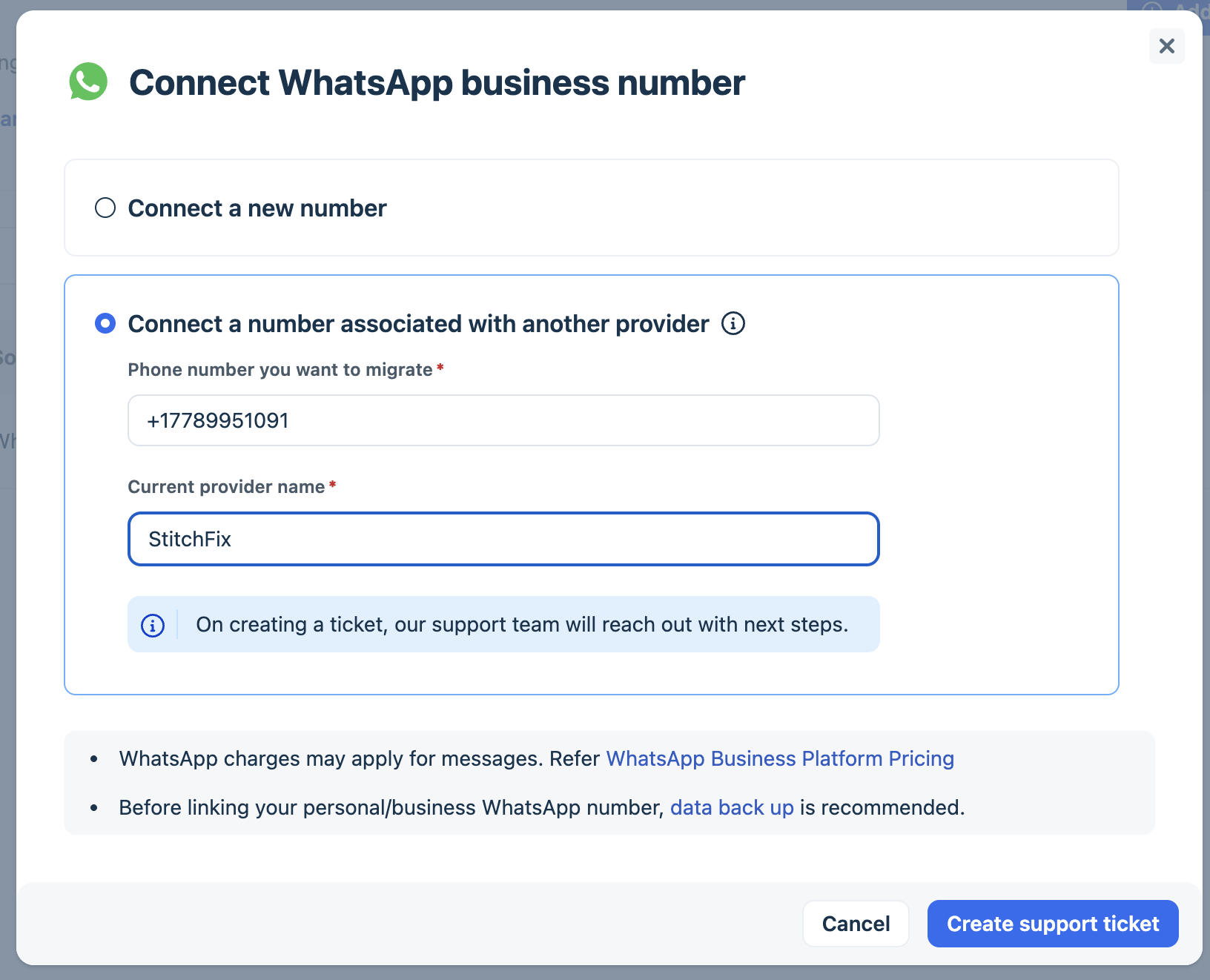
Enter the phone number you want to migrate and your current provider name.
Click Create support ticket.
Our support team will contact you to guide you through the next steps.
Complete migration checklist
Before our team can begin the migration process, please review and complete the checklist below. All the requested details are mandatory to proceed with the migration.
Step 1: Access and account permissions
- Meta Business Manager admin access
Ensure you have Admin access to the Meta Business Manager account currently associated with the WhatsApp Business Account (WABA). - Freshdesk account admin access
Ensure you have Admin access to the Freshdesk/Freshworks Account where the number will be hosted (the destination WABA). - Plan eligibility
Migration is supported only for customers on the Growth plan.
Step 2: Phone number and WABA prerequisites
- Disable two-factor authentication (2FA)
Make sure 2FA is disabled on the existing WABA before migration. Verify WABA display name approval
Confirm that the current WABA display name is approved by WhatsApp.Verify your WhatsApp number
Ensure you have access to the physical phone or SIM to receive the WhatsApp OTP via international call or SMS.Provide a new WABA or destination WABA ID
Create and share the new (destination) WABA ID associated with Freshdesk to which the number will be migrated.
Step 3: Next steps
Once our team receives your support ticket along with all the required details from the checklist above, we will initiate the migration process.
Disable two-factor authentication
The first step in the migration process is to disable the two-factor authentication of your WABA. Please note that this is an important step; we can proceed with further steps once it is complete.
This can be done in two ways:
- Disabling two-factor authentication via WABA
- Disable two-factor authentication via BSP
Note: Disabling two-factor authentication does not interrupt the message flow with your current BSP.
Disabling two-factor authentication via WABA
If you integrated the WhatsApp Business Platform with your current BSP via the Embedded Signup Flow, you can access your WABA via your Meta Business Manager account.
To disable two-factor authentication:
- Go to business.facebook.com and choose your business.
- Go to Accounts > WhatsApp Accounts and select the WhatsApp number/account for which you want to disable two-factor authentication. Note: If you do not see any WABA here, you do not have access to WABA; hence, contact your current BSP to disable the two-factor authentication.

- Click WhatsApp Manager.
- Under Account Tools, click Phone number.

- Click on the Settings icon next to the phone number.
- Select Two-step verification and then click Turn-off two-step verification.

- You will receive an email on your registered email ID. Click on the link received in the email to disable two-factor authentication.

- You will be redirected to the WhatsApp page. Click Turn off two-step verification.
 You will receive a success message:
Disable two-factor authentication via BSP
If your WhatsApp integration with your current BSP follows an On-behalf-of model (OBO), you will not see your WABA in your Meta Business Manager Account. In this case, please contact your BSP to disable the two-factor authentication.
Check if WABA display name is approved
The status of your WABA display name determines if your number can be migrated or not. If the name is not approved, we cannot proceed with the migration.
To check if your display name is approved:
- Go to business.facebook.com and choose your business.
- Go to Accounts > WhatsApp Accounts and select the WhatsApp number/account for which you want to disable two-factor authentication.
- Click WhatsApp Manager.
- Under Account Tools, click Phone number.
- You can see your account's display name here.

- To view the status of your display name, click View under the Certificate column. If the display name is approved, migration can be done. However, if the display name is Pending Review or Not Approved or has No Status, migration cannot be done.
Provide a new WABA ID or destination WABA created via Freshworks
WhatsApp migration can be done only between two WABA accounts within the same Meta Business Manager Account (FBM). To migrate your WhatsApp number from your current BSP to Freshworks, a new WABA created via Freshworks within the same Meta Business Manager Account is required.
For example, let's assume ABC is your current BSP, and Acme Shoes is your Meta Business Manager Account/portfolio where your current WABA (Acme Chat Support) is linked to ABC. Now to migrate your phone number from ABC to
Freshworks, a new WABA within Acme Shoes, FBM needs to be created.
For this, follow the Embedded Signup flow via Freshworks to create a new WABA within the same Meta Business Manager Account.
- Log in to your account and go to Admin > Channels > WhatsApp.
- Click Connect new number.
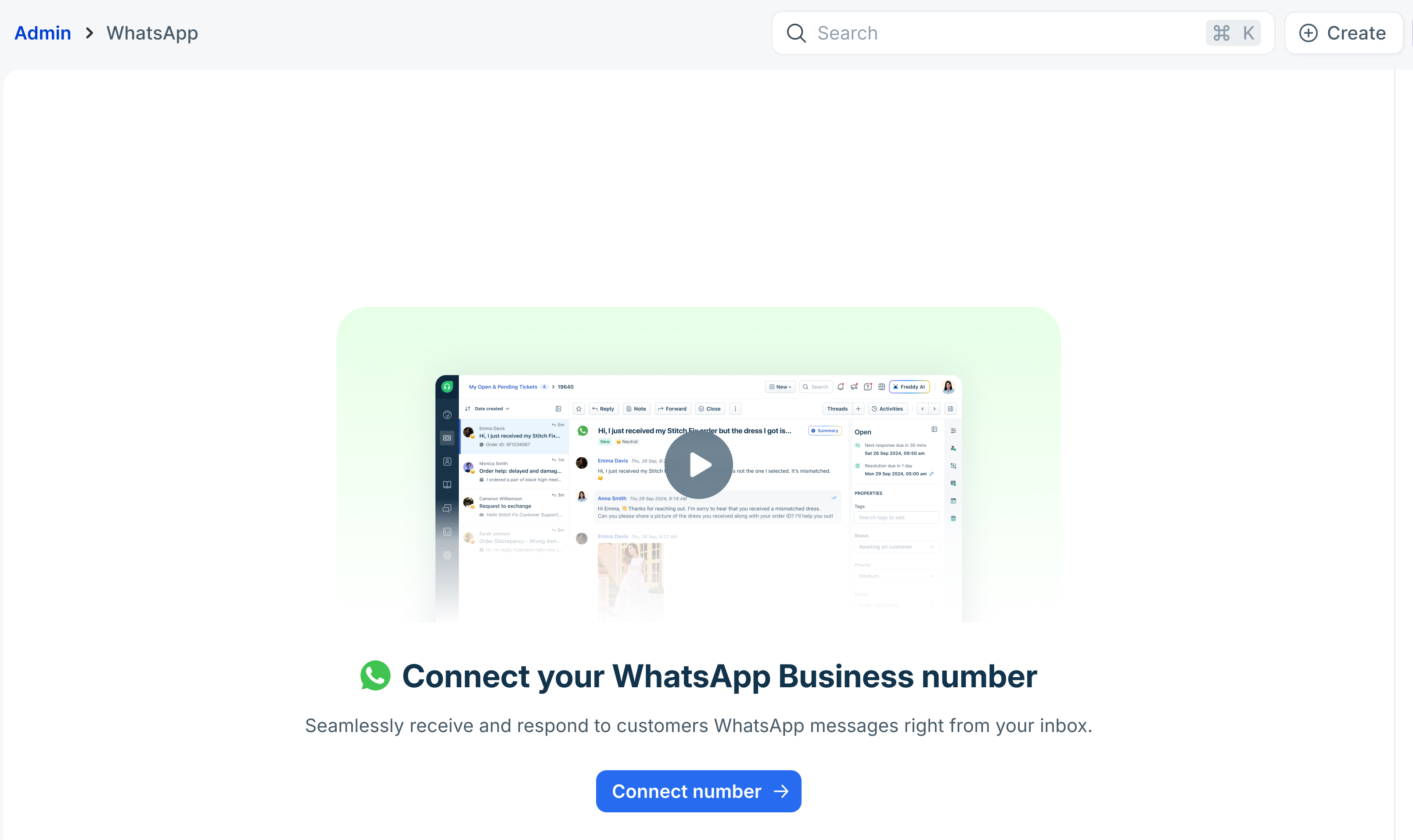
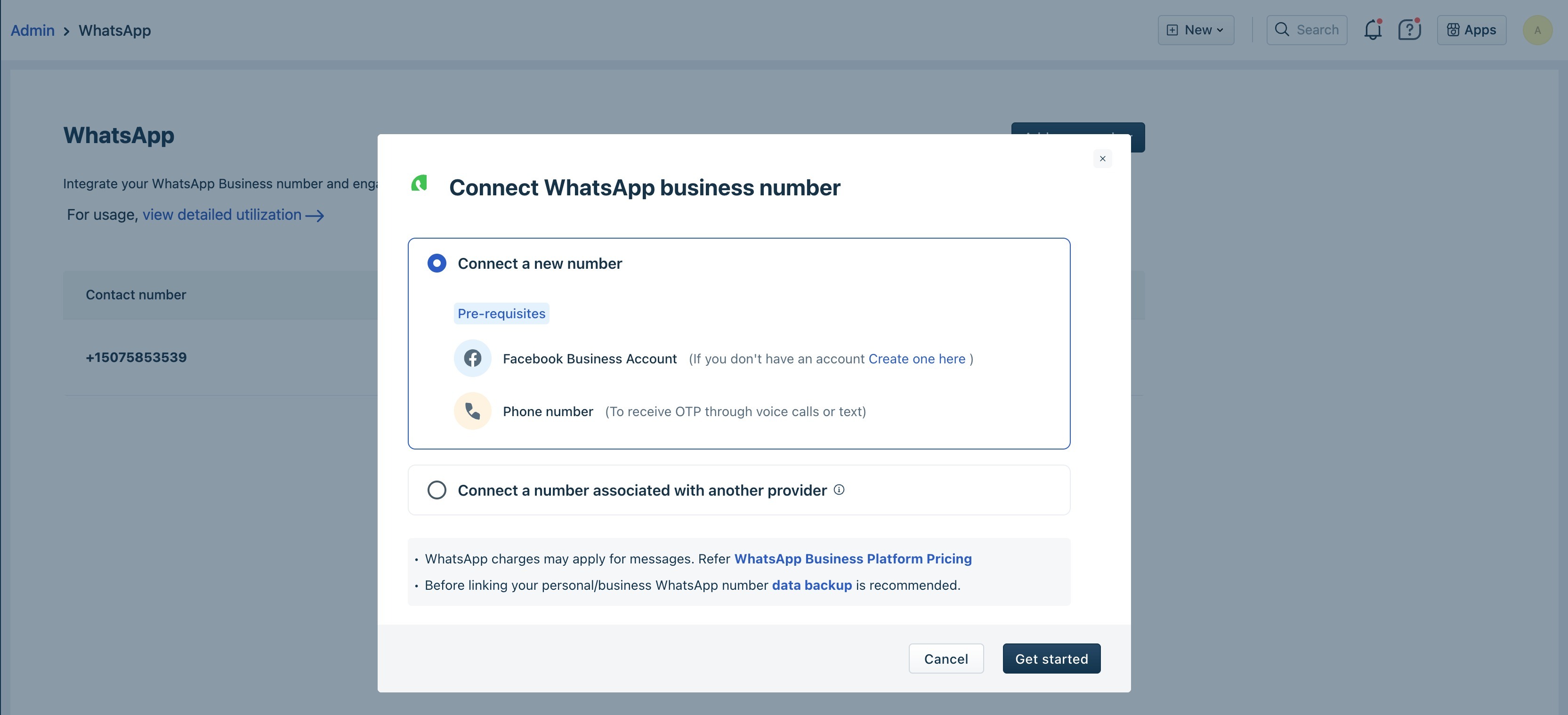
- Select Connect a new number and click Get started.
- You will be redirected to the Facebook page. If you are already logged into your Facebook account, you can continue using it. You can also choose to log in to a different account or create a new Meta account.
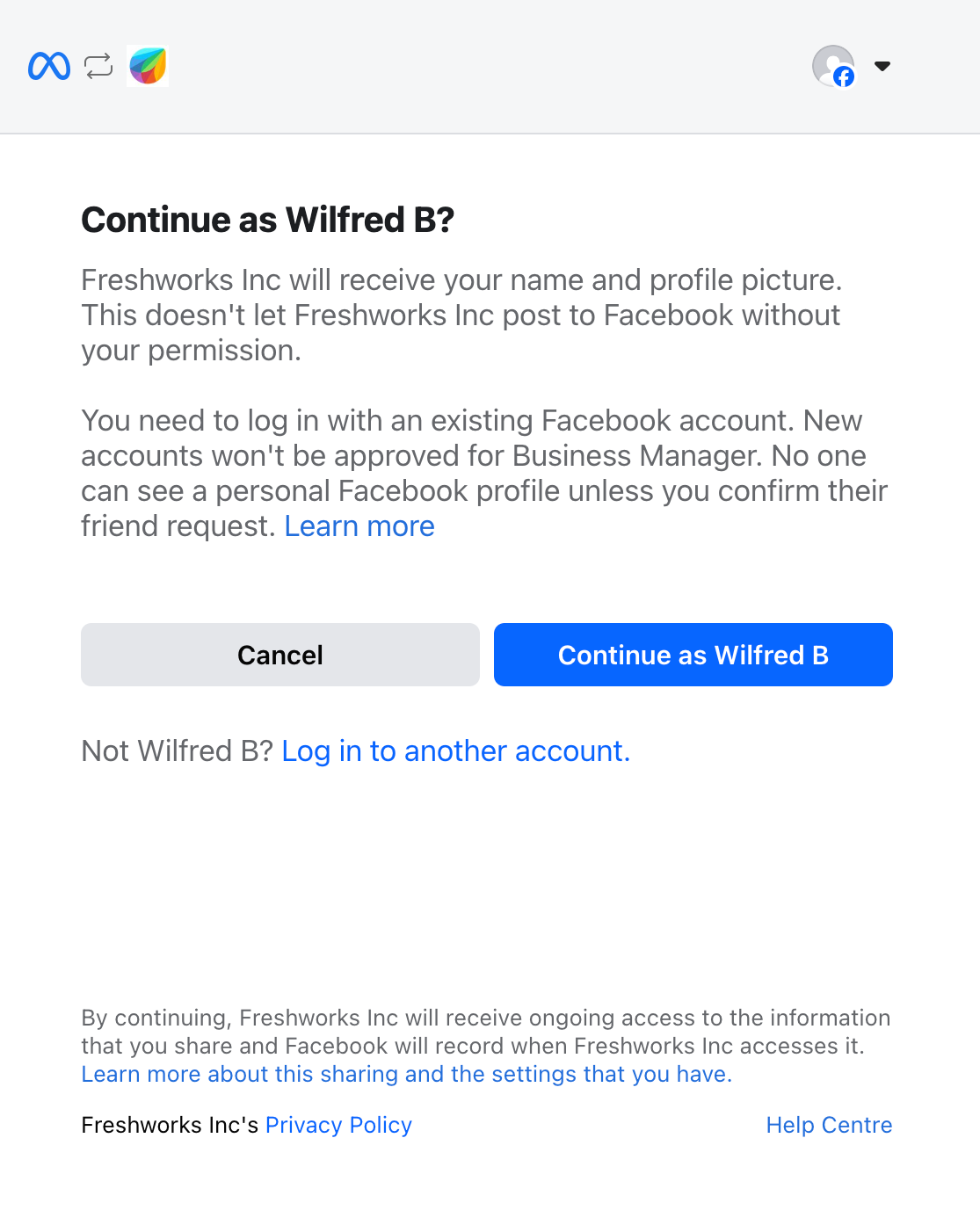
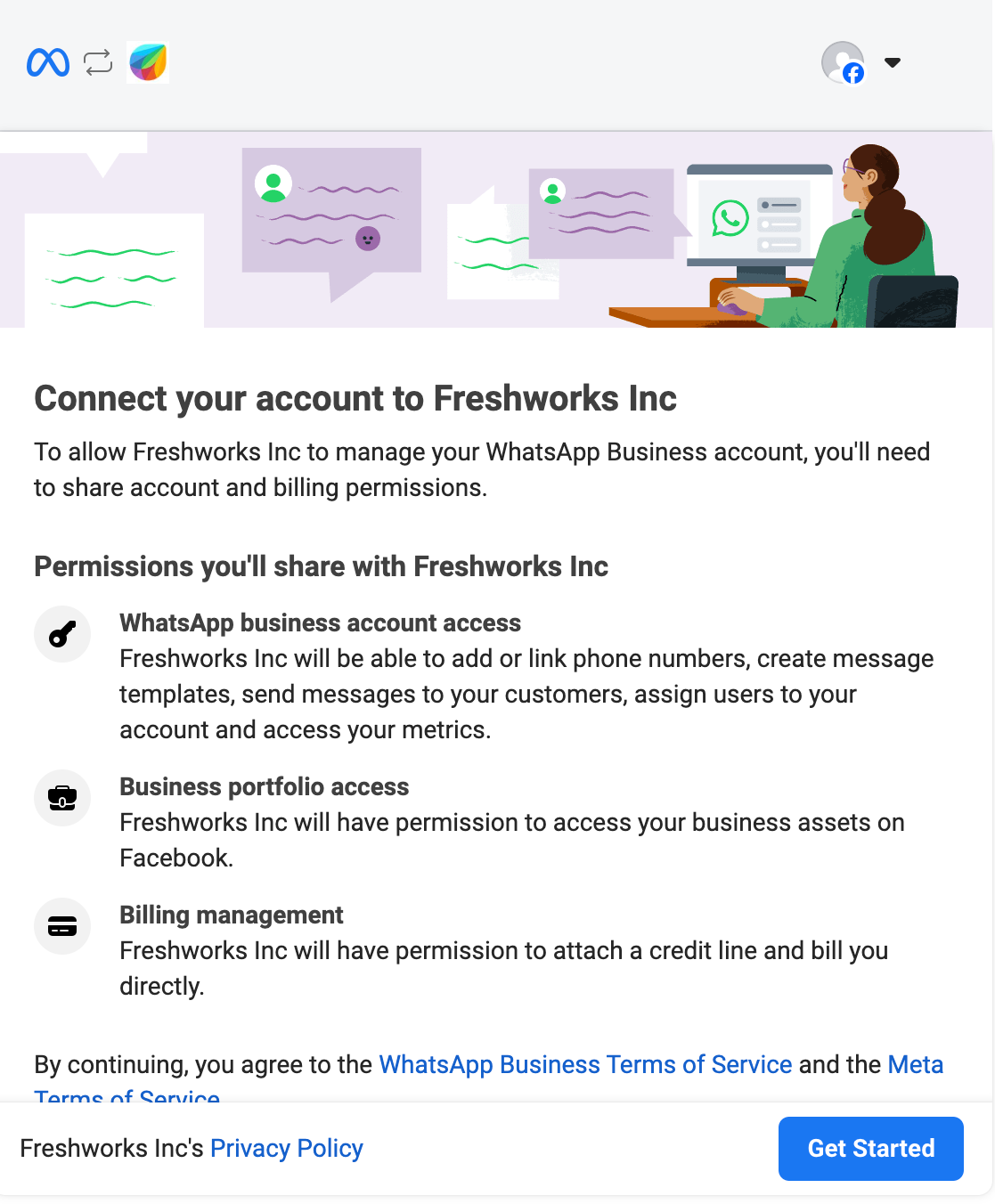
- Click Get Started to connect your Facebook account with Freshworks and allow the required permissions to manage your WhatsApp account.
- Choose the Business Account linked to your current WABA with the WhatsApp phone number you want to migrate. Other information, like business name, business page, etc, will be auto-filled.
Note: Please ensure to choose the same business account used with the Other BSP. If you are unsure about the correct business account, contact your BSP. For example, if you used "Demo FBM" with the other BSP, select the same account here.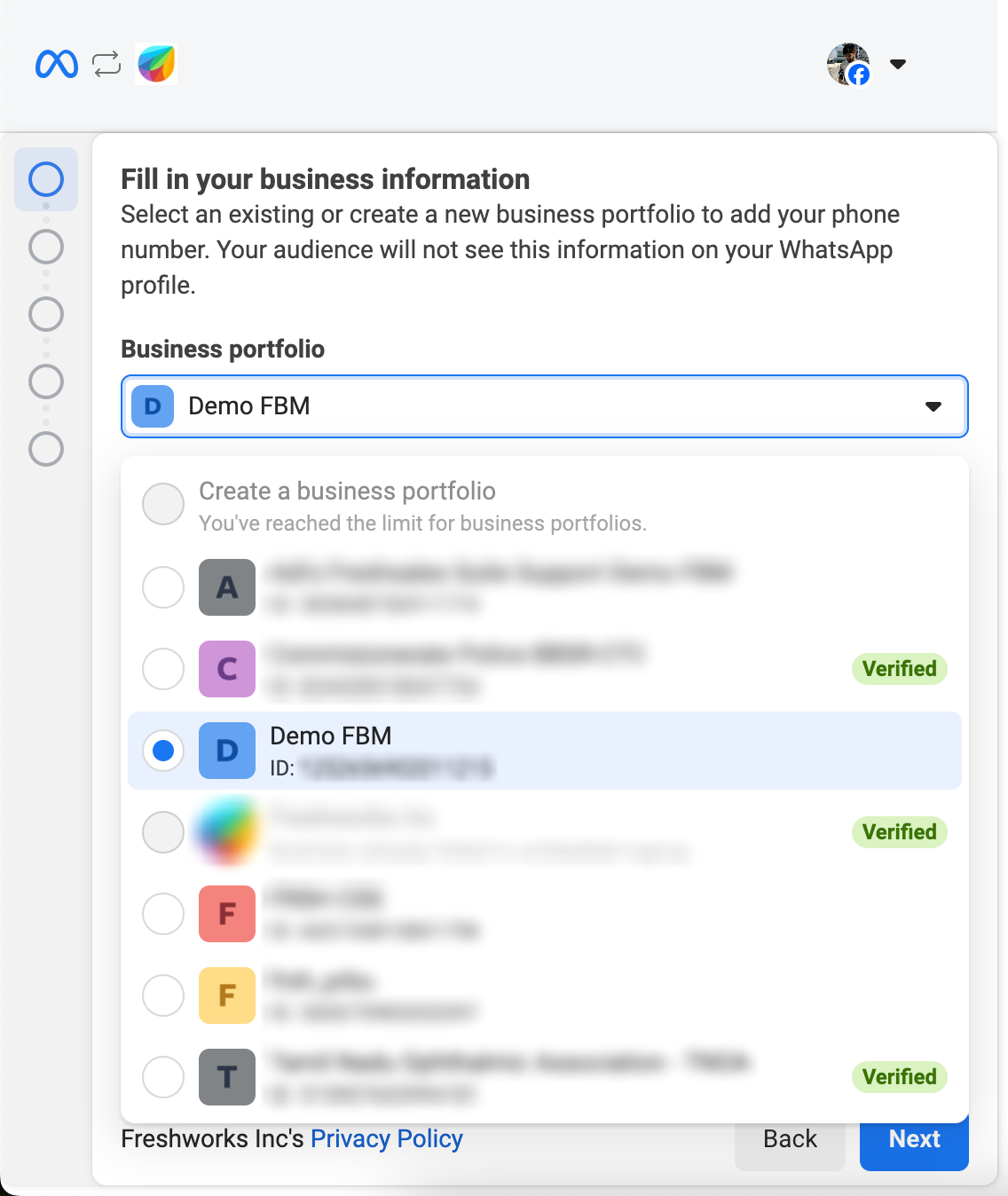
- Select Create a new WhatsApp Business Account and WhatsApp Business Profile, and click Next.

- Enter your WhatsApp Business Account name. This will be your new/destination WABA and click Next. Also, enter other details like display name, category, etc. Note: Once your phone number is migrated, your current WABA display name will also be migrated. So, you can enter a dummy display name here. This step creates the new WABA.

- On the next screen, you will be prompted to enter the Phone number.

- Do not enter the phone number. You can stop this flow and click Back twice to view the new WABA ID.

- Provide the new WABA ID to proceed with the migration. The new WABA will act as a destination account to migrate your existing WhatsApp number from your source WABA.
Note: If you proceed to the Phone number screen and provide your phone number, you can see one of these errors: This occurs because until migration is done, your phone number is still associated with your current BSP. Usually, this step creates a new destination WABA. Hence, you can ignore this error and click twice to view the new WABA ID.
Verify the migrated number
After the migration is complete, the migrated phone number will be visible in your Freshdesk account. You can start using the phone number after OTP verification.
WhatsApp BSP migration is done asynchronously. This means, as a businesses, you have complete control on when to initiate the migration process and complete the final OTP verification at your convenience. The migration will be completed only after successful verification.
Note: The message flow with your current BSP will stop only after the OTP verification is successfully completed in Freshworks.
- Log in to your account and go to Admin > Channels > WhatsApp. You can see your migrated phone number.
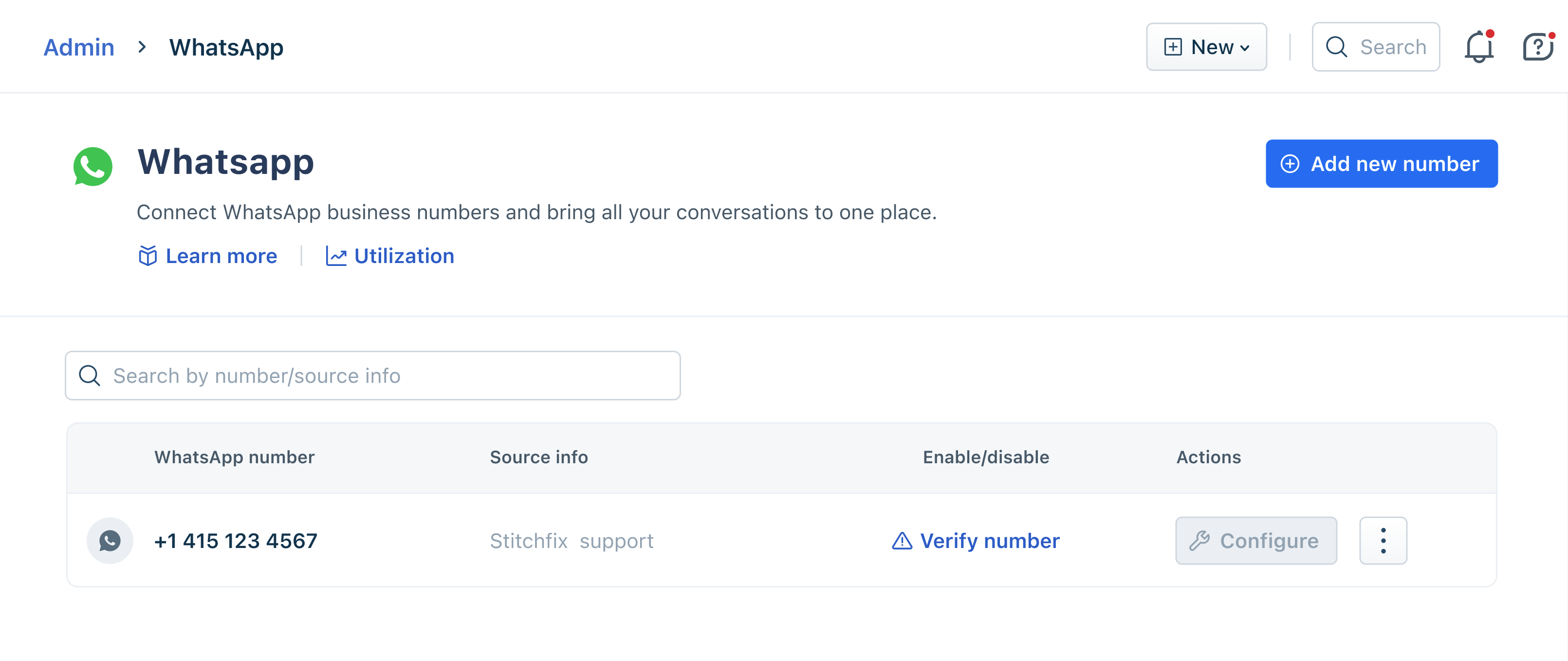
- Click Verify number and select how you want to authenticate the number. You can choose to receive SMS or call.
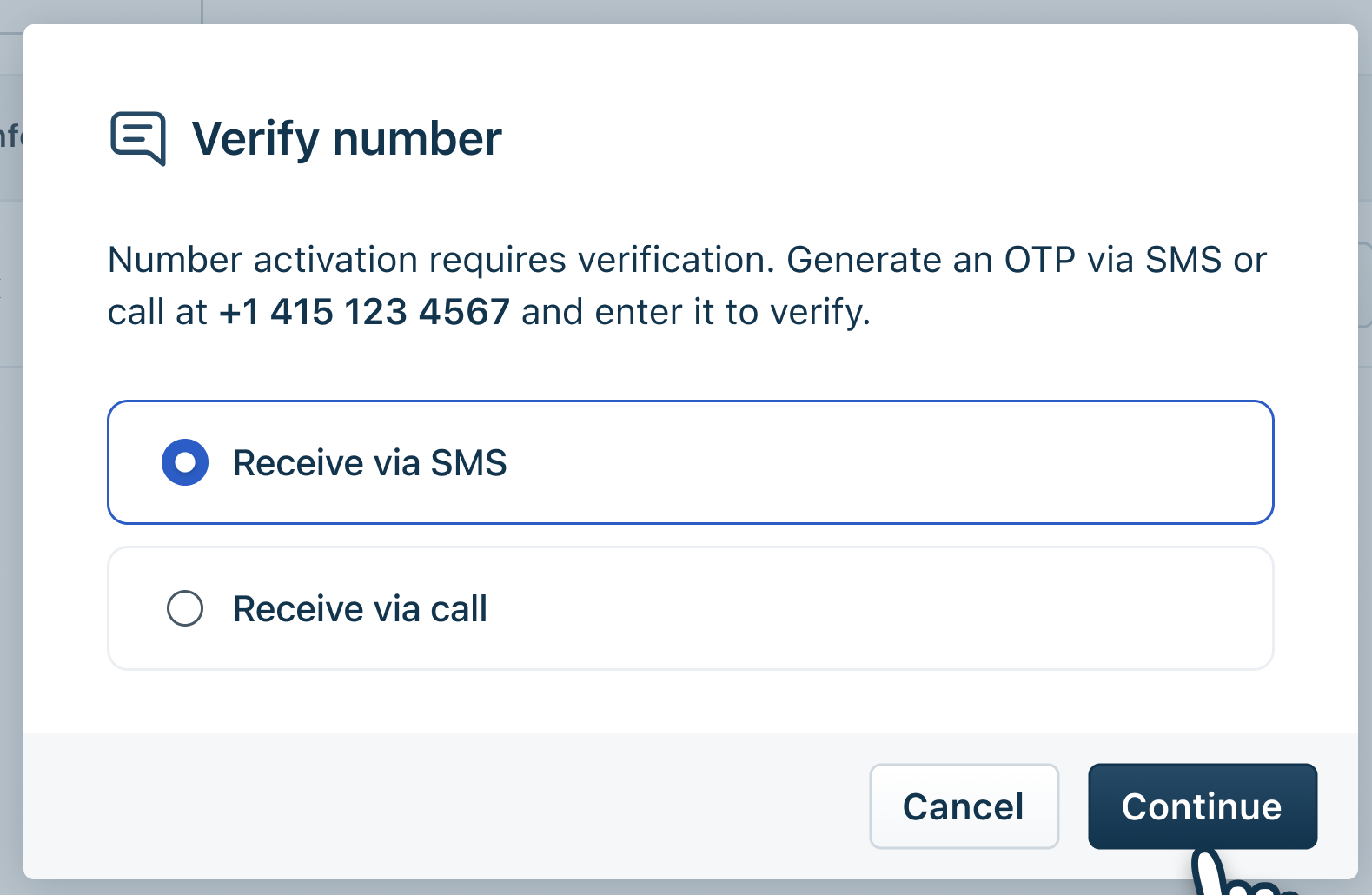
- Enter the OTP and click Confirm.
- After successful authentication, you will see enable/disable option next to your phone number.
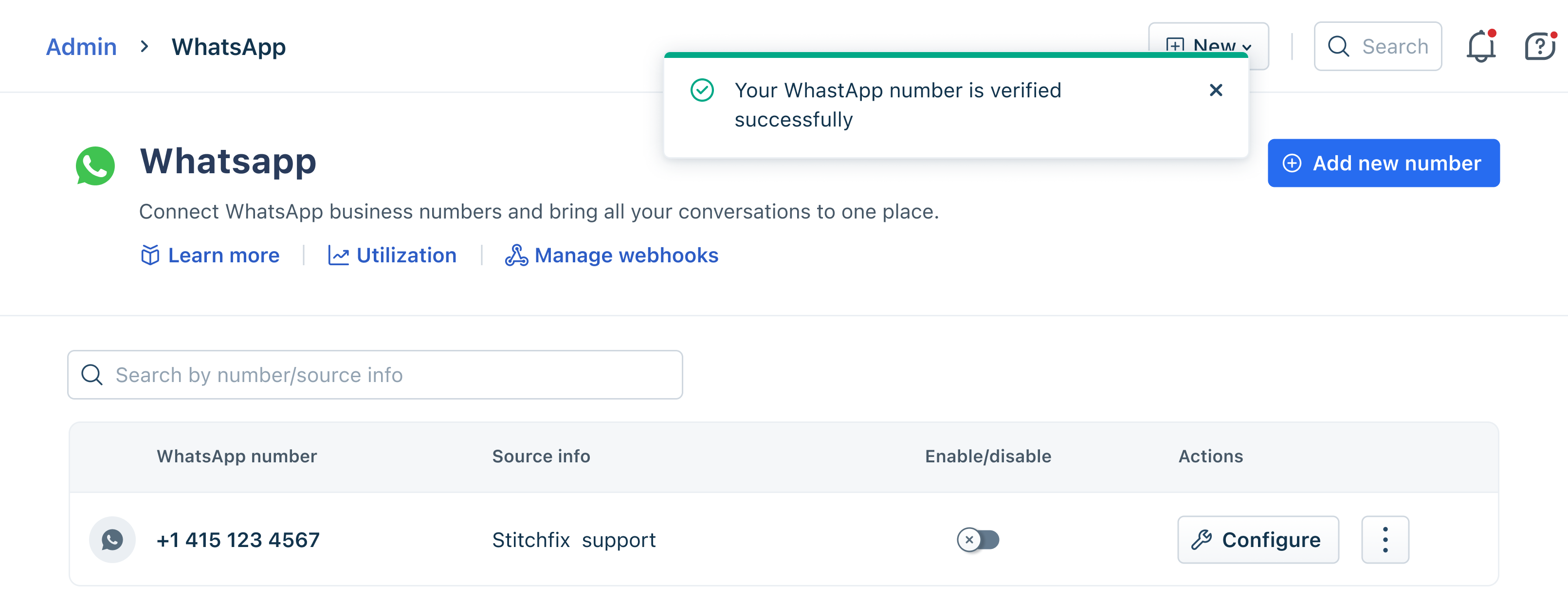 Enable the number to start supporting customers on the migrated WhatsApp number. You can configure additional settings for your number, such as setting up self-service via AI Agents or routing customer to specific agents. For details, see Configure Additional Settings for WhatsApp number.