
 Community
 Video Library
 Agent Training
 Freshservice
 Freshdesk
 Freshchat
 Freshcaller
 Freshsales
 Freshteam
 Freshworks Neo
 Freshsurvey
TABLE OF CONTENTS
- Workflow capabilities
- Types of workflows
- Modular blocks of a workflow
- Trigger block
- Collect info block
- Condition path block
- API action block
- Custom response block
- Agent handoff block
- Build a workflow from scratch
- Preview a workflow
- Monitor workflow performance
- Available integrations for workflows
Workflows let you automate how your AI Agent responds, collects information, and takes action—without writing code. Instead of handling every scenario manually, you can define structured flows that guide conversations, trigger actions, and connect with external systems.
You can use workflows to:
- Guide users through structured interactions
- Collect and use data across steps
- Trigger backend actions such as ticket creation or system updates
- Automate responses at key moments in the interaction lifecycle
Workflow capabilities
Workflows help you move from reactive responses to structured, outcome-driven automation:
Capability | What it enables | When to use | Example scenarios |
Use pre-built workflows | Start with ready-made workflows designed for common support and service scenarios. These include predefined steps, logic, and structure that you can customize. | When you want to go live quickly without designing flows from scratch, or when your use case closely matches standard patterns. |
|
Create workflows from scratch | Design fully customized workflows with your own steps, branching logic, and actions tailored to internal processes. | When your business logic is unique, involves multiple systems, or requires conditional flows and decision-making. |
|
Trigger workflows from user messages | Automatically start workflows when the user expresses a specific intent or asks a question. The AI Agent matches queries to trigger phrases. | When a user needs or requests, it should drive workflows during a conversation. |
|
Trigger workflows from AI Agent events | Automatically run workflows when specific events occur—without waiting for user input. This enables proactive and backend automation. | When actions must happen at defined moments in the interaction lifecycle, regardless of user behavior. |
|
Collect and reuse data | Capture user inputs (such as email, order ID, and issue type) and reuse them across workflow steps and actions. | When workflows require structured data collection and reuse across systems or decisions. |
|
Drive backend actions | Execute actions in connected systems such as creating tickets, updating records, or triggering external processes. | When workflows need to go beyond messaging and actually complete tasks in your systems. |
|
Note: All existing workflows and templates created before this feature launched default to user-triggered only. You must explicitly enable the AI Agent event toggle to make the AI Agent event mapping available.
Types of workflows
To optimize your AI Agent automation, there are two main types of workflows,
- Workflow Library: Pre-built Workflows deliver instant value with ready-made templates for common scenarios such as order status and refunds. See the Workflow library for additional details on how to use them.
- Workflow Builder: Custom Workflows with Builder allow you to design tailored logic for particular business needs. To create a workflow, select Create new workflow, then choose one of the following authoring options:
- Build it: Use the visual canvas to configure the workflow using blocks and the Trigger overlay.
- Write it: Describe the workflow in natural language instead of configuring individual blocks.
Both options create a Custom Workflow and support the same trigger types, Workflow Library, and draft-to-active lifecycle. The only difference is how you author the workflow.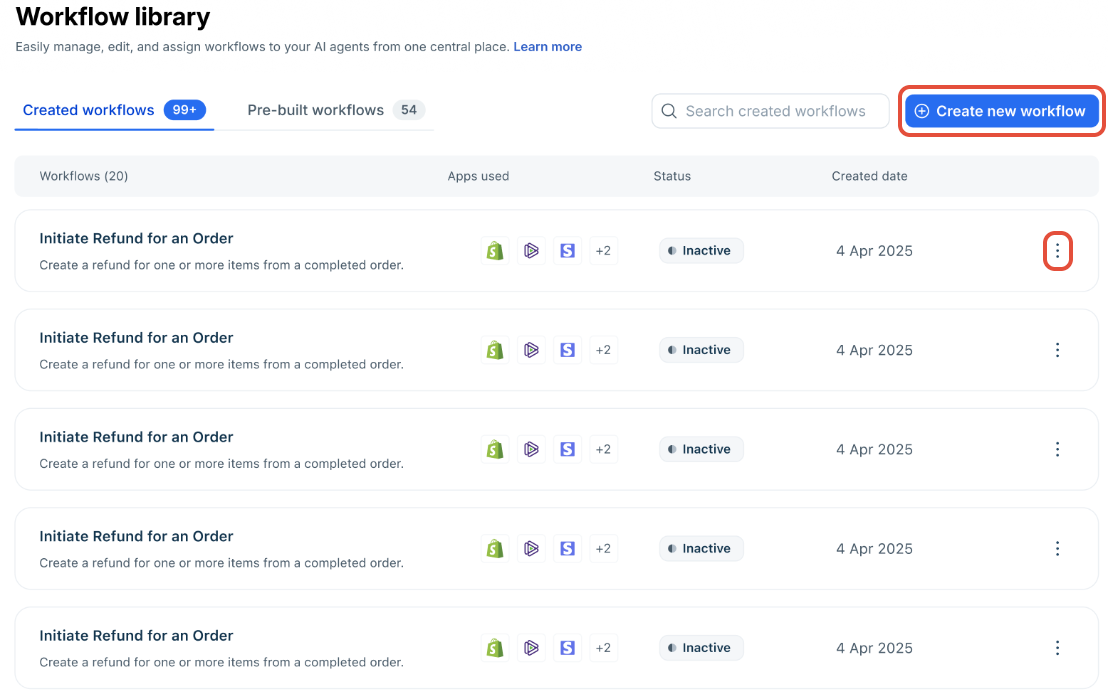
Use the ellipses icon to the right of a Workflow to clone, edit, delete, or add a Workflow to an AI Agent.
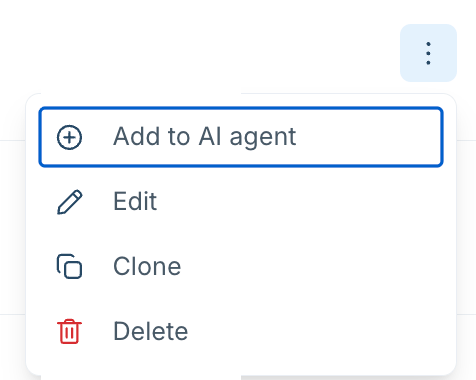
To delete a workflow, click the ellipses icon next to the Workflow and select Delete. A confirmation pop-up will appear, showing which AI Agents will lose the Workflow when it is removed. Review this information, then click Delete to confirm. The Workflow will then be removed from all AI Agents using it.
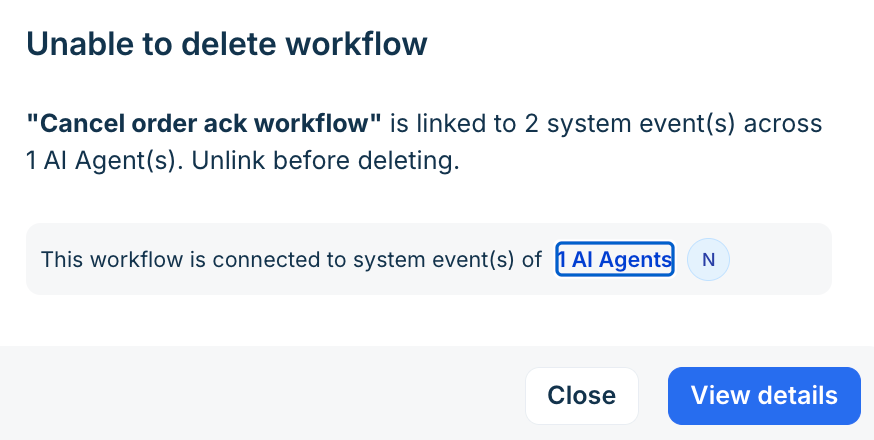
If the workflow is connected to one or more AI Agent events within the AI Agents, you cannot delete it until you unlink it from those AI Agent events. Click on View details for more information about the linked AI Agent events.
Modular blocks of a workflow
Every workflow is built from six types of modular blocks. Combine them in any sequence to create the automation flow your business needs.
Block | Purpose |
Trigger | Defines what starts the workflow — a customer query or an AI Agent event. |
Collect info | Gathers structured input from the customer and stores it as a variable for later use. |
Condition path | Branches the workflow based on collected variables, API outputs, or contact and ticket properties. |
API action | Calls an external API to fetch live data or trigger a backend operation. See Connect to external systems using API actions. |
Custom response | Sends a message — either AI-generated from workflow variables or a fixed text you define. |
Agent handoff | Transfers the conversation to a group of human agents when escalation is needed. |
Trigger block
The Trigger block is the starting point of every workflow. It defines when the AI agent should initiate the workflow.
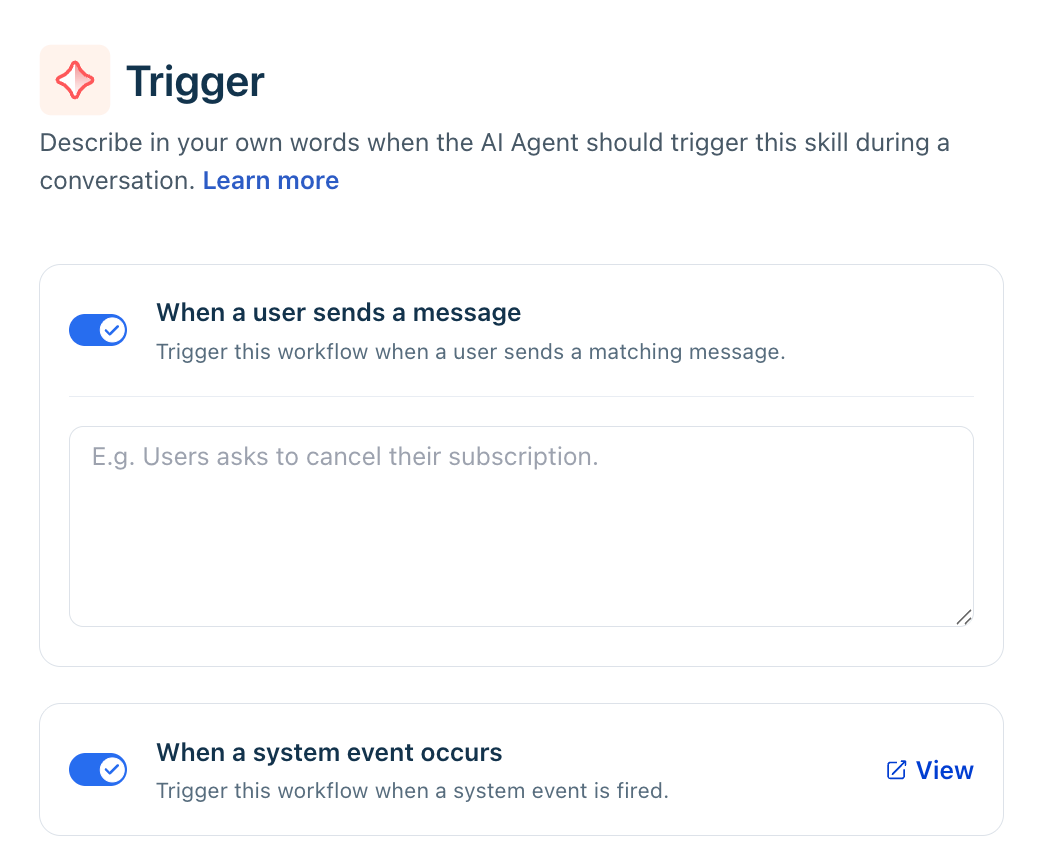
User message trigger
Click the Trigger block to open the configuration panel. Enter natural language instructions describing the phrases or expressions customers might use to start the workflow. Include real-world examples and business-specific terms to improve intent recognition.
For example, an e-commerce support team might include domain terms like:
- "Check RTO status" (Return to Origin)
- "COD order issue" (Cash on Delivery)
- "Where is my tracking number?"
- "Exchange window expired?"
Providing these domain-specific examples helps the AI recognize intent more accurately — especially for industries with nuanced vocabulary.
Best practice: Use varied, natural-sounding examples that reflect how your actual customers write, not formal support language.
Note:  The Trigger block responds only to customer queries.
It cannot act on AI Agent events, detect sentiment, or initiate based on conversation state.
AI Agent event triggers — such as conversation initiation or feedback — are configured separately in AI Agent Responses settings, not inside the Trigger block.
AI Agent event trigger
Enable the AI Agent event toggle in a workflow to trigger the AI Agent automatically at an AI Agent event — no customer message required. Configuring which event maps to which workflow happens in the Build > Configuration settings.
AI Agent event | Fires when | Common use cases |
Conversation behavior > Send introductory message (coming soon) | A new conversation begins. | Fetch customer account details, display recent ticket, etc. |
Conversation behavior > Collect user feedback > When response is Yes | A customer confirms the AI response was helpful. | Update or close a support ticket, trigger a satisfaction survey. |
Conversation behavior > Collect user feedback > When response is No | A customer indicates the AI response was not helpful. | Escalate to a specialist queue, create a follow-up ticket. |
Conversation behavior >Send fallback message | The AI agent cannot find an answer to a user query. | Create a ticket with the full conversation transcript so no query is lost. |
Handover Settings > Transfer to a human agent | The customer or AI decides a human agent should take over. | Transfer the conversation context, notify the support team, and update assignment details. |
Handover Settings > Transfer outside business hours > Execute this action | A conversation arrives outside configured business hours. | Send estimated response time, route to an on-call group, and create a ticket. |
To map a workflow to an AI Agent event, follow the steps below,
- Open the AI agent you want to configure.
- Navigate to Build > Configurations settings — this is where all six AI Agent event configurations live.
- In each of the above-listed AI Agent events, select Trigger Workflow, then choose the workflow from the list.
- Only workflows with the AI Agent event toggle enabled and a published active version appear as selectable. See the availability matrix below.
- Select Save.
Preventive validations
The system blocks configuration errors that would create automation gaps:
- Disable system toggle on a mapped draft: Allowed with a warning. Publishing is blocked until you update the event mapping to remove this workflow.
- Remove workflow from agent: Blocked if the workflow is currently mapped to any AI Agent event. Unmap it from all events first.
- Delete workflow from library: Blocked if the workflow is mapped in any agent. Remove it from all agents before deleting.
- Remove workflow from an event: When you remove a workflow from an event, the change applies immediately to both the active and draft versions of the agent.
AI Agent event behavior by event type
- Conversation initiation
A conversation initiation workflow runs automatically as soon as a new conversation begins, before the customer sends their first message. You can configure the AI Agent to either wait for the customer's first message or immediately start collecting information or running a workflow. You can configure one of the following behaviors:
- Let the customer respond — the agent waits for the customer's first message before acting.
- Collect user details—gather contact or account information up front.
- Run a workflow — execute automation immediately, such as fetching recent orders or creating a CRM lead.
Runtime behavior
- The welcome message appears first, followed by workflow messages, with typing indicators between them.
- The text input is disabled while the workflow runs. It re-enables when the workflow completes.
- After the initiation flow starts, the AI Agent completes the configured workflow or property collection before responding to any unanswered customer queries. If the customer changes the topic while the workflow is running, the AI Agent responds to the pending queries after the workflow completes.
- All messages persist in the widget until the customer responds or the conversation auto-resolves.
- A ticket is created only after the customer sends their first message. Any actions that depend on ticket properties—such as assigning the ticket to a group or updating ticket fields—are executed only after the ticket has been created.
- The AI Agent conversation logs will show these actions as completed before the ticket exists. The logs indicate that the actions have been queued, while the actual execution occurs only after the customer sends their first message and the ticket is created.
- User properties such as name or account ID can be read from the customer record before a ticket is created.
- The inactivity timer applies to conversations where a workflow was triggered at initiation — even if the customer has not yet sent a message.
Chat AI agent: A session is consumed immediately when the welcome message is sent if a workflow is mapped to Conversation initiation — regardless of whether the customer replies. For session metering details, see Configure chat handling rules and live handoff.
- Feedback events (Positive and Negative)
Configure workflows that run automatically after a customer rates the AI's response.
Feedback outcome | Available actions |
Positive | Resolve conversation · Make available for assignment · Trigger a workflow · No action |
Negative | Resolve conversation · Make available for assignment · Trigger a workflow · No action. |
- If the feedback workflow contains questions and the customer asks an unrelated question mid-execution, the AI agent may digress from the workflow to address the query.
- Feedback collection is turned off for workflows that are themselves triggered by AI Agent events. This prevents feedback loops.
- Fallback, Talk to agent, and Transfer outside business hours
These three events follow the same configuration pattern. Choose what the agent does when it cannot respond or when a handoff is needed:
- Send a message only.
- Send a message and transfer to an agent.
- Send a message, transfer to an agent, and collect user properties.
- Trigger a workflow — which can include any of the above, plus external API calls.
Event | Example |
Fallback | Create a Freshdesk ticket with the conversation transcript, enrich it with customer details or data from external systems, and route it to the appropriate support group so the assigned agent has the required context. |
Talk to the agent | Before transferring the ticket, update the existing Freshdesk ticket with the conversation summary, customer details, and information retrieved from external systems, so the receiving agent has complete context. |
Outside business hours | Update the existing Freshdesk ticket with the customer's latest message, set the expected response time, and route it to the appropriate after-hours or on-call support queue. |
Collect info block
The Collect info block gathers specific information from the customer during a conversation. The collected inputs can then be used in subsequent blocks to trigger API calls, evaluate conditions, update properties, or personalize responses.
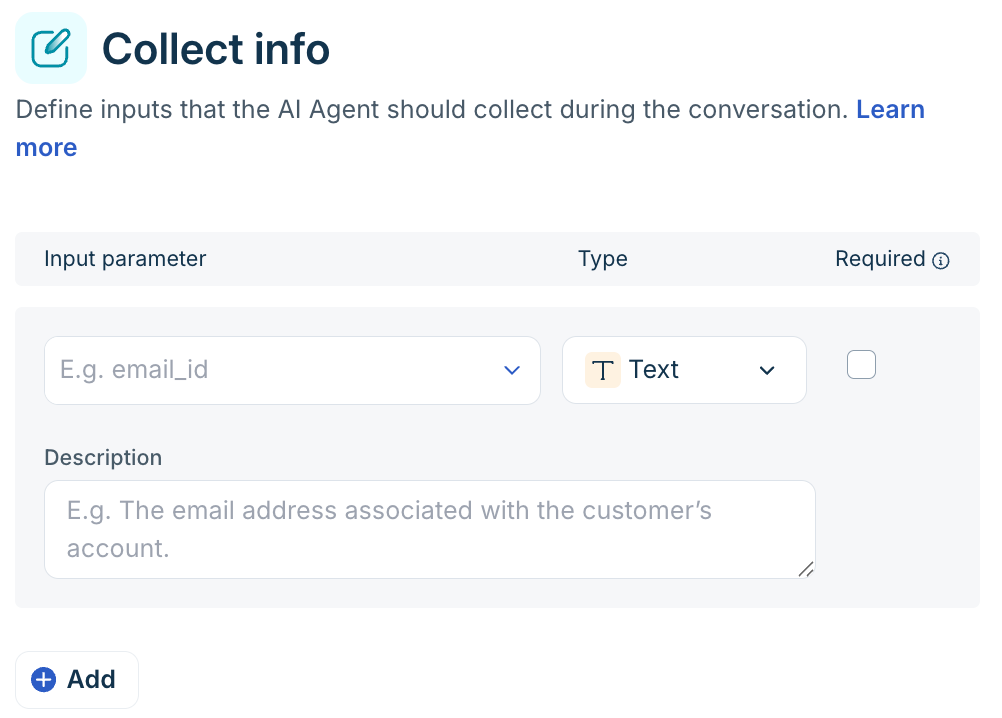
You can collect details such as a flight booking ID, registered email address, contact number, order ID, or any other identifier needed to complete the customer's request.
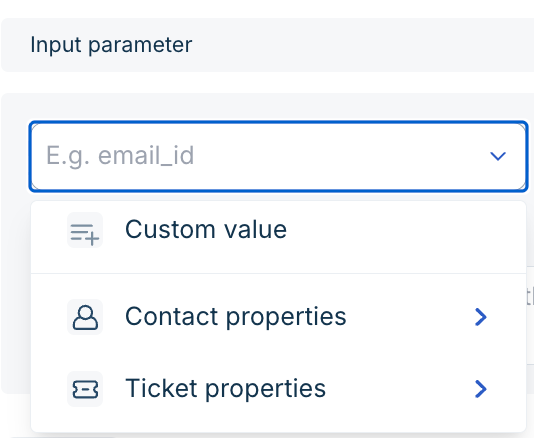
You can collect and map the following types of input parameters,
- Contact property: Select from the default and custom contact properties available in your account. For example, the customer's email address, phone number, or account tier.
- Ticket property: Select from the default and custom ticket properties available in your account. For example, Order ID, case number, or product SKU tied to the ticket.
- Custom value: Select this to store customer information in temporary workflow-scoped variables. For example, an internal reference ID is needed for a single API call but is not worth storing permanently.
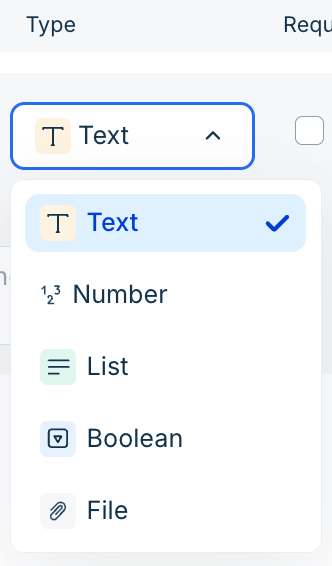
For each input collected, you can additionally define the data type - text, number, list, boolean, or file, add a description, and decide if the input is mandatory or not.
For file or image inputs such as a screenshot of a defective product, receipt, or ID proof, the AI Agent behaves as follows:
- Widget: When requesting a file, the attachment icon and text field appear together, allowing only one file per prompt (no multi-select). Any accompanying text is saved to the conversation but not included in the file input.
- Messaging channels (WhatsApp, Instagram, Facebook, SMS, Mobile SDK, Apple Business Chat): The text field remains open during the interaction, not just at file prompts. If multiple attachments are sent in one message, only the first is processed, though the accompanying text is saved.
If an input is optional and the customer says the file isn't available, the AI Agent skips to the next question. This holds even if Allow customers to attach files is off in the general widget settings — it doesn't override a file explicitly requested by a workflow. Validation happens after the customer attaches and sends a file, not before. The collected file renders inline on the ticket details page and the customer portal.
Here's the list of size and format limits for the files:
| Limit | Value |
|---|---|
| Max file size | 25 MB |
| File limit | Individual files |
| Number of files in one go | 3 on non-Web channels; 1 on Web channel |
| Supported formats | CSV, DOC, DOCX, PDF, TXT, JPEG, JPG, GIF, PNG, XLSX |
You can map a file input as an API action parameter to send it externally; the field carries only the file, not accompanying text. Since files require multipart form data, the payload type auto-switches to Multi-part form data when any input is a file, and other payload options gray out. File inputs are also available in Condition path blocks to branch on whether a file was provided.
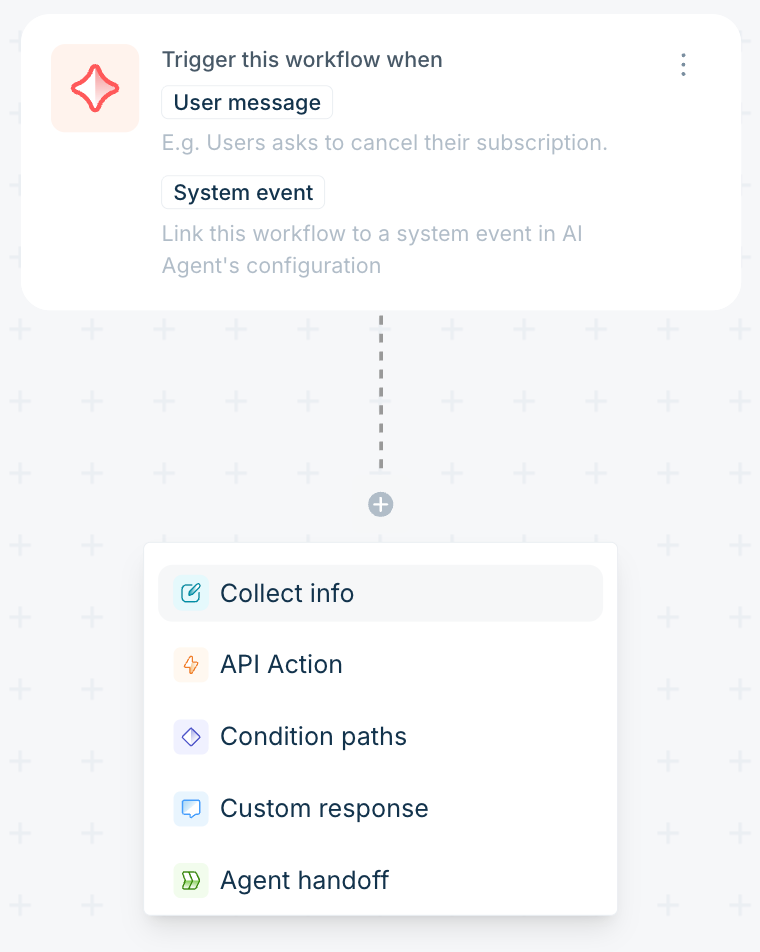
Configure a Collect info block.
- In the workflow editor, select Add block > Collect info.
- Select the input parameter and choose the type: Contact property, Ticket property, or Custom value.
- In the Description field, specify exactly what the AI agent should ask. For example, when collecting an email address, a description such as "Email address used for the booking" prompts the AI agent to ask for the booking email specifically, not any email address.
- From the Type drop-down, select the appropriate data type.
- Set the Required toggle:
- When set to mandatory, the AI agent keeps prompting the customer until they provide the input.
- When set to optional, the AI agent attempts to collect the input but continues the workflow if the customer does not respond.

- Select Save.
Best practice: Keep questions concise and use terms your customers recognize — "tracking ID" rather than "shipment reference number". Mark only the essential fields as mandatory to reduce friction.
Secure data handling
When building workflows that access order details, account records, or other sensitive data, handle user identification carefully to prevent unauthorized data exposure.
Pass user properties via the widget script
User information (such as email, user ID, phone number, etc.) can be passed directly through the widget script as contact and conversation properties.
Refer to the Web SDK developer documentation to learn how to set user properties in widgets.
Use existing mapped properties in workflows
Existing mapped user or conversation properties mapped to that contact or session can also be used directly in workflows. When these are available, the AI Agent skips re-collecting the same details, ensuring a faster, seamless experience.
Note: On non-web channels like WhatsApp, identifiers such as the customer’s phone number are automatically available and can be used for lookups without asking again.Verify identity before sharing sensitive information
If user details are not passed through the widget script, the workflow must collect and verify the required identifiers before displaying sensitive data. For example, a track-order workflow should:
- Collect the Order ID.
- Collect a user ID, an identifier, such as email address or phone number.
- Cross-verify both against your backend before returning order details.
This prevents unauthorized data exposure and ensures compliance with security best practices.
Tip: Always prefer passing verified user properties via the widget script. It reduces friction for the customer and improves workflow reliability by eliminating avoidable collection steps.
Condition path block
The Condition path block branches the workflow based on information collected earlier or retrieved from an API. It evaluates defined criteria and routes the conversation through different logic paths.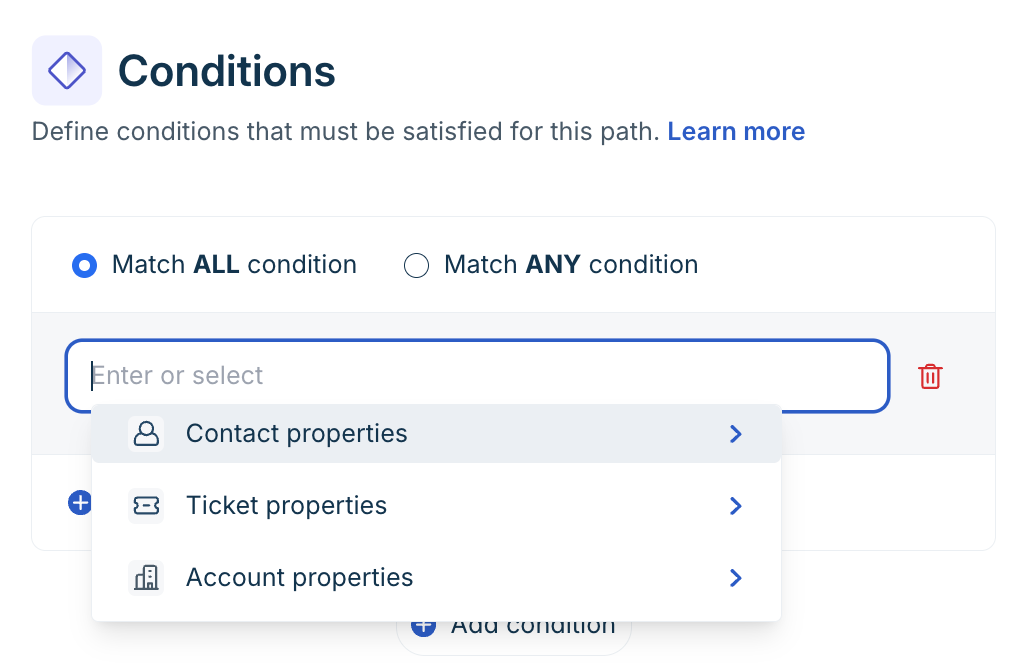
You can leverage this to,
- Set multiple conditions — for example, if order status is "Shipped" and business hours are Active.
- Add an Else path as a default when no condition is met.
- Use outputs from API calls or collected variables in your condition logic.
Condition types
Condition type | Properties available |
Contact property | Default properties (phone number, email, first name, last name) and any custom contact properties configured in your account. |
Ticket/conversation | Default properties such as ticket ID or conversation ID, and custom ticket fields. |
Account property | Account-level properties such as configured Business Hours — default or custom. |
Condition operators
Operator | Evaluation logic |
Is | Property exactly matches the specified value. |
Is not | Property does not match the specified value. |
Is any | Property matches any one of multiple specified values. |
Is none | Property matches none of the specified values. |
Contains in | Property value exists within a predefined list. |
Does not contain in | Property value does not exist within a predefined list. |
Contains any of | Value includes at least one item from a defined set. |
Does not contain any of | Value includes none of the specified items. |
Note: Available operators vary by condition type. Business Hours, for example, supports only Is and Is not. Text-based properties support the full range of comparison operators.
Configure a Condition path block
- In the workflow editor, select Add block > Conditional path.
- Select the condition type and the specific property — for example, Account properties > Business Hours.
- Choose the appropriate operator and define the value.
- Add additional conditions if needed, and choose whether the workflow must match all of them or any of them.
- Select Save.
Best practice: Keep each path focused. Add an Else fallback path to handle unexpected or incomplete responses — without it, customers who don't match any condition hit a dead end.
API action block
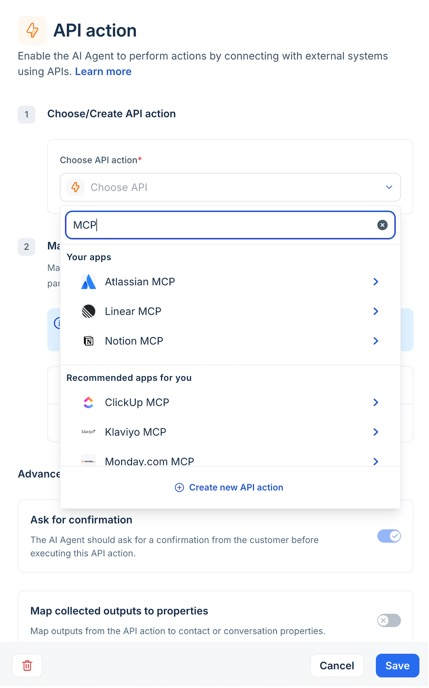
The API action block connects your workflow to an external system in real time. It sends a request, receives the response, extracts defined output values, and makes them available to subsequent blocks in the same workflow. For step-by-step instructions on creating and configuring API actions — including authentication, parameter mapping, and MCP server integration — see Connect to external systems using API actions.
Multi-step API orchestration
You can use the outputs from one API call as inputs to a subsequent API call within the same workflow. This lets you chain operations without re-collecting data from the customer.
Example — Fetch order details, then initiate a refund:
- Collect the Order ID from the customer using a Collect info block.
- Call the Fetch Order Details API. Capture outputs: Order Status, Customer ID, Payment Method.
- Use those outputs in a second API call to initiate a refund, update shipment status, or cancel the order.
Configure the API Action Block
Setting up the block involves two primary steps:
- Choose or create an API action
- Select an existing API action from the dropdown, or
- Click Create new API action to configure a new one from scratch: enter a name, define input variables, configure the API URL, headers, auth, and body, test the response, and define output variables to store and reuse later.
- Map collected inputs to API parameters
After selecting an API action, map workflow variables to API parameters. Example:
Workflow variable | API parameter |
{{order_id}} | orderId |
{{email}} | customerEmail |
This ensures the correct data is passed when the API is executed.
For high-impact actions, enable Ask for confirmation under Advanced preferences. When enabled, the AI will confirm with the customer before executing actions such as canceling an order, triggering a refund, modifying a subscription, or updating billing information. This prevents accidental or unintended changes.
Use MCP servers with API action
Freshdesk supports integration with the Model Context Protocol (MCP) server, which provides a secure, standardized layer for AI-to-system communication.
Instead of directly exposing raw APIs, MCP:
- Acts as a middleware layer between AI clients and Freshworks products
- Uses OAuth-based authentication
- Exposes controlled, governed tools
- Ensures operations follow Freshworks permission models
Unlike traditional integrations that simply move data between systems, MCP enables AI agents to discover available tools and act contextually within defined security boundaries.
Learn how to configure and connect the Freshdesk MCP server.
Custom response block
The Custom response block defines how the AI agent communicates back to the customer at a specific point in the workflow. You choose between two response modes:
Response mode | When to use it | Example |
AI-generated response | Use when the reply depends on workflow variables or data fetched from an API. The AI constructs a natural-language response using the values you reference. | "Your flight from {{origin}} to {{destination}} departs at {{departure_time}}. Your booking reference is {{booking_ref}}." |
Send your own response | Use when the reply must always be identical — for policies, disclaimers, or standard instructions that cannot vary. | "For billing changes, please contact your account manager directly. We are unable to process billing updates through this channel." |
Best practice: Use Custom responses when tone, brand voice, or exact phrasing matters — for example, legal disclaimers, compliance-mandated language, or premium customer greeting. The AI must not paraphrase the AI.
Agent handoff block
The Agent handoff block transfers the conversation to a live human agent. Use it at any point in the workflow where judgment, authority, or empathy is required.
Common scenarios:
- A workflow condition determines that the customer's issue exceeds the AI scope — for example, a refund above a threshold.
- The AI agent cannot resolve the query; the query and the fallback path require a human.
- A compliance or regulatory requirement mandates human review before an action is taken.
Always pair this block with a Custom response block that sets the customer's expectation — for example:
"I'm connecting you with a member of our team who can help further. This usually takes under 2 minutes."
Build a workflow from scratch
Follow these steps to build a workflow block by block according to your business requirements,
- Go to AI Agent Studio and open the AI agent you want to configure.
- In the left navigation, select Build >Workflows.
- On the Workflows list page, select Create workflow.
- Two ways to build one: Build it, using the visual canvas, or Write it, describing the process in natural language.
- Enter a clear, descriptive name. Use a name that reflects the use case — for example, "Order Status Lookup" or "After-Hours Escalation".
- Add an optional description to help other admins understand when this workflow should run.
- Configure the workflow trigger.
- You can enable one or both trigger types for each workflow.
User message trigger- Enable this toggle to let customers invoke the workflow by sending a message.
- Enter the phrases or keywords that should fire the workflow. Be specific — broad phrases can cause unintended triggers.
- The AI agent matches incoming messages against these phrases and routes to the workflow when a match is found.
AI Agent event trigger - Enable this toggle to allow the workflow to fire automatically when an AI Agent event occurs.
- A workflow with only the system toggle enabled cannot be triggered by a user message. It runs exclusively on AI Agent events.
- A workflow can have both toggles active — it fires both when a user sends a matching message and when the configured AI Agent event occurs.
Important: Workflows with only a draft version, or whose AI Agent event has been turned off in the active version, appear greyed out in AI Agent event mapping dropdowns. Publish the workflow and enable the system toggle before trying to map it to an event.
- Use the no-code workflow builder to add steps. Each step is a block that the AI agent executes in sequence.
Step type
What it does
Send message
Displays a message to the customer in the conversation.
Ask a question
Prompts the customer for input and stores the response as a variable for later use.
Branch
API action
Calls an external API to fetch or write data. Uses the API Actions library. See the API Actions section below.
Set variable
Stores a computed or static value for use in a later step.
Go to step
Jumps to a specific step in the workflow — useful for loops or re-prompts.
End conversation
Closes the conversation when the workflow is complete.
Transfer toHandt
Hand the conversation to a group of human agents.
- Select Save to save the workflow as a draft. Drafts are not visible to customers.
- Review the workflow in the Preview panel (see the Testing section below) before publishing.
- Select Publish to make the active version available to customers. The previous active version is replaced.
Note: If you turn off the AI Agent event toggle in a workflow that is already connected to AI Agent events, the system will remove the workflow event from working. This prevents accidental gaps in your automation.
Preview a workflow
Test your workflow to ensure it ends in the preview panel before it reaches customers. The preview runs when you open the active version.
Preview a user-triggered workflow
- Open the workflow in draft or active state.
- Select Preview workflow.
- In the preview panel, type a message matching the workflow's trigger phrases.
- Step through the conversation to verify each block behaves as expected — inputs, conditions, API responses, and response messages.
Preview a system-triggered workflow
Workflows with only the AI Agent event toggle enabled have no user query to trigger them. The preview panel handles this automatically:
- Selecting Preview workflow on a system-only workflow causes the system to send an "AI Agent event automatically "event-triggered signal, invoking the workflow directly — no user message is required.
- For workflows already mapped to an AI Agent, the event triggers the Preview workflow at the correct event point in the preview session.
- The version triggered — active or draft —is the one you opened from the preview.
Monitor workflow performance
A Workflow usage widget is available in the AI agent performance report under Analyze. Use it to track which workflows run, what triggers them, and how customers respond. For the full guide to analyze, see "Monitor and optimize AI agent performance."
Workflow usage widget — metrics
Metrics | What it tells you |
Workflow name | The name of the workflow that ran. |
AI agent name | The agent in which the workflow was triggered. |
Triggered on | Whether the workflow fired from a user message or an AI Agent event. |
Trigger details | The specific user query that triggered the workflow, or the name of the AI Agent event that invoked it. |
Feedback | Customer feedback associated with that execution — positive, negative, or no response. |
Conversation logs
- Workflow trigger indicators — initiated and completed — appear in Conversation logs for both user-triggered and system-triggered workflows.
- In Freshdesk Omni, conversations in which a workflow is triggered at conversation initiation appear in both the Conversation logs and the Session Consumption Report — even when the customer never sent a message.
Available integrations for workflows
Workflows can connect to a wide range of applications to fetch data, trigger actions, and synchronize information across systems.
Category | Integrations | What you can do |
Payments & Billing | Adyen, PayPal, PayU GPO, Razorpay, Stripe, Square | Process payments, verify transactions, handle refunds, and update billing status |
E-commerce & Order Management | Shopify, WooCommerce, Magento, BigCommerce, Wix | Fetch order details, update order status, manage cancellations, and track purchases |
Shipping & Logistics | DHL, FedEx, Shippo, Shiprocket, ShipStation, Easyship | Track shipments, update delivery status, and trigger logistics workflows |
CRM & Customer Management | Salesforce, Salesforce Service Cloud, HubSpot, Zoho CRM, Freshsales, Pipedrive, SugarCRM, Zendesk | Create and update customer records, manage leads, and sync customer interactions |
Support & ITSM | Freshdesk, Freshservice, Jira Service Desk, ServiceNow | Create tickets, update incidents, manage service requests, and escalate issues |
Project & Work Management | Asana, ClickUp, Monday.com, Trello, Linear | Create tasks, assign work, track progress, and manage internal workflows |
HR & Employee Systems | BambooHR, Workday | Manage employee data, handle requests, and trigger HR-related workflows |
Authentication & Identity | Okta, Microsoft Entra ID, PingOne | Verify users, manage access, and trigger identity-based actions |
Communication & Messaging | Twilio, Bird | Send notifications, alerts, or OTPs via SMS or messaging channels |
Marketing & Engagement | Mailchimp, Klaviyo, SurveyMonkey | Trigger campaigns, update contact lists, and collect feedback |
Scheduling & Productivity | Google Calendar, Calendly | Schedule meetings, check availability, and manage appointments |
Finance & Expense Management | Expensify, Plaid | Track expenses, verify financial data, and trigger finance workflows |
Travel & Booking | Amadeus | Fetch travel data, manage bookings, and support travel-related queries |