
 Community
 Video Library
 Agent Training
 Freshservice
 Freshdesk
 Freshchat
 Freshcaller
 Freshsales
 Freshteam
 Freshworks Neo
 Freshsurvey
Channel configuration and AI Agent assignment
Configure how AI Agents are assigned to real-time channels and determine whether conversations begin with an AI Agent or are routed directly to human agents.
In Freshdesk Omni, an AI Agent can be assigned to work on tickets from real-time channels before handing them over to human agents. When Start with AI Agent is enabled for a channel (WhatsApp, Web Chat, Instagram, or Facebook), all new tickets from that channel are initially assigned to the AI Agent by default.
Note: This automatic assignment applies unless modified by ticket creation automations or other configuration rules.
For example, to enable an AI Agent for Instagram:
- Go to Admin > Instagram > Click Configure under Actions for an Instagram business handle.
- In Message settings, toggle ON Start with AI Agent.
- Choose an AI Agent from the drop-down.
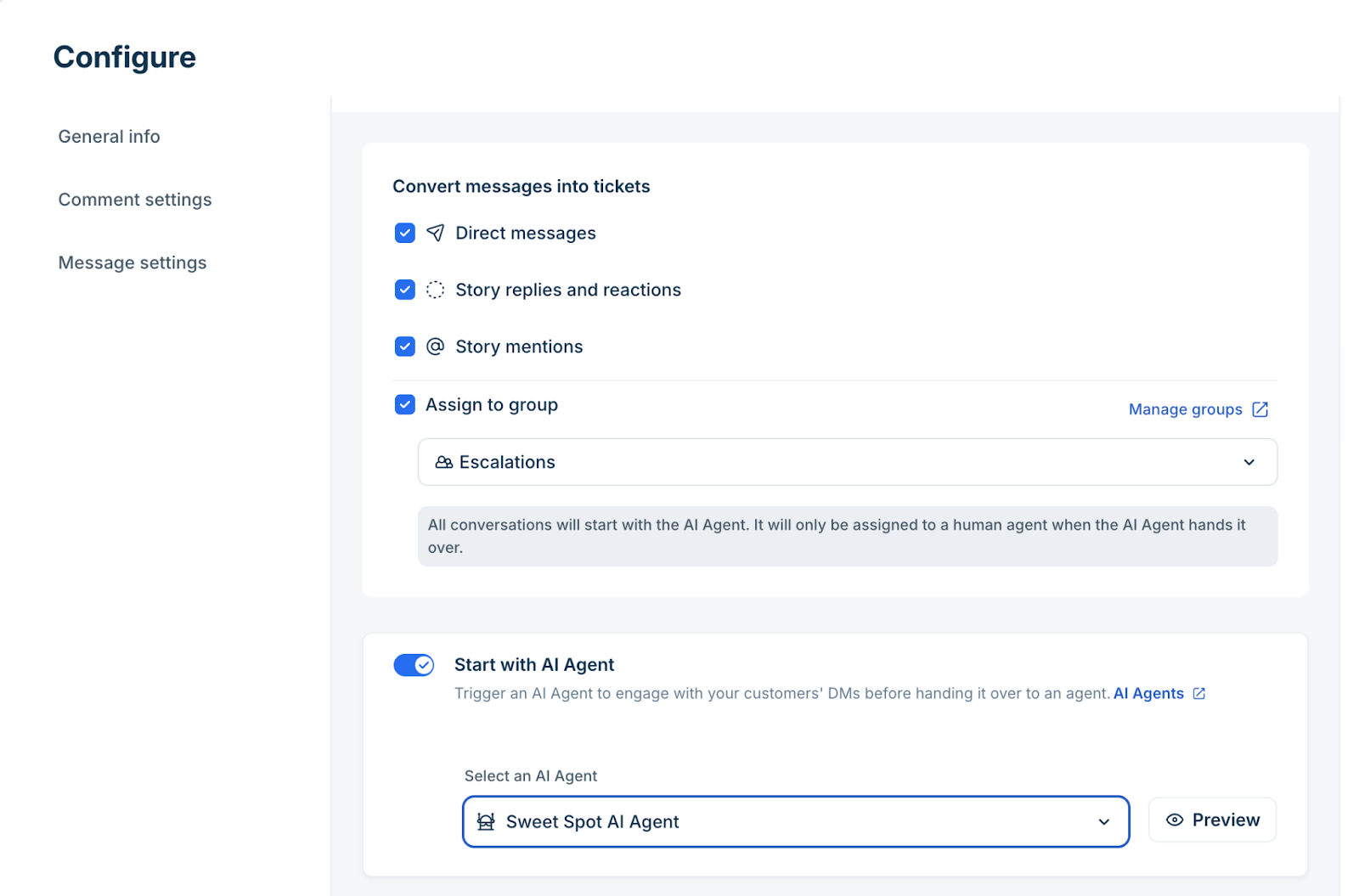
After an AI Agent is mapped to a channel, it is triggered to work on tickets from that channel before a human agent can.
Learn more about connecting other channels to Freshdesk.
AI Agent execution flow
When a ticket is created in a real-time channel with Start with AI Agent enabled, both ticket creation automations (automated rules that run immediately when a ticket is created) and AI Agent assignment are initiated together.
Ticket creation automations are evaluated first. The AI Agent (although assigned to the ticket), executes only after all applicable ticket creation automation conditions have been processed.
This evaluation order allows administrators to control whether the AI Agent should proceed with the ticket or be excluded based on automation logic.
The following flow diagram illustrates the sequence.
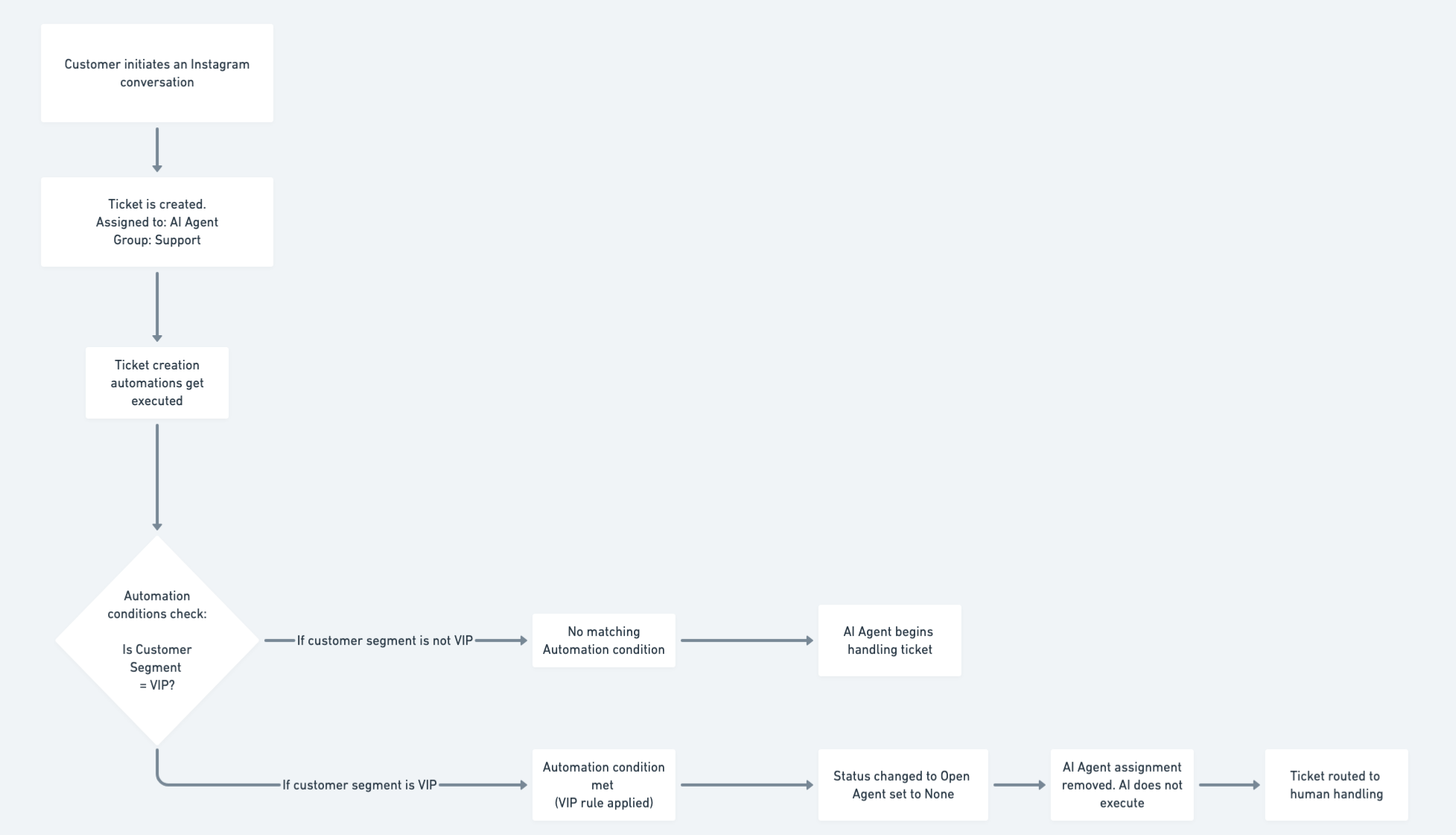
This allows administrators to control AI Agent execution when a ticket is created.
Excluding AI Agent tickets from automations
In certain workflows, specific automations should run only on tickets actively handled by human agents and not on those currently assigned to the AI Agent. This helps prevent conflicting actions, redundant notifications, and unintended updates while the AI manages the conversation.
To exclude AI Agent-handled tickets from an automation, add the condition Status is not Assigned to AI Agent. This ensures the automation runs only on tickets currently handled by human agents. To configure this condition:
- Go to Admin > Automations.
- Open the relevant automation, such as Ticket Creation, Ticket Updates, or Hourly Triggers (explained in the table below).
- Add a condition:
- In Tickets
- Status
- Is not
- Assigned to AI Agent

This condition ensures that automations run only on tickets handled by human agents and applies to all three types of automations as listed in the table below:
| Rule Type | AI Agent Interaction |
| Ticket creation automations | Evaluated before AI Agent execution. If an automation updates the ticket and removes the AI assignment, the AI Agent will not execute. |
| Ticket update automations | By default, update automations (such as reopening, escalation, or property changes) apply to tickets handled by AI Agents. |
| Hourly triggers | Run on tickets regardless of whether they are handled by AI Agents or human agents. |
Let us understand some important use cases of preventing automations from executing on AI Agent–handled tickets.
Use Case 1: Send an auto-reply only when a ticket is not handled by an AI Agent
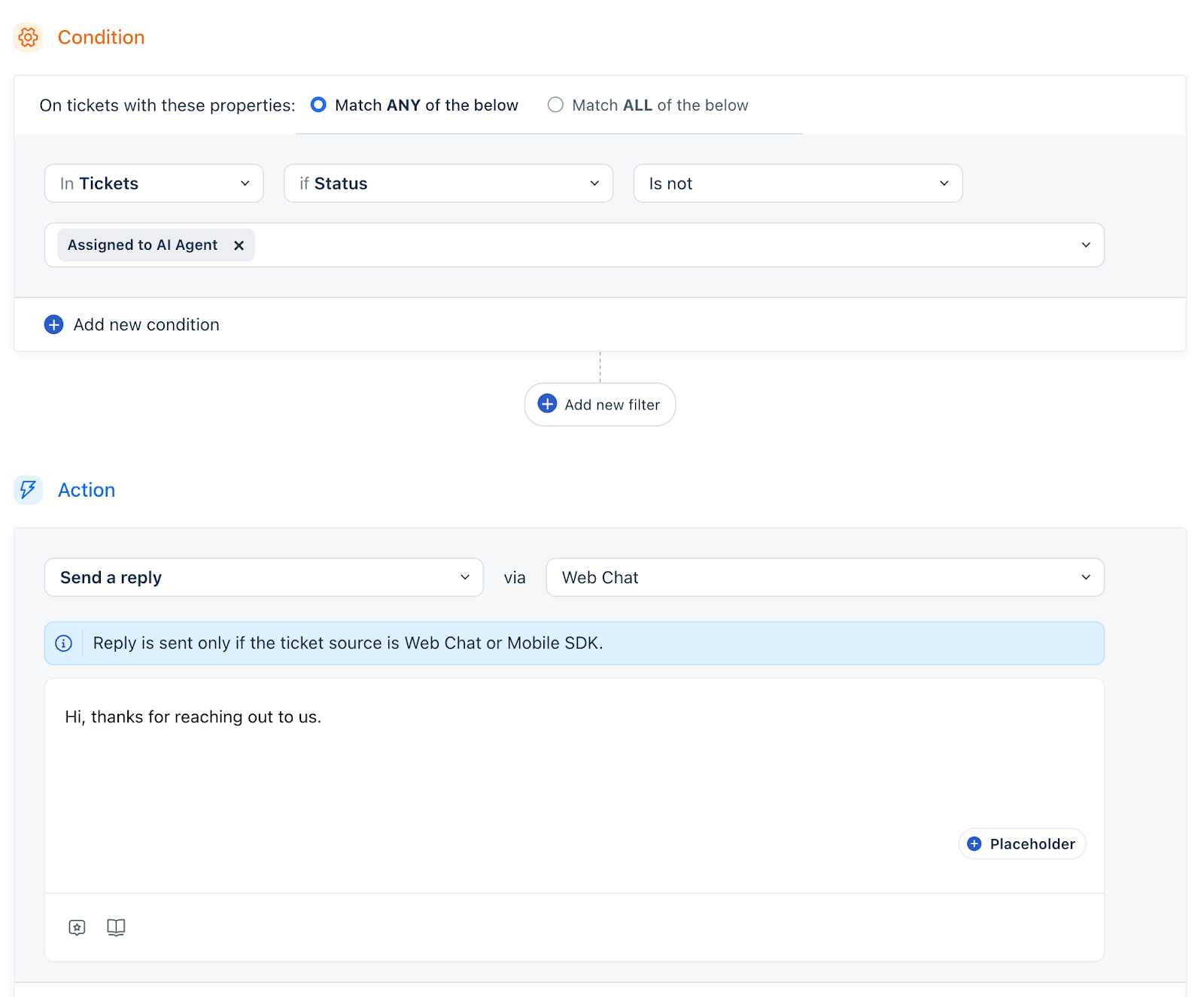
Set up an automation that checks whether a ticket is assigned to an AI Agent. If the ticket is not assigned to an AI Agent, automatically send a reply such as: “Hi, thanks for reaching out to us.”
Follow the steps below to add an automated response if the ticket is not assigned to an AI Agent:
- Go to Admin > Automations > Under Ticket Creation > New Rule
- Under Conditions > In Tickets > Status > Is not > Assigned to AI Agent
- Under Actions > Send a reply via Choose a channel (example: Web Chat)
- Add the content required (for example: ‘Hi, thanks for reaching out to us’) as the reply
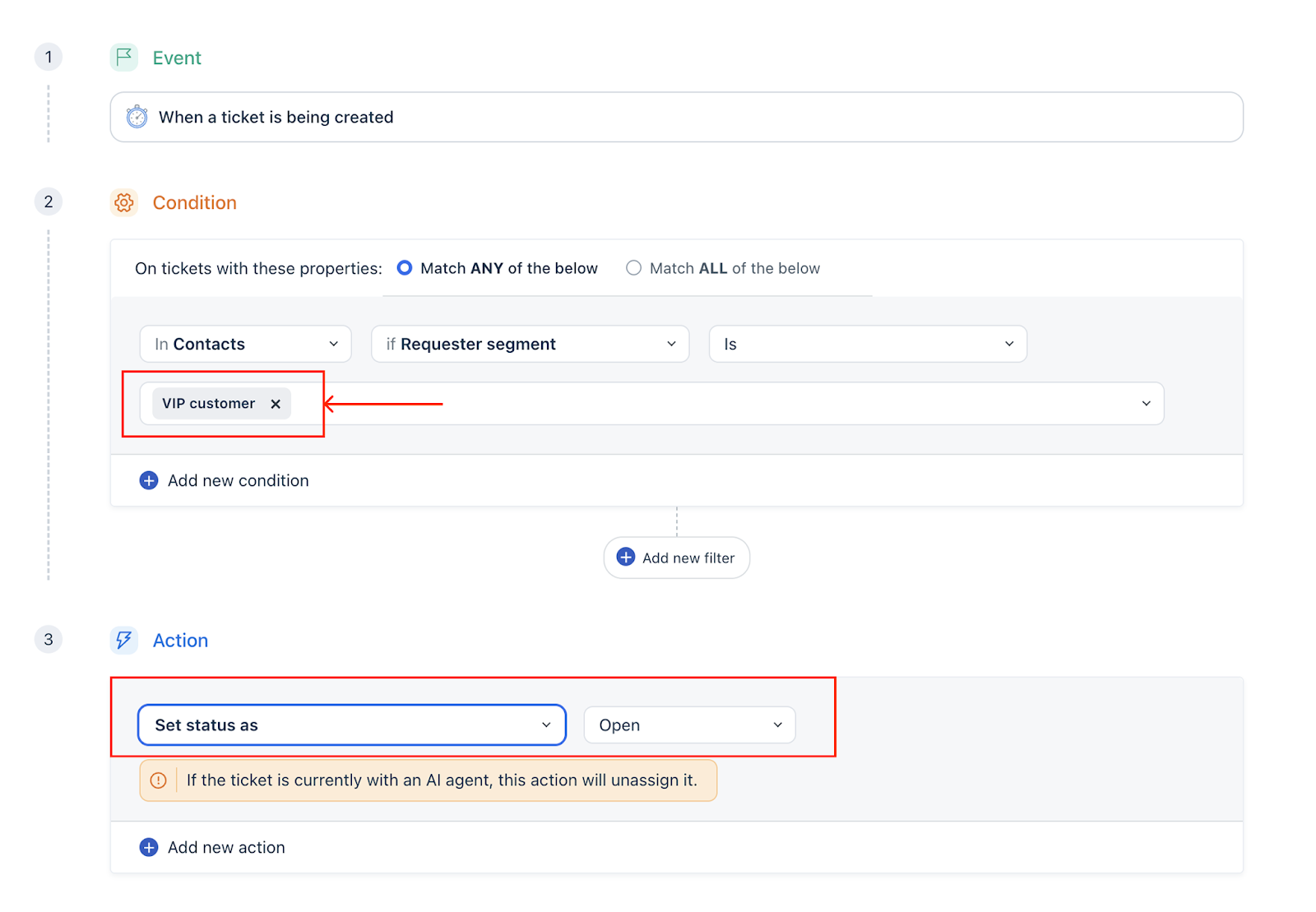
Use Case 2: Allow only human agents to handle specific tickets
To prevent the AI Agent from responding to certain tickets (for example, VIP customers), set up a condition that includes a specific requester or customer segment. This condition should trigger an action, such as changing the ticket's status, that excludes the AI Agent from the response workflow.
Automations triggered by AI Agent activity
Ticket update automations can be tailored to trigger based on AI Agent activity. This section outlines the supported events and demonstrates how to configure them to streamline workflows.
Configure automations for AI Agent events
Ticket update automations performed by AI Agents include ticket handover, ticket resolution, ticket timeout, and changes in ticket assignee.
To configure AI Agent-specific events under ticket update automations, go to Admin > Automations > Ticket Updates > + New rule > Event > In Actions performed by > Choose AI Agent. The supported events are:
- Ticket is handed over - Set conditions and actions when the AI Agent hands over a ticket to a human agent.
- Ticket is resolved - Set update automations based on the AI Agent's resolution of a ticket.
- Ticket has timed out - Triggers when the AI Agent encounters an error while handling a ticket. You can use this event to run the required actions when such a timeout occurs.
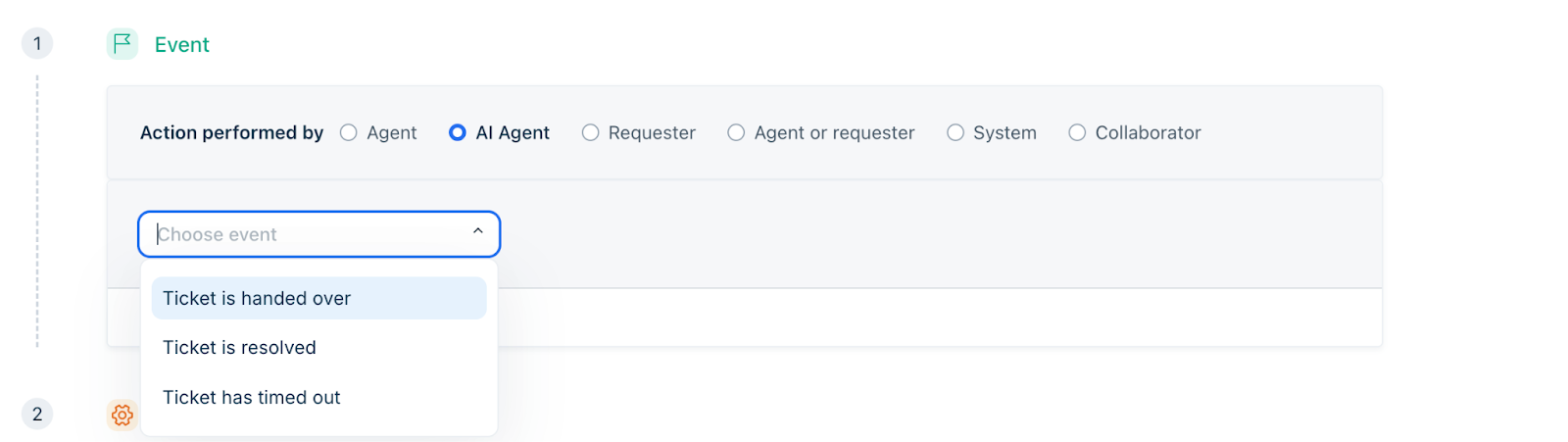
Note: Rules can also be triggered based on changes to who is assigned to the ticket, such as when a ticket moves from an AI Agent to a human agent, or from a human agent to an AI Agent.
Once these AI Agent-specific events are configured, they can be applied in practical automation scenarios to optimize workflows and ticket handling.
Practical automation scenarios using AI Agent events
AI Agent events can be used to drive specific ticket-update automations tailored to operational needs. The examples below illustrate how these events can be used for routing, reassignment, sentiment handling, CSAT measurement, and message threshold control.
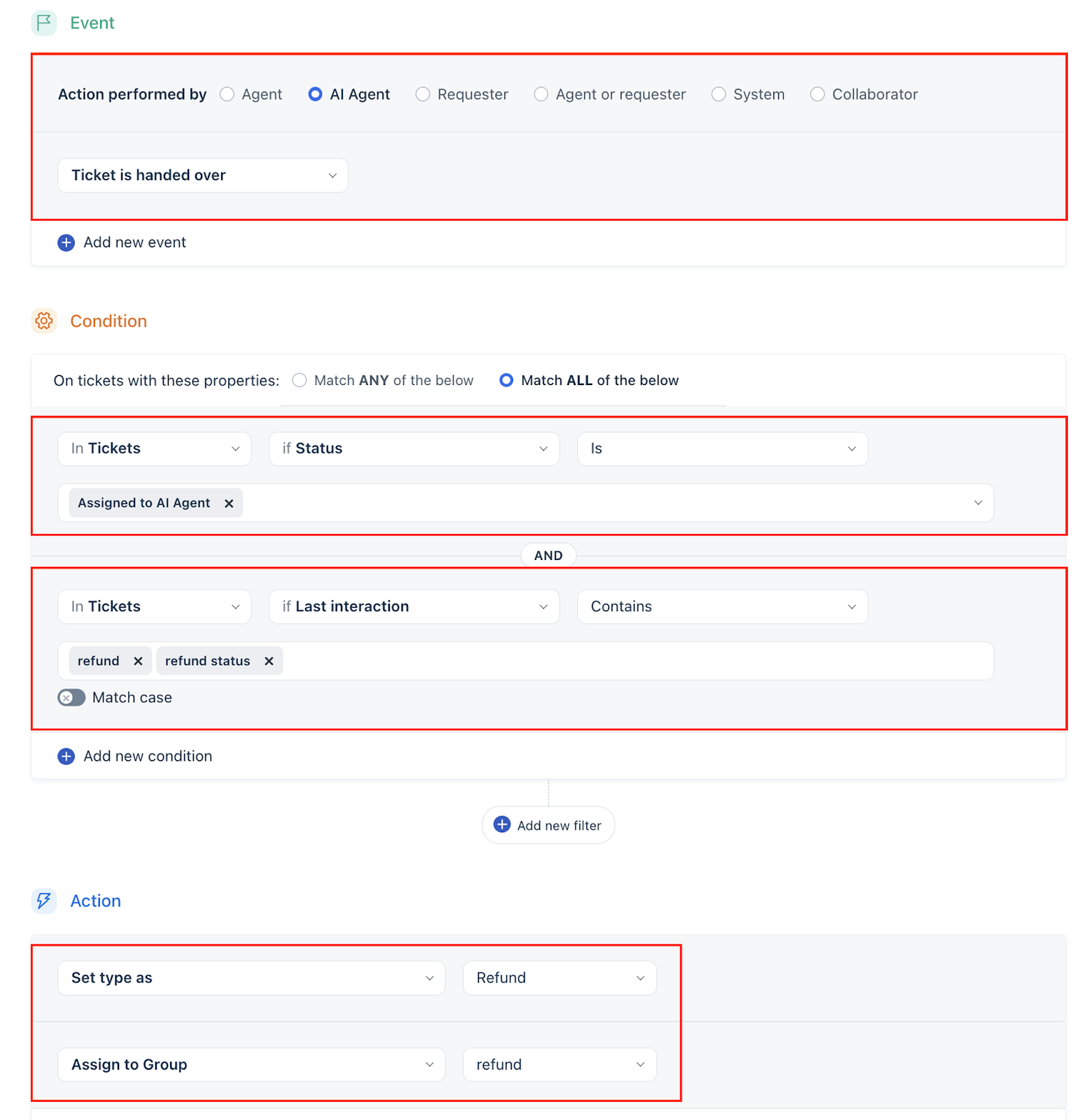
Assign to the correct group during handover
In some scenarios, the AI Agent may not provide an apt answer. Configure update automations so that during handover, the ticket is assigned to the appropriate group.
Trigger a different CSAT when the AI Agent resolves a ticket
If CSAT surveys are sent when tickets are resolved, configure a separate CSAT survey specifically for tickets resolved by the AI Agent. This allows independent evaluation of the AI Agent's performance.
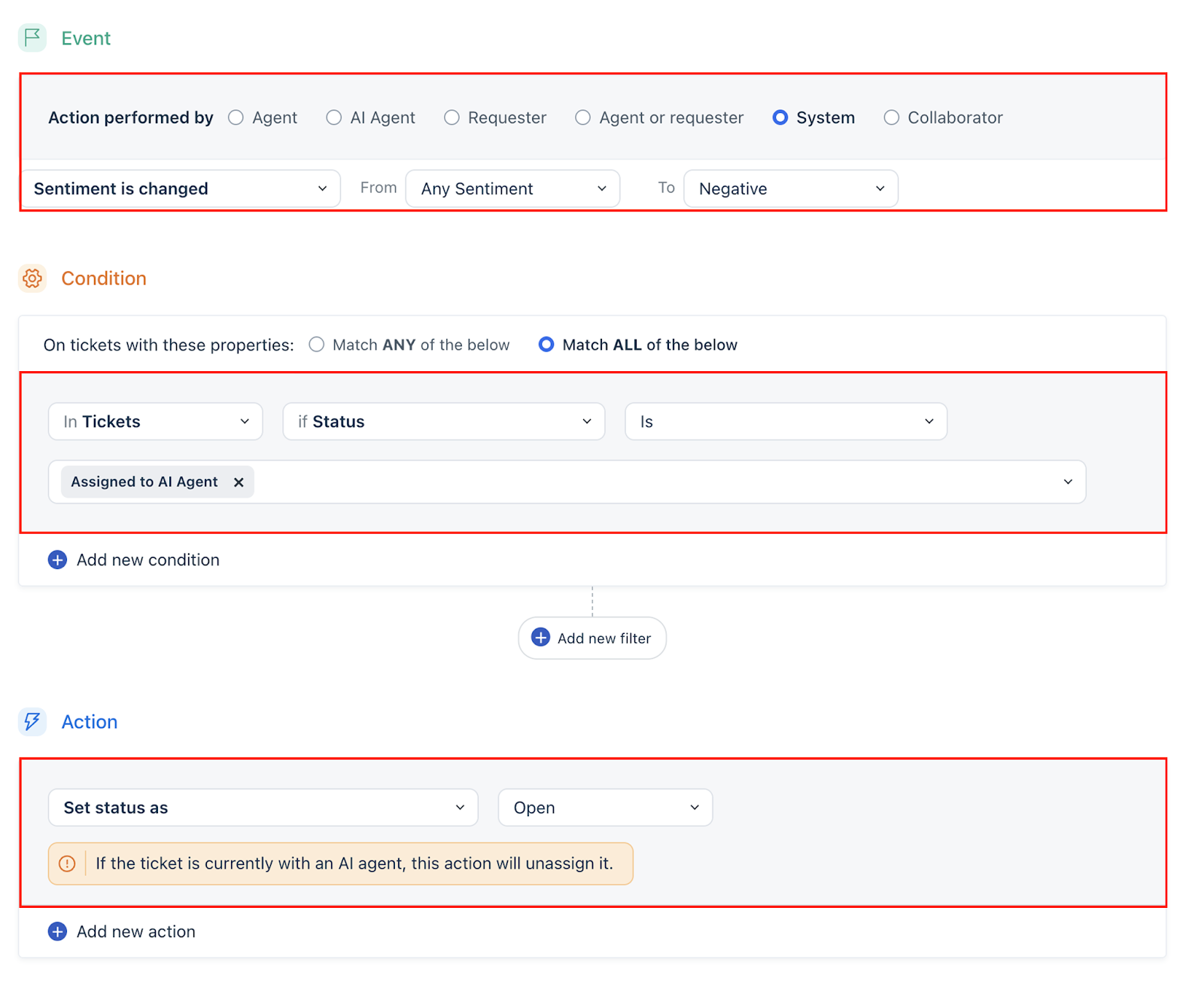
Act when sentiment changes during AI Agent interaction
If customer sentiment turns negative during interaction with an AI Agent, configure ticket update automations to automatically set the ticket status to ‘Open’.
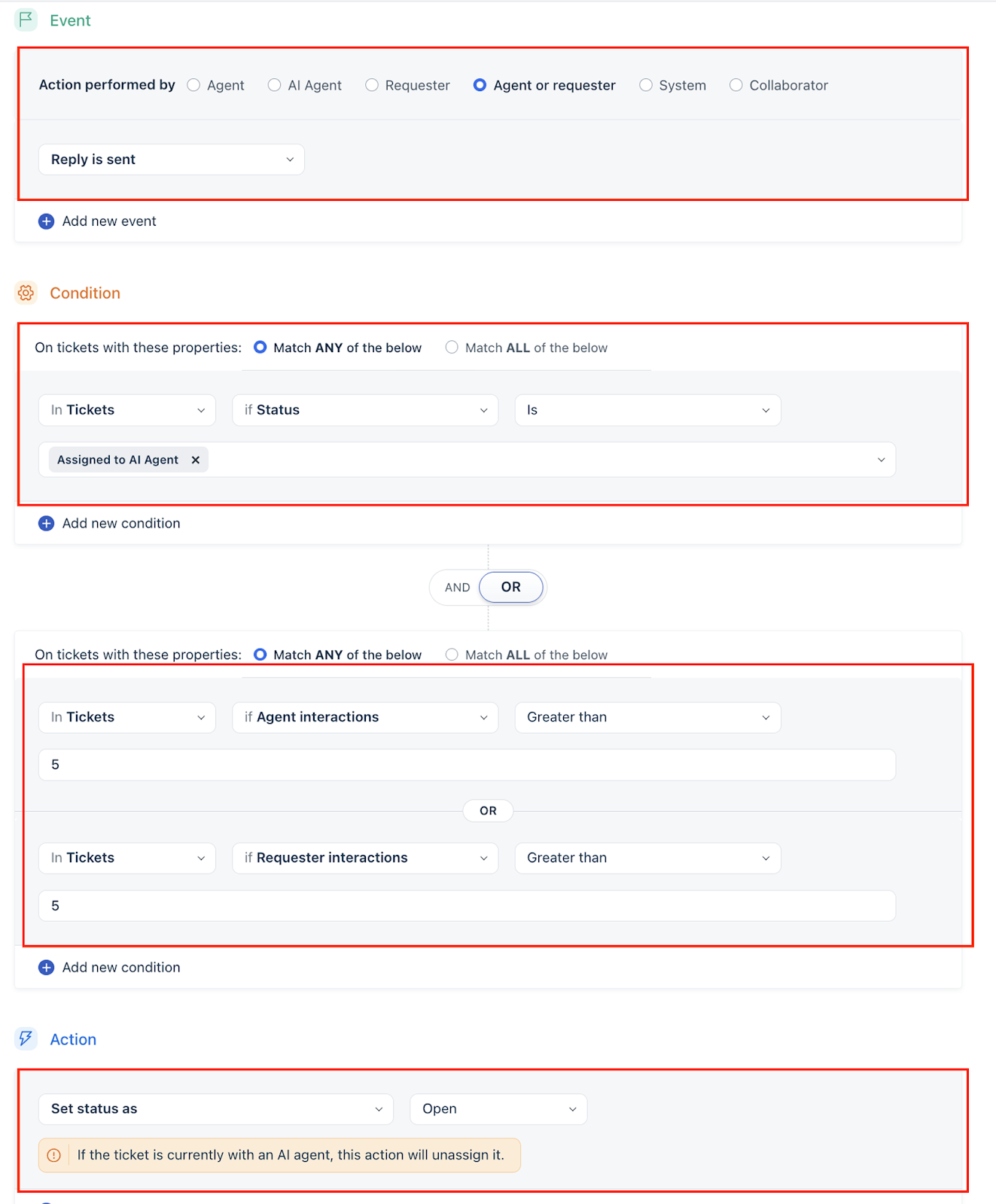
Set a threshold for message count
If there is excessive back-and-forth between the AI Agent and the customer, configure a message count threshold. Once the limit is exceeded, the ticket can be transferred to a human agent.
Clearly defining when AI Agent–specific automations should run, and when they should be excluded, enables better control over ticket workflows. This helps ensure predictable behavior and consistent execution across AI and human-handled tickets.