
 Community
 Video Library
 Agent Training
 Freshservice
 Freshdesk
 Freshchat
 Freshcaller
 Freshsales
 Freshteam
 Freshworks Neo
 Freshsurvey
 Growth
TABLE OF CONTENTS
- About web chat channel
- Web chat channel components
- Quick Comparison: Freshdesk vs. Freshdesk Omni
- Example: Customer experience on web widget
About web chat channel
Web Chat is a real-time communication channel that combines live chat experience and self-service to help customers get assistance instantly, directly from your website or portal.
With Web Chat, you can:
- Promote self-service by displaying Knowledge Base articles
- Provide live chat experience with AI Agents or human agents
- Route chats intelligently to the right team based on query type
- Ensure 24/7 coverage with pre-chat forms and away messages
- Secure communication with JWT authentication at the widget level
Prerequisites:
Before configuring Web Chat, ensure that you have:
- Admin permissions in Freshdesk
- Agent groups are created to assign chat topics
- A website or portal where the Web Widget code can be embedded
Optional:
- A published knowledge base, if you plan to offer self-service articles within the widget
- AI agents, if you want to route customers to interact with them
Web chat channel components
The chat interface embedded on your website or portal acts as your central point of customer engagement. You can create multiple widgets for different websites, products, or regions, and customize each widget to match your brand. The widget can include:
- Knowledge Base:
Displays relevant solution articles or FAQs to help customers find answers through self-service before starting a conversation. - Web Forms:
Allows customers to submit tickets when agents are offline, ensuring no requests are missed outside business hours. - Live Chat Topics (available only in Freshdesk Omni):
Enables customers to interact with an AI Agent or a human agent. Live Chat is configured through Web Chat Topics, where you can personalize each topic with additional options such as Pre-chat Forms, Away Experience, routing rules, and more.
Tip: You can also install Web Chat as a mobile app with our native SDKs for iOS and Android.
Configure web chat
Basic Configuration (For Freshdesk Standalone)
The Basic configuration enables you to create and deploy a Web Chat Widget with essential support options, including Knowledge Base articles and Web forms. This setup is ideal if you want to get started quickly without complex routing or automation.
Create a web widget
- Go to Admin > Channels > Web Chat.
- Create and configure the widget’s appearance, content, and behavior.
- Deploy the widget code on your website or portal.
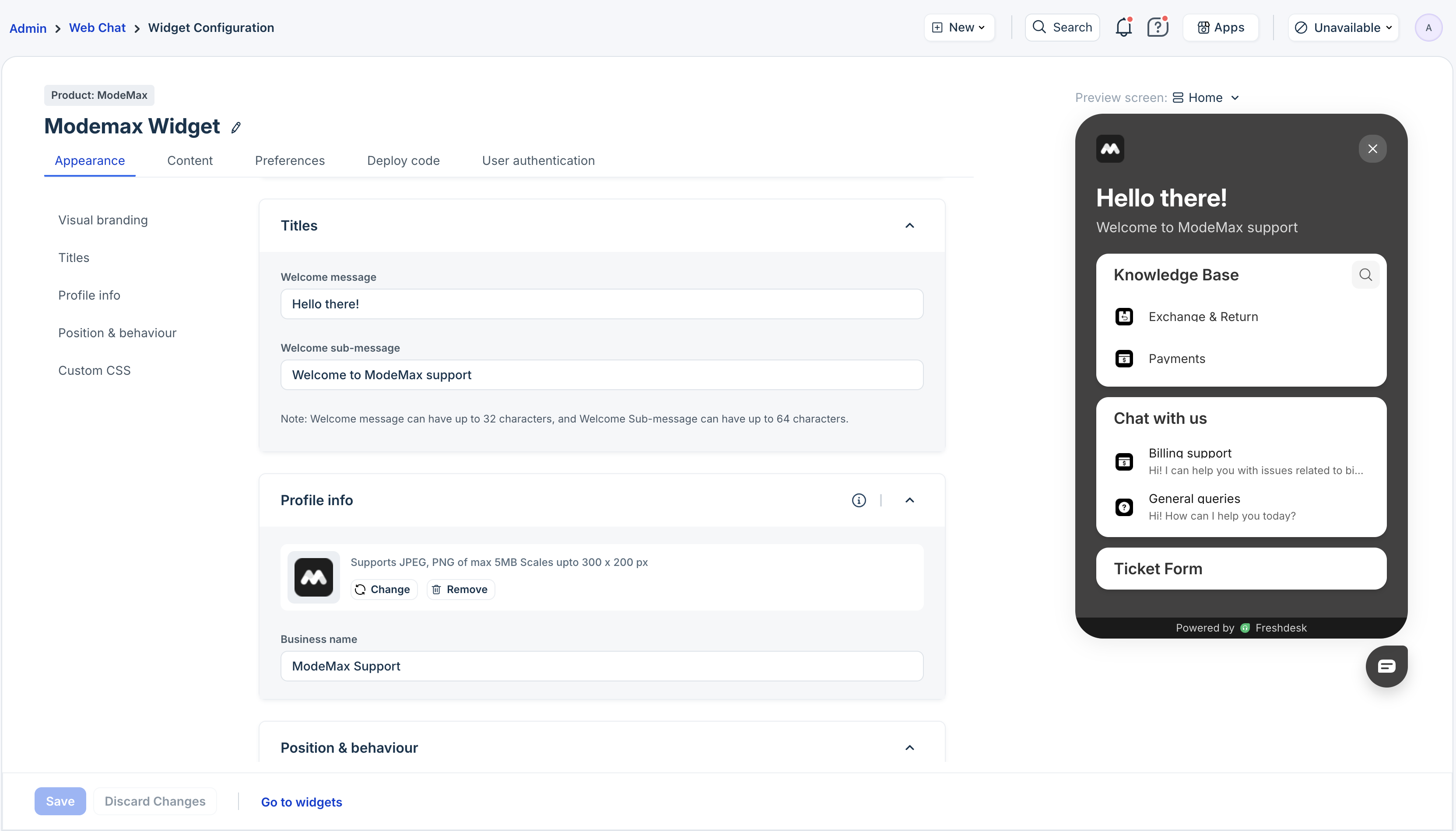
For detailed steps, see Create and Configure Web Widget.
Live chat configuration (For Freshdesk Omni)
Enable customers to connect with either an AI Agent or a human agent. The live chat configuration is done via the Web Chat topics. You can create multiple Web Chat topics and customize each one to match different customer needs and scenarios. For every topic, you can map AI Agents, route chats to specific agent groups, define after-office hours behavior, trigger surveys, and more, ensuring a tailored and seamless live chat experience.
- Go to Admin > Channels > Web Chat > Create New > Web Chat Topic.
- Add topics such as Billing, Order Tracking, or Technical Support to help categorize incoming chats.
- Configure the following advanced options for each topic:
- AI Agent mapping: Link an AI Agent to automate conversations or handle specific queries.
- Assign to group: Assign chats to the right agent group based on the topic.
- Away experience: Define custom messages when customers contact outside business hours or when agents are unavailable.
- Pre-chat forms: Collect important details such as order number or email before the chat begins.
- Response expectation: Inform customers of the expected wait time for a response from your team.
- Threading interval: Define the time frame after which a returning chat from the same customer is considered a new conversation.
- CSAT surveys: Trigger a CSAT survey to capture customer feedback after the ticket is resolved.
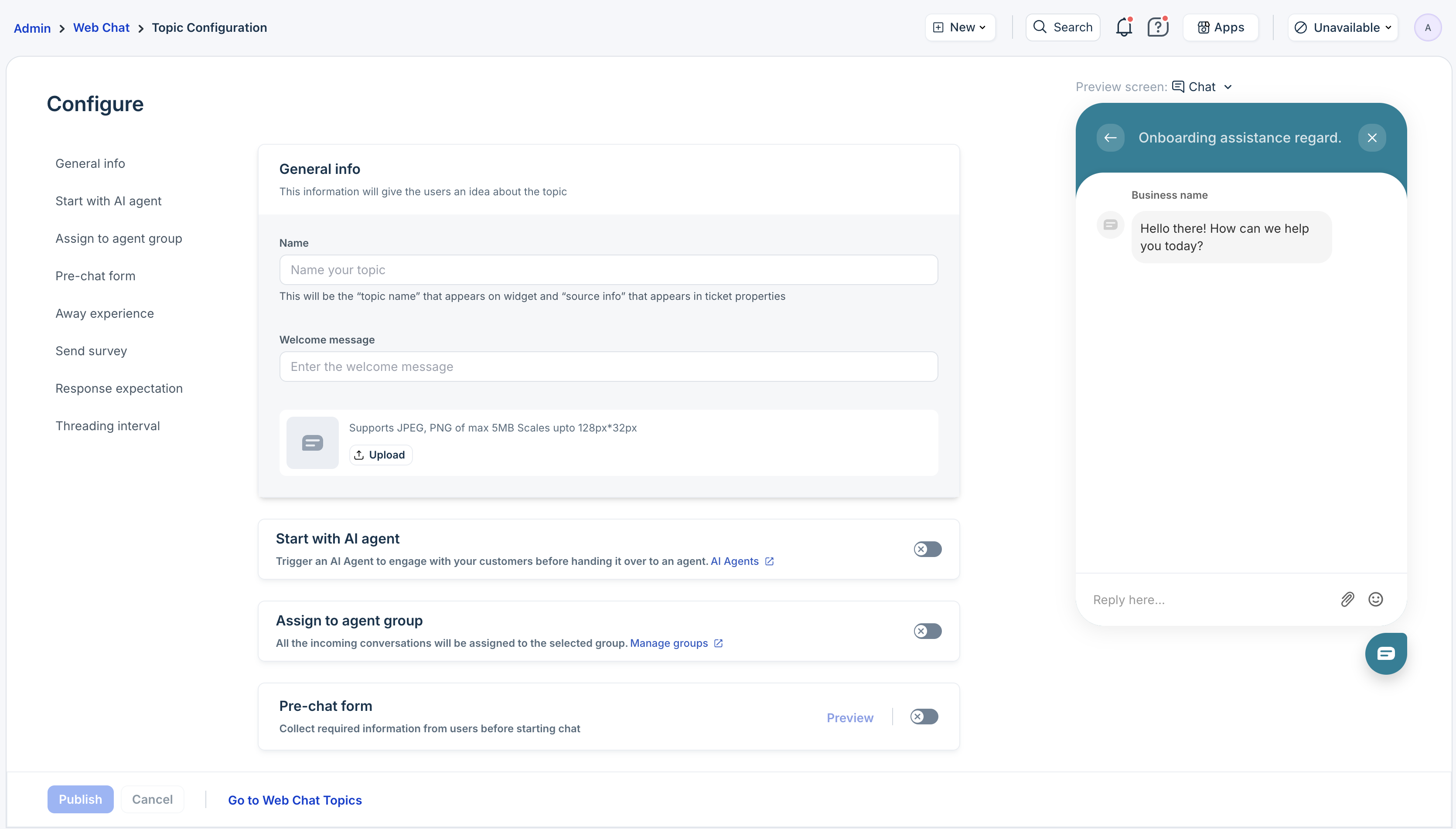
Map topics to Widgets
Once your topics are created, map them to the widget(s) so customers see the right live chat options.
For details, see Create Web Chat Topics.
Quick Comparison: Freshdesk vs. Freshdesk Omni
Here’s a quick overview of the differences between basic Web Chat configuration in Standalone Freshdesk and the Live Chat setup in Freshdesk Omni:
| Feature | Standalone Freshdesk | Freshdesk Omni |
|---|---|---|
Web Widget Creation | Create and embed a widget on the website or portal | Create and embed a widget on the website or portal. |
Knowledge Base Integration | Display articles for self-service | Display articles for self-service. |
Web Forms | Collect customer details or raise tickets when agents are offline | Collect customer details or raise tickets when agents are offline. |
| Live Chat | Not available | Allow customers to interact with an AI Agent or a human agent. |
| Live Chat Features | ||
Chat Topics | Not available | Create topics to categorize chats (e.g., Billing, Order Tracking). |
AI Agent Mapping | Not available | Link AI Agents to specific topics for automated responses. |
Routing to Agent Groups | Not available | Route chats to the right agent group based on topic. |
Away Experience | Not available | Configure custom messages when agents are offline. |
Pre-chat forms | Not available | Collect information such as email, order number, or custom fields before the chat starts. |
CSAT | Available | Trigger surveys to capture feedback after the chat ends. |
Example: Customer experience on web widget
Once the Web Chat is set up, customers can start chatting directly from your website, while agents receive and manage all incoming chats from Freshdesk.
Here’s a sample customer journey on an e-commerce website:
- A customer visits your online store to check the status of their order.
- They click the widget launcher displayed at the bottom of the page.
- The Web Widget first shows relevant Knowledge Base articles related to Order Tracking and Delivery Timelines, helping the customer find quick answers.
- If the customer still needs assistance and Live Chat is enabled, they select the Order Tracking topic to start a chat.
- Information collection: The pre-chat form (if enabled) collects key details such as the order number before the chat begins, providing agents with the necessary context upfront.
- Chat with AI Agent: If an AI Agent is mapped to this topic, the customer first interacts with the AI for instant assistance.
- Route to human agent: If further help is required, the AI Agent automatically routes the chat to an available agent from the associated Order Management group.
- An agent joins and provides the update instantly.