
 Community
 Video Library
 Agent Training
 Freshservice
 Freshdesk
 Freshchat
 Freshcaller
 Freshsales
 Freshteam
 Freshworks Neo
 Freshsurvey
Applies to: Freshdesk, Freshdesk Omni 2026.
The Freshworks Model Context Protocol (MCP) server enables AI tools like Cursor and Claude to securely connect and interact with Freshdesk. The MCP server acts as middleware to expose specific capabilities, such as creating tickets, by using public APIs and supported authentication methods.
This article provides details about supported MCP integrations and how to configure them in your AI tools.
Note: Currently, Freshdesk allows you to authenticate requests involved in MCP integration by using an API key only.
TABLE OF CONTENTS
- Supported plans and limits
- Supported MCP integrations
- Option 1: Set up MCP integration with Claude Code
- Option 2: Set up MCP integration with Claude Desktop
- Option 3: Set up MCP integration with Cursor
- Option 4: Set up MCP integration with Microsoft Copilot Studio
- Option 5: Set up MCP integration with Visual Studio Code
- Troubleshoot issues
- List of available tools
- Pagination in MCP
- Example prompts
- Frequently Asked Questions (FAQs)
- Freshworks MCP security
- More resources
Supported plans and limits
Starting September 10, 2026, the Freshworks MCP integration is generally available. The rate limits and monthly action allowances for each plan are outlined below.
What counts as an MCP action?

An action is defined as a successful tool invocation via MCP. Examples of tool invocations. Examples:
• Fetch conversation related to the ticket with ID 1001 (1 action)
• Update the company name for the record with ID 11 to Apple (1 action)
Important:

• Pricing: To view current pricing and purchase add-on action packs, see Pricing.

• EAP transition:

    • If you were on the Early Access Program (EAP), standard pricing and limits take effect on October 1, 2026.

    • During the EAP, if you used the MCP integration on any plan other than Freshdesk Standalone 2021 (the latest version) or Freshdesk Unified Omni 2026 variant, the integration will stop working after September 10, 2026.
Supported MCP integrations
Freshdesk supports MCP integration with any AI tool that provides MCP support. This section highlights a selection of commonly used integrations that you can connect to Freshdesk.
Option 1: Set up MCP integration with Claude Code
Connect and verify the MCP server within the Claude Code editor. After the setup is complete, Claude Code can use tools exposed by the MCP server directly within the editor.
Prerequisites
Before you begin, ensure you have the following:
- The Claude Code app installed.
An active Claude account.
The Freshdesk MCP URL.
Note: Currently, custom domains are not supported for MCP endpoints. Ensure to use your Freshdesk base domain in the following format: https://<subdomain>.freshdesk.com/mcp
Create an MCP connection
To connect Claude Code to your MCP server, you must register the server using the http transport.
Run the following command in your terminal to register the Freshdesk MCP server:
claude mcp add my-remote-server --transport http https://<subdomain>.freshdesk.com/mcp --header "Authorization: <api-key>"
Expected output:
Added HTTP MCP server my-remote-server with URL: https://<subdomain>.freshdesk.com/mcp to local config
Headers: {
"Authorization": "<api-key>"
}
File modified: /Users/<username>/.claude.json [project: /Users/pmm]
Verify the connection
Use the following get command to confirm the server is listed as connected within the application:
claude mcp get my-remote-server
Expected output:
my-remote-server:
Scope: Local config (private to you in this project)
Status: ✓ Connected
Type: http
URL: https://<subdomain>.freshdesk.com/mcp
Headers:
Authorization: <api-key>
Option 2: Set up MCP integration with Claude Desktop
Connect and verify the MCP server within the Claude Desktop editor. After the setup is complete, Claude Desktop can use tools exposed by the MCP server directly within the editor.
Prerequisites
Before you begin, ensure you have the following:
- The Claude Desktop app installed.
An active Claude account.
The Freshdesk MCP URL.
Note: Currently, custom domains are not supported for MCP endpoints. Ensure to use your Freshdesk base domain in the following format: https://<subdomain>.freshdesk.com/mcp
Create an MCP connection
To connect Claude Desktop to your MCP server, follow these steps:
Open Claude Desktop and go to Claude > Settings > Developer.
Select Edit Config. The claude_desktop_config.json file opens in your system's default text editor.
Copy and paste the following JSON configuration into the file. If other servers are already listed, add this as a new entry in the mcpServers object.
Note: Replace <mcp-url> with your specific server URL (for example, https://<subdomain>.freshdesk.com/mcp).
"mcpServers": {
"freshdesk-mcp": {
"command": "npx",
"args": [
"-y",
"mcp-remote",
"https://<subdomain>.freshdesk.com/mcp",
"--header",
"Authorization:<API_KEY>"
]
}
}
Save the file and close the text editor.
Exit Claude Desktop by right-clicking the icon in the taskbar (Windows) or menu bar (macOS) and selecting Quit.
- Relaunch Claude Desktop.
- Follow the authentication prompts in your browser. After successful authentication, you can verify the connection status under Claude > Settings > Developer.
Option 3: Set up MCP integration with Cursor
Connect and verify the MCP server within the Cursor editor. After the setup is complete, Cursor can use tools exposed by the MCP server directly within the editor.
Prerequisites
Before you begin, ensure you have the following:
- The Cursor app installed.
An active Cursor account.
The Freshdesk MCP URL.
Note: Currently, custom domains are not supported for MCP endpoints. Ensure to use your Freshdesk base domain in the following format: https://<subdomain>.freshdesk.com/mcp
Create an MCP connection
To connect Cursor to the MCP server, add the server details to your application's configuration file. To do so, follow these steps:
Open Cursor and go to the root folder of your project or user home directory for global configuration.
Create or update the .cursor/mcp.json file.
Add the following JSON object to the file:
Sample configuration using API key
{
"mcpServers": {
"freshdesk": {
"type": "http",
"url": "https://<subdomain>.freshdesk.com/mcp",
"headers": {
"Authorization": "<API-KEY>"
}
}
}
}
The following table describes the attributes used to configure the MCP server:
Verify the configuration
After you save the configuration file, follow these steps to verify that Cursor can access the server and its tools:
In Cursor, go to View > Command Palette
Enter View: Open MCP Settings and select it from the list.
On the Tools page, locate the Installed MCP Servers section and verify your server name appears.
To view the available tools, expand the server card.
Once the connection is established, Cursor automatically retrieves the tools. You can invoke them through natural language prompts or allow Cursor to suggest them based on your current task.
If the server is offline or the configuration is incorrect, Cursor displays an error message provided by the MCP server in the settings view.
Option 4: Set up MCP integration with Microsoft Copilot Studio
Connect and verify the MCP server within the Microsoft Copilot Studio editor. After the setup is complete, Microsoft Copilot Studio can use tools exposed by the MCP server directly within the editor.
Prerequisites
Before you begin, ensure you have the following:
- The Microsoft Copilot Studio app installed.
An active Microsoft Copilot Studio account.
An existing agent created within Microsoft Copilot Studio.
The Freshdesk MCP URL.
Note: Currently, custom domains are not supported for MCP endpoints. Ensure to use your Freshdesk base domain in the following format: https://<subdomain>.freshdesk.com/mcp
Create an MCP connection
To link Copilot Studio to your MCP server, follow these steps:
In the Copilot Studio dashboard, select Agents from the left navigation pane.
Select your agent from the list.
Open the Tools page for the agent.
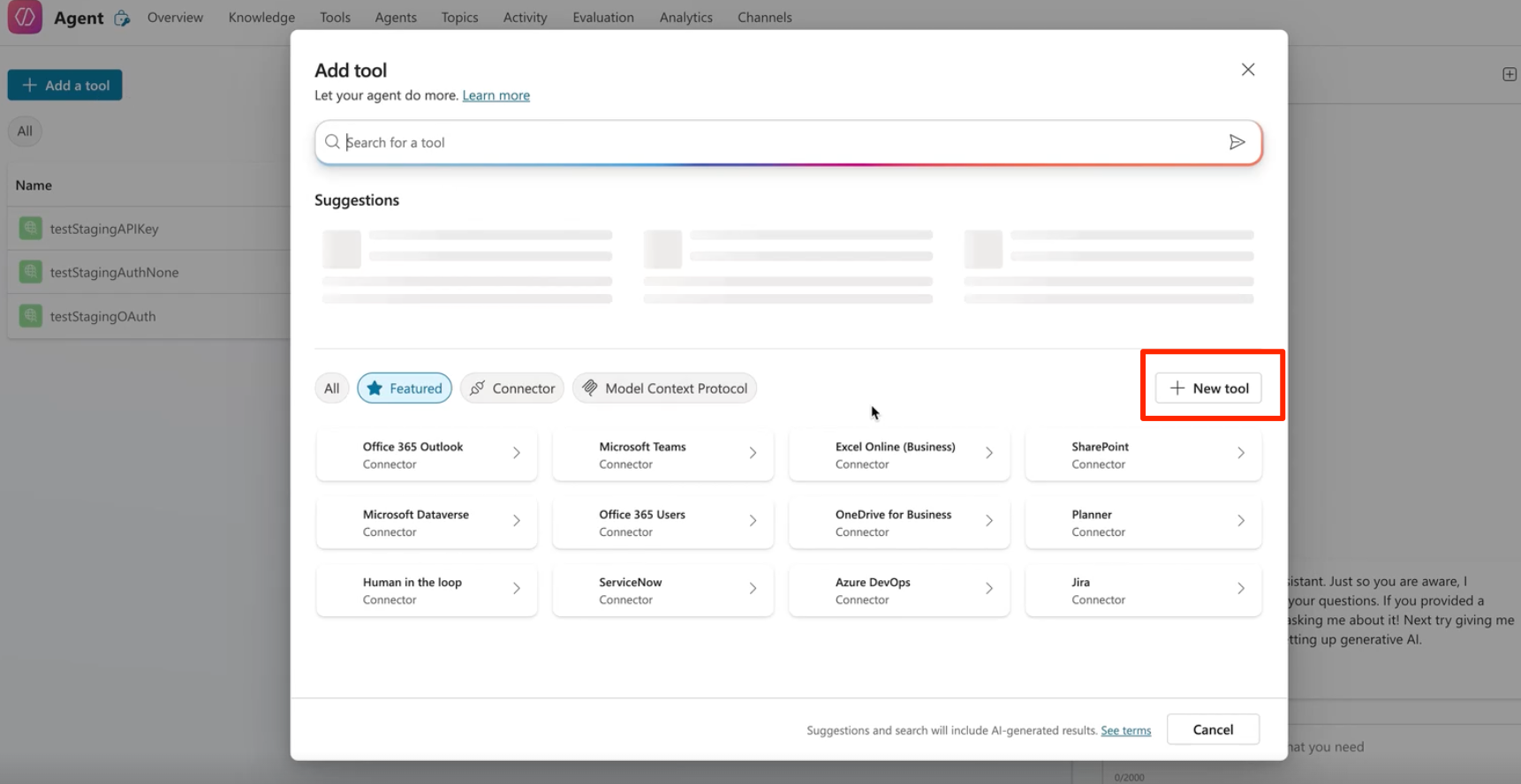
Click + Add a tool at the top left of the page.
The Add tool window appears.
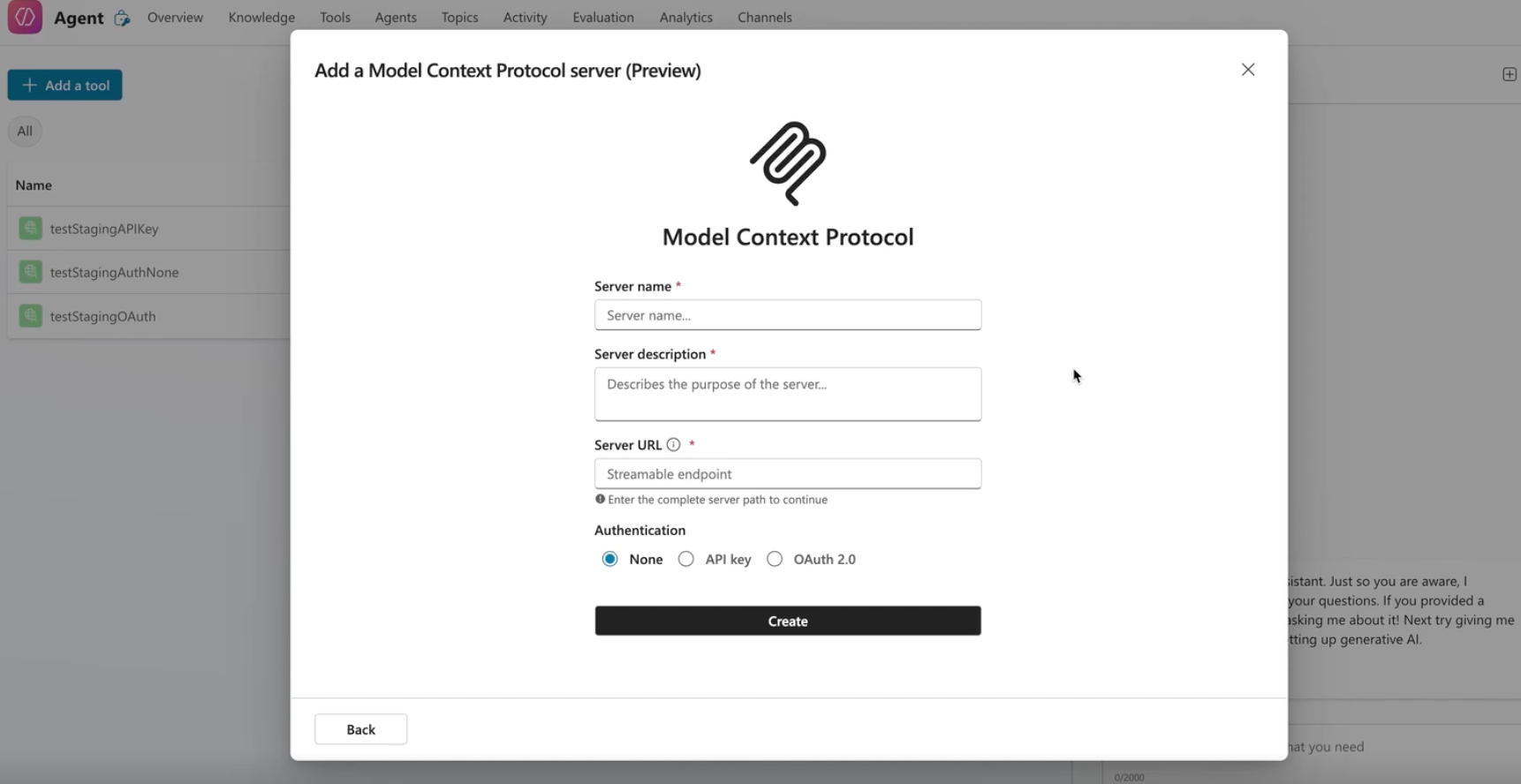
Select + New tool > Model Context Protocol.
The Add a Model Context Protocol server window appears.
Enter the following details:
Server name: Enter a name for the server.
Server description: Provide a short description of why the server is required.
Server URL: Enter the endpoint where the MCP client can reach your MCP server. For example, https://<subdomain>.freshdesk.com/mcp.
Authentication: Select the authentication mode as API key
Click Create.
After successful creation, the Add tool window appears to configure the connection.
In the Connection dropdown, you will see No connections available.
Click the dropdown and select Create new connection > Create.In the authorization window, select your account name and click Continue.
After authorization succeeds, click Add and configure on the Add tool window.
You are redirected to the page for the newly created tool. Under the Tools section, you can view the list of available tools.
Verify the MCP connection
To confirm that your agent is actively connected to the Freshworks MCP server, follow these steps:
Go to your agent in Copilot Studio by selecting Agents and choosing the agent you want to verify.
The agent overview page opens.Select Settings to open the agent settings page.
In the left navigation pane, select Connection Settings.
A table displays all connections associated with your agent.For the newly configured connection, if the status is Not connected, click Connect.
The Create or pick a connection window appears.Select the newly created connection and click Submit.
The status updates to Connected once the link is successfully established.
Option 5: Set up MCP integration with Visual Studio Code
Connect and verify the MCP server within the Visual Studio Code editor . After the setup is complete, Visual Studio Code can use tools exposed by the MCP server directly within the editor.
Prerequisites
Before you begin, ensure you have the following:
- The Visual Studio Code app installed.
The MCP extension for VS Code installed.
The Freshdesk MCP URL.
Note: Currently, custom domains are not supported for MCP endpoints. Ensure to use your Freshdesk base domain in the following format: https://<subdomain>.freshdesk.com/mcp
Create an MCP connection
To integrate the MCP server into your VS Code environment, follow these steps:
Launch VS Code.
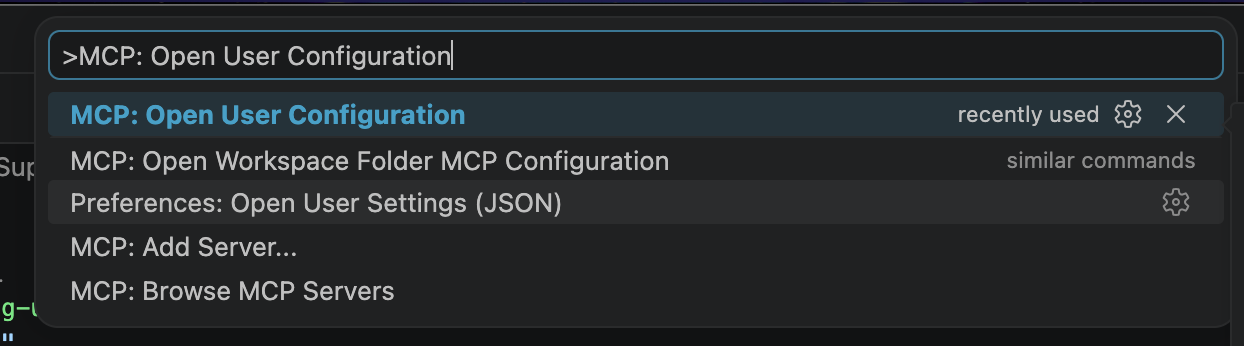
Open the Command Palette by pressing Ctrl+Shift+P (Windows) or Cmd+Shift+P (macOS).
Enter and select MCP: Open User Configuration.
Add the following JSON object to the mcp.json file and save it.
{
"servers": {
"my-remote-server": {
"type": "http",
"url": "https://<subdomain>.freshdesk.com/mcp",
"headers": {
"Authorization": "<api-key>"
}
}
}
}
A Start button appears above the my-remote-server entry. Click Start to initialize the server.

The following output appears to confirm the server is active:

Verify the configuration
After setting up your connection, you can confirm the server is running using either of the following methods:
View active servers: Open the Command Palette and select MCP: List Servers. Ensure your Freshdesk server is listed as active.
Review raw config: Open your mcp.json file to verify the server details and configuration target.
You can now run MCP-specific commands directly within your VS Code terminal or command palette to interact with Freshdesk data.
Troubleshoot issues
Issue: Connection failures
If the connection verification fails, check the following:
Network: Check your active internet connection and VPN status.
URL Accessibility: Open https://<subdomain>.freshdesk.com/mcp in your browser to ensure the endpoint is live.
Authentication: Verify that a valid API key is included in the authorization header.
Issue: MCP connection fails due to IP restrictions
Symptoms
MCP server connection fails despite correct endpoint configuration
Timeout or connection refused errors when running mcp-remote
Connection works in some networks but fails in restricted environments
Possible cause
Your Freshdesk or your organization’s network, enforces IP restrictions that block requests to or from the MCP server. If the required IP ranges are not allowlisted, the connection cannot be established.
Resolution
Allowlist required IP ranges:
Add the following IP ranges to your allowlist based on your data center/region:
Core rangesAU: 10.3.0.0/16
IN: 10.44.0.0/16
EUC: 10.113.0.0/16
USE: 10.111.0.0/16, 10.113.0.0/16
EUN: 10.96.80.0/20
Additional ranges
US:
10.17.144.0/20
10.25.128.0/18
EUC:
10.17.104.0/21
10.25.192.0/18
IN:
10.17.128.0/20
AU:
10.17.96.0/21
EUN:
10.97.216.0/21
Update IP restriction settings:
Configure IP restrictions in your Freshworks account.Verify network access:
Ensure outbound HTTPS (port 443) is allowed
Confirm no firewall or proxy is blocking these IP ranges
Retry the connection:
Run: npx -y mcp-remote https://<subdomain>.freshdesk.com/mcp
Verification
MCP connection succeeds without timeout or network errors
MCP client shows the server status as Connected
Next steps
If the issue persists after allowlisting:
Verify region alignment between your Freshdesk account and configured IP ranges
Check with your network administrator for additional firewall or proxy restrictions
List of available tools
The following table lists the tools provided by Freshworks MCP server for Freshdesk.
Pagination in MCP
When an MCP tool returns many results, such as a list of solution articles, sending the entire payload at once can exceed token limits or cause the LLM to truncate the data. Large payloads can also slow down response times and reduce the accuracy of the AI.
To prevent this, the MCP server uses pagination to deliver results in smaller, manageable batches. This ensures the LLM processes information efficiently while staying within its operational limits.
The pagination process provides the following benefits:
Automatic processing: The MCP client and the LLM handle subsequent data requests automatically using the nextCursor parameter.
No manual configuration: You don't need to manage page numbers, cursors, or page sizes manually.
Optimized performance: Smaller response batches ensure more reliable processing and faster response times from the AI tool.
Example prompts
You can use the following prompts to interact with the Freshdesk MCP server through your AI tool. These are samples only; you can modify them to suit your specific requirements.
Manage tickets:
"Create a high-priority ticket for a payment issue from Sarah."
"Get all tickets created today and group them by status."
"Filter my assigned tickets for those with 'open' status and 'high' priority."
Manage users and groups:
"Create a contact for John Doe with the email johndoe@acme-corp.com."
"Add a new support group called 'Network Team'."
"Show me the members of the Network Team group."
Manage companies and articles:
"Create a company named 'Acme Corp'."
"Find the solution article for payment refunds."
Frequently Asked Questions (FAQs)
To view frequently asked questions related to MCP integration, see MCP FAQs.
Freshworks MCP security
To learn how various aspects of MCP security work, see Freshworks MCP Security.