
 Community
 Video Library
 Agent Training
 Freshservice
 Freshdesk
 Freshchat
 Freshcaller
 Freshsales
 Freshteam
 Freshworks Neo
 Freshsurvey
 Growth
TABLE OF CONTENTS
This article provides information on configuring named entity recognition (NER) for bots to automatically identify and extract customer information, such as email addresses, names, and phone numbers, from customer responses.
Prerequisites
- Ensure you have permission to create or edit bots.
- Ensure a bot and its flow are already created.
Overview
Named entity recognition (NER) enables bots to automatically identify and extract specific customer information from user responses. Instead of requiring customers to enter information in a fixed format, NER recognizes the required value even when it is embedded within a complete sentence. This allows customers to respond naturally while ensuring the bot captures only the relevant information.
NER currently supports the following input types:
- Email address
- Name
- Phone number
For example, if a bot asks for an email address and the customer replies:
"You can reach me at john.doe@sauls.com."
The bot extracts and stores only the email address (john.doe@sauls.com) and ignores the rest of the text. This reduces validation errors, improves data accuracy, and creates a more conversational experience.
Configure named entity recognition
To enable NER for supported input fields, follow these steps:
- Go to AI Agent Studio > Chatbots.
- Select the preferred chatbot, or create a new one.
- Go to > Flows > Configure > Entity Recognition.
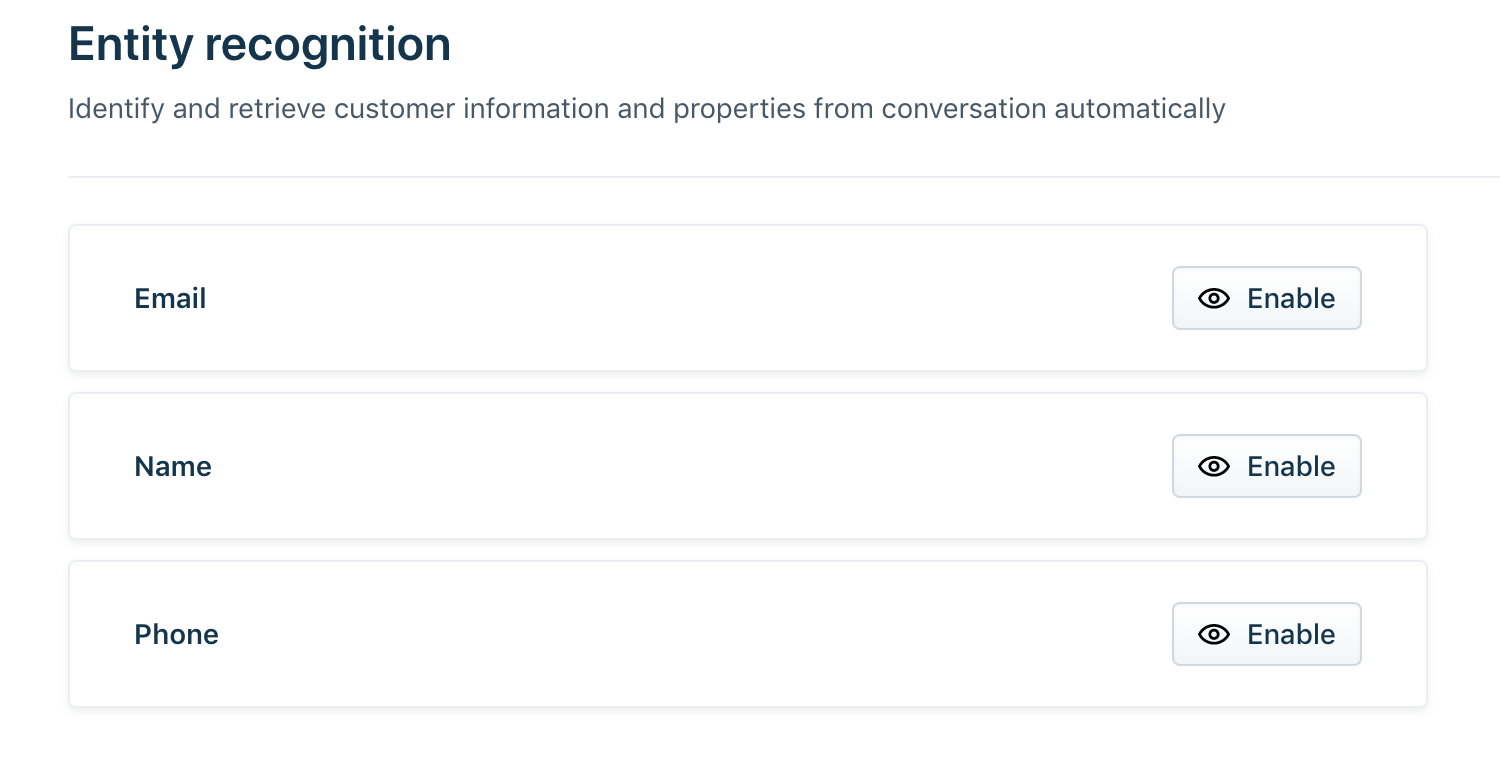
- Locate the supported input type (Email, Name, or Phone).
- Click Enable.
- Configure the entity recognition settings.
- Save your changes.
Entity recognition settings
When you enable named entity recognition (NER) for an input field, you can configure the following settings to control how the bot validates customer responses and handles invalid input.
- Maximum retries
Specify the maximum number of times the bot prompts a customer to enter a valid response. If the customer does not provide a valid email address, name, or phone number within the configured number of attempts, the bot performs the action defined in Action after retries. - Action after retries
Choose the action that the bot should perform after the customer reaches the maximum number of retry attempts without providing a valid response.: - Skip to next dialog: Continues to the next dialog in the current flow without collecting the requested information.
- Transfer to an agent: Transfers the interaction to a human agent for further assistance.
- Trigger a flow: Redirects the customer to another bot flow.
- Failure validation message
Customize the message displayed when the customer's response does not match the expected format. Use this message to help customers understand what information is required and encourage them to try again.
For example:
Sorry, I couldn't identify a valid email address from your response. Please try again.
The email address you entered doesn't appear to be valid. Please enter a valid email address.
Tip: Write validation messages in a clear, conversational tone and include guidance on the expected input format whenever possible. This helps customers correct their response more quickly.