
 Community
 Video Library
 Agent Training
 Freshservice
 Freshdesk
 Freshchat
 Freshcaller
 Freshsales
 Freshteam
 Freshworks Neo
 Freshsurvey
 Growth
This article provides information about configuring ticket settings for bots, including the inactivity timer and ticket history.
Prerequisites
Ensure that you have permission to manage bots in AI Agent Studio.
Manage ticket behavior
The Ticket settings page lets you configure the behavior of inactive tickets. You can configure an inactivity timer to automatically resolve inactive tickets, transfer them to an agent, or trigger another bot flow.
Note: If you are looking for information about viewing customer interactions and ticket logs, see View and analyze ticket logs in bots.
You can configure the following settings:
- Inactivity timer to define the action your bot performs when a customer is inactive for a specified duration.
- Ticket history to control whether customers can view previous closed tickets when they start a new interaction.
Configure the inactivity timer
Use the inactivity timer to specify how long the bot should wait before performing an action on an inactive ticket.
To configure the inactivity timer:
- Go to AI Agent Studio > Bots.
- Select the bot that you want to configure.
- Click the Settings tab and then click Ticket Settings.
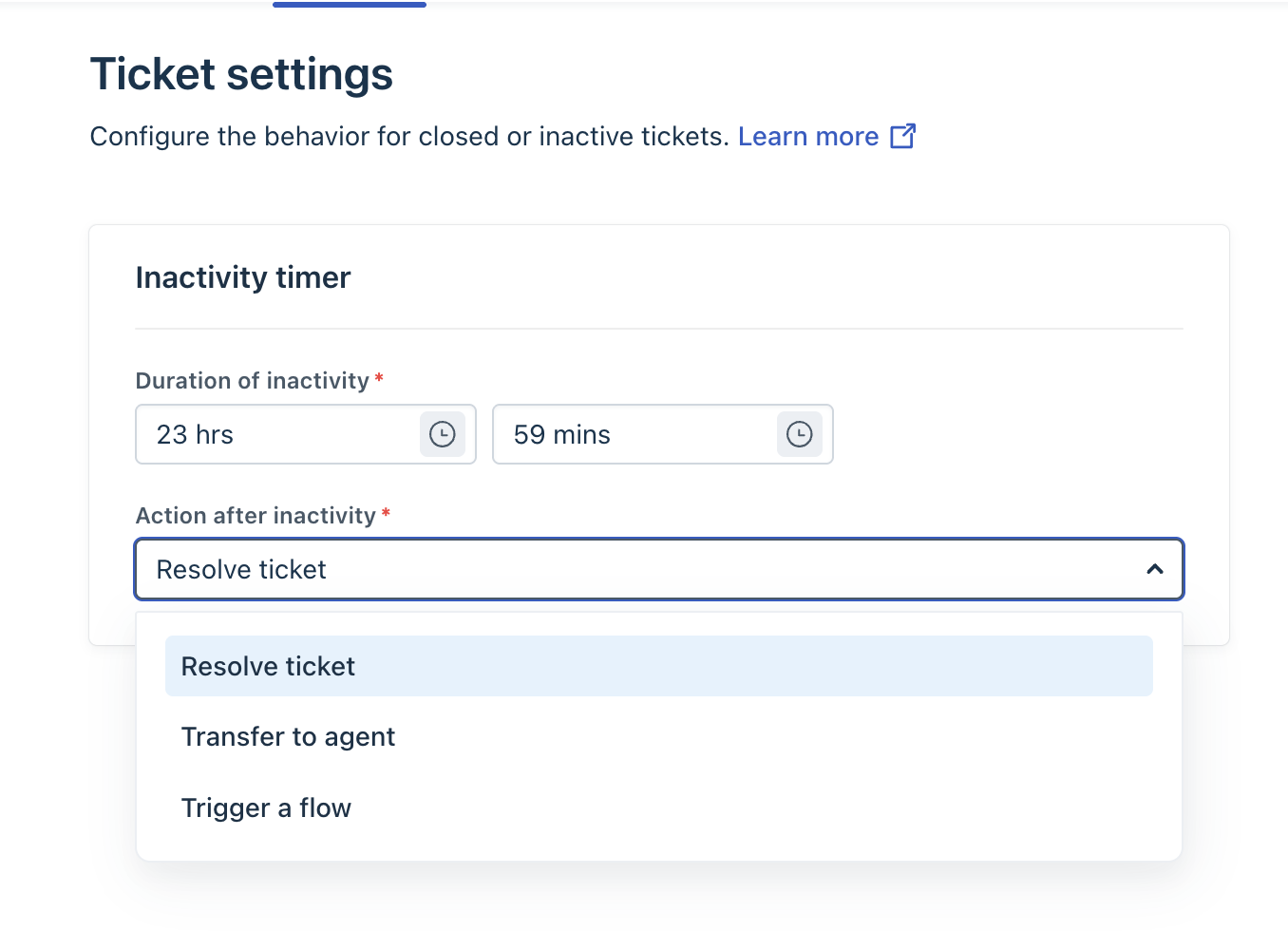
- Under Inactivity timer, specify the Duration of inactivity.
- Under Action after inactivity, select one of the following options:
- Resolve ticket: Marks the ticket as resolved. If the customer responds later, the ticket is reopened automatically.
- Transfer to agent: Transfers the ticket to the agent queue based on your ticket assignment configuration.
- Trigger a flow: Continues the interaction by starting another bot flow. Select the required flow from the list.
- Click Save.
After the configured inactivity period elapses, the bot automatically performs the selected action.
Note: The inactivity timer is enabled by default for all bots and is set to 24 hours.