 Community
 Video Library
 Agent Training
 Freshservice
 Freshdesk
 Freshchat
 Freshcaller
 Freshsales
 Freshteam
 Freshworks Neo
 Freshsurvey
 Growth
TABLE OF CONTENTS
This article provides information about the different types of actions and steps to configure them within the bot builder.
Prerequisites:
- Ensure you have access to create chatbots.
Understanding actions
An action is an event that the bot can trigger as part of a conversation flow. For each dialog you create, you can configure an action to run before or after the dialog. Actions let you perform specific tasks during a conversation, such as retrieving information from an external system, updating a property, transferring a conversation to an agent, or controlling the chat widget.
For example, you can trigger an API from a dialog to create a Freshdesk ticket and retrieve the ticket ID. You can then display the ticket ID to the customer during the conversation.
Types of actions
The bot builder provides the following types of actions:
- Dynamic actions: Use these actions to connect the bot to external systems, invoke JavaScript functions, store or update conversation or user properties.
- Agent handover: Use these actions to transfer a conversation from the bot to human support. You can send the conversation to the assignment queue or a specific group.
- Ticket actions: Use these actions to resolve the ticket.
- Widget actions: Use these actions to control the behavior of the chat widget, such as opening, hiding, minimizing, or delaying widget actions..
Dynamic actions
Use dynamic actions when the bot needs to perform an operation or retrieve information while handling a conversation. These actions can connect your bot to external APIs, run custom JavaScript, store information as properties, or hand the conversation to the Answers module.
Action | Description | Example |
| Set property | Adds or updates a property for the user or ticket. You can use the property later in the bot flow or pass it to another application. Learn more. | Store the customer's issue type as a property and use it later when creating or updating a ticket. |
Trigger API | Fetches, updates, or sends data through an API. You can use it to connect the bot with third-party applications or internal systems. Learn more. | Fetch payment status from an internal billing system and display it to the customer. |
Trigger JS Function | Invokes a JavaScript function to trigger an external action from the bot flow. | Trigger a call action when a customer chooses to contact support. Learn more. |
| Trigger custom functions | Runs a custom function from the bot flow to perform a specific operation based on your requirements. | Use a custom function to perform an operation that requires additional processing or logic outside the standard bot actions. |
Detect natural language | Detects and interprets natural-language input from the customer to help determine the appropriate action or path in the bot flow. Learn more. | Identify the customer intent from a free-form message and continue with the relevant bot flow. |
Agent handover
Use agent handover actions when a conversation needs to move from the bot to human support. You can either make the conversation available for assignment or route it to a specific group.
Action | Description |
Make available for assignment | Transfers the conversation to the agent assignment queue, where it is picked up by the next available agent or handled according to the assignment rules. |
Assign to group | Transfers the conversation to a specific group. The conversation is then picked up by the next available agent or assigned according to your assignment rules. |
Ticket actions
Use ticket actions to resolve the ticket associated with the conversation. For example, automatically resolve the ticket after the bot provides the required information and completes the conversation.
Widget actions
Use widget actions to control how the chat widget behaves on the customer's page. These actions can redirect the customer, control the widget's state, display messages, introduce a response delay, or send a message to the bot.
Action | Description |
Open URL | Redirects the customer to a specified URL. You can configure the time frame for the redirection. |
Add a delay in response | Delays the bot's next response. The maximum delay is three seconds. |
Hide widget | Hides the widget on the page. You can specify when it is hidden. |
Minimize widget | Minimizes an open widget and displays the bot icon. You can specify when it is minimized. |
Configure actions
For each dialog in your bot flow, you can configure an action to run before or after the dialog.
- Select the dialog where you want to configure an action.
- Choose whether the action should run before or after the dialog.
- Select the action you want to trigger and configure it as required.
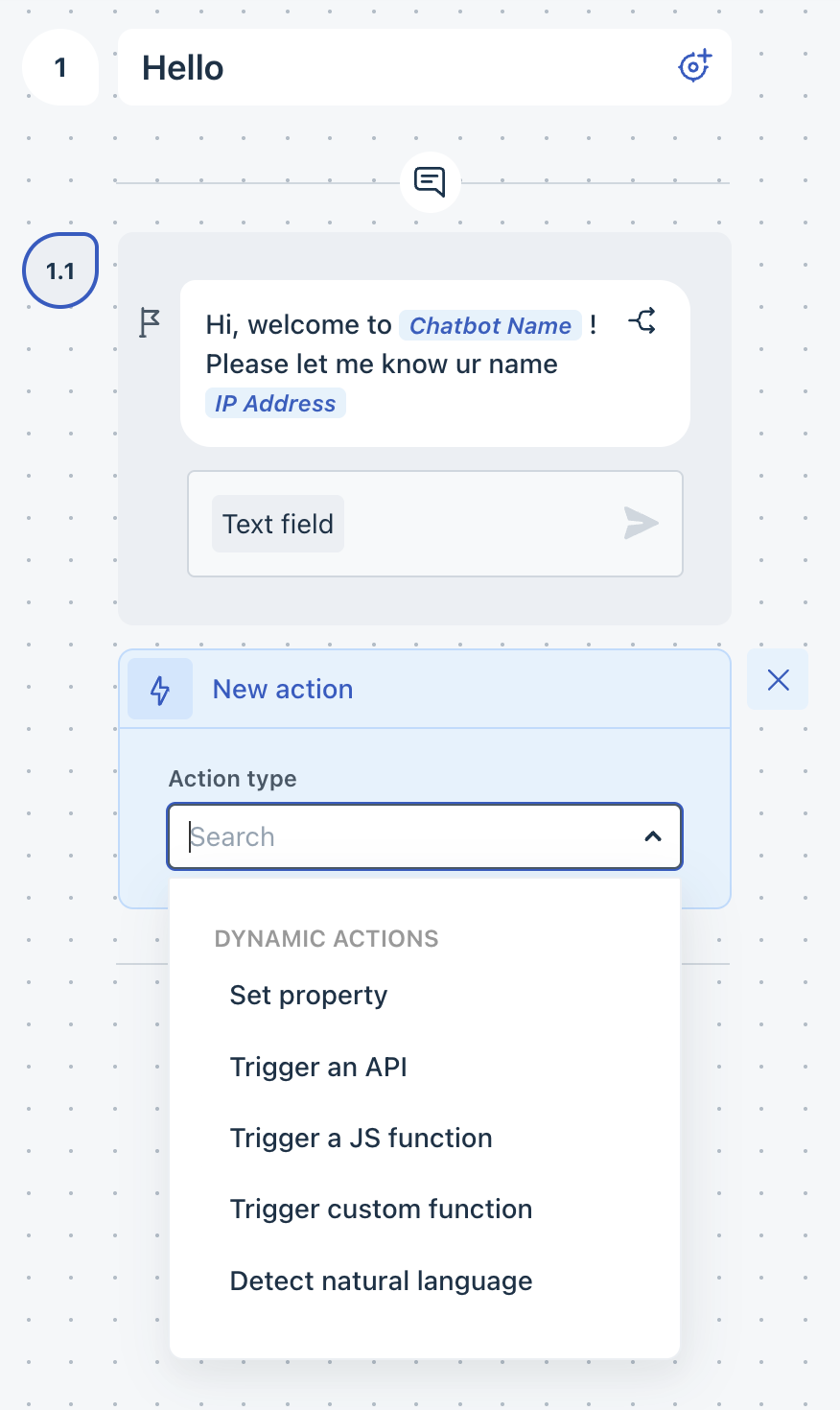
- Save the dialog configuration.
Validate actions in your bot flows
Action validation helps you ensure that the bot moves customers through a valid conversation path. By validating actions in your bot flows, you can keep customer input focused and revert any dead-end flows.
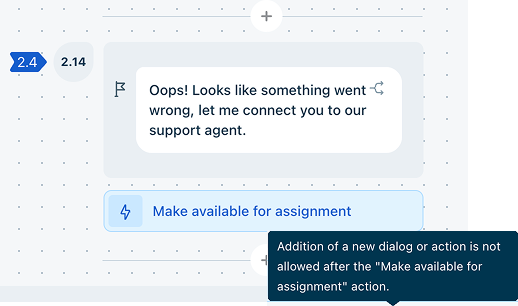
Actions placed at the end of a bot flow are called terminal actions. It provides a clear next step for the conversation. For example, transferring the conversation for further processing or making it available to an agent. Adding a terminal action to every flow helps prevent dead-end conversations and ensures that customers can continue to the appropriate destination.
Note: You cannot add terminal actions in dialogs that have conditions enabled.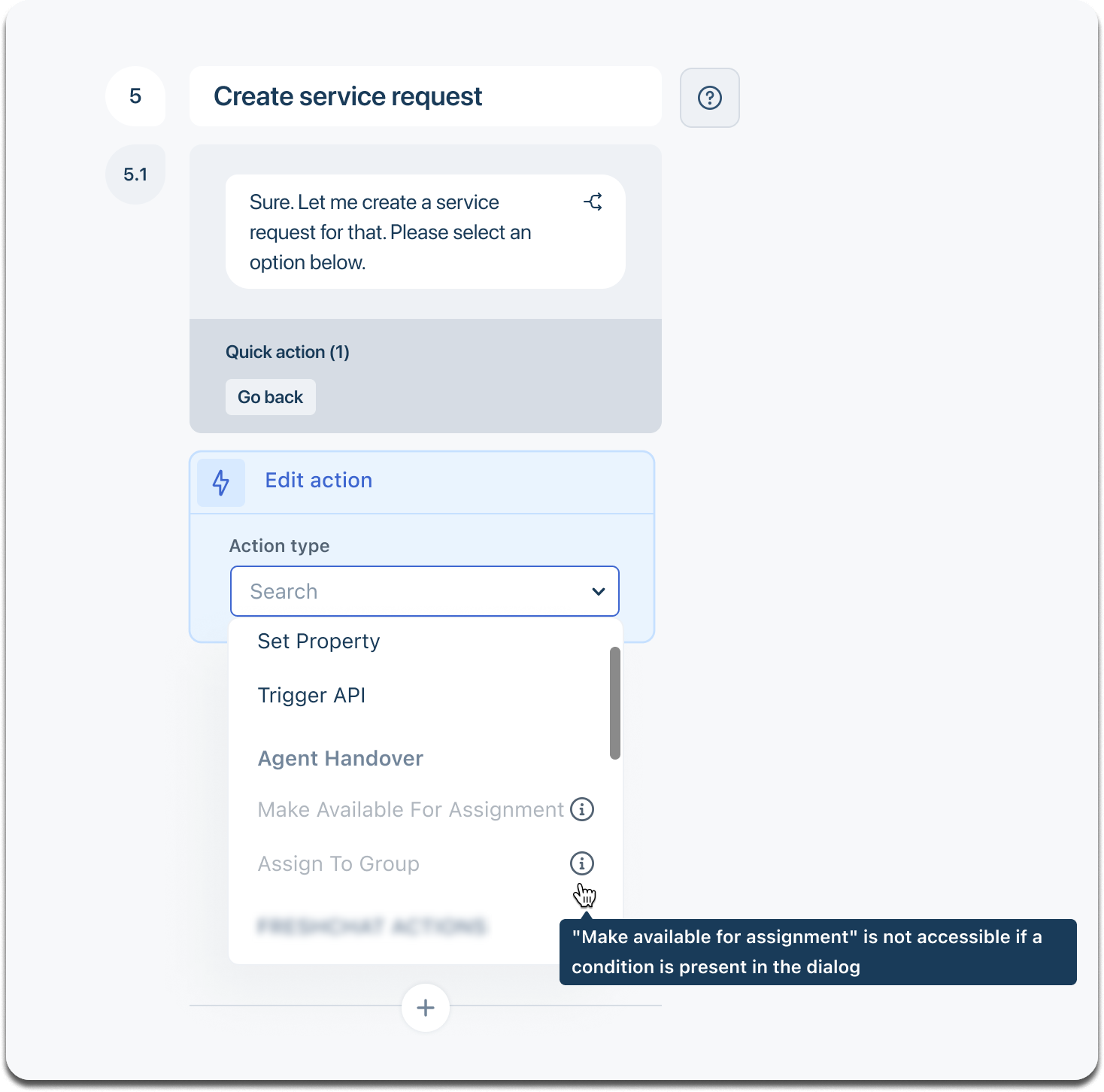
Add a terminal action
To add a terminal action to your bot flow:
- Open the bot and go to the flow you want to configure.
- Add one of the following actions at the end of the flow as a terminal action.
- Transfer to Natural Language: Transfers the conversation to Natural Language for further processing. Subsequently, provide the required customer input that helps the selected module determine how to handle the conversation.
- Make available for assignment: Makes the conversation available for assignment to an agent.
- Assign to group: Assigns the conversation to a specific group.
- Configure the required details for the selected action.
- Save the flow.
- Once you add a terminal action at the end of the flow, you cannot add any further actions to that dialog.