
 Community
 Video Library
 Agent Training
 Freshservice
 Freshdesk
 Freshchat
 Freshcaller
 Freshsales
 Freshteam
 Freshworks Neo
 Freshsurvey
 Growth
This article explains the natural language settings available for chatbots in Freshdesk Omni and how to configure language detection, FAQ learning, feedback, and fallback behavior.
TABLE OF CONTENTS
- Prerequisites
- Understand natural language settings
- Access natural language settings
- Enable natural language detection
- Enable FAQ learning
- Configure automatic agent handoff
- Enable small talk
- Configure customer feedback
- Configure fallback behavior
- Configure additional languages
- Unlock new AI-powered possibilities
Prerequisites
Before you configure natural language settings, ensure that you meet the following requirements:
- Have admin access to configure chatbot settings in AI Agent Studio.
- Have created at least one chatbot under AI Agent Studio > Chatbots.
- Have published FAQs in the relevant portal before enabling Learn from your FAQs.
Understand natural language settings
Natural language settings control how a chatbot interprets customer messages and responds to them. When natural language detection is enabled, the chatbot identifies customer intent based on how the customer phrases a question instead of requiring them to select from predefined options.
The Natural Language tab includes three pages:
- Natural language settings — Configure natural language detection, knowledge sources, agent handoff, and small talk.
- Feedback — Collect feedback after the chatbot responds and optionally route customers to a flow based on their feedback.
- Fallback — Define how the chatbot responds when it cannot find an answer.
These settings are configured separately for each chatbot and do not apply at the account level.
Configure knowledge sources and detection
Small talk is a knowledge source alongside flows and FAQs for answering customer questions. When natural language detection is enabled, the chatbot can identify intents from customer messages and use the relevant flow or FAQ to respond. You can choose whether the chatbot starts with Flows or Natural language when a customer initiates a conversation.
Manage feedback and fallback
Feedback and fallback handle different outcomes after the chatbot receives a customer query:
- Feedback collects the customer's response to the chatbot's answer and can route the customer to a flow based on their feedback.
- Fallback handles queries for which the chatbot cannot find a matching answer in FAQs, Q&As, or flows associated with the detected intent.
Access natural language settings
To open the natural language settings for a chatbot:
- Go to AI Agent Studio > Chatbots.
- Select the required chatbot.
- Go to the Natural Language tab.
- Select Configure.
- Select Natural language settings, Feedback, or Fallback from the left pane.
Enable natural language detection
Enable natural language detection when you want the chatbot to understand free-form customer questions instead of guiding customers through a predefined flow.
- Go to Natural language settings.
- Turn on Enable natural language detection.
- Under When customers reach out, start responding with, select the required option.
- Select Save.
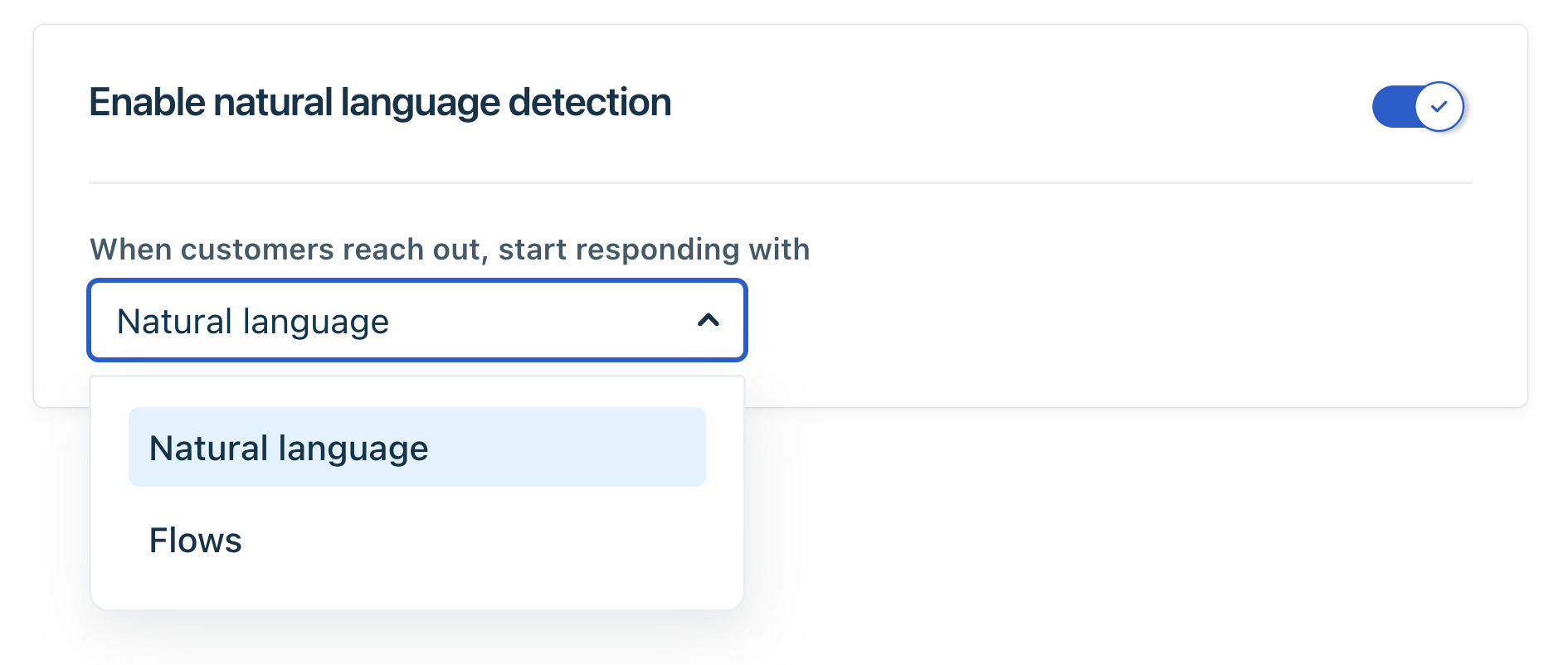
When natural language detection is enabled, the chatbot identifies the customer's intent based on how they phrase their query.
The following options control how the chatbot initially responds:
- Flows — Select this option when the chatbot is configured to handle customer requests through structured, interactive steps.
- Natural language — Select this option when the chatbot is configured to understand customer queries and respond using natural language, FAQs, and intents.
Enable FAQ learning
Enable Learn from your FAQs when your existing help content already answers common customer questions and you want the chatbot to use that content instead of recreating the answers as flows.
- Go to Natural language settings.
- Turn on Learn from your FAQs.
- Select the required Portal.
- Select one or more folders under Category.
- Select Save.
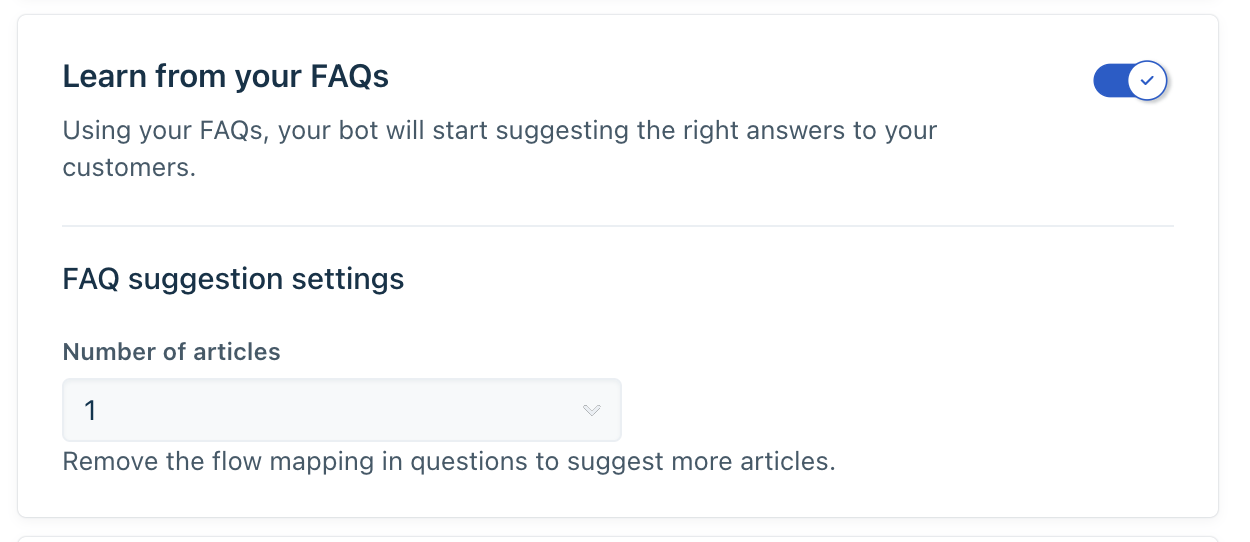
Note: Only articles in folders whose visibility is set to All users are used by the chatbot.
Before the chatbot can answer questions using FAQs, publish the required FAQ content and configure intent detection for your flows. For more information, see triggering intent detection for your chatbot flows.
You can also use these FAQs for customer self-service through Freshdesk Omni widgets.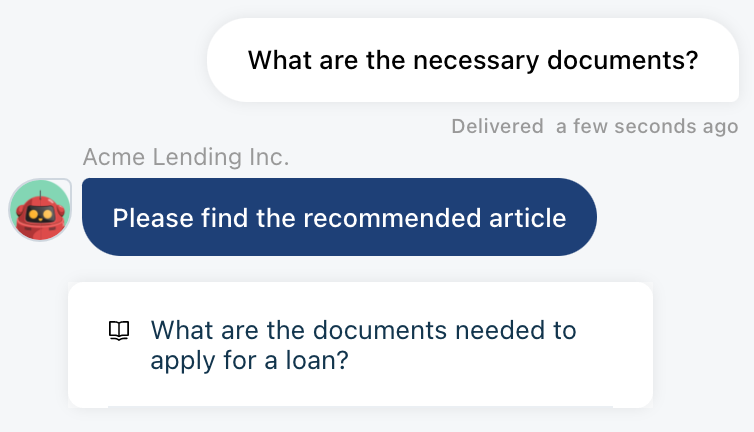
Configure FAQ suggestions
Use the following settings to control how FAQ answers are presented:
- Number of articles — Select the number of articles to suggest for a customer query.
- Show exact responses while suggesting articles — Display the matching response along with the suggested articles.
Narrow FAQ results with Filtered Search
Filtered Search uses user properties, ticket properties, and chatbot variables to narrow the FAQs considered for a customer query.
Turn on Filtered Search to personalize the FAQs returned by the chatbot. For more information, see the learning sources.
Configure automatic agent handoff
Automate agent handoff lets the chatbot hand over a conversation when a customer requests an agent. This helps customers reach a live agent without having to navigate through the chatbot.
- Go to Natural language settings.
- Turn on Automate agent handoff.
- Under Choose action after user requests for agent handoff, select the required action - Make available for assignment, Assign to Group, Trigger a flow.
- Select Manage utterances to review or edit the phrases that trigger an agent handoff.
- Select Save.
Enable small talk
Small talk allows the chatbot to respond to casual customer messages, such as greetings and other conversational queries, instead of limiting interactions to task-based questions.
- Go to Natural language settings.
- Turn on Small talk.
- Select Save.

Intent categories:
The chatbot sorts customer utterances into intent categories and performs a specific action for each category.
Languages supported for small talk
The chatbot can make small talk in the languages supported in Freshdesk.
Configure customer feedback
Feedback helps you understand whether the chatbot's answers are useful to customers. You can also use customer feedback to route customers to a recovery flow when an answer does not resolve their query.
- Go to Natural Language > Configure > Feedback.
- Turn on Enable Feedback.
- Enter the Feedback message. This field is mandatory.
- Under Yes and No, optionally select a flow under Map a flow to guide customers based on their response.
- Optionally select Enable "Ask another query" to allow customers to ask another question.
- Select an option under Action - Detect natural language, Map a flow. This field is mandatory.
- Select Save.
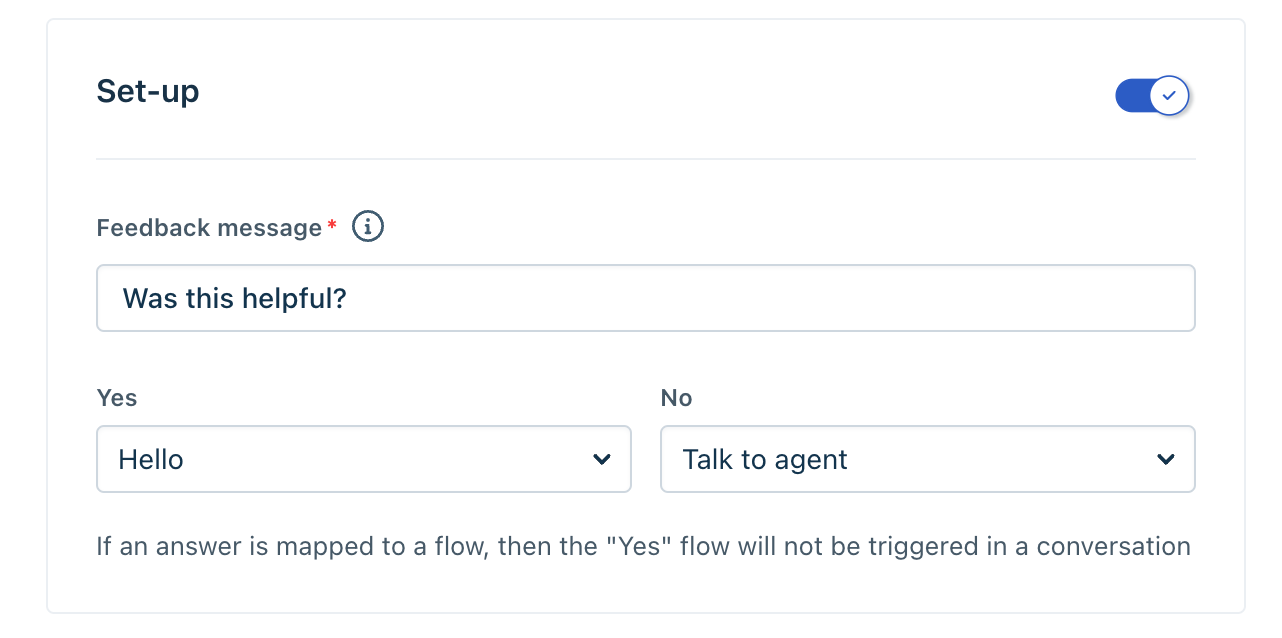
Note: If an answer is mapped to a flow, feedback is not triggered in a ticket.
When no flows are mapped to Yes or No, a thank-you message is displayed.
Configure fallback behavior
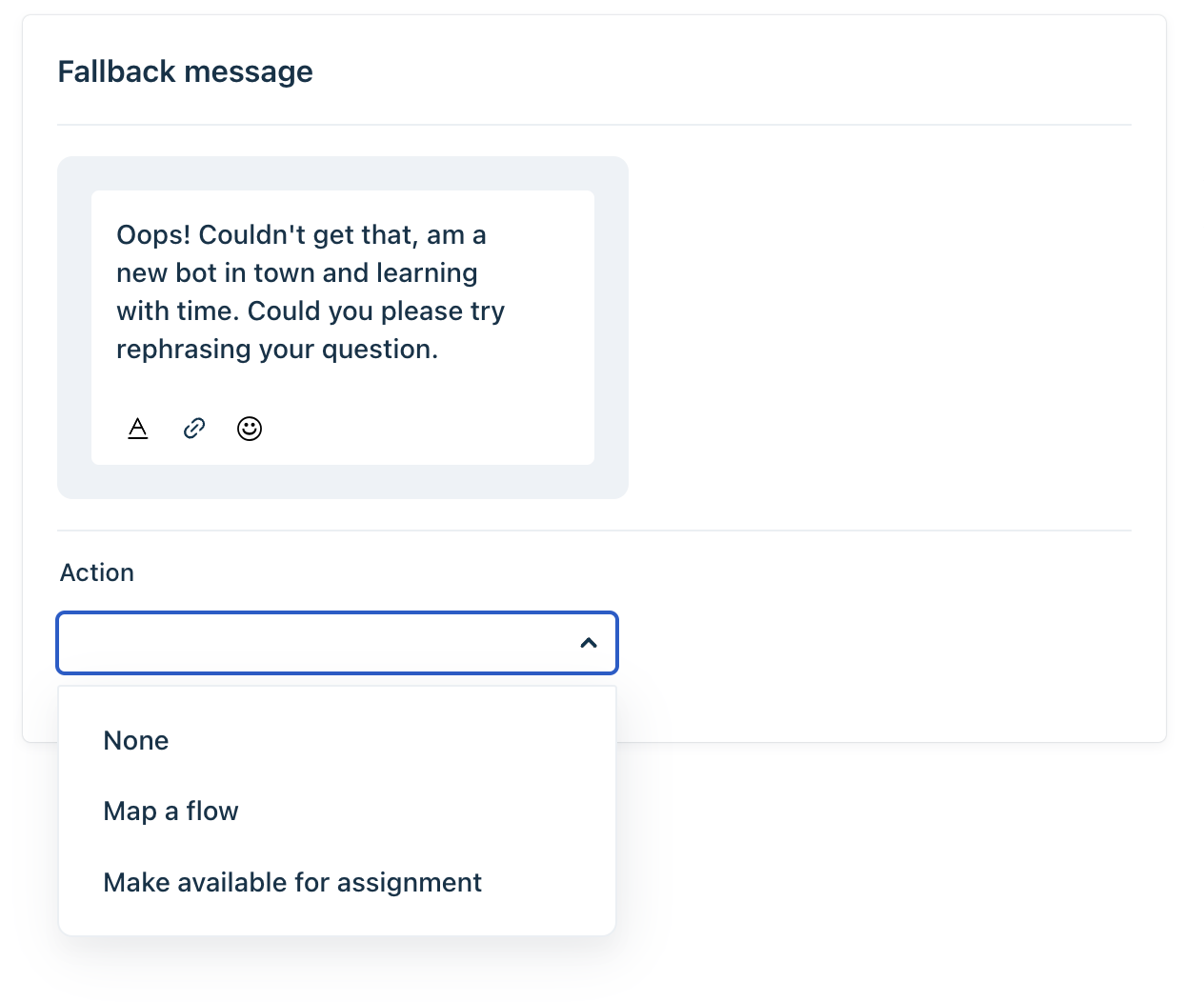
Fallback defines how the chatbot responds when it cannot answer a customer's question. This occurs when the chatbot cannot find a matching FAQ, Q&A, or flow associated with the detected intent.
- Go to Natural Language > Configure > Fallback.
- Enter the Fallback message in the editor. Use the available formatting, link, and emoji controls as required.
- Under Action, select the required option to connect the fallback response to a flow or make the conversation available for agents to pick up.
- Select Save.
Configure additional languages
The Feedback and Fallback pages include a Languages section that lets you provide feedback and fallback messages in multiple languages.
- Go to Natural Language > Configure, and select Feedback or Fallback.
- In the Languages section, search for a language under Add languages and select it.
- Select a language from the list and enter the translated message.
- To update multiple translations at once, select Bulk update translations.
- Select Save.
The language marked Primary is used as the chatbot's default language.
Unlock new AI-powered possibilities
We encourage you to explore the latest version of Freddy AI Agents to unlock new AI-powered capabilities. While natural language settings remain available for your chatbots, we recommend looking into Freddy AI Agents to see how they can further enhance your customer support experience.