 Community
 Video Library
 Agent Training
 Freshservice
 Freshdesk
 Freshchat
 Freshcaller
 Freshsales
 Freshteam
 Freshworks Neo
 Freshsurvey
 Growth
 Free
FreeTABLE OF CONTENTS
- Prerequisites
- Conversational flexibility through Natural Language Workflows
- Natural Language Workflow process
- Common capabilities
- Set up a Natural Language Workflow
- Best practices for writing workflows
- Example workflows
Natural Language Workflows provide a simpler way to build workflows in AI Agent Studio. Instead of constructing workflows block by block, administrators can describe business processes using natural language while continuing to use structured workflow capabilities such as triggers, API actions, collected inputs, property references, group assignments, and agent handoffs. By combining document-style authoring with AI reasoning, Natural Language Workflows make it easier to transform existing SOPs and support processes into maintainable AI workflows without sacrificing the governance, testing, and lifecycle capabilities available in AI Agent Studio.
They're built on the same workflow platform as Workflow Builder workflows and share the same lifecycle — drafts, preview, activation, and the workflow library — just with a different authoring experience suited to conversational reasoning and flexible customer interactions.
Note: Natural Language Workflows are currently available as part of an Early Access Program (EAP). Contact your Customer Success Manager to request access.
Prerequisites
Before creating a Natural Language Workflow, ensure that:
- You have access to AI Agent Studio.
- You have permission to create or edit workflows.
- Any API actions, ticket properties, contact properties, or integrations that the workflow depends on have already been configured.
- You understand the business process that you want to automate. Existing SOPs, playbooks, or support guides can often serve as a starting point for your workflow.
Conversational flexibility through Natural Language Workflows
Workflow Builder gives full control over the execution path because every step is explicitly configured, which works well for deterministic processes, but conversational support is rarely linear, and handling incomplete answers, changed minds, and follow-up questions visually means building extra validation paths, branches, and recovery flows for every exception.
The AI Agent interprets and incorporates such instructions during customer conversations, allowing administrators to focus on defining the business process rather than implementing every conversational branch.
Natural Language Workflow process
Every natural language workflow consists of two parts:
- A trigger, which defines when the workflow should begin.
- A set of instructions that describes how the AI Agent should handle the conversation after the workflow is triggered.
The trigger determines the starting point of the workflow. Like visual workflows, Natural Language Workflows can start when a customer message matches a particular intent or when a configured system event occurs.
Once triggered, the AI Agent doesn't just follow the next configured branch; it continuously reasons about the customer's request, what's already been collected, ticket and contact properties, API responses, and the current stage of the conversation.
This is suitable for conversational processes such as account verification, refunds, order tracking, returns, subscriptions, eligibility checks, troubleshooting, etc. The Workflow Builder is better suited for deterministic, strictly sequenced, or compliance-driven processes.
Common capabilities
Natural Language Workflows are built on the same workflow platform as visual workflows. This enables administrators to choose the most suitable authoring experience without changing how workflows are tested, managed, or published. The following capabilities are available regardless of how the workflow is created.
Capability | Description |
Triggers | Start workflows based on customer messages or configured system events. |
Workflow library | Store and organize workflows in a shared library for reuse and management. Workflows can be created directly from the library or associated with an AI Agent later. |
Drafts | Save unfinished workflows without making them available to customers. |
Preview | Test workflows in an isolated environment before publishing them. |
Activate | Publish workflows to make them available for customer conversations. |
Version updates | Modify an existing workflow, test the changes, and activate the updated version when it's ready. |
Set up a Natural Language Workflow
You can create a Natural Language Workflow from the shared Workflow Library and attach the result to an AI Agent afterward, or from within a specific AI Agent's workflow list.
To create a Natural Language Workflow:
- Open AI Agent Studio.
- Select an AI Agent > Build > Workflows, or open the Workflow Library directly.
- Click Add workflow.
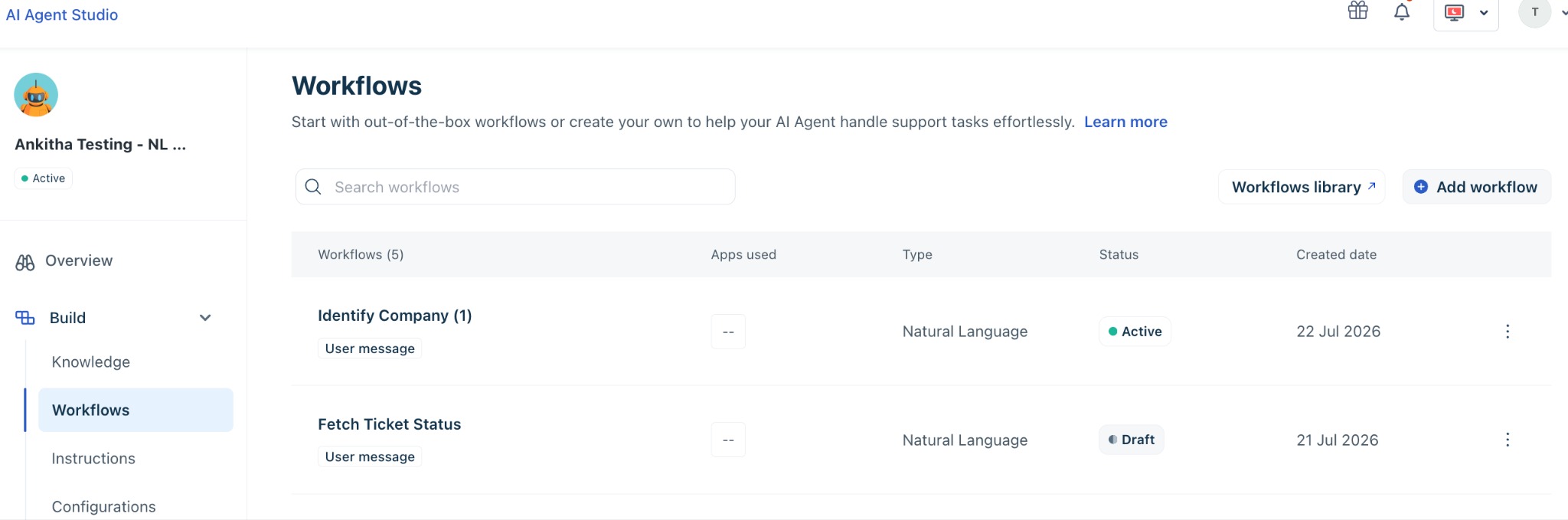
- Select Write it.
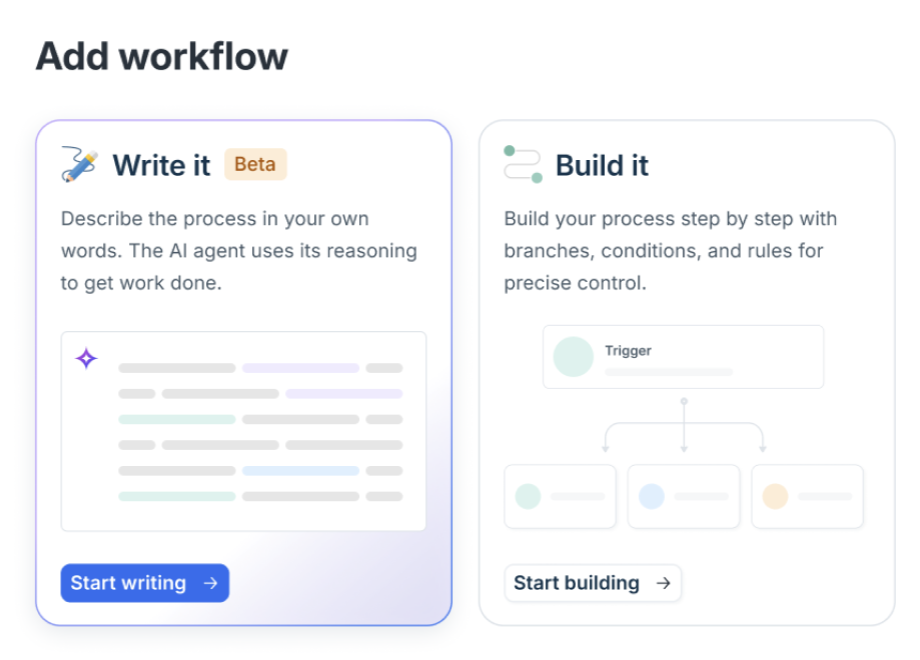
- Enter a name for the workflow.
- Configure the workflow trigger.
- Write the workflow instructions.
- Add data references, API actions, or other workflow controls where required.
- Preview the workflow and test different conversation scenarios.
- Save the workflow as a draft or activate it when you're ready. If you started from the library rather than from within an agent, associate it with the relevant AI Agent before or after activating it.
Configure the workflow trigger
Once you select Write it, the editor opens with two primary sections:
- Trigger
- Workflow editor
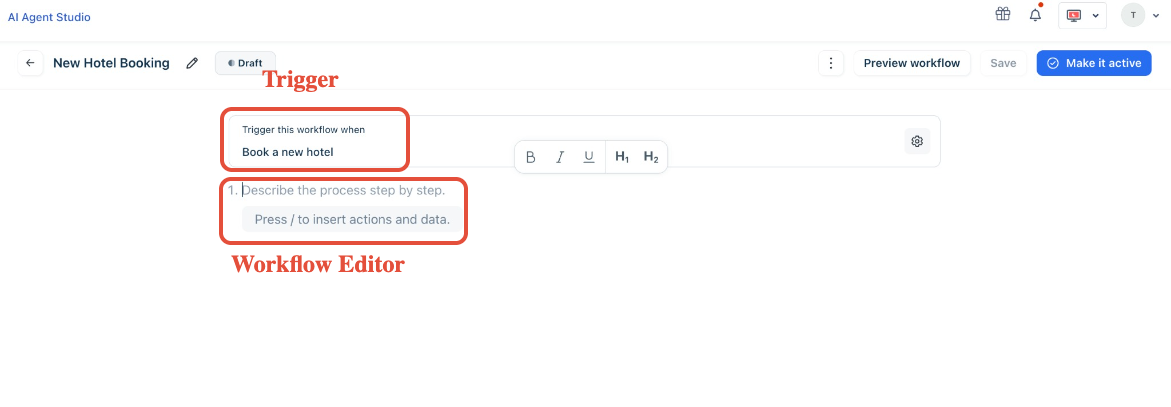
Natural Language Workflows support the same trigger types as Workflow Builder workflows.
When a user sends a message
Use this trigger when the workflow should begin after a customer expresses a particular intent. Instead of defining keywords, describe the customer's goal naturally, for example:
- Track order status
- Return a product
- Subscription queries
- Update billing information
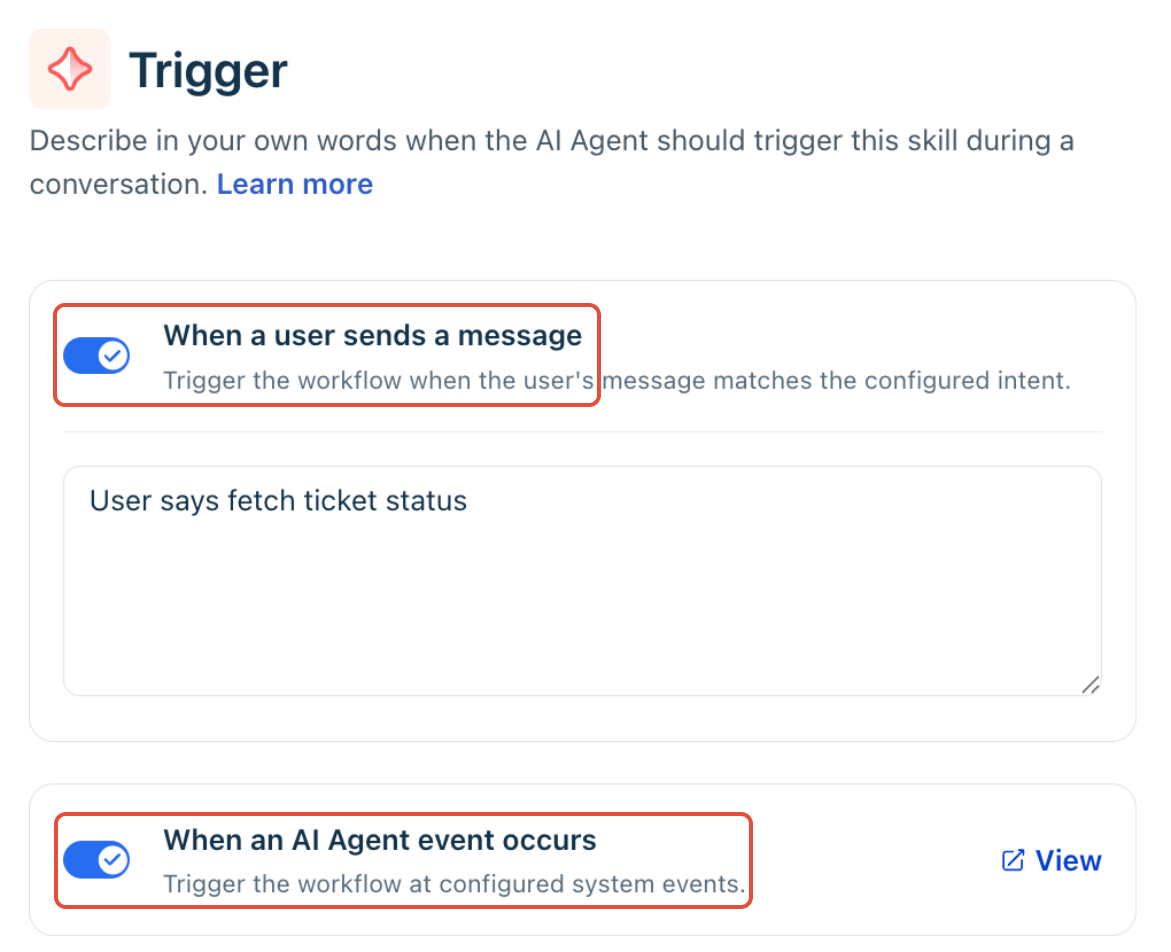
The AI Agent interprets the customer's intent rather than matching an exact phrase. For example, a trigger written as "Track order status" can match requests such as:
- Where's my package?
- Has my order shipped?
- Can I track my delivery?
- I haven't received my order yet.
This allows a single trigger to handle many different customer phrasings.
When an AI Agent event occurs
Use this trigger when the workflow should start automatically after a predefined system event.
For example, you can trigger a workflow when:
- A new conversation starts (Conversation initiation)
- The AI Agent cannot answer a customer's query (Fallback)
- A customer provides feedback on an AI response (Positive or Negative feedback)
- A customer requests to speak with a human agent (Talk to agent)
- A conversation is received outside configured business hours (Out of Office)
The workflow then continues according to the instructions you've written.
Write the workflow
Once you've set up the trigger, outline the business process in the editor. Imagine how an experienced agent would carry out the task, emphasizing the desired business outcome rather than the technical steps.
For example, instead of writing "Validate ticket ID. If present, fetch status. If missing, collect email, list tickets, collect ID, and fetch status."
Consider providing the instructions organized into logical steps as follows,
- If the user has the ticket ID already for which they are looking to get the status
- Ask the user for the ticket ID Collect · Custom.ticket_ID. If they have given it already, then confirm the same and assume it as ticket ID.
- Fetch the ticket status using API · Fetch Ticket Status
- If the user says they do not know their ticket ID,
- Ask the user for their email address first Collect · Contact.Email ID
- Then fetch all the tickets associated with this user through API · Fetch Tickets
- Show the list of ticket IDs Refer · Output.[].id. If there are multiple, present them one after another.
- Collect the ticket ID of interest Collect · Custom.no_ticket_id
- Fetch the ticket status using API · Fetch Ticket Status
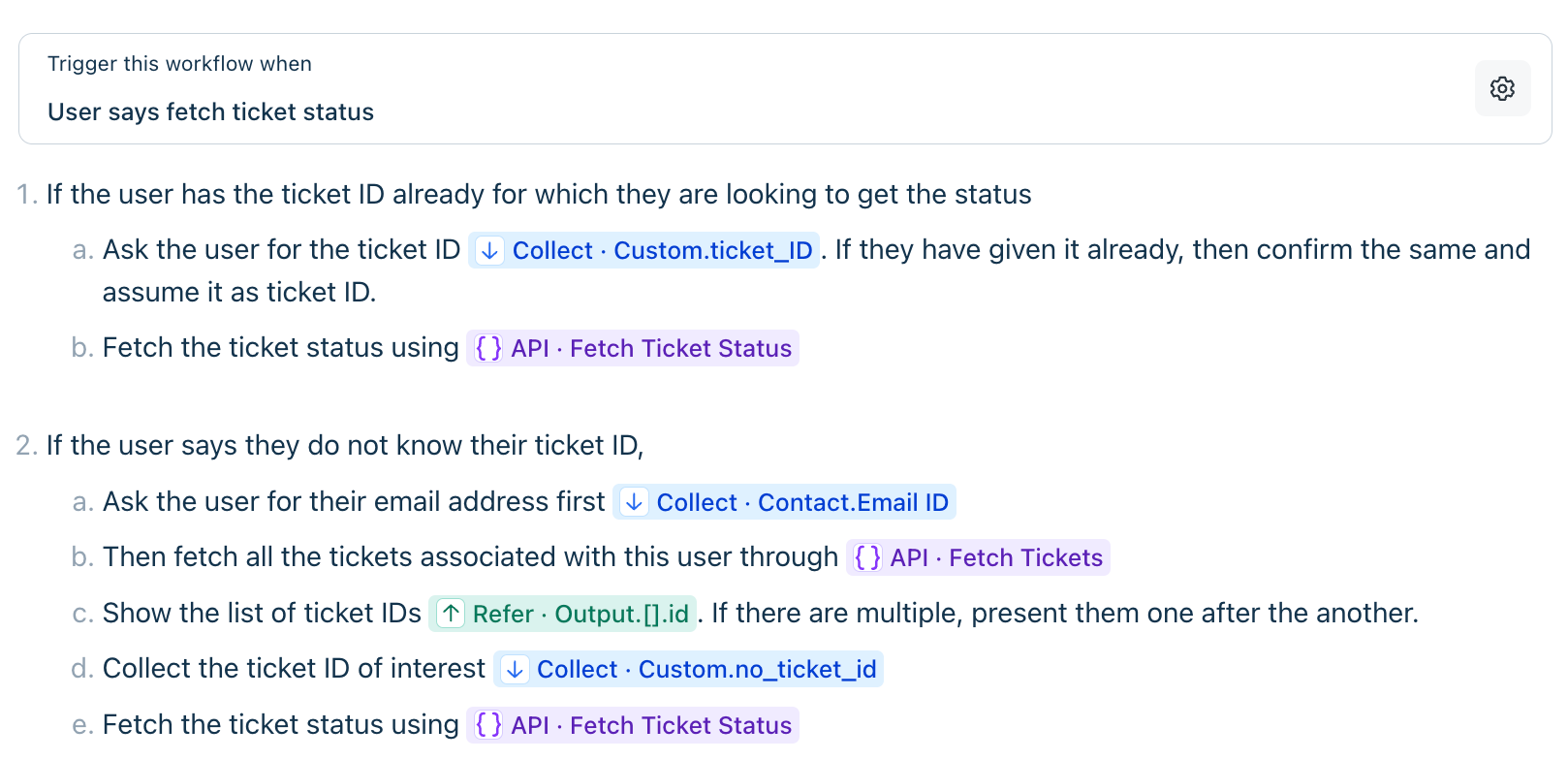
Breaking the workflow into such logical steps also makes it easier to review, update, and troubleshoot individual sections.
Use inline data and actions
Natural Language Workflow combines free-form instructions with structured workflow components. When a workflow requires a predefined action, type / to insert the appropriate structured control, such as:
- Collect information
- Retrieve data
- Update data
- Create or update records
- Transfer the conversation to another agent or team
- Trigger predefined business actions
This approach enables the workflow to maintain a natural, conversational flow while executing structured business actions. The following controls are available.
Control | Purpose |
|---|---|
Collect input | Collect information from the customer, such as an order ID, email address, booking reference, or account number. |
Refer Value | Reuse ticket, contact, or conversation properties that are already available without asking the customer again. |
API action | Retrieve or update information from connected business systems. |
Agent handoff | Transfer the conversation to a human agent when manual assistance is required. |
Collect input
Use Collect input to capture information during a conversation and reuse it later in the workflow. The collected values are stored as variables and can be referenced in subsequent instructions, eliminating the need to ask the user for the same information again. For example, you can use Collect input to capture details such as:
- Ticket ID
- Order ID
- Email address
- Subscription ID
- Booking reference
- Product serial number
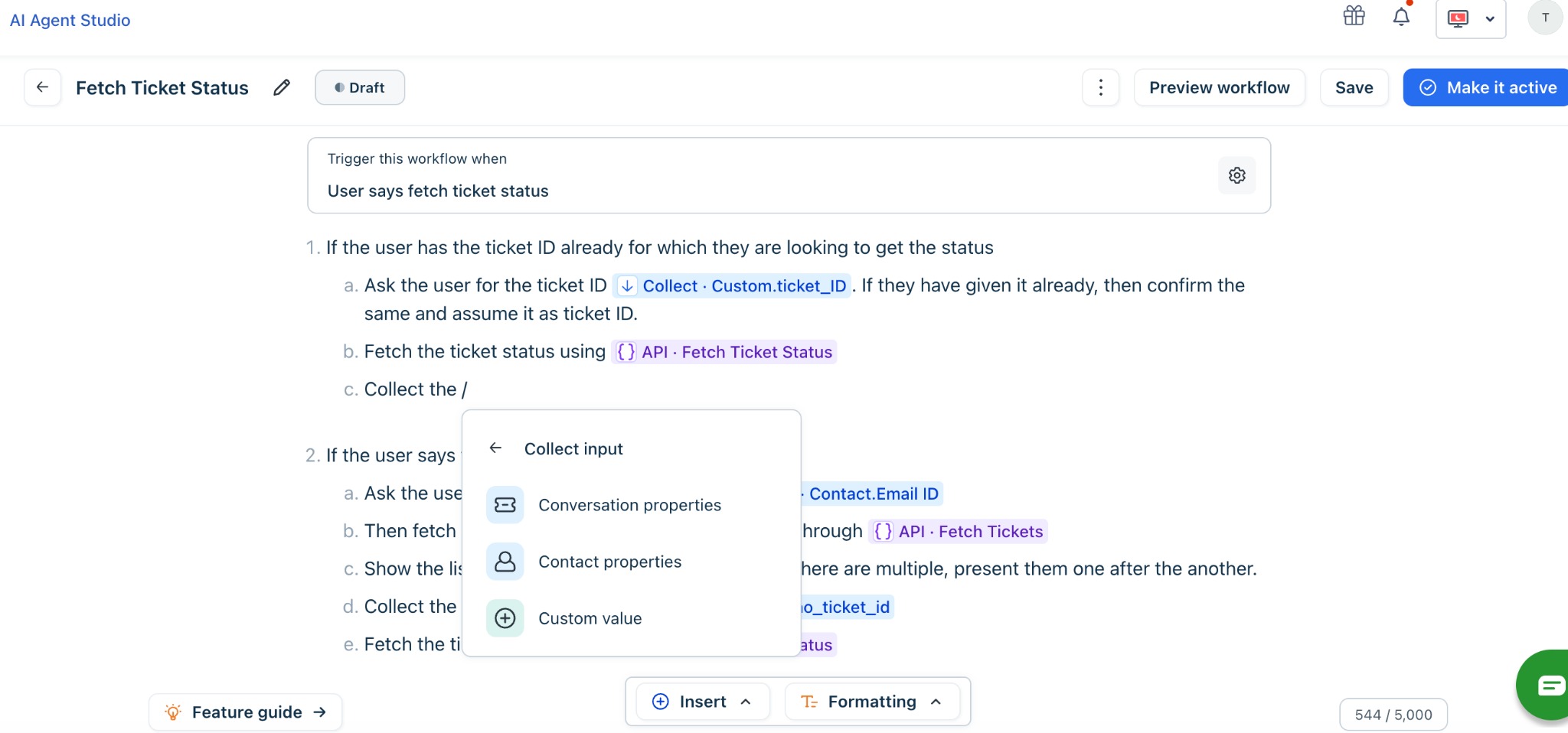
Note: If the information is only needed for the current step and won't be referenced later, simply instruct the AI Agent to ask for and validate it. Use Collect input only when the value needs to be retained for subsequent steps in the workflow.
Refer existing value
Use Refer Value when the required information is already available in the ticket or contact record. Instead of asking the customer for the same information again, reference the appropriate property in the workflow. You can reference properties such as:
- Customer name
- Membership tier
- Contact email
- Account type
- Ticket priority
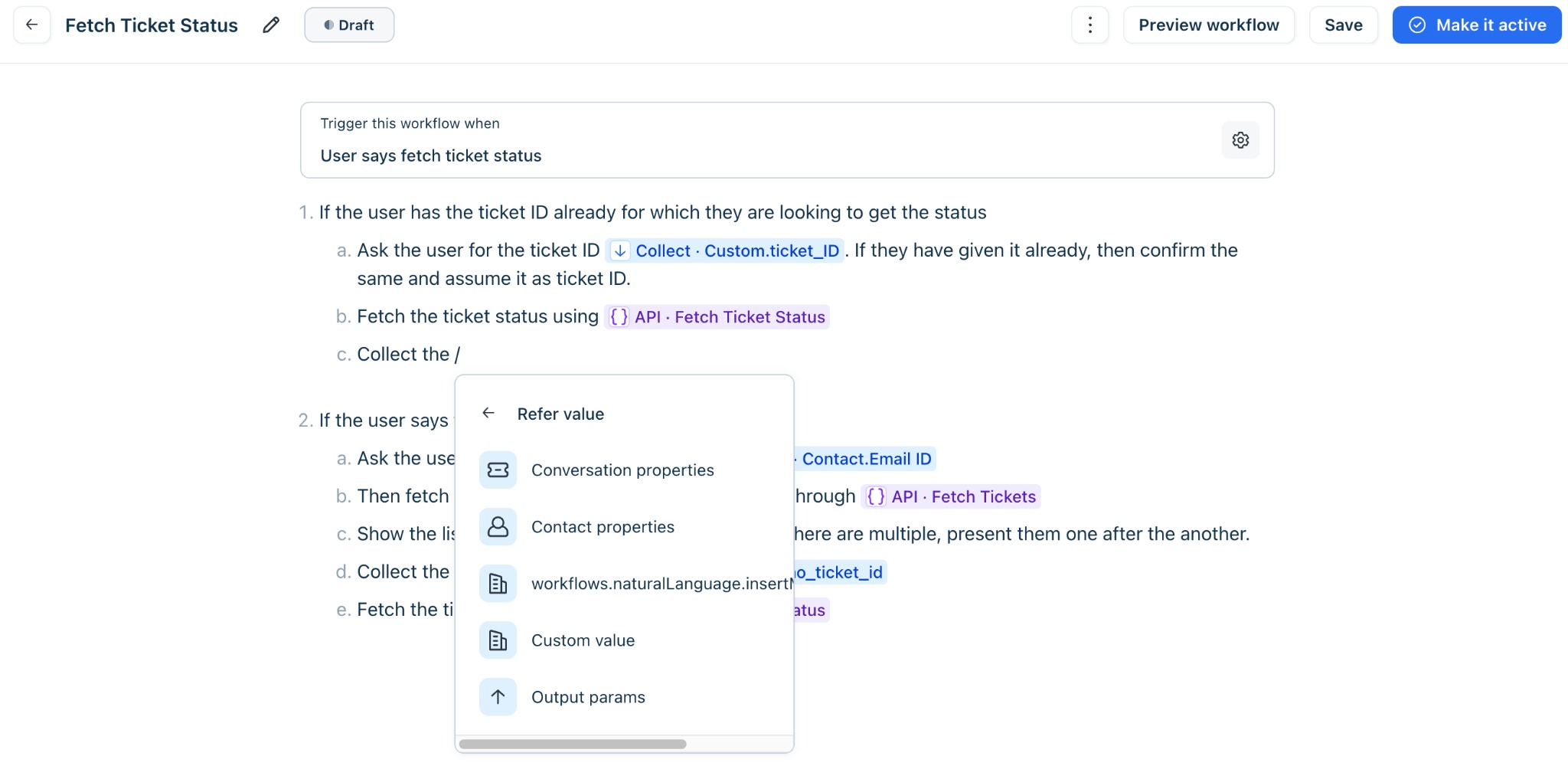
Referencing existing properties keeps conversations concise, reduces repetitive questions, and improves the customer experience.
API actions
API actions allow the AI Agent to interact with external systems during workflow execution. Rather than describing how the integration works, simply insert the appropriate API action into the workflow and map the required inputs. For example, the AI Agent can:
- retrieve order details
- verify account information
- create return requests
- update customer records
- check subscription status
- validate eligibility
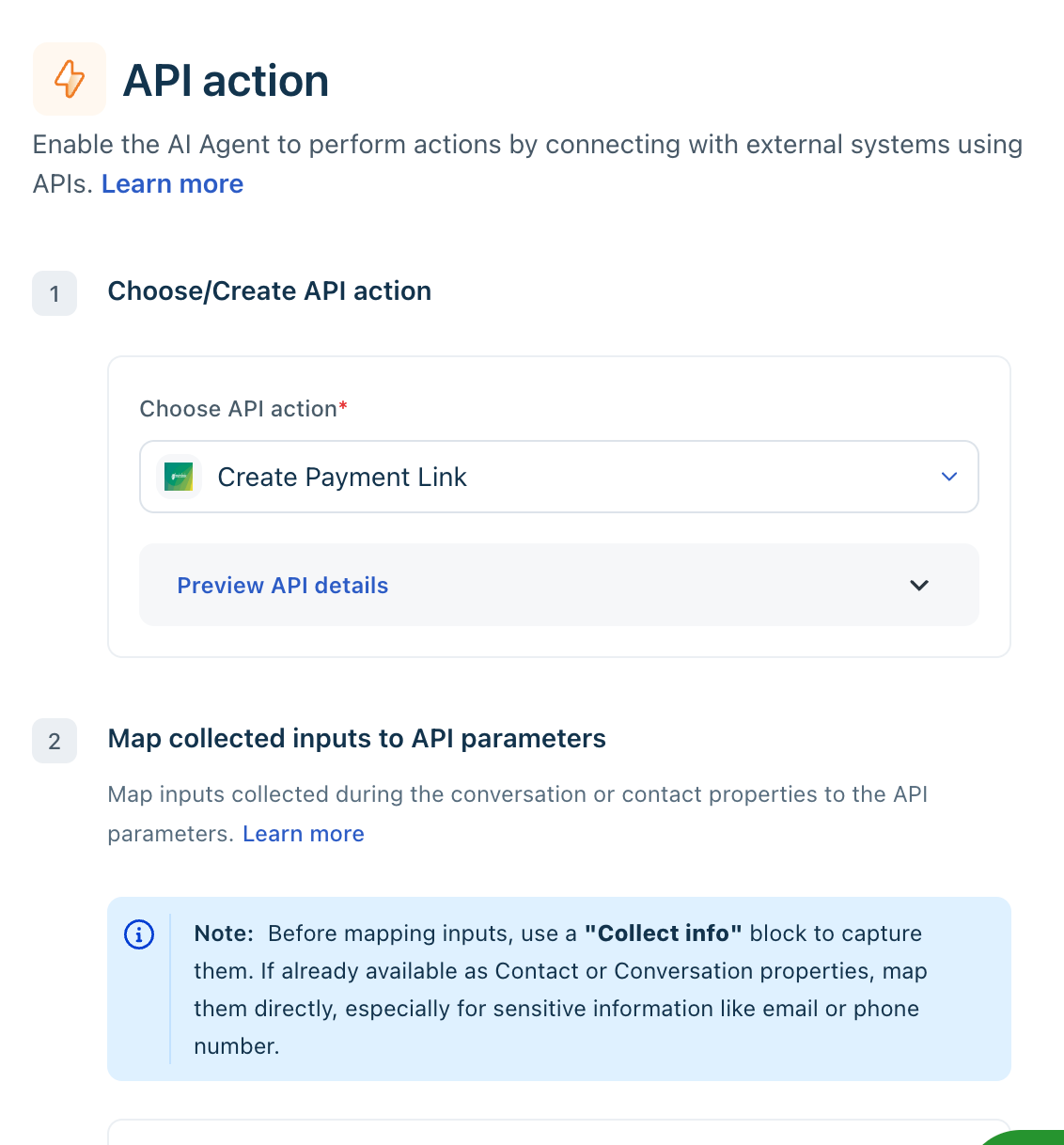
Agent handoff
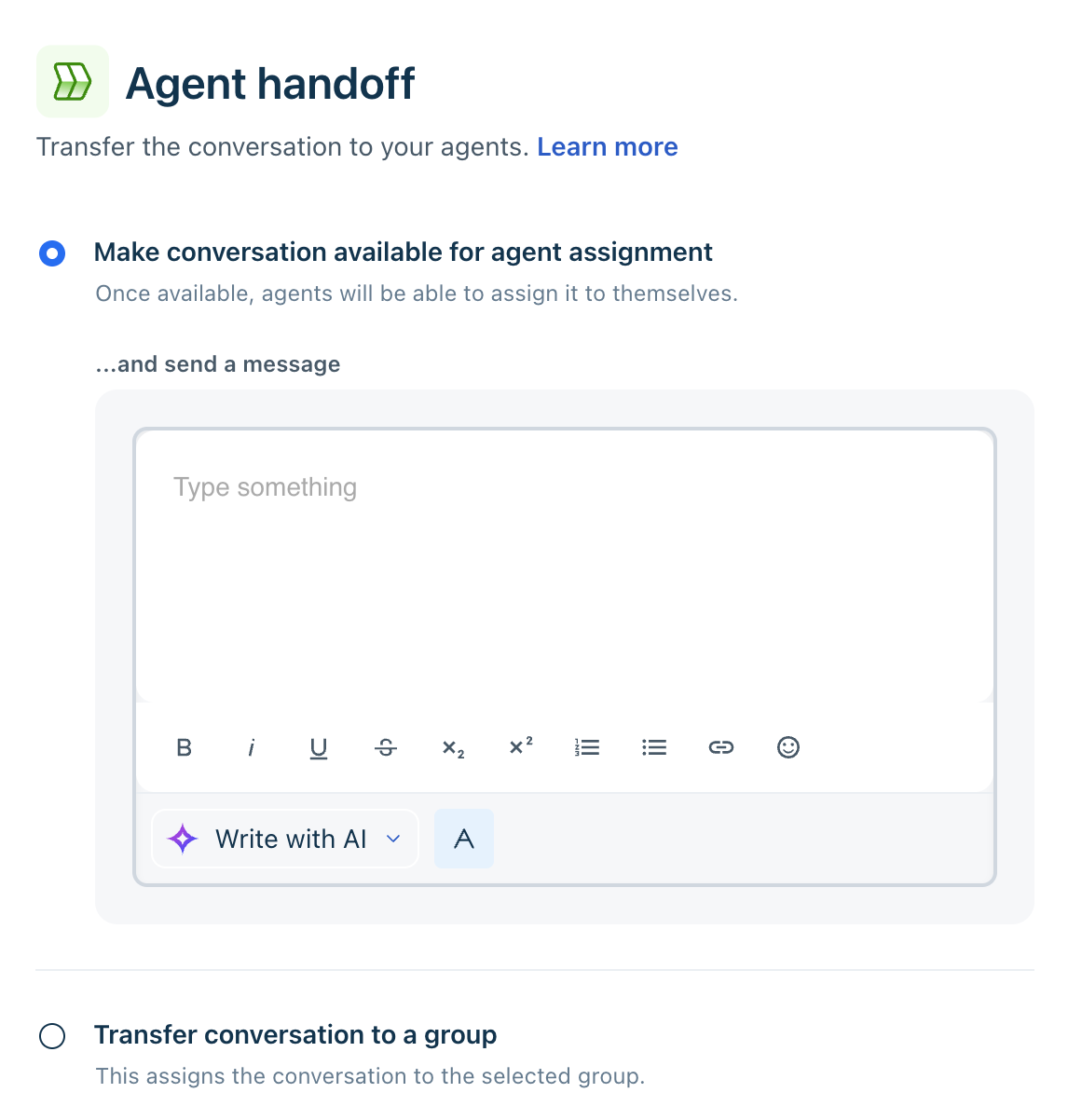
If the AI Agent cannot complete the request or human intervention is required, insert an Agent handoff step. The AI Agent completes the automated portion of the workflow before transferring the conversation with the necessary context.
For example, you might hand off conversations when:
- customer verification fails
- an exception requires manual approval
- policy restrictions prevent automated resolution
- the customer requests to speak with an agent
When setting up agent handoff, select one of the following two options depending on your support team structure:
- Make conversation available for agent assignment: Makes the conversation available in the queue so available agents can assign it to themselves. You can also configure an automated custom message to send to the customer during handoff.
- Transfer conversation to a group: Directly assigns the conversation to a specific support group for immediate handling
Preview and activate
Before activating a workflow, validate its configuration and execution to ensure it functions as intended. Testing the workflow helps identify configuration issues, validate business logic, and confirm that each step executes correctly before it is made available to customers. Use Preview workflow to test the workflow in an isolated environment without affecting live conversations.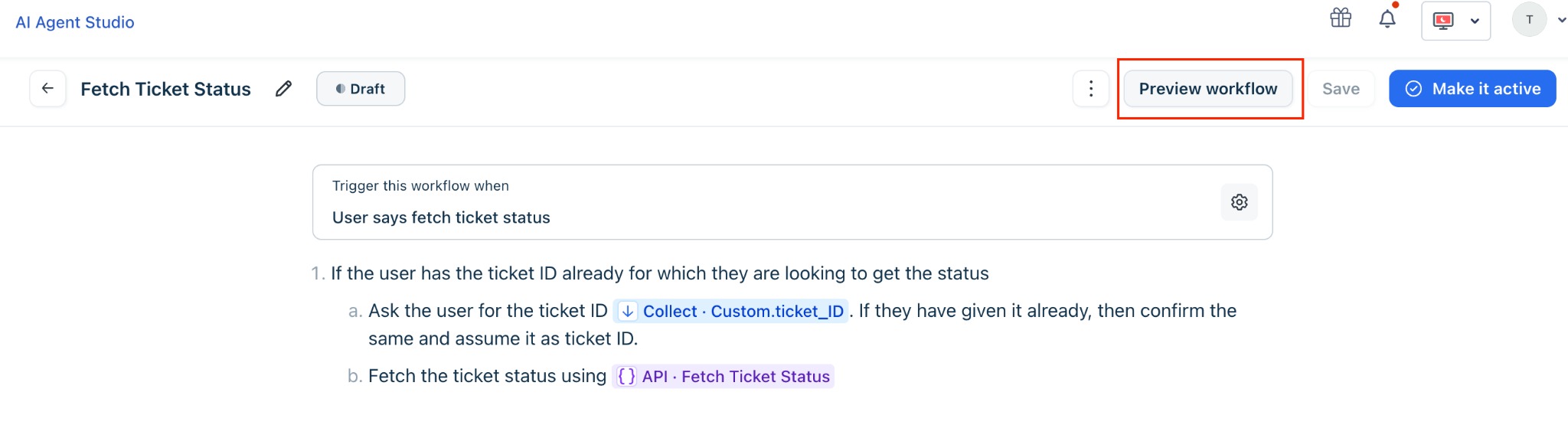
During testing, verify that:
- The trigger starts the workflow for different customer phrasings.
- The AI Agent collects information in the expected sequence.
- API actions receive the correct input values.
- Group assignments and conversation handoffs occur at the appropriate stages.
- Exception scenarios are handled correctly.
- The workflow reaches the expected outcome.
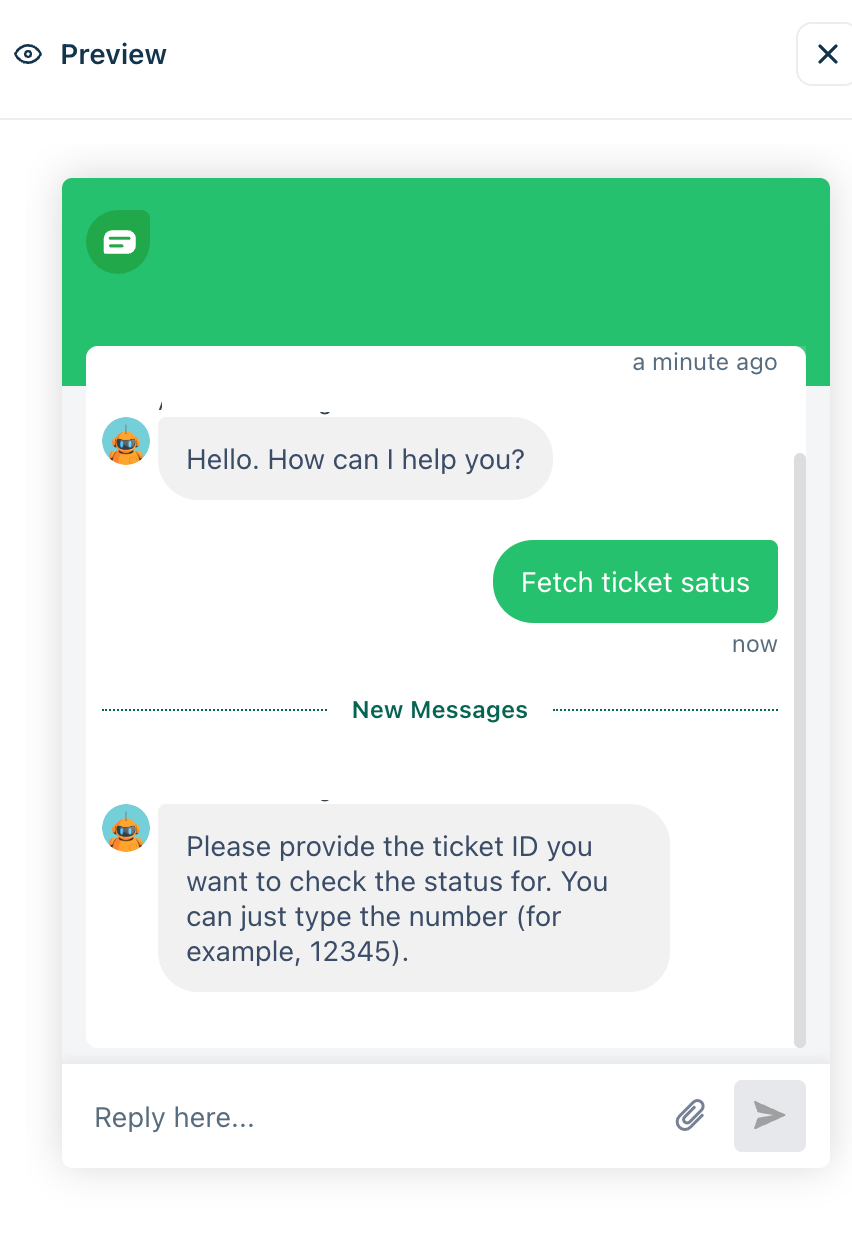
After testing, Save as draft if additional changes are required, or Activate the workflow to make it available for customer conversations. After activation, monitor workflow execution and conversation logs to ensure the workflow performs as expected in production.
Best practices for writing workflows
Follow these best practices to create clear, reliable, and effective Natural Language Workflows for your AI Agent.
- Start with an existing process: Begin with a standard operating procedure (SOP) or playbook. Remove organization-specific details and simplify ambiguous instructions.
- Focus on the outcome: Describe the expected result instead of the implementation details. For example, write Verify the customer's email address and retrieve the account details instead of Validate identity and execute the API.
- Keep one task per step: Limit each workflow step to a single task. Split complex or multi-action instructions into separate steps.
- Use clear action verbs: Begin instructions with verbs such as ask, verify, retrieve, check, confirm, and escalate, and avoid unnecessary technical jargon.
- Handle exceptions explicitly: Include instructions for handling invalid input, missing information, empty API responses, and ineligible requests instead of relying on generic error-handling statements.
- Use structured workflow controls: Use controls such as Collect input, Reference existing properties, API action, and Agent handoff wherever applicable instead of describing these actions in free text.
- Test different scenarios: Validate the workflow using both expected and edge-case scenarios. Verify how it handles invalid input, skipped questions, changes in user intent, and follow-up requests.
Example workflows
The following examples illustrate how Natural Language Workflows can be written for common customer support scenarios. These examples demonstrate how conversational instructions and inline workflow controls work together to automate business processes.
Example 1: Refund request
Trigger: When the customer requests a refund.
Workflow
- Greet the customer and understand why they are requesting a refund.
- Collect the refund reason using the Collect input control.
- Reference the collected refund reason while explaining the applicable refund policy.
- If the refund request meets the policy criteria:
- Proceed with creating the refund request.
- Inform the customer about the expected refund timeline.
- Otherwise:
- Explain why the request isn't eligible.
- If required, hand off the conversation to a human agent for further review.
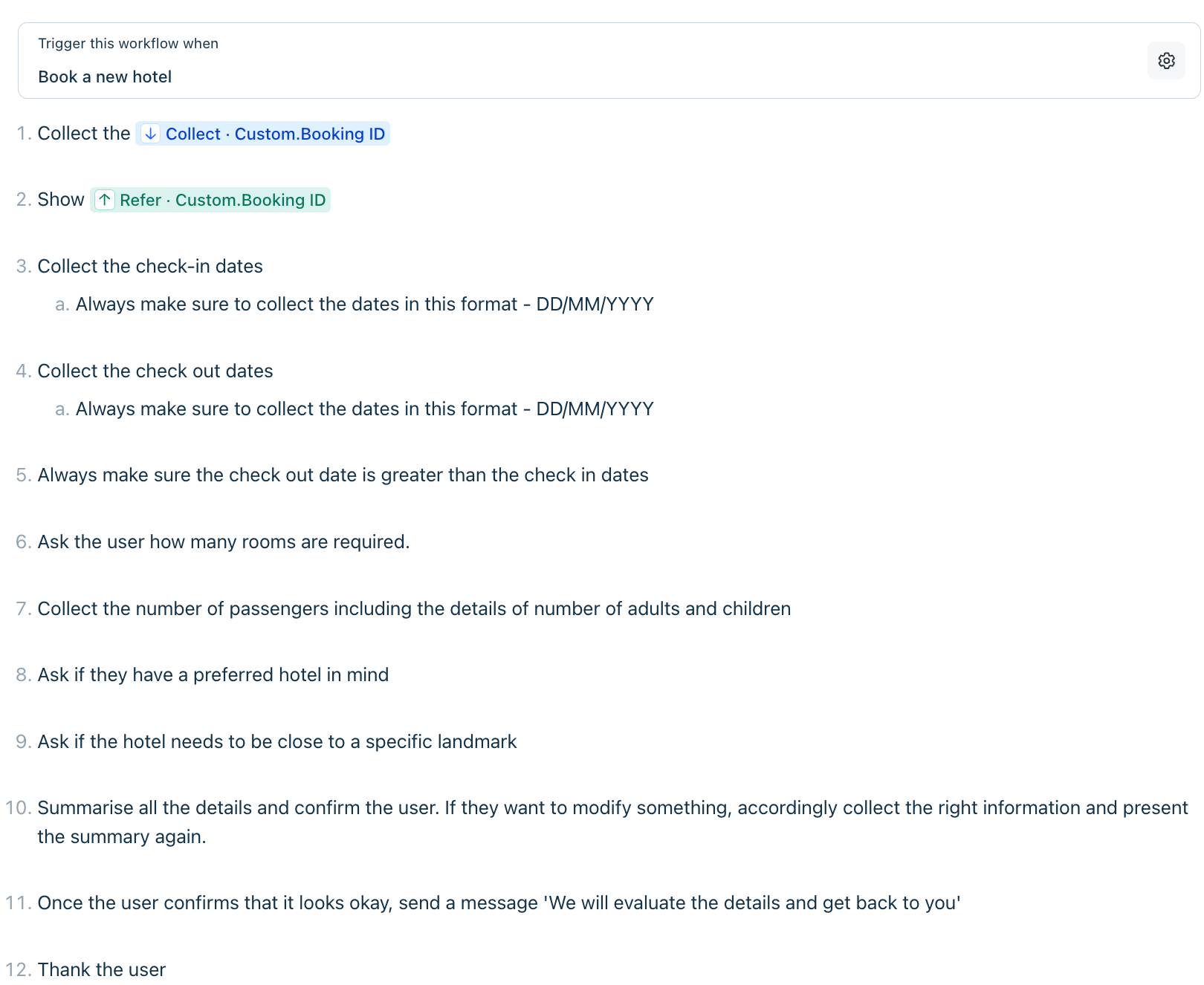
Example 2: Hotel booking
Trigger: When the customer wants to book a hotel.
Workflow
- Collect the Booking ID using the Collect input control.
- Display the Booking ID using the Reference property control.
- Collect the check-in date.
- Ensure it's entered in DD/MM/YYYY format.
- Collect the check-out date.
- Ensure it's entered in DD/MM/YYYY format.
- Verify that the check-out date is later than the check-in date.
- Ask how many rooms are required.
- Collect the number of adults and children.
- Ask whether the customer has a preferred hotel.
- Ask whether the hotel should be close to a specific landmark.
- Summarize all booking details and ask the customer to confirm them.
- If the customer wants to modify any information, collect the updated details and present the revised summary.
- Once the customer confirms the details, inform them that the booking request has been received and will be processed.
- Thank the customer and end the conversation.