
 Community
 Video Library
 Agent Training
 Freshservice
 Freshdesk
 Freshchat
 Freshcaller
 Freshsales
 Freshteam
 Freshworks Neo
 Freshsurvey
 Growth
This article explains how intent detection helps a chatbot in Freshdesk Omni understand customer messages and route them to the appropriate chatbot flow based on their intent.
TABLE OF CONTENTS
- Prerequisites
- Overview of intent detection
- Map an intent to a flow
- Configure multilingual intents
- Train the chatbot to use new intents
- Trigger detection inside a flow
- Reuse your work by cloning a chatbot
- Unlock new AI-powered possibilities
Prerequisites
Before you map intents to your flows, ensure the following requirements are met:
- Ensure you have admin access to AI Agent Studio in your Freshdesk Omni account.
- Ensure you have a chatbot with at least one flow under AI Agent Studio > Chatbots.
- Ensure you have enabled natural language detection for the chatbot.
- Ensure you are working on the latest version of the chatbot. If the current version is published, click New version before you author intents.
- Ensure you understand how intents, utterances, and customer queries relate to each other before you start mapping. See best practices for setting up intents <anchor link>.
Overview of intent detection
The chatbot utilizes intent detection to interpret customer messages phrased in natural language. Rather than restricting users to specific buttons, the chatbot analyzes the input to find the closest intent match and directs the conversation to the most appropriate response flow.
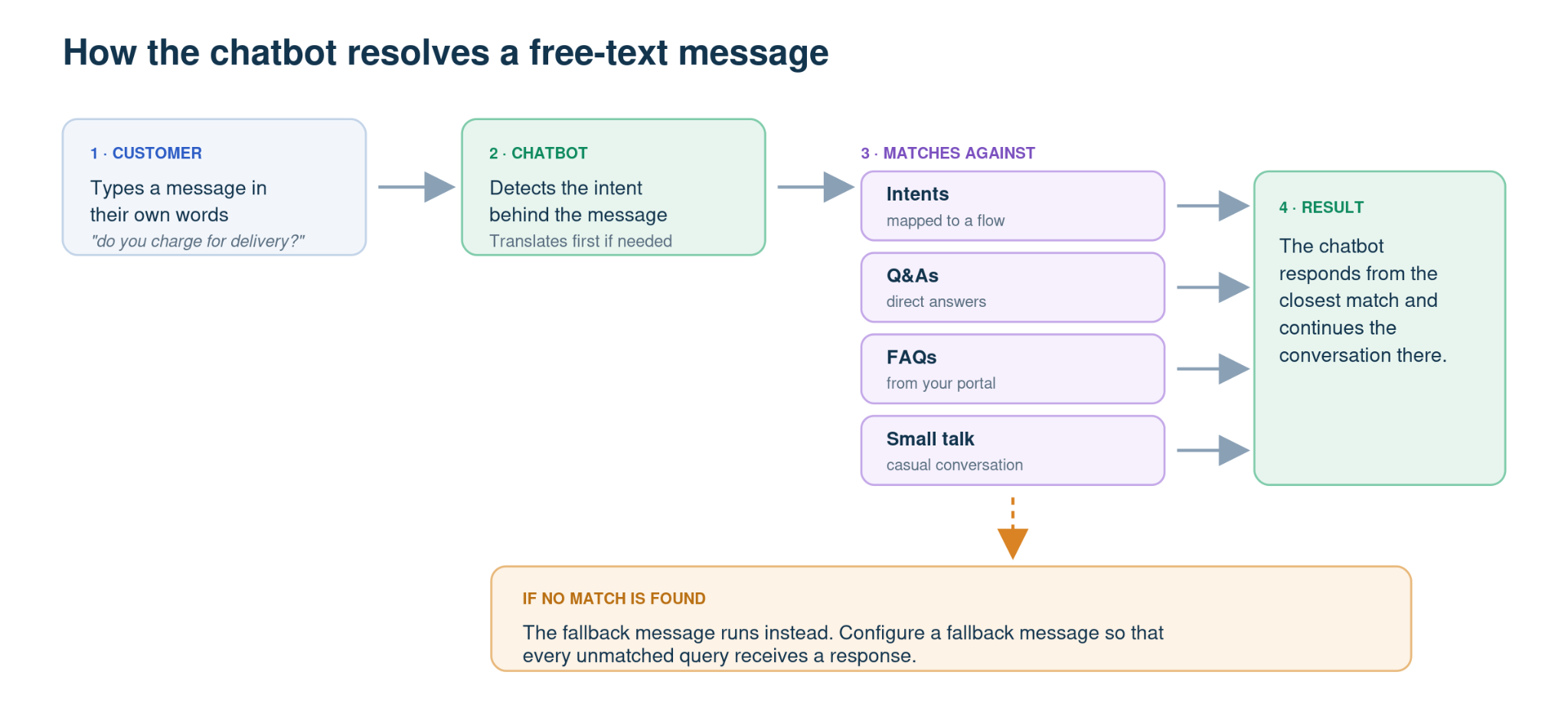
The chatbot evaluates incoming customer queries against your defined intents to identify the most accurate match. Upon detection, it directs the user to the corresponding response flow or draws from alternate resources like Q&As, FAQs, or small talk. When a message fails to trigger a specific intent, the chatbot relies on your established fallback settings to manage the interaction.
Intents, utterances, and flows
An intent represents a specific customer need or request. Utterances are the different ways customers might express that intent. The chatbot uses these utterances as training examples to identify similar customer queries.
Each intent maps to one flow. When the chatbot detects an intent, it routes the customer to the flow associated with that intent.
Important: An intent requires at least five utterances before it can be mapped to a flow. The Save & Map to Flow button remains unavailable until you add five utterances.
Choose an intent source
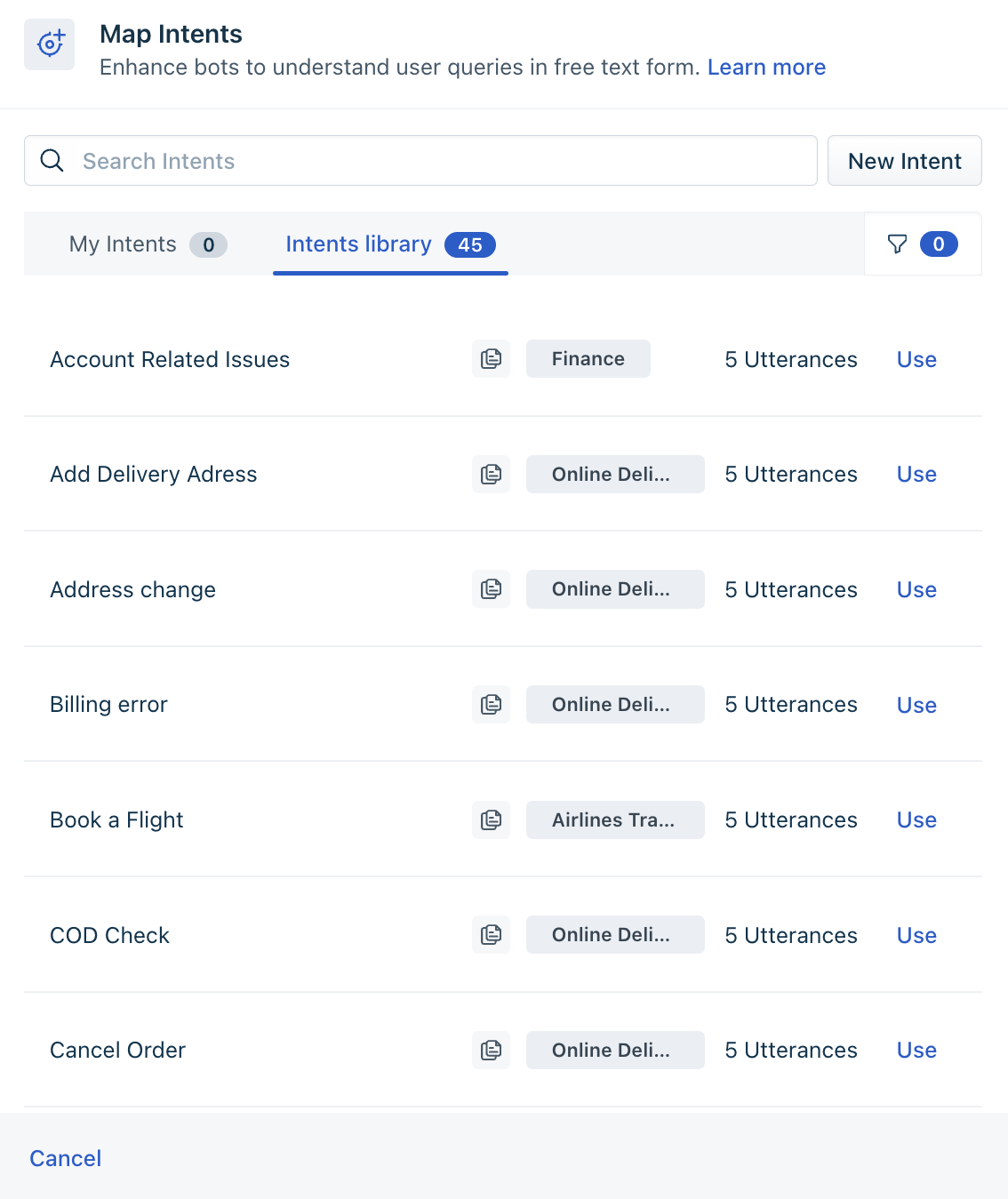
You do not need to create every intent from scratch. The Map Intents panel provides the following sources:
- My intents — Contains intents that you have already created for the chatbot. This list is empty for a new chatbot.
- Intents library — Contains prebuilt intent templates grouped by industry. Each template includes five utterances that you can edit.
- Suggestions — Provides additional utterances for the intent you are editing. You can add individual suggestions or select Add all to add them at once.
Map an intent to a flow
Mapping an intent involves creating or selecting an intent, adding the required utterances, training the chatbot, and deploying the updated version. Changes do not affect live customer conversations until the chatbot is trained and deployed.
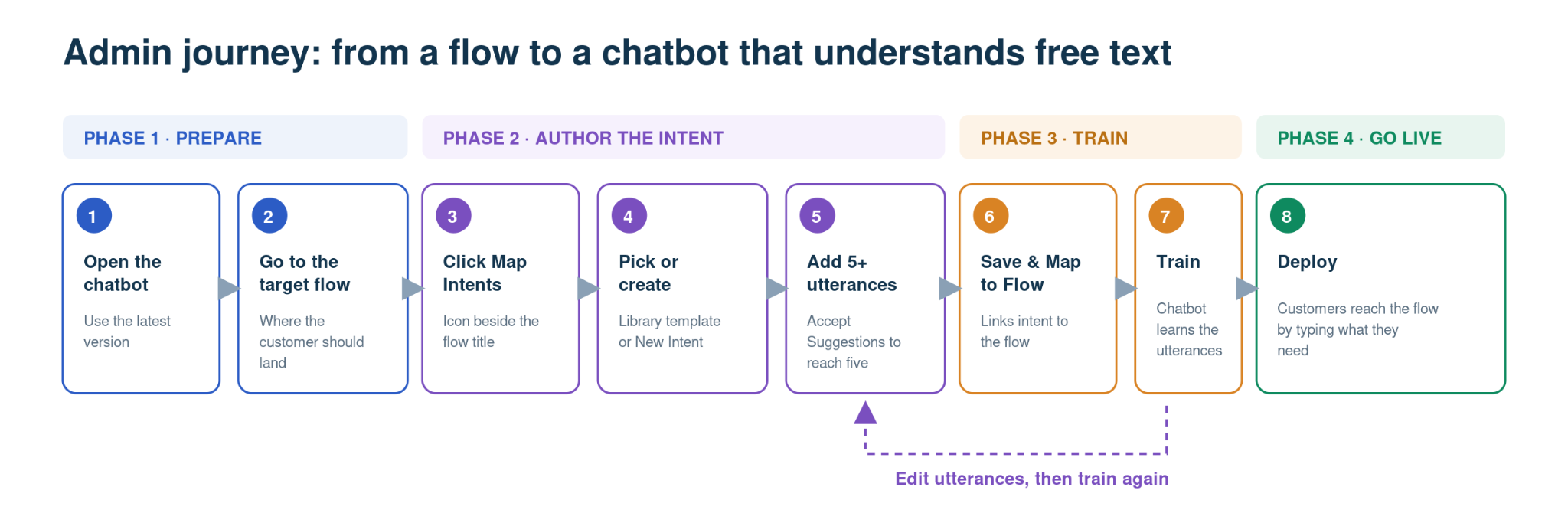
To map an intent to a flow:
- Go to AI Agent Studio > Chatbots and select the required chatbot.
- Go to the Flows tab and select the flow that customers should reach.
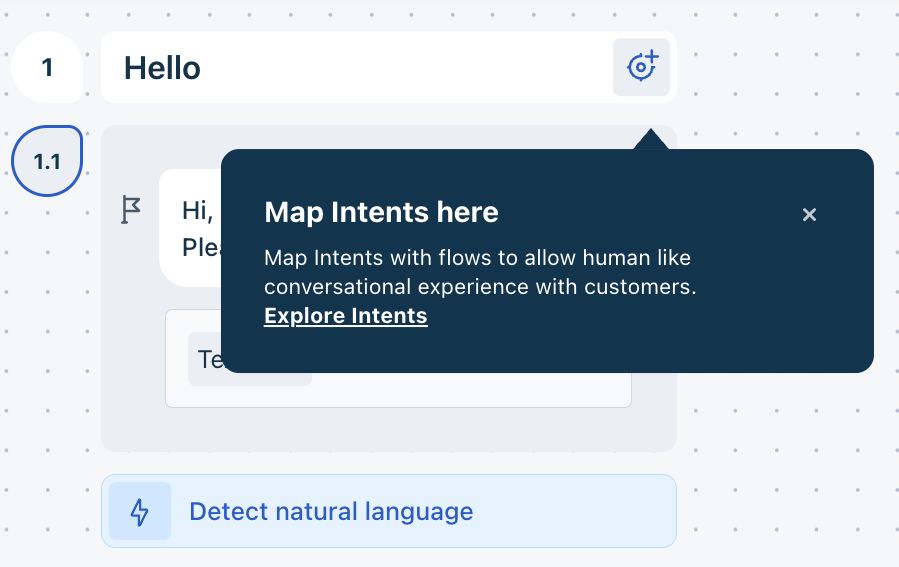
- Select the Map Intents icon next to the flow title. The Map Intents panel opens.
- Select an existing intent, choose a template from Intents library, or select New Intent.
- Enter or confirm the intent name.
- Add at least five utterances using Add utterance, or add the available Suggestions.
- Select Save & Map to Flow.
Create an intent from scratch
Create an intent when you know how customers typically phrase a request and an existing intent or library template does not meet your requirements.
- Select New Intent in the Map Intents panel, or enter the intent name in the search box.
- Review the similar intents displayed as you enter the name to avoid creating a duplicate.
- Enter the intent name and add the required utterances.
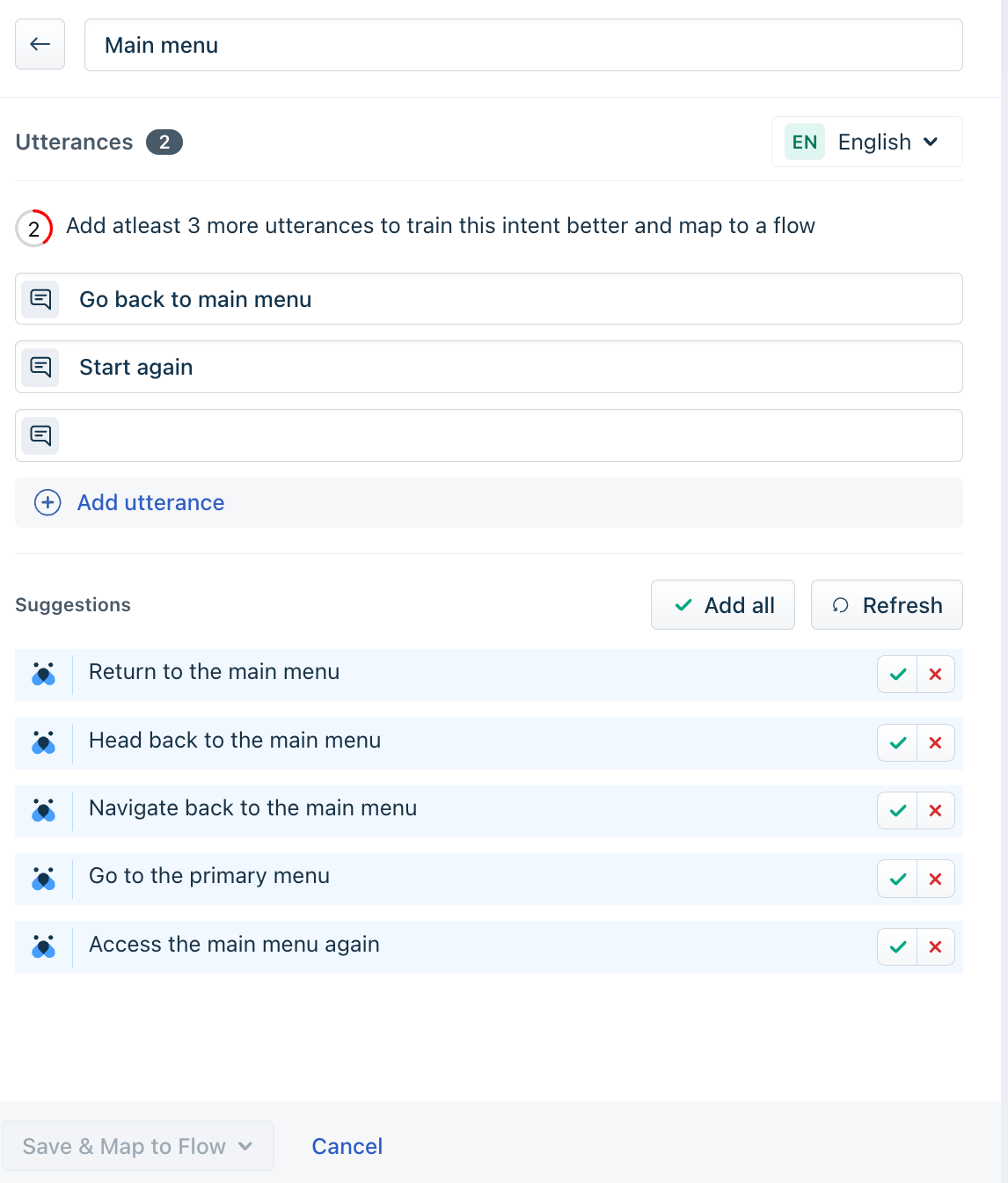
- Select Save & Map to Flow.
Use different phrasings that represent the same customer need. For example, "Do you charge for delivery?" and "Are delivery charges included in the item price?" can represent the same intent. A query such as "Where is my order?" represents a different customer need and should be configured as a separate intent.
Use the intents library
Use the library when you do not yet have a list of real customer queries to work from.
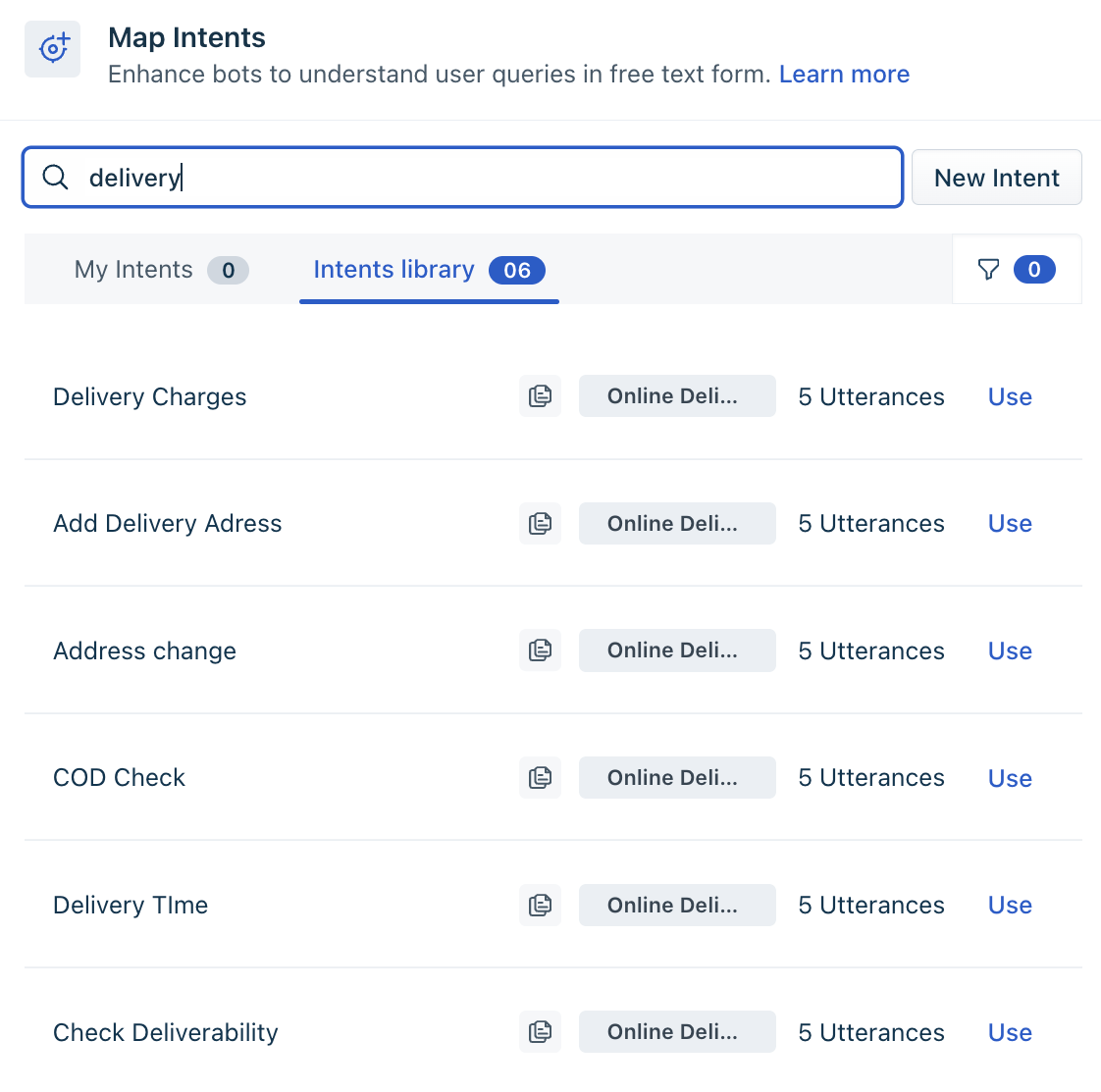
- In the Map Intents panel, select Intents library.
- Search for a keyword, or use the filter to narrow the list by industry.
- Review the utterances behind a template using the preview icon next to the intent name.
- Click Use on the template you want, then edit its name and utterances to match your business.
Add suggested utterances
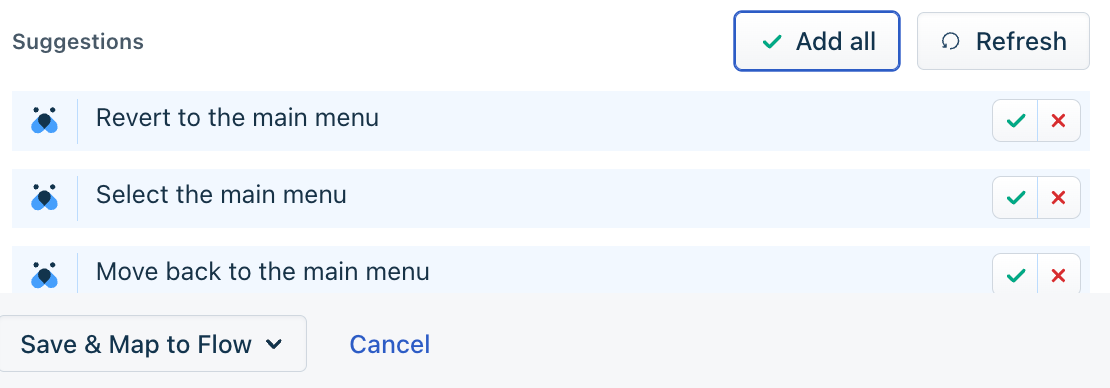
Suggestions provides additional phrasings for the intent you are editing. You can use these suggestions to expand the range of customer queries that the intent can recognize.
- Select the tick next to a suggestion to add it.
- Select the cross to dismiss a suggestion.
- Select Add all to add all available suggestions.
- Select Refresh to generate a new set of suggestions.
Note: Suggestions depend on a live service call and might occasionally fail with the message Could not fetch suggestions. Try refreshing the suggestions. If this occurs, select Refresh or add the utterances manually.
Avoid duplicate and misplaced utterances
The chatbot validates utterances as you add them to reduce conflicts between intents.
If you add the same utterance more than once, or if an utterance more closely matches another existing intent, the chatbot displays a notification. You may be able to move the utterance to the detected intent or ignore the notification and continue.
Manage a mapped intent
After an intent is mapped to a flow, you can manage it from the flow.
- Select the intent name displayed on the flow title, such as Main menu.
- Open the overflow menu and select Make inactive or Delete.
- Select Change mapping to associate the intent with a different flow.
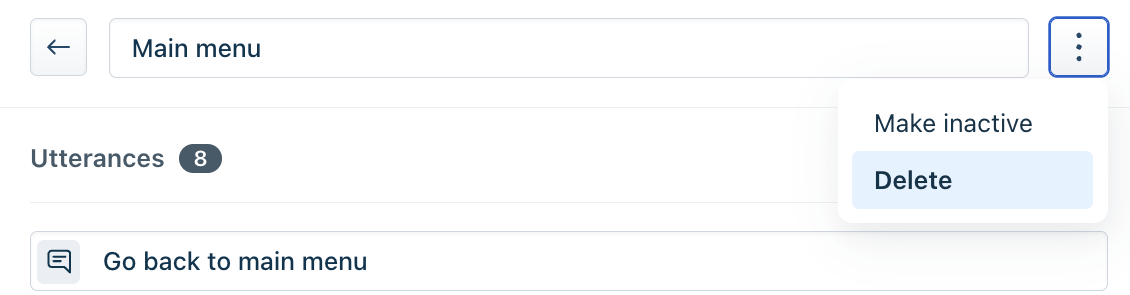
Use Make inactive when you want to prevent the chatbot from detecting an intent while retaining its utterances for later use. Delete removes the intent and its associated utterances.
Configure multilingual intents
You can add utterances for the same intent in multiple languages supported by the chatbot.
- Open the intent in the Map Intents panel.
- Select the language dropdown at the top-right of the Utterances list. The dropdown displays the current language code, such as EN.
- Select a language from the languages configured for the chatbot.
- Add utterances in the selected language and save the changes.
Only languages that are already configured for the chatbot are available in this dropdown.
Note: Even if an intent does not contain utterances in the customer's language, the chatbot can translate the incoming message and identify the closest match from the configured flows, Q&As, FAQs, and small talk responses. Adding utterances in the customer's language can improve detection accuracy.
Train the chatbot to use new intents
Saving an intent does not immediately make it available to the chatbot. You must train the chatbot after adding or updating intents.
- Select Train in the chatbot header after you finish creating or editing intents.
- Alternatively, publish the chatbot. Publishing also trains the chatbot as part of the process.
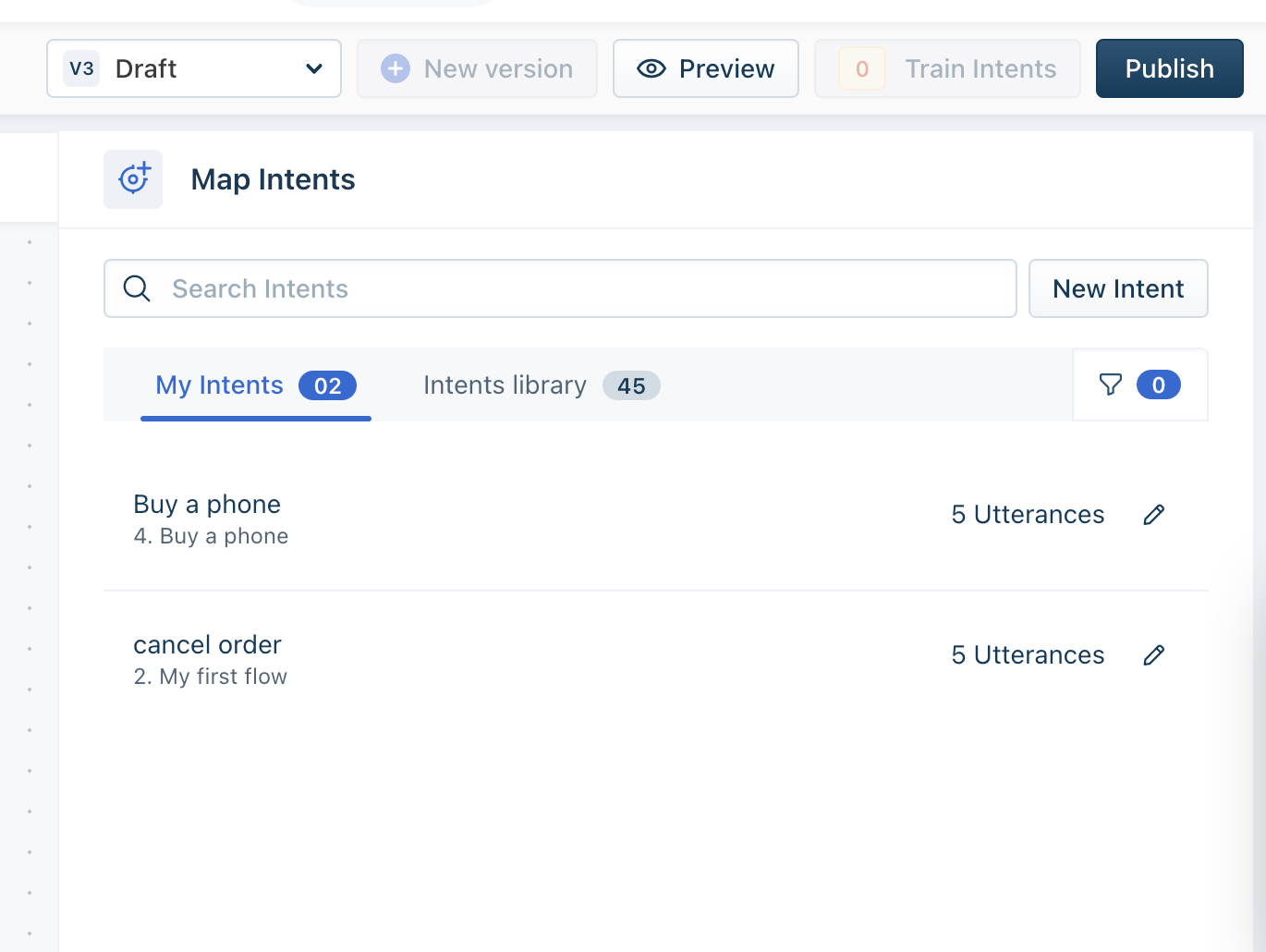
For guidance on reviewing accuracy after training and correcting incorrectly routed queries, see retrain natural language to improve chatbot performance <anchor link>.
Trigger detection inside a flow
Mapping and training an intent allows the chatbot to identify customer intent. The flow must also include an appropriate trigger that allows the customer to enter a natural-language response.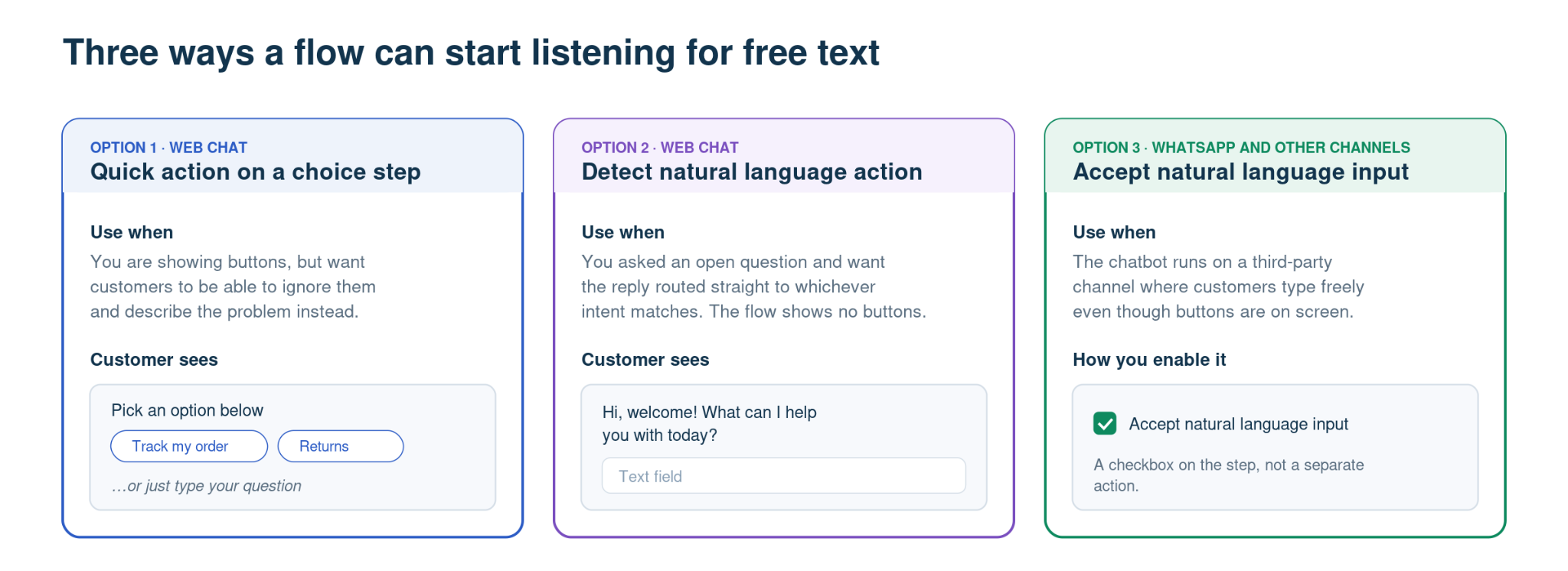
The available trigger depends on the channel and the type of interaction in the flow.
Trigger | Channel | Use when |
|---|---|---|
Quick action on a choice step | Web Chat | You present customers with predefined choices but also want to allow them to describe their issue instead of selecting an option. |
Detect natural language action | Web Chat | The flow asks an open-ended question and the customer's response should be matched directly to an intent. |
Accept natural language input | WhatsApp and other third-party channels | You want to allow customers to enter a free-form response, even when predefined options are available. |
Reuse your work by cloning a chatbot
Cloning allows you to reuse existing chatbot configuration when you need to create another chatbot with similar behavior.
When you clone a chatbot, its Q&As, intents, and utterances are copied to the new chatbot.
Unlock new AI-powered possibilities
We encourage you to explore the latest version of Freddy AI Agents to unlock new AI-powered capabilities. While natural language settings remain available for your chatbots, we recommend looking into Freddy AI Agents to see how they can further enhance your customer support experience.