 Community
 Video Library
 Agent Training
 Freshservice
 Freshdesk
 Freshchat
 Freshcaller
 Freshsales
 Freshteam
 Freshworks Neo
 Freshsurvey
 Growth
TABLE OF CONTENTS
Conditional flows allow you to control how users move through your chatbot by evaluating rules and redirecting them to different dialogs based on their responses or data collected during the conversation.
This article explains how to configure conditions, build complex logic using AND/OR operators, and use conditional branching to create dynamic chatbot experiences.
Prerequisites
Before configuring conditional flows, ensure that:
- You have access to the bot builder.
- You have created the dialogs that you want to connect using conditional logic.
- Any properties, APIs, functions, or integrations referenced in the conditions are already configured.
Overview of conditional flows
Conditional flows enable your bot to evaluate information collected during a conversation and determine the next dialog based on predefined rules. Each dialog can contain multiple conditions, allowing your chatbot to handle different scenarios without creating duplicate conversation flows.
You can configure conditions to achieve the following:
- Redirect users to different dialogs based on their responses.
- Evaluate values collected from dialogs, properties, APIs, functions, or integrations.
- Build complex decision trees using nested If, Else If, AND, and OR logic.
- Create personalized conversation paths that match your business requirements.
Configure conditions for a dialog
To configure conditions for a dialog, follow these steps:
- Go to AI Agent Studio > Chatbots.
- Select the preferred chatbot.
- Open the dialog where you want the conditional flow to be set up.
- Click the Conditions icon.
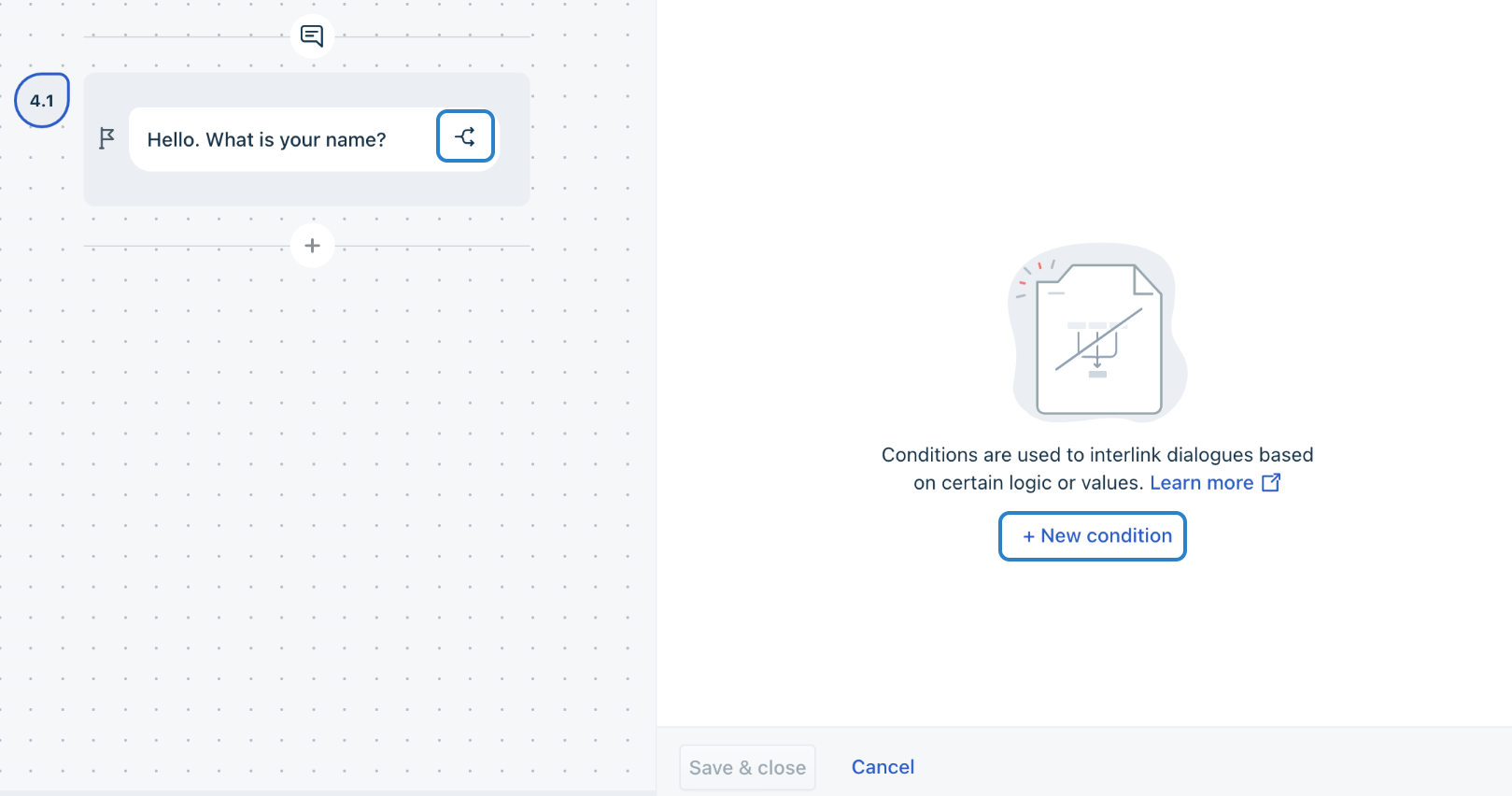
- In the sidebar, click New condition.
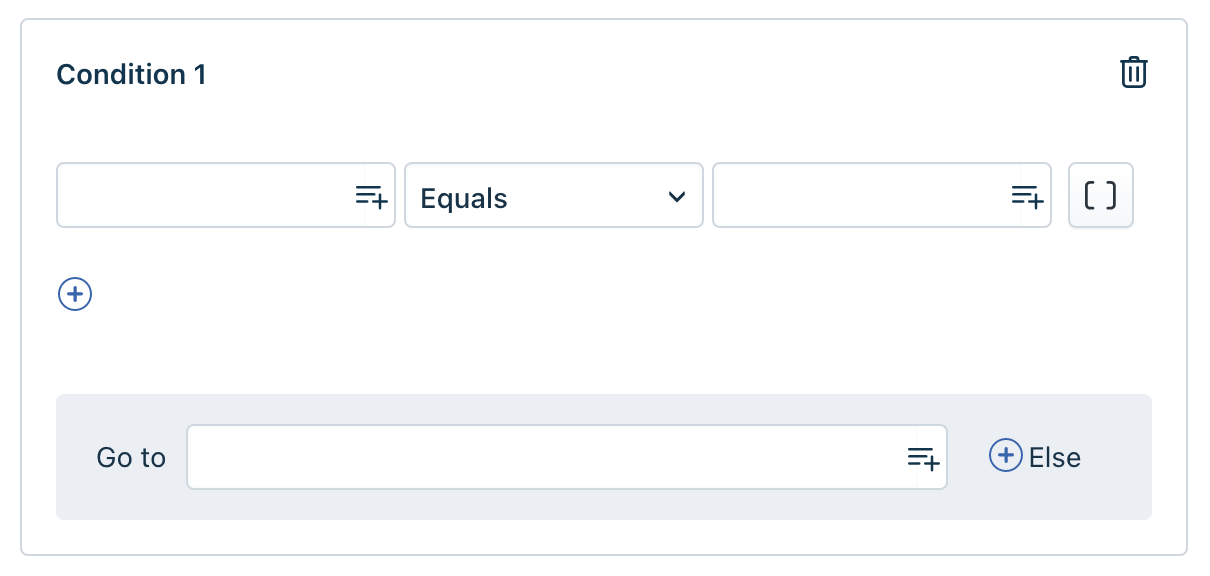
- Configure the condition by completing the following fields:
- Field: Use the Insert menu to choose a value from any of the Dialogs, APIs, Properties, Functions, or Integrations you have set up.
- Operator: Select the comparison you want to apply. You can choose from the following operators:
- Equals
- Not equals
- Greater than
- Less than
- Greater than or equals
- Less than or equals
- Is valid
- Not null
- Not applicable
- Value: Enter the value that you want to compare against the value from the first field.
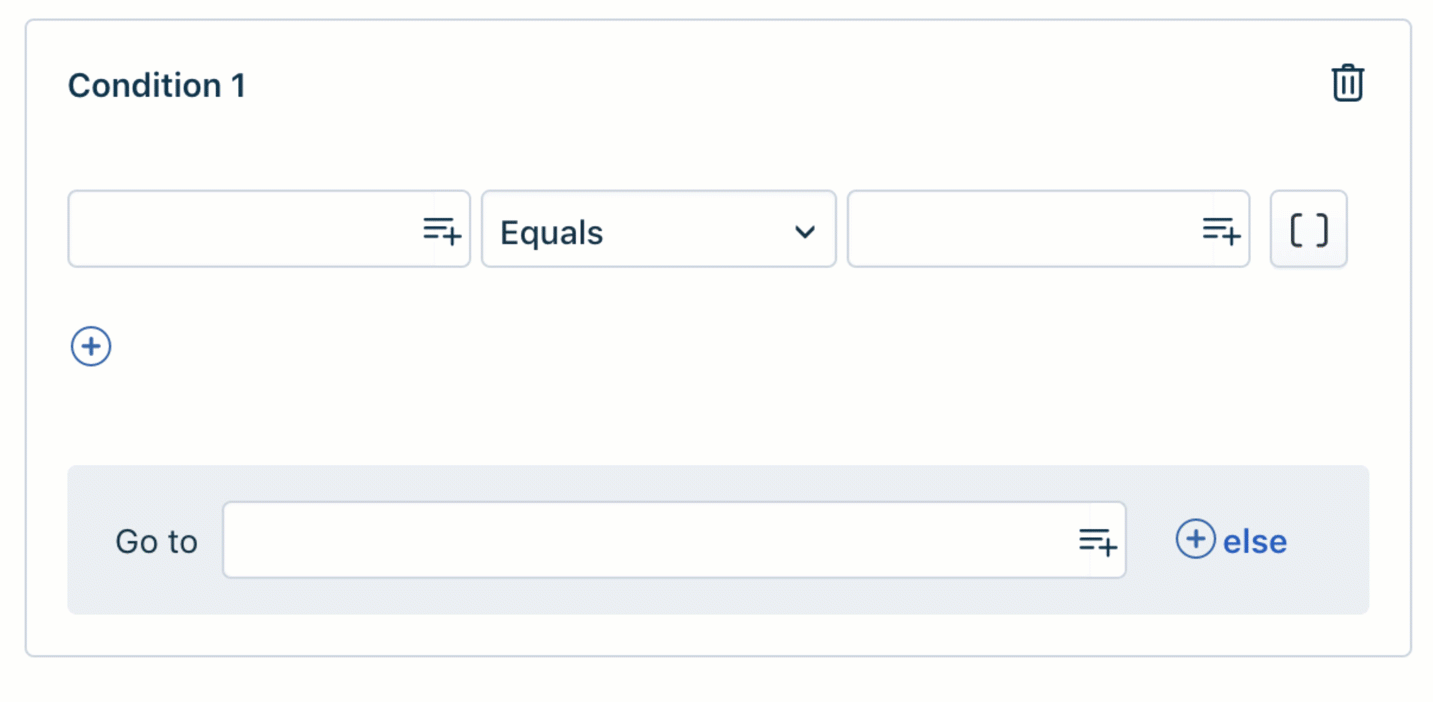
- Action: Select the action that the bot should do when the condition evaluates to True.
- Click Save & close.
Build complex conditional logic
You can configure multiple conditions for a single dialog to create more advanced conversation flows. Instead of evaluating only one condition, you can combine multiple conditions to determine the next dialog based on several criteria.
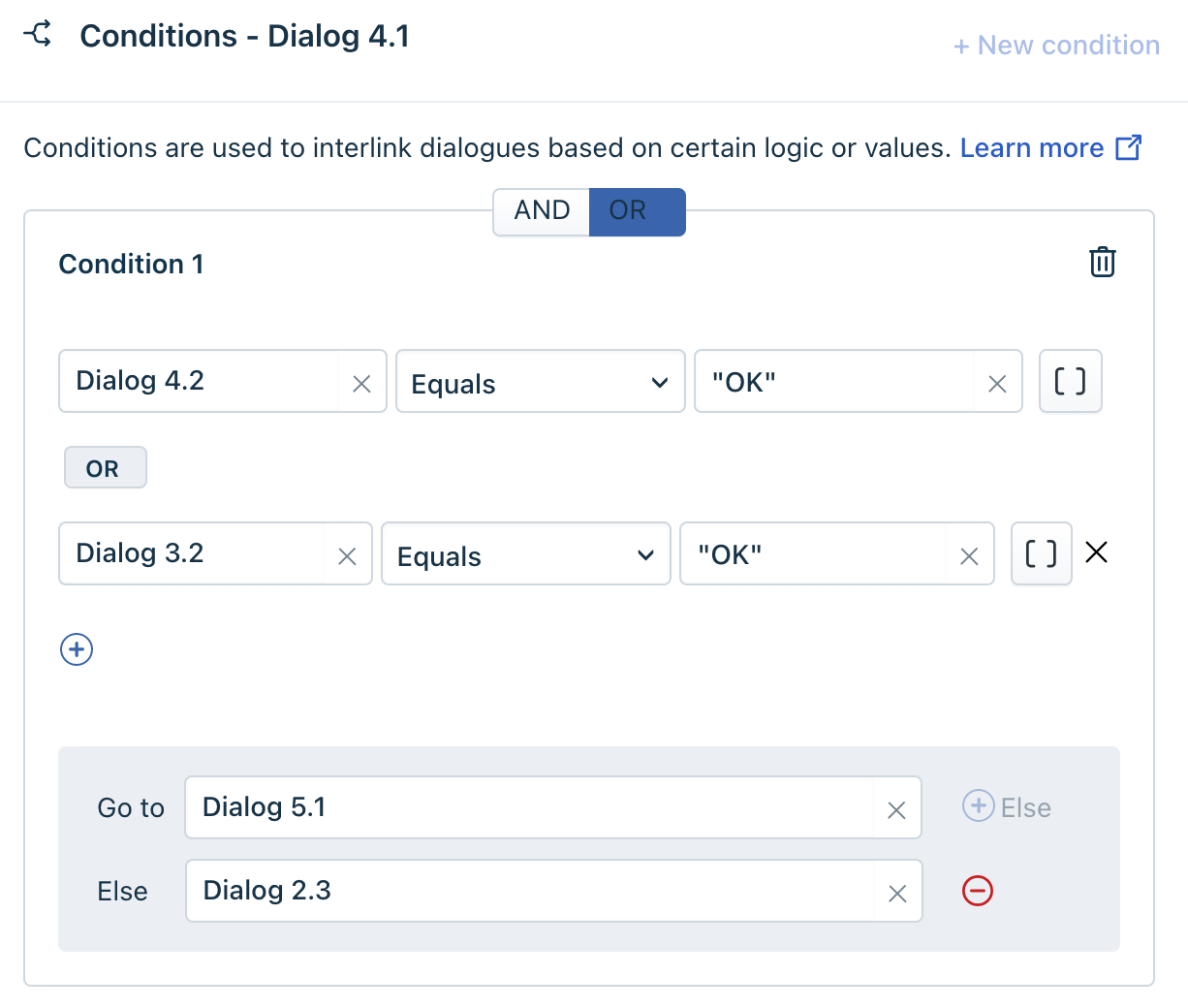
Use the following operators to create nested conditional logic:
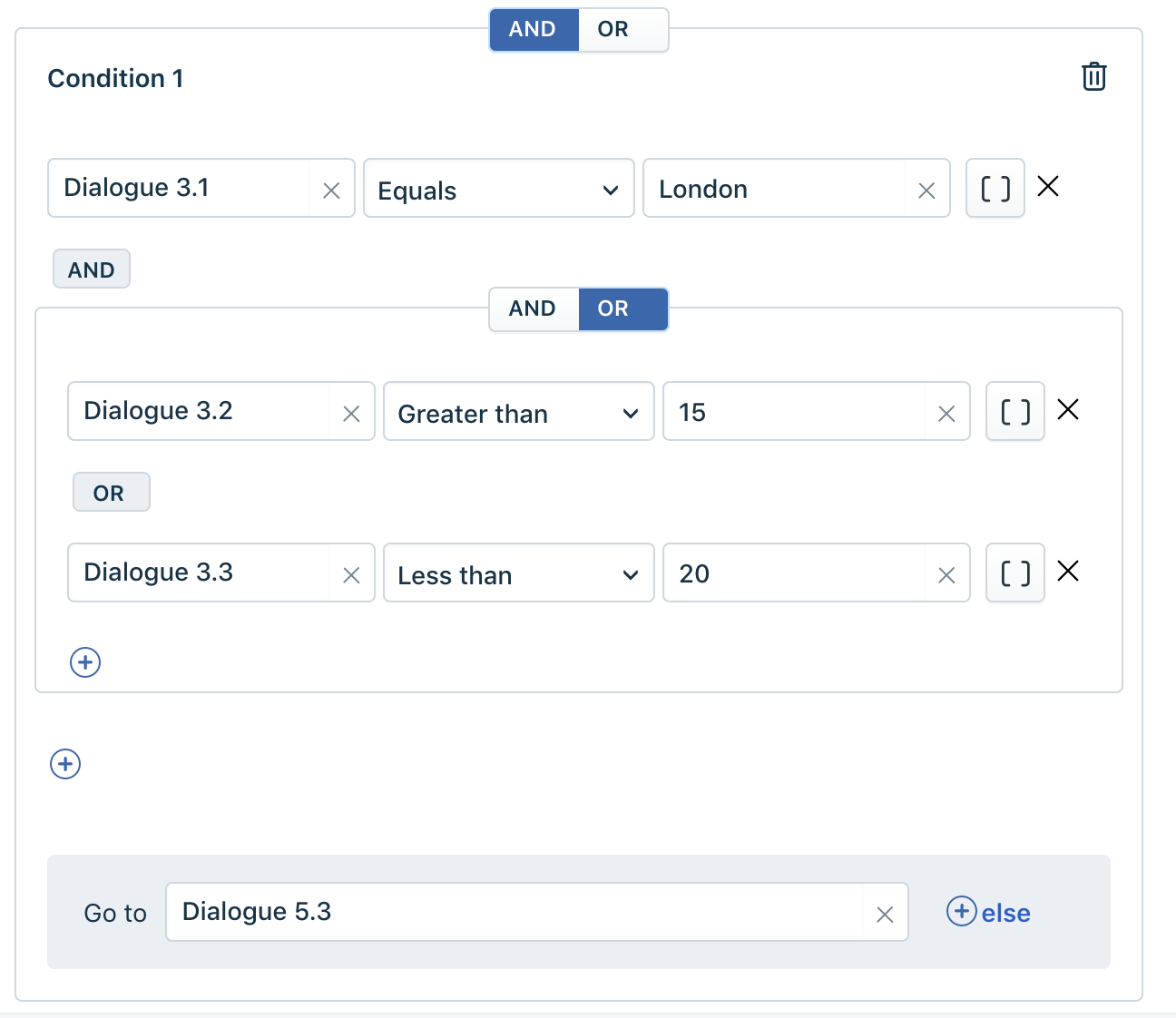
- AND: Use this operator when all specified conditions must be met before the bot proceeds to the next dialog.
- OR: Use this operator when any one of the specified conditions is sufficient for the bot to proceed to the next dialog.
- Else If: Use this operator to evaluate additional conditions when the previous condition is not met. The bot continues evaluating each condition in sequence until it finds a matching condition.
Note: If you configure multiple conditions for the same dialog, they are evaluated in the order in which they appear in the Conditions sidebar.
Example: Route customers based on holiday preferences
Consider a travel agency that helps customer plan their holidays. The chatbot begins with a Hello flow and collects information such as:
- Number of guests
- Preferred locations
- Choice of activities
- Duration of the vacation
Here's how the bot works:
- Based on the customer's responses, the bot gathers information about the available holiday packages and identifies the options that best match the customer's preferences.
- The travel agency can then configure conditions to redirect customers to different dialogs for specific holiday destinations or package recommendations based on the collected information.
The condition block can be set up as follows: