
 Community
 Video Library
 Agent Training
 Freshservice
 Freshdesk
 Freshchat
 Freshcaller
 Freshsales
 Freshteam
 Freshworks Neo
 Freshsurvey
 Growth
TABLE OF CONTENTS
Milestones help you track how customers navigate through your bot flows. By marking key dialogs with Milestones, you can analyze customer interactions, identify where customers drop off, and optimize your bot flows to provide a better customer experience.
Prerequisites
- Ensure that you have access to the Bots section in Freshchat.
- Ensure that you have a bot with configured flows and dialogs.
- Ensure that you have access to bot performance reports.
Overview of milestones
Milestones let you track customer interactions with specific dialogs in your bot flows. You can use the raw interaction data from milestones to understand how customers move through a bot flow and identify areas where they stop progressing.
For example, if customers consistently stop interacting with a bot when it asks for their contact information, you can use the Milestone data to identify this drop-off point. You can then optimize the flow by moving the request for contact information to a later stage or collecting a different type of contact information that customers are more willing to provide.
Configuring milestones helps with the following:
- Track customer progress through key stages of a bot flow.
- Identify where customers drop off during a conversation.
- Compare different paths that customers take through a bot.
- Use conversation data to optimize bot flows.
- Understand how effectively your bot flows support customers.
Set up milestones
You can add a milestone to a specific dialog in your bot flow and give it a name for identification in analytics.
To set up a Milestone, follow these steps:
- Go to Bots > Select a bot > Flows.
- Locate the dialog that you want to track.
- Click the Milestones icon in the dialog.
- Enter a name for the Milestone.
- Save the configuration.

Use milestones to analyze bot journeys
You can use milestones to better understand the different paths customers take through the bot flows. By configuring unique milestones for different journeys, you can compare customer progression and identify where customers move from one flow to another.
For example, consider a bot flow that helps customers resolve their questions, with a transfer-to-agent flow as a fallback. If you do not see a noticeable difference in the number of questions your agents handle, milestones can help you understand whether customers are actually completing the self-service journey.
You can configure one milestone for the flow and another for the agent flow. Consider that for every 100 conversations initiated with the support team, 25 reach the self-service flow milestone, while 75 reach the agent flow milestone.
This data indicates that most customers are not completing the self-service journey and are instead moving to the fallback agent flow. You can use this information to:
- Understand customer behavior: Identify the paths customers take through your bot flows.
- Identify drop-off points: Determine where customers stop progressing by checking which Milestones they do not reach.
- Compare different flows: Determine whether customers complete a self-service flow or move to an alternative flow, such as a transfer to an agent.
- Identify opportunities for improvement: Review the dialogs where customers drop off and determine whether the flow, questions, or requested information should be changed.
- Optimize bot journeys: Make targeted changes to your bot flows based on how customers actually interact with them.
- Measure the effectiveness of self-service: Use Milestone data to understand whether customers resolve their questions through the bot or require assistance from an agent.
View milestone analytics
Milestone data is available through custom reports. Use the report results to understand how many customers reach specific Milestones and identify where customers may be dropping off in the bot flow.
To view Milestone data, follow these steps:
- Go to Reports.
- Edit an existing report or create a new report.
- From the right pane, add Chatbot Messages as the metric.
- Click the filter option and add Milestone.
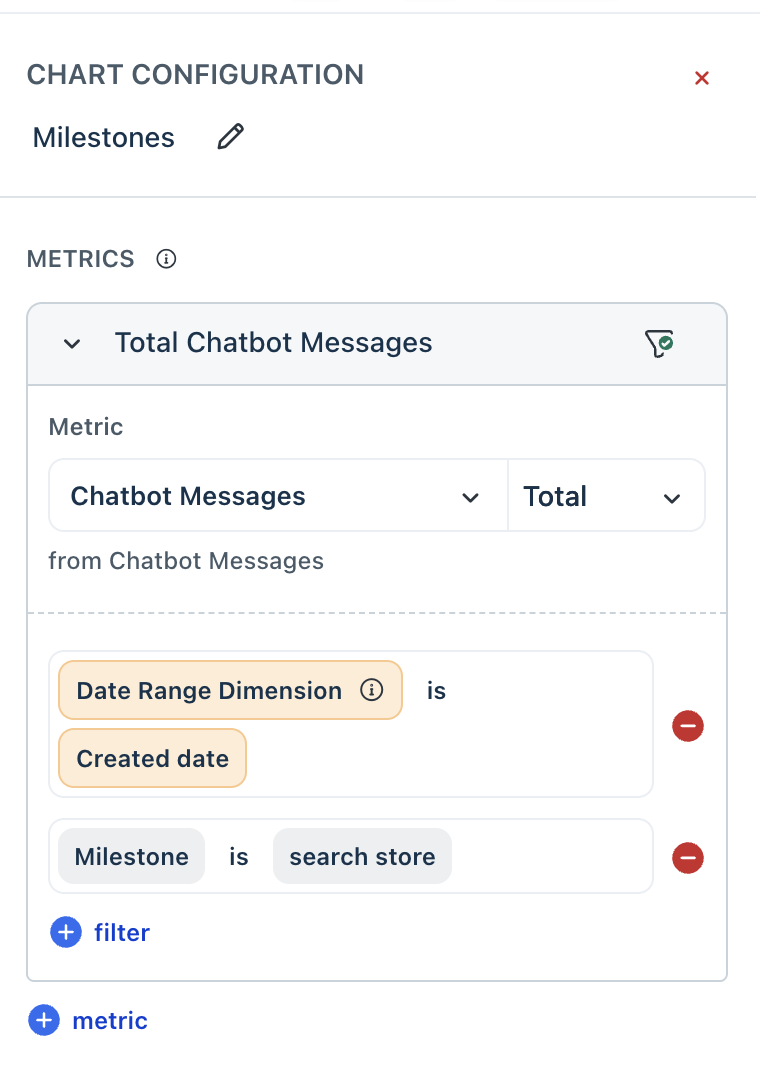
- Select the Milestone you want to analyze. For example, search store.
- Run the report to view the results.
- Drill down into the results to analyze customer interactions with the selected Milestone.