
 Community
 Video Library
 Agent Training
 Freshservice
 Freshdesk
 Freshchat
 Freshcaller
 Freshsales
 Freshteam
 Freshworks Neo
 Freshsurvey
 Growth
TABLE OF CONTENTS
The Tickets page lets you monitor customer interactions in real time. You can search for tickets, review exchanged messages, inspect activity logs, view API calls, and access customer and ticket details.
Prerequisites
Ensure that you have permission to access bot tickets.
View ticket logs
The Tickets page displays all customer interactions handled by your bot. Tickets are listed based on the time of the interaction, with the most recent ticket displayed first, regardless of the bot version.
You can use this page to view and perform the following tasks:
- Search for a specific ticket.
- View open and closed tickets.
- Filter tickets to find specific interactions.
- Review messages exchanged between the customer and the bot.
- Troubleshoot interactions using activity logs.
- Review API calls triggered during the interaction.
- View customer and ticket information.
To view ticket logs
- Go to AI Agent Studio > Bots.
- Select the bot for which you want to view logs.
- Click the Tickets tab.
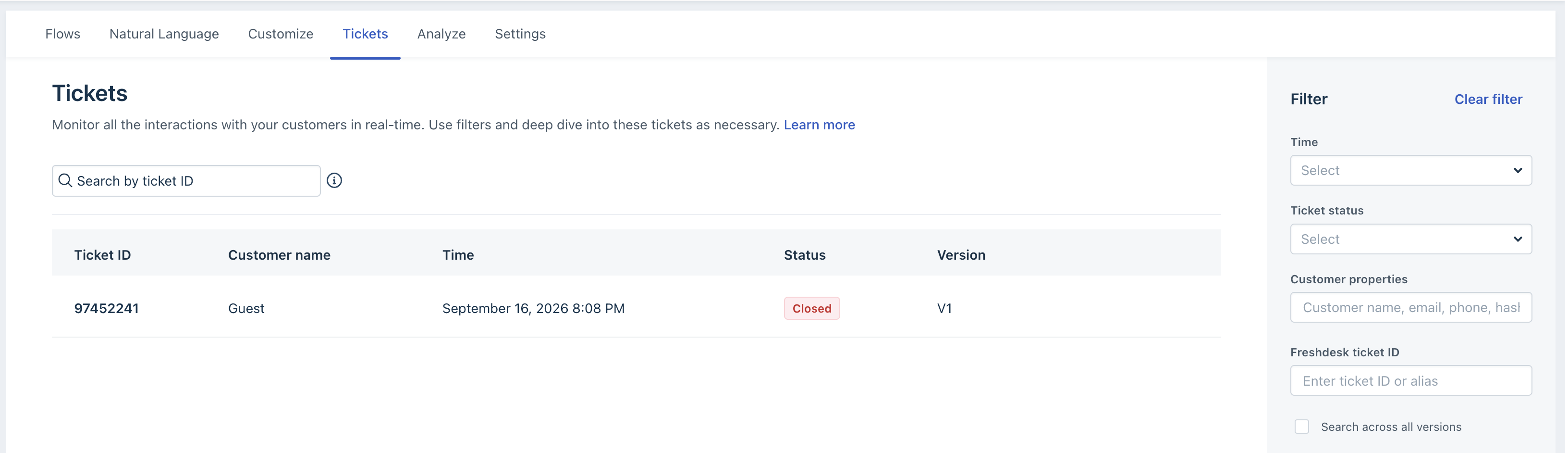 The Tickets page displays all recorded tickets for the selected bot, including customer interactions and preview logs. Each ticket includes the Ticket ID, Customer name, Time, Status, and Version.
 - Click a Ticket ID to view its details. The ticket details page contains the following tabs:
- Messages: Displays every message exchanged between the customer and the bot. You can select a message to navigate to the corresponding bot flow for troubleshooting or updates.
- Activity logs: Displays a chronological record of ticket events, including messages, triggered actions, evaluated conditions, remote API requests, and errors.
- API calls: Displays all API requests triggered during the interaction. Select an entry to view the request details, call status, and response parameters.
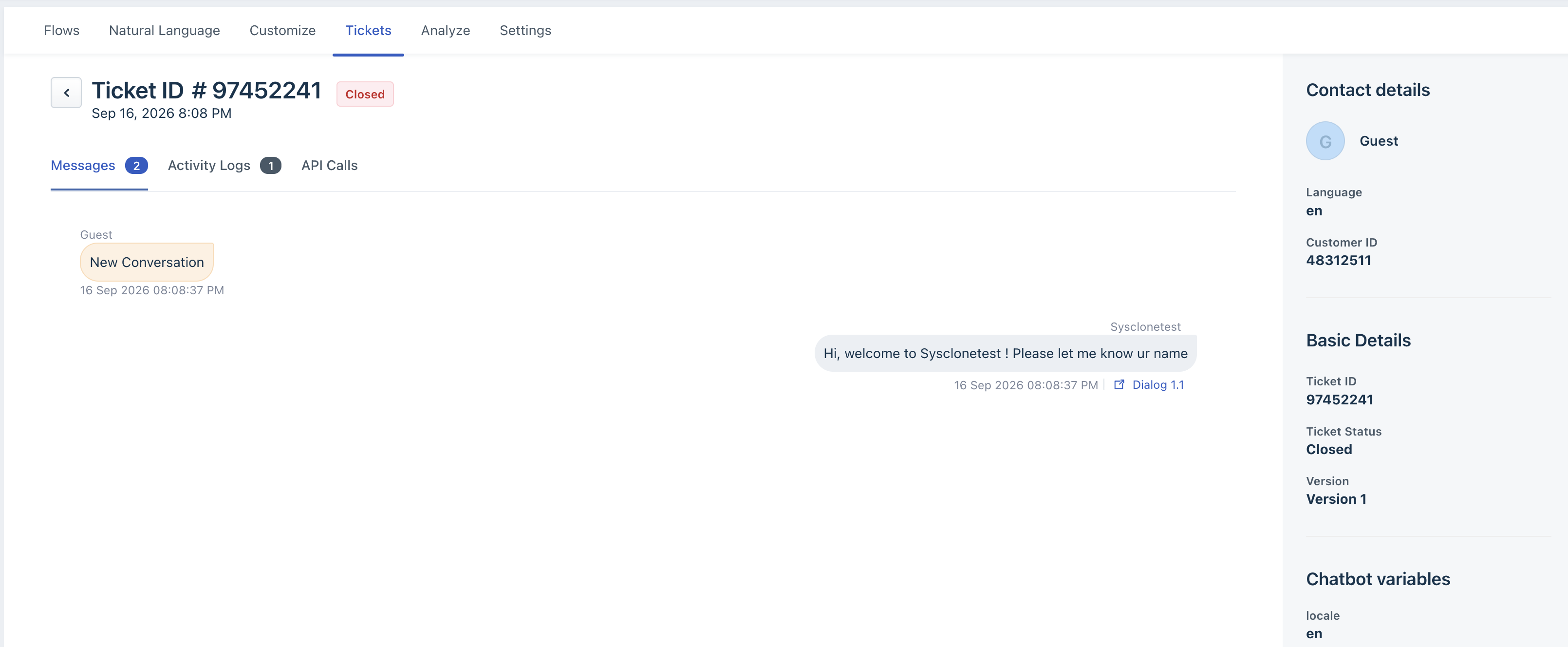
You can also view the Contact details in the right pane. Here you can view details such as customer ID, IP address, landing URL, and network, Ticket details, including the ticket ID, status, and bot version. Any custom properties configured for the ticket.
Note: Activity logs, API call history, IP address data, and landing URL data older than 30 days are not available from the Tickets page.
Search and filter logs
Use the search box and filters to quickly locate specific ticket logs.
Search for a ticket log
- Enter a Ticket ID in the search box to locate a specific ticket or use the available filters to narrow the list of tickets.
- Select a ticket to view its details.
Filter ticket logs
- On the Filter pane, choose your preferred filter options:
- Time: Filter logs within a specific date range.
- Ticket status: Filter by new, open, resolved, or agent hand-off tickets.
- Ticket ID: Search for specific customer conversations using ticket ID.
- Customer or preview tickets: Choose to view real or test interactions.
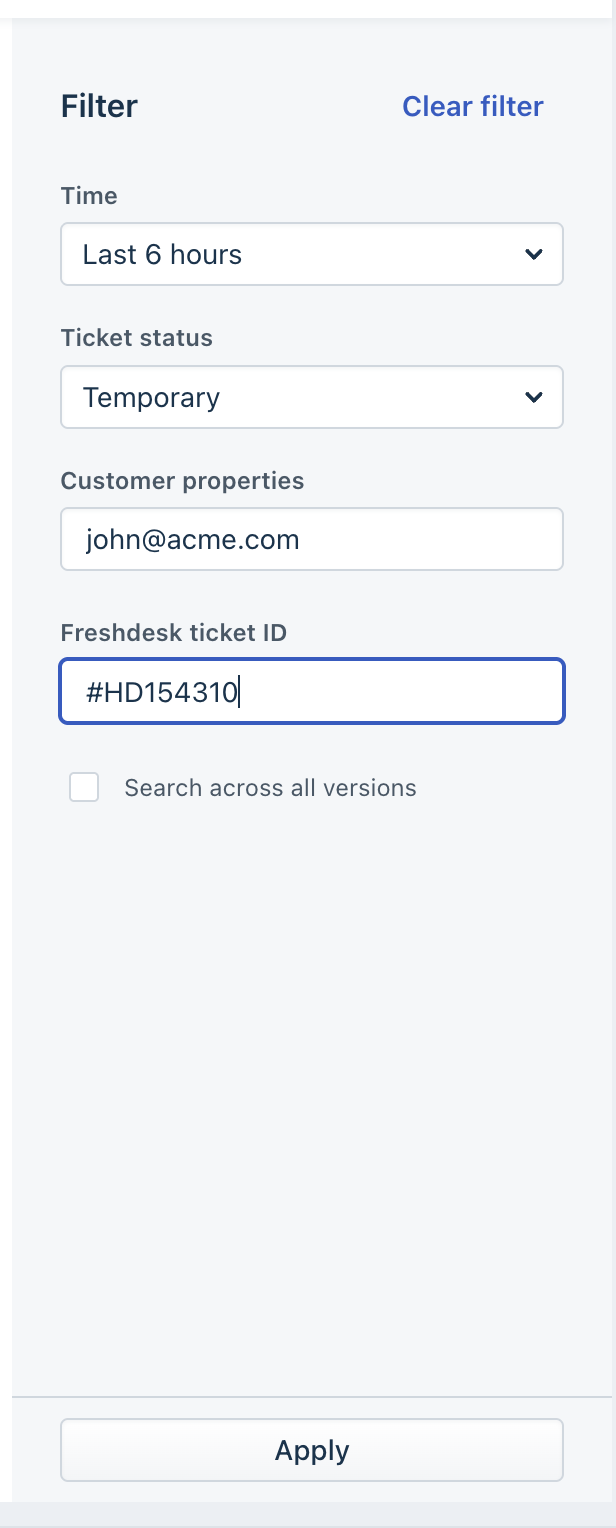
- Click Apply.