 Community
 Video Library
 Agent Training
 Freshservice
 Freshdesk
 Freshchat
 Freshcaller
 Freshsales
 Freshteam
 Freshworks Neo
 Freshsurvey
This article provides an overview of the enhancements made to the Ticket Details page in the Unified Inbox. These updates improve usability, enable real-time interactions, and streamline multi-channel support workflows for agents.
TABLE OF CONTENTS
Prerequisites:
- Ensure your Freshdesk account supports multi-channel communication (Email, Web Chat, and social channels).
- Ensure appropriate agent permissions are enabled to view and manage tickets.
Overview
The enhanced Ticket Details page introduces a modern, efficient interface that lets agents manage tickets across multiple channels from a single view. These improvements focus on faster navigation, better visibility, and improved response handling.
The key enhancements include:
- New quick list view: View and manage multiple tickets from a single screen.
- Intuitive ticket details layout: Experience an enhanced ticket details page that improves focus and usability.
- Improved reply editor: Respond seamlessly across channels with an enhanced reply editor that supports consistent communication workflows.
New quick list view
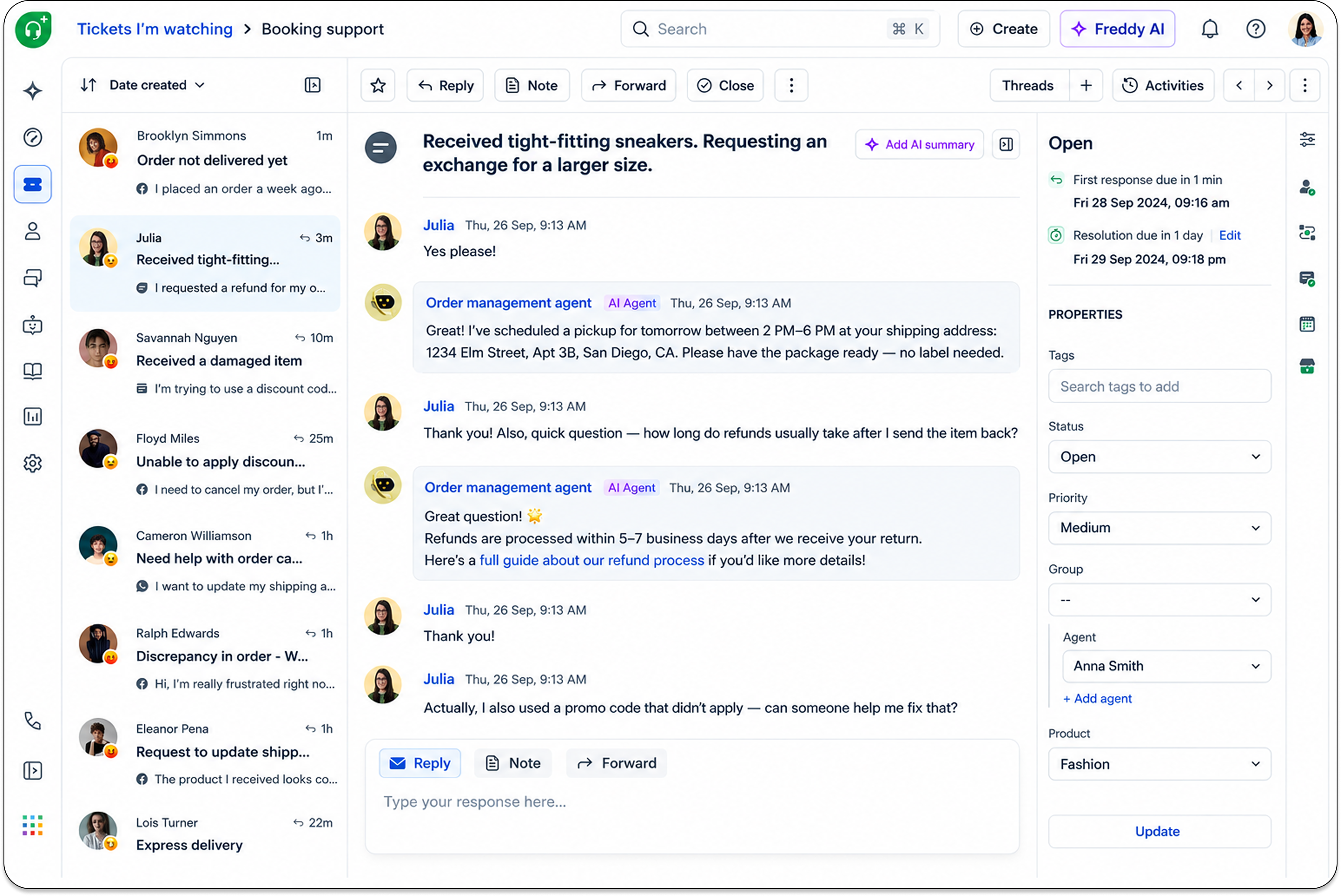
The new Quick List View, available in the left pane, enables agents to navigate and manage multiple tickets - all from a single screen.
Agents can now work faster and more efficiently and stay focused by quickly navigating between tickets without leaving the current view.
With this feature, you can:
View tickets side by side: Easily view and manage multiple tickets simultaneously while keeping a selected ticket in focus. This helps agents efficiently track ticket activity and customer responses.
Navigate seamlessly: Switch between tickets without leaving the ticket details page and automatically return to the last saved quick list view across sessions. This helps you pick up where you left off and maintain continuity in your work.
Quickly view SLAs: Stay informed with SLA timers for first response, next response, and resolution right next to each ticket. This visibility helps ensure you meet your service level commitments.
View ticket source: Easily identify the ticket source - Email, Webchat, or social channel.
- Receive and view real-time messages and tickets
View incoming messages from all support channels (email, Web Chat, social media) in real time as they are received.- The message list will automatically update to reflect new messages.
- If the quick list is collapsed, the expand icon will show an indicator with a count to denote that there are unattended tickets.
Intuitive ticket details layout
The ticket details layout is redesigned to reduce clutter and improve usability. The following sections provide the before-and-after experience for each feature.
Merge/delete actions
Before: Available at the top of the ticket body.  Live: These options are now available in the MoreOptions menu, providing a cleaner interface.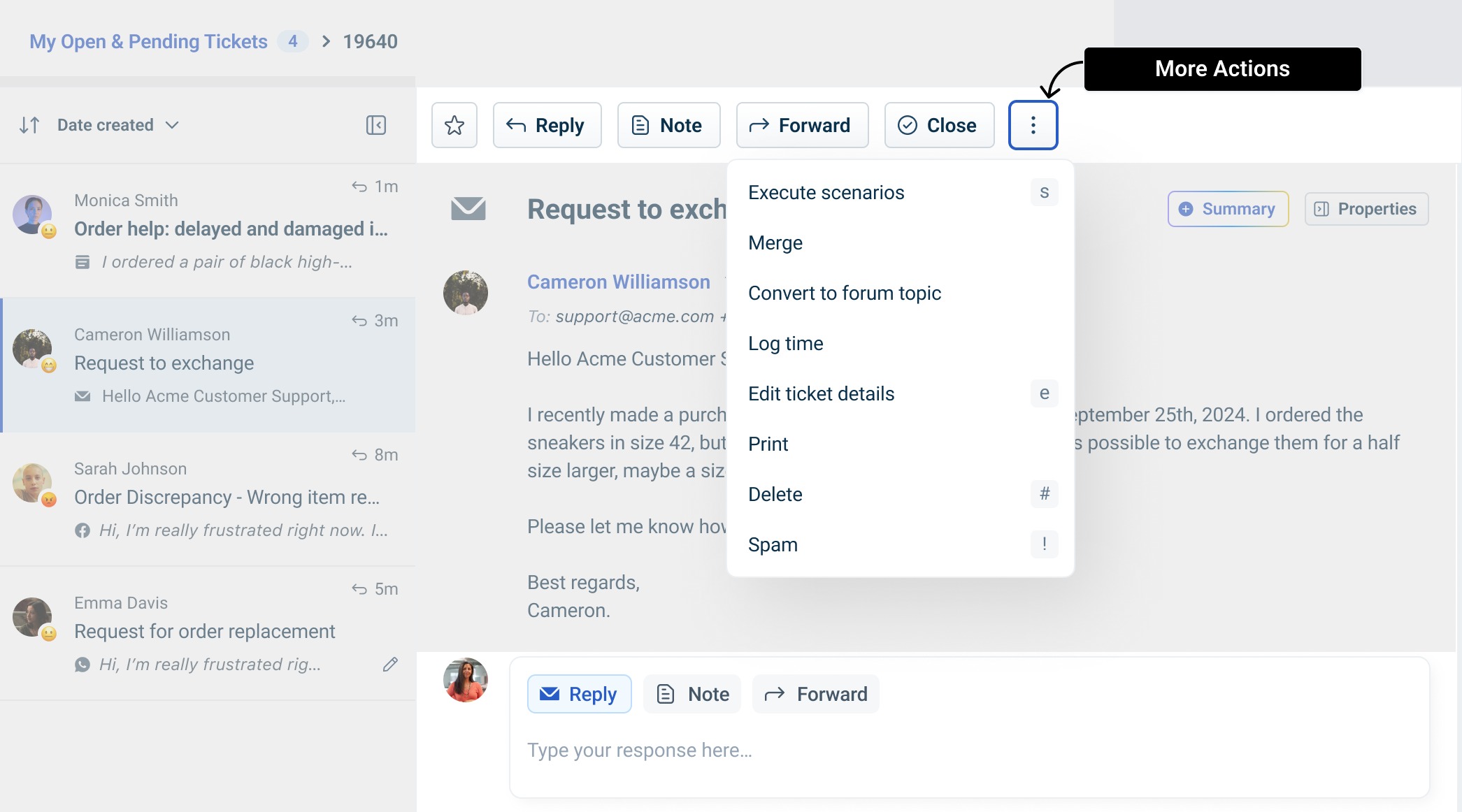
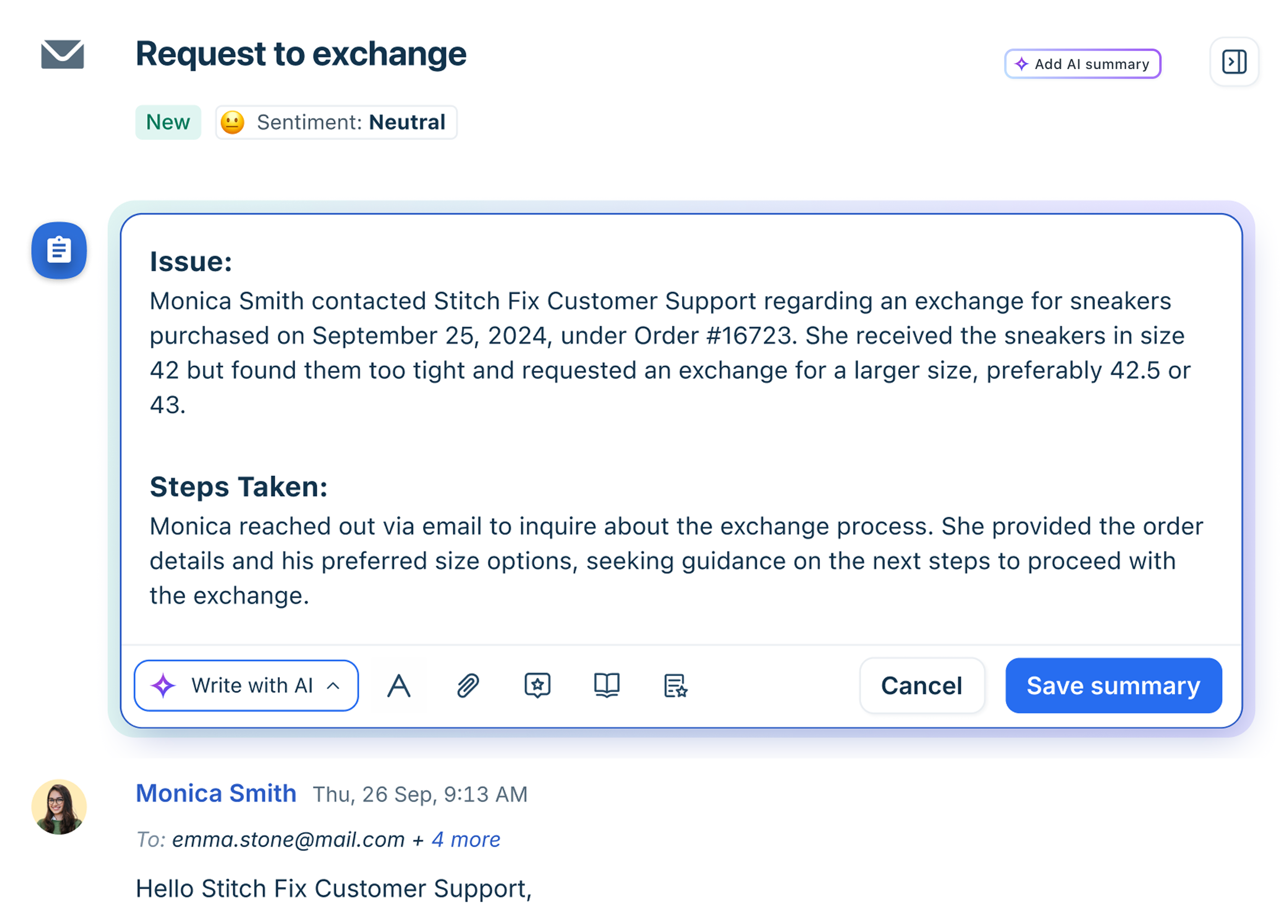
Ticket Summary
Before: Displayed as a private note at the top of the ticket body.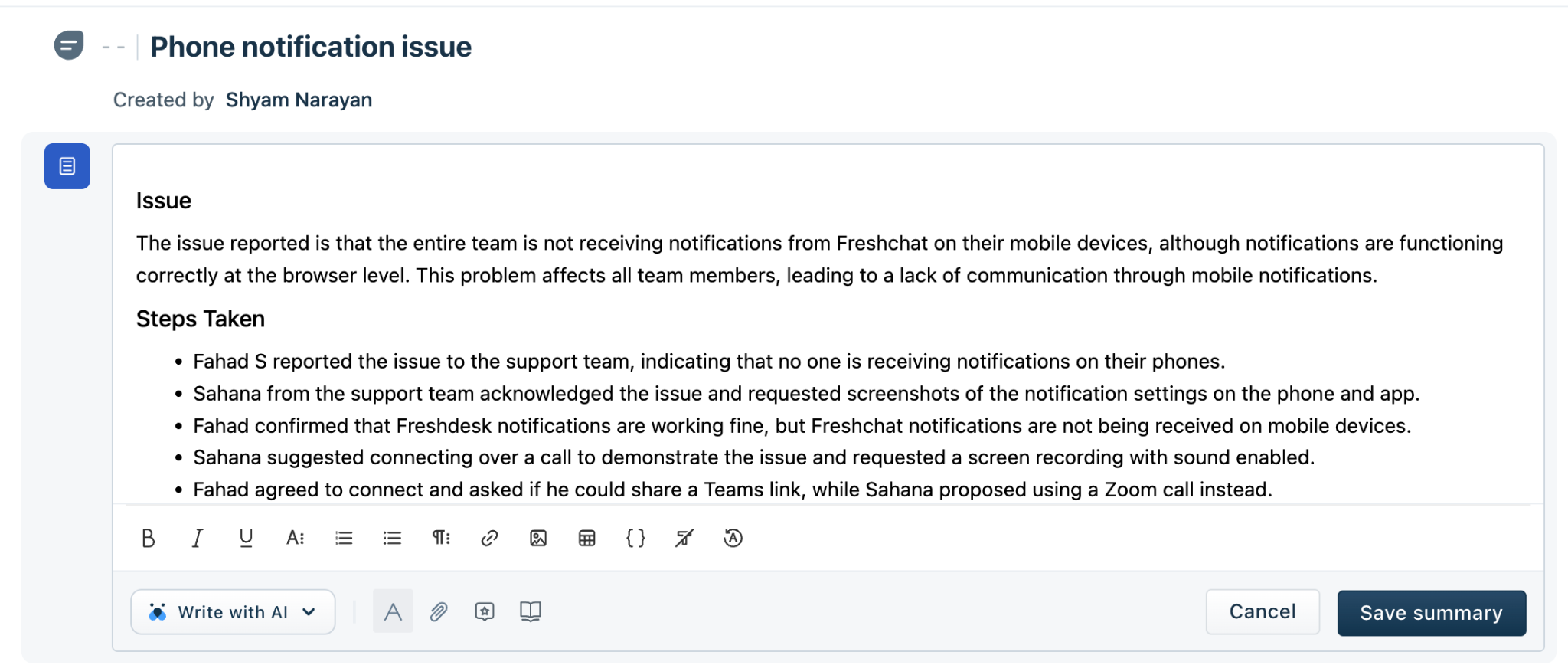
Live: Accessible via an expandable AddAI Summary button in the top-right corner of the ticket description. This change helps agents stay focused on active conversations and still access summaries when needed.
New keyboard shortcut
A new keyboard shortcut improves efficiency when editing ticket details.
Use e to open Edit ticket details
Agents can view all available shortcuts under the More options menu on the Ticket Details page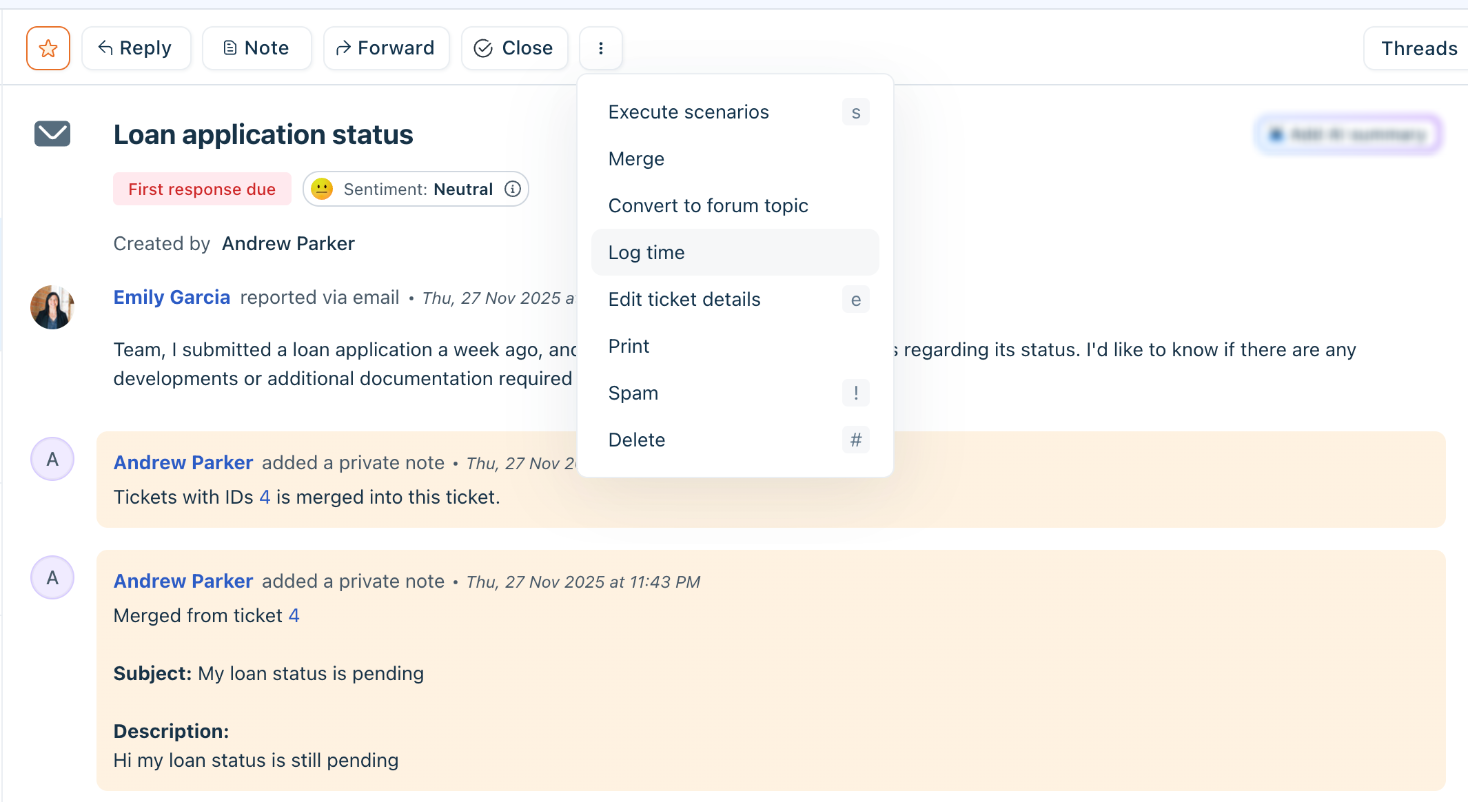
Improved reply editor
The reply editor has been redesigned to provide a consistent experience across all supported channels, including new channels such as web chat. The following list shows the before-and-after experience.
Before:
- Basic editor with minimum channel support, such as Email.
- Minimal formatting and response options
- No unified experience across different communication channels
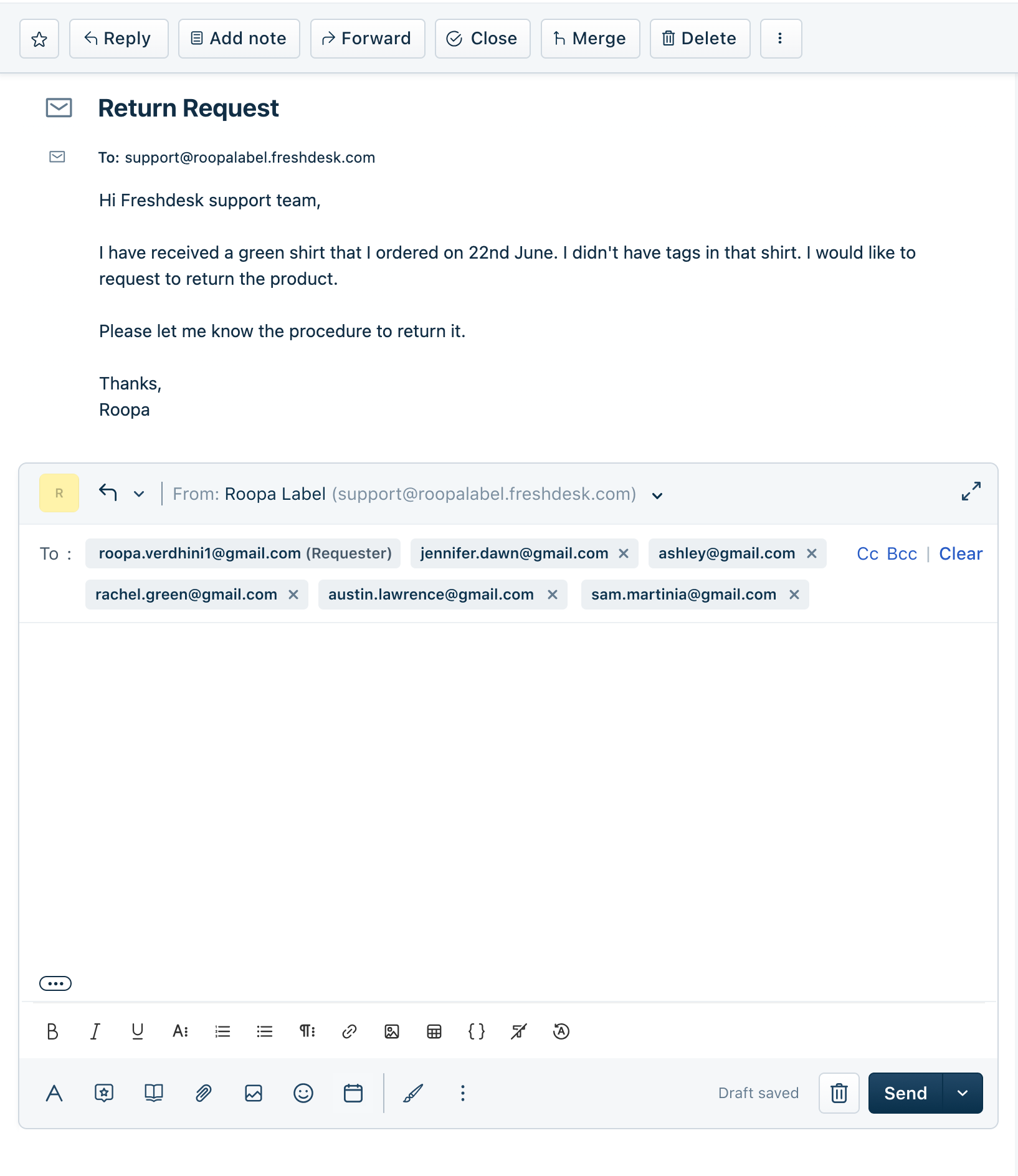
Live:
- Supports multiple channels, such as Email and Web Chat, through a channel switcher
- Provides contextual Reply to options based on the selected channel
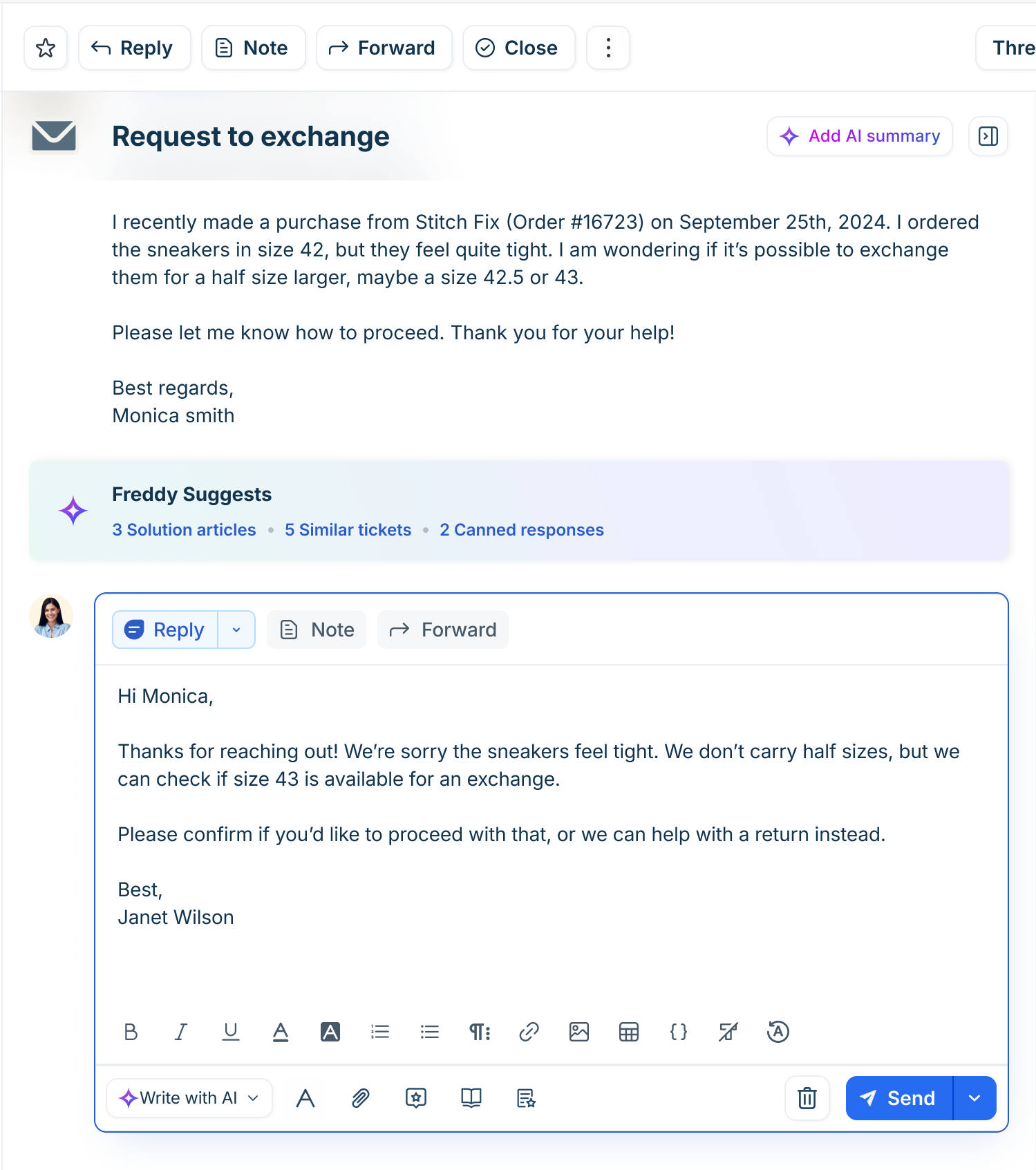
- Displays To, Cc, and Bcc fields clearly for email responses
- Introduces a card-style layout for improved readability
- Automatically saves drafts, even if the page is refreshed or closed
- Displays a Draft label for tickets with unsent responses in the Quick List view