
 Community
 Video Library
 Agent Training
 Freshservice
 Freshdesk
 Freshchat
 Freshcaller
 Freshsales
 Freshteam
 Freshworks Neo
 Freshsurvey
TABLE OF CONTENTS
- Prerequisites
- Quick diagnosis
- Tickets not routed to Email AI Agent
- Email AI Agent assigned but not responding
- Fix knowledge retrieval issues
- Troubleshooting checklist
- Frequently asked questions
- Contact Freshworks Support
If your Email AI Agent is not responding to customer tickets, the issue falls into one of two categories: the ticket was never routed to the Email AI Agent, or the agent was assigned but handed over the conversation before sending a response. Use the quick diagnosis table below to identify which applies, then follow the steps for that scenario.
Prerequisites
Before you begin, confirm the following:
- Administrator access to AI Agent Studio.
- The Email AI Agent is already created and active in your account.
- You have the ticket ID of the affected conversation.
Quick diagnosis
Identify your scenario using the table below, then proceed to the relevant section.
| What you observe | Likely cause | Refer to section |
|---|---|---|
Tickets not routed to Email AI Agent
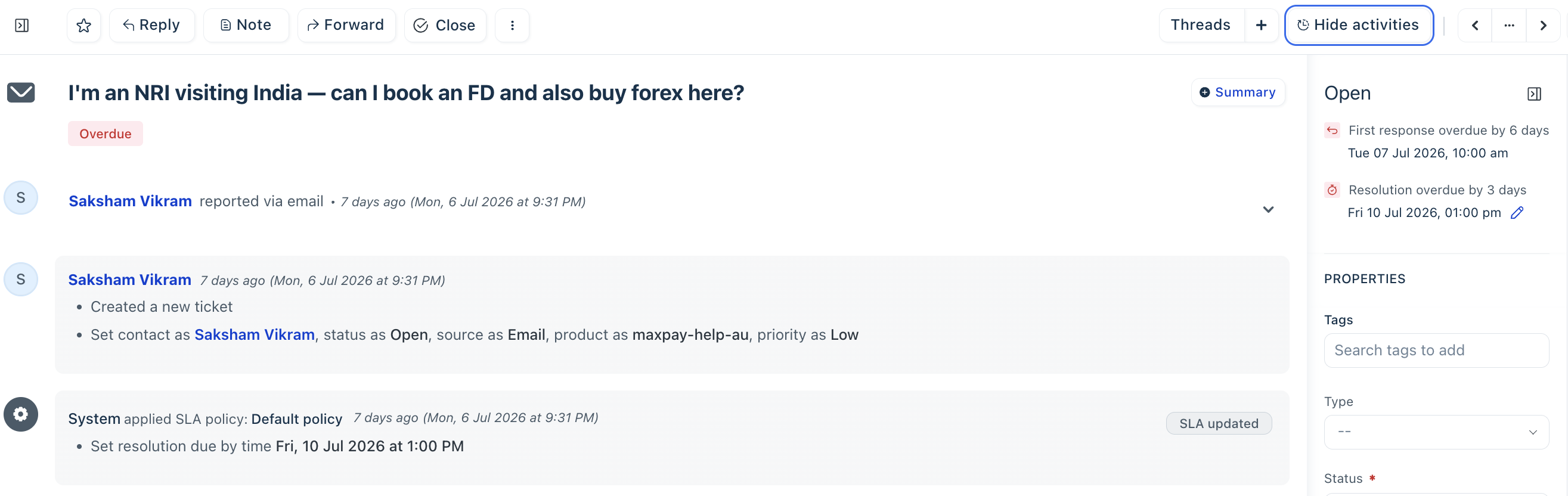
If the ticket's Activities timeline shows no entry for System assigned the ticket to Email AI Agent, the agent never intercepted the conversation. Work through the checks below in order.
Verify the deployment channel
Navigate to Email AI Agent > Deploy > Manage and confirm all three conditions are met:
- Email is enabled as a deployment channel.
- The correct support mailbox is selected.
- The mailbox receiving the customer's email matches the mailbox configured in the deployment settings.
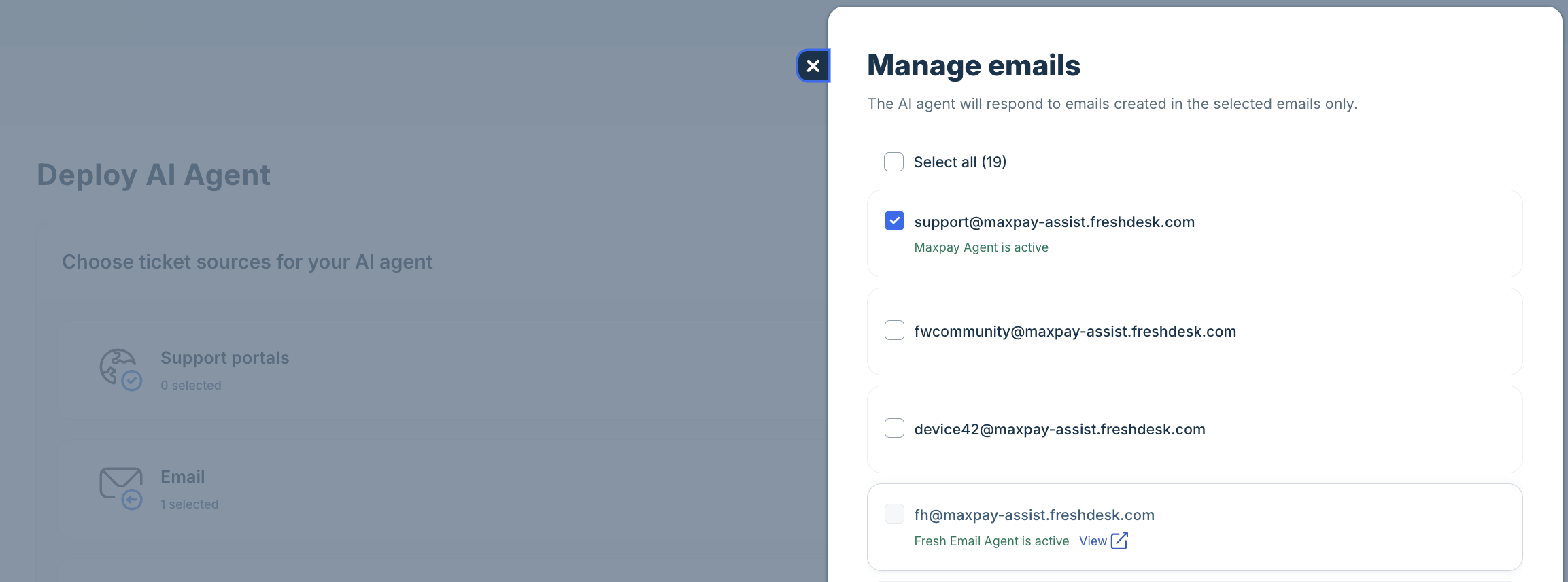
If Email is not deployed for the intended mailbox, tickets arriving at that mailbox are never routed to the Email AI Agent.
Check the daily ticket handling limit
Navigate to Email AI Agent > Build > Configurations > Handover Settings and locate the Daily Ticket Handling Limit. This cap controls the maximum number of tickets the agent processes per day. Once the limit is reached, new incoming tickets are skipped until the following day.
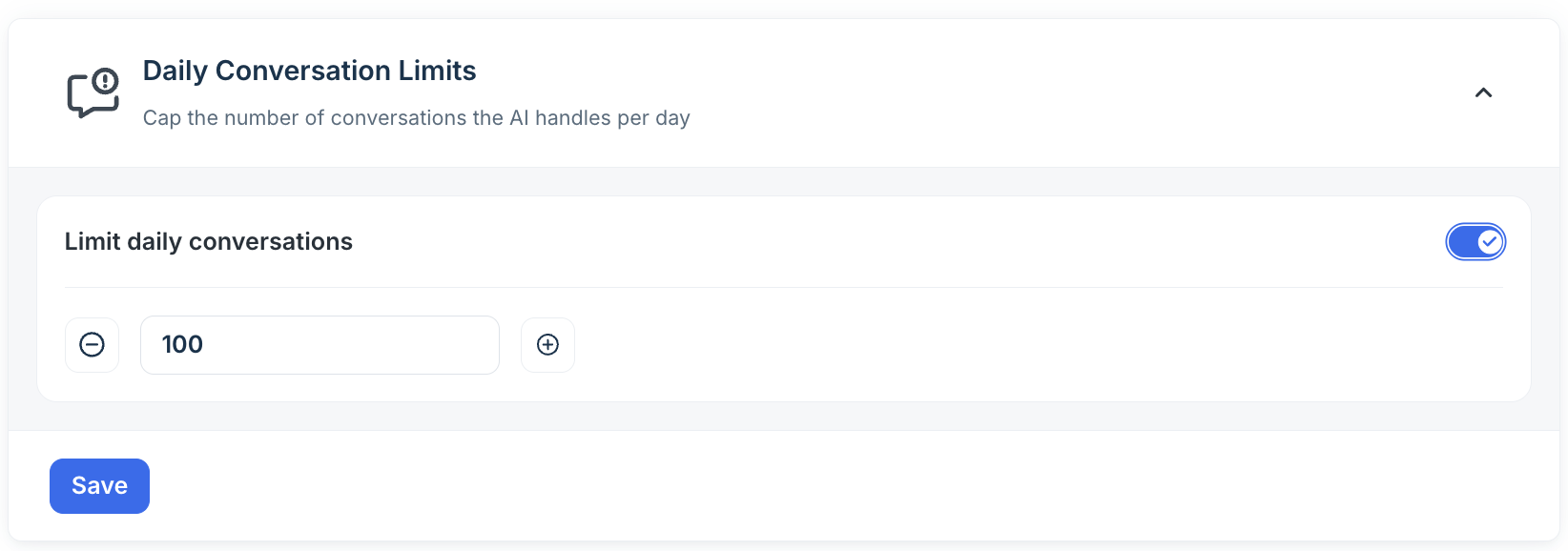
To restore processing, do one of the following:
- Increase the daily limit to accommodate your current ticket volume.
- Disable the limit if you do not want to restrict daily processing.
Note: Tickets skipped because the daily limit was reached are not automatically reassigned. Only new tickets created after capacity is restored will be picked up.
Confirm Freddy Session availability
Navigate to Admin > Account > Billing and confirm your account has sufficient Freddy Session Packs available. Each Email AI Agent interaction consumes a Freddy session. When all sessions are exhausted, the agent stops processing tickets until more sessions are purchased or renewed.
If sessions are depleted, purchase additional session packs or renew your existing allocation to restore agent processing.
Email AI Agent assigned but not responding
If the Activities timeline shows "System assigned the ticket to Email AI Agent," followed by a handover event with no reply, the agent was active on the ticket but transferred it before responding. The handover reason recorded in the timeline determines your next step — do not investigate your knowledge base until you have reviewed it.
Review the handover reason
Open the Activities timeline on the affected ticket and locate the handover event. Each handover includes a recorded reason.
Use the reason to determine your path forward:
- No answer found → Continue to Fix knowledge retrieval issues.
- Any other reason → Continue to Handover due to expected behavior below.
- Application error / internal error → Continue to Handover due to a system error below.
Handover due to expected behavior
Not every handover indicates a problem. Several reasons reflect intended behavior based on your agent's configuration and do not require any knowledge changes.
Common expected handover reasons include the following:
- The customer explicitly requested a human agent.
- The customer provided negative feedback (for example, a thumbs-down) during the conversation.
- The configured maximum number of AI replies for the conversation was reached.
- A conversation or discussion limit setting was met.
- A timeout or other transient system event occurred.
- Another configured handover policy condition was triggered.
For these scenarios, review the handover reason and verify it aligns with your Email AI Agent configuration and handover policies. No knowledge changes are needed.
Handover due to a system error
If the handover reason indicates an application error, internal error, or another unexpected system failure, do not attempt further self-service troubleshooting. Collect the affected ticket details and contact Freshworks Support directly.
Important: The knowledge troubleshooting steps in the next section apply only when the handover reason is "No answer found". Skip them for all other handover reasons.
Fix knowledge retrieval issues
If the handover reason is "No answer found", the Email AI Agent could not retrieve sufficient information from your available knowledge sources to generate a grounded response. Work through each step below in order.
Confirm knowledge source status
Navigate to Knowledge and confirm the relevant source meets all three conditions:
- Added successfully — the source appears in the knowledge list with no errors.
- Fully synchronized — the sync status shows as complete, not in-progress or failed.
- Enabled for the Email AI Agent — the source is active and included in the agent's learning scope.
Note: If a source is still syncing or has failed, the Email AI Agent cannot retrieve content from it. Resolve the sync status before continuing.
Check solution article visibility
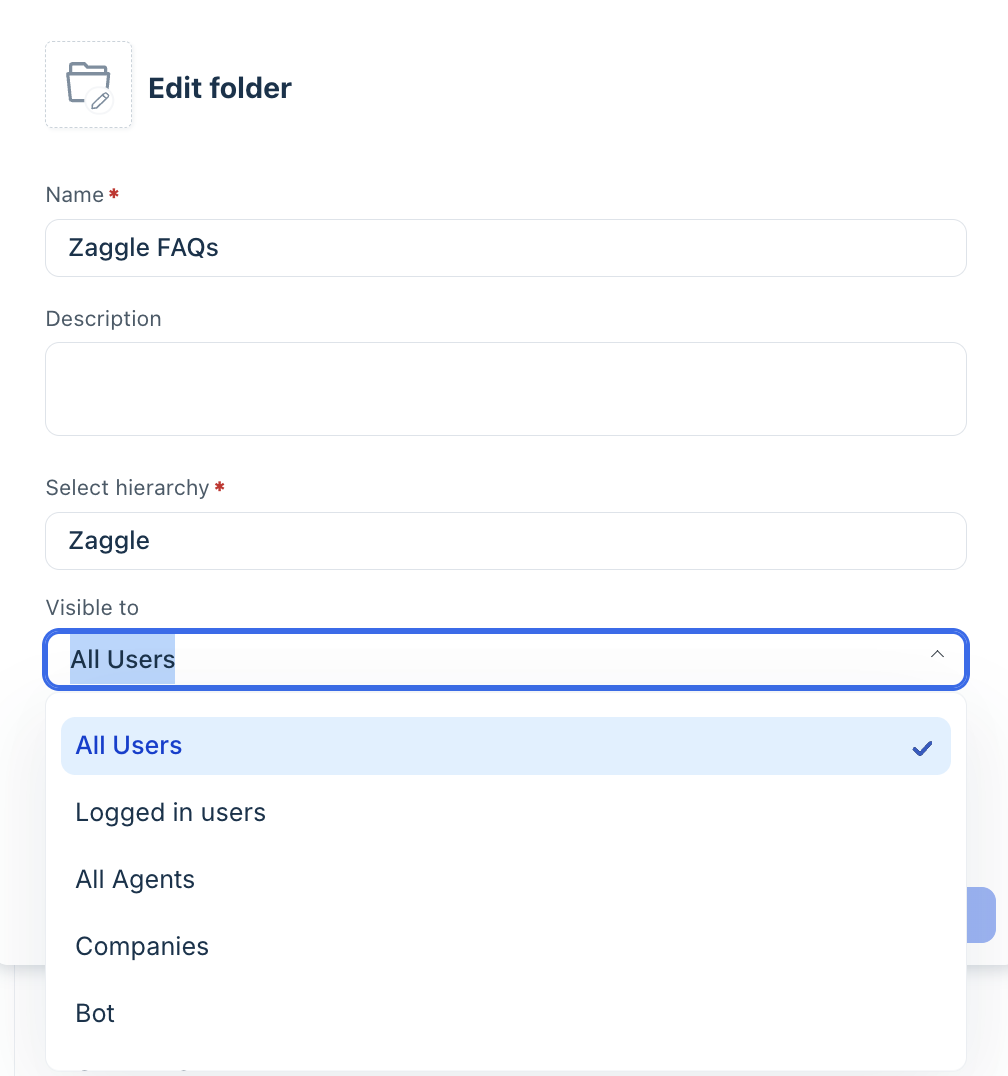
If you are using Solution Articles, verify that each relevant article belongs to a category whose visibility is set to one of the following:
- All Users
- Bots
Articles in categories with any other visibility setting are excluded from the Email AI Agent's learning pool. Update the category visibility and save your changes if needed.
Improve article quality for semantic retrieval
Even when a knowledge source is synchronized and visible, the Email AI Agent may still fail to retrieve it if the content is unclear. The Email AI Agent uses semantic matching, not keyword search — it retrieves articles based on meaning, not exact terms.
This means an article titled "Updating customer account details" can match a query about "changing a billing address" — as long as the article clearly explains the process. Conversely, an article containing the exact phrase "billing address" may not be retrieved if the answer is vague, buried, or surrounded by unrelated content.
Evaluate each article you expect the agent to use by asking: if a new support agent with no prior product knowledge read only this article, could they confidently answer the customer's question? If not, the article needs improvement.
Common issues that block retrieval:
- Heavy use of internal jargon or unexplained acronyms.
- Missing background or prerequisite context.
- Key information implied rather than explicitly stated.
- Multiple unrelated topics combined in a single article.
- Important details buried after lengthy unrelated content.
To improve retrieval quality, apply the following practices:
- State the direct answer early in the article, before adding context or caveats.
- Explain every acronym on first use.
- Write as if the reader has never used the product before.
- Keep each article focused on a single topic or task.
- Use clear headings to separate logical steps or sections.
- Ensure the article is fully self-contained and readable without other references.
Tip: For detailed guidance on writing AI-optimized knowledge content, see Write Freddy AI-optimized knowledge content.
Resync and retest
After updating a knowledge article, allow a short time for changes to take effect before retesting.
- Save the updated article.
- Wait approximately 1–2 minutes for the knowledge index to synchronize.
- Retry the same customer query and check whether the Email AI Agent now generates a response.
Troubleshooting checklist
Run through this checklist before contacting support to confirm you have covered each area.
Routing checks
- Email is enabled as a deployment channel.
- Correct support mailbox is selected in the deployment settings.
- Daily ticket handling limit has not been reached.
- Freddy Session Packs are available.
Handover checks
- Reviewed the handover reason in the Activities timeline.
- Confirmed whether the reason is "No answer found" or another condition.
Knowledge checks (only for "No answer found")
- Knowledge source is added and fully synchronized.
- Solution Article category visibility is set to All Users or Bots.
- The article clearly and explicitly answers the customer's question.
- No unexplained acronyms or assumed product knowledge in the article.
- Changes saved and synced before retesting.
Frequently asked questions
- Why does the Email AI Agent skip some tickets but respond to others?
The most common cause is the daily ticket handling limit. Once the configured cap is reached, the agent skips all remaining tickets until the next day. Check Email AI Agent > Build > Configurations > Handover Settings to review or remove the limit. - The article exists in my knowledge base, but the agent still says "No answer found". Why?
Retrieval is based on semantic meaning, not keyword matching. An article can be present and synchronized but still fail to be retrieved if the content is vague, uses unexplained internal terminology, or mixes multiple topics. Review the article quality checks in the Fix knowledge retrieval issues section above. - Can I reassign tickets that were skipped because the daily limit was reached?
No. Tickets skipped due to the daily limit are not automatically reassigned. Only tickets created after capacity is restored will be picked up by the Email AI Agent. For skipped tickets, you will need to reassign them manually. - What is a Freddy Session, and how do I check how many I have left?
A Freddy Session is consumed each time the Email AI Agent processes a ticket interaction. To check your remaining session count, navigate to Admin > Account> Billing and review your Freddy Session Packs balance. Contact Freshworks Support to purchase additional packs if needed. - How long does it take for a knowledge update to take effect?
In most cases, updates to knowledge articles are indexed within 1–2 minutes. If the agent still does not retrieve the updated content after waiting, verify the sync status in the Knowledge tab and confirm the source shows as fully synchronized.
Contact Freshworks Support
If you have completed all checks above and the Email AI Agent still does not respond, contact Freshworks Support. Include the following to help expedite the investigation:
- Ticket ID of the affected conversation.
- Approximate time the issue occurred.
- A screenshot or export of the Activities timeline, including the assignment and handover events.
- Screenshots of the deployment configuration, handover reason, and knowledge source sync status.