
 Community
 Video Library
 Agent Training
 Freshservice
 Freshdesk
 Freshchat
 Freshcaller
 Freshsales
 Freshteam
 Freshworks Neo
 Freshsurvey
 Sprout
TABLE OF CONTENTS
When a ticket is assigned, reassigned, or updated, you may want to review what has changed since it was created, whether automatically or manually.
For example:
- Agents can track updates to fields, ownership, or status.
- Admins can review the complete ticket history, including responses, field changes, and automation rules executed.
- The Show Activities button on the ticket details page provides a comprehensive log of all activity on a ticket.
Note: If you signed up for Freshdesk before November 2025, the view activity page will be different.
How to view ticket activities?
To View Ticket Activities:
- Click on any ticket from Tickets.
- In the Ticket Details page, click on the Activities button in the top right corner.
In the normal view:
You will only see the ticket description, all replies/notes, and CSAT survey responses (if enabled).
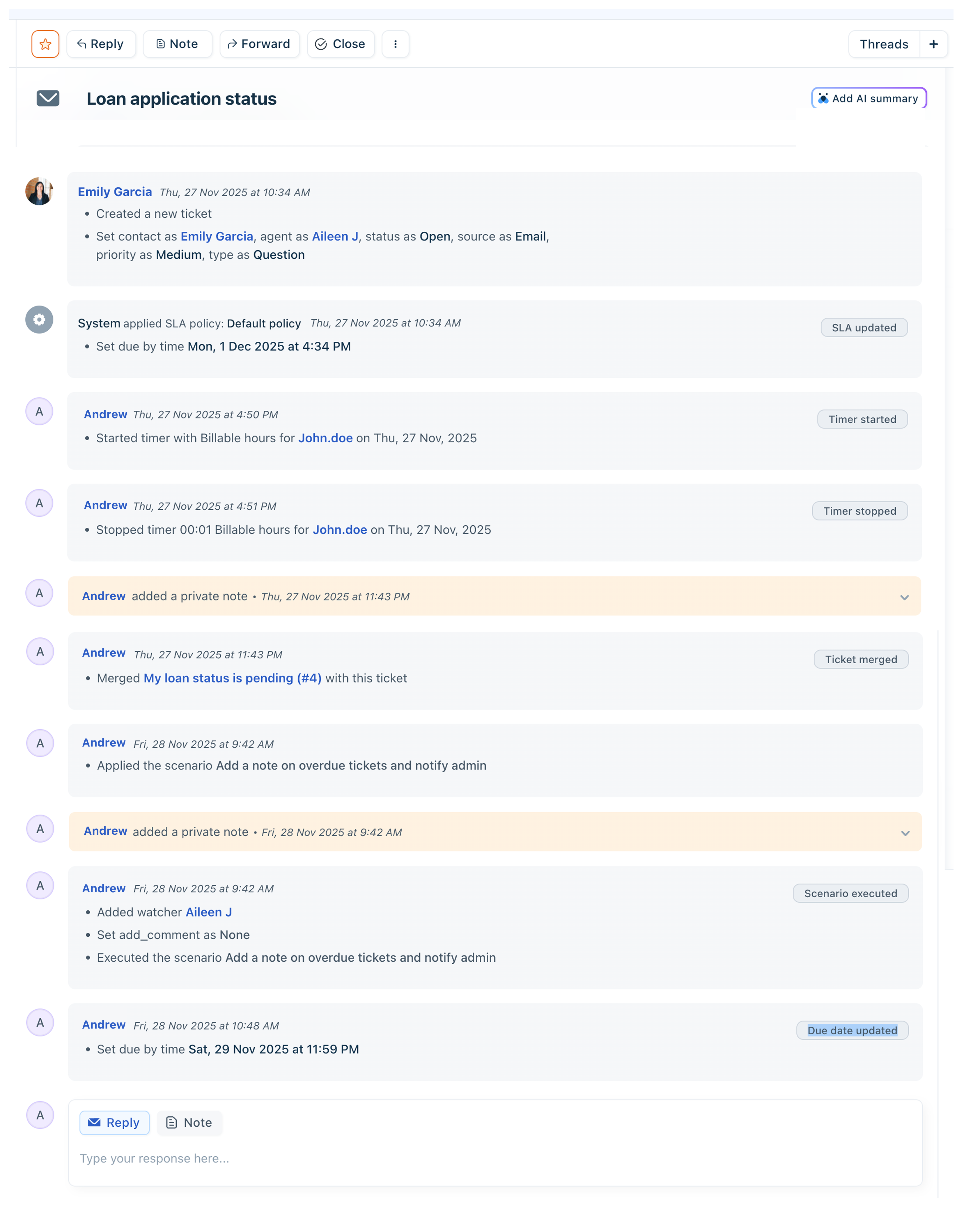
When Activities is on:
- Replies/notes are collapsed.
- A chronological list of ticket activities becomes visible. Each activity has a corresponding label and action description, such as SLA updated or Watcher added.
What are the types of activities tracked?
The Activities log captures the following:
- Changes to default fields (Type, Status, Priority, Group, Agent, Product, Source)
- Changes to non-textual custom fields (Dropdown, Checkbox, Number, Date, Decimal, Dependent fields)
- Changes to textual custom fields (single-line and multi-line text fields — timestamp only)
- Edits to ticket subject or description (timestamp only)
- Adding/removing tags
- Adding watchers
- Adding CCs to tickets
- Splitting/merging tickets
- Deleting tickets
- Marking tickets as spam
- Restoring spam/trashed tickets
- Editing or deleting private notes
- Modifying timesheets
- SLA updated activities
- Modifying ticket Due By time
- Sending an email to a requester, agent, or group
A few things to note:
- Even when Activities is ON, you can still click an individual note/reply/description to view the content.
- Activities are tracked, regardless of whether they were created manually, via system automations, scenario automations, or bulk actions.
- For better readability, concurrent activities are grouped together based on the time they occurred.
- System activities, such as executing automation rules, will show the rule name and include a hyperlink to the Admin page. For Agents/Supervisors, only the automation type and changes will be visible.

Pagination in Ticket Activities
Normal mode:
- If there are more than 3 responses/notes, the entire conversation, except the ticket description and the last 3 responses is collapsed.
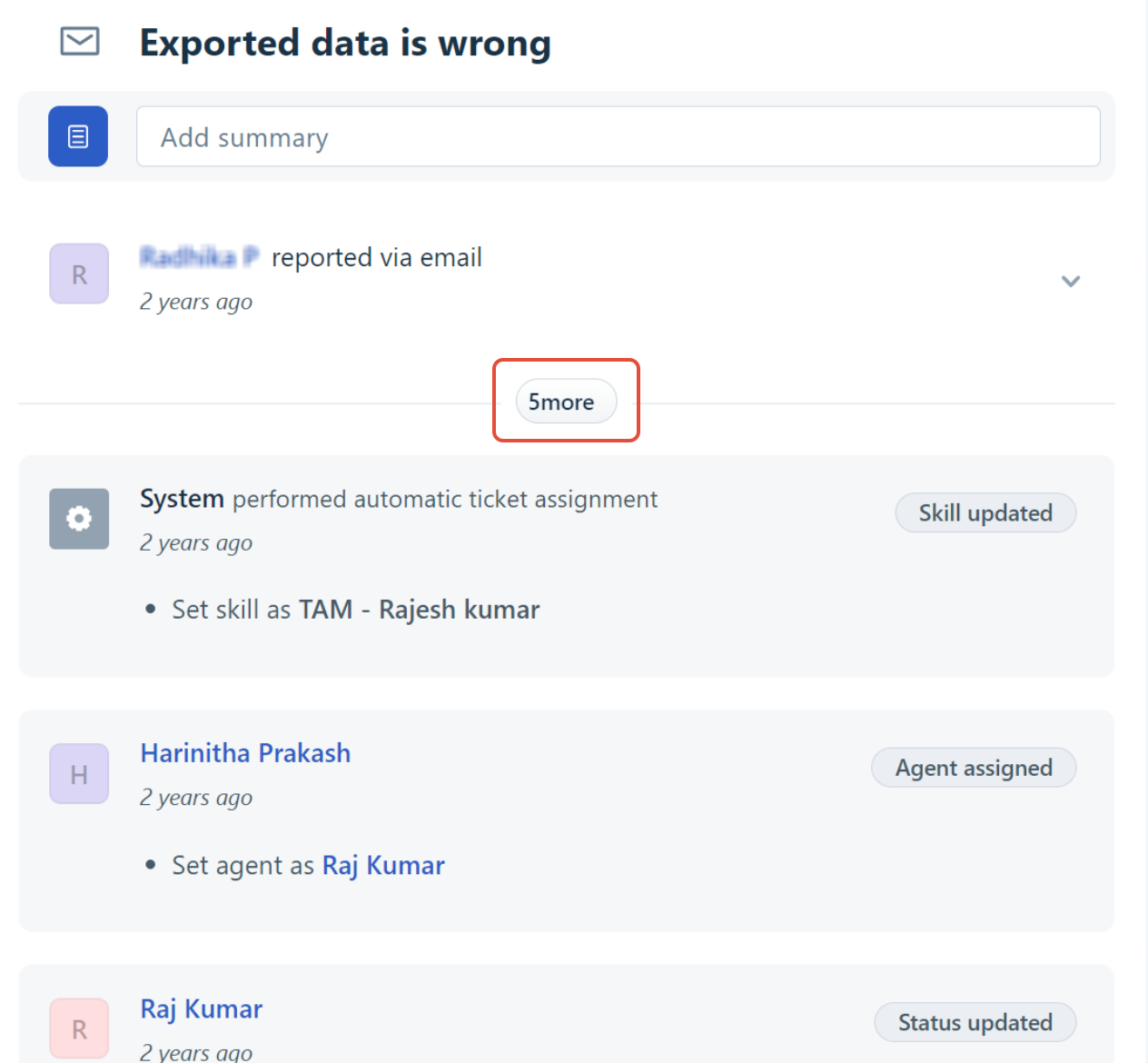
- You can see the number of hidden responses in the collapsed block shows the number of hidden responses.
Activities mode:
- If there are more than 20 activities (including replies/notes), only the first 20 are displayed.
- Additional activities are grouped into a collapsed block with a count of hidden items. To view more than 20 activities at a time, click more.
For example, for a ticket with 72 activities, you may have to click three more times to see all activities.
Labels for ticket activities
Each activity block is labeled for quick reference. If multiple activities occur together, one label is chosen based on the priority list below: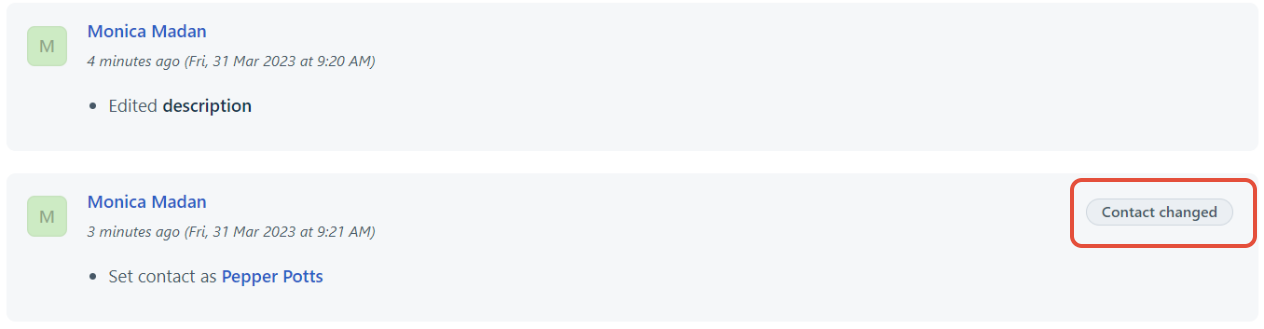
Priority | Activity | Label |
1 | Delete a ticket | Ticket Deleted |
2 | Mark as spam | Marked Spam |
3 | Restore a ticket from trash/spam | Ticket Restored |
4 | Change ticket status | <Status> |
5 | Assign ticket to a specific agent | Agent Assigned |
6 | Reassign ticket to another agent | Agent Reassigned |
7 | Change ticket agent to None | Agent Unassigned |
8 | Change ticket priority | <Priority> |
9 | Assign ticket to a specific group/Change ticket group to None | Agent Group Changed |
10 | Associate ticket to a specific product/Change ticket product to None | Product Updated |
11 | Change ticket source | Ticket Source |
12 | Change ticket type | Ticket Type |
13 | Add/remove tags | Tag Updated |
14 | Execute a scenario automation | Scenario Executed |
15 | Add a watcher to a ticket | Watcher Added |
16 | Remove a watcher from a ticket | Watcher Removed |
17 | Change Due by time | Due Date Updated |
| 18 | SLA is updated | SLA updated |