Community
 Video Library
 Agent Training
 Freshservice
 Freshdesk
 Freshchat
 Freshcaller
 Freshsales
 Freshteam
 Freshworks Neo
 Freshsurvey
 Growth
TABLE OF CONTENTS
Proactively inform customers when your agents are offline and allow them to leave a message. The Away Experience in Web Chat helps you manage non-business hours interactions by converting them into tickets, either as email tickets or web chat tickets, so your agents can respond later without losing context.
User requirements: Ensure that you have admin permissions to configure Away Experience.
What is Away Experience?
The Away Experience defines how the Web Widget behaves when customers contact outside business hours or when no agents are available. You can configure this for each Web Chat Topic to:
- Display an “Away (Offline)” label on the widget
- Show a custom away message
- Allow customers to describe their issue
- Choose how these interactions are converted into tickets.
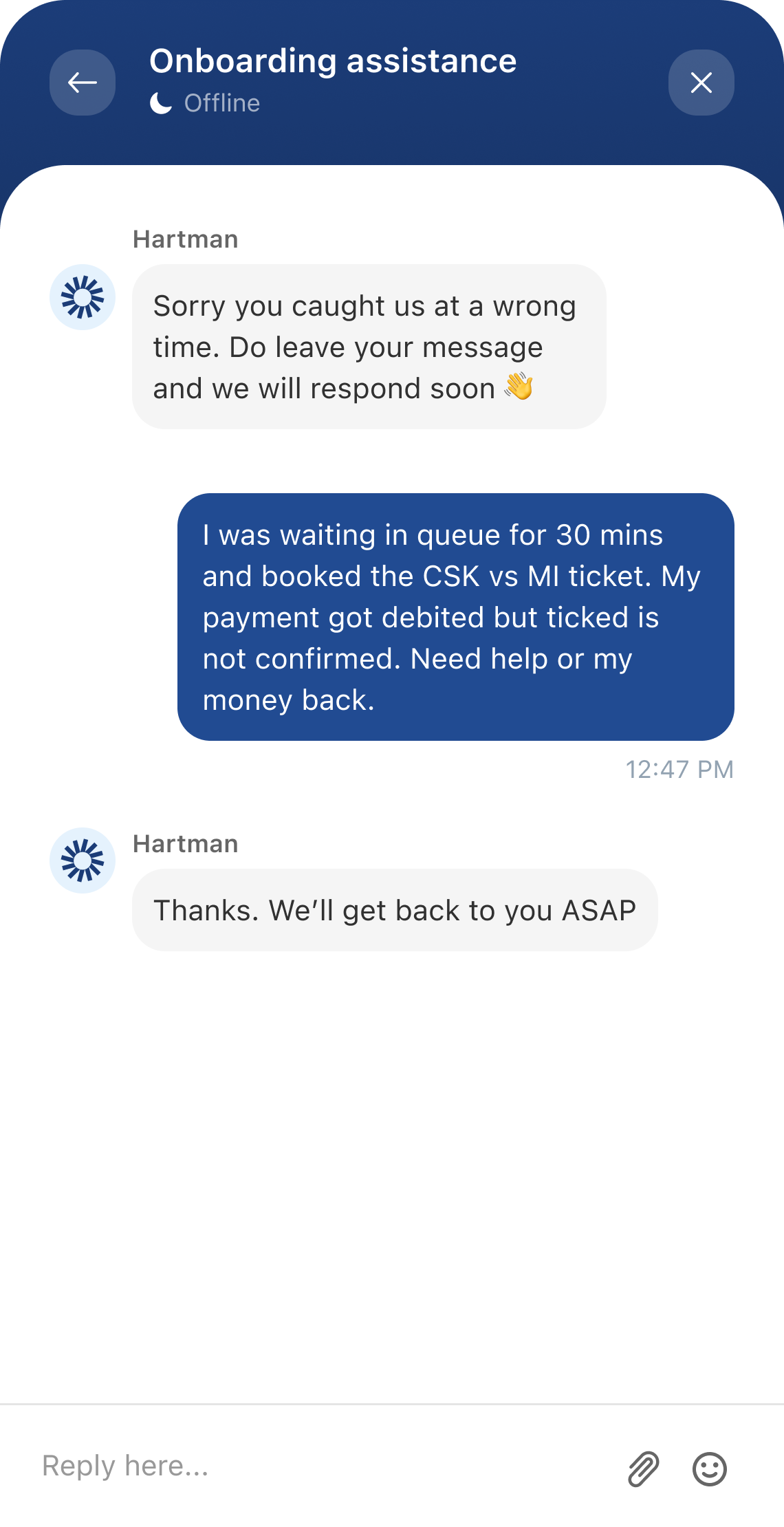
This ensures that all offline conversations are recorded and systematically followed up on once agents are online.
For example, you can configure away experience to:
- Manage after-hours chats efficiently when your teams work in fixed shifts
- Collect detailed issue descriptions even when agents are offline
- Support teams to maintain a consistent, 24/7 customer experience through proactive offline messaging
- Automatically route offline messages as email or chat tickets for timely follow-up
For details on creating a Web Chat Topic, see Create Web Chat Topics.
Benefits:
- Automatically manage after-hours or offline conversations
- Convert non-business hours messages into structured tickets for easy follow-up
- Prevent customers from repeating their issue when agents resume
- Offer flexibility to either collect customer details via form or continue the chat once agents are online.
Prerequisites:
Away Experience is an optional configuration for Web Chat Topics. However, if you want to enable it, ensure you also configure the following:
- Business hours:
Away Experience activates based on your defined Business Hours. If no business hours are defined, the Away Experience will use the default business hours. For instructions, see Business Hours. - Pre-chat form (optional):
If both the pre-chat form and Away Experience (via Email route) are enabled, the Away Experience takes precedence during off-hours. Customers will see the away flow instead of the pre-chat form when reaching out after hours. But for Away Experience (via Web Chat route) the pre-chat form will take precedence and create a web chat ticket which the agents can respond to when they log back in the next business day. For details, see Configure Prechat Forms.
Ticket conversion options
When a customer initiates a chat outside of business hours, the Away Experience automatically converts the interaction into a ticket. You can control this behavior by selecting one of the following options:
- Create an email ticket
- Customers fill out a ticket form when they contact you outside of business hours
- The form collects key information such as name, email, and issue details
- Agents receive an email-source ticket and respond via email
- Recommended for scenarios where customers may not revisit the widget on your web page
- Create a web chat ticket
- Customers will fill out the pre-chat form and continue chatting via the web widget
- The conversation is logged as a web chat ticket and allows agents to respond directly through the widget
- Best suited for customers who will return to your website
How to configure Away Experience?
Note: If you have enabled AI Agent for the web chat topic, the away experience must be set up in AI Agent’s configuration page. For details, see Configure Advanced Settings for AI Agents
To configure:
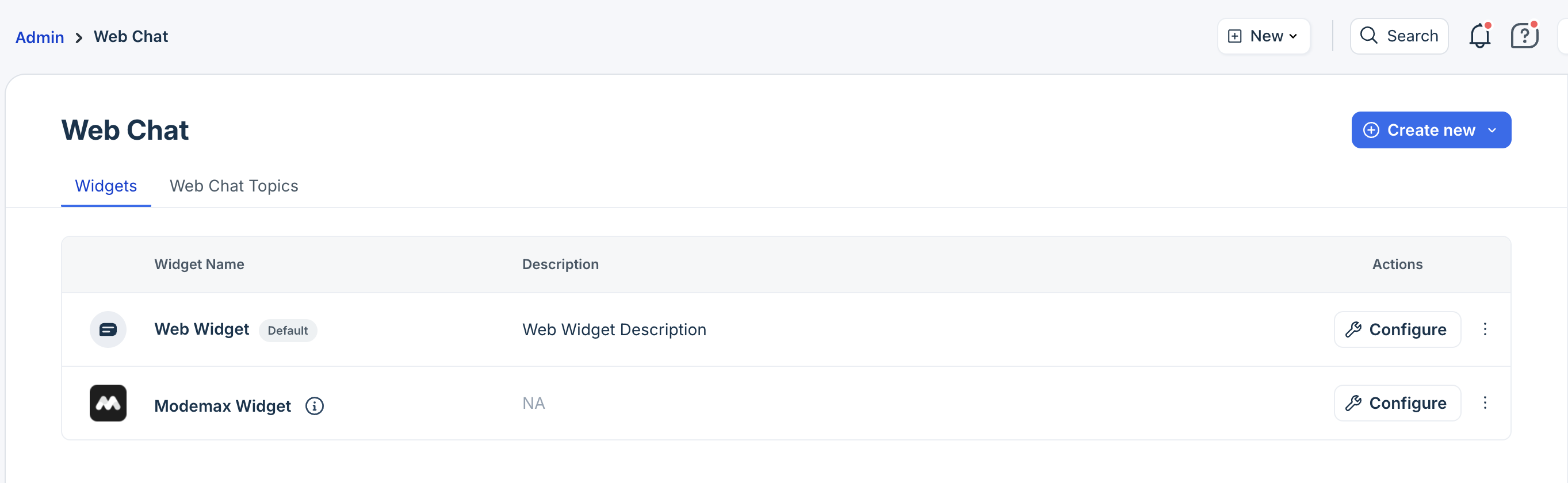
- Log in as admin and go to Admin > Channels > Web Chat > Web Chat Topics.
- Click Configure next to the topic for which you want to enable Away Experience.
- Click Away Experience and enable it.
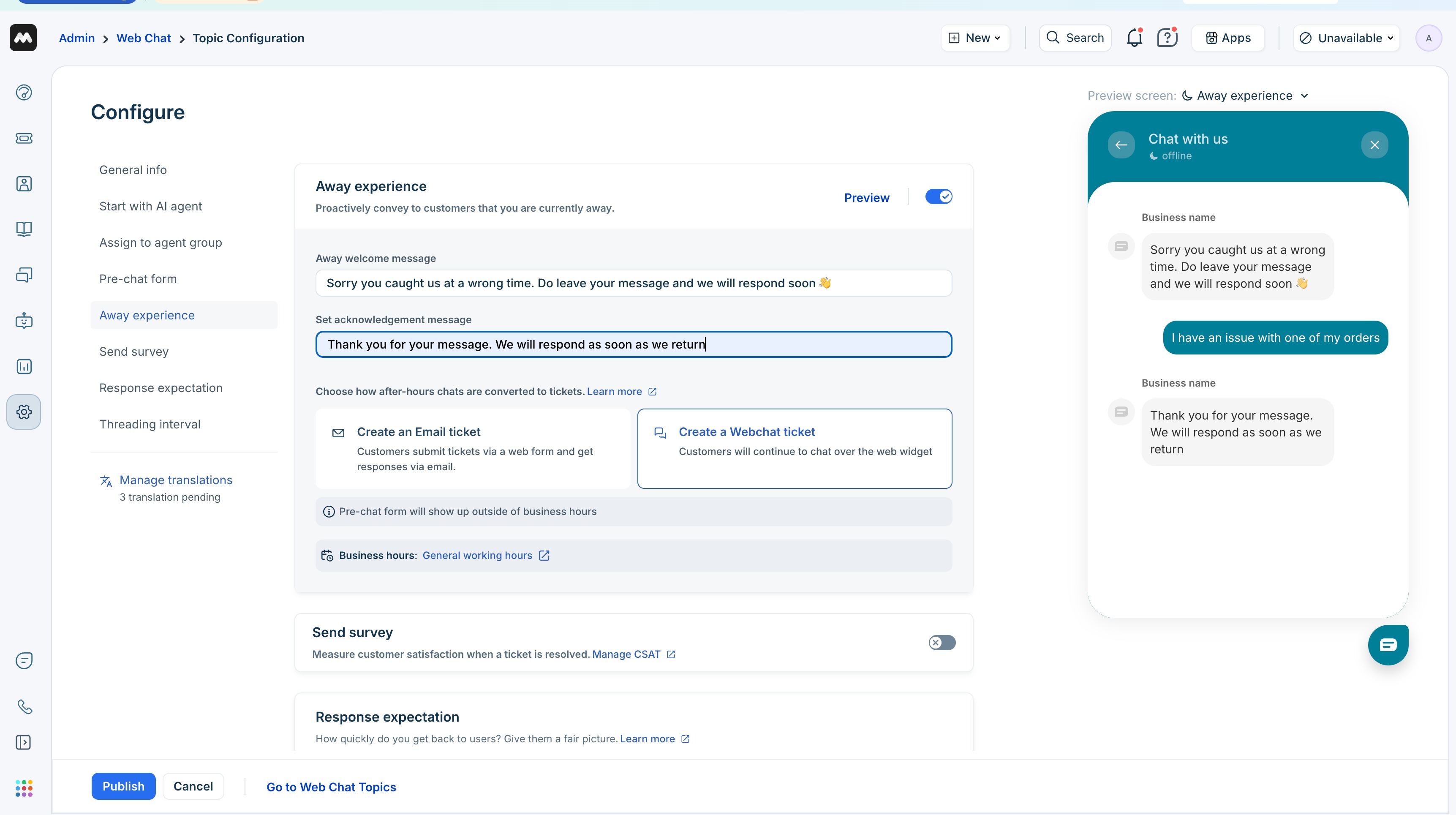
- Enter the following details:
- Away welcome message: Enter a message that customers will see immediately when they initiate a chat during non-business hours.
Example: “Hi there! Our team is currently offline. Please leave your message, and we’ll get back to you soon.” - Set acknowledgement message: Enter an acknowledgement message that will be displayed after the customer submits a form (email route) or sends a chat message (web chat route).
Example: “Thanks for reaching out! We’ve received your message and will contact you during business hours.”
- Away welcome message: Enter a message that customers will see immediately when they initiate a chat during non-business hours.
- Choose how after-hours chats are converted to tickets. You can choose to:
- Create an email ticket:
- Select the ticket form that customers will see during non-business hours.
- Enter the text for Form initiation button label.
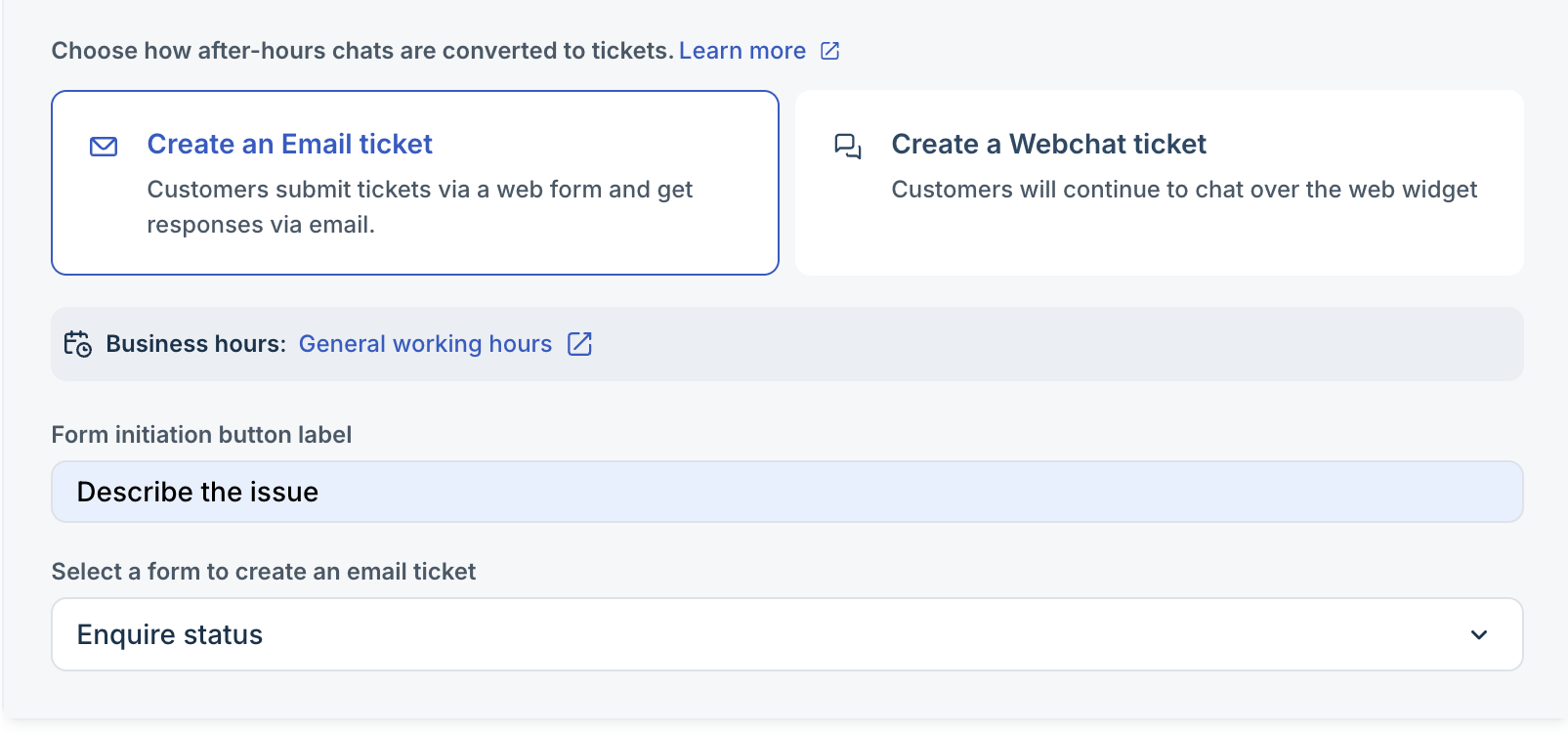
- Create a Webchat ticket:
Customers will fill the pre-chat form and continue to chat via the web widget.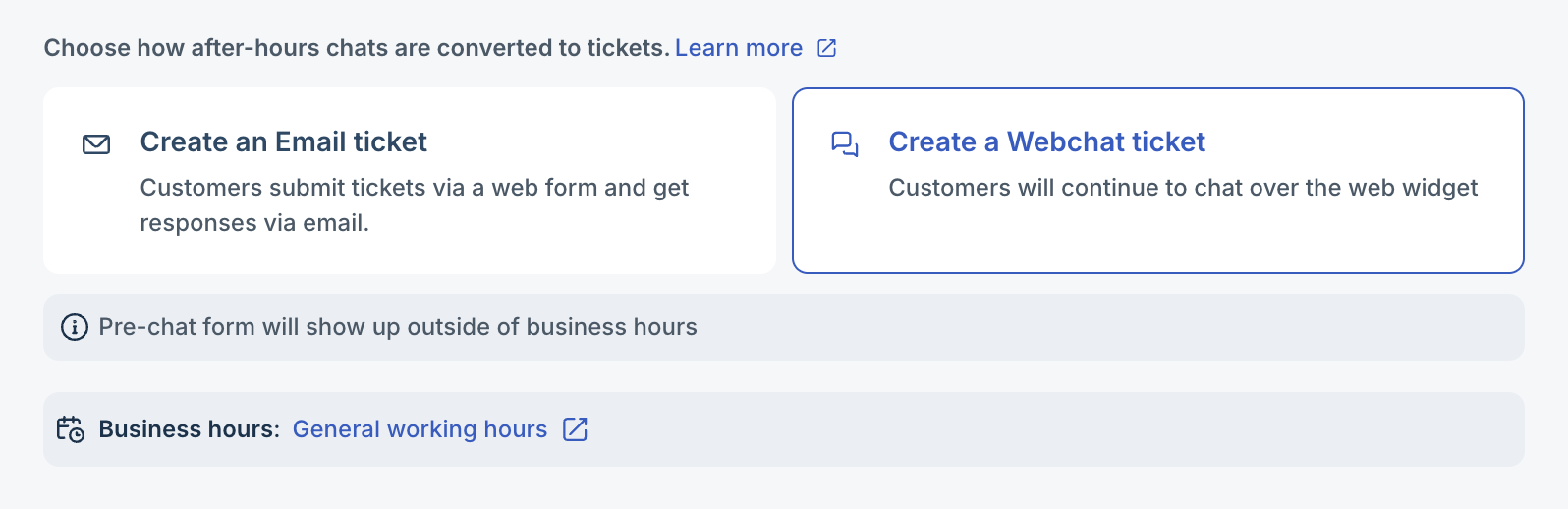
- Create an email ticket:
- Click Publish.
Tip: Click Preview to see the Away Experience as it appears to customers.
Customer experience
The Away Experience ensures customers always receive a clear response, even when your team is offline. What customers see depends on the ticket conversion option and when they start the chat.
Chat during non-business hours
- The widget displays an “Away (Offline)” label.
- The Away Welcome Message appears instantly, informing customers that agents are unavailable.
- If the ticket is configured as an email ticket:
- Customers are prompted to complete a ticket form with their details and a description of the issue.
- Once submitted, they receive an acknowledgement message.
- Agents follow up later via email.
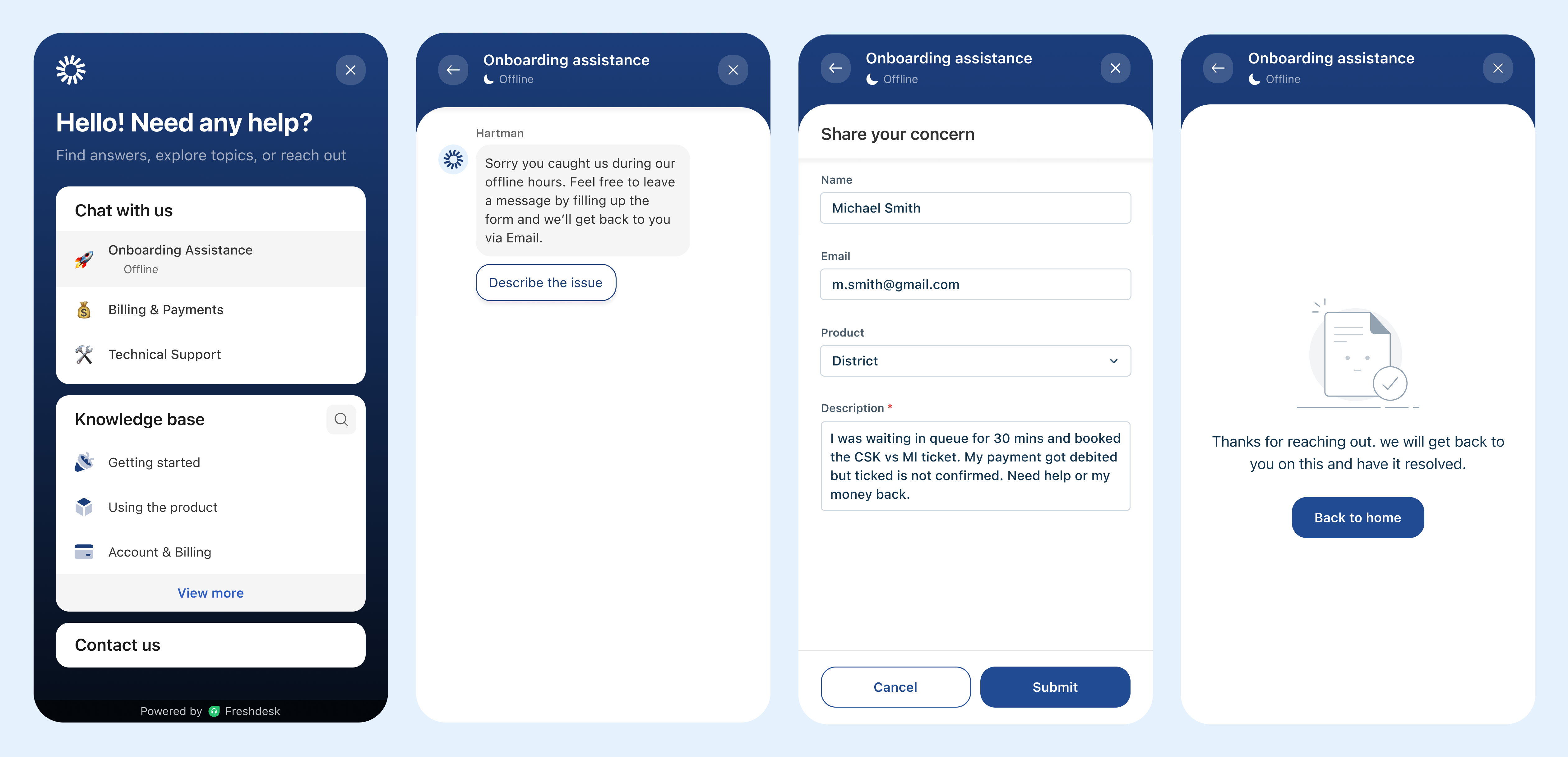
- If the ticket is configured as a Web Chat ticket:
- Customers stay within the chat interface.
- An acknowledgement message appears in the widget confirming that their message is received.
- Agents can reply through the same widget once available.
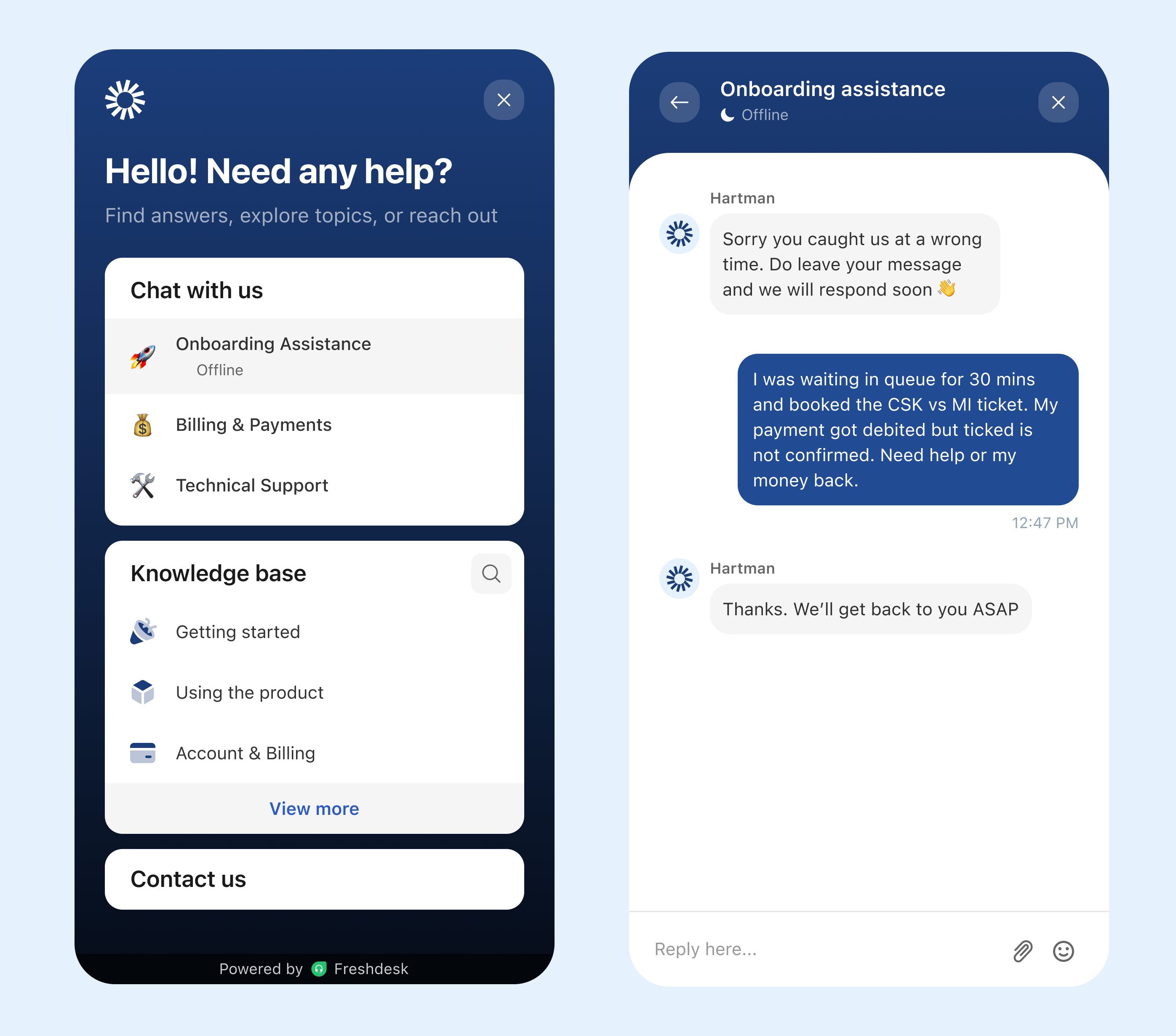
Chat extending beyond business hours
If a chat starts during business hours and continues after closing time, the widget displays only the away welcome and acknowledgement messages after the customer's next response. The chat continues on the chat widget as the web chat ticket is already in session.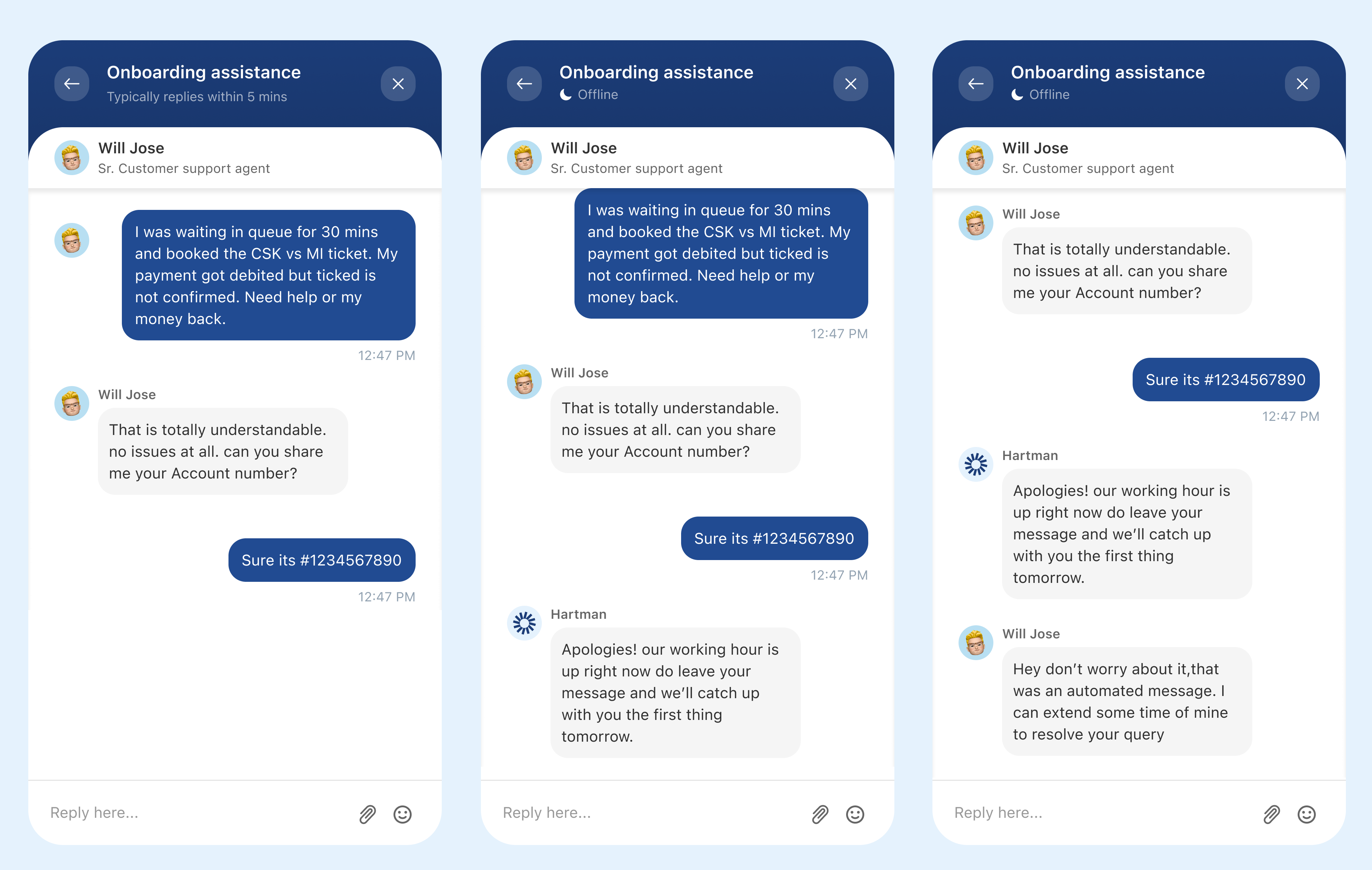
Reopened tickets
If a resolved ticket is reopened within the threading interval but outside of business hours, the away welcome message will be displayed, and the customer can continue chatting over the web chat widget itself. The same ticket reopens automatically for the agent to follow up.
Agent experience
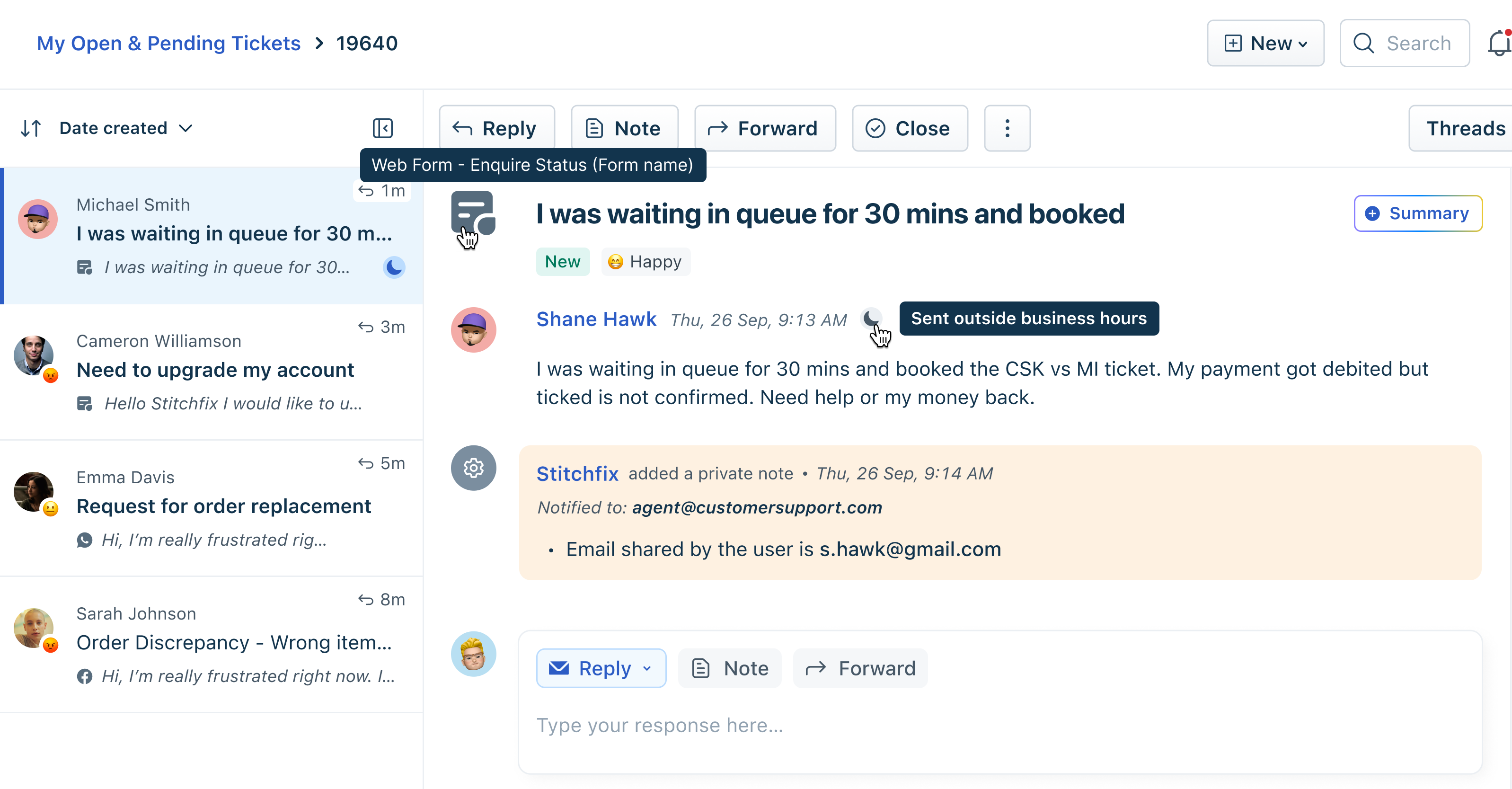
Agents receive and manage tickets created through Away Experience just like regular tickets, with clear source and timing indicators. Agents can see a half-moon icon next to messages that are exchanged outside of business hours, making it easier to understand.
Here’s how the agent experience will be based on the Away Experience ticket conversion configuration:
When chats are created as email ticket:
- A new web chat ticket (source info: web form) will be created with all the details submitted in the web form, such as the customer’s name, email, topic, and timestamp of submission.
- The ticket includes the topic, timestamp, and a label indicating the ticket was received outside business hours. This allows them to easily identify and prioritize such tickets.
- Agents respond to these tickets directly through email.
- All messages and form inputs are logged in the ticket history for full context.
When chats are created as a web chat ticket
- A web chat source ticket with the customer’s last message and the acknowledgement message will be displayed in the widget.
- The ticket appears in the agent’s inbox, labeled as received outside business hours.
- Agents reply through the web widget when they are back online, continuing the conversation seamlessly.
- The entire chat history, including the away messages, is retained in the same thread for context and continuity.