
 Community
 Video Library
 Agent Training
 Freshservice
 Freshdesk
 Freshchat
 Freshcaller
 Freshsales
 Freshteam
 Freshworks Neo
 Freshsurvey
TABLE OF CONTENTS
Freshdesk offers flexible pricing plans designed to scale with your business as it grows. Whether you’re starting with a single support channel or managing multichannel operations, our plans provide the flexibility to choose what fits your team’s size, budget, and complexity.
Prerequisites:
Ensure that you have account admin permissions to access the Plans & Billing page.
About our products and plans
We offer two core products that differ by capabilities and channel support:
- Freshdesk Omni (Most Popular)
Freshdesk Omni is our multichannel support platform that allows you to manage customer interactions from email, chat, social media, and more, all from a unified inbox. - Freshdesk (Email-first)
Freshdesk is ideal for teams that primarily manage support through email. It provides the foundational ticketing, collaboration, and automation tools required to deliver efficient customer service.
Subscription plans
Both Freshdesk Omni and Freshdesk offer three flexible plans - Growth, Pro, and Enterprise. Each plan builds on the previous one, adding more customization, automation, and AI-powered features.
| Plan | Ideal for | Highlights |
|---|---|---|
Freshdesk Omni | ||
Growth | Small and medium businesses | Includes knowledge base, automation, and basic reporting. |
Pro | Scaling businesses | Adds advanced ticket routing, analytics dashboards, and WhatsApp campaigns. |
Enterprise | Large organizations | Offers advanced customization, strong data security, audit logs, and AI capabilities. |
Freshdesk | ||
Growth | Small teams | Enables reporting, automation, and a self-service knowledge base. |
Pro | Expanding teams | Adds advanced routing, custom roles, and stronger analytics. |
Enterprise | Large teams | Adds advanced configuration, multiple SLAs, and enterprise-grade controls. |
You can view the complete list of features in your Plans and Billing page or our Pricing Page.
Activate a plan
When you sign up for Freshdesk or Freshdesk Omni, you start with a 14-day trial that provides full access to all product features. After the trial, you can continue using the product by enrolling in the Free Program or by purchasing a paid plan.
Trial period
Every new account starts with a 14-day free trial that includes:
- Full feature access: You can try automation, AI capabilities, analytics, and multichannel support.
- Plan comparison: Switch between Growth, Pro, and Enterprise to determine which plan suits your business best.
- Unlimited testing: Add agents, configure workflows, and explore integrations without restrictions.
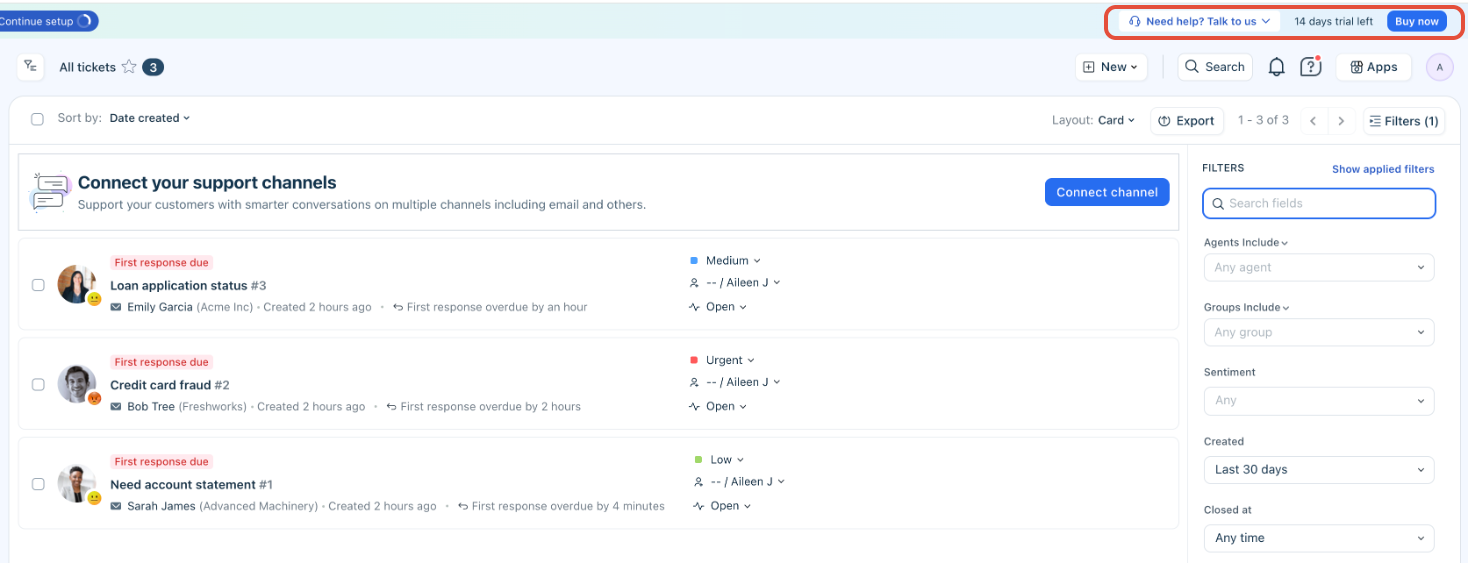
During the trial period, you can track plan differences from either the Plans & Billing page within your account or the Pricing Page.
At the end of the trial, you can purchase any paid plan to continue seamlessly or move to the Free Program if you’re still evaluating.
Tip: If you wish to extend your trial period, please conatct your account manager or send an email to sales@freshdesk.com. For quick assistance, please include your account details (URL, company name) in the email.
Free program (Freshdesk only)
If you are a Freshdesk customer, you can switch to the Freshdesk Free Program and continue using the product at no cost for 6 months with a limited agent seat (two). The Free Program is specifically designed for small businesses and startups that want to manage customer communication while evaluating advanced features.
Note: The Free program applies only to Freshdesk customers and not available in Freshdesk Omni. Also, when you switch from a higher plan during the trial period to the Free Program, certain features and their configurations will be lost. For more information, see Explore Freshdesk Free Program.
To join the Free Program:
- Log in to your Freshdesk account as an Account Admin and click Admin > Plans and Billing.
- Click Switch plan.
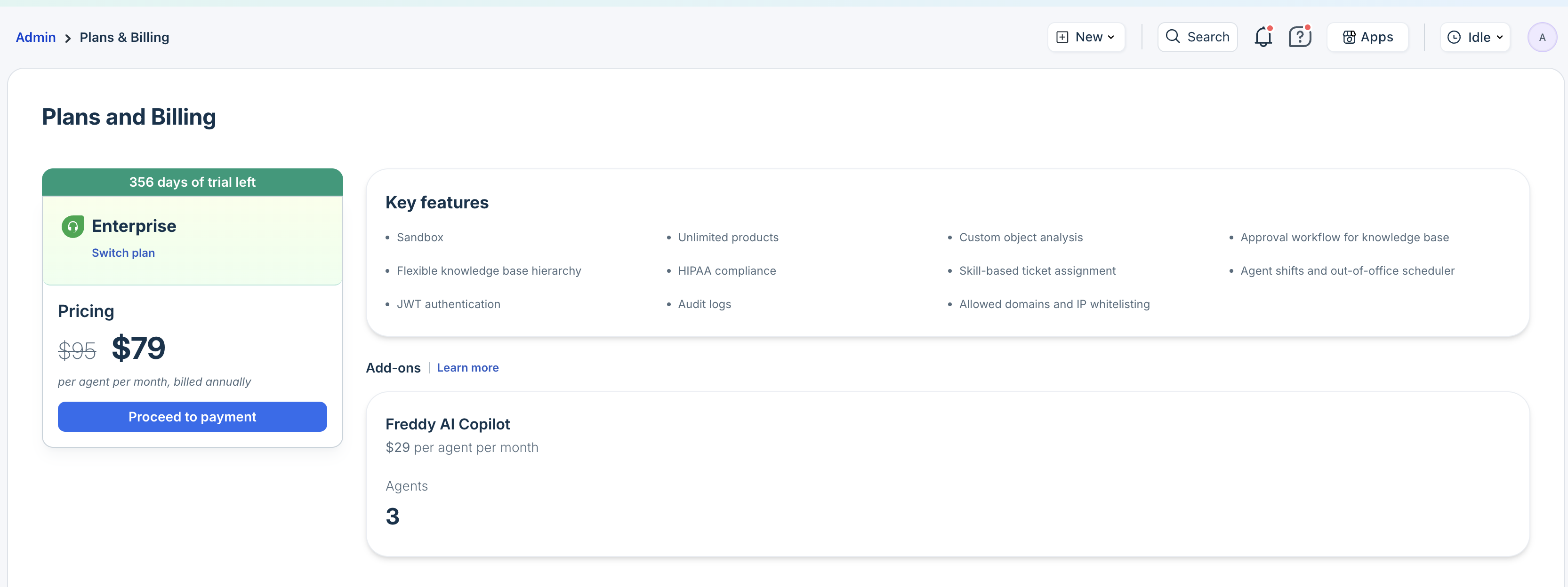
- Click Try out our Free Program.
Paid plans
Once you are ready to unlock advanced capabilities and scale your operations, you can choose a paid subscription. Each subscription plan is charged on a per-agent basis, and the total cost is determined by the number of agents in your account.
Note: Unless stated, the subscription charges do not include any taxes, levies, duties or similar governmental assessments, including value-added, sales, use or withholding taxes assessable by any local, state, provincial or foreign jurisdiction (collectively 'Taxes').
To purchase a paid plan:
- Log in as an Account Admin and click Admin > Plans and Billing.
- Click Switch plan.
- Select the product (Freshdesk or Freshdesk Omni).
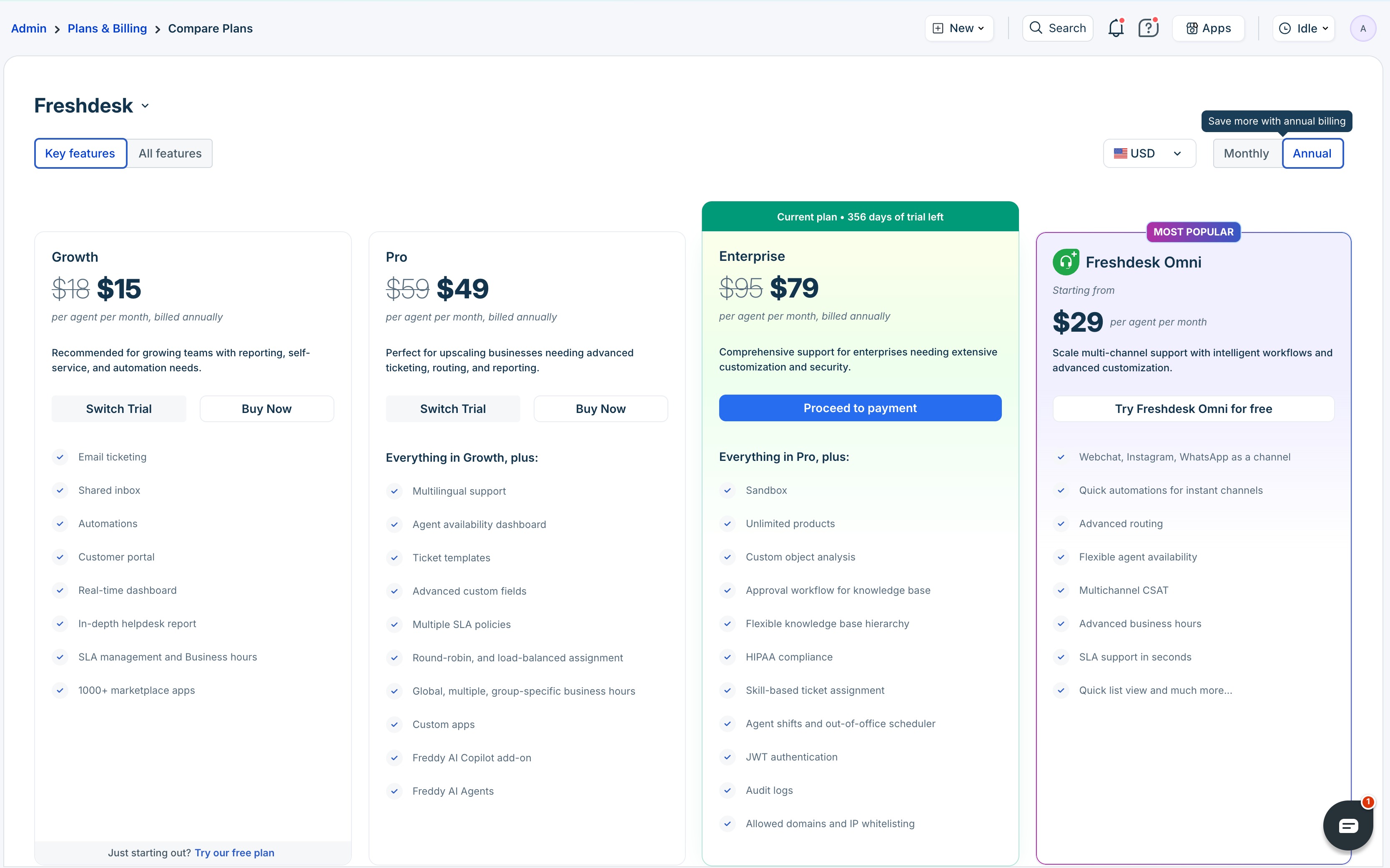
- Select your preferred plan and click Proceed to payment.
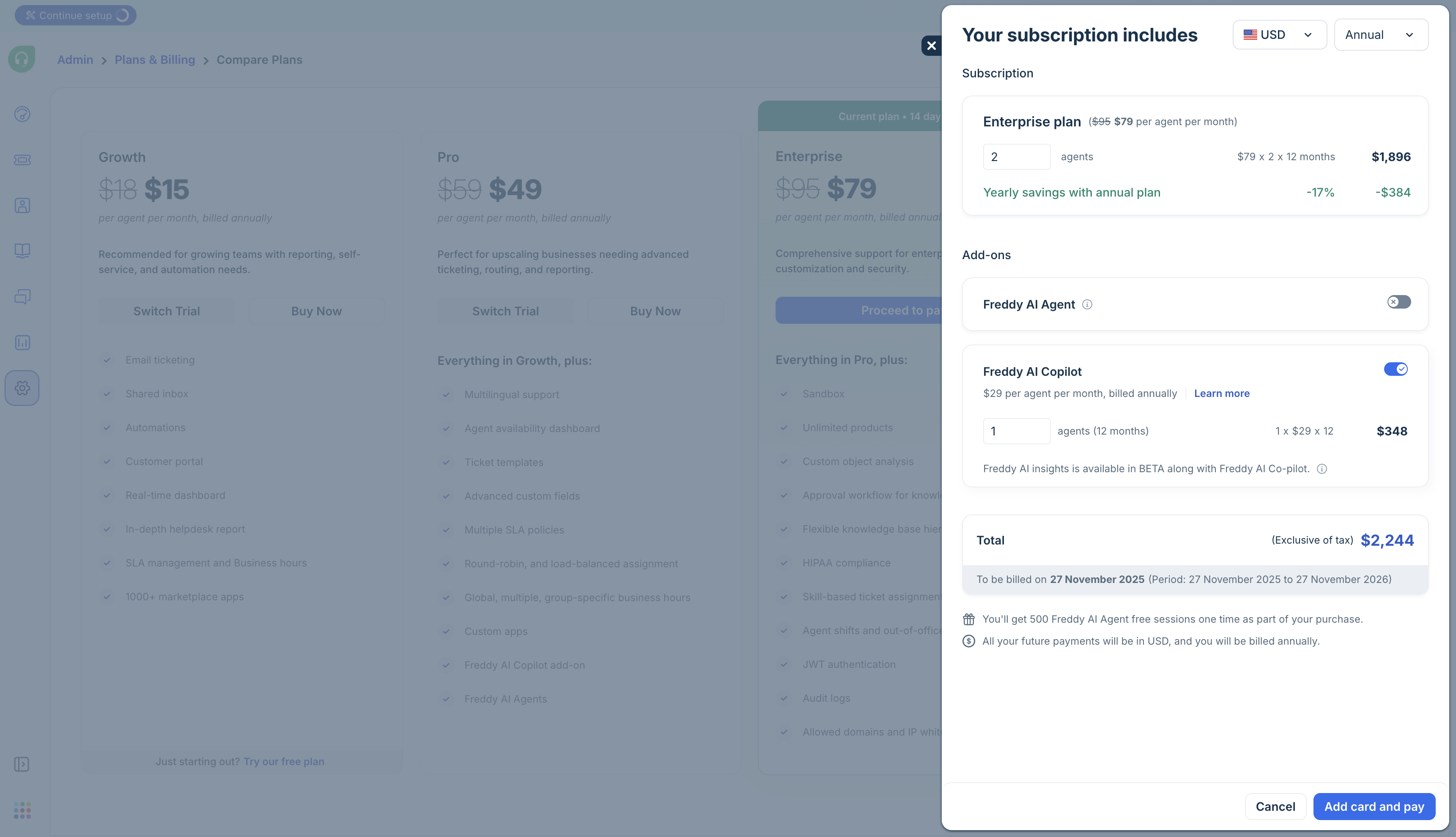
- Enter the number of agents.
- Select the billing cycle. The options are monthly, annual, quarterly, or half-yearly subscriptions.
- Select the currency.
Note: Only trial customers can change their currencies. After upgrading to a paid plan, your currency setting becomes fixed and cannot be modified via the Plan & Billing page. To request a change, contact billing@freshworks.com. - Click Add card and pay.
You can pay via credit cards, bank transfer, or PayPal (paypal@freshdesk.com). To use PayPal, ensure that you have a PayPal business ID. - Enter your billing information, card details, and click Subscribe.
Once payment is completed successfully, your plan becomes active right away. You can see your invoice on the Plans and Billing page, and a copy will be emailed to your registered email address. You may update your payment details anytime or contact us at billing@freshworks.com.
Manage subscriptions
Once you have purchased a plan and have an active subscription, you can view and manage all aspects of your product subscription directly from the Plans & Billing page.
You can:
- Add more agents
- Purchase add-ons
- Upgrade or downgrade plans
- Change billing cycles
- View invoices
View subscription details
- Log in as an Account Admin.
- Go to Admin > Plans and Billing.
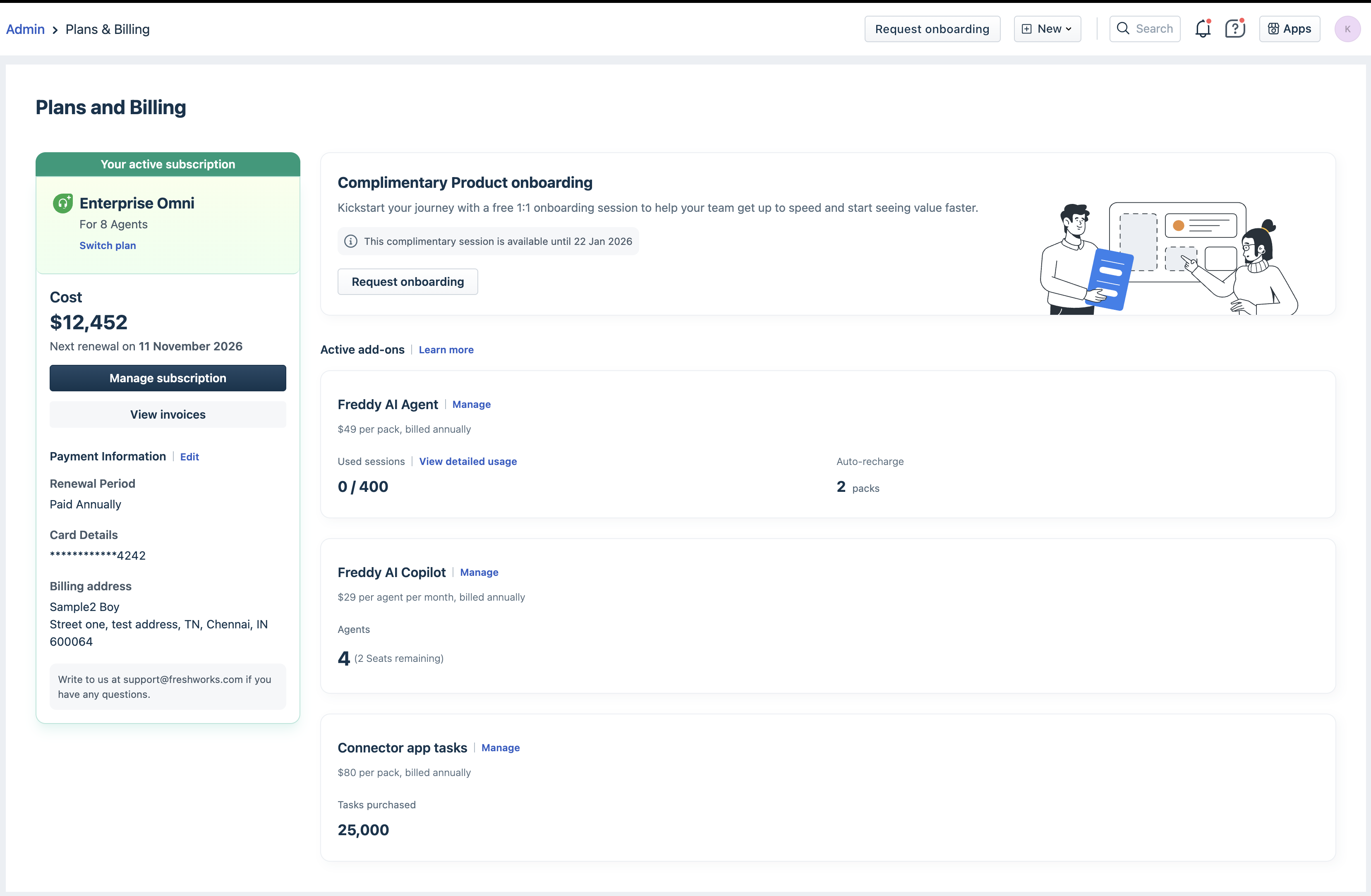
- From this page, you can:
- View your current plan details
- Check billing frequency (monthly or annual)
- Review active add-ons and agent count
- Manage invoices and payment history
- Auto-recharge subscription.
Add or remove agent seats
Your subscription cost is determined by the number of active agent seats in your plan.
Note: New agents can be added only if the payment mode is online. If you are paying offline, contact billing@freshworks.com.
When you add or remove agents:
- Charges will be calculated pro rata for the remaining days in your billing cycle.
- New agents are activated immediately once added.
- When reducing the number of agents, ensure you delete the extra agents from your account first. The updated cost applies only after the extra agents are removed.
To add agent seats:
- Go to Admin > Plans and Billing.
- Click Manage Subscriptions.
- Enter the number of additional agents you want to add.
- Review the updated total price and click Update plan.
- You can now invite and add more team members to your account. For details, see Add or Edit Support Agents.
To remove agent seats:
Before reducing seats, ensure you have removed extra agents from the agent configuration page so that you don’t exceed your available seats.
- Go to Admin > Plans and Billing.
- Click Manage Subscriptions and adjust the number of active agent seats.
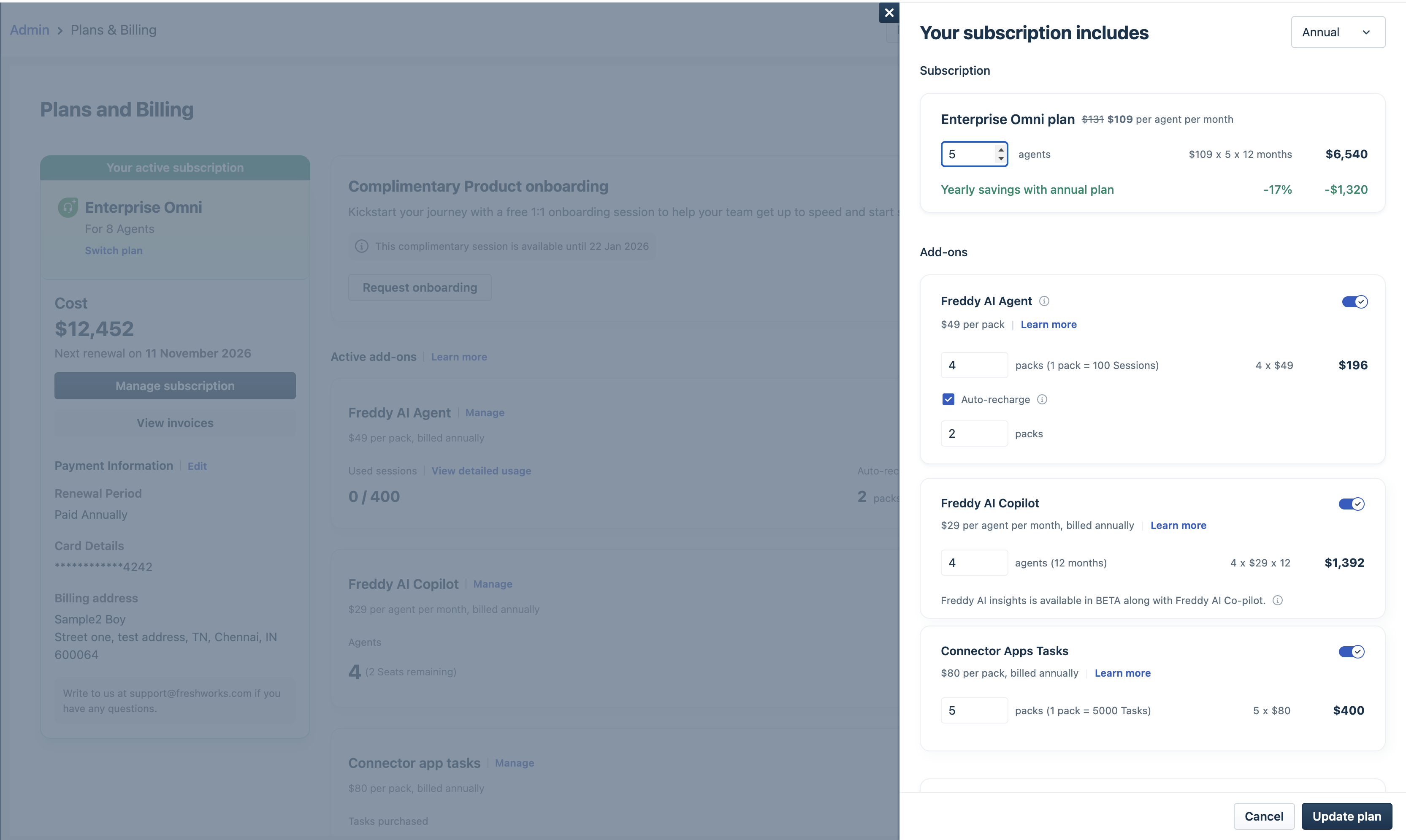
- Click Update plan.
View invoices
Your invoice will be automatically sent to your registered email address based on your billing cycle. Alternatively, you can view the invoice directly from the Plans & Billing page.
Note: This feature is available only for online payments that have a registered card on the portal. For accounts with offline modes of payment (bank transfers and PayPal), contact support@freshdesk.com.
To view your invoice:
- Go to Admin > Plans and Billing.
- In your current subscription plan card, click View Invoices.
- You can view and download the invoices.
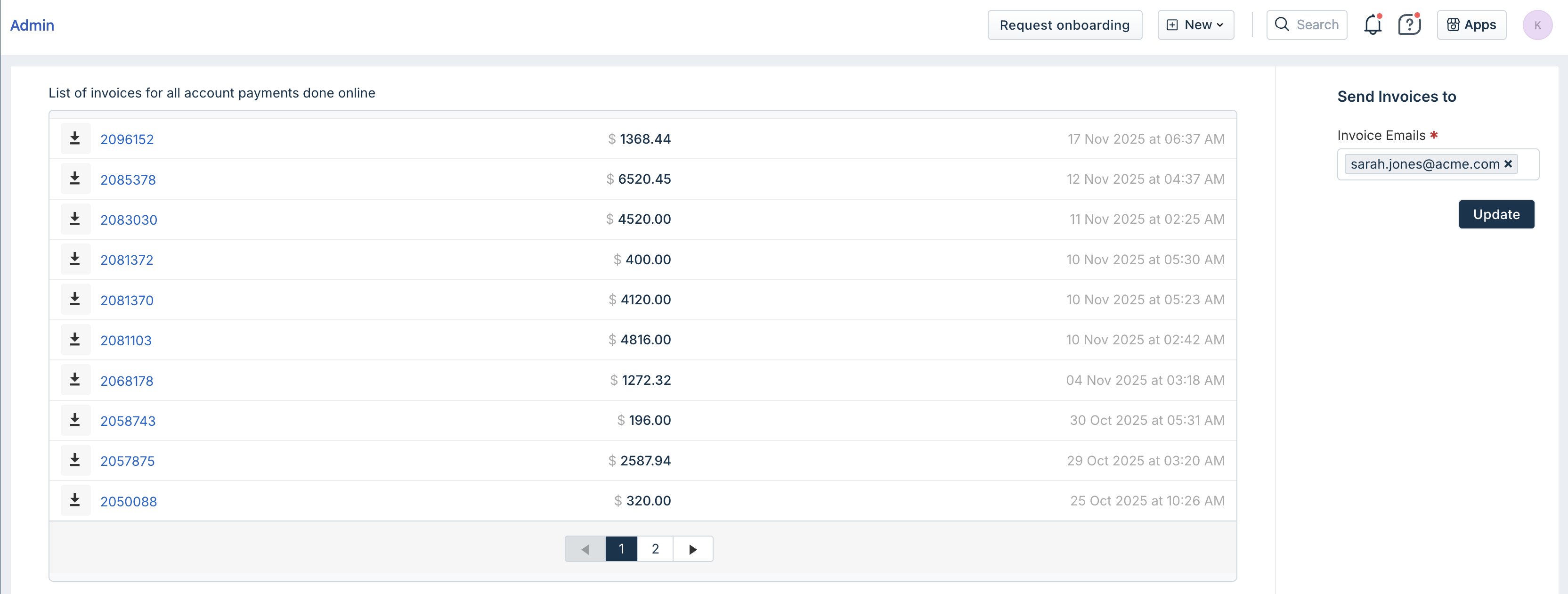
- To change your email address, add the new email address in the right pane and click Update. You can add only one email address here.
Change billing cycle
You can choose to subscribe to paid plans on a monthly, quarterly, half-yearly, or annual basis. The billing date is automatically calculated from the subscription date. To change the date, contact billing@freshworks.com.
- Go to Admin > Plans and Billing.
- Click Manage Subscriptions.
- Select the billing cycle from the top-right corner.
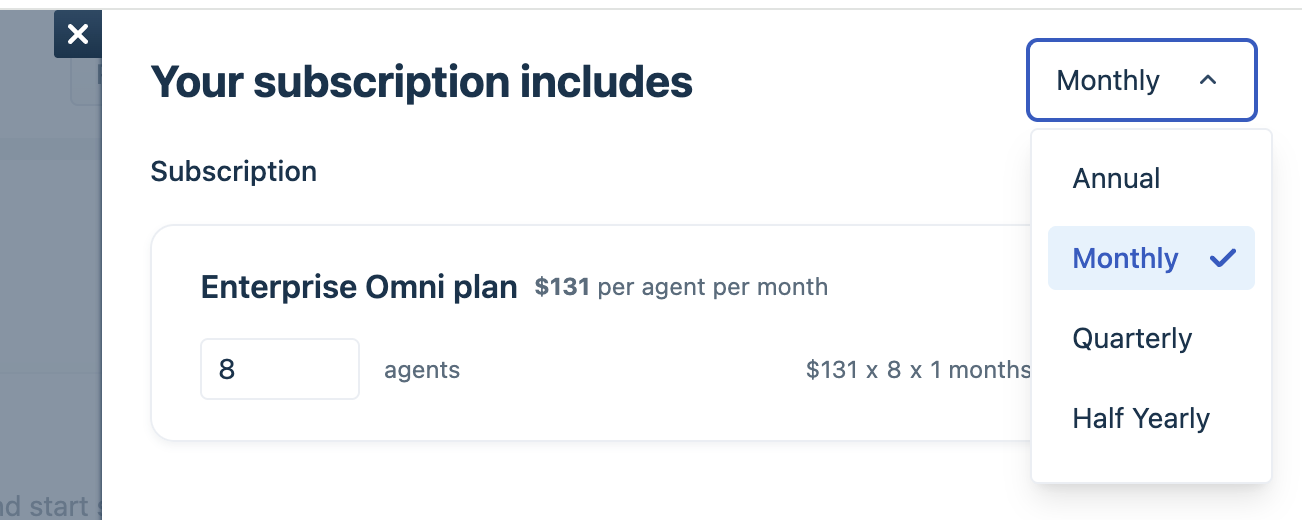
- Click Update plan.
Purchase Freddy add-ons
Add-ons help you extend the functionality of your plan without changing your core plan tier. Freshdesk offers the following add-ons:
- Freddy AI Agent
- Freddy AI Copilot
For more details, see Manage Freddy AI Ad-ons.
Upgrade or downgrade plans
Easily switch to a higher or lower plan at any time, based on your business needs.
You can:
- Upgrade to a higher plan: The upgrade will be applied immediately, and you’ll be charged a pro-rata amount for the remaining period in your current billing cycle.
- Move to a lower plan: The change takes effect after your current billing cycle ends.
While switching plans, you can also update your agent count and add-ons (for example, Freddy AI Agent packs or Freddy Copilot agent licenses). When reducing the number of agents or removing add-ons, ensure you delete the extra agents from your account first.
For example, if you reduce your agent seats from 5 to 2, remove two agents from your account. The lower subscription cost applies only after the extra agents are removed.
- Go to Admin > Plans and Billing.
- Click Manage Subscriptions.
- Switch to a higher or lower plan to upgrade or downgrade.