
 Community
 Video Library
 Agent Training
 Freshservice
 Freshdesk
 Freshchat
 Freshcaller
 Freshsales
 Freshteam
 Freshworks Neo
 Freshsurvey
TABLE OF CONTENTS
This article is part 1 of the Freshdesk Omni 2025 upgrade for accounts that have high Freshchat usage. It explains the upgrade process, the migration stages, and the prerequisites before you begin.
Articles in the Freshdesk Omni 2025 upgrade series
|
Note: This upgrade article applies only to Freshdesk Omnichannel Classic and Freshdesk Omni 2023 (CSS) accounts with active Freshchat usage. If your account does not have significant Freshchat configurations, follow the standard upgrade process in Freshdesk Omni 2025 upgrade overview.
Prerequisites:
- Ensure that you have account admin or admin permissions
Note: While admins can transfer or copy configurations and data, only account admins can initiate the upgrade process and confirm the final upgrade
Overview
Freshdesk Omni 2025 is a unified customer service platform that consolidates conversations across email, chat, WhatsApp, Facebook, Instagram, and more into a single unified command center. Every interaction is converted into a ticket, allowing agents to respond without switching between tabs.
Upgrade rollout and eligibility
The Freshdesk Omni 2025 upgrade is being rolled out in phases, starting in July 2026.
Eligible accounts:
The following accounts are eligible for upgrade:
- Freshdesk Omnichannel Classic accounts with Freshchat usage
- Freshdesk Omni 2023 (CSS) accounts with Freshchat usage
Not currently eligible:
Accounts with any of the following active configurations are currently not eligible for this upgrade:
- Accounts using AI Agents, chatbots, or other legacy bots
- Accounts with customer Journeys or campaigns configured
- Accounts using custom modules
What to expect during the upgrade
The upgrade to Freshdesk Omni 2025 is designed to let you migrate your existing Freshchat configurations guided flow without interrupting ongoing customer conversations. As you progress through the upgrade, it is important to understand the following:
- The upgrade is completed through a guided wizard, through the following stages:
- Stage 1: Transfer configurations
- Stage 2: Complete admin setup
- Stage 3: Connect channels and go live
For details, see Migration stages. This ensures the configurations are transferred, reviewed, and validated before you complete the upgrade.
- Your existing Freshchat environment remains active throughout the migration. Customer conversations continue to be routed through your existing Freshchat channels until you reconnect the channels and complete the final upgrade.
- Configurations can be transferred over multiple sessions. For example, if you have five WhatsApp business phone numbers, you can transfer two today and the remaining three later.
- Transferred configurations cannot be reverted. Once a configuration is transferred to Freshdesk Omni 2025, it cannot be moved back to Freshchat. However, it does not become active until the final upgrade is completed.
- Some configurations require additional setup. While many configurations are transferred automatically, some require manual setup or validation before the upgrade can be completed.
- The final upgrade can be scheduled. After all required configurations have been transferred, reconnected, and validated, you can either complete the upgrade immediately or schedule it for a later time.
Migration stages
The upgrade to Freshdesk Omni 2025 is completed through a guided wizard that walks you through the following stages:
- Stage 1: Transfer configurations
Transfer supported Freshchat configurations, such as channels, teams, business hours, SLA policies, and workflows, to Freshdesk Omni 2025. During this stage, you can review the configurations being transferred and migrate them in batches before proceeding to the next stage.
For more information, see Stage 1: Transfer configurations. - Stage 2: Complete admin setup
Review the transferred configurations and complete any settings that require additional steps or validation. The tasks in this stage vary depending on the configurations available in your account.
For more information, see Stage 2: Complete admin setup. - Stage 3: Connect channels and go live
Reconnect the transferred channels, validate your configuration, and complete the final upgrade. Once the upgrade is completed, new customer conversations begin routing to Freshdesk Omni 2025. You can complete the upgrade immediately or schedule it for a later time.
For more information, see Stage 3: Connect channels and go live.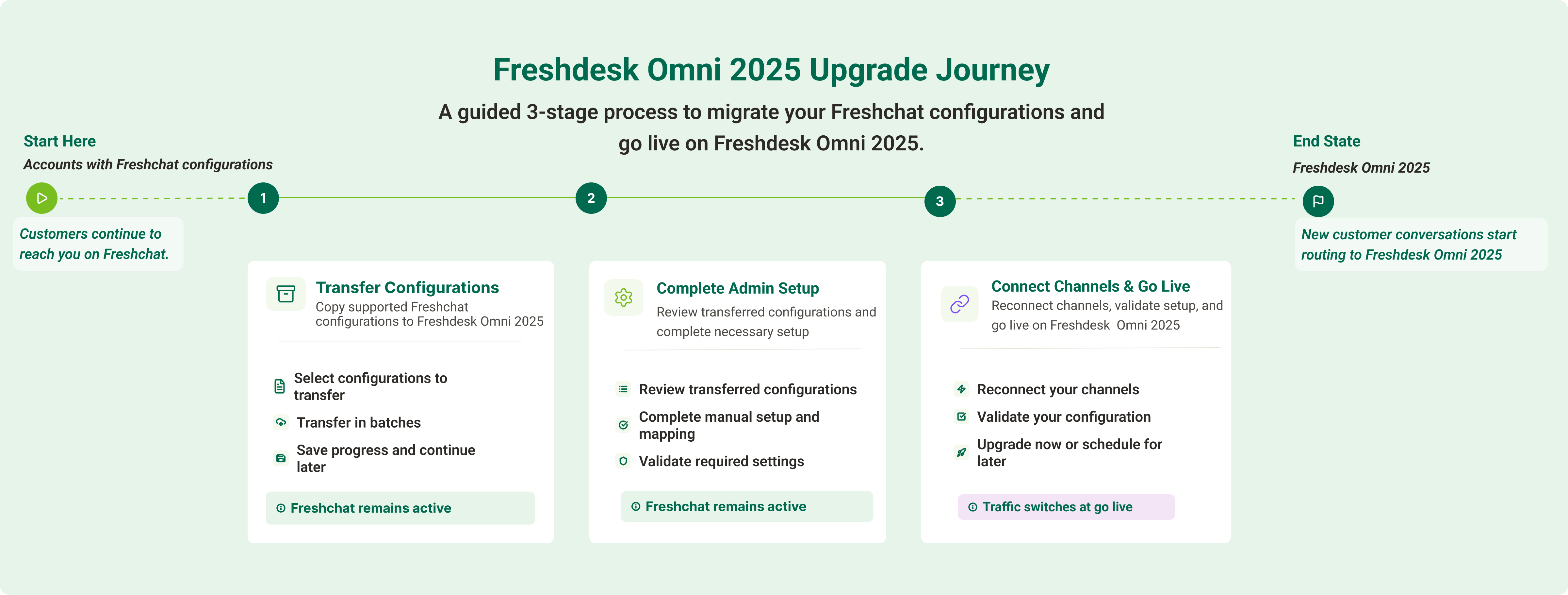
Configuration migration summary
Before you begin the upgrade, review how your existing Freshchat configurations are migrated to Freshdesk Omni 2025. The following table summarizes what is transferred and any actions required before you go live.
| Configuration category | What will be transferred? | General action required |
|---|---|---|
Channels configuration | The email accounts, WhatsApp phone numbers, Facebook pages, Instagram handles, web chat widgets, and SMS phone numbers you select are copied to Freshdesk Omni. | Reconnect each channel before it can receive tickets in Freshesk Omni 2025. |
Team configuration | Selected roles, agents, groups, business hours, skills, and agent status are copied. | Manually map roles, reactivate business hours, skills, and agent status after they are transferred. |
Support operations | Selected FAQs, contact fields, company fields, and conversation properties are copied. | Map fields that don't have an existing match in Freshdesk Omni. |
Agent productivity | Selected canned responses and CRM tags are copied. | No action required. |
Workflows | Selected automations, assignment rules, SLA policies, CSAT surveys, and Intelliassign settings are copied. | Reactivate rules and policies after, and recreate scheduled automations separately using Quick Automations. |
Contacts and conversation data | Contacts and companies are copied by default. | No action is required for contacts and companies. However, conversations created after the transfer are migrated later, during Stage 3. |
Next steps
Once you are ready to start, initiate the upgrade process and proceed to Stage 1: transfer configurations. This is the first step in the upgrade and can be completed over multiple sessions before you move on to stage 2.