
 Community
 Video Library
 Agent Training
 Freshservice
 Freshdesk
 Freshchat
 Freshcaller
 Freshsales
 Freshteam
 Freshworks Neo
 Freshsurvey
Signup Date: After December 2025
Applicable Plans
| Freshdesk | Growth, Pro, and Enterprise. |
| Freshdesk Omni | Growth, Pro, and Enterprise. |
Introducing the New Facebook Channel Experience for Freshdesk
The Facebook Channel is rebuilt to deliver a smoother onboarding process, consistent feature parity with other social channels, and improved reliability through centralized management.
This upgrade consolidates all Facebook functionalities, such as Comments, Posts, and Direct Messages (DMs), and ensures long-term scalability and compliance with Meta’s latest API standards.
Current behavior | New Behavior |
|
|
Current experience
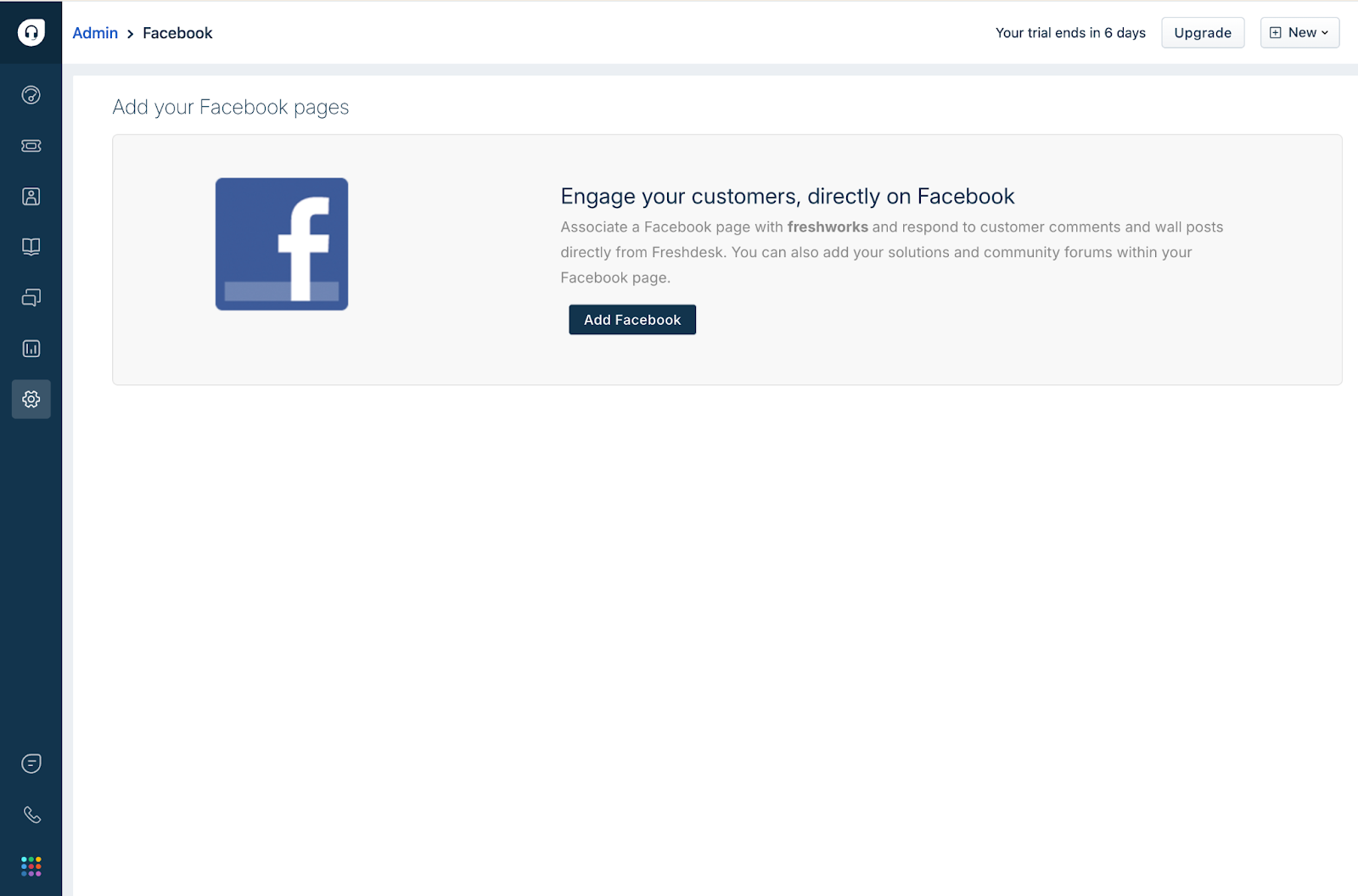
New experience
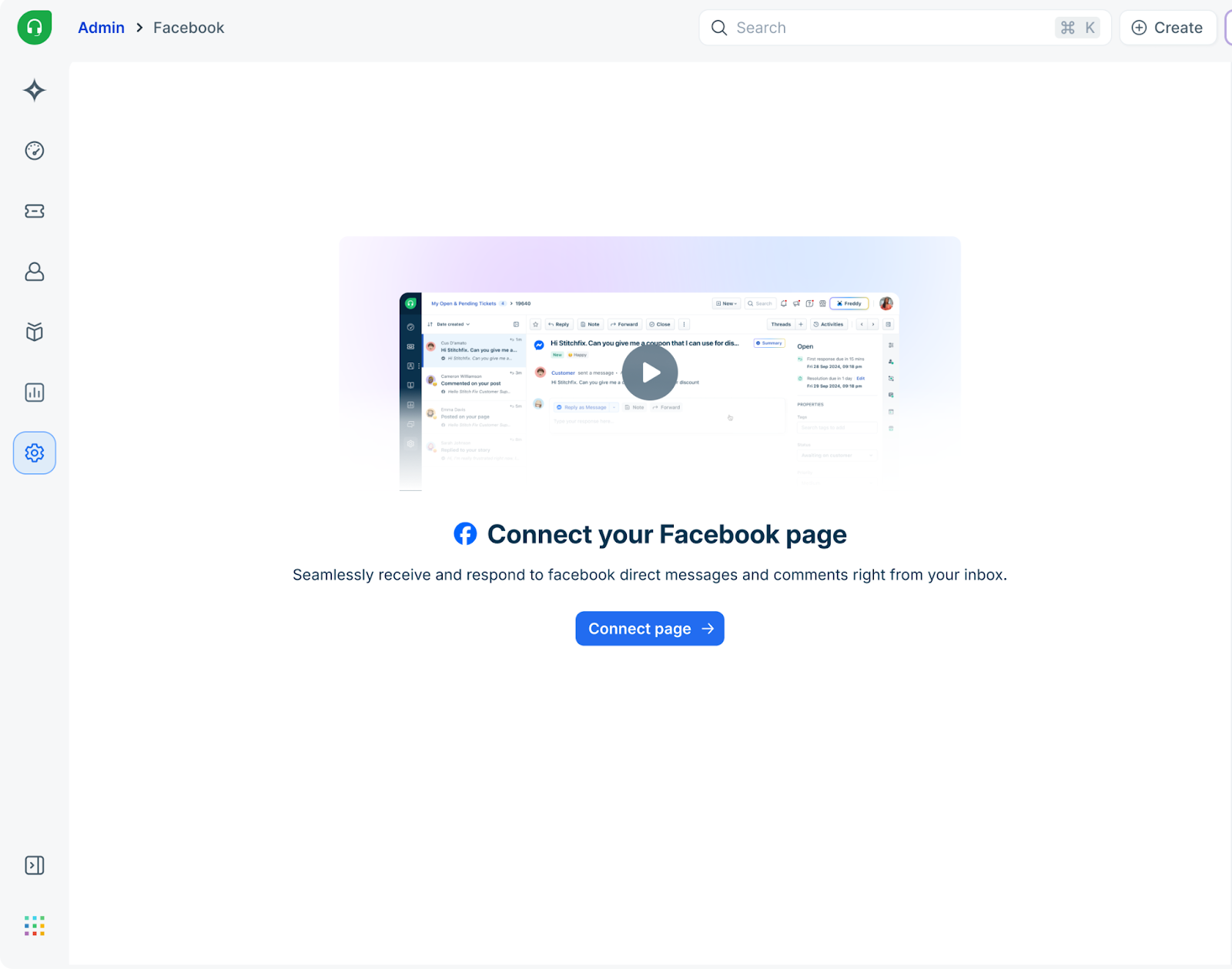
Note: The new Facebook Integration will be automatically applied to existing customers who have not yet configured a Facebook page.
Customers who migrated from the older standalone Freshdesk to the new Freshdesk will retain their current Facebook integration. They will gain access to the newer Facebook experience by Q1 2026. At that time, they must delete the legacy integration and re-add their Facebook Pages using the new Facebook channel.
It is mandatory to transition to the newer Facebook channel as the legacy version is scheduled for imminent deprecation.
Here’s a quick video on connecting your Facebook page with Freshdesk or Freshdesk Omni
Prerequisites
Before you set up the Facebook integration, ensure:
- You are a Freshdesk Admin.
- You have Admin access to the Facebook Page you want to connect.
- Your Facebook Page role allows you to manage messages, posts, and comments.
- Pop-ups and third-party app permissions are allowed in your browser.
Connect Freshdesk with Facebook
Follow the steps below to connect your Freshdesk with your Facebook page:
- Go to Admin > Channels > Facebook
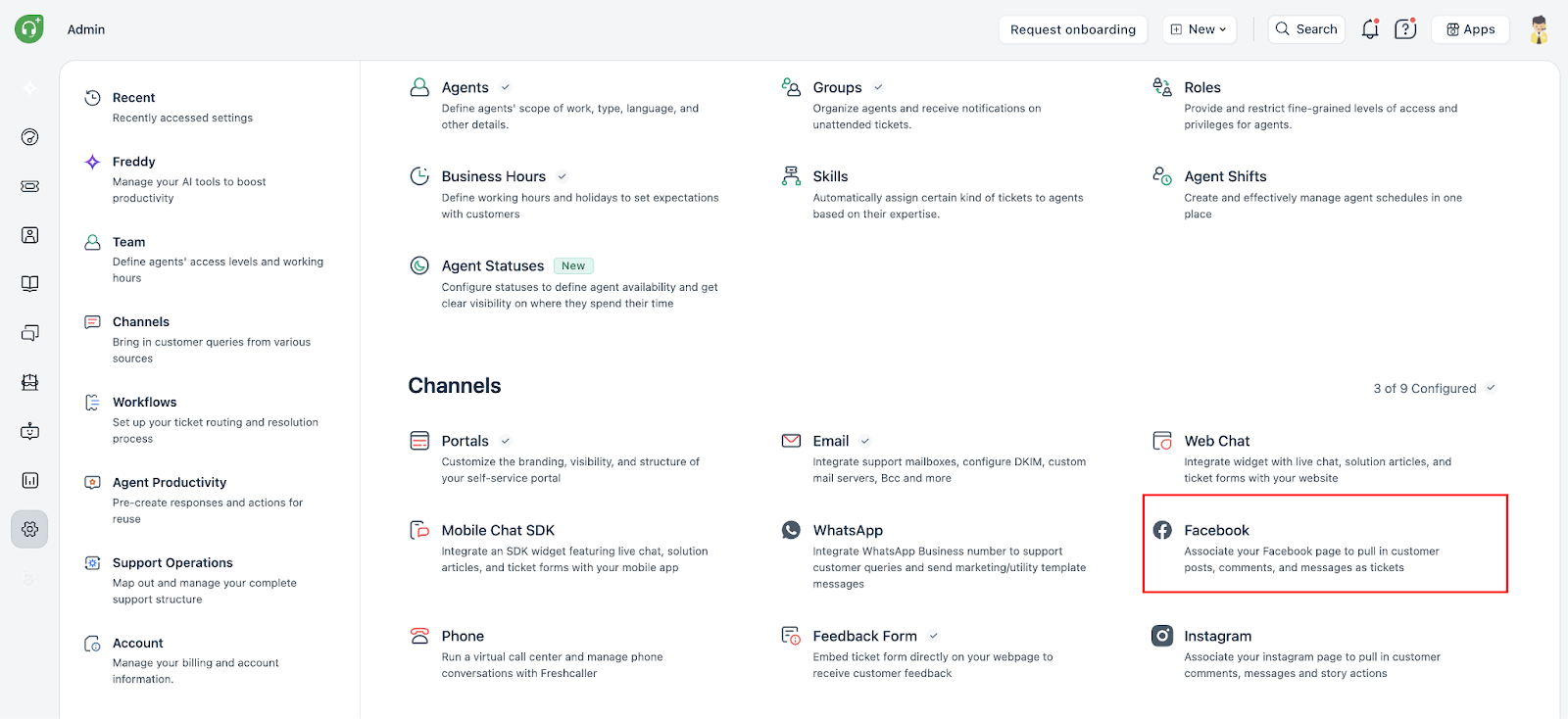
- On the Facebook page, click Connect page.
- In the Connect Facebook page pop-up that appears, click Get started.
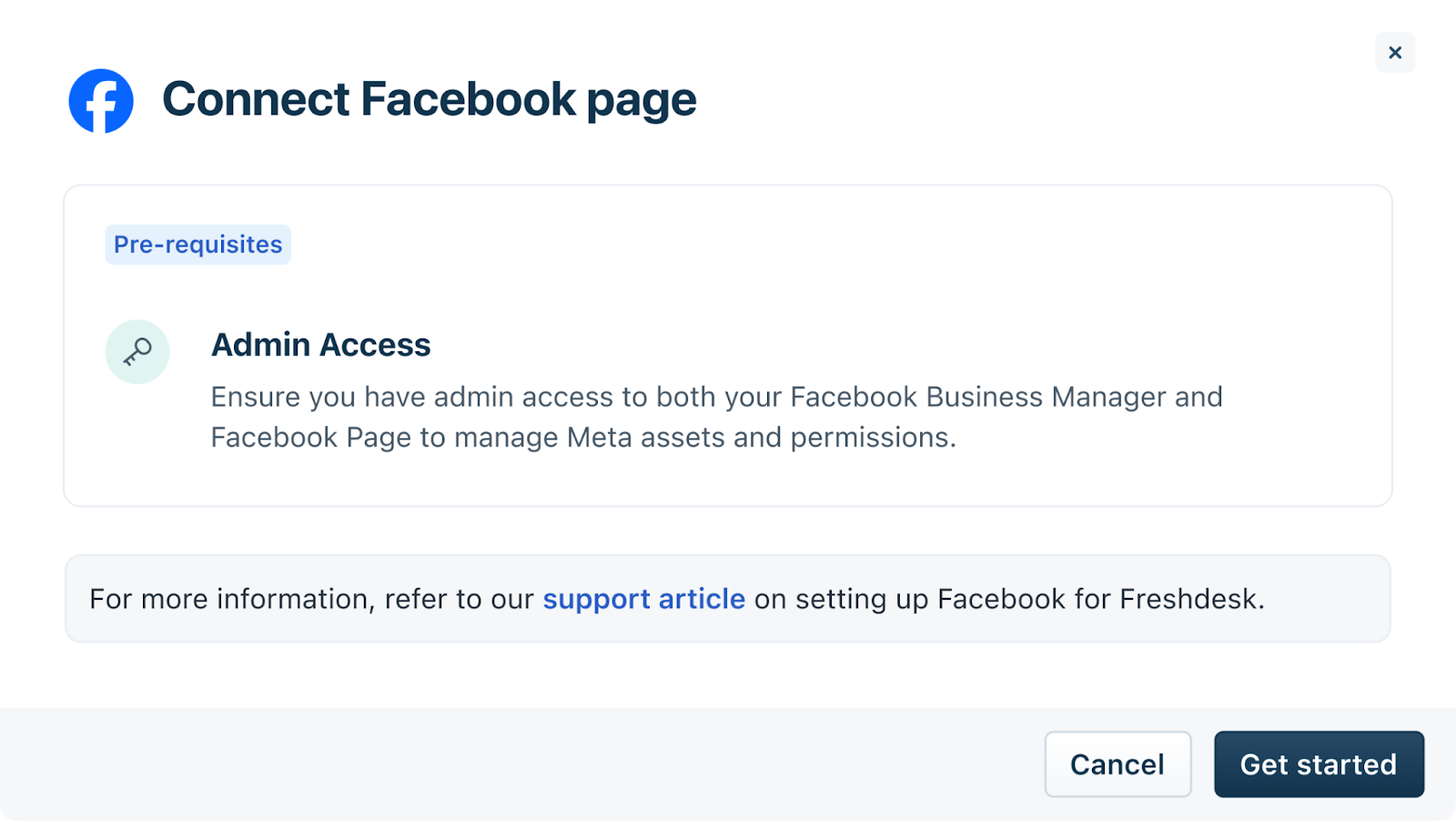
- You will be redirected to your Facebook account. If you are already logged in your click Continue
- Once connected, you will receive a message that your account has been connected with Freshworks. Click Got it to land on the Facebook list page where your newly connected Facebook page will be displayed.
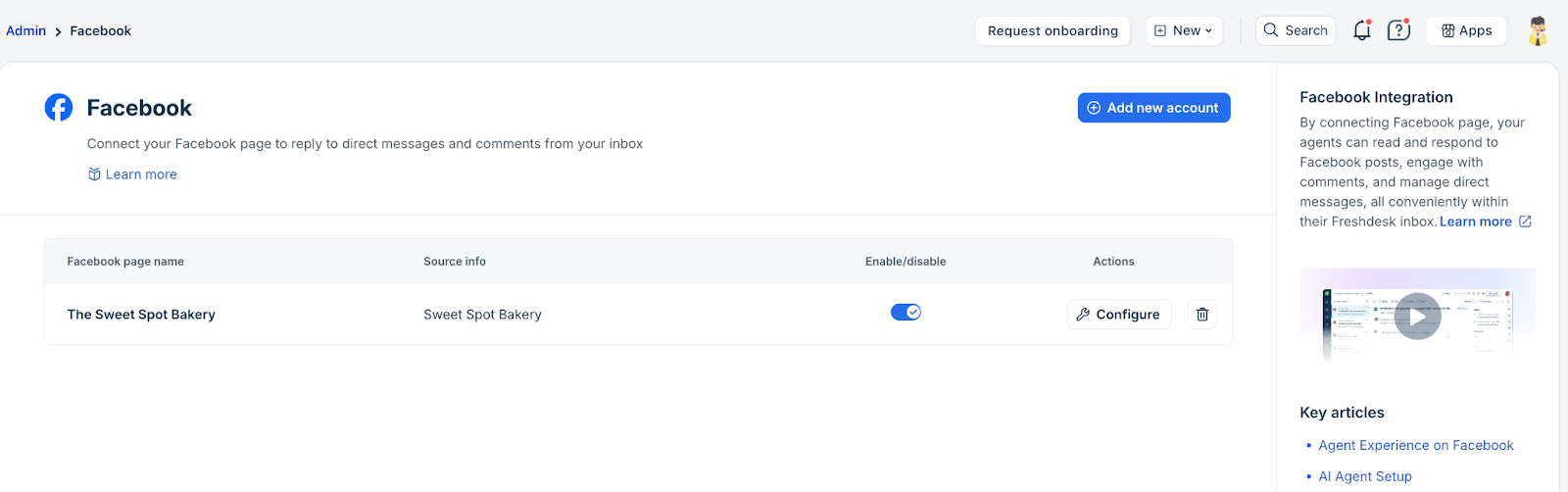
Once connected, Freshdesk begins syncing:
- Direct messages
- Posts and their comments
- Replies to comments
- User profile details such as the Facebook handle
Note: Historical comments and Direct Messages on the page will not be imported. New messages and comments will begin flowing in after the account is connected.
Facebook List Page – Available Actions
After connecting, admins can manage pages from the Facebook list page using the following actions:
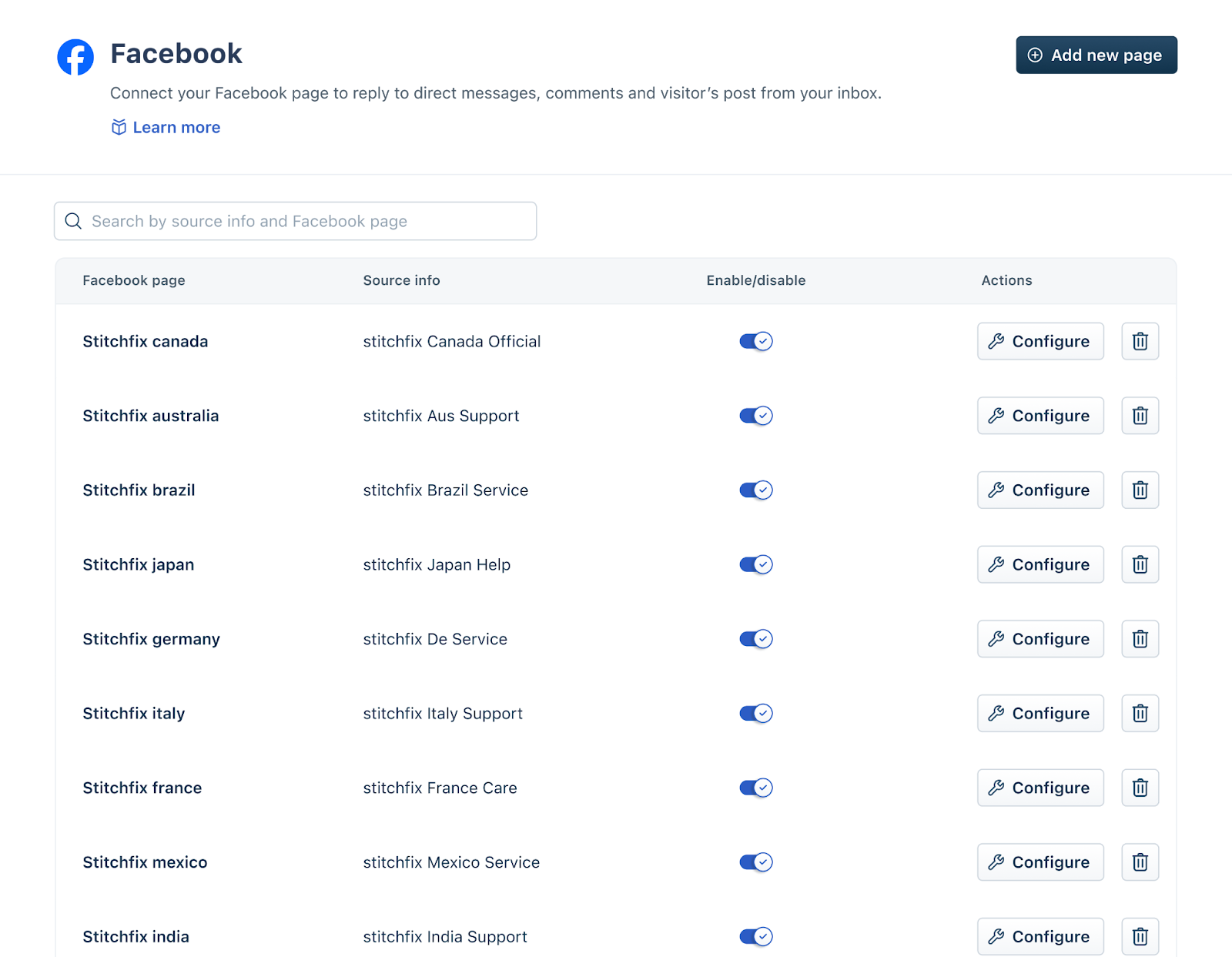
Search
Use the search bar at the top to easily search connected Facebook Pages by name. Search would be available if any account has more than 8 pages connected.
Enable / Disable Facebook pages
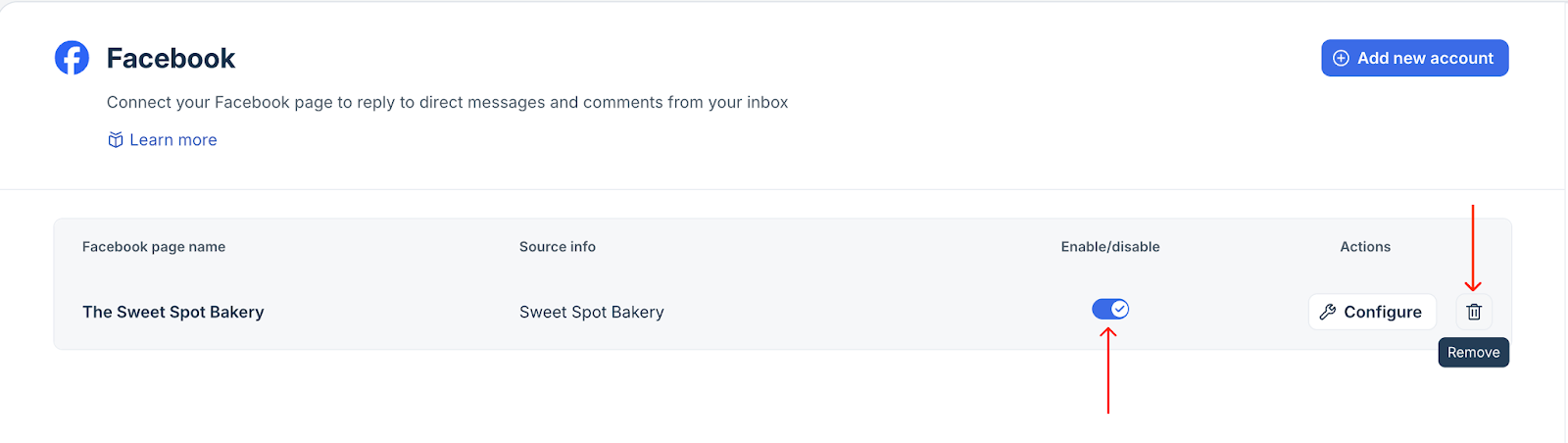
Use the enable/disable toggle in each Facebook page to temporarily stop ticket creation from the page. Re-enable anytime to resume syncing.
Delete / Disconnect Facebook pages
To disconnect a Facebook page, click the bin icon next to it. Deleting a page stops all data syncing, removes the current configuration, and unlinks it from the list. If you want to reconnect the page later, you will need to add it again.
Facebook Channel – Admin Configuration
When you click Configure on a connected Facebook page in Freshdesk, you are taken to three configuration sections: General info, Post & Comment settings, and Message settings. Each section controls how Facebook activity is converted into tickets and routed to agents.
General Info
This section enables admins to customize the appearance of the Facebook page within Freshdesk.
Source Info
- Set the display name of the Facebook Page.
- This name appears in ticket details as source info and can be used to filter tickets.
Link to a Product
- Map this Facebook page to a specific product within Freshdesk (If configured under Admin > Multiple Products)
- Helps categorize tickets by product for reporting, routing, and SLA setup.
Post & Comment Settings
All comments received on the connected Facebook page (organic and sponsored posts) can be automatically converted into tickets.
Choose what to convert into tickets
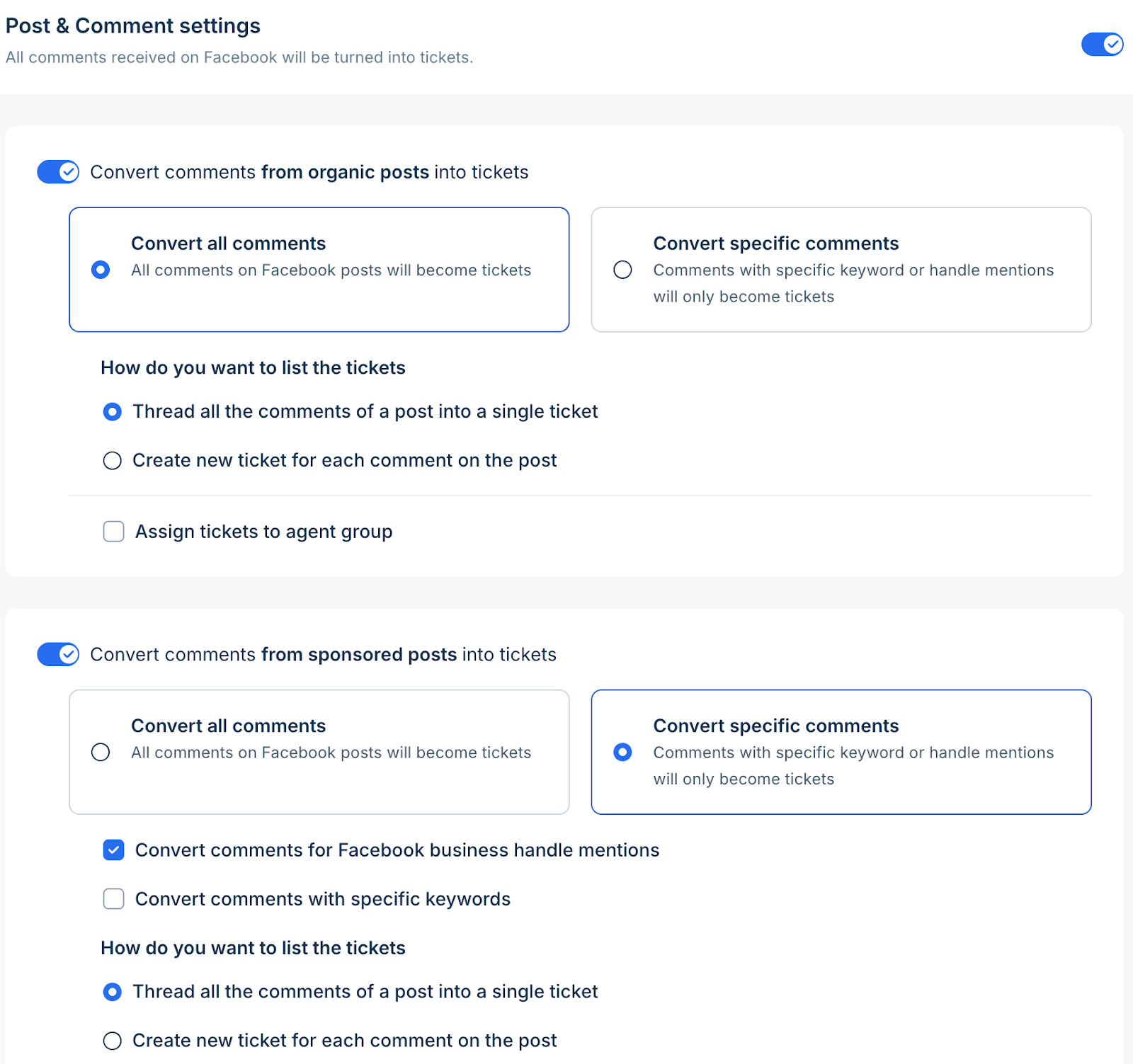
You can control what becomes a ticket and how comments should be organized for both organic and sponsored posts. You get two modes:
- Convert all comments - Every comment on the page becomes a ticket.
- Convert specific comments - Only comments containing:
- certain keywords
- And /or @handle mentions
Note: You need to enable at least one option.Set how tickets should be listed
Under the section How do you want to list the tickets, choose the structure for comments within tickets:
a) Thread all comments of a post into a single ticket
- All comments from the same post appear as replies inside one ticket.
- Useful for handling high-volume posts.
b) Create a new ticket for each comment
- Each comment becomes a separate ticket.
- Ideal when comments need individual follow-up.
Auto-assign comments to a group (optional)
Enable this option and select a group from the dropdown to which the ticket should be assigned.

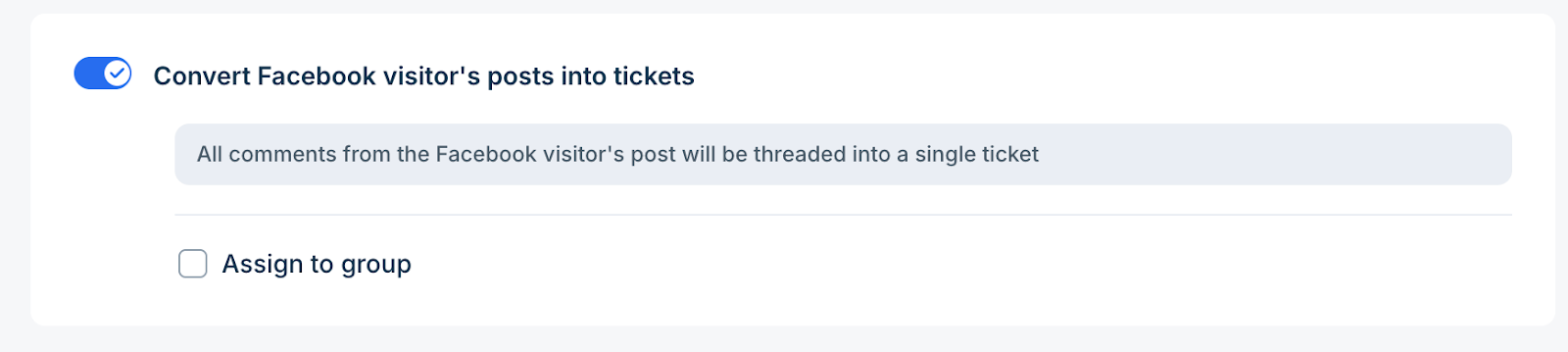
Convert Facebook Visitor Posts into Tickets
- You can automatically convert comments on posts created directly by Facebook visitors (i.e., posts made on your Page by customers) into support tickets.
- When enabled, all comments on the visitor’s post are threaded into a single ticket, helping agents manage the entire conversation in one place.
- You can optionally enable Assign to group to route these tickets to a specific team.
Message Settings
This section controls how Facebook Messages (DMs) convert into tickets and how conversations are automated or routed.
Convert Facebook Messages into tickets
- All messages received in the page’s inbox automatically generate a ticket.
Assign to Group (optional)
- Auto-route all Facebook Message tickets to a specific group. Learn more about configuring groups here.
Start with AI Agent
- Trigger an AI Agent to respond to the customer before handing over the conversation to a human agent.
- Click Preview and check how your Agent responds to queries.
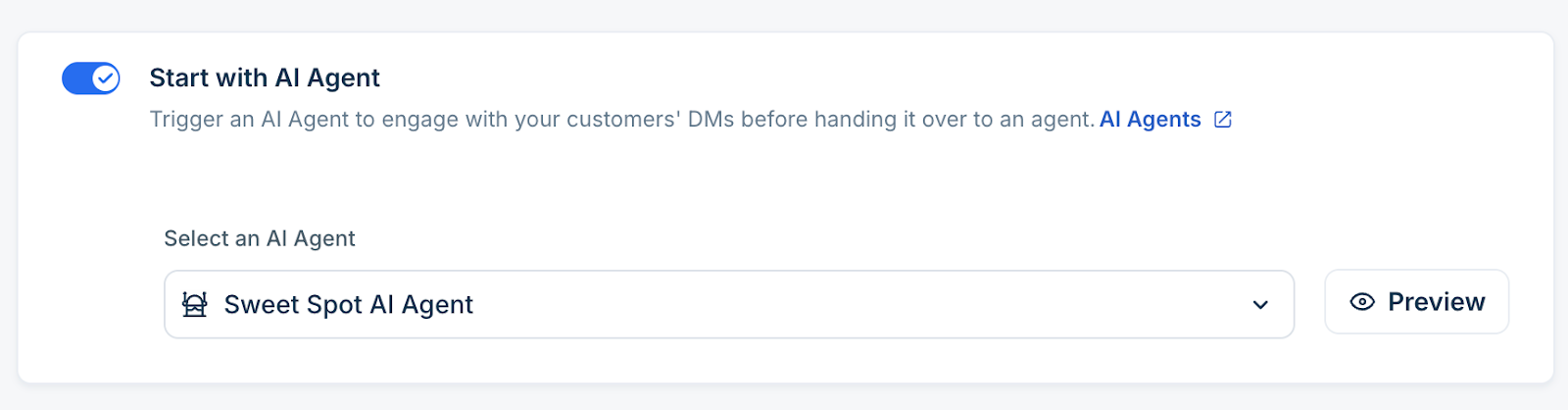
Learn more about AI Agents here. (Requires Freddy AI add-on)
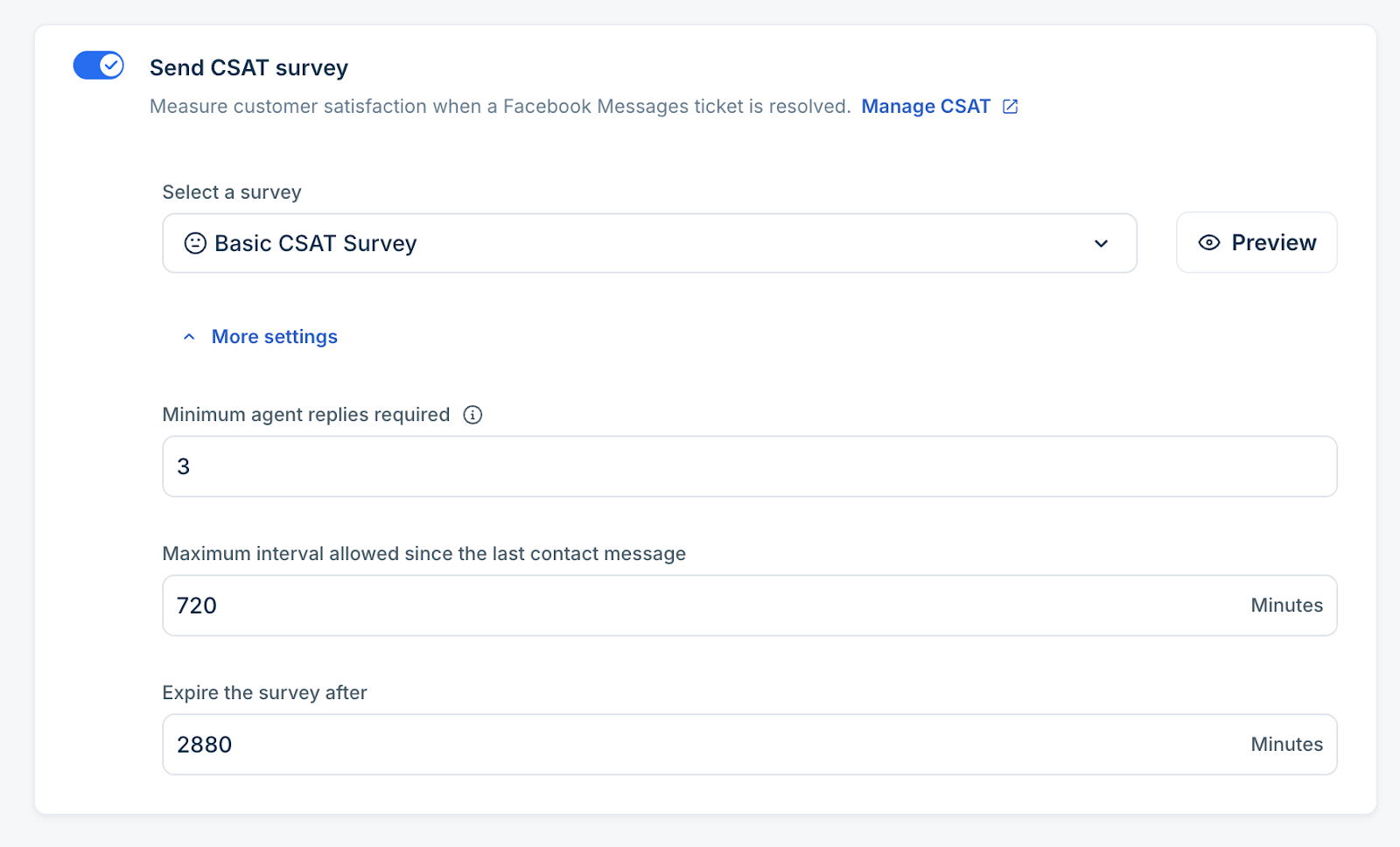
Send CSAT Survey
When enabled, Freshdesk automatically sends a CSAT survey after a Facebook Messages ticket is resolved. You can also configure the following settings for CSAT:
- Minimum agent replies
Survey is sent only if the defined value of agent responses is given. - Maximum interval since customer’s last message
If the customer has been inactive for more than the specified number of minutes, no survey is sent. - Survey expiry:
Customers have the specified number of minutes to answer before the link expires.
Learn more about configuring CSAT.
Threading Interval
- Controls how multiple messages from the same customer are grouped.
- Messages received within the chosen interval (days/hours/minutes) are threaded into the same ticket instead of creating new tickets.
- If Start with an AI agent is enabled, threading will not be applicable.
Note: AI agent, threading Interval, and CSAT are applicable only to Facebook Messages and not Facebook Comments.Limits and Behaviors
- Only Facebook business pages are supported (not personal profiles).
- Businesses can connect up to 50 pages in an account (1 account in trial is supported)
- Freshdesk does not support comments from live stream videos
- Deleted comments on Facebook will not delete corresponding Freshdesk tickets. This is a Meta API limitation.
- Editing a comment on Facebook does not sync updates into existing tickets. This is a Meta API limitation.
- Meta has a 7-day messaging window for Facebook Messages from the last end user message. If this window closes, the agent must wait for the end-user to initiate a new conversation to re-establish contact.
- Creation of tickets is restricted via the Public API. Updates for ticket properties and notes are supported.
Signup Date: Before December 2025
We’re moving forward with improvements to our Facebook integration to deliver a better agent and admin experience.
What’s changing
- New Facebook Page additions are no longer supported in the legacy Facebook module.
- To add new Facebook Pages, customers must delete their Pages from the legacy module and connect them using the new Facebook module.
- Existing integrations in the legacy Facebook module will continue to work for now, but the legacy module is planned for future deprecation.
What’s new in the Facebook module
- Simplified onboarding with guided setup and faster Facebook Page connections.
- Enhanced agent experience with comment handle tagging, a tree-structured comments view, and richer media support for faster, more personalized replies.
- Improved admin controls with better visibility and simpler configuration for managing Facebook DMs and comments.
- Reply to comments via DMs, enabling more contextual and seamless customer interactions.
Note: Click the Signup Date: After December 2025 tab to know more about the new Facebook module.
Applicable Plans
| Freshdesk | Free, Growth, Pro, Enterprise |
| Omnichannel | Growth Omnichannel, Pro Omnichannel, Enterprise Omnichannel |
| Freshdesk Omni (formerly CSS) | Growth, Pro, Enterprise |
| Freshdesk (previous plans) | Sprout, Blossom, Garden, Estate, Forest |
| Omnichannel (previous plans) | Estate Omnichannel, Forest Omnichannel |
You can integrate Facebook and add Facebook pages to your account to easily handle tickets.
Note: You can add multiple Facebook pages if you are on Growth+ plans.
How to add your Facebook page to Freshdesk
- Log in to your account as an Administrator.
- Go to Admin > Channels > Facebook.
- Click Add Page.
- It is important to note that you'll need to be an Admin of the Facebook page you are looking to integrate.

- After you log in to your Facebook account, complete the authorization (Sometimes when page settings change, you may have to reauthorize the Facebook page - learn more).
- You will then be redirected to your account and you can see the list of all the pages that are associated with your Facebook account.

- Use the checkbox to choose all the pages you want to integrate into Freshdesk (please note that you cannot add the pages that are already integrated with another Freshdesk account).
- Click Associate once you're done.
- Your Facebook page is now integrated into Freshdesk. By default, all visitor posts and visitor comments on company posts containing specific keywords (see below) are automatically converted into tickets. You can modify these settings on the Facebook Settings page.
- To add new Facebook pages, click on "New Page" then click on "Edit settings" by selecting the desired facebook account.
Facebook page settings
Clicking on the Edit button next to each integrated page takes you to the Facebook Settings page for that particular page. Here, you can modify the settings to choose which posts or messages get converted into tickets. You can even associate a page with a specific product if you support multiple products.

There are three ways in which Facebook posts or comments can get converted into tickets:
1. Do not convert
- You can choose not to pull in any of your Facebook posts or comments into Freshdesk, if you would like your support agents to focus only on visitors who engage directly via Facebook Messenger.
2. Convert only relevant posts
- This is the default option for automatic ticket conversion for Facebook. Most users looking for your support on Facebook are likely to post their queries on your page directly or comment on one of your company posts. You can choose to import all visitor posts as tickets automatically. To cancel out the noise in your visitor comments and ensure you are pulling in all relevant support queries, you can look for certain keywords and convert comments containing those keywords into individual tickets. We’ve set up a default list of keywords that you can tweak to suit your industry or business. You can also assign these tickets to a specific agent group, such as your social media team.
3. Convert everything
- With this option, all visitor posts on your wall, as well as company posts on which any visitor has commented, will be converted to tickets.
- Again, you can assign these tickets to a specific agent group. Your replies from the helpdesk to these tickets will get added as comments to the general thread on Facebook.
Threading structure of comments
- The comments added by the customers will appear like replies on the ticket.

- For visitor posts, your replies will get added as comments to the general thread. For visitor comments, your replies will appear as replies to the specific comment on Facebook.
- For company posts where all comments are added to the same ticket, we'll retain them and display them in the same thread.
- The agents can now pick a specific comment thread and add their response using the ‘Reply’ option just like the Facebook structure.
- To make it easier for the agents to scroll through the comments, there is a sorting option for comments inside the ticket thread. The agents can sort the comments by:
- Show latest updates first
- Show oldest comments first
- Show newest comments first
Converting messages to tickets
Any private chats that your visitors initiate on your Facebook page are pulled in automatically as tickets into your helpdesk. You can reply to these tickets directly from Freshdesk and they will reach the sender as messages. This will be the same as having a private conversation on Facebook Messenger with your customers.

You can ensure that multiple messages from a customer regarding a single issue are threaded together in one ticket by setting a ticket threading interval. For example, if you set the interval to 12 hours (using the drop down), the messages sent to you by the same user within 12 hours will generate a single ticket. A good practice is to identify the standard resolution time for your industry and set the interval accordingly. You can also assign these tickets to a specific agent group.
Converting ad comments into tickets
You can convert all the comments you get from the ad campaigns you run on Facebook, into tickets. You can reply to these tickets from within Freshdesk and these will be posted as comments in the appropriate thread. You can also configure to assign such tickets to a specific group.

You have now completed setting up Facebook for Freshdesk and can reply to all your Facebook posts and messages right from within your helpdesk. For more information on replying to Facebook messages from your helpdesk, click here. This feature is available only in the Estate plan and above.
Filter out unwanted comments while creating tickets
We're constantly optimizing Freshdesk to create tickets only for comments that need your attention and ignore unwanted, spam comments. You can choose to ignore comments that just have users tagged or comments with user tags followed by emojis or gifs(without actual texts), by clicking in the 'Filter comments that just have user mentions' option. This is applicable for page posts (posts created by the page) and ad posts.


