
 Community
 Video Library
 Agent Training
 Freshservice
 Freshdesk
 Freshchat
 Freshcaller
 Freshsales
 Freshteam
 Freshworks Neo
 Freshsurvey
 Growth
Freshdesk Omni allows you to connect your Instagram Business account and enables you to seamlessly engage with your customers. You can send and receive Instagram messages and respond to stories and comments directly on Freshdesk Omni. Additionally, deploy AI Agents to manage customer queries.
A few benefits of having the Instagram integration:
- Enjoy a hassle-free experience with no additional app downloads or integrations
- Be available for your customers on their channel of choice and provide conversational support experiences
- Improve productivity by empowering your agents to reply with context
- Deploy AI Agents and automate replies to support round-the-clock
Here’s a quick video on connecting your Instagram account with Freshdesk or Freshdesk Omni:
TABLE OF CONTENTS
- Prerequisites
- Connect Freshdesk Omni with Instagram
- Instagram list page - Available Actions
- Instagram Channel – Admin Configuration
- Post & Comment Settings
- Message Settings
- Start with AI Agent
- Send CSAT Survey
- Threading Interval
Prerequisites
Before you proceed, ensure that you meet the following requirements:
- You have administrator privileges for both Instagram and associated Facebook accounts
- You have an active Instagram business account linked to a Facebook page
- Log in to your Facebook Page > Open Linked Accounts > Select Instagram > Connect Account > Click Sign in. Your Instagram Business account will now be linked to your Facebook Page.
- Allow access to manage messages over API/Phone Device
To manage Instagram messages via API, enable the Connected Tools option to allow access to messages.
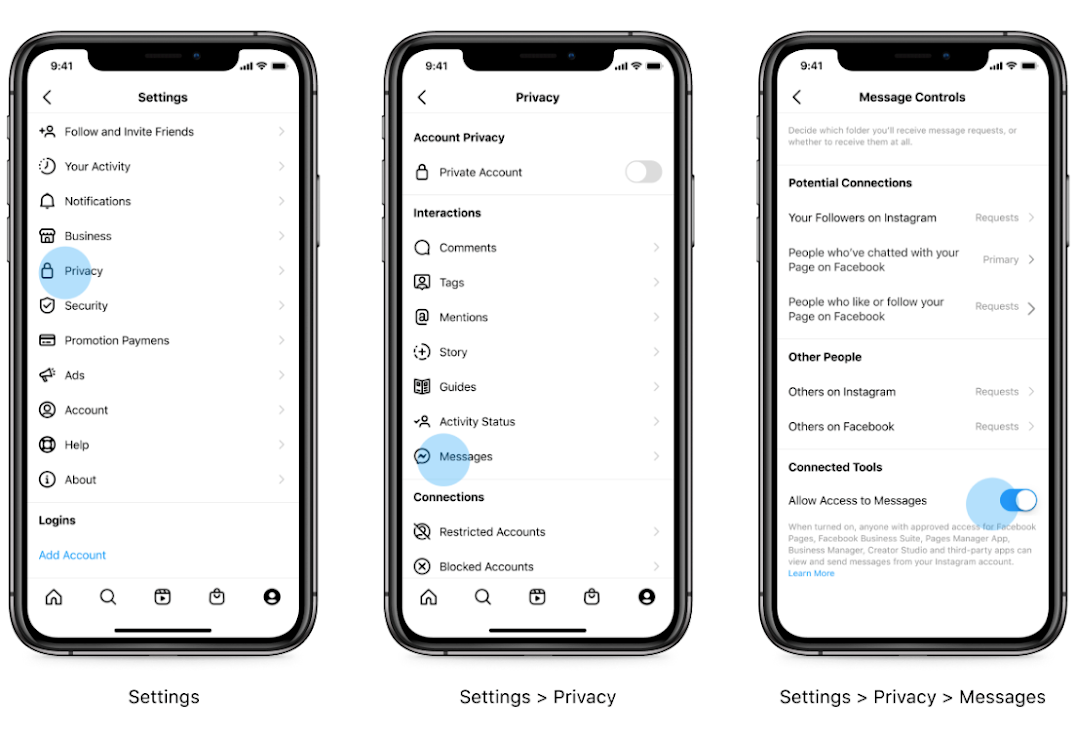
- Freshworks as the Primary receiver
Once you complete the Instagram setup, check if Freshworks is the primary receiver for your Instagram messages on your Facebook page.
To check this, go to Facebook Page Settings > Page Setup > Advanced Messaging > You should see the Freshworks Inc app with Instagram Permissions

Connect Freshdesk Omni with Instagram
- Log in as an Admin and go to Admin > Channels > Instagram
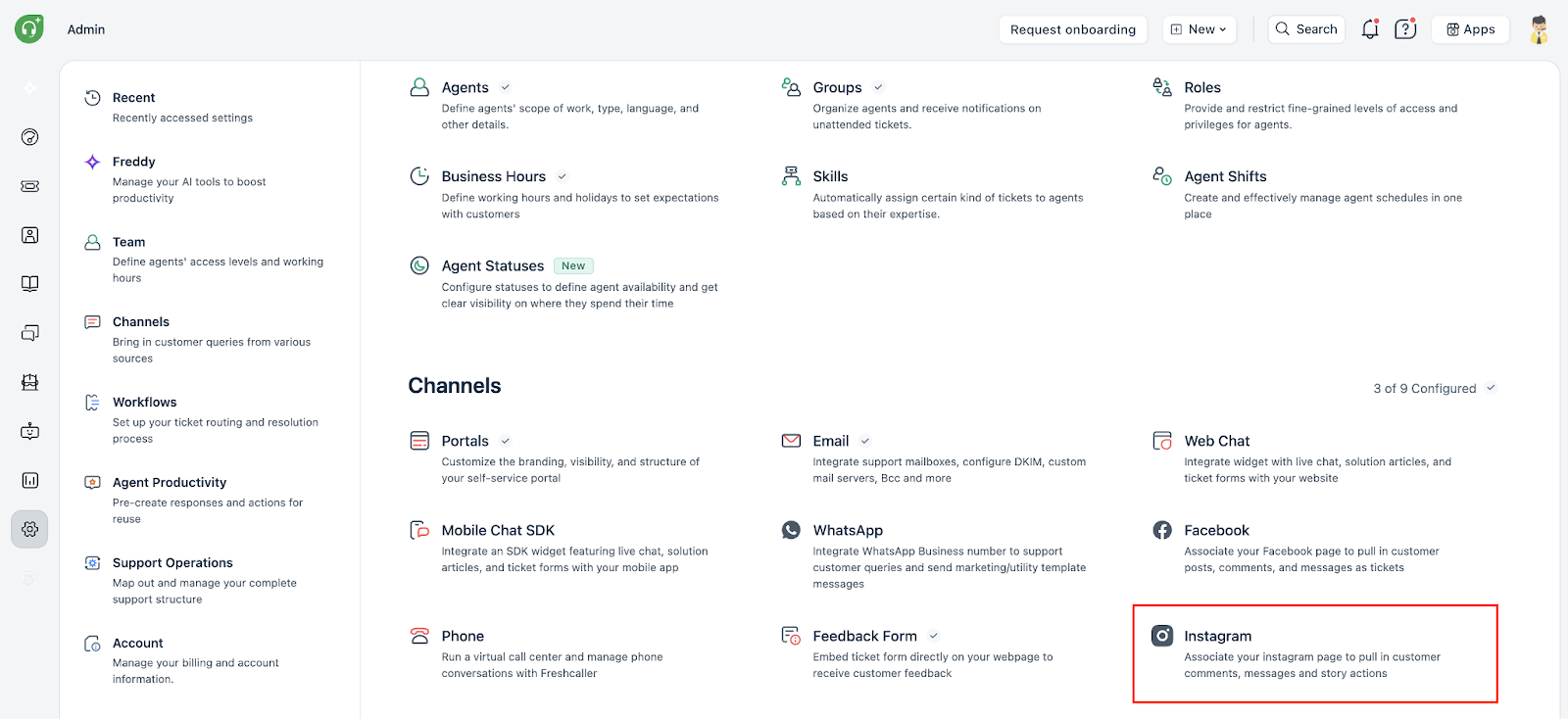
- Click Connect account
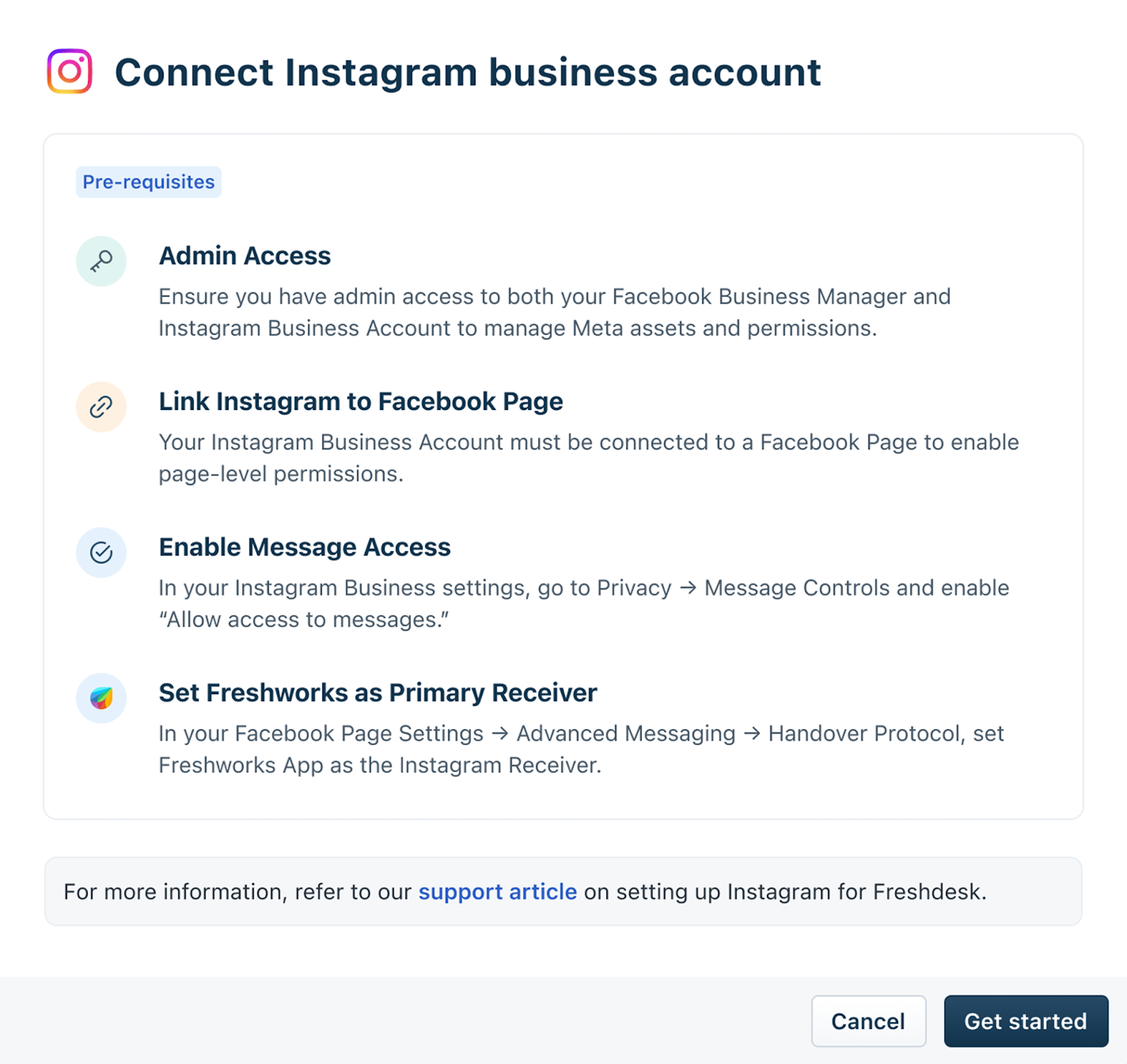
- In the pop-up that appears, click Get started
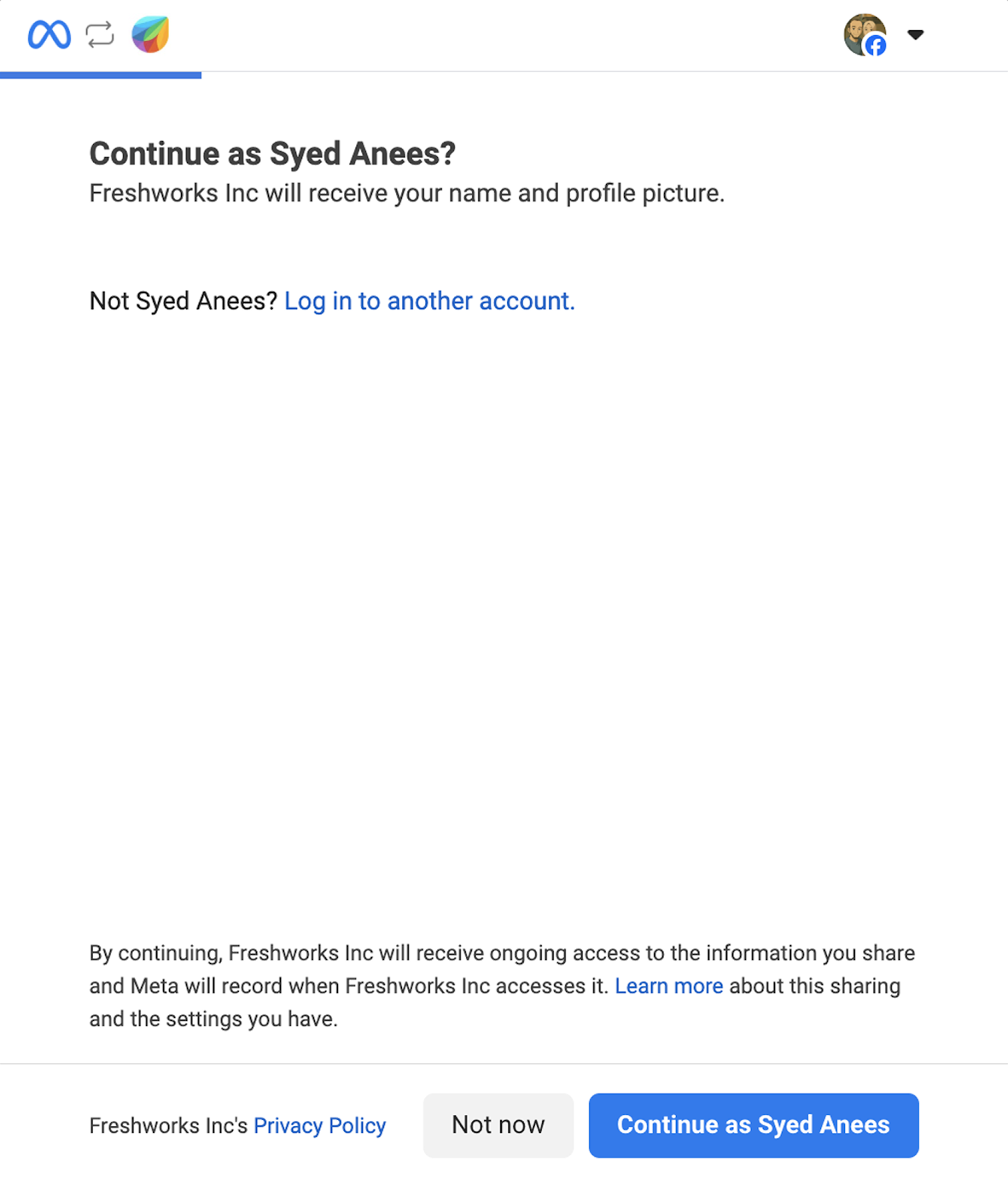
- You will be redirected to your Facebook account. If you are already logged into your account, you can continue using the same.
- Select the Instagram Business accounts you want to connect with Freshdesk Omni and click Continue. You can select up to 50 accounts.
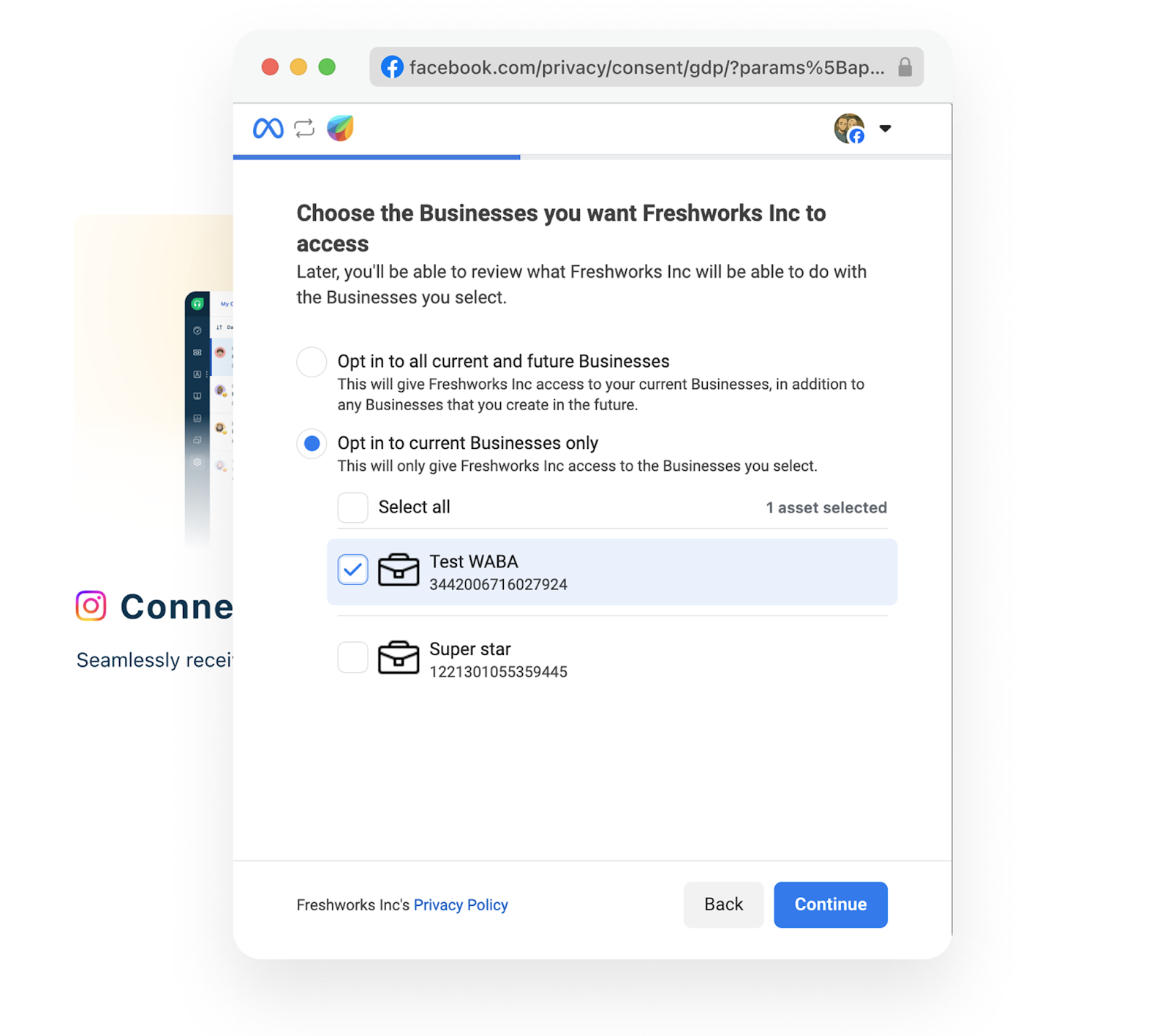
Note: The Instagram Business account must have a Facebook page connected to it.
- Choose the Business Pages (linked to the Instagram Business account) you want to connect with your Freshdesk Omni account and click Continue.
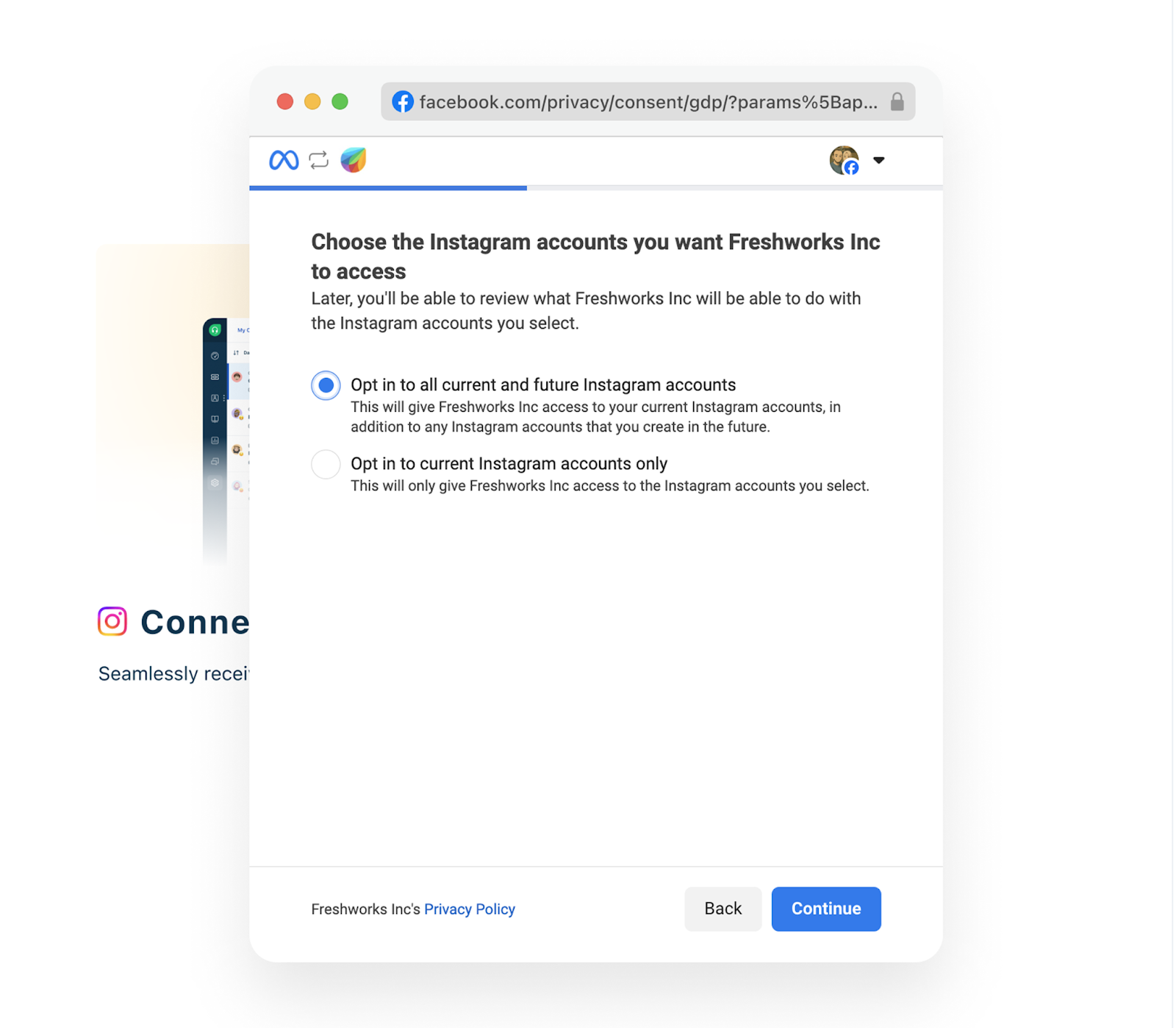
- Select the Instagram account you want to connect to and click Continue.
- Review the permissions required and click Continue.
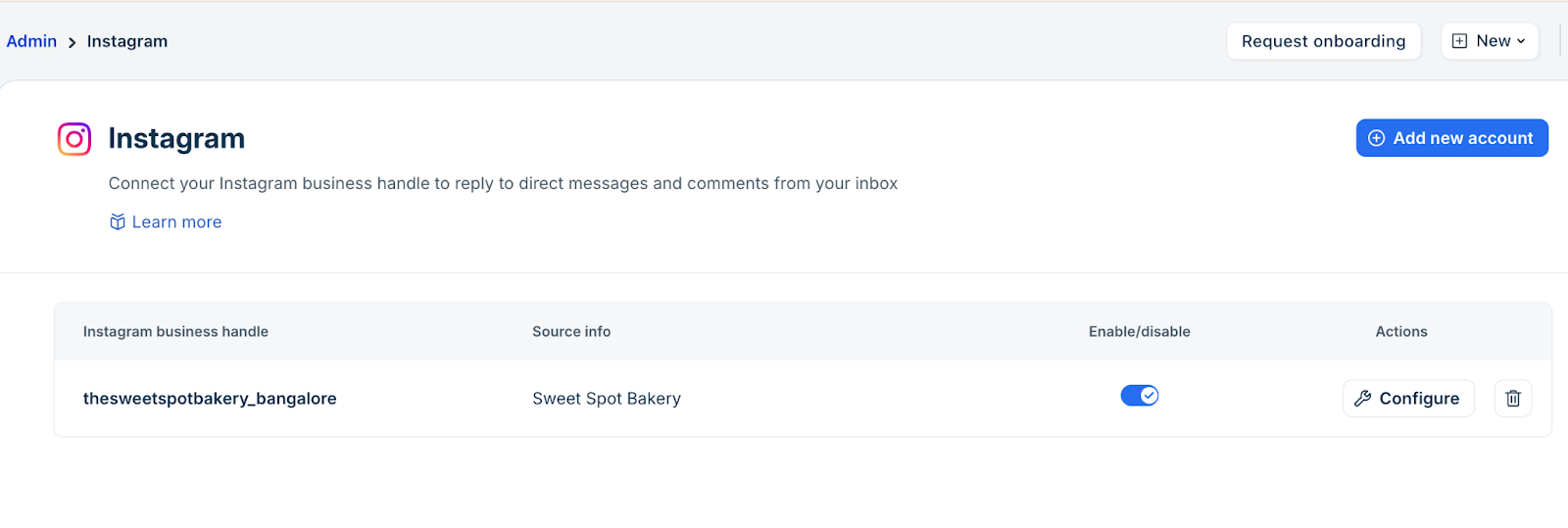
- On successful completion, you can see your Instagram handle connected to your account.
Instagram list page - Available Actions
After connecting, admins can manage pages from the Instagram list page using the following actions:
Search
Use the search bar at the top to easily search connected Instagram Pages by name.
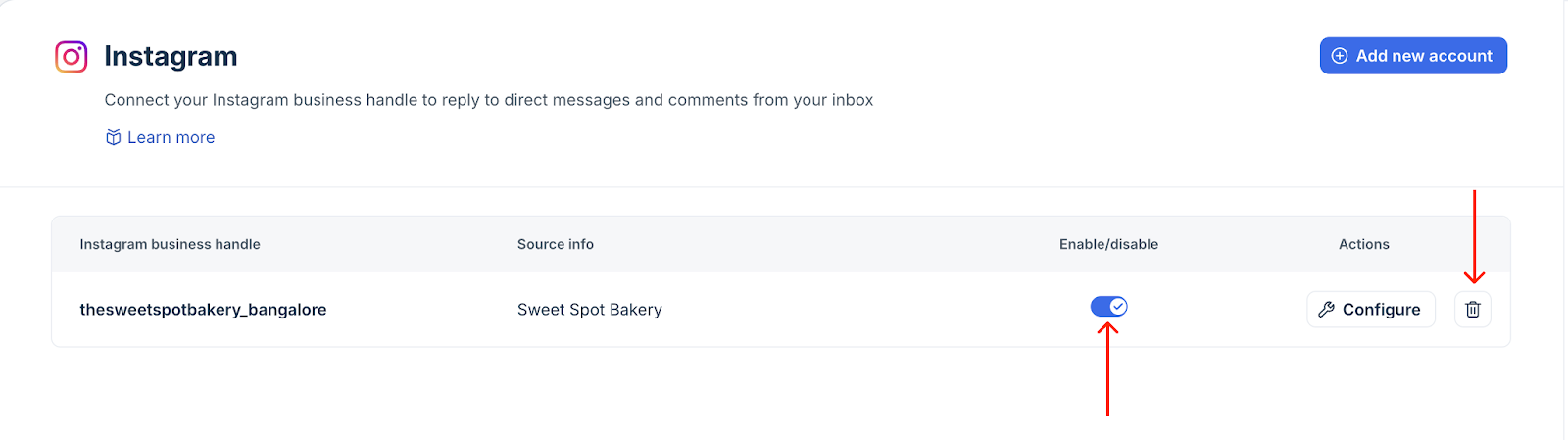
Enable / Disable Instagram pages
Use the enable/disable toggle in each Instagram page to temporarily stop ticket creation from the page. Re-enable anytime to resume syncing.
Delete / Disconnect Instagram pages
To disconnect an Instagram page, click the bin icon next to it. Deleting a page stops all data syncing, removes the current configuration, and unlinks it from the list. If you want to reconnect the page later, you will need to add it again.
Instagram Channel – Admin Configuration
When you click Configure on a connected Instagram page in Freshdesk, you are taken to three configuration sections: General info, Post & Comment settings, and Message settings. Each section controls how Instagram activity is converted into tickets and routed to agents.
General Info
This section enables admins to customize the appearance of the Instagram page within Freshdesk.
Source Info
- Set the display name of the Instagram Page.
- This name appears in ticket details as source info and can be used to filter tickets.
Link to a Product
- Map this Instagram page to a specific product within Freshdesk (If configured under Admin > Multiple Products)
- Helps categorize tickets by product for reporting, routing, and SLA setup.
Post & Comment Settings
All comments received on the connected Instagram page (organic and sponsored posts) can be automatically converted into tickets.
Choose what to convert into tickets
You can control what becomes a ticket and how comments should be organized for both organic and sponsored posts. You get two modes:
a) Convert all comments
- Every comment on the page becomes a ticket.
b) Convert specific comments
- Only comments containing:
- certain keywords
- And /or @handle mentions
Note: You need to enable at least one option.
Set how tickets should be listed
Under the section How do you want to list the tickets, choose the structure for comments within tickets:
a) Thread all comments of a post into a single ticket
- All comments from the same post appear as replies inside one ticket.
- Useful for handling high-volume posts.
b) Create a new ticket for each comment
- Each comment becomes a separate ticket.
- Ideal when comments need individual follow-up.
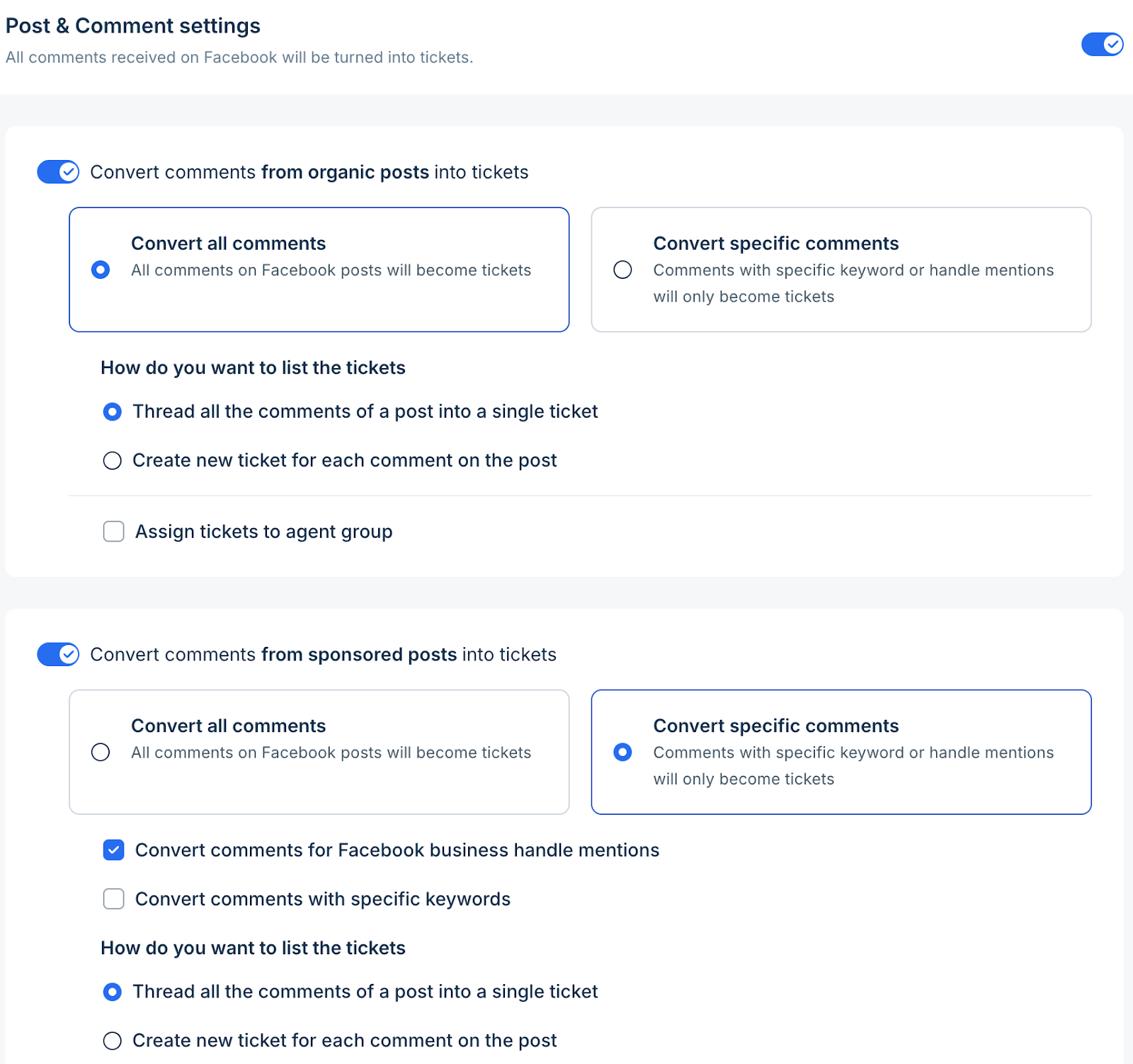
Auto-assign comments to a group (optional)
- Enable this option and select a group from the dropdown to which the ticket should be assigned.

Message Settings
Control how Instagram messages are converted into tickets in Freshdesk.
Convert messages into tickets
Choose which types of Instagram interactions should automatically create tickets:
- Direct messages – Every DM sent to your Instagram handle becomes a ticket.
- Story replies and reactions – Replies and emoji reactions to your stories are converted into tickets.
- Story mentions – When customers mention your handle in their stories, a ticket is created.
You can also optionally enable 'Assign to group,' which allows you to route all Instagram tickets to a specific support group for faster handling.
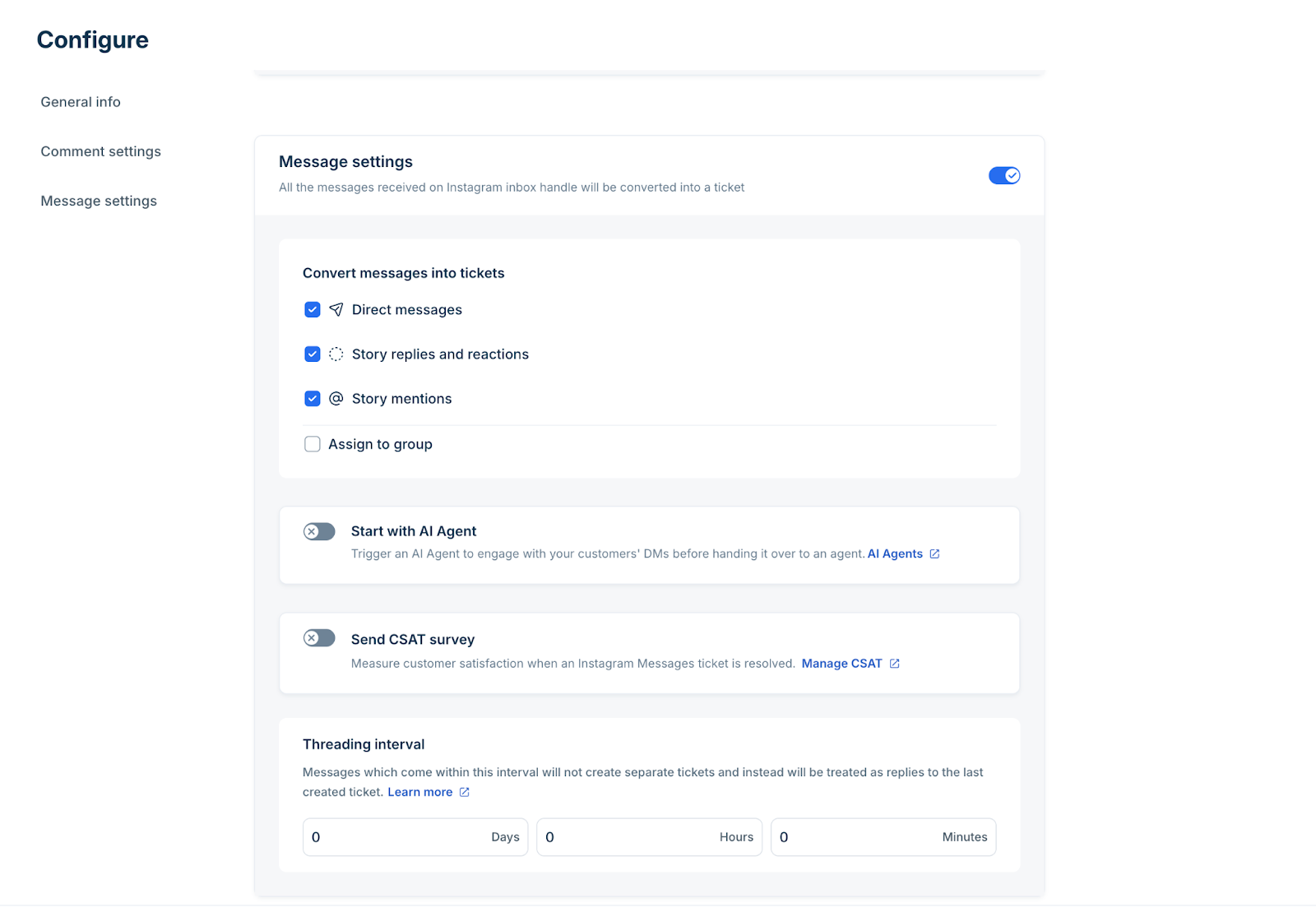
Note: Unchecking any option for a given message type will prevent those messages from creating tickets in Freshdesk Omni.
Start with AI Agent
- Trigger an AI Agent to respond to the customer before handing over the conversation to a human agent.
- Click Preview and check how your Agent responds to queries.
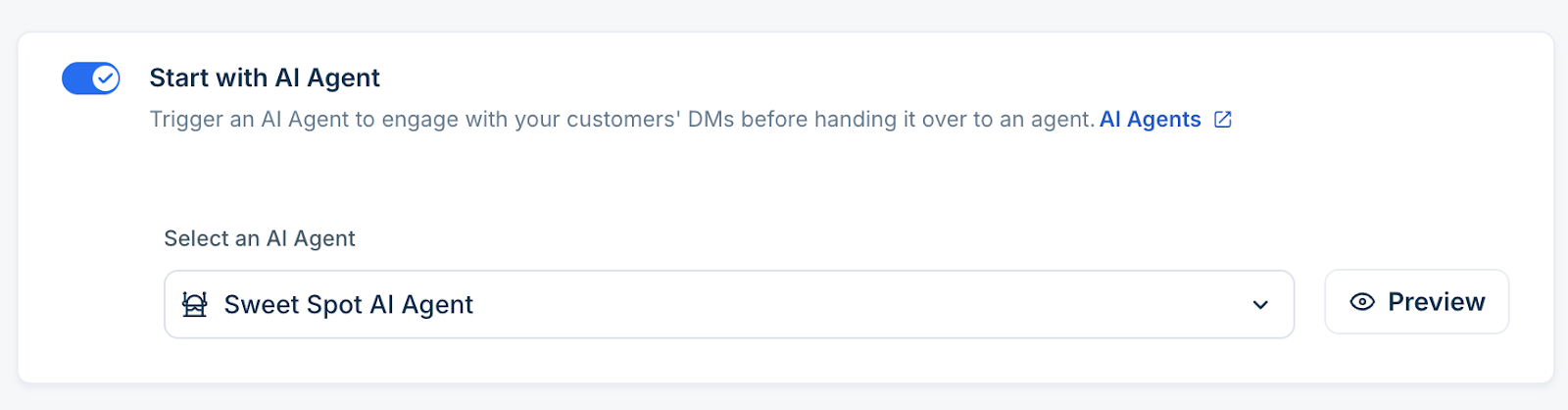
Learn more about AI Agents here. (Requires Freddy AI add-on)
Send CSAT Survey
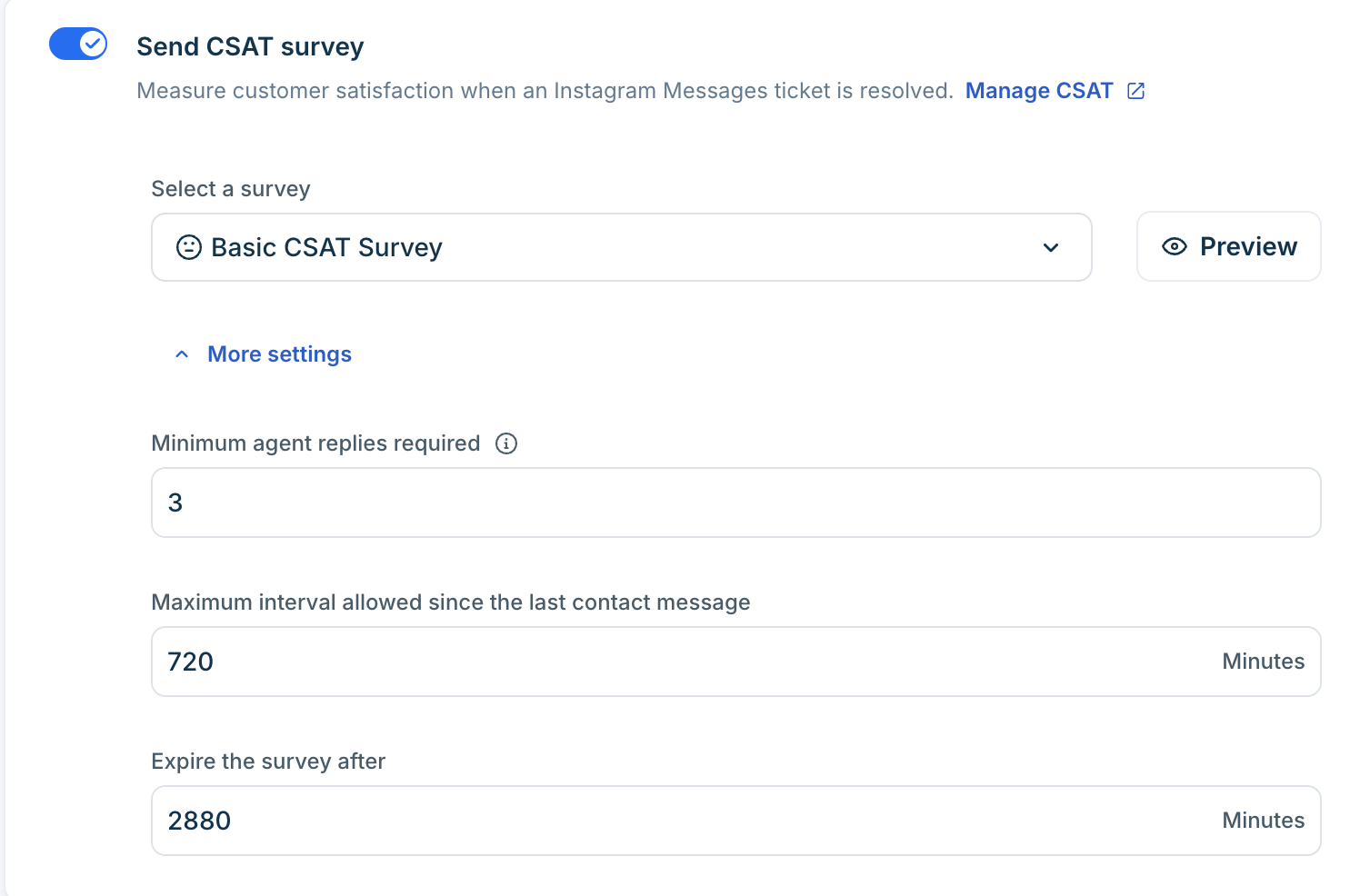
Enable and choose a survey to send. You can click on More Settings to define:
- Minimum messages required to trigger survey -The least number of messages exchanged in a conversation before a survey is sent.
- Time interval to trigger the survey after the last message - The waiting period after the final message before the survey is sent.
- Expiration time: The time limit for the customer to respond before the survey expires.
Learn more about configuring CSAT here.
Threading Interval
The threading interval determines how incoming Instagram messages are grouped.
How it works
Any message received within the configured interval is treated as part of the same ticket, rather than creating a new one.
Example
If you set the interval to:
- 1 hour: All messages received within 1 hour of the last agent/customer message stay in the same ticket.
- 0 hours / 0 minutes (default): Every new message creates a separate ticket.
- If Start with an AI agent is enabled, threading will not be applicable.
This helps prevent clutter and ensures long conversations remain grouped for better context.
Note: AI agent, threading Interval, and CSAT are applicable only to Instagram messages and not Instagram Comments.
Limits and Behaviors
- Only Instagram business accounts are supported (not personal profiles).
- Businesses can connect up to 50 handles in an account (1 account in trial is supported)
- Deleted comments on Instagram will not delete corresponding Freshdesk tickets. This is a Meta API limitation.
- Editing a comment on Instagram does not sync updates into existing tickets. This is a Meta API limitation.
- Message unsend is supported and would be reflected in the ticket but message edits are not supported
- Meta has a 7-day messaging window for Instagram Messages from the last end user message. If this window closes, the agent must wait for the end-user to initiate a new conversation to re-establish contact.
- Creation of tickets is restricted via the Public API. Updates for ticket properties and notes are supported.
